Start with the current resolution model
Zendesk changed its AI agent reporting in May 2026. The reporting announcement says the new AR% is:
(Contained + Verified) / (Unassisted + Assisted escalation + Contained + Verified) × 100
Before the change, only Verified outcomes were in the numerator. Now, both Contained and Verified outcomes count in AR%. Zendesk describes the statuses this way:
| Status | What it means for the customer | Usage implication |
|---|---|---|
| Unassisted | Small talk or a system reply, with no automation performed | Part of the AR% denominator |
| Assisted escalation | AI contributed before a human completed the work | Not charged to the allowance |
| Contained resolution | AI handled a meaningful request without a human or follow-up, but it did not pass Zendesk’s verification | Counts in AR%, not charged |
| Verified resolution | AI handled the request and Zendesk’s post-conversation evaluation confirmed a complete, satisfactory outcome | Counts in AR% and is billable |
Zendesk’s tier definition adds an important timing detail: email conversations end 72 hours after the last email; messaging ends after two hours by default, though Zendesk can increase it; voice ends at hangup. A result that looks final in a daily report may not have reached its final tier yet.
Know which screen answers which question
There are three useful places to investigate, and they are not interchangeable.
- AI agents analytics dashboard: use this for the overall mix of Unassisted, Assisted escalation, Contained, and Verified outcomes, and for trend comparisons. The May change also applies across messaging, email, and voice.
- Resolution usage dashboard: go to Admin Center > Account > Usage > Resolutions to monitor allowance consumption and contributing resolutions. Set the date range and view, then open a row’s options menu to view the related Support ticket or AI agent conversation.
- The ticket and conversation record: this is where you determine whether the tier tells the whole story. Support tickets expose Resolution type, Resolution tier, and Channel group; the event log and AI agent conversation overview show the path that produced the outcome.
The resolution usage guide also lets you export contributing resolutions to CSV. It includes ticket ID, tier, channel group, brand, timestamp, and cost for the selected range and view. Do not use that CSV alone to calculate AR%. It is an export of contributing resolutions, so it excludes Unassisted conversations even though Unassisted is in the AR% denominator. Use the dashboard for the rate; use the export to investigate the records that contributed to usage.
Turn a metric into an improvement decision
Run a regular review per customer job, not one undifferentiated AI scorecard. For example, separate password resets from order changes or cancellation requests. For each job, sample recent Verified, Contained, Assisted escalation, and failure cases.
| If you see | Check next | Likely change to test |
|---|---|---|
| Many Contained, few Verified | Conversation endings, feedback, and customer follow-ups | Make the answer clearer or add a safe follow-up step; do not assume containment proves satisfaction |
| High Assisted escalation | Handoff reason and the human’s first action | Improve routing, collect the missing detail, or deliberately keep the job human-owned |
| More Verified outcomes but complaints rise | Ticket content and customer feedback | Check whether the answer was technically complete but confusing, inappropriate, or hard to act on |
| Repeated action or source errors | Event log, integration result, and source permissions | Repair the source or action, then test the failure path before widening access |
This keeps the review honest. A Verified tier is strong evidence, but it is not a license to stop sampling. An escalation is not automatically bad either: a sensitive exception that reaches the right human with context may be the intended result.
Use eesel CLI to investigate one usage pattern
An analytics review should end with a specific change to investigate. If your Zendesk workflow uses an eesel teammate, a support lead can ask Claude Code, Codex, or Cursor to help inspect that teammate's recent work against a short, approved review brief. The eesel CLI operates the same teammate and workspace as the dashboard; a person or script can use it too.
For example, prepare a redacted brief with the date range, metric definition, sampled case references, and your own notes on why some delivery cases escalated. Get permission for that input and review connected action permissions before uploading or chatting. Do not upload raw customer exports by default.
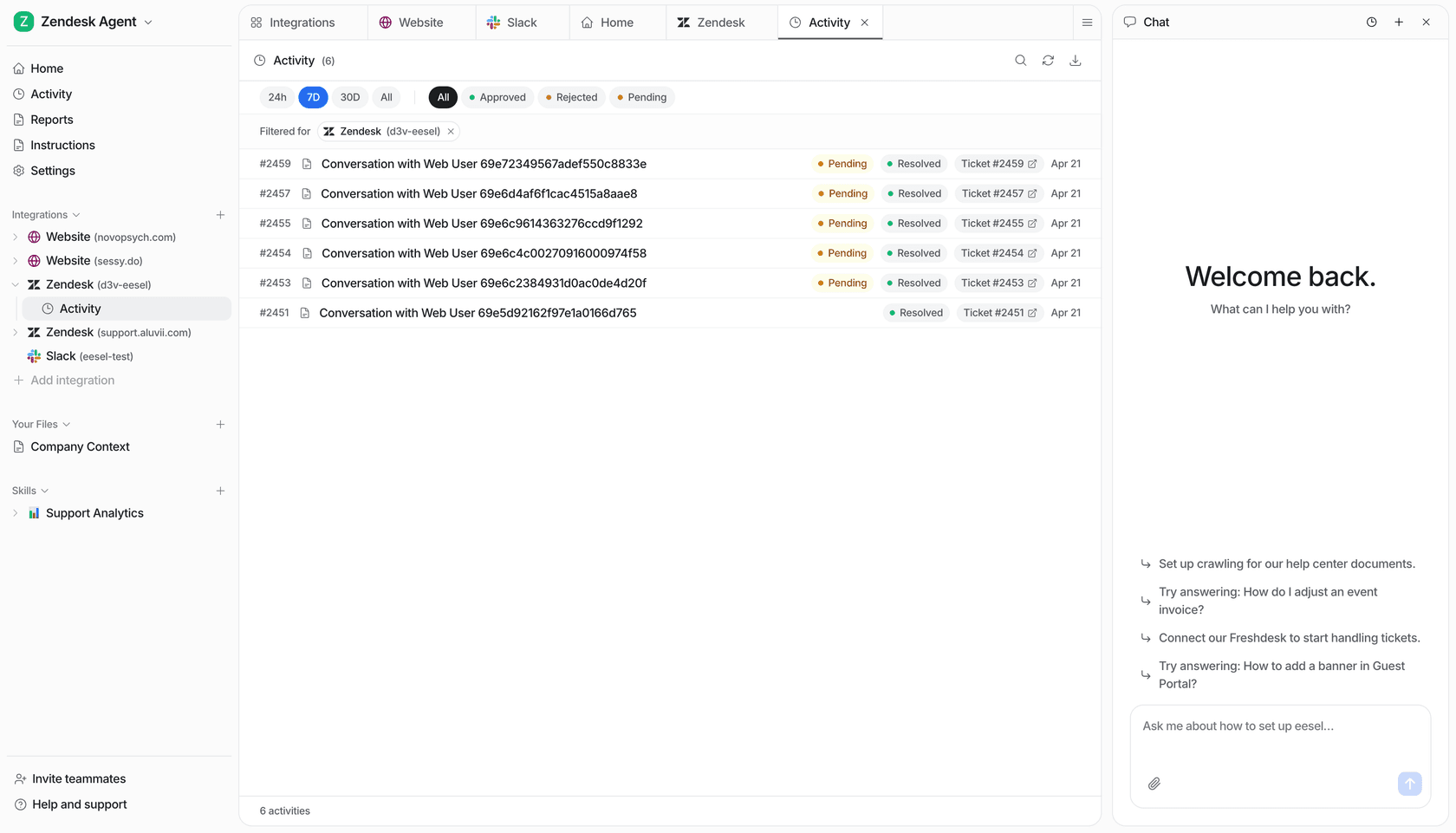
npx @eesel/cli --agent "Zendesk support" activity
npx @eesel/cli --agent "Zendesk support" files upload ./delivery-review-brief.md --dry-run
npx @eesel/cli --agent "Zendesk support" files upload ./delivery-review-brief.md
npx @eesel/cli --agent "Zendesk support" new --name "delivery-escalation-review"
npx @eesel/cli --agent "Zendesk support" chat "Review the uploaded brief. Separate supported observations from hypotheses about the escalations. Propose one source or instruction change to investigate, cite the evidence, and list the cases a human should verify. Do not change tickets or send messages."
Node.js 18.17+ is required. Commands return JSON, so a script can save the analysis beside the original brief and a coding agent can identify unsupported conclusions. Check the cited cases and arithmetic yourself: eesel does not independently verify Zendesk's billing classification, and a sample cannot establish a population-wide improvement.
If the review points to an unclear delivery exception, approve the exact source or instruction correction, apply it to the eesel teammate, and repeat the affected question before observing real outcomes. Upload and chat are real workspace operations, not an isolated simulation. A prompt is not a permission boundary; approval queues show only actions actually held for review.
Give a Zendesk teammate a job you can inspect
eesel is an AI helpdesk teammate for the Zendesk queue you already use. Give it one bounded job, the approved knowledge and actions for that job, and a clear route to the people who own exceptions. Then inspect the actual work in the dashboard or CLI before expanding it.
Frequently Asked Questions
What is Zendesk AI agent usage analytics?
It is the reporting and ticket-level evidence Zendesk provides for AI agent outcomes, including automated resolution tiers, contributing resolutions, and conversation details.
How is Zendesk AR% calculated after May 18, 2026?
AR% is (Contained + Verified) divided by (Unassisted + Assisted escalation + Contained + Verified), multiplied by 100.
Which Zendesk AI agent outcomes are billable?
Zendesk says only Verified resolutions consume the resolution allowance. Assisted escalations and Contained resolutions do not.
Where can I review a Zendesk AI resolution?
Use Admin Center > Account > Usage > Resolutions, then open the linked Support ticket or AI agent conversation to trace the outcome.
Can I calculate AR% from Zendesk’s resolution CSV?
No. The export contains contributing resolutions for the selected range and view, but excludes Unassisted conversations, which are part of the AR% denominator.