


Zendesk custom summaries let an admin write the headings, tone, length and exclusions for AI ticket and call summaries, then pick which style a ticket gets by its tags. They need the Copilot add-on ($50 per agent per month paid yearly) on a Professional plan or above, and they change how a summary is written, not what it reads. Agents still click to generate one. If you want a recap written as an internal note without anyone clicking, an AI layer such as eesel on Zendesk can do that job.
Under the hood, a summary is a model call with two separate dials: instructions (what to show) and sources (what to read). Most setup mistakes come from turning the wrong one. I'd start with one default summary and one tag-based summary, then test both on real tickets.
I looked at how this feature picks a summary and what it feeds the model, because Zendesk's AI features and the Copilot add-on are easier to tune once you know which dial does what. If you prefer to drive the other side from a terminal, the eesel CLI lets a coding agent such as Claude Code adjust a teammate's instructions and ask it test questions before anything goes live, while connecting the Zendesk account itself still needs an admin to approve it.
What are Zendesk custom summaries?
They are admin-defined instructions that replace Zendesk's one-size-fits-all summary. Zendesk announced them on October 28, 2026, with a rollout window that ended November 6, so most accounts should have the page by now. Before that, Zendesk used standard instructions for every ticket summary, highlighting the main issue, actions taken, outcome, status and explicitly stated next steps.
With a custom summary, an admin can set the headings, content, tone, format and length, and can apply different instructions to different teams. Zendesk's own example is a billing team that wants the billing issue and agreed follow-up, while a technical team wants troubleshooting steps and unresolved questions. The same instructions also apply to call summaries, which matters if you run Zendesk Talk.
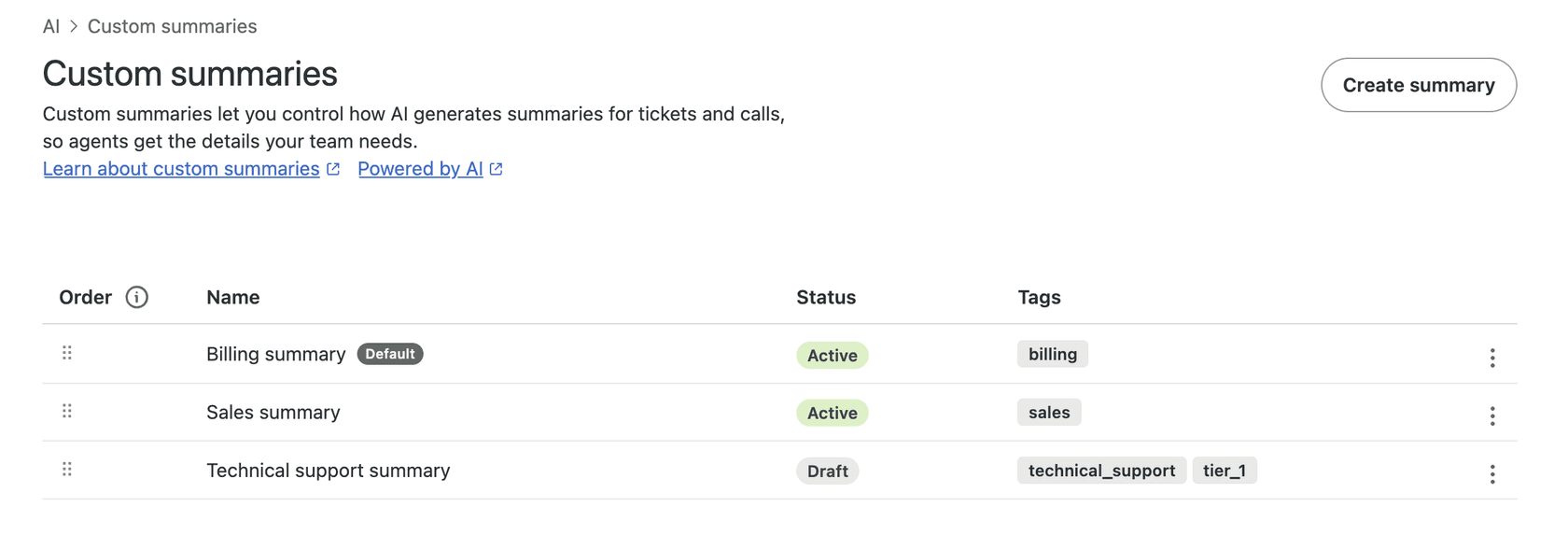
The Custom summaries page under AI in Admin Center, with status and tags per summary, as taken from Zendesk's help center.
How does Zendesk decide which summary a ticket gets?
By ticket tags, and the rule is stricter than most people assume. A custom summary must be active, and the ticket must carry every tag configured on it. A summary tagged billing and vip does not apply to a ticket that only has billing. This is the part that bites in practice, because ticket tags often arrive from triggers, ticket fields, calls or AI agents, so the summary a ticket gets depends on when those tags land. If you already use AI ticket classification to tag by topic, those tags can drive summary styles for free.
If several active summaries match, Zendesk uses the one with the most configured tags, and when counts tie, the one higher on the Custom summaries page. If none match, the default custom summary applies, and if you never set a default you get the standard summary.
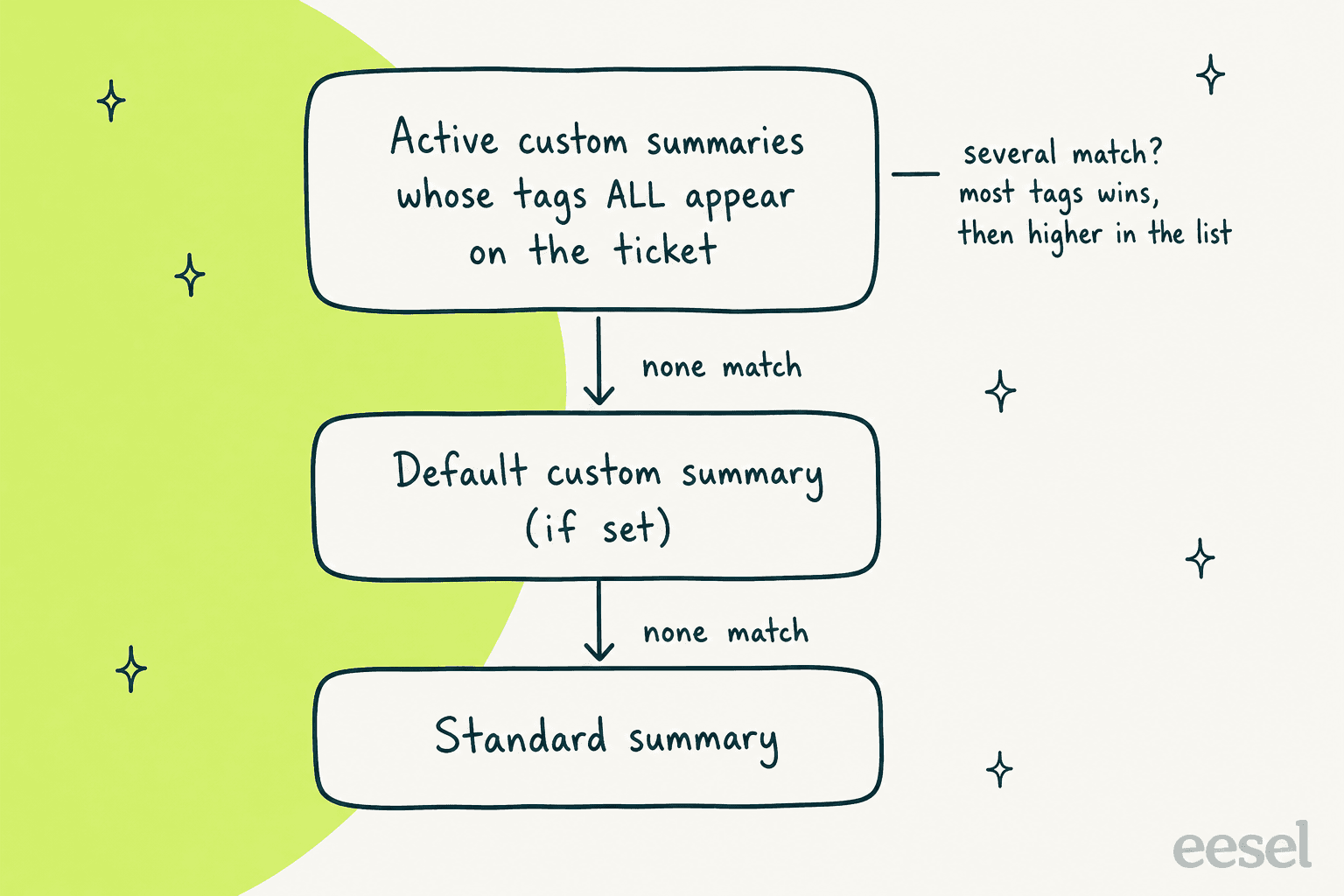
How a ticket falls through to a summary style, following the matching rules in Zendesk's documentation.
Try the rules on a small setup. Say you have three active summaries (VIP billing tagged billing and vip, Billing tagged billing, Sales tagged sales) in that order, plus a default called General recap. Pick a ticket below.
Which summary does this ticket get?
vip matches no tag-based summary and falls to the default.What does the summarizer actually read?
This is where the mechanism matters, and where I'd slow down before writing any instructions. Zendesk is explicit that custom summary instructions control which details appear and how they are presented, but they do not control which sources the AI uses. Sources are set in a separate place: by default a summary reads public comments, and with the Copilot add-on you can include internal notes under AI, Agent copilot, Suggestions, Ticket context. Side conversations are never included.
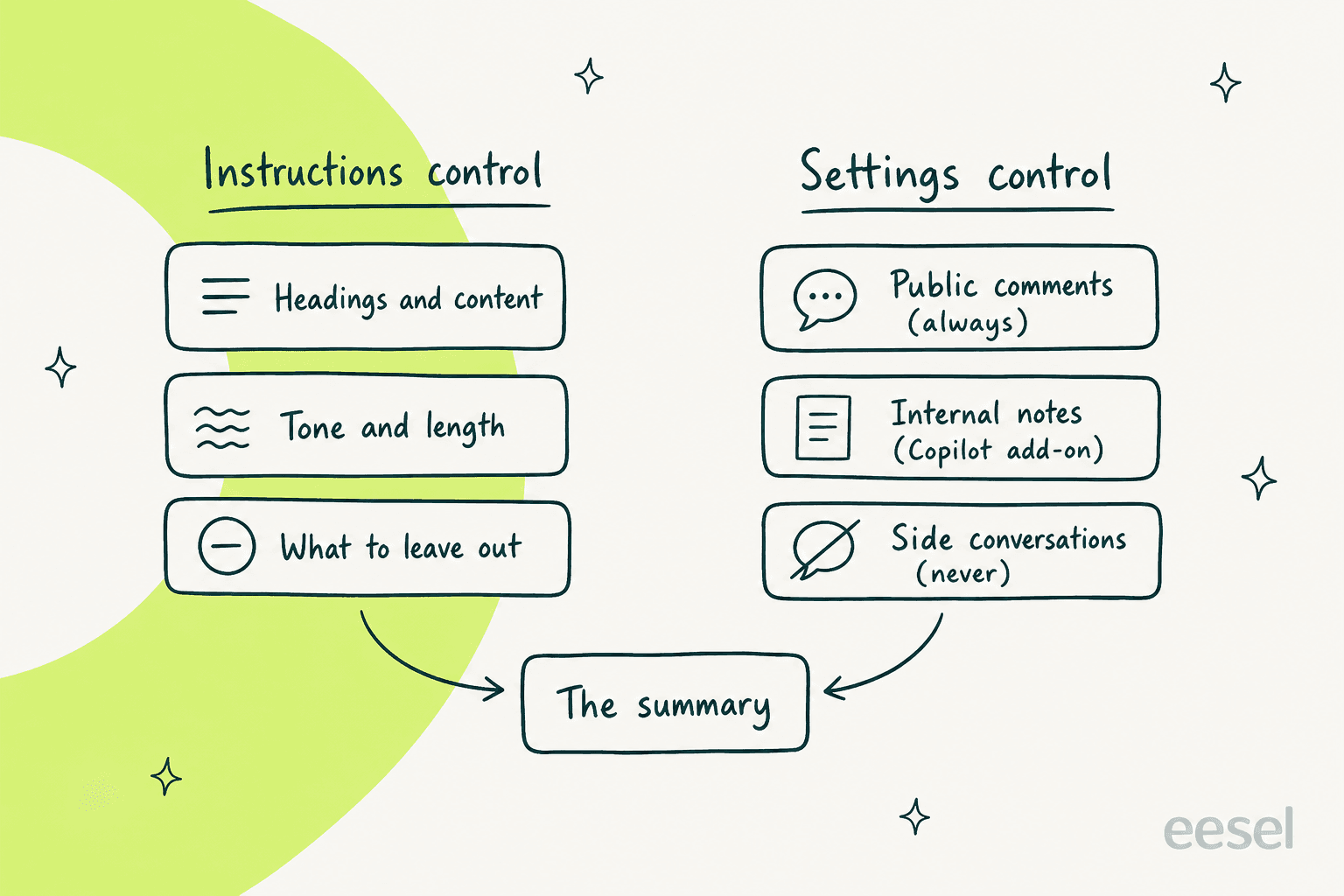
Writing "include the internal escalation notes" in an instruction cannot add a source the settings page excludes.
The practical consequence: if your billing team's handoffs live in internal notes, a perfect instruction still produces a thin summary until the internal-notes switch is on. Check that switch first.
How do I set up a custom summary?
You need admin access and ticket summarization turned on, which it is by default for all agent groups. Then follow Zendesk's steps:
- In Admin Center, click AI in the sidebar, then Custom summaries, then Custom summaries.
- Click Create custom summary.
- Switch on Activate custom summary, or leave it off to save a draft.
- Enter a Name such as Billing summary. A Description is optional.
- Write the Instructions the AI must follow.
- Select the Tags that decide which tickets use it. Tags are optional only on the default summary.
- Click Save, then use the options menu on a summary to Set as default, reorder, deactivate or delete it.
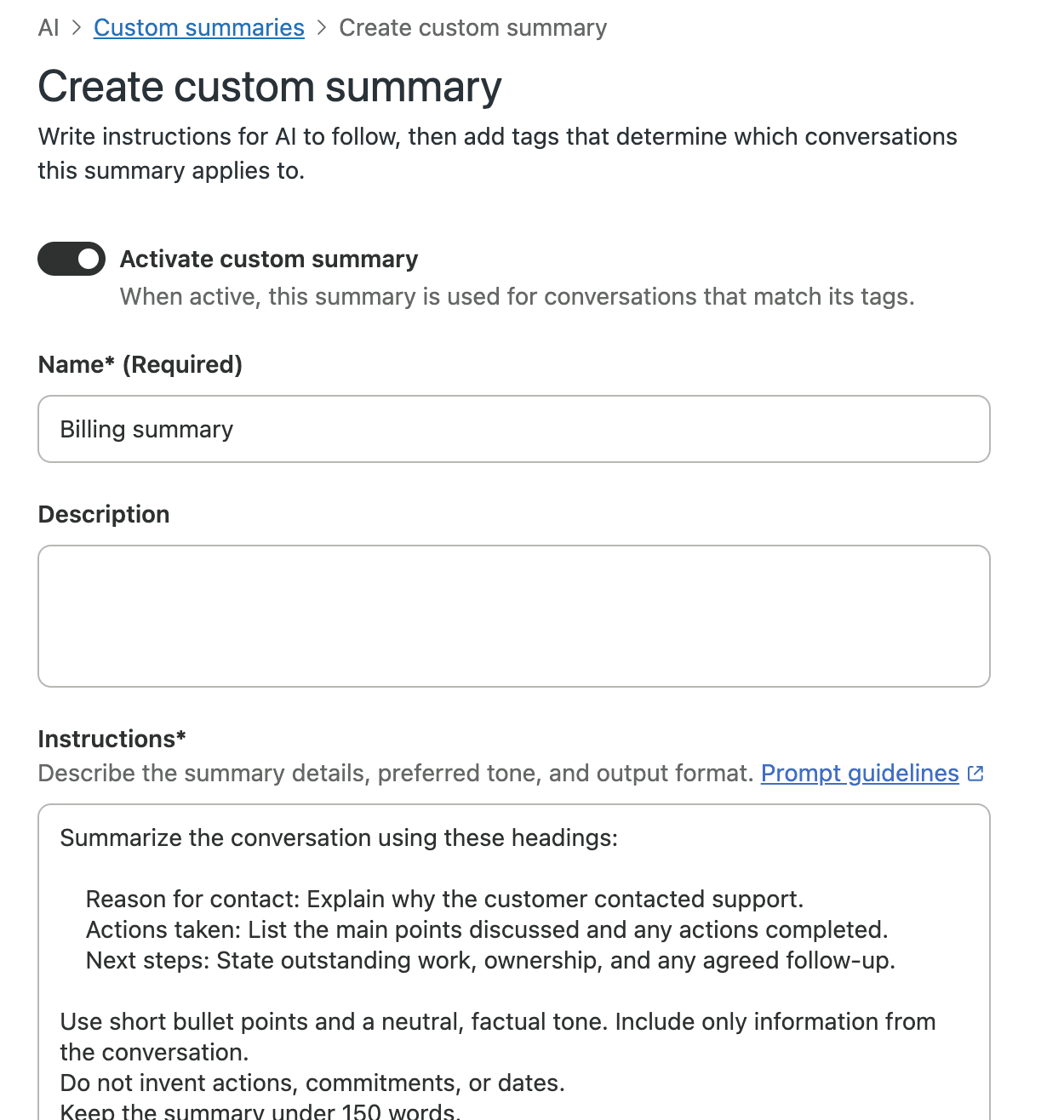
The create form, with Zendesk's example instructions filled in, as taken from Zendesk's help center.
Zendesk's guidance for the instructions box is to state the purpose, the sections and headings, the tone, any length or format limit, how to handle missing information, and consistent terminology. Its own example is short enough to copy: three headings (Reason for contact, Actions taken, Next steps), short bullets, a neutral factual tone, "include only information from the conversation", no invented actions, commitments or dates, and a cap of 150 words. Two lines earn their place. The "do not invent" line guards against a model filling a gap, and the missing-information line gives it a legal way to say "no next step was agreed" instead.
Zendesk also says custom summaries are for recapping a conversation, not for assessing agent performance, so don't try to turn one into a QA scorecard.
Which plan do I need, and what does it cost?
Custom summaries are labelled as a Copilot add-on feature. The base ticket summary is more generous: it is included on Suite and Support Professional and above with a monthly allowance of 5 uses per agent, pooled across agents and capped at 500 per account, where each manual summary generation counts as one use. Internal notes in summaries and stored summary fields also need the add-on. Prices below come from Zendesk's pricing page.
| Item | Price or limit | Notes |
|---|---|---|
| Suite Professional | $115 per agent per month, paid yearly | Includes basic ticket summaries |
| Copilot add-on | $50 per agent per month, paid yearly | Needed for custom summaries, internal notes in summaries, stored summary fields |
| Included allowance without add-on | 5 uses per agent per month, max 500 | Summaries share the pool with writing tools and merge suggestions |
| Example: 20 agents on Suite Professional | $2,300 per month | 20 x $115 |
| Same team with the add-on | $3,300 per month | $2,300 + 20 x $50 |
That example prices one team of 20 agents on annual billing; the allowance for the same team without the add-on is 100 uses a month, which a busy desk burns in days if agents refresh long threads.
What are the limits and the doc conflicts?
The limits I'd plan around, all from Zendesk's help center:
- Manual, not automatic. A summary is generated when an agent clicks View ticket summary, and it does not update itself. Refresh is limited to once every five minutes.
- Short by default. The standard summary is up to 100 words, and side conversations are excluded.
- Stored only on refresh. A summary is written to a ticket field when an agent manually refreshes it, and summaries are not stored for closed tickets.
- Tag-dependent. A late-arriving tag can mean the summary generated earlier used a different style.
I also hit four places where Zendesk's pages disagree or leave a gap, so verify these in your own account:
- Word cap. The ticket summary article says a summary is up to 100 words, while Zendesk's own custom example asks for under 150. The docs don't say whether the 100-word ceiling applies to custom summaries.
- Public comments only? The summary overview says summaries recap public comments, while another section of the same article says they recap public comments and internal notes. The internal-notes setting resolves it: notes only count when enabled.
- Closed tickets. The docs say summaries aren't stored for closed tickets, but a reader asked in the article comments why summaries appear in reports for closed tickets. I could not find a Zendesk answer.
- Plan wording. Custom summaries carry a Copilot add-on label, while the base feature is described as included on Professional plans with an allowance. Confirm in Admin Center which side of that line your account is on.
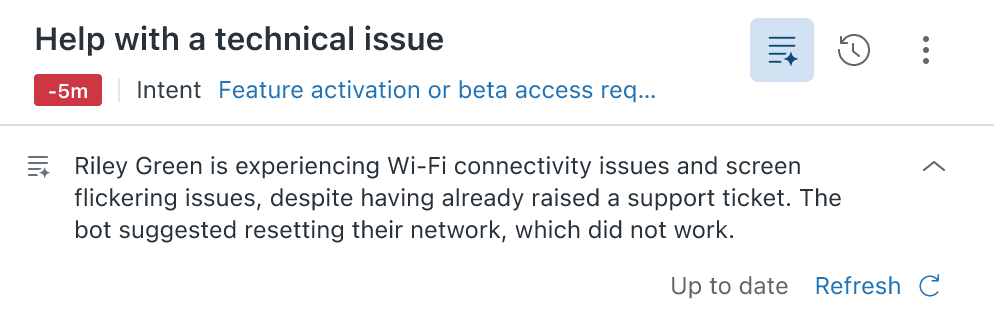
The summary banner an agent sees in a ticket, with the Refresh control, as taken from Zendesk's help center.
Where does the summary go after it is generated?
Into a ticket field, if the add-on is on and an agent refreshed it. From there Zendesk says you can use the summary in reports and dashboards, as a column in views, as a {{ticket.ticket_field_<field ID>}} placeholder in macros and business rules, and through the Ticket Fields API. That makes it useful beyond the banner: a product team can scan summaries in Explore without opening tickets, and a macro can drop a recap into a human handoff.
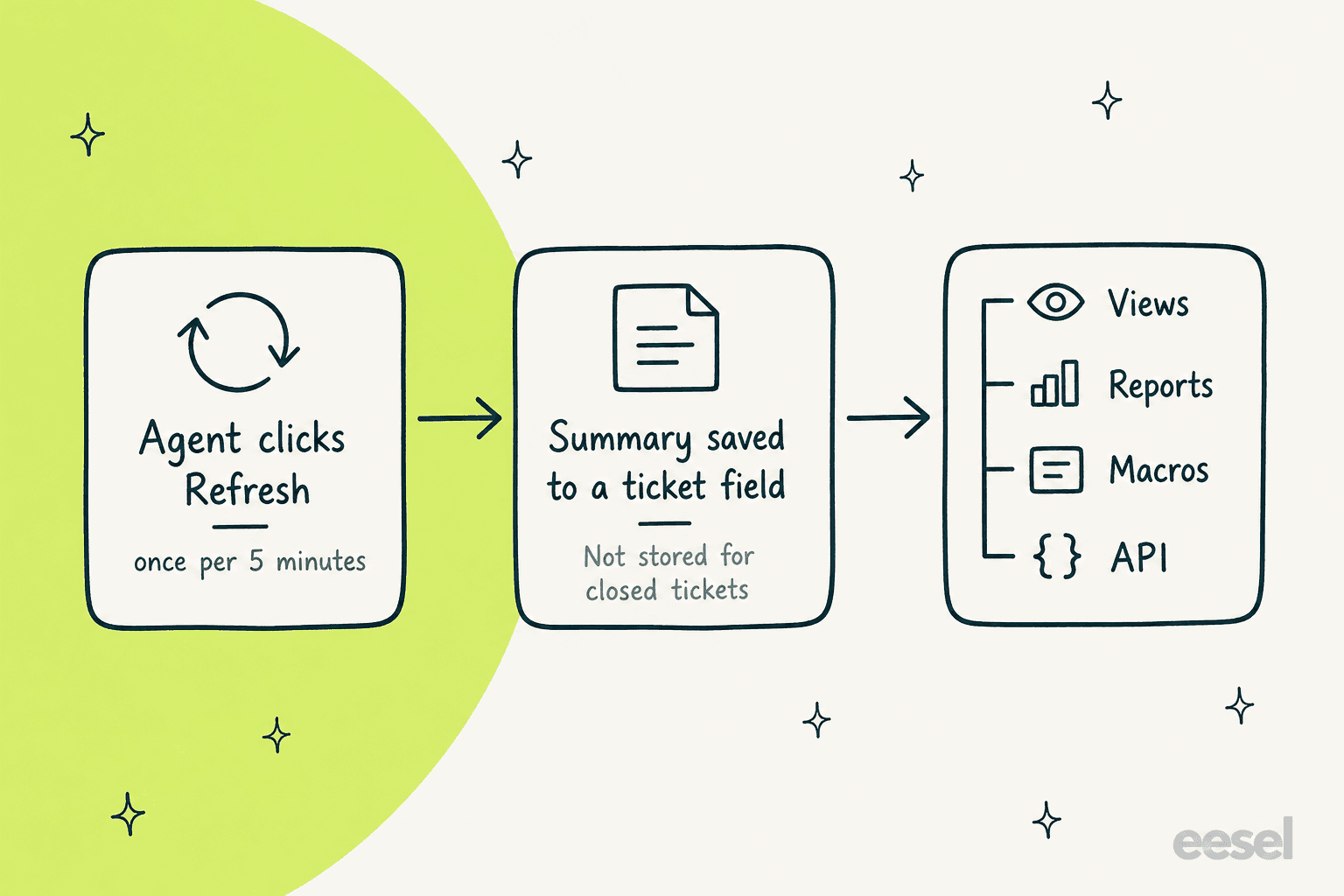
The summary only reaches reports and views after a human refreshes it, which is the weak link.
What do agents and buyers say?
The feature is new, so the evidence is the base summary. Capterra reviewers like it, and Zendesk's own community shows the same gap I keep seeing: summaries help when they exist, and they only exist when someone clicks.
"The Agent Copilot is a game-changer; it provides instant summaries of long ticket histories and suggests accurate responses, which significantly reduces the cognitive load on our team."

"This feature will be most helpful when the AI auto-generates the summary (not the current manual method)."
Custom summaries fix the format half of that complaint. The click half is untouched.
When is an AI layer like eesel the better summary source?
When you want the recap to exist before anyone looks. eesel works as an AI helpdesk teammate on top of Zendesk, so it can read the whole ticket, the help center and past tickets, and leave its recap as an internal note. Adverscale runs one Zendesk for several passport application brands, and in the month of 8 August to 8 September 2026 its eesel teammate worked about 2,400 tickets and left about 2,700 internal notes for the team: a recap on every ticket, plus a handoff note where a person was needed.
Here is how the two approaches compare, fairly:
| Question | Zendesk custom summaries | eesel teammate on Zendesk |
|---|---|---|
| How is it triggered? | An agent clicks View ticket summary | Agents mention it in a note, or it runs on new tickets |
| What controls the style? | Instructions per tag set, up to your tag design | Plain-language instructions the support owner edits |
| What does it read? | Public comments, plus internal notes if enabled | The ticket plus connected knowledge and past tickets |
| Where does the output live? | Banner and a ticket field | An internal note on the ticket |
| Native reporting fields? | Yes, with the add-on | No, a note is not a field |
| Cost | $50 per agent per month on top of the plan | Priced separately from Zendesk |
Zendesk wins where you need the summary as structured data inside Explore, views and macros, and where an admin wants one native switch rather than a second product. eesel wins where nobody has time to click, or where the useful recap needs knowledge that isn't in the thread, such as a policy or an earlier ticket. The pattern is not Zendesk-specific: Freshdesk's Freddy and Front both ship click-to-summarize too, and my explainer on AI ticket summarization covers what to look for. They also stack: the native summary banner stays for agents, while the teammate handles the written handoffs.
If you're weighing this against Zendesk's wider AI stack, my notes on Zendesk AI agent versus Copilot and Zendesk AI pricing cover the other half, and the trade-off between an AI layer and built-in helpdesk AI is covered separately.
Try eesel on your Zendesk tickets
If your desk spends minutes per ticket re-reading threads, a Zendesk summary that writes itself as an internal note is the fastest win I know, and it pairs with the AI helpdesk integration you may already be evaluating. eesel joins your Zendesk like a new hire: it reads your macros and help center, drafts or recaps in your voice, and hands off with a note, so your team keeps the human decisions. Try eesel free, or see the Zendesk integration.
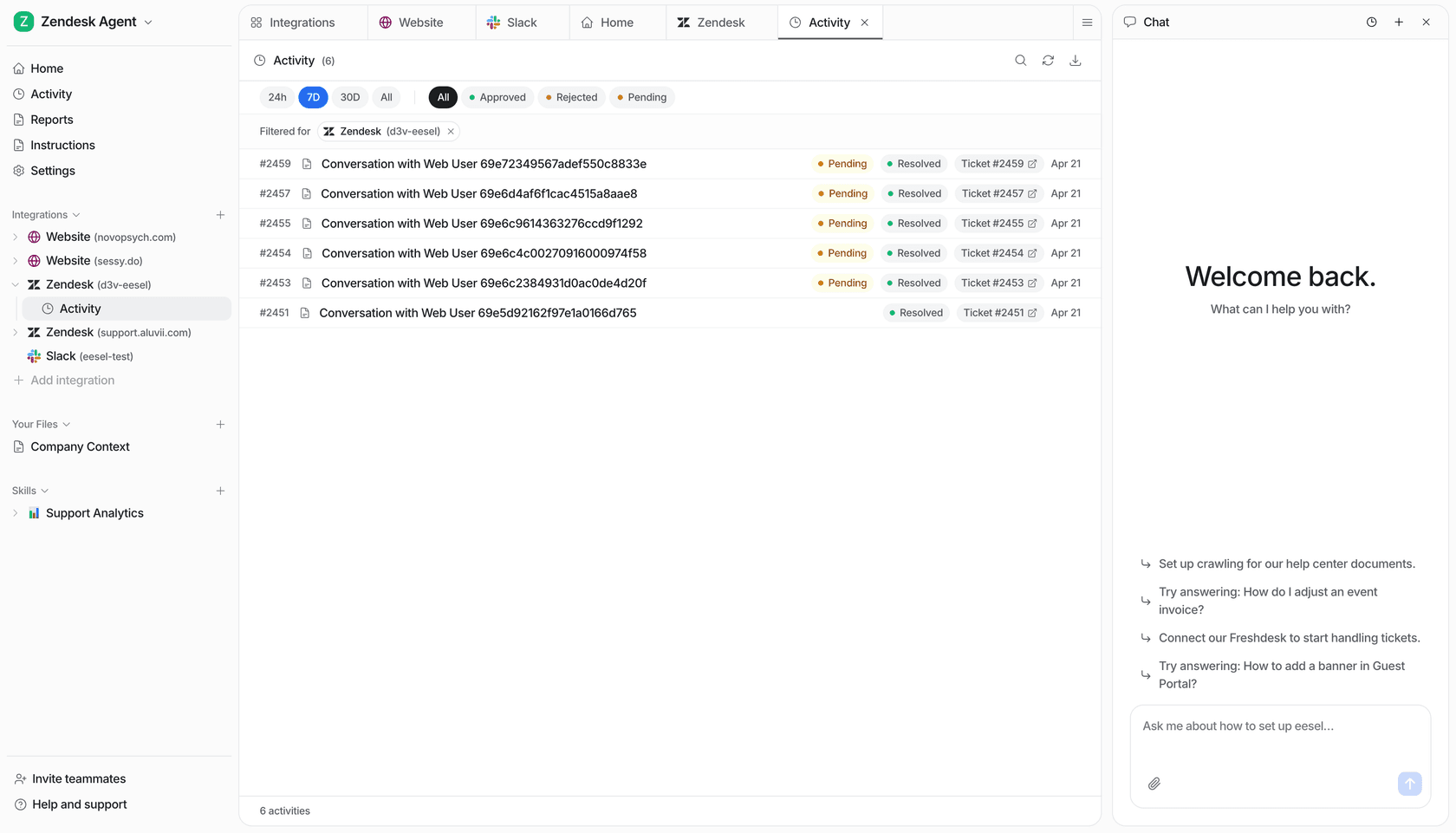
eesel's Activity view listing Zendesk conversations and their status, from eesel's product.
Frequently asked questions
What are Zendesk custom summaries?
They are admin-written instructions that set the headings, tone, format and length of AI ticket and call summaries, applied by ticket tag. They sit on top of the standard Zendesk ticket summary and are part of Zendesk Copilot. Zendesk announced them on October 28, 2026.
Do Zendesk custom summaries need the Copilot add-on?
Zendesk labels the feature as a Copilot add-on feature, which is $50 per agent per month paid yearly on Professional plans and above. The basic summary comes with an allowance of 5 uses per agent per month. See my notes on Zendesk AI pricing and the Copilot add-on for the full picture.
How do I create a custom summary in Zendesk?
In Admin Center, go to AI, then Custom summaries, then Create custom summary. Name it, write the instructions, choose the tags, switch on Activate and save. Only admins can do this, so check roles and permissions first.
How does Zendesk pick which custom summary a ticket gets?
A ticket gets an active summary only if it carries every tag on that summary. With several matches, the summary with the most tags wins, then the one higher in the list, then the default, then the standard summary. Tags often come from Zendesk triggers, so audit those first.
Can Zendesk custom summaries include internal notes?
Not through the instructions. Sources are a separate setting under AI, Agent copilot, Suggestions, and including internal notes needs the Copilot add-on. If your team writes escalation detail in internal notes, turn that setting on before tuning the wording.
Does Zendesk generate ticket summaries automatically?
No. A summary is generated when an agent clicks View ticket summary, refreshes at most every five minutes, and is saved to a field only on a manual refresh. For summaries that appear on their own, look at an AI layer, such as the AI layer approach or agent assist tools.
Can eesel write ticket summaries in Zendesk?
Yes, as an internal note. eesel works as an AI helpdesk teammate on Zendesk, and Adverscale had it leave about 2,700 internal notes in a month. It does not create a native summary field, so keep Zendesk's summary for reporting. See the Zendesk integration.