If you've ever felt lost trying to find a specific setting in Zendesk, you're not alone. The Zendesk Admin Center is the central hub where administrators control every aspect of their support operation, but navigating it efficiently takes some practice.
Back in 2022, Zendesk consolidated settings from the legacy Support interface into the Admin Center we know today. The redesign moved things around, introduced accordion-style menus, and separated customer-facing settings from internal staff management. For admins who had muscle memory from the old layout, it was an adjustment. But once you understand the structure, the Admin Center is actually more logical and powerful than its predecessor.
In this guide, we'll walk through everything you need to know about the Zendesk Admin Center in 2026. From basic navigation to advanced AI configuration, you'll learn how to manage your support operation efficiently. And if you're looking to extend Zendesk's capabilities with AI, we'll show you how tools like eesel AI integrate seamlessly with your existing setup.
What is the Zendesk Admin Center?
The Zendesk Admin Center is your centralized command center for managing all Zendesk products. Think of it as the backstage area where you configure everything your customers and agents experience on the front end.
Unlike the agent interface (Zendesk Support), which is designed for handling tickets and customer conversations, the Admin Center is strictly for administrators. Regular agents can't access it, and it doesn't contain any customer data. This separation keeps sensitive configuration settings secure while ensuring agents focus on what they do best: helping customers.
The Admin Center manages settings across the entire Zendesk ecosystem:
- Zendesk Support - Ticket management, views, macros, and automations
- Zendesk Guide - Help center configuration (though content editing happens in Guide admin)
- Zendesk Chat - Messaging and live chat settings
- Zendesk Talk - Voice channel configuration
- Zendesk AI - AI agents, copilot features, and intelligent triage
The 2022 redesign wasn't just a visual refresh. It fundamentally reorganized how settings are grouped. Previously scattered options were consolidated into logical categories, making it easier to find related configurations. The trade-off? Admins had to relearn where things lived.
How to access and navigate the Admin Center
Getting into the Admin Center is straightforward once you know where to look. You'll need administrator permissions, so if you don't see the options described here, check with your account owner.
Access methods
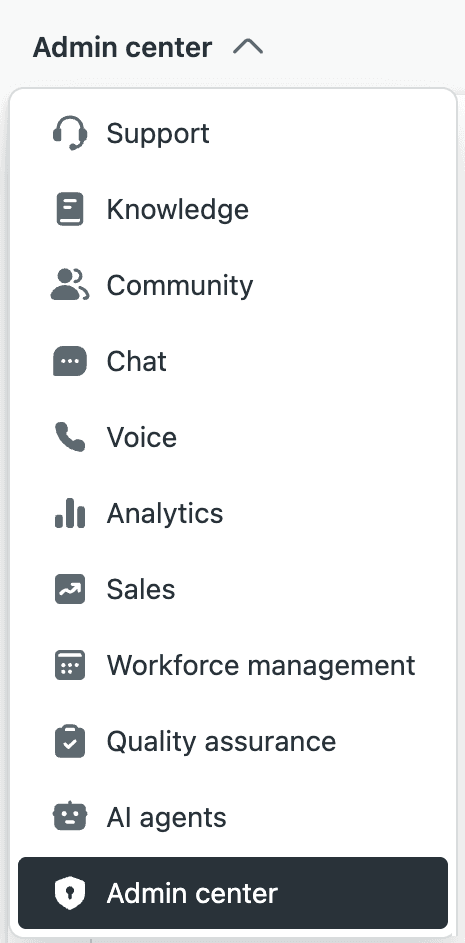
The primary way to access the Admin Center is through the product tray icon (the grid of nine dots) in the top navigation bar. Click it, then select "Admin Center" from the dropdown menu. You can also access it directly if you have the URL bookmarked.
Navigation structure
Once inside, you'll see a left sidebar containing all the main sections. The sidebar is organized into collapsible categories, which Zendesk calls "accordion-style menus." Each category expands to show its subsections.
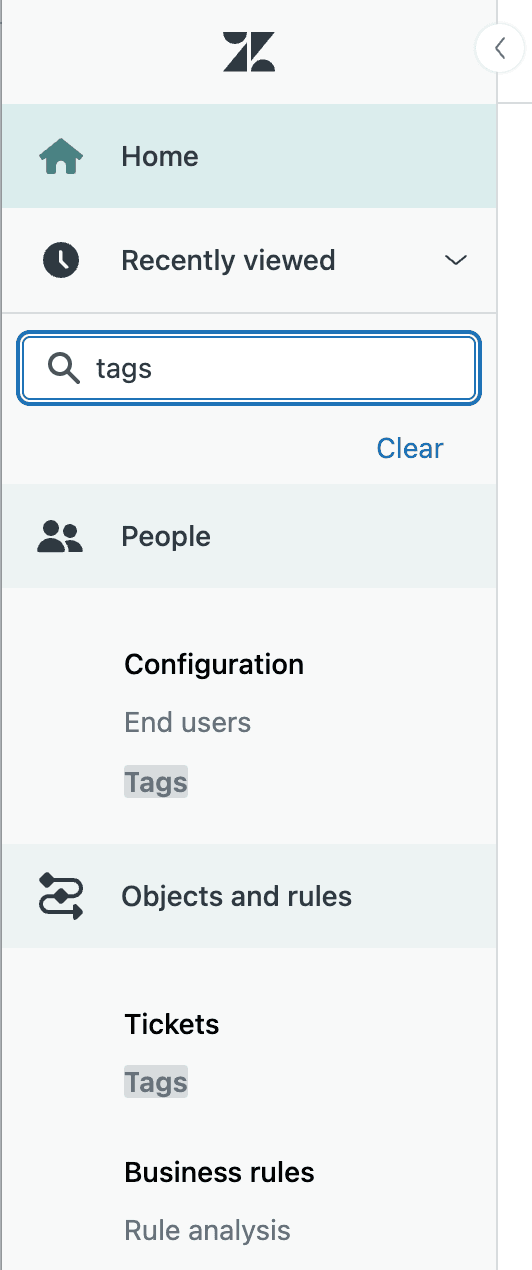
The search bar at the top of the Admin Center is your best friend. Instead of clicking through multiple menus to find a setting, just type what you're looking for. Looking for "triggers"? Type it in the search box and jump directly to the triggers configuration page.
The Recently viewed section at the top of the sidebar shows your most recently accessed pages. This is particularly useful for tasks you perform regularly, like updating automations or managing user roles. Once you discover the search and recently viewed features, the accordion menus become less critical to navigate.
User permissions
Not all admins see the same thing. Your access depends on your assigned role:
- Account owners see everything
- Administrators see most settings but may have restrictions based on custom roles
- Custom roles can be configured to limit access to specific sections
If you are setting up custom admin roles, you will define these permissions in the Admin Center under People > Roles.
Key sections of the Admin Center explained
The Admin Center is organized into seven main sections. Let's break down what each one controls.
Account
This is where you manage the business side of your Zendesk operation:
- Billing - View invoices, update payment methods, and manage your subscription
- Security - Configure SSO, set IP restrictions, enable two-factor authentication
- Usage - Monitor API usage and account limits
- Brand - Manage multiple brands if you're running support for several products
- Sandbox - Access sandbox environments for testing changes (Enterprise plans get up to 2 sandboxes included)
The Account section is also where you'll find the audit log, which tracks changes made by administrators. This is invaluable for troubleshooting or reviewing who changed what and when.
People
User management happens here. This section includes:
- Team members - Add, remove, and manage agent accounts
- Roles - Define what different user types can access and do
- Groups - Organize agents into functional teams
- User fields and Organization fields - Create custom data fields for tracking customer information
- Bulk actions - Make changes to multiple users at once
Getting your user structure right here is foundational. Well-organized groups and roles make routing and reporting much easier down the line.
Channels
This section controls how customers reach you:
- Messaging - Configure web widgets, mobile SDKs, and social channels like WhatsApp and Facebook Messenger
- Talk - Set up voice channels, IVR menus, and call routing
- Email - Manage support addresses and email settings
- Web Widget - Customize the appearance and behavior of your embedded chat widget
- Customer satisfaction - Enable and configure CSAT surveys
Each channel has its own configuration requirements, but the Admin Center brings them all together in one place.
AI
The AI section is where Zendesk's intelligent features are configured. This has become increasingly important as AI capabilities expand.
Here's what's available:
- AI agents - Create and manage automated agents that handle customer conversations across messaging, email, and web forms
- Admin copilot - Get optimization recommendations for your AI setup
- Agent copilot - Enable auto-assist, suggestions, and writing tools for your human agents
- Intelligent triage - Set up automatic intent detection, sentiment analysis, and language identification
AI agents are available on all Suite plans with the Essential tier included. The Advanced tier, which adds features like API actions and complex routing, requires an additional purchase. For more details on AI capabilities, check out our guide on Zendesk AI.
Workspaces
This section controls the agent experience:
- Agent Workspace - Configure the unified interface where agents handle all channels
- Views - Create and manage ticket queues and filters
- Macros - Build predefined response templates and actions
- Layouts - Customize how information appears to agents
Views and macros are particularly powerful when used together. A well-designed view shows agents exactly the tickets they need to work on, while macros let them respond efficiently with consistent messaging.
Objects and Rules
This is where the automation magic happens:
- Tickets - Configure ticket forms, fields, statuses, and tags
- Triggers - Set up event-based automations (when X happens, do Y)
- Automations - Create time-based rules (after X hours, do Y)
- SLAs - Define service level agreement policies
- Schedules - Set business hours and holiday schedules
- Custom objects - Create custom data structures (Enterprise plans only)

The Rule analysis tool, available on Enterprise plans, maps dependencies between your triggers and automations. This is incredibly useful when troubleshooting why something isn't working as expected.
Apps and Integrations
Extend Zendesk's functionality here:
- Apps - Install public apps from the marketplace or manage private apps
- API - Generate and manage API tokens
- Webhooks - Configure HTTP callbacks for external integrations
- Connections - Set up OAuth connections to third-party services
With over 1,000 pre-built integrations available, chances are good that Zendesk connects to tools you're already using.
AI features in the Admin Center: a deep dive
AI has become central to modern support operations, and the Admin Center reflects this shift. Let's look at what's available and how to configure it.
AI agents
Zendesk AI agents are automated support agents that can resolve customer issues across multiple channels. They're available on all Suite plans, with the Essential tier included and Advanced available as an add-on.
To configure an AI agent:
- Go to Admin Center > AI > AI agents > AI agents
- Click on an existing agent or create a new one
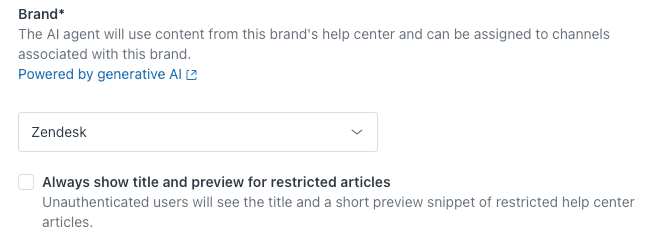
- Configure settings across four tabs: Identity, Persona, Language, and Brand and channels
The Identity tab lets you set the agent's name and avatar. Persona controls tone of voice, reply length, and business profile. Language settings include default language and automatic translation options. Brand and channels determine which help center content the AI can access and which channels it operates on.
Important: Settings auto-save as you make changes, but they don't go live until you click Publish. This is a common point of confusion. New admins often make changes and wonder why customers aren't seeing them yet.
Agent copilot
Agent copilot assists your human agents with AI-powered features:
- Writing tools - Help agents compose better responses (available on Suite Professional and above)
- Auto-assist - Suggest next actions based on conversation context
- Intelligent triage - Automatically categorize incoming tickets by intent, sentiment, and language
Copilot features can be added to any plan for $50 per agent per month, or bundled with Suite plans at $155/month for Professional or $209/month for Enterprise.
Automated resolutions pricing
AI agents include a certain number of automated resolutions (AR) per month:
| Plan | Included ARs per agent/month |
|---|---|
| Support Team | 5 |
| Suite Team | 5 |
| Suite Professional | 10 |
| Suite Enterprise | 15 |
Additional ARs cost $1.50 each when committed, or $2 on a pay-as-you-go basis.
Best practices for Admin Center management
After working with hundreds of Zendesk setups, we have identified some practices that make admin life easier.
Use search first. The search bar at the top of the Admin Center is faster than clicking through menus. Train yourself to use it habitually.
Leverage recently viewed. Common tasks like updating triggers or managing users should live in your recently viewed section. If you're clicking through menus repeatedly, you're working harder than necessary.
Test in sandbox first. Major changes to triggers, automations, or AI configurations can have unintended consequences. Enterprise plans include sandbox environments for a reason. Use them.
Document your decisions. When you create a complex trigger or automation, add a comment explaining what it does and why. Future you (or your successor) will thank you.
Audit regularly. Schedule quarterly reviews of your triggers and automations. Disable or delete ones that are no longer needed. A cluttered ruleset is harder to troubleshoot.
Keep roles current. As your team evolves, update user roles and permissions. Former team members shouldn't retain admin access, and new team members need appropriate permissions to be effective.
Common pitfalls and how to avoid them
Even experienced admins make these mistakes. Here's how to sidestep them.
Forgetting to publish AI changes. This is the number one issue we see. You configure an AI agent, test it, and... nothing happens. Remember: settings auto-save, but you must click Publish to make them live.
Over-complicating triggers. It's tempting to build complex logic with multiple conditions and actions. But simple triggers are easier to maintain and troubleshoot. If you need complex logic, consider breaking it into multiple triggers with clear, single purposes.
Not using user segments. Custom user segments let you target specific groups of customers with tailored experiences. They're underutilized but powerful for personalization.
Ignoring rule analysis. On Enterprise plans, the rule analysis tool shows dependencies between triggers. When something isn't working, this tool often reveals the culprit quickly.
Confusing Admin Center with Guide admin. Some settings related to your help center are in the Admin Center, but actual content management happens in the Guide admin interface. If you can't find a setting, check whether it's a configuration (Admin Center) or content (Guide admin) issue.

Extending Zendesk with eesel AI
While Zendesk's native AI capabilities are solid, many teams find they need more flexibility or faster time-to-value. That's where eesel AI comes in.
eesel AI integrates directly with Zendesk to provide AI agents, copilot assistance, and automatic triage. The difference is in how quickly you can get started and how much control you have.
Here's how it works:
- Connect in minutes - eesel AI plugs into your Zendesk account with one click
- Learn from your data - We automatically learn from your past tickets, help center articles, macros, and documentation
- Train in your voice - Our AI mirrors how your team actually writes, not generic corporate speak
- Test before going live - Run simulations over past tickets to see accuracy before customers interact with it
- Progressive rollout - Start with AI drafting replies for agent review, then level up to full autonomy as confidence builds
eesel AI for Zendesk includes:
- AI Agent - Handles Tier 1 support autonomously across email, tickets, and chat. It can look up information, take actions, and escalate like a human agent.
- AI Copilot - Drafts replies for incoming queries so agents can verify and send. It's perfect for onboarding new agents who need to learn your processes.
- AI Triage - Automatically tags, routes, edits, and closes tickets based on plain-text instructions you provide.
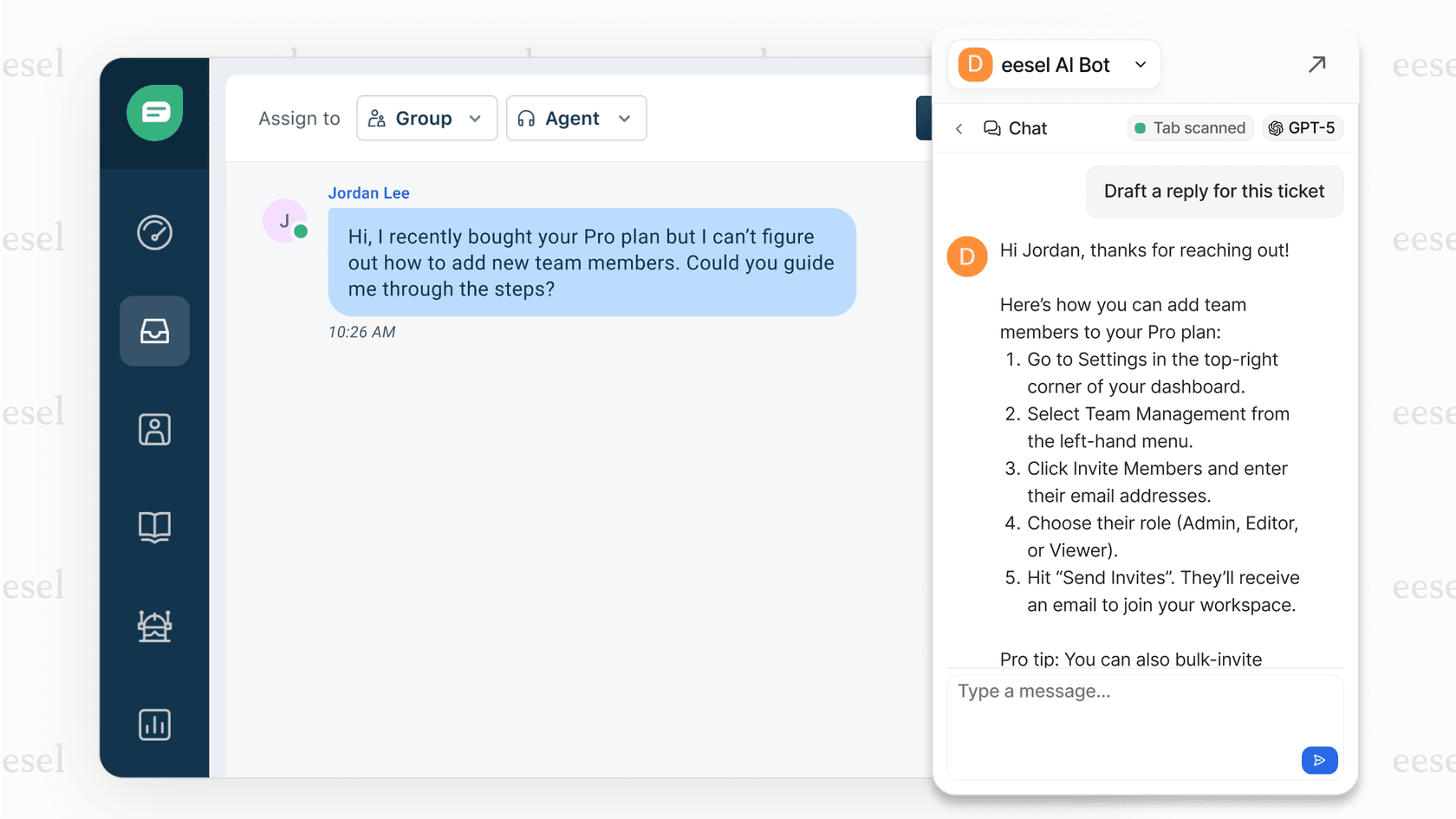
Our pricing starts at $239 per month (annual billing) for the Team plan, which includes up to 3 bots and 1,000 AI interactions. The Business plan at $639 per month adds AI agents for helpdesk, past ticket training, and up to 3,000 interactions. All plans include a 7-day free trial.
For teams already invested in Zendesk, eesel AI extends your capabilities without replacing what works. You get the power of modern AI with the familiarity of your existing Zendesk setup.
Getting the most from your Zendesk Admin Center
The Admin Center is a powerful tool, but like any powerful tool, it rewards those who take time to learn it properly. Start with the basics: understand the navigation structure, use search liberally, and get comfortable with the main sections.
As you grow more confident, explore the AI capabilities Zendesk offers natively. AI agents, copilot features, and intelligent triage can significantly improve efficiency when configured well.
And remember, you don't have to choose between Zendesk's native features and third-party AI tools. Solutions like eesel AI complement your existing setup, giving you more options for automating support without disrupting workflows your team already knows.
Ready to enhance your Zendesk setup with AI? Try eesel AI free for 7 days and see how we can help you resolve up to 81% of tickets autonomously.
The key is to start with clear goals. What are you trying to achieve? Faster response times? Better self-service? Reduced agent workload? Once you know what you're optimizing for, the Admin Center gives you the tools to make it happen.