HubSpot help desk SLA goals: how they work, which rule wins, and what the docs skip

Rama Adi

Katelin Teen
Last edited November 9, 2026

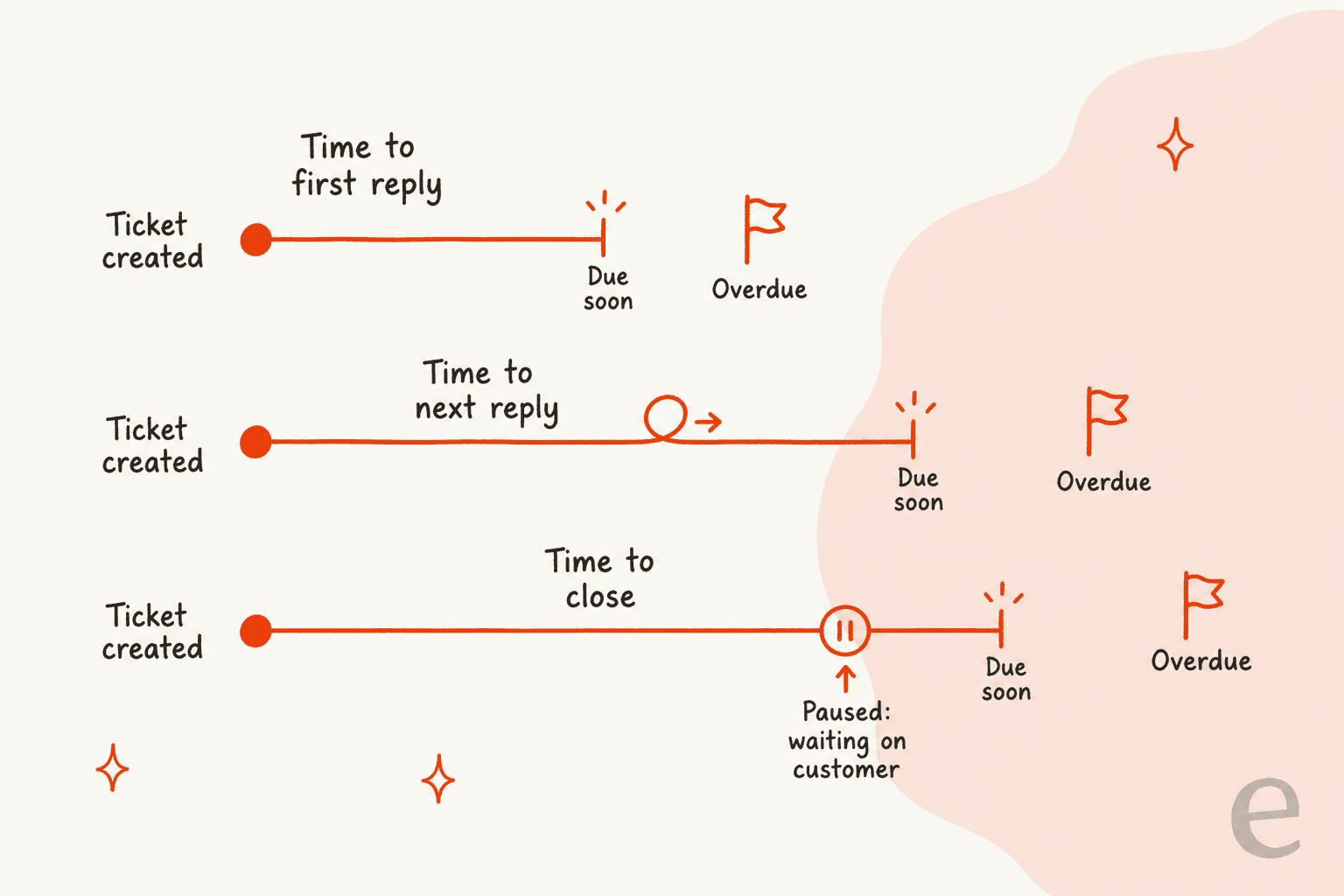
HubSpot's help desk SLAs let you set three goals per ticket: time to first reply, time to next reply, and time to close. You apply them to all tickets, by one ticket property, or (Enterprise only) by a list of rules where the first match wins. Each setup has its own hours and pause conditions. HubSpot says the rule is picked once, when the SLA is applied, and is not re-checked if the ticket changes later. I'd start with one universal rule, add pausing for waiting-on-customer, and test one ticket end to end. eesel can read each new HubSpot ticket and leave a draft as an internal comment, so first replies start faster. With the eesel CLI, an AI coding agent can upload your approved reply policy as knowledge, then ask test questions and check the answers before anything goes live.
What are SLA goals in the HubSpot help desk?
SLA goals are response and resolution targets that HubSpot tracks on each help desk ticket. HubSpot's SLA article describes them as goals for ticket response and resolution times, applied to all tickets or to tickets matching specific properties, and running either at all times or only during set hours.
I read that article, HubSpot's default ticket properties page, the service reports guide, the older inbox SLA article, and the help desk pricing page. I haven't configured SLAs in a live HubSpot account, so everything below is what HubSpot says, and I mark the places where HubSpot says nothing. I'm writing it as someone who builds integrations against ticketing tools and reads docs for the gaps.
These goals apply to help desk tickets only. HubSpot points to a separate article for SLAs on conversations in the inbox, and says accounts created after April 1, 2024 can't set SLAs in the conversations inbox at all. If your team still lives in the inbox, my HubSpot customer portal post covers where tickets show up for customers.
Which plan and permission do you need?
A Professional or Enterprise Service Hub plan and a Super Admin. HubSpot's article is marked as available with Service Hub Professional and Enterprise, and it says Super Admin permissions are required to set SLAs for tickets in the help desk. Two further limits matter for planning:
- Rule lists are Enterprise. HubSpot says a Service Hub Enterprise subscription is required to set goals from a combination of ticket properties. The pricing page lists Conditional SLAs under Enterprise, on top of Professional.
- Labels need a Service Seat. The SLA warning labels only appear to users with an assigned Service Seat. HubSpot's help desk article also lists SLAs among the advanced features that need a Service Seat.
| Need | What HubSpot's pages say |
|---|---|
| Basic SLAs (all tickets, or one property) | Service Hub Professional or Enterprise |
| Rule list across several properties | Service Hub Enterprise (Conditional SLAs) |
| Permission to set SLAs | Super Admin |
| See SLA labels in the reply editor | Assigned Service Seat |
| Professional price | From $90 per seat per month, $100 shown for the other billing period, plus $1,500 one-time onboarding |
| Enterprise price | $150 per seat per month, plus $3,500 one-time onboarding |
Prices are from HubSpot's service pricing page; the page shows both numbers for Professional under a billing period switch. My HubSpot review looks at what the plans cost in practice, and the HubSpot vs Zendesk and HubSpot vs Freshdesk posts compare SLA tooling next door.
How do you set up SLA goals, step by step?
Open the SLA settings, pick one of three ways to apply goals, set the numbers, and turn the switch on. HubSpot's path is:
- Click the settings icon, then Inbox & Help Desk > Help Desk.
- Under Help desk automation, click SLAs.
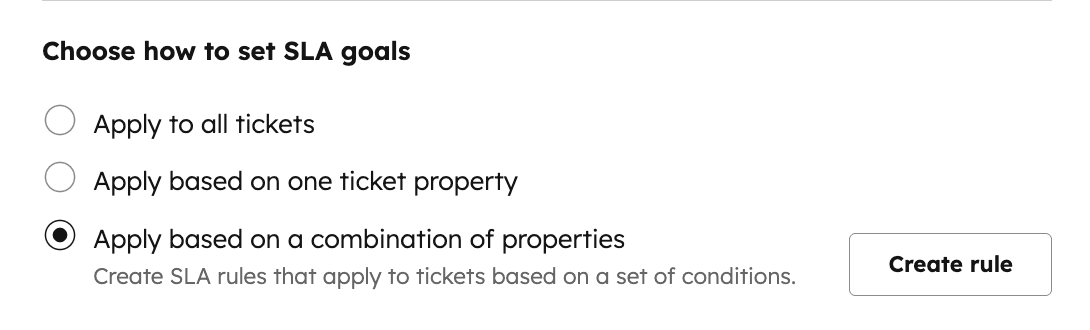
- In Choose how to set SLA goals, pick Apply to all tickets, Apply based on one ticket property, or Apply based on a combination of ticket properties.
- Set Time to first reply, Time to next reply, and Time to close with the dropdowns.
- Under Mark as due soon, choose when a ticket's status flips to Due soon.
- Optionally set a Schedule and Pausing conditions (both covered below).
- Click Save, choose whether to apply to new tickets only or to new and existing open tickets, then click Apply and save.
- Turn on the SLAs switch. Nothing runs until you do.
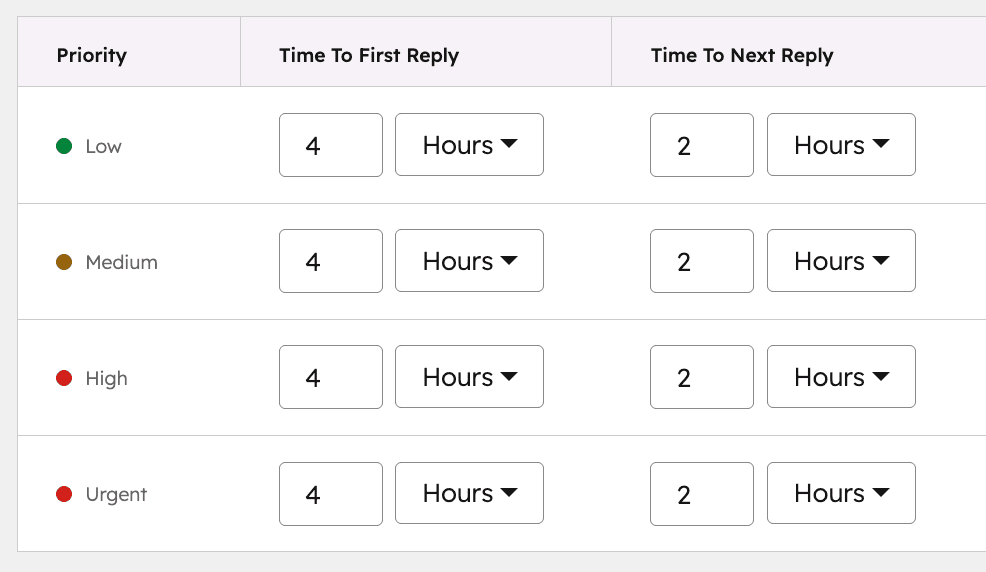
On the one-property path, HubSpot says you can base goals on priority, team, source, or pipeline. You can switch a Goal Active? toggle off for any value you don't want a goal on. That is handy for a low-priority tier where you'd rather have no clock than a loose one. For targets that fit your volume, see my SLA best practices post.
Which SLA rule applies to a ticket?
On the Enterprise rule list, the first matching rule in the list wins. HubSpot says the left column shows each rule's order, a ticket that meets the conditions of more than one rule gets the goals of the rule first on the list, and you drag rules to reorder them. If a ticket matches none, you can switch on a fallback SLA rule with its own goals and schedule.
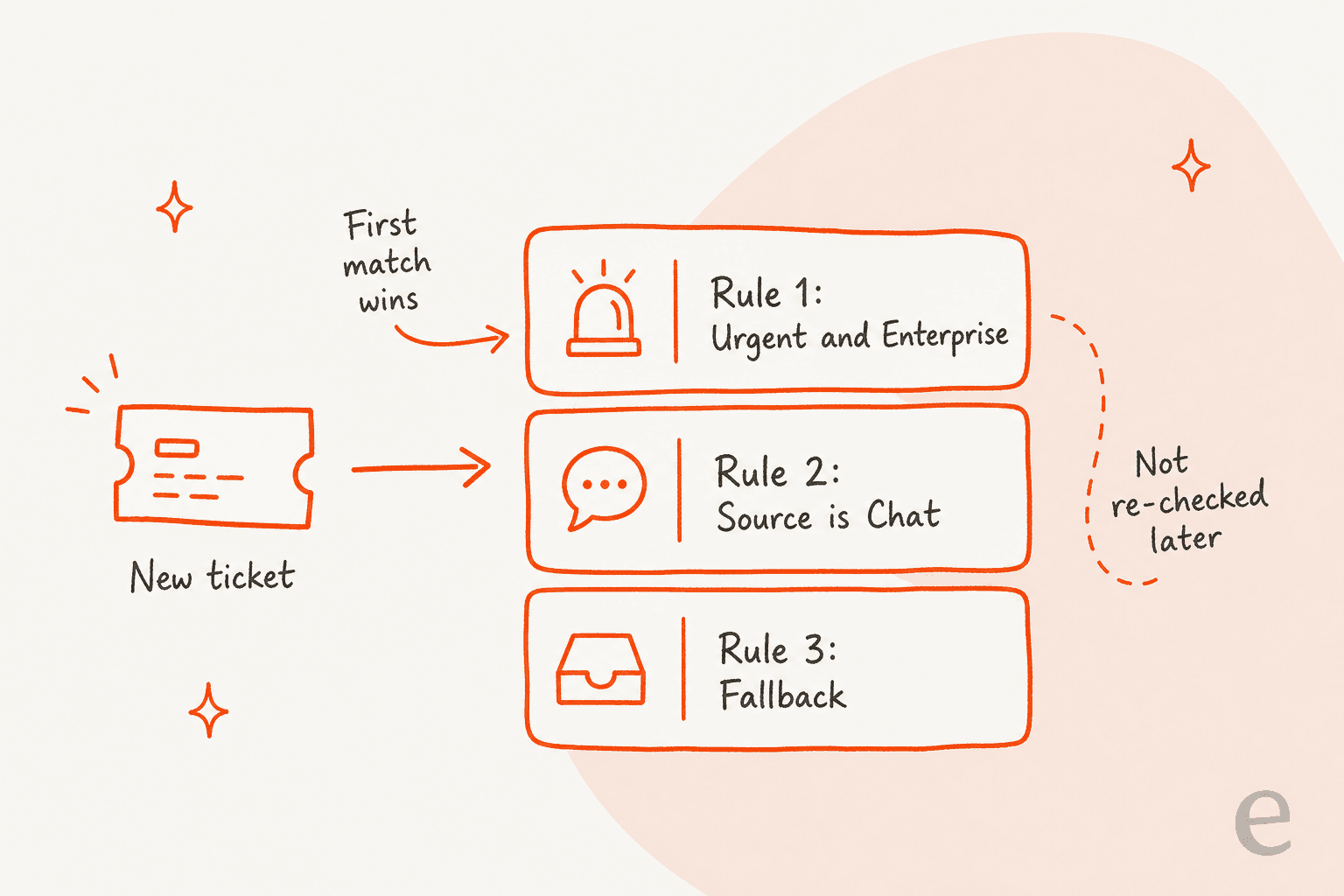
Rule conditions use filter groups. All filters inside one group must match, and a ticket needs to match at least one group. HubSpot's use cases show what this unlocks: a 30-minute response for Priority is Urgent, a one-hour reply for Enterprise customers versus four hours for others using an associated company property, or 15 minutes for Chat source against 24 hours for Email.
The detail I'd underline: HubSpot says the applicable rule is determined when the SLA is applied, from the ticket and associated property values at that time, and it won't be re-evaluated if they change afterward. So a ticket that starts as Normal and is raised to Urgent keeps its original goal unless something re-applies the SLA. HubSpot doesn't say what would re-apply it, so I'd test the case before you rely on priority bumps. Related routing questions are in my HubSpot ticket routing post.
Use the picker below to see which setup fits your queue.
What does your queue need?
How do business hours and pausing work?
Each setup has a Schedule and a Pausing section, and they are separate controls. HubSpot's instructions say to choose During specific time in Schedule, then pick a time zone and hours. On the rule list, you set a schedule for each rule, and the fallback rule has its own. Reports respect this: the Average time to close and Average time to first response reports have a 24/7 tab, which ignores scheduled hours, and an SLA hours tab, which factors in the hours set for each rule.
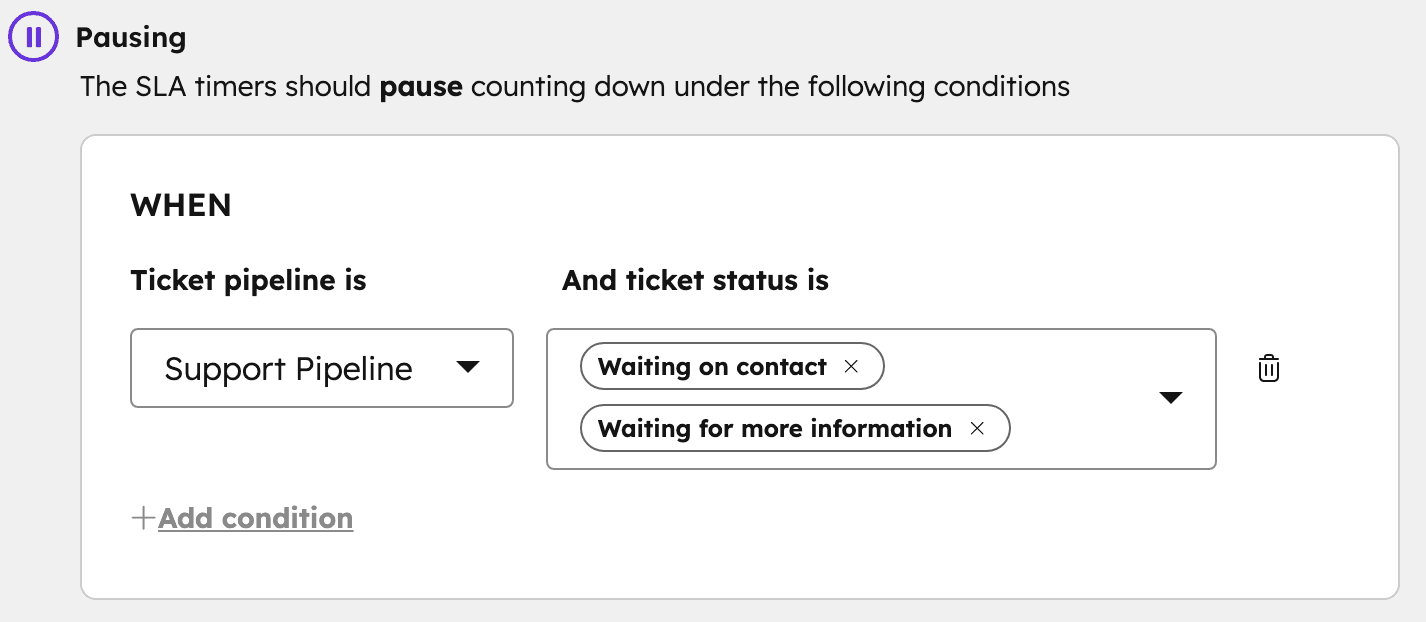
Pausing is the other half. You add a condition with a pipeline and a ticket status, for example a ticket on hold or waiting for a customer response. HubSpot says the timer stops while the ticket meets the condition and resumes once it no longer does.
What the pages don't say:
- Holidays. HubSpot's SLA article doesn't mention a holiday calendar. If you need closed days to stop the clock, test it with a ticket created on one.
- Pause and due soon. It doesn't say whether the Due soon marker moves while a ticket is paused.
- Which statuses. Pausing is keyed on pipeline plus status, so a custom status you add later has to be added by hand.
My multi-channel help desk guide covers why chat and email want different clocks, and the email ticketing system post covers the slower side.
How do changes apply to tickets that already exist?
Every save asks you to choose: Apply to new tickets only, or Apply to new tickets and existing open tickets. HubSpot says that when you apply retroactively, SLAs already met on existing open tickets won't be updated, and if a goal still has time remaining it is recalculated from the new settings. When it only has time left, only the timing, such as due dates, is updated, and the ticket is not moved to a different rule.
My reading is that the safe default is new tickets only for any goal you are tightening, because retroactive changes can flip tickets to Overdue the moment you save. That is my inference, not a HubSpot statement. HubSpot does say any change you make while SLAs are on applies to all applicable open tickets according to your choice.
Where do you see SLA status and report on it?
In three places: the reply editor, four ticket properties, and the report library. For the help desk itself, HubSpot says an SLA label appears next to the ticket number in the reply editor, and warning labels only appear to users with a Service Seat.
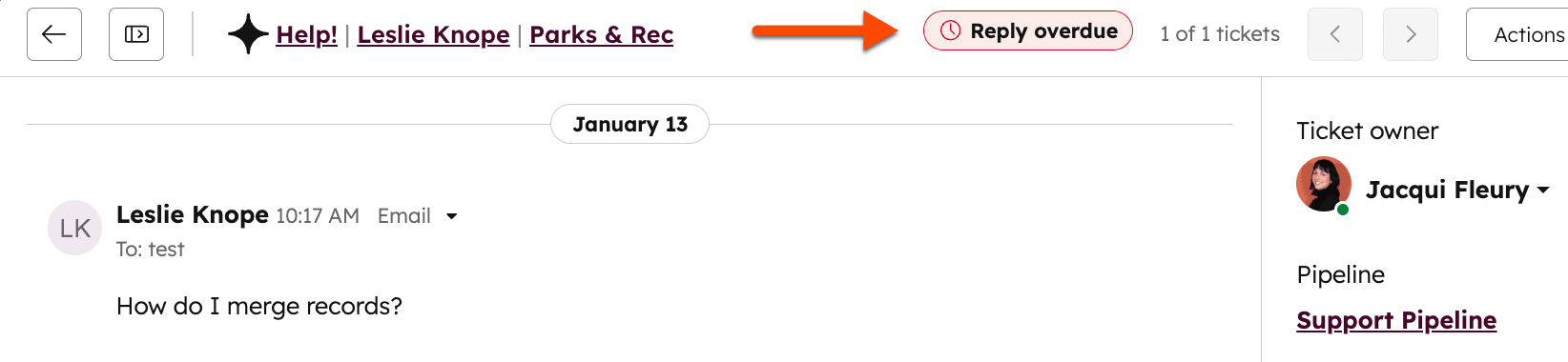
Turning SLAs on adds four ticket properties, which you can use in reports, lists, and workflows:
| Property | What it tells you |
|---|---|
| Time to First Response SLA Due Date | When the first response is due |
| Time to First Response SLA Status | Active SLA, Due soon, Overdue, SLA completed on time, or SLA completed late |
| Time to Close SLA Due Date | When the ticket must close |
| Time to Close SLA Status | The same five states, for closing |
Two more properties, Time to first response in SLA hours and Time to close in SLA hours, are only populated for help desk tickets and include data from January 2025. HubSpot also points to ready-made service SLA reports: search for "sla" under Reporting > Reports.
Notice what is missing. HubSpot lists due date and status properties for first response and close, and the SLA article names none for next reply, even though you can set a next reply goal. I couldn't tell from the docs where a next reply breach shows up, so I'd build a test ticket before I promised a dashboard on it. For metric choices, see my customer service KPIs guide and the AI customer service statistics roundup.
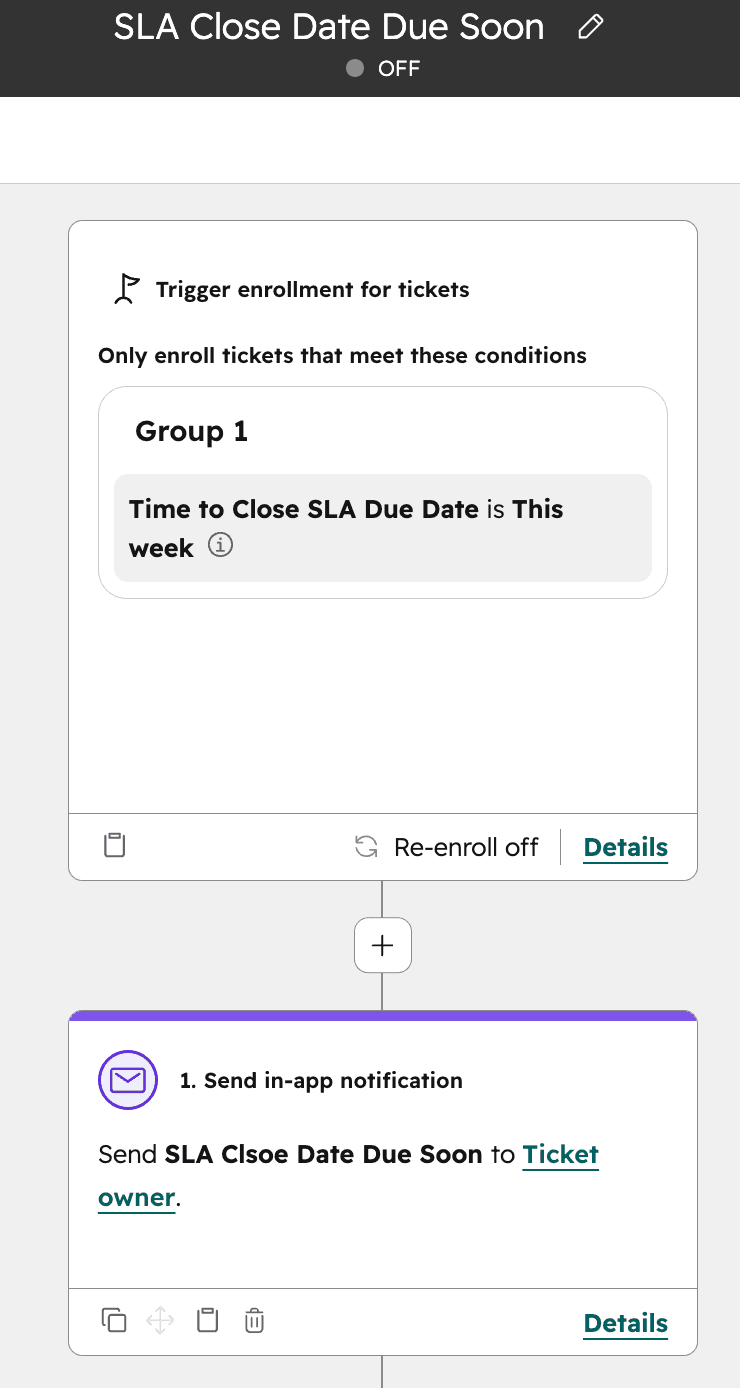
The workflow route is what makes the statuses useful. HubSpot's example is a ticket-based workflow that enrolls on an SLA status property and sends an internal email, an in-app notification, or a Slack message to users, teams, owners, or channels when a ticket is Due soon or Overdue. It's the closest thing to a built-in escalation, and it pairs with my shared support queue and ticket swarming posts.
What happens to SLAs when tickets merge?
The merged ticket keeps the primary ticket's SLA. HubSpot's SLA article warns that the create date shown can be earlier than the date used for deadlines, and that properties like Close date or Time to first response may reflect the secondary ticket, so the SLA status may not match the current ticket status. I covered the mechanics in my HubSpot ticket merging post, and the other direction in ticket splitting. If you organize the queue by view, my custom views post shows how to surface overdue tickets.
Which limits does HubSpot's documentation leave open?
Several, and they are the ones that bite in a real queue. I'd test each of these on a dummy ticket:
- What counts as a reply. HubSpot's report text describes first response as when an agent first replied. The pages don't say whether an internal note, an auto-reply, or a bot message stops the clock.
- Re-evaluation. The rule is fixed when the SLA is applied. What re-applies it after a priority change isn't documented.
- Next reply tracking. A goal exists, but no matching due date or status property is listed.
- Holidays and pause behavior. Not mentioned, as above.
- Which channels. The SLA article doesn't list channels. The source property is how you'd split chat from email.
- Rule count. I found no limit on how many rules you can create.
That is a long list for something support leads sign contracts on, and it is why I'd treat HubSpot's SLA clock as a team target, not a customer promise, until you've tested it. My AI ticket prioritization post explains how priority feeds rule choice, and AI ticket classification covers tagging that the rules can read.
Where does AI fit when the clock is running?
An AI teammate can shorten the first reply. It can't promise HubSpot's clock will stop. eesel's documented HubSpot actions are replying, adding internal comments, creating tickets, and updating ticket titles, descriptions, and priority (eesel HubSpot docs). A person still reads and sends in most setups.
MentorShow, a French online learning platform, runs its whole support team in HubSpot and told eesel it gets between 5,000 and 13,000 tickets a month depending on the period. eesel reads each inbox conversation and ticket, checks the member's subscription status, renewal date, and past tickets on the HubSpot contact, and leaves an analysis and a draft reply as an internal note. Between 8 August and 8 September 2026 it read about 1,200 HubSpot items and wrote 432 drafts, and a person reads, edits, and sends every one. The story doesn't describe MentorShow's SLA settings, so I can't say how those drafts affect its clocks.
That is the useful lesson for an SLA owner: a draft waiting in an internal note is not a sent reply. The clock stops when HubSpot decides a reply happened, and the docs don't say whether a note counts. So the speedup is real only where the agent's draft shortens the human's time to send. For the setup, see my AI for HubSpot Service Hub guide and AI response for HubSpot post. For HubSpot's own agent, read Breeze customer agent and its escalation guardrails. If a bot answers before a person does, my AI resolution rate and first contact resolution posts cover how to measure it.
What would I do with this in my own queue?
Here's the short version I'd hand a support lead:
- Start with one universal rule. All tickets, three goals, one schedule. Get a baseline before you add rules.
- Add pausing for waiting-on-customer. Otherwise your SLA measures the customer's reply speed.
- Save to new tickets only. Tightening a goal retroactively can mark open tickets overdue instantly (my inference).
- Build one workflow on the status properties. Enroll on Due soon and notify the owner or a Slack channel.
- Test the gaps. Create dummy tickets to check what counts as a reply, holiday behavior, and priority changes.
- Check the report tab. Compare the 24/7 and SLA hours views before you present numbers.
For the queue around the clock, see my guides on automated ticketing, AI ticketing systems, and AI ticket reduction, plus ticket summarization and HubSpot ticket deflection for fewer tickets reaching the clock at all. The CRM ticketing system guide shows where HubSpot sits among them, and cost per ticket benchmarks helps you judge whether the targets are worth their cost.
Try eesel for your HubSpot help desk
If missed first replies are a queue-size problem, eesel for HubSpot works like a new teammate in Service Hub. It learns from your HubSpot knowledge base and past tickets, reads each ticket with its contact record, and drafts replies as internal comments for your team to review and send. It doesn't change your SLA settings, but it gets your agents to a ready draft sooner. Compare options in my best AI for HubSpot roundup, the eesel vs HubSpot Breeze comparison, and the Service Hub AI alternatives list. The AI teammates overview explains the wider roster.
The eesel CLI lets Claude Code, Codex, or Cursor upload your approved first-reply policy as knowledge, adjust the agent's instructions, and ask test questions to check the answers before they go live. Connecting HubSpot itself still needs someone with the App Marketplace Access permission to approve it in the browser.