HubSpot help desk custom views: how to create, share, and limit them

Riellvriany Indriawan

Katelin Teen
Last edited November 8, 2026

HubSpot's custom views are saved ticket filters in the help desk sidebar, shared as private, team, or everyone views. They need Service Hub Professional or Enterprise, a Service Seat to see them, and the Custom views permission to build them. Filters can use ticket, contact, or company properties, and you can reorder columns per view. HubSpot's docs don't state the view cap, saved sort order, or OR logic, so I'd test those before you design around them. eesel reads each ticket and leaves an internal note, so your views point people at tickets that already have context. With the eesel CLI, an AI coding agent can upload your approved view and routing policy as knowledge, then test the answers before anything goes live.
What are custom views in the HubSpot help desk?
A custom view is a saved filter that shows a slice of the ticket queue in the left sidebar. HubSpot's help desk documentation gives two examples: a view of all high priority tickets so the team knows where to focus, and a private view of open tickets in one pipeline for monitoring without distracting anyone.
Views sit on top of three kinds of defaults. HubSpot ships built-in views such as Unassigned, Assigned to me, My Team's Unassigned, My Team's Open, All Open, All Closed, Sent, Spam, Following, and My Mentions. If you use the customer agent, four more appear: All customer agent, Awaiting human assignment, Handed off, and Pending. Then come your own views, which HubSpot sorts into public, team-shared, and private.
I haven't built these views in a live HubSpot account. Everything below is what HubSpot's own pages say, plus staff answers from the community, and I mark the places where HubSpot says nothing. I read the ticket queue as the thing that decides whether a support team feels calm or underwater, and a view is the cheapest way to change that. If you want the whole workspace first, my HubSpot customer service software guide and the HubSpot review go wider.
Which plan, seat, and permission do you need?
You need three things, and they are easy to mix up. The plan is Service Hub Professional or Enterprise, which is what HubSpot's article lists. The seat is a Service Seat, which HubSpot says is required to access advanced help desk features, including custom views. The permission is the Custom views switch on the user's permission settings, which HubSpot says is for Professional and Enterprise only.
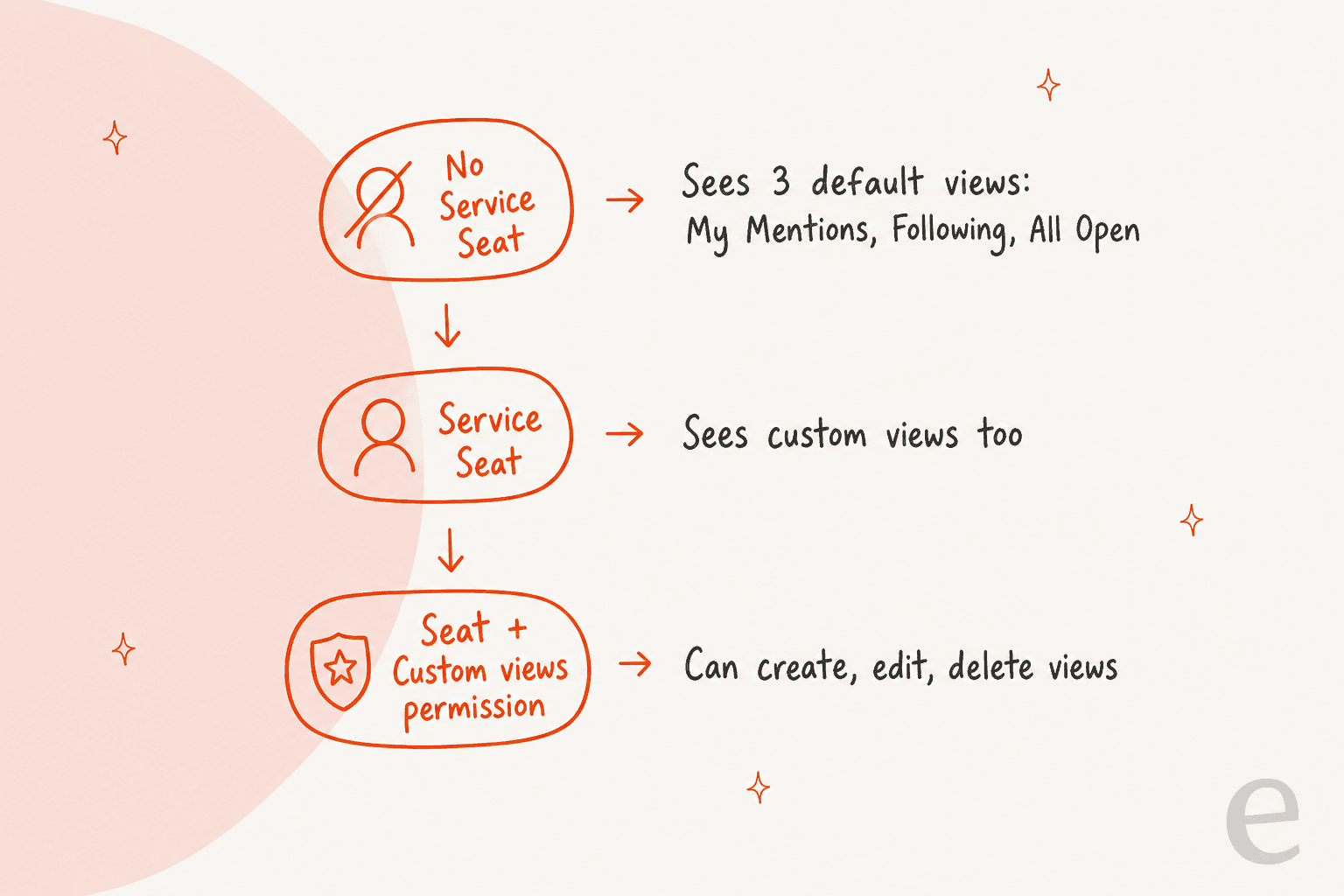
The split matters for rollout. A seat lets someone see custom views, but creating, editing, or deleting them also needs the Custom views permission. Users with Service or Sales Access but no seat are limited to My Mentions, Following, and All Open. Super Admins can open every view and don't need an assigned seat. HubSpot adds that users only see tickets they have access to, so a shared view doesn't override permissions.
| Plan | Starting price | One-time onboarding | Custom views per HubSpot docs |
|---|---|---|---|
| Free, Starter | $0 / $7 per seat per month | None | Not listed |
| Professional | $90 per seat per month | $1,500 | Listed, Service Seat required |
| Enterprise | $150 per seat per month | $3,500 | Listed, Service Seat required |
Source: HubSpot Service Hub pricing. My HubSpot pricing post explains how seats change the bill.
How do you create a custom view, step by step?
You create it from the help desk sidebar, and you choose who sees it before you choose the filters. HubSpot's steps are:
- Go to Service > Help Desk.
- In the left sidebar, click the + next to Views, then choose Create view > Create global view.
- In the right panel, enter a name. You can add an emoji with the emoji icon.
- Pick a sharing option: Private, Team(s), or Everyone.
- Optional: tick Create a dynamic view filtered by ticket owner so each user sees only the tickets they own.
- Click Next, choose the object to filter on (Ticket, Associated Company, or Contact), and set your properties.
- Click Create view. It appears in the sidebar under Views.
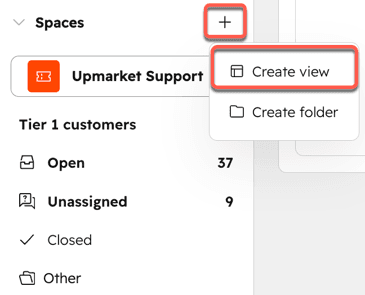
The screenshot above is the spaces version of the same menu, as taken from HubSpot's spaces guide. The dynamic checkbox is the detail I'd reach for first. One "My open tickets" view with that box ticked replaces a separate view per agent, which is how you avoid burning through the view limit.
What do the three sharing options mean?
Sharing decides who can open the view, so it is the setting I'd treat as a policy, not a preference. HubSpot's three options are Private (only you), Team(s) (any HubSpot team with help desk access that you pick), and Everyone (all users in the account). In its view-type list HubSpot calls these private, team-shared, and public custom views.
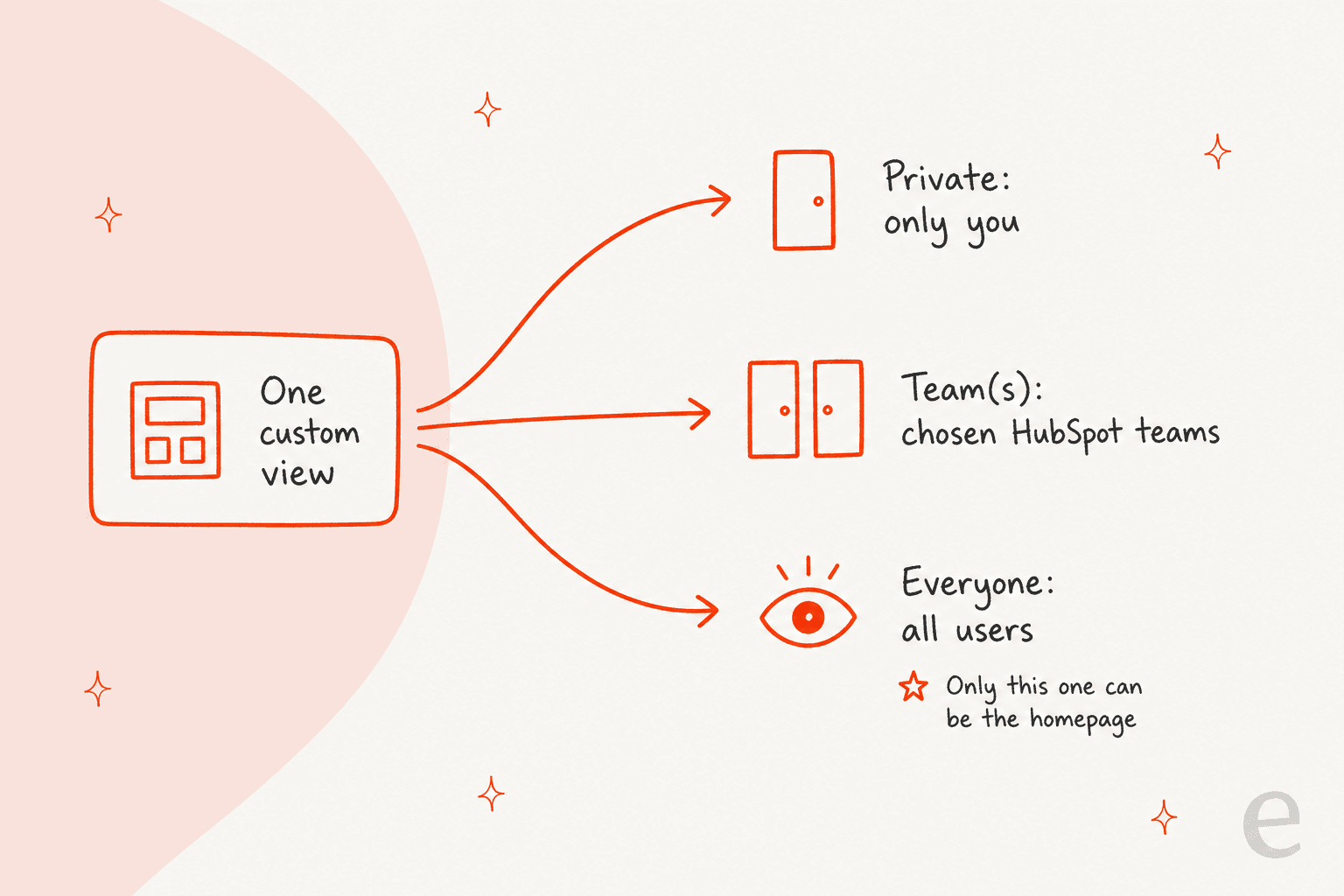
Two rules follow from HubSpot's left sidebar article. Only views shared with Everyone can be set as the help desk homepage, and a Private custom view can only be edited by the person who created it. Setting a homepage needs Super Admin or Account Access permission.
Try the picker below with your own situation.
What is the view for?
What can you filter and sort on?
Filters can use properties from three objects: the ticket, the associated company, or the contact. HubSpot staff confirmed it in a January 2026 Q&A for help desk admins, including an example filtering on a "Customer Type" property. The same answer sets the edge:
"Right now we support creating views based on associated Contact and Company."
That means views built on custom objects are off the table for now. The same staff Q&A adds a note on the owner filter: it lists every HubSpot user, not only those with Service access, and HubSpot said it would pass that along to the product team.
Now the gaps. HubSpot's help desk article describes picking an object and properties, and it doesn't say whether you can combine conditions with OR. A HubSpot Ideas post from 2021, an "Or" filter idea, says ticket views combine filters with AND only, and HubSpot's older inbox article does describe AND and OR logic, so I'd test your own portal. Sorting is the same story. The documented column controls cover adding, reordering, and removing columns. Nothing in the pages I read says a view stores a sort order, and HubSpot's Ideas forum lists several open requests for saved sort preferences.
If you want a view that ranks by urgency, I'd sort by a property your team sets, then see my AI ticket prioritization and AI ticket classification guides for how a property gets filled in reliably.
How do you set up columns, folders, and the homepage?
Columns are per table, folders are for grouping views, and the homepage is set in settings. HubSpot documents each one.
Columns. In the top right of the table, click Edit columns. Tick a property to add it, drag to reorder, hover and click Move to top to pin one, click the X to remove one, then click Apply. HubSpot says the Custom views permission is required to edit or reorder columns.
Folders. Next to Views, click + > Create folder, name it, then drag views in. Rename or delete from the three-dot menu. Folders only group views. In the January 2026 Q&A, HubSpot staff said sidebar folders weren't a current priority, and the current article now documents them, so I'd treat the feature as recent.
View order. Drag a view to reorder it, or drag it below the More dropdown to hide it. HubSpot's staff answer says global default views like Unassigned can be managed at the user, team, or portal level in Views Customization.
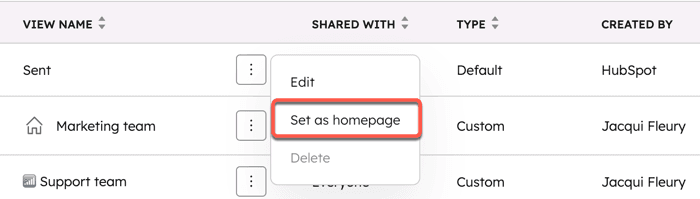
Homepage and housekeeping. In Settings > Inbox & Help Desk > Help Desk > Views customization, you can create, edit, delete, and set a homepage. HubSpot says you can delete custom views only, not defaults, and deletion needs a confirmation checkbox.
Board view has its own beta. If you opted into the Help Desk Board Redesign: New Card Settings beta, Manage card settings lets you choose which properties show on ticket cards for that one view. Changes save as a draft until you click Publish changes, and setting the default card layout takes Super Admin or Account Access.
How many custom views can you create?
HubSpot's help desk article says the number depends on your subscription and sends you to the Custom views in shared inbox section of its Product & Services catalog. I couldn't read that section directly. The catalog link in the article is anchored on a line that ends in "50 custom views", and a June 2022 HubSpot community release post for the inbox gave the same figure: a limit of 50 custom views per portal, with HubSpot-defined views not counting. That is the inbox rule from 2022, so confirm the current number for your tier before you plan around it.
What I'd do with a cap like that is design for it. Fifty sounds large until each team asks for a view per region, per product, and per agent. The dynamic owner view replaces the per-agent set, and one team-shared view per queue replaces most of the rest. My help desk management guide covers keeping the structure small.
What is the difference between custom views and spaces?
A custom view filters tickets. A space is a team-based work area with views inside it. HubSpot says spaces show tickets assigned to the main team members of the selected teams, and a ticket moves into another space when you change its assigned team or owner. New spaces start with Open, Unassigned, and Closed views.
Space views are the one place the plan changes. HubSpot says a Service Hub Enterprise subscription is required to create them. When you create one you choose Space (Private or Everyone in the space) or Global (Private, Team(s), or Everyone), and the same dynamic owner checkbox is there. Deleting a space deletes the custom views created in that space, and tickets stay.
Staff answered the planning question in the same Q&A. They recommend a mix of permissions, spaces, and views to keep tickets in the right place and keep agents focused. If you don't have Enterprise, team-shared views plus routing rules get you most of the way. For wider structure ideas, see customer service team structure.
What does HubSpot's documentation leave out?
Quite a few things a support lead would ask on day one. This is the list I'd turn into a test checklist for a trial portal.
| Question | What HubSpot's docs say |
|---|---|
| Exact view cap for my tier? | Depends on subscription, points to the catalog |
| Do space views count toward the cap? | Not documented |
| Can a view keep a sort order? | Not documented in the view articles |
| OR logic in help desk filters? | Not documented in the article I read |
| Views based on custom objects? | Staff say only Contact and Company today |
| Clone or duplicate a view? | Not documented for help desk |
| Can admins see other people's private views? | Not documented |
| Filter on an AI-written note? | Not documented as a view feature |
| Use views through the API? | Not documented in the pages I read |
One more detail: HubSpot's older inbox article says accounts created after April 1, 2024 cannot build custom views on ticket properties in the conversations inbox. The help desk article doesn't repeat that, so a new account is worth testing before you promise ticket-property filters to anyone.
Why do views change SLA and routing work?
A view is the surface where SLA misses get noticed. HubSpot's inbox views have supported SLA ticket properties as filters since a June 2022 update, and HubSpot's SLA documentation describes goals that can key off ticket properties. I haven't confirmed that help desk views expose every SLA field the same way, so check the property list in the view builder.
My practical take: build views around decisions, not around labels. "Needs first reply", "Waiting on customer", and "Breaching soon" tell an agent what to do next. "Billing" and "Shipping" tell them what the ticket is about, which a column can already show. See my SLA best practices and customer service KPIs posts for the numbers behind that, and the AI support SLA guide for automating the watch.
If tickets pile up in one view, the answer is usually ownership, not a new filter. My AI ticket swarming post covers handing tough tickets to the right pair of hands.
Where does AI fit alongside custom views?
AI works on the ticket, and views work on the queue, so they don't compete. eesel's documented HubSpot actions are replying, adding internal comments, creating tickets, changing priority, and updating ticket titles and descriptions (eesel HubSpot docs). I haven't seen a documented eesel action that creates or edits a help desk view, so view design stays with your admins.
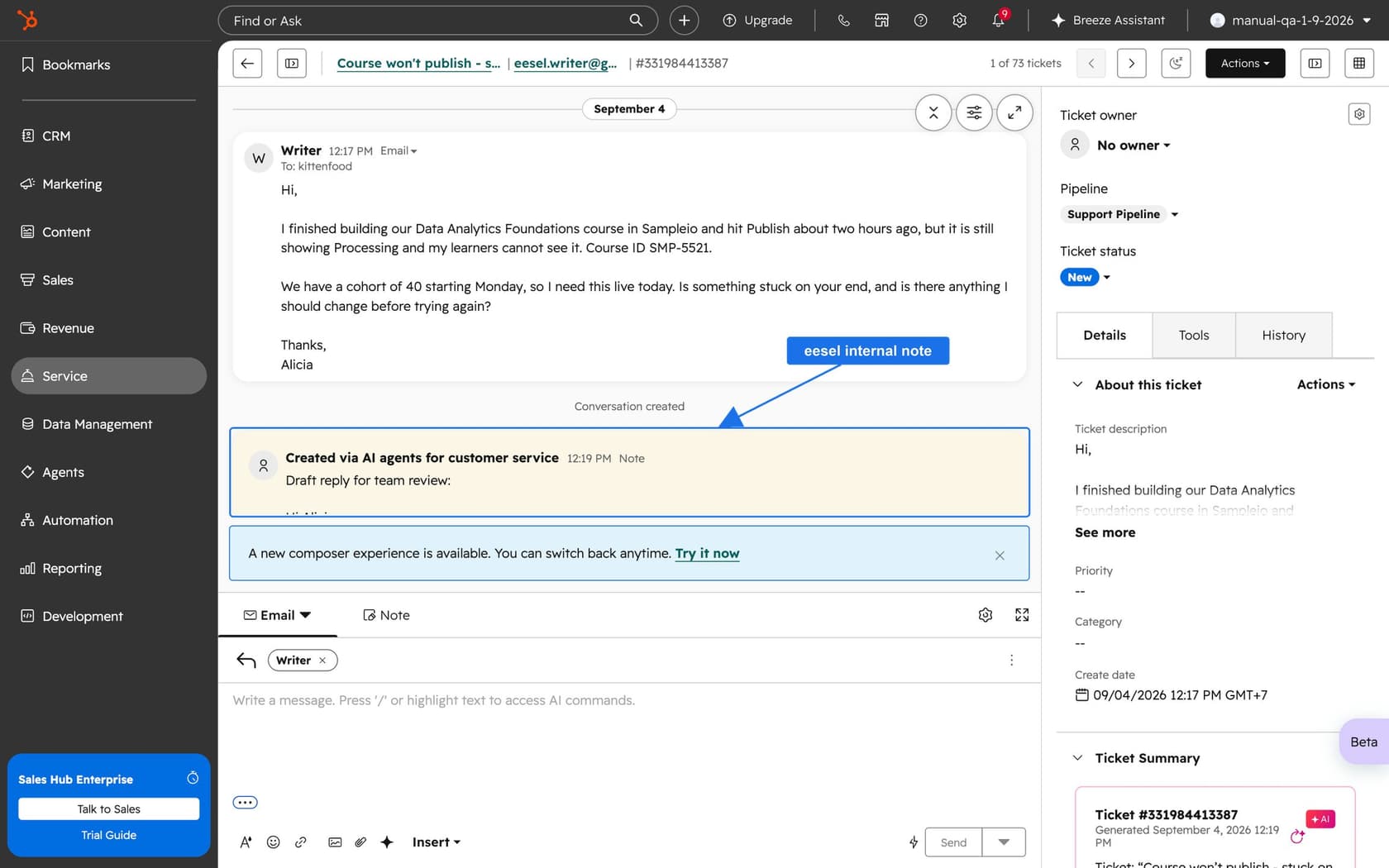
MentorShow, a French online learning platform, runs its whole support team inside HubSpot and gets between 5,000 and 13,000 tickets a month depending on the period. Every new customer message triggers eesel, which reads the thread and the member's HubSpot record, then leaves an internal note with an analysis and a draft reply. It skips nine kinds of ticket on purpose, such as PayPal notices and out of office replies, and it hands refunds and billing checks straight to a person. Between 8 August and 8 September 2026 it read about 1,200 HubSpot items and wrote 432 drafts, and a person reads, edits, and sends every one.
That is a good match for views. A team-shared view for "needs a human" tickets sits next to AI drafts, and the agent working it opens a ticket that already has an analysis. That pairing is my suggestion, not a HubSpot or eesel feature, and it depends on a ticket property your own workflow sets. My guide to AI for HubSpot Service Hub and the HubSpot AI alternatives roundup compare the options. If you also want a bot at the front door, HubSpot's chatbot and ticket deflection are the places to start.
What would I do with views in my own queue?
I'd start with five views and stop. Here is the short version I'd hand a support lead:
- Pick the three decisions an agent makes. For example: needs first reply, waiting on customer, escalated. One view per decision.
- Use one dynamic owner view. It replaces a view per agent and saves your cap.
- Share by team, not Everyone. Everyone is for the one homepage view.
- Edit columns before you add views. Priority, owner, last activity, and one status column answer most questions without a new filter.
- Check seats first. An agent without a Service Seat sees three default views, and no custom ones.
- Test the gaps in a trial portal. Sort order, OR logic, and the view cap are the three I'd check before rollout.
For a larger team, my guides on ticket deduplication and ticket summaries cover the next steps, and the ticket splitting post covers what to do when a ticket holds two issues. HubSpot's own Breeze escalation guardrails show how escalations reach your views.
Try eesel for your HubSpot help desk
If your views are full of tickets nobody has had time to read, eesel for HubSpot works like a new teammate in Service Hub. It learns from your HubSpot knowledge base and past tickets, reads each ticket with its contact record, and leaves internal notes with draft replies for your team to review and send. It doesn't build views, but it makes every view faster to work through. See how it compares in my best AI for HubSpot roundup, or read the AI teammates overview.
The eesel CLI lets Claude Code, Codex, or Cursor upload approved knowledge such as your view and routing policy, adjust the agent's instructions, and ask test questions to check the answers before they go live. Connecting HubSpot itself still needs someone with the App Marketplace Access permission to approve it in the browser.