HubSpot help desk ticket splitting: how it works, its limits, and when to merge instead

Rama Adi

Katelin Teen
Last edited November 8, 2026

HubSpot's ticket splitting lets you pick messages inside an email or form ticket in the help desk, copy them into a new ticket, and add a note about why. The new ticket gets the same contact as the original and is enrolled in any workflow it qualifies for. It needs a Service Seat, and HubSpot's docs list Service Hub Professional or Enterprise. It doesn't cover chat or WhatsApp tickets, and the docs are silent on SLA clocks and links back to the original. I'd use it for reopened tickets and two-issue emails, and merge only for true duplicates, since merges can't be undone. eesel can read the full thread and flag a two-issue ticket in an internal comment, so your team splits with the full picture. The eesel CLI lets an AI coding agent upload your approved splitting policy as knowledge, then test the answers before anything goes live.
What does ticket splitting do in the HubSpot help desk?
Ticket splitting takes one help desk ticket and turns part of it into a second ticket. HubSpot's help desk documentation gives the standard case: a customer reopens a ticket with an unrelated issue, so a rep splits the ticket to keep the topics apart. Every ticket then has one subject, one status, and one set of properties.
The feature has been in the making for a long time. A HubSpot Community idea titled Split Tickets in separate Tickets was opened in January 2020. In October 2024 a HubSpot product manager posted that splitting was in public beta in the help desk. She said it works only within the help desk, on email and form tickets. I read that thread, the current docs, and HubSpot's own Q&A for help desk admins. I haven't run the feature in a live HubSpot account, so everything below is what HubSpot says it does, and I mark the spots where HubSpot says nothing.
I build eesel's integrations, including the HubSpot one. Splitting is the kind of small feature that decides whether a queue stays clean. If a ticket mixes two issues, an agent, a report, and an AI tool all read it as one problem.
How do you split a ticket, step by step?
You split from inside the ticket, and you choose messages, not whole tickets. HubSpot's steps are:
- Go to Service > Help Desk and open a ticket from any list view.
- In table or split layout, click Actions > Split ticket. In board layout, click the three vertical dots in the upper right and choose Split ticket.
- Tick the checkboxes next to the messages that belong in the new ticket, then click Confirm.
- In the right panel, fill in the new ticket's details. The Note field is where you say why you split it.
- Click Create.
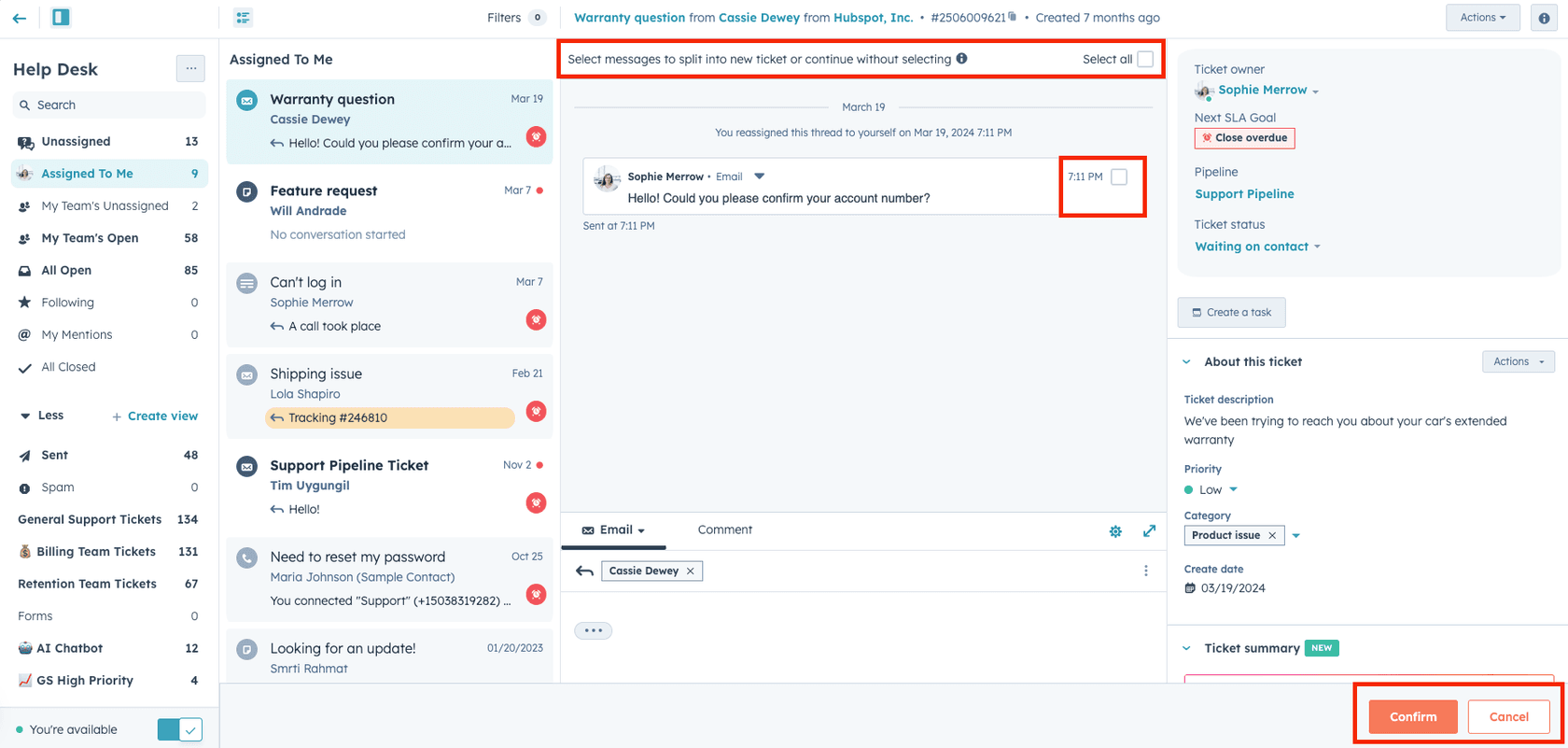
The product manager's beta post adds two details the knowledge base page doesn't repeat. You can also start a split from the menu on a single email message, and a Select all option copies the whole thread. She also lists an optional step to set a new status on the original ticket.
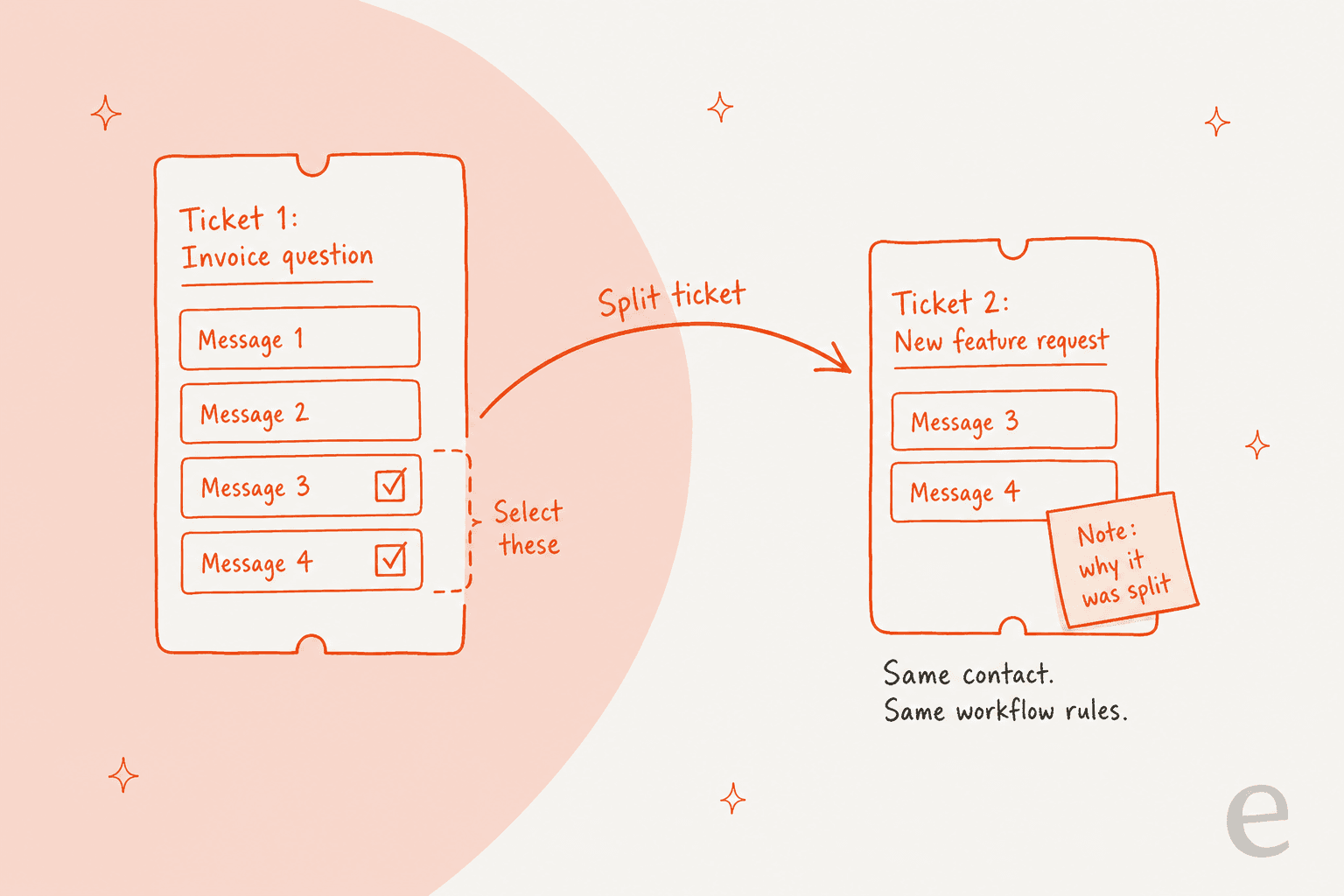
One limit follows from how selection works. The checkboxes sit next to messages, so a single email that asks two questions moves as one block. HubSpot's docs don't describe splitting inside one message, so ask the customer to send the second question separately, or note it on the new ticket yourself.
Which plan and seat do you need to split tickets?
You need a paid Service Seat, on a plan that HubSpot's docs list for the help desk. The ticket-management article is marked as available with Service Hub Professional and Enterprise, and it says a Service Seat is required to split tickets. The October 2024 beta post said users need a Service Pro or Enterprise seat. The two statements are worded differently, so check what your own portal shows before you promise the feature to your team.
| Plan | Starting price | One-time onboarding | Ticket splitting per HubSpot docs |
|---|---|---|---|
| Free, Starter | $0 / $7 per seat per month | None | Not listed |
| Professional | $90 per seat per month | $1,500 | Listed, Service Seat required |
| Enterprise | $150 per seat per month | $3,500 | Listed, Service Seat required |
Source: HubSpot Service Hub pricing. For a wider cost view, my HubSpot pricing post and the HubSpot review go past the help desk.
What can't you split?
Only email and form tickets. HubSpot's docs name those two channels, and the help desk admin Q&A confirms the boundary from the other side: you can't split a ticket and send part of it to an inbox outside the help desk. Both halves stay in the help desk as two tickets you can route to different views or agents.
The gap that hurts most is chat and messaging. A user posted on the idea thread in August 2025 about WhatsApp:
"I can't split tickets that come from whatsapp in hubspot."
If your queue is mostly chat, I'd test before you rely on splitting. HubSpot's pages say email and form, and they don't list the other channels either way. My multi-channel help desk guide covers how teams handle mixed channels, and my HubSpot chatbot post covers HubSpot's chat side.
A second gap is the workaround HubSpot suggests when another team lives outside the help desk. Its admin Q&A says to split first to keep your help desk clean, then forward the relevant messages to that team by hand. A note that tags the other team on the original ticket is the lighter option when you don't need a separate ticket for reporting.
What carries over to the new ticket?
HubSpot documents two things: the new ticket is automatically associated with the same contact as the original, and it is enrolled in any workflow it meets the criteria for. Everything else is either implied or unspecified, and I'd treat those rows as questions for a test split.
| Question | What HubSpot's docs say |
|---|---|
| Same contact on the new ticket? | Yes, automatic |
| Enrolled in workflows? | Yes, if it meets the criteria |
| Messages copied to the new ticket? | The beta post says messages are copied over. The docs don't say whether they're removed from the original |
| Link back to the original ticket? | Not documented |
| Company and deal associations? | Not documented |
| SLA clock on the new ticket? | Not documented for splits |
| Limit on number of splits? | Not documented |
| Undo for a split? | Not documented |
| Available through the API? | Not documented in the pages I read |
Because the new ticket is enrolled in workflows, your automation can fire on it the moment it exists. That's good if you route by category. It's a trap if a workflow auto-replies to new tickets, because the customer might get an acknowledgment for a ticket they never opened. Check your ticket workflows before the first split, and see my HubSpot ticket routing post for routing patterns.
On associations, HubSpot's record association docs explain that a contact can have a primary company. Since splits only guarantee the contact, I'd open the new ticket right after a test split and look at the Associations panel. If you run a customer portal, that panel decides who sees the new ticket.
Why not let the customer's reply reopen the old ticket?
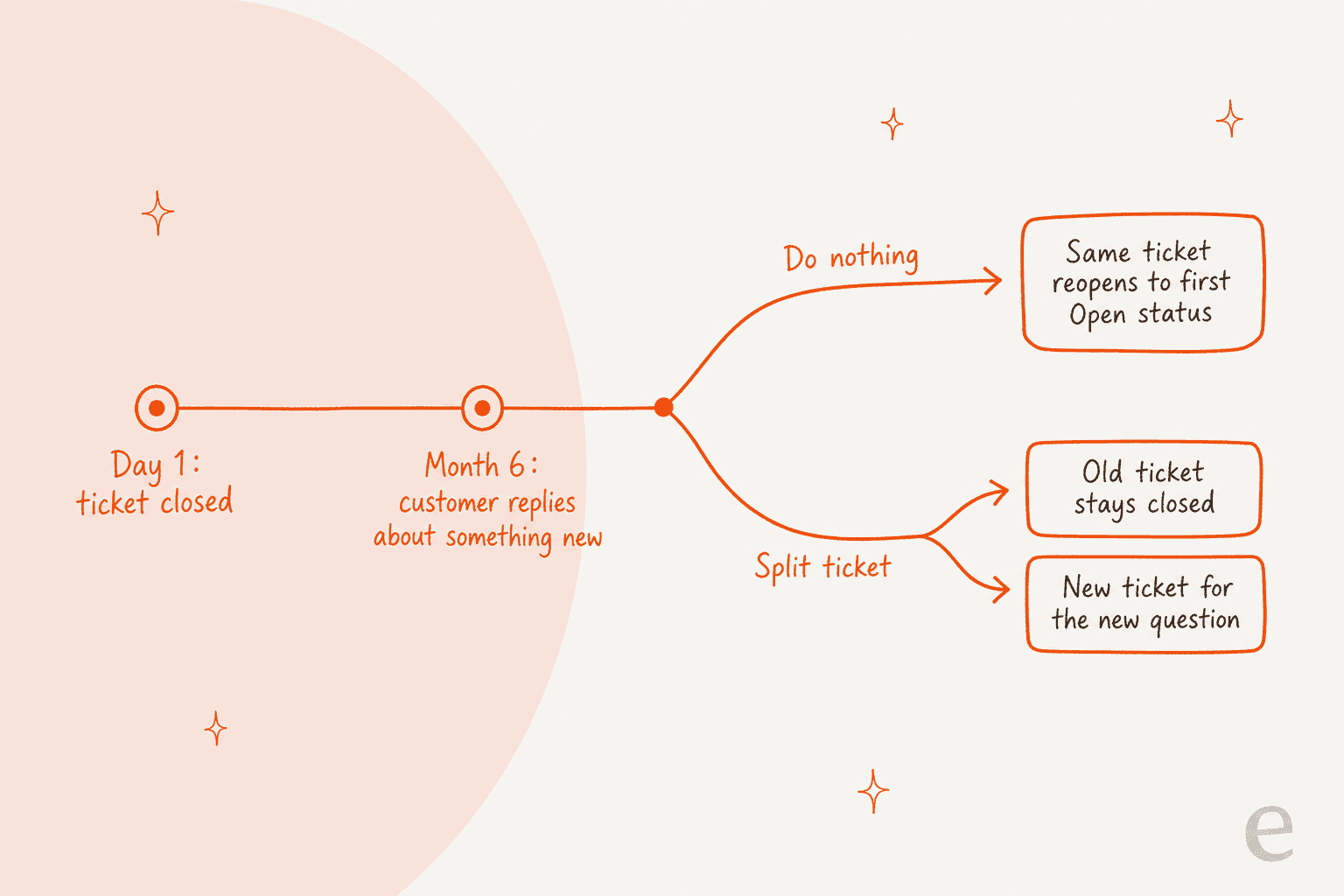
Because a reopened ticket carries its history into your reports. HubSpot says a reply to a closed ticket does not create a new one. The existing ticket is reopened, its status is set to the first Open status in the pipeline (for example, New), and the Ticket reopen date property is updated. The docs add that ticket dates may be recalculated on reopen, which can affect help desk reporting.
A user on the same idea thread described the daily cost of this:
"Our customers often make additional requests within open tickets. To be able handle each request we strictly stick to one issue per ticket."
Splitting is the manual fix. HubSpot's admin Q&A also describes an automatic one: a ticket reopening management workflow template with a Copy ticket action, which the HubSpot answer describes as "split ticket in the form of a workflow action." It copies the message that caused the reopen, sets properties you choose on the new ticket, and can re-close the original. The answer says the original ticket keeps its original close date when it's closed again. A custom workflow that creates a new ticket doesn't preserve the original create date, per the same answer.
My take: if one in ten of your closed tickets gets a late, unrelated reply, build the workflow. If it's one in a hundred, a manual split takes a few clicks and is easier to audit.
Should you split, merge, or leave the ticket alone?
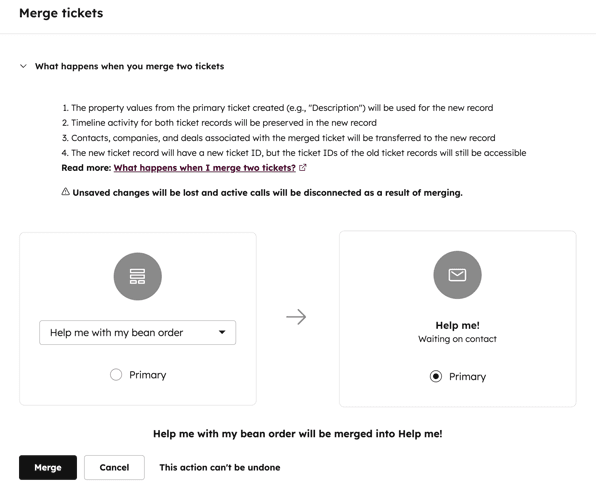
Split when one ticket holds two issues. Merge when two tickets hold one issue. Leave it alone when the second message is a follow-up on the same problem. The difference that matters is reversibility: HubSpot says merged tickets cannot be unmerged, and it documents no undo for a split.
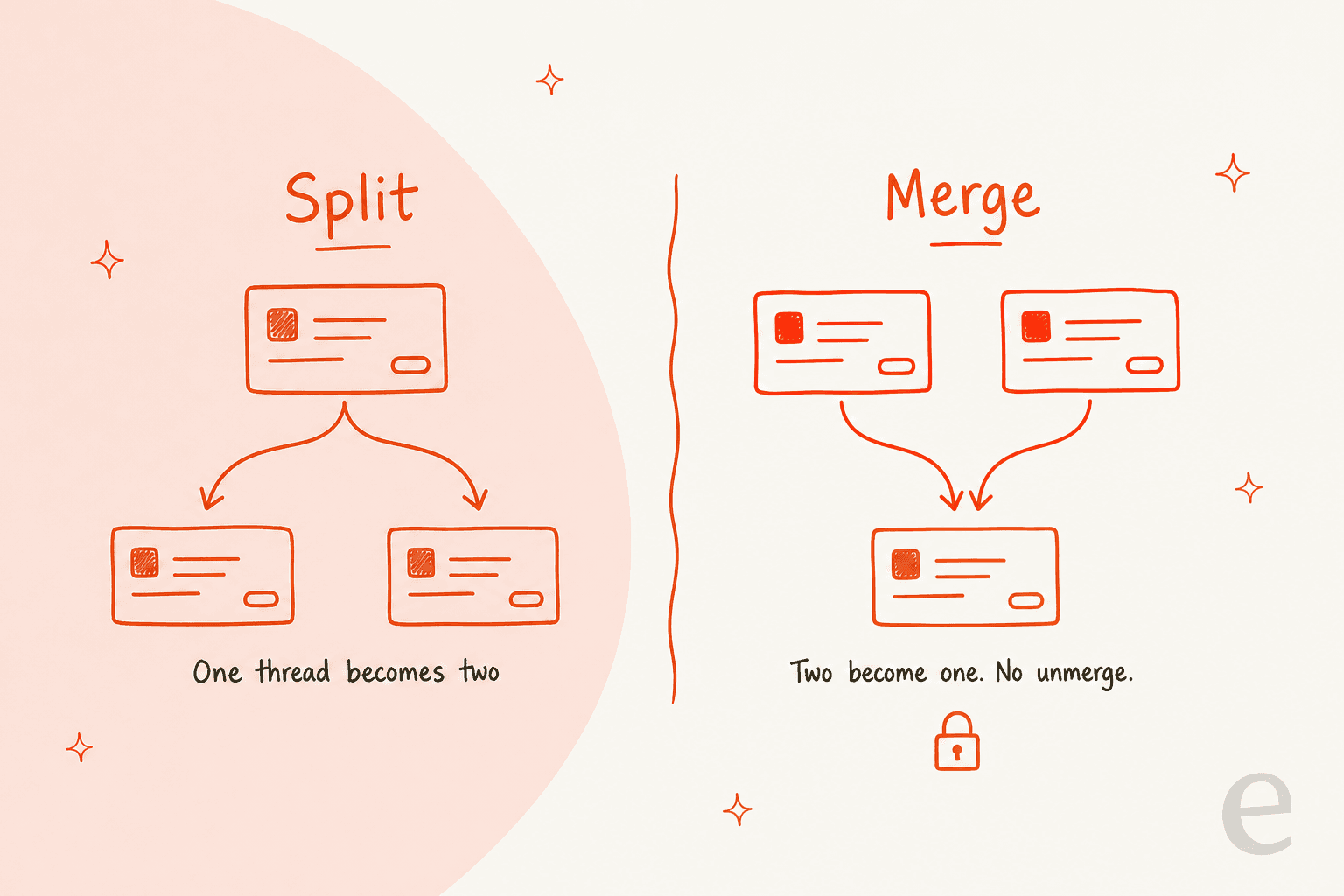
Merging in the help desk works like this: open a ticket, choose Actions > Merge ticket, search for the second ticket, and mark one as Primary. The primary ticket's property values are used for the merged record. HubSpot's merge records guide lists one exception for tickets: with several associated conversations, the owner of the most recently updated conversation is kept.
Try the picker below with your own situation.
What does the ticket in front of you look like?
How do splits and merges affect SLAs and reports?
For merges, HubSpot is specific. The merged ticket keeps the SLA of the primary ticket, and the create date shown may be earlier than the date used to calculate SLA deadlines when an older ticket is merged into a newer primary. Properties like Close date or Time to first response may take the secondary ticket's values if the primary has none, so the SLA status can disagree with the ticket's current status. HubSpot's SLA documentation lists all three effects, and the same page says SLA goals can be set with Super Admin permissions.
For splits, the docs say nothing about SLA clocks. HubSpot's SLA goals can apply to every ticket or key off ticket properties, so a new ticket with a high priority could pick up a fast goal the moment you create it. That is my reading of how the goals work, not a statement from HubSpot. If you run strict targets, test one split and watch the Next SLA Goal field in the right sidebar, which is visible in HubSpot's own screenshot above.
HubSpot's admin Q&A also gives the reporting reason to split: it's most useful if you need a separate ticket to report on and another team has to act on it. If you don't need either, notes are enough. For targets and measures, see my SLA best practices post and the customer service KPIs guide.
Where does AI fit when a ticket needs splitting?
An AI teammate can spot the problem. It can't do the split. eesel's documented HubSpot actions are replying, adding internal comments, creating tickets, changing priority, and updating ticket titles and descriptions (eesel HubSpot docs). Splitting isn't on that list. What the agent can do is read the whole thread plus the contact record and leave an internal comment the customer can't see, so a teammate gets a note such as "this ticket now covers a refund and a feature request" before they answer.
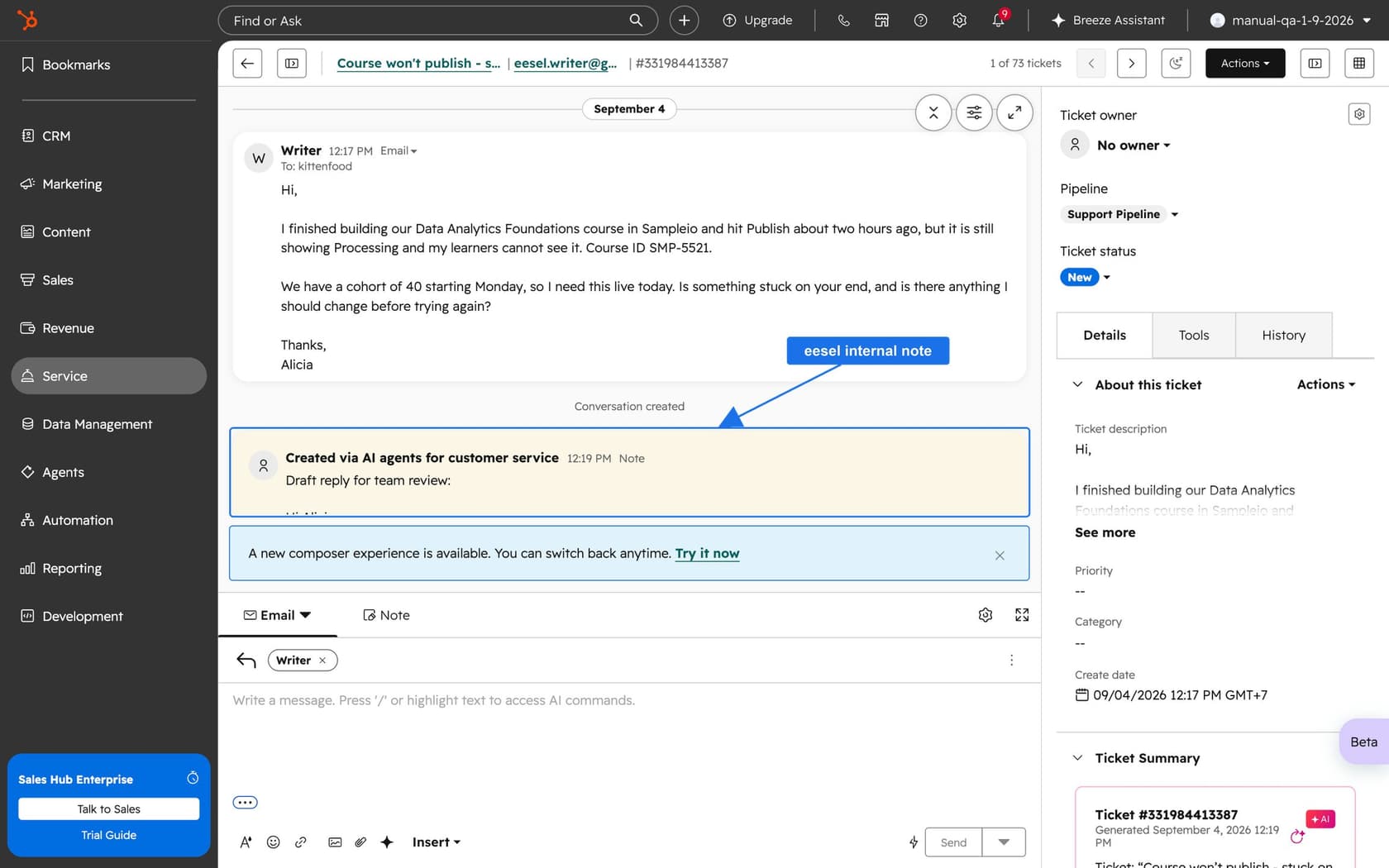
MentorShow, a French online learning platform, shows why mixed tickets matter. Its team works entirely in HubSpot and gets between 5,000 and 13,000 tickets a month depending on the period. Its story notes that a webinar has a replay and a coaching session does not, and a reply that mixes them up creates a second ticket. eesel reads each conversation and ticket, checks the member's record, and leaves an internal note with an analysis and a draft reply. Between 8 August and 8 September 2026 it read about 1,200 HubSpot items and wrote 432 drafts for the team. A person reads, edits, and sends every one.
The instructions you give the agent are where splitting guidance goes. You can tell it to flag threads that hold more than one request, and to name the messages involved, so the rep's job shrinks to ticking the right boxes. For broader context, my AI for HubSpot Service Hub guide and the Service Hub AI alternatives roundup compare the options.
What would I do with this in my own queue?
Here's the short version I'd hand a support lead:
- Write a one-line split rule. "One issue per ticket" is enough. Without it, half the team splits and half merges.
- Split reopened tickets the same day. A reply to a closed ticket flips the ticket back to your first Open status, and ticket dates may be recalculated, which can skew reports.
- Merge only after you pick the primary. The primary's properties and SLA win, and there's no way back.
- Always fill the Note field. It's the only place the new ticket records why it exists.
- Run one test split before you train the team. Check contact, associations, workflow enrollment, and the SLA goal on the new ticket.
- Keep chat out of the plan. Until HubSpot's docs list other channels, treat splitting as email and form only.
If your team handles volume, look at my guides on ticket deduplication and AI ticket summarization, plus HubSpot's own Breeze escalation guardrails.
Try eesel for your HubSpot help desk
If splitting is a symptom of a queue that's too busy to read carefully, eesel for HubSpot works like a new teammate in Service Hub. It learns from your HubSpot knowledge base and past tickets, reads each ticket with its contact record, and drafts replies as internal comments for your team to review and send. It doesn't split tickets, but it makes the split decision easier by naming the two issues up front. See how it compares in my best AI for HubSpot roundup, or read the AI teammates overview.
The eesel CLI lets Claude Code, Codex, or Cursor upload your approved split-and-merge policy as knowledge, adjust the agent's instructions, and ask test questions to check the answers before they go live. Connecting HubSpot itself still needs someone with the App Marketplace Access permission to approve it in the browser.