HubSpot customer portal ticket visibility: who sees which ticket, and how to control it

Rama Adi

Katelin Teen
Last edited November 5, 2026
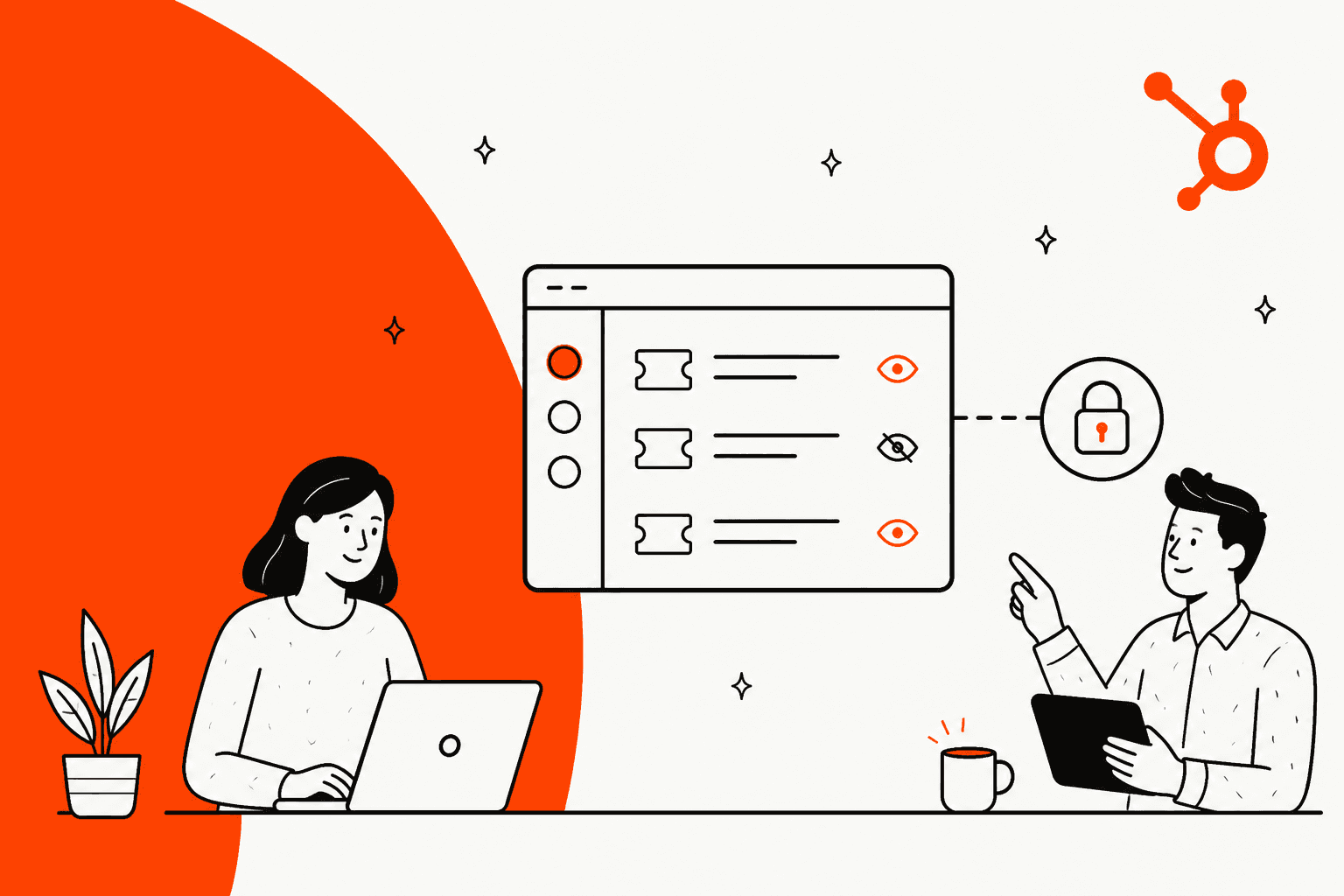
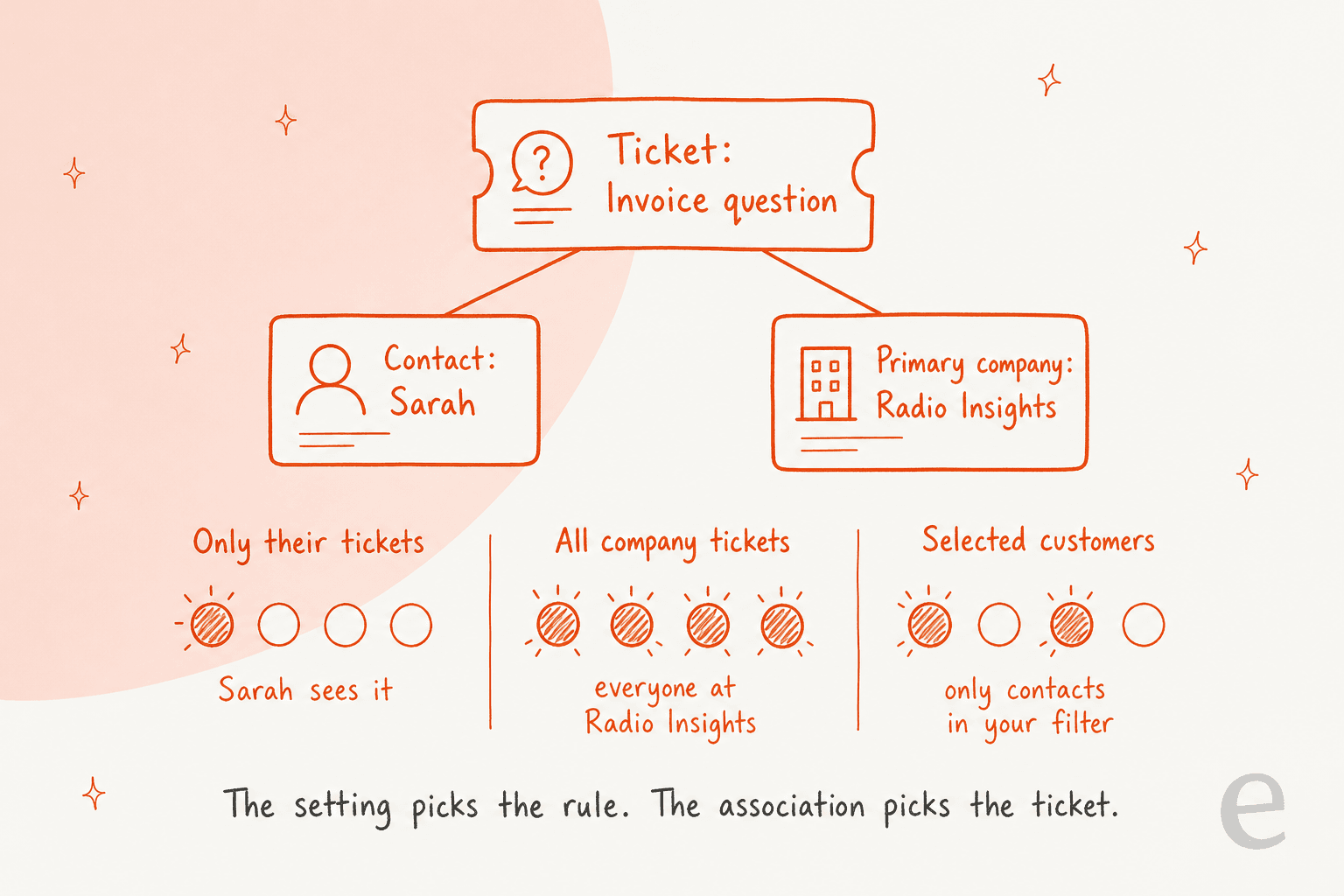
In the HubSpot customer portal, ticket visibility comes from two things: the permission you pick and the records each ticket is associated with. The permission sets the rule (own tickets, whole company, or only selected contacts). The associations decide which tickets that rule applies to. Most "wrong ticket showed up" problems are really a contact with the wrong primary company. For B2B accounts, I'd pick Selected customers can see company tickets, clean up primary companies before launch, and keep internal talk in notes and comments, because anything in the thread is readable in the portal. eesel drafts on HubSpot tickets as internal comments, so nothing it writes reaches the portal until someone on your team sends it.
How does ticket visibility work in the HubSpot customer portal?
The customer portal (HubSpot now calls the updated version the support portal) is a login page where customers can see, reply to, and file tickets. It needs Service Hub Professional or Enterprise. Two separate controls decide what a customer finds there:
- Which tickets they can see. A permission setting combined with the ticket's associations to contacts and companies.
- What they see inside each ticket. The properties you show as columns, plus the conversation thread.
I build eesel's integrations, including the HubSpot one, and I've learned that HubSpot permissions are only as good as the association data underneath them. Our HubSpot agent reads each ticket together with the contacts, companies, and deals attached to it (eesel HubSpot docs), and a messy association shows up right away as a confused answer. The portal works the same way. It does exactly what the associations say, and a customer sees whatever the CRM links to them.
Two limits matter before you start:
- Only tickets appear. Conversations that aren't associated with a ticket don't show up. That includes chat, Facebook Messenger, form, and team email messages in the inbox or help desk. A ticket doesn't need a conversation to appear, though.
- Sensitive attachments stay inside HubSpot. With Sensitive Data settings on, customers can't open those files in the portal.
| Plan | Customer portal | Starting price | One-time onboarding |
|---|---|---|---|
| Free, Starter | No | $0 / $7 per seat per month | None |
| Professional | Yes, up to 2 access groups (shared with private knowledge base) | $90 per seat per month | $1,500 |
| Enterprise | Yes, up to 100 access groups (shared with private knowledge base) | $150 per seat per month | $3,500 |
Source: HubSpot Service Hub pricing. My HubSpot pricing post and the HubSpot review go wider than the portal.
Which customer ticket permission should you pick?
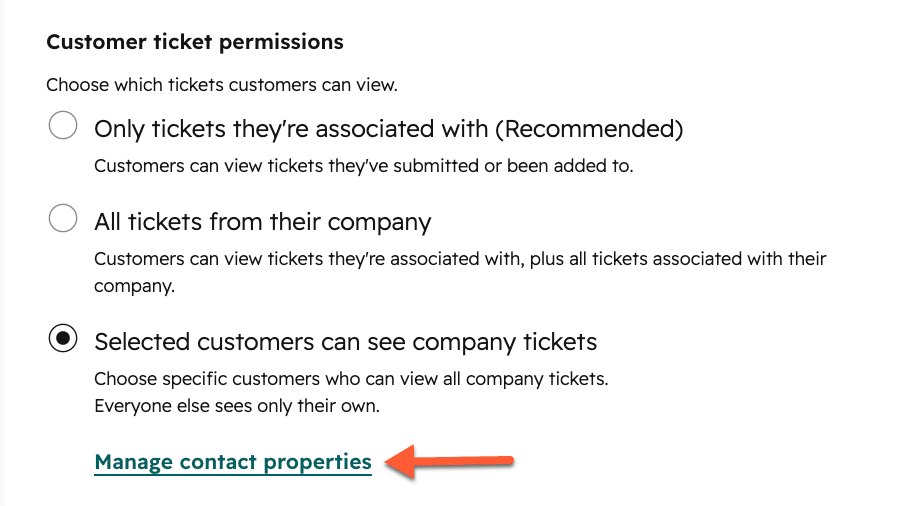
Under Service > Customer Portal > Tickets, the Customer Ticket Permissions section has three options (HubSpot docs):
| Option | Who sees a ticket | Best for |
|---|---|---|
| Only tickets they're associated with | Contacts associated with that ticket | B2C, or any account where coworkers shouldn't see each other's requests |
| All tickets from their company | Every portal user whose primary company is on the ticket | Small B2B accounts where everyone works on the same project |
| Selected customers can see company tickets | Contacts that match a contact property filter see company tickets; everyone else sees their own | Most B2B accounts: admins and champions see everything, other users see their own |
"Associated with" has a broader meaning than "submitted". HubSpot's own label says customers see tickets they've "submitted or been added to", so adding a coworker to a ticket's contacts gives them access, even under the strictest setting.
The selected option is newer, and teams asked for it for years. A HubSpot Community idea from 2024 explains why:
"For some customers allowing everyone to see all tickets from everyone else would open a hugh data-security issue, e.g., if some projects we work with are confidential."
That's the case for Selected customers. To set it up, click Manage contact properties and add a filter. I'd create a dedicated single checkbox property, something like Portal: sees company tickets, instead of reusing Job title or Lifecycle stage. A job title changes when someone gets promoted. A checkbox only changes when someone on your team decides it should. One gotcha from the docs: the filter applies when you close the panel, but you must save the view for it to persist.
When company access is on, customers get two tabs: My view (tickets associated with their contact) and Organization view (tickets associated with their primary company). You can also rename "Tickets" to something your customers say, like Orders, Cases, or Requests.

If you're coming from Zendesk, this is HubSpot's take on organization-wide ticket access. My Zendesk B2B support guide and the Freshdesk customer portal setup post show how the other two handle it.
Why do tickets show up in the wrong place, or not at all?
Nearly every portal visibility problem comes down to associations. The permission setting reads associations and nothing else, so a ticket with the wrong company attached will show up for the wrong people.
These rules come from HubSpot's docs on associating records and automatic company association:
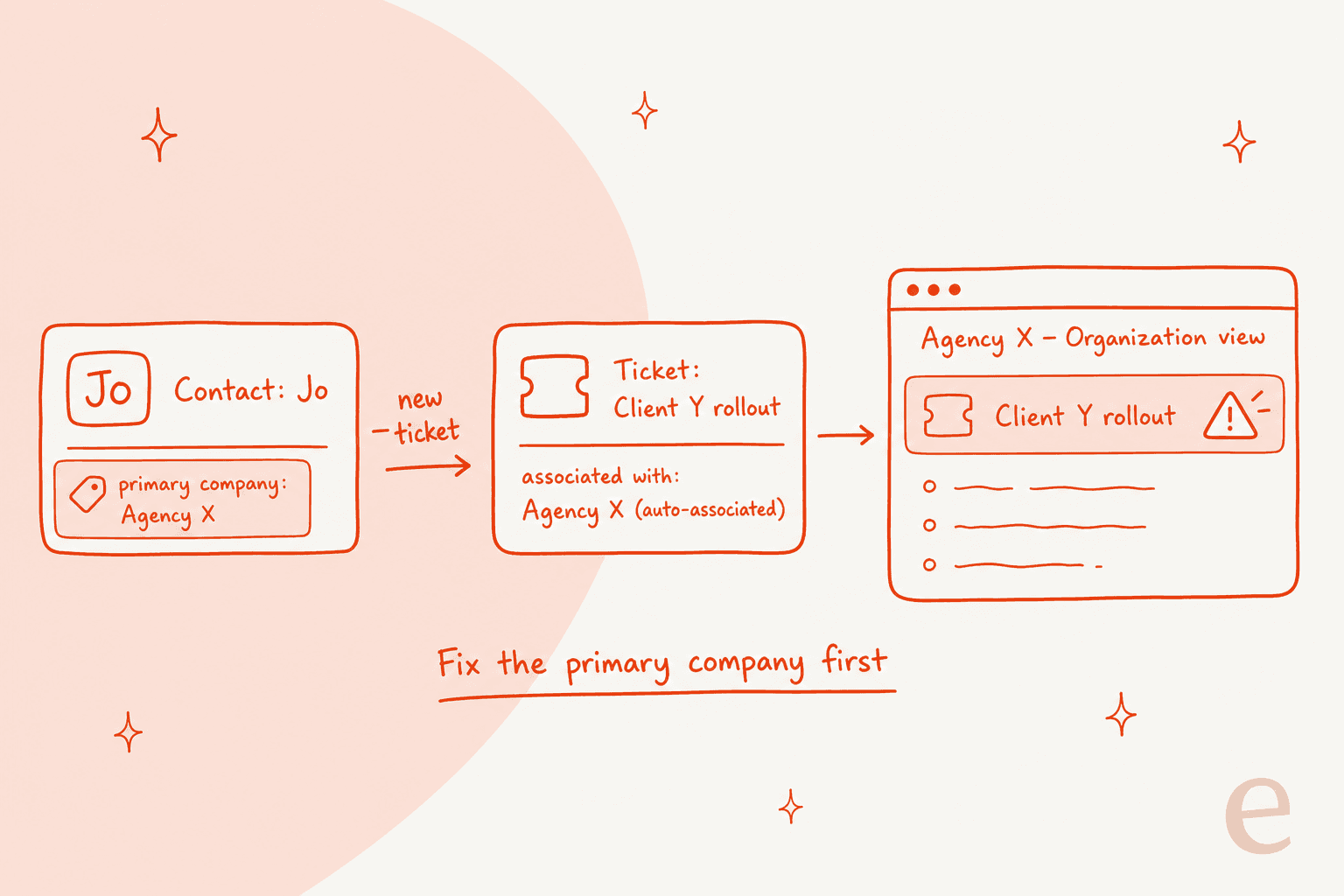
- Tickets inherit the contact's primary company. "For tickets, the associated contact's primary company will be automatically associated," unless you've turned off Associate Ticket to a Contact's Primary Company.
- The first company is primary by default. Whatever company was associated first stays primary until someone changes it.
- Only the primary company counts in the portal. Organization view shows tickets for the customer's primary company. Tickets on a second, non-primary company don't appear there, and nothing in the settings shows child company tickets to a parent.
- Companies are matched by email domain. With automatic association on,
sandra@example.comjoins the company whose domain isexample.com. Subdomains create separate companies, so@example.comand@info.example.combecome two records. - Freemail addresses usually get no company. A Gmail or Hotmail contact only gets a company if the Website URL property matches one.
- Duplicate domains pick one company for you. If two companies share a domain, HubSpot picks one and "it is not possible to select which company the contacts should be automatically associated with."
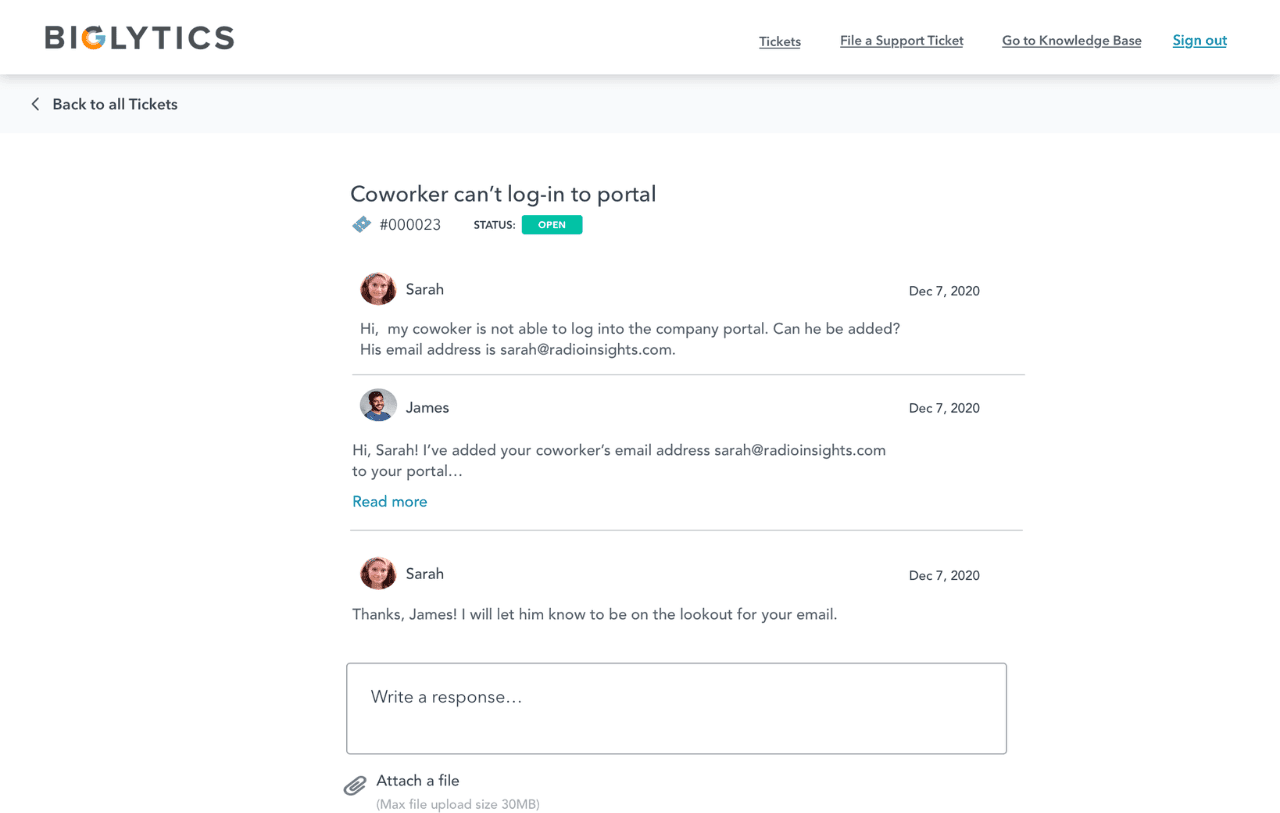
Here's the trap that hurts B2B teams most. A contractor, agency, or reseller contact has their own employer as primary company. They open a ticket about your actual customer's project. The ticket inherits the agency as its company, so it shows up in the agency's Organization view, not your customer's.
There's a second version of this trap. Some teams find HubSpot associating tickets with their own company record instead of the customer's, as one HubSpot Community thread describes. That usually happens when your own staff are contacts on the ticket. The fix is to add your own domain to the opted-out domains list (HubSpot allows up to 1,000 excluded domains) and keep employees off customer tickets as contacts.
When a ticket doesn't appear at all, check these in order:
- Is the conversation attached to a ticket? Chats and Messenger threads without a ticket never show up.
- Is the right contact associated? Look at the ticket record's sidebar, not the email's From line.
- Is a ticket visibility filter hiding it? (More on that below.)
- Are you testing as a real customer? If you're logged in to HubSpot, the portal skips the login and shows you the ticket listing. Test in a private window as a real contact. One HubSpot Community poster who couldn't see their test tickets found it "was my cache."
- Did you just move to help desk? A Community Champion reported that after a help desk migration, portal form tickets weren't linked to the right contact and disappeared from the customer's view. Their fix was setting the portal's default inbox to Help Desk.
If routing and association rules are part of a larger cleanup, my guides to HubSpot ticket routing and HubSpot CRM data cleanup go deeper.
How do you filter which tickets appear in the portal?
The permission decides whose tickets a customer can see. The Ticket visibility filter decides which kinds of tickets show up at all. In the Tickets tab, click Select ticket properties, then Add filter and set criteria on any ticket property (HubSpot docs).
Three filters I'd set on most accounts:
- Pipeline is your support pipeline. Internal pipelines (escalations to engineering, billing disputes your finance team runs, onboarding projects) shouldn't show up just because a customer contact is associated with them.
- A
Show in portalproperty is not No. A single checkbox lets an agent hide one sensitive ticket without moving it to another pipeline. - Exclude system ticket categories. If workflows create tickets for things like renewal reminders, filter them out by category so customers don't see a ticket they never opened.
One thing to know before you rely on the filter: it changes what the portal lists, not the ticket's associations in the CRM. If a pipeline really must never reach a customer, keep customer contacts off those tickets. My ticket triage guide covers how to keep queues separate in the first place.
What can customers see inside a ticket?
Customers only see the ticket properties you choose to show. By default, that's six (HubSpot docs):
| Default column | Notes |
|---|---|
| Subject | The ticket name. Whatever your team or a workflow writes here, the customer reads |
| Requested by | The contact who raised it |
| Create date | |
| Ticket owner | First name by default; full name, last name, or a custom alias are options |
| Last activity date | |
| Status | Your pipeline stage name, so name stages in customer-friendly words |
You can show up to 10 properties, reorder them, and rename them. On mobile, the card view shows only the first 2. Leave internal fields like Priority off the list. HubSpot's own example is showing Ticket name while removing Priority. Customers can also click Export to CSV, which exports everything in their current view, so treat every visible column as something that can end up in a spreadsheet.
Conversation threads have their own rules:
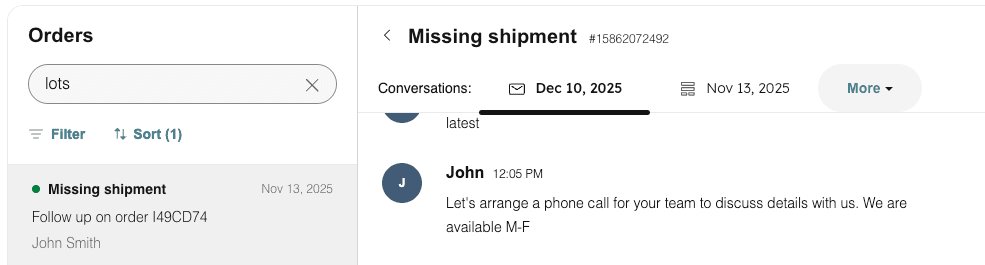
- If more than one thread is associated with a ticket, HubSpot's settings guide says only the original thread appears. Where the customer has permission to view more than one thread, tabs appear at the top of the ticket so they can switch between them.
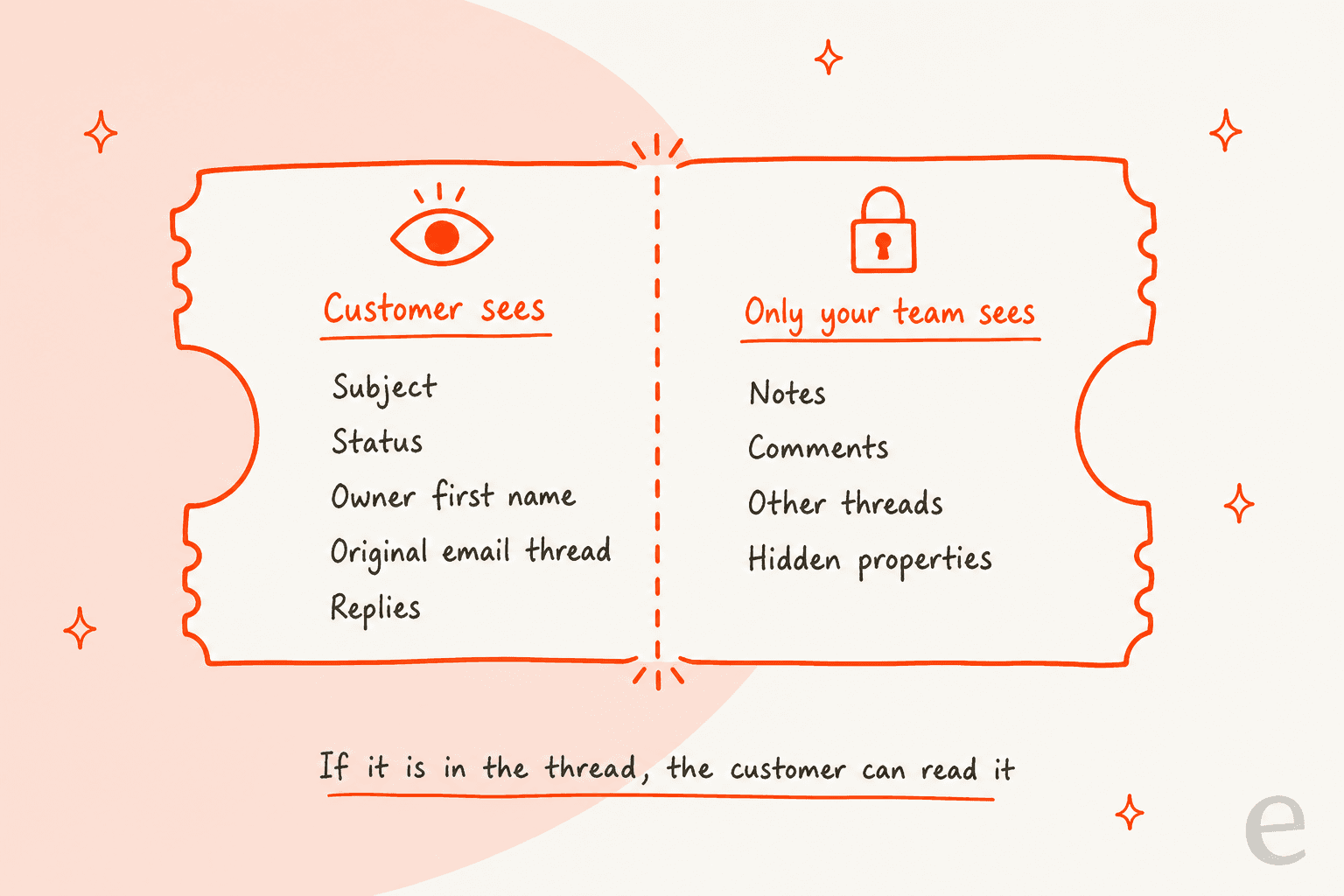
- Anything inside a conversation thread is visible to customers who can view that ticket. HubSpot's advice is to use notes and comments for internal discussion and to create filtering rules so internal emails don't land in the thread.
- You can check which conversations will appear from the Conversations card on the ticket record's right sidebar.
The leak I'd watch for is the "reply all" one. An agent CCs a colleague from engineering on the customer email, the colleague replies with "honestly this is our bug, we shipped it Tuesday", and that reply is now in the thread the customer can read in the portal. The same goes for forwarding an email to an account manager. If it's in the thread, it's public.
Should customers be able to close or reopen tickets?
Two ticket actions sit in the same Tickets tab: Allow customers to reply to closed conversations and Allow customers to close tickets from the portal. If you turn on closing, you pick the closed stage per pipeline. If a pipeline has only one closed stage, HubSpot selects it for you.
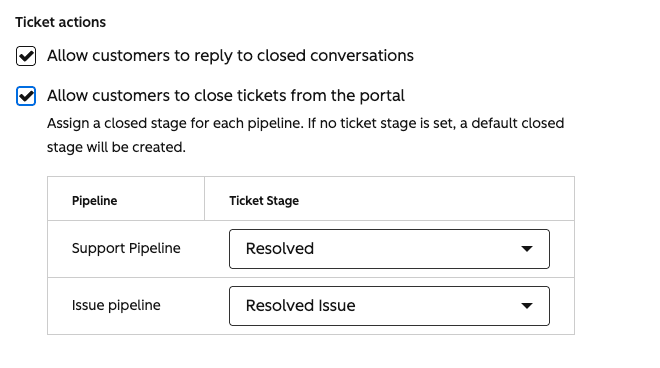
My take: turn on customer closing, and map it to a separate stage like Closed by customer, not your main Resolved. That keeps your first contact resolution and resolution-time reports honest, because "the customer gave up" and "we fixed it" shouldn't count as the same thing. Replying to closed conversations is worth turning on too, as long as a workflow reopens the ticket or alerts the owner when a reply lands. Otherwise the customer is writing into a ticket nobody is watching, which can quietly break an SLA.
Who can get into the portal at all?
Ticket visibility only matters once someone can log in. Under the Access tab there are two ways in (HubSpot docs):
- Access group membership required. You pick access groups and HubSpot emails those contacts a registration link. Professional allows up to
2access groups and Enterprise up to100, and the limit is shared with your private knowledge base. - Self-registration required. Anyone can register. You need self-registration turned on in private content settings, and you should set a consent to process data notice.
Three setup details tend to catch teams out:
- Portals on a HubSpot system domain (like hs-sites or hubspotpagebuilder) don't send membership emails to an access group. Connect your own domain first.
- Registration emails go to the contact's member email property, which isn't always their main email.
- The portal shows up in your domain's primary language, and HubSpot doesn't support multiple-language portals yet. The HubSpot translation guide covers workarounds for multilingual support.
Customers usually reach the portal from your HubSpot knowledge base, which is why the two share an access group limit. For a broader look at self-service, my customer support portal and HubSpot ticket deflection guides are the next stop.
A pre-launch visibility audit (about 30 minutes)
Before you switch the portal on, or before you change the permission on a live one, run through this checklist:
- Pull a list of contacts with more than one associated company. Check that the primary is the company they work for, not an agency or a previous employer.
- Search for tickets associated with your own company record. Remove that association and add your domain to the opted-out domains list.
- List companies that share a domain. Merge them or fix the associations by hand, because HubSpot picks one for you.
- Create the
Portal: sees company ticketscheckbox and tick it for each account's admin or champion, if you're using Selected customers. - Set the ticket visibility filter to your customer-facing pipelines only.
- Rename pipeline stages that read badly to a customer (
Waiting on dev,Escalated - angry). - Trim the columns to what a customer should be able to export.
- Test as two real contacts at the same company in private windows, one with the checkbox and one without, and compare what each sees in My view and Organization view.
If the portal is new to you, do the test before inviting your first access group. It's much easier to explain a fixed setting than an email from a customer who saw a coworker's ticket.
What do HubSpot users say about the customer portal?
Reviews mention the portal less often than the help desk, and the common thread is that it works for most teams but can feel stretched at the top end:
"customer portal needs further work to cater for enterprise sized businesses"

The most-requested gaps on the HubSpot Community line up with what I covered above: an idea for company-level access is now marked Delivered, and the selected-contacts request that followed it describes what the Selected customers option now does. Other forum ideas ask for child company tickets and tickets associated with a contact's deals. If those matter to your account structure, plan around them for now. My HubSpot alternatives and HubSpot vs Zendesk posts compare how other help desks model companies.
Where does AI fit when customers can see the ticket?
Once customers can read the ticket in the portal, where an AI tool writes on that ticket matters more. Two things to check on any AI you add to HubSpot, including HubSpot's own Breeze Customer Agent:
- Does it draft in the thread or in a comment? A draft posted as a thread message is public. A draft left as an internal comment isn't.
- Does it rename tickets? The ticket name is the Subject column in the portal. An AI that rewrites titles for your team's triage ("Angry - refund - 3rd time") is also writing what the customer sees.
eesel's HubSpot agent defaults to the safe side. Its Add internal comment action is described as "a comment the customer can't see," and the docs say to start there: the agent drafts, a human sends (eesel HubSpot docs). It can also update ticket titles and descriptions, so if you allow that action, tell it in the instructions to keep titles customer-friendly.
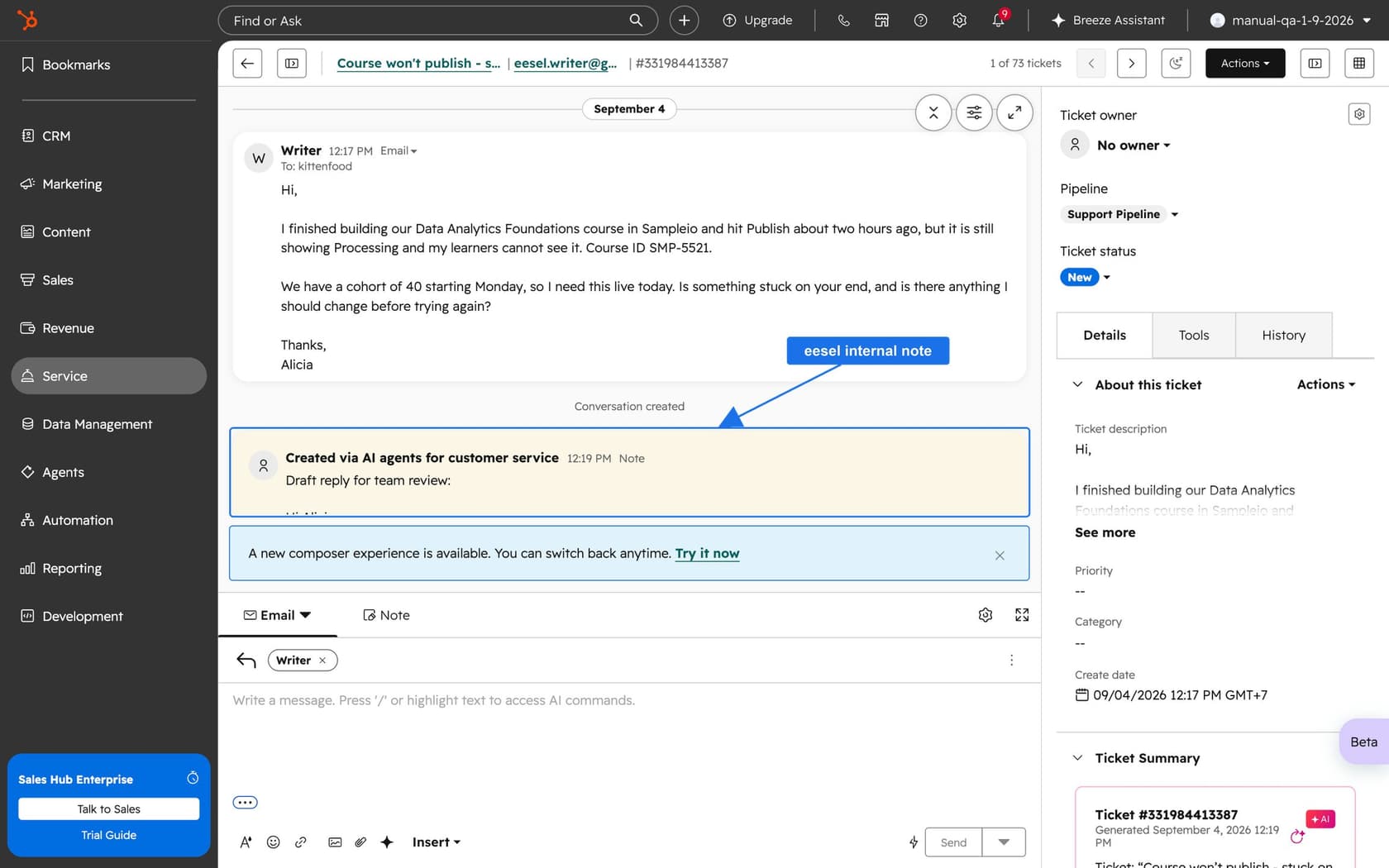
MentorShow, a French online learning platform, runs exactly this setup. Its support team works entirely in HubSpot, and eesel leaves an internal note on the conversations and tickets it picks up: an analysis for the team, then a draft reply in the member's language. Before drafting, it reads the member's HubSpot record (subscription status, next renewal date, past tickets). Between 8 August and 8 September 2026 it read about 1,200 HubSpot items (648 inbox conversations and 586 tickets), ran 837 knowledge base searches, and wrote 432 drafts for the team to check and send.
Try eesel on your HubSpot tickets
If your portal is set up properly, the next bottleneck is the queue behind it. eesel for HubSpot works like a new teammate inside Service Hub. It learns from your HubSpot knowledge base and past tickets, reads the contact and company behind each ticket (once you turn those sources on), and drafts every reply as an internal comment so nothing reaches the portal until your team sends it. Once you trust it on routine questions, you can let it reply directly. You can try eesel on a single pipeline first, or compare options in my best AI for HubSpot roundup.
If you'd rather set it up from a terminal, the eesel CLI lets Claude Code, Codex, or Cursor run eesel integrations connect hubspot, sync your sources, and switch on an internal-comment automation, then ask test questions to check the drafts before any ticket goes live. Someone with HubSpot's App Marketplace Access permission still has to approve the connection in the browser.