How to set up AI responses in HubSpot Service Hub

Alicia Kirana Utomo

Katelin Teen
Last edited September 25, 2026

The three kinds of AI response in HubSpot Service Hub
Before you flip any switches, it helps to know that "AI response" means three different things inside Service Hub, and they sit on a spectrum from the agent helps you write to the agent writes and sends on its own.
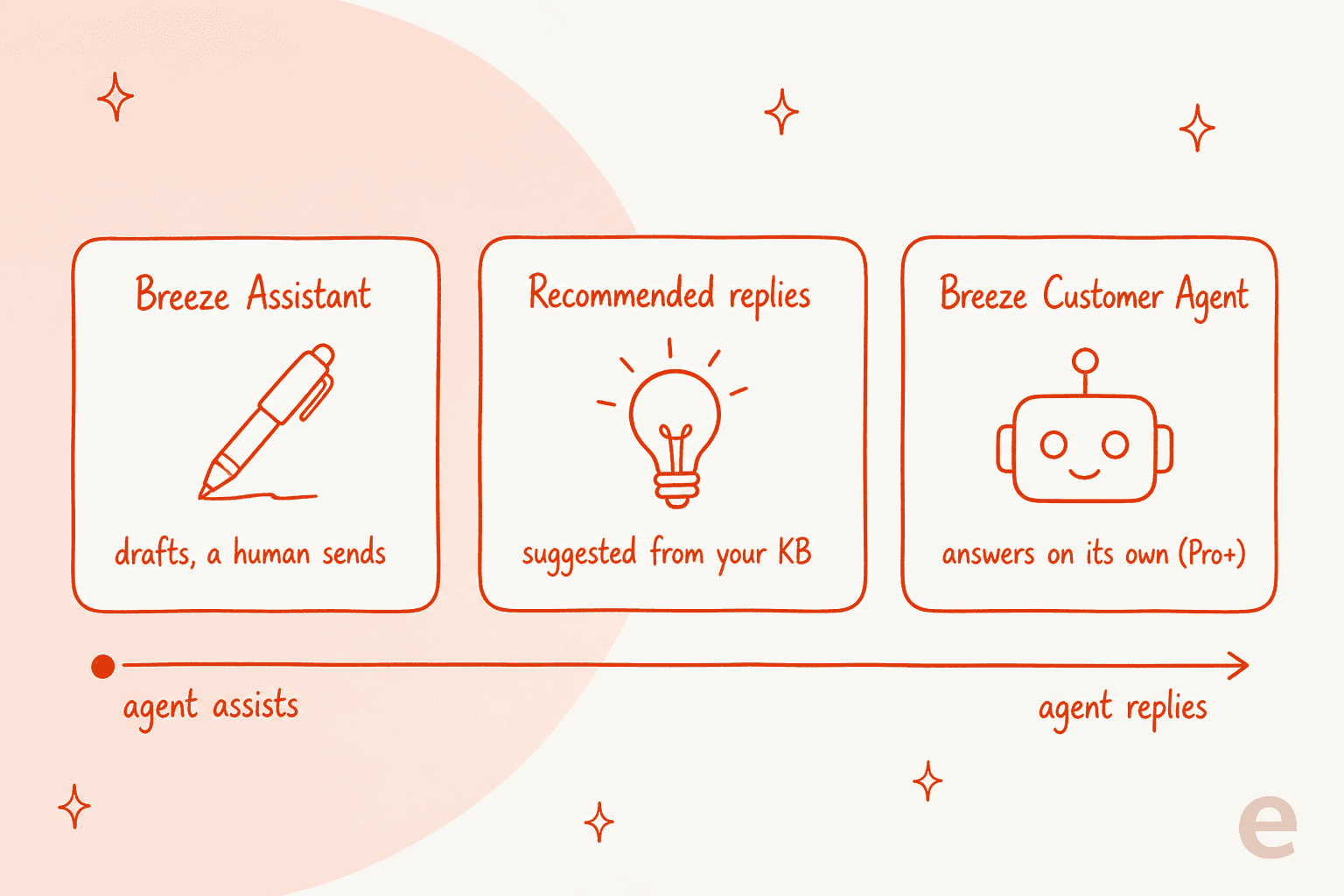
Breeze Assistant is the one most teams meet first. It lives inside the conversations inbox and helps a human: it drafts a reply, rewrites your tone, summarizes a long thread before you answer, and can pull CRM context like "how many open deals does this contact have." A person still reads and sends. It's included on every tier, so it's the zero-cost place to start.
Recommended replies are the middle ground. HubSpot surfaces a suggested answer built from your knowledge base articles when an incoming ticket matches a known pattern, so the agent can accept or edit rather than write from scratch.
The Breeze Customer Agent is the autonomous one. It reads an incoming email or chat, finds an answer in the content you've connected, and replies to the customer directly, handing off to a human when it can't. This is the piece that costs credits and needs a Professional plan, and it's what most people mean when they say "AI responses." Most of this guide is about setting that one up well.
What you need before you start
A few things to have lined up so setup doesn't stall halfway:
- The right plan. Breeze Assistant works on any Service Hub tier, including free. The Customer Agent needs Service Hub Professional ($90/seat/month on an annual commit) or Enterprise ($150/seat, sales-quoted). Professional also carries a required $1,500 onboarding fee, so budget for that.
- Credits. The Customer Agent spends HubSpot credits, and Professional includes 3,000 a month. They don't roll over, and automatic top-ups are the default rather than something you opt into, so it's worth knowing your limit before you go live.
- A real knowledge source. The agent is only as good as what it can read. You need at least one connected source, a knowledge base, a public page, or an uploaded file, before it can answer anything.
- Super Admin access. Setting up a Customer Agent and connecting content are admin actions, so make sure whoever's doing the setup has the permissions.
Step 1: turn on Breeze and open your AI settings
Breeze Assistant is on by default in most accounts, so the first response tool is usually already available in your inbox. If you don't see it, an admin can head to Settings and open the AI section, where HubSpot keeps a set of on/off toggles for its assistant and agent features. One thing to check while you're there: HubSpot's AI improvement toggle, which lets it use your data to train models, is on by default, and past training data can't be retroactively removed, so decide now whether you want it on.
This settings page is also where you confirm which data centers process your AI. Even accounts hosted in the AU or Canada regions still process AI features in the US, per HubSpot's trust center, which is worth noting if you have data-residency requirements.
Step 2: pick and configure your response mode
With Breeze on, you choose how hands-off you want to be. The two modes worth configuring are the Assistant (for drafting) and the Customer Agent (for autonomous replies).
Breeze Assistant (AI drafts, you send)
Nothing to install here, it's a panel in your conversations inbox. You type a prompt or click a suggested one, and it drafts or rewrites a reply using HubSpot context. One Reddit user summed up the mental model well:
"Breeze assistant, the artist formerly known as co-pilot, is effectively chat GPT + HubSpot context. It's helpful when you're inside HubSpot and you need guidance on how to do something, or you want it to do things for you like build workflows or lists."

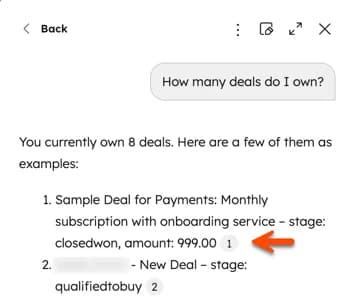
For a lot of teams, this is the whole AI story, and there's nothing wrong with stopping here. It's free, a human stays in the loop, and it takes the grind out of writing the same reply for the hundredth time.
Breeze Customer Agent (AI answers on its own)
This is the real setup. In your account, create a new Customer Agent, give it a name and a personality (HubSpot walks you through a short wizard), and you'll land on a general information screen like this one.
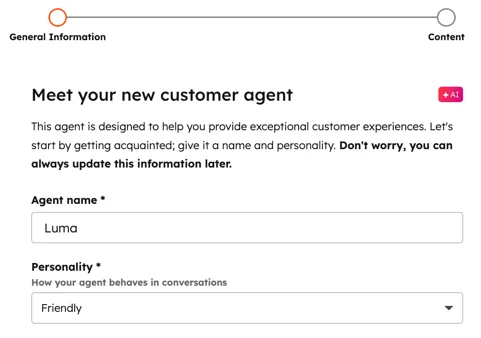
The personality setting isn't just cosmetic, it shapes tone across every reply, so pick something that matches how your brand actually talks. One thing you can't do at this screen: choose the model. HubSpot doesn't expose a model picker, an LLM setting, or an API key anywhere in the builder. Per HubSpot's own model cards, the Customer Agent is served by OpenAI models, while other Breeze features draw on Anthropic's Claude. You get the agent HubSpot gives you.
After the general info step, you connect content (that's Step 3) and then choose which channels and inboxes the agent handles. Start narrow: point it at one inbox or one topic, watch it for a week, then widen.
Step 3: ground the answers in your knowledge
An AI response is only as good as the content behind it, and this is the step that decides whether the agent sounds sharp or vague. On the content screen, HubSpot asks you to connect at least one source.
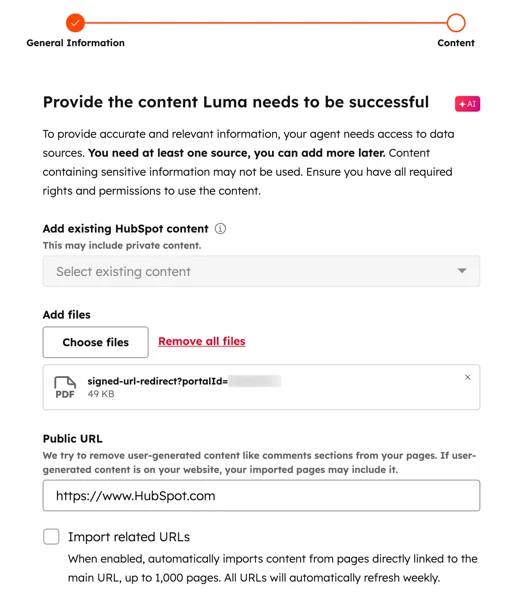
You've got three kinds of source here:
- Existing HubSpot content, mainly your knowledge base articles.
- Uploaded files, like a PDF of your returns policy, useful for anything behind a login that the crawler can't reach.
- A public URL, where HubSpot crawls your site. Tick "import related URLs" and it follows internal links up to 1,000 pages and refreshes weekly.
A couple of real limits to know, because they trip people up. HubSpot crawls up to 5,000 public URLs per domain and reaches external tools like Confluence, Jira, and Notion through first-party connectors, so the old "walled garden" complaint isn't really true anymore. But login-gated pages fail the crawler (HubSpot's own workaround is to upload a PDF), and if you import a help center from another tool it's a one-time copy of the articles, not a live sync. So if your Zendesk or Help Scout docs change, HubSpot won't know unless you re-import.
The bigger point is one an experienced admin made about why HubSpot AI sometimes feels weak:
"I think a lot of HubSpot AI feels weak when it is judged as a magic layer on top of the portal… If workflows are poorly named, lifecycle rules are undocumented, properties have unclear meanings, lists are stale… the AI is going to feel shallow because it is working from weak operating context."
That's the honest version of "garbage in, garbage out." Spend your setup time on the knowledge, not the personality slider.
What AI responses in HubSpot Service Hub actually cost
Here's where the setup gets real. Breeze Assistant is free. The Customer Agent runs on credits, and the math catches teams off guard.
| Plan | Monthly price | Included credits | Customer Agent access | Rough resolutions/month |
|---|---|---|---|---|
| Free | $0 | None | No | 0 |
| Starter | $20/seat (pay monthly) | 500 | No | 0 |
| Professional | $90/seat (annual commit) + $1,500 onboarding | 3,000 | Yes | ~60 |
| Enterprise | $150/seat (quoted) + $3,500 onboarding | 5,000 | Yes | ~100 |
Prices and credit allowances per HubSpot's Service pricing page. A "resolution" costs 50 credits, roughly $0.50, and extra credits run about $9 per 1,000 on an annual plan.
Look at what that means on Professional. Your 3,000 included credits, divided by 50 per resolution, is about 60 resolutions a month, and those credits are shared with the Data Agent and other Breeze actions too.
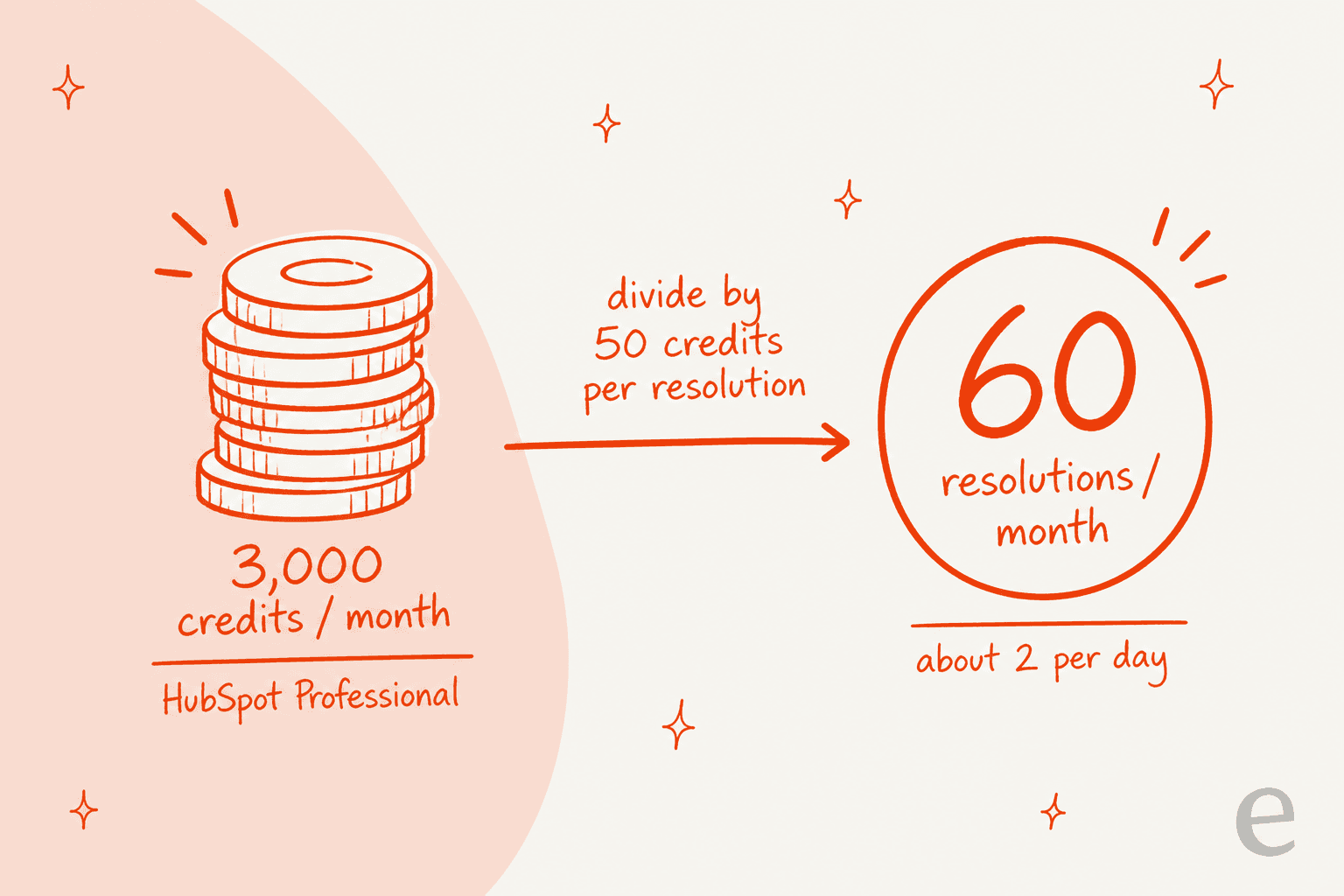
Sixty resolutions is about two a day. Any team with real ticket volume blows past that in the first week and starts buying credits, and because auto top-up is the default, the bill can climb quietly. This is the number that surprised the most people we heard from:
"Their credit-based pricing model is completely broken and not customer-friendly… Once you upgrade, there is no easy way to downgrade… it almost feels like a scam."
We break the full picture down in how much HubSpot AI costs, but the short version: the sticker plan price is the start of the cost, not the end of it.
Common mistakes to avoid
A few traps that turn a good setup into a bad month:
- Letting credits run out silently. When you exhaust your credits, the Customer Agent stops taking new conversations across every channel until the next reset. No dramatic error, it just goes quiet. Watch your usage.
- Forgetting the 72-hour freeze. HubSpot counts a resolution as billed when the agent replied citing a source and no human stepped in within 72 hours. That status freezes at 72 hours, so a conversation where the customer was actually annoyed still bills, and a reopened email thread can bill again.
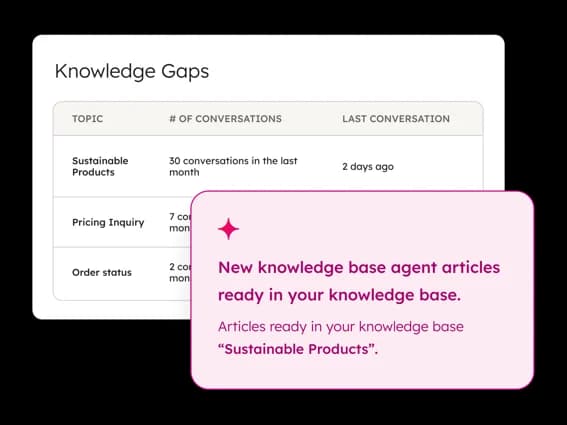
- Skipping the knowledge-gap review. Service Hub has a knowledge gaps report that shows the topics your agent keeps getting asked about with no article to answer from. It's the highest-leverage thing to check weekly, and most teams never open it.
- Turning it loose on everything at once. Point the agent at one inbox or one topic first. Autonomous replies across your whole queue on day one is how a confident-but-wrong answer reaches a customer before you've caught the pattern.
What people say about HubSpot's AI responses
The honest read from real users is mixed, and it splits cleanly. On the product itself, HubSpot Service Hub scores 4.4/5 on G2 across nearly 3,000 reviews, and people genuinely like the assistant features. The ticket summaries and knowledge-base suggestions come up again and again as the parts that actually save time.
Where the frustration lands is almost always pricing and the credit model, not the AI's writing quality. That Trustpilot company score of 1.5/5 you might see is hubspot.com company-wide and rates the contract, the multi-year lock-in and separate onboarding invoices, not Service Hub's AI. It's worth separating the two: the product reviews well, the billing model doesn't.
If your main worry is predictable cost and being able to test before you commit, that's exactly the gap a dedicated agent fills.
A simpler path: AI responses in HubSpot with eesel
If the credit math and the "turn it on and hope" testing gap are what's holding you back, this is where eesel fits. It's an AI teammate that plugs into HubSpot Service Hub as a native integration, reads your tickets, drafts and sends replies, updates ticket properties, and moves pipelines using live CRM data, the same jobs the Customer Agent does, with two differences that matter for setup.
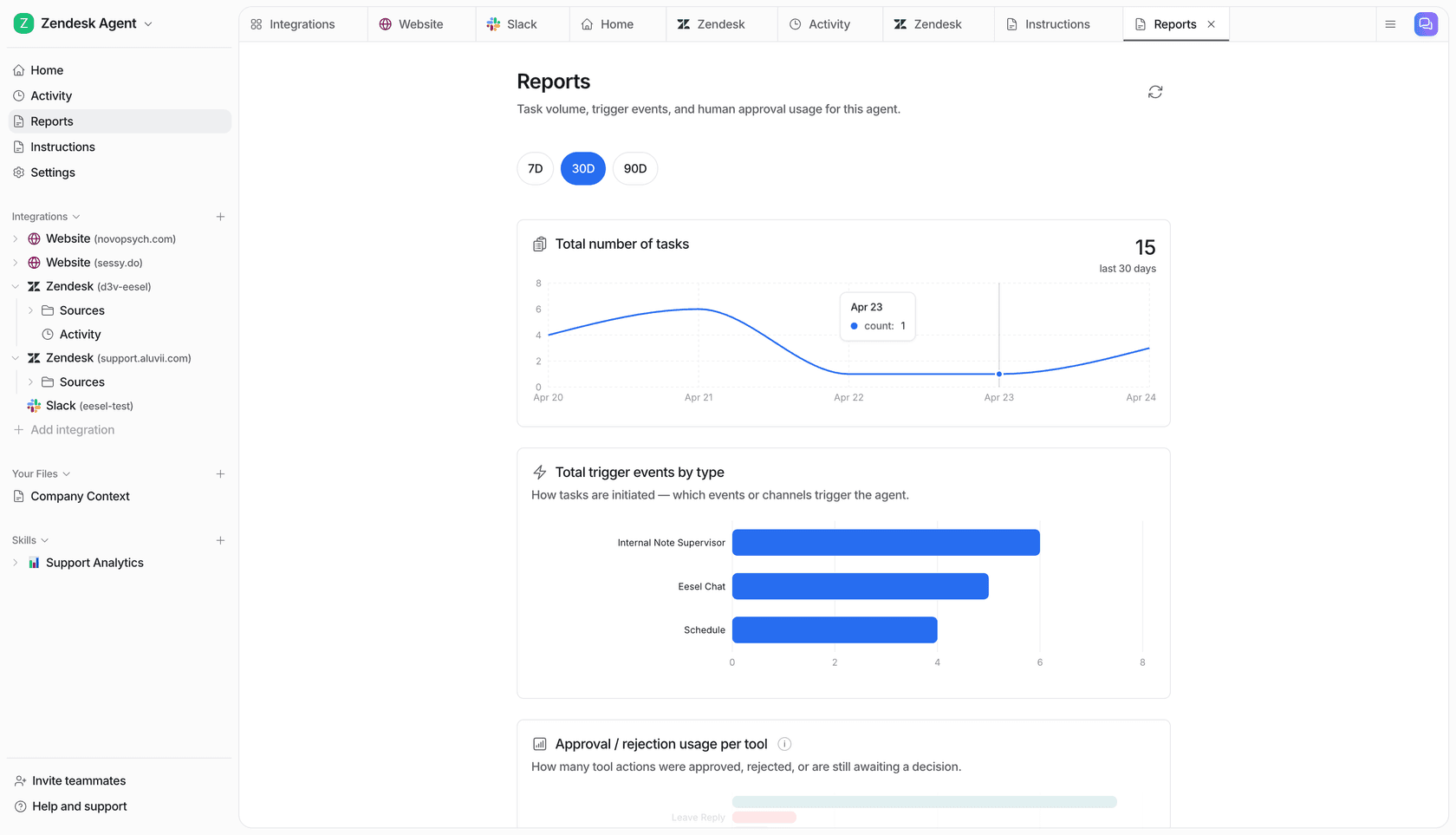
First, you can test on your real history before going live. eesel runs a simulation over thousands of your past HubSpot tickets and shows you the actual reply rate and the answers it would have sent, so you're not flipping a switch blind. Second, the pricing is flat: $0.40 per ticket handled, no per-resolution credits, no seats, no platform fee. The bill doesn't jump because a thread reopened or because a busy month pushed your volume up.
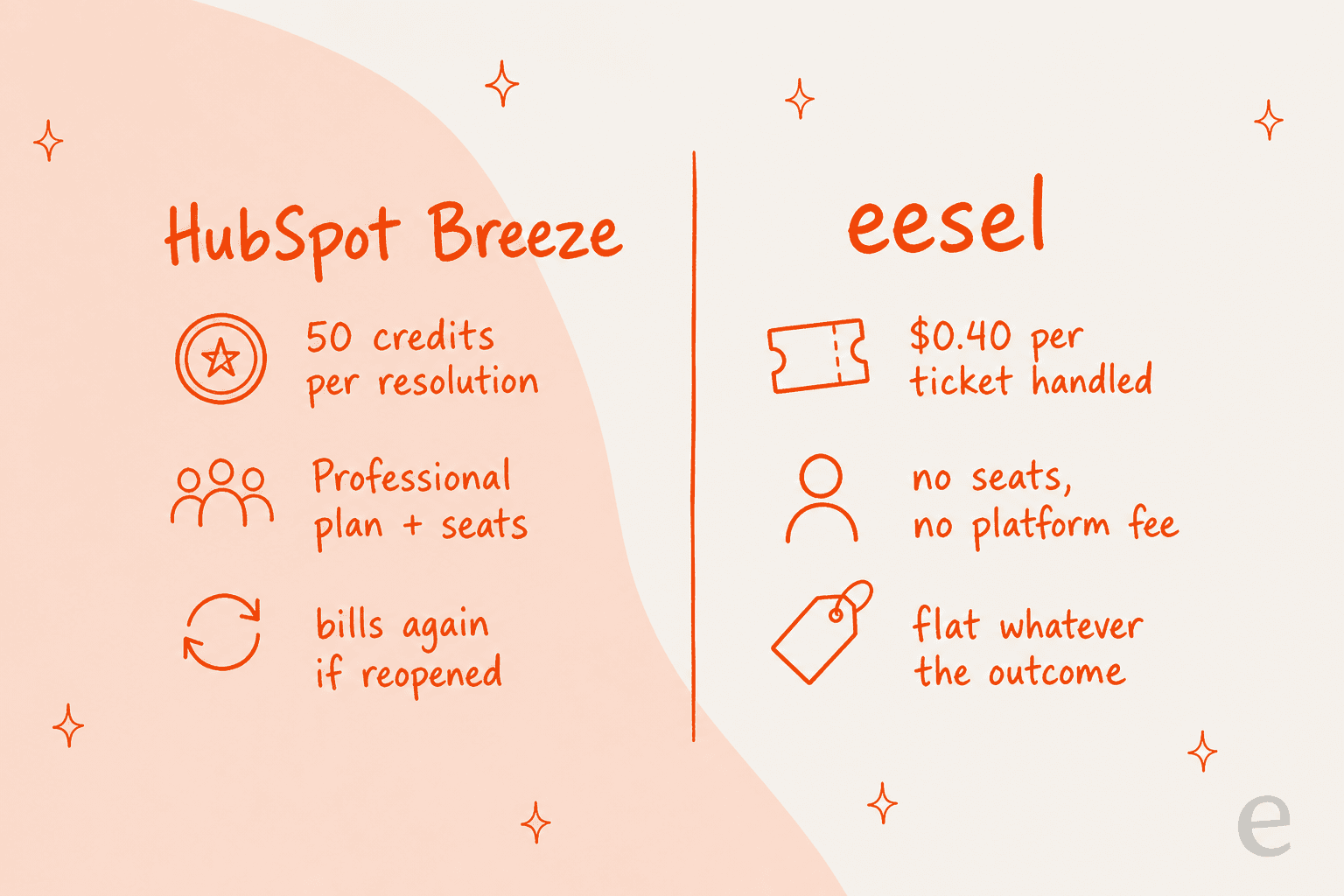
That flat-rate difference gets sharper at scale. In one eesel cost analysis for a ~1,000-ticket-a-month team, per-resolution pricing meant the bill scaled with both your resolution rate and your volume, so a Black Friday spike to 4,000 tickets multiplied the cost, while a flat rate kept November's bill the same shape as March's. Per-resolution pricing quietly penalizes you for the two things you actually want: resolving more and growing.
If you or your engineers prefer working from a terminal, eesel also ships a CLI that drives the same teammate and workspace. A person can run it by hand, scripts can automate it, and coding agents like Claude Code or Cursor can operate it, which makes it handy for inspecting an agent's HubSpot setup or reviewing test responses before you expand what it does.
Try eesel for HubSpot Service Hub
If you've read this far because HubSpot's credit model or the missing dry run is giving you pause, that's the exact problem eesel for HubSpot is built for. It connects to Service Hub in a few minutes, learns from your past tickets and help center on its own, and simulates on your real history so you see the reply rate before a single customer does, all at a flat $0.40 per ticket instead of credits.
You can start free and run the simulation on your own tickets to see the number for yourself. If you're weighing it against the native agent, our eesel vs HubSpot Breeze comparison lays the two side by side.
Frequently Asked Questions
How do I turn on AI responses in HubSpot Service Hub?
How much do HubSpot AI responses cost?
What is the difference between Breeze Assistant and the Breeze Customer Agent?
Can I test HubSpot's AI on my own tickets before it goes live?
What is the best AI for HubSpot Service Hub responses?



Article by
Alicia Kirana Utomo
Kira is a writer at eesel AI with a Computer Science background and over a year of hands-on experience evaluating AI-powered customer service tools. She focuses on breaking down how helpdesk platforms and AI agents actually work so that support teams can make better buying decisions.