How to add AI to HubSpot Service Hub (2026 guide)

Rama Adi

Katelin Teen
Last edited July 20, 2026
What "adding AI to HubSpot" actually means
"Add AI to HubSpot" sounds like one setting. It isn't. It's a choice between three approaches, and they differ a lot on cost, control, and how fast you get value.
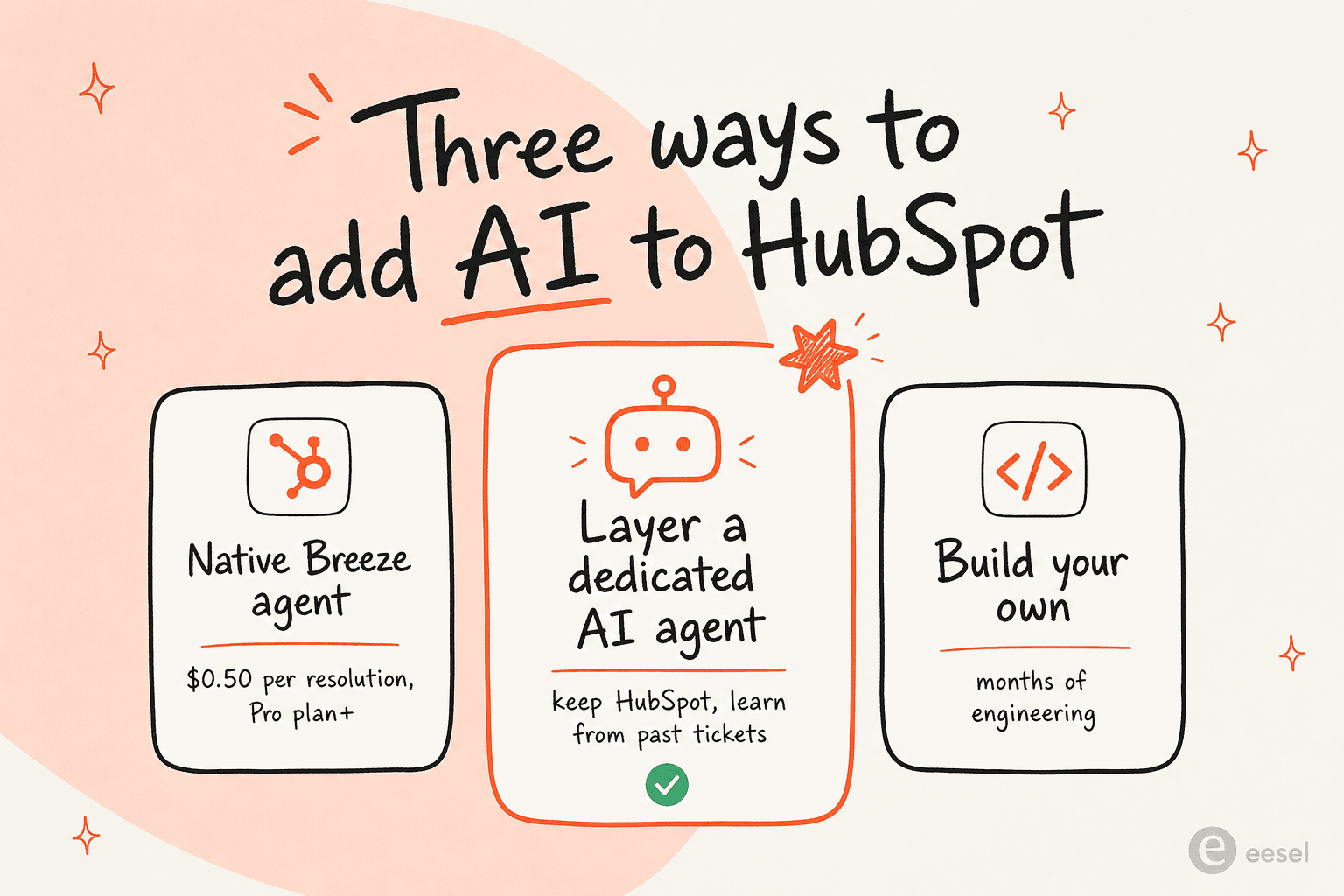
- Native Breeze. Flip on HubSpot's built-in AI agent, a HubSpot AI chatbot by another name. Cleanest if you're already deep in HubSpot and on the right plan.
- A dedicated AI layer. Keep HubSpot as your help desk and connect a purpose-built agent through the API. More control, learns from more, works even if you're not on Professional.
- Build your own. Wire a raw model API into HubSpot yourself. Almost nobody should, and I'll explain why below.
The rest of this guide is the setup steps and the honest trade-offs for each.
Route 1: turn on HubSpot's native Breeze Customer Agent
If you already live in HubSpot, the native Breeze Customer Agent is the shortest path. HubSpot describes it as a 24/7 agent that answers questions, resolves tickets, and escalates to a human when needed, using only content you've approved and citing its sources.
Here's the actual setup order:
- Confirm you're on Professional or Enterprise. Breeze, the help desk workspace, and the knowledge base are all Professional-tier features. If you're on Free or Starter, this route is blocked until you upgrade.
- Build out your knowledge base. Breeze answers from your approved content, so the knowledge base is the fuel. Thin content means thin answers.
- Connect your content sources. Point the agent at your help center, website, and any uploaded PDFs or docs.
- Test before going live. Use HubSpot's preview to see responses, then start on a small percentage of conversations and scale up.
- Set working hours and escalation. Decide when the agent replies and when it hands off to a human.
HubSpot reports strong numbers for teams that get this right: 70%+ of conversations resolved automatically and 39% faster resolution times. Those are vendor figures, so treat them as a ceiling, not a promise, but the direction is real.
The honest downsides: Breeze answers from your published help content, not from the thousands of tickets your team has already solved, so any answer that only exists in a closed ticket won't be there. Pricing stacks up too. You're paying the Professional seat price, the $1,500 onboarding fee, and about $0.50 per resolution in HubSpot Credits on top. For a deeper look, we broke down HubSpot's AI agent limits separately.
Route 2: layer a dedicated AI agent on top of HubSpot
The second route keeps HubSpot exactly as-is and connects a dedicated AI agent through the HubSpot integration. This is the route I'd reach for if you want more control, or if you're not on Professional and don't want to upgrade just to get an AI agent.
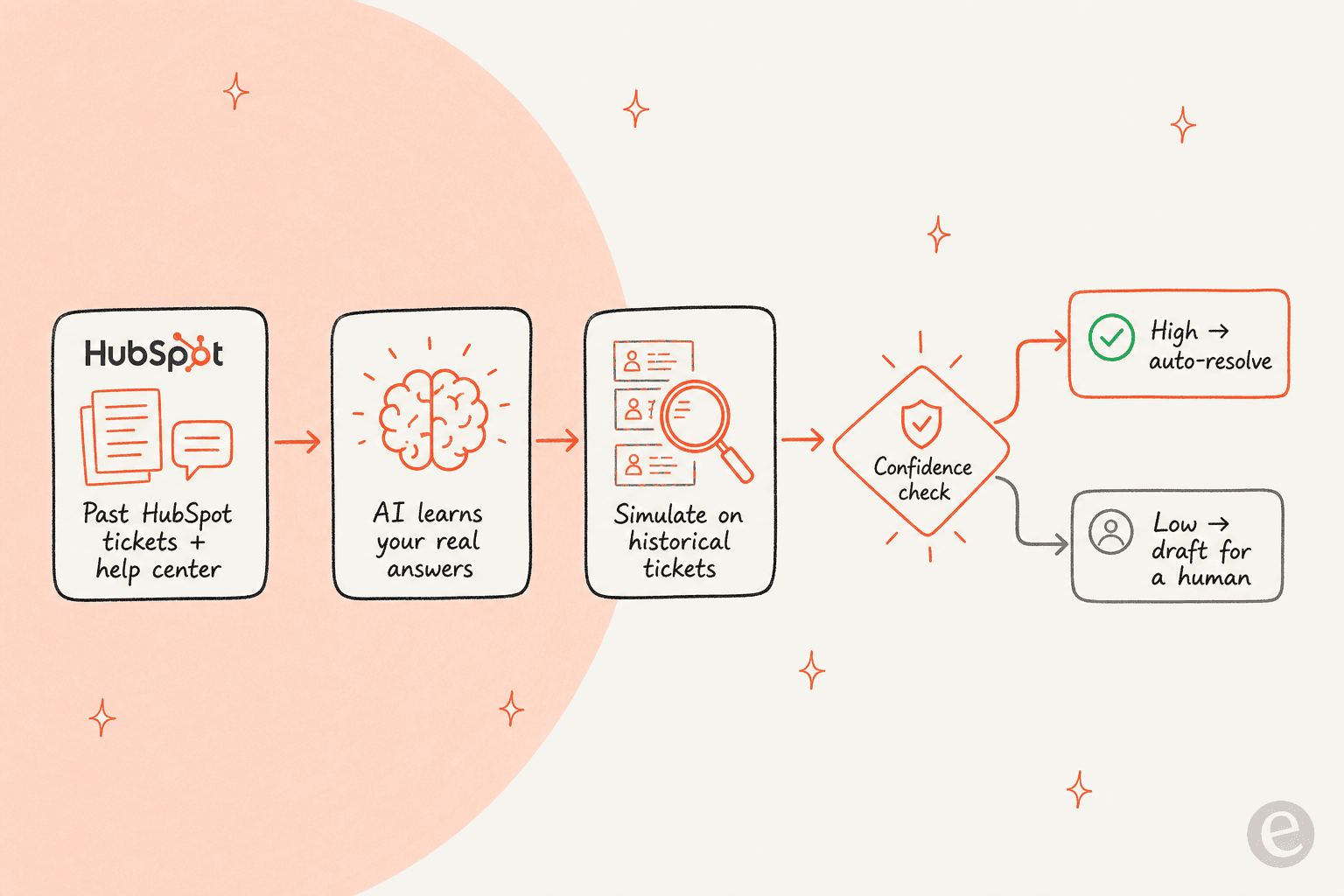
The mental model is different from Breeze. Instead of only reading your help center, a dedicated AI helpdesk agent trains on your past resolved HubSpot tickets, your docs, and your other knowledge sources, so it answers the way your team actually answers, not the way your help center wishes it did.
Setup is genuinely quick:
- Connect HubSpot. Authorize the integration; it starts indexing your tickets and help content.
- Add other knowledge. Pull in Confluence, Google Docs, Slack, or a public site so the agent isn't limited to one source.
- Describe the behavior in plain language. Tell it when to jump in, what tone to use, and when to draft versus send.
- Simulate on past tickets. Run it against your history to see coverage before it goes live (more on this below).
- Grant autonomy gradually. Start supervised, let it auto-resolve the easy stuff, keep humans on the rest.
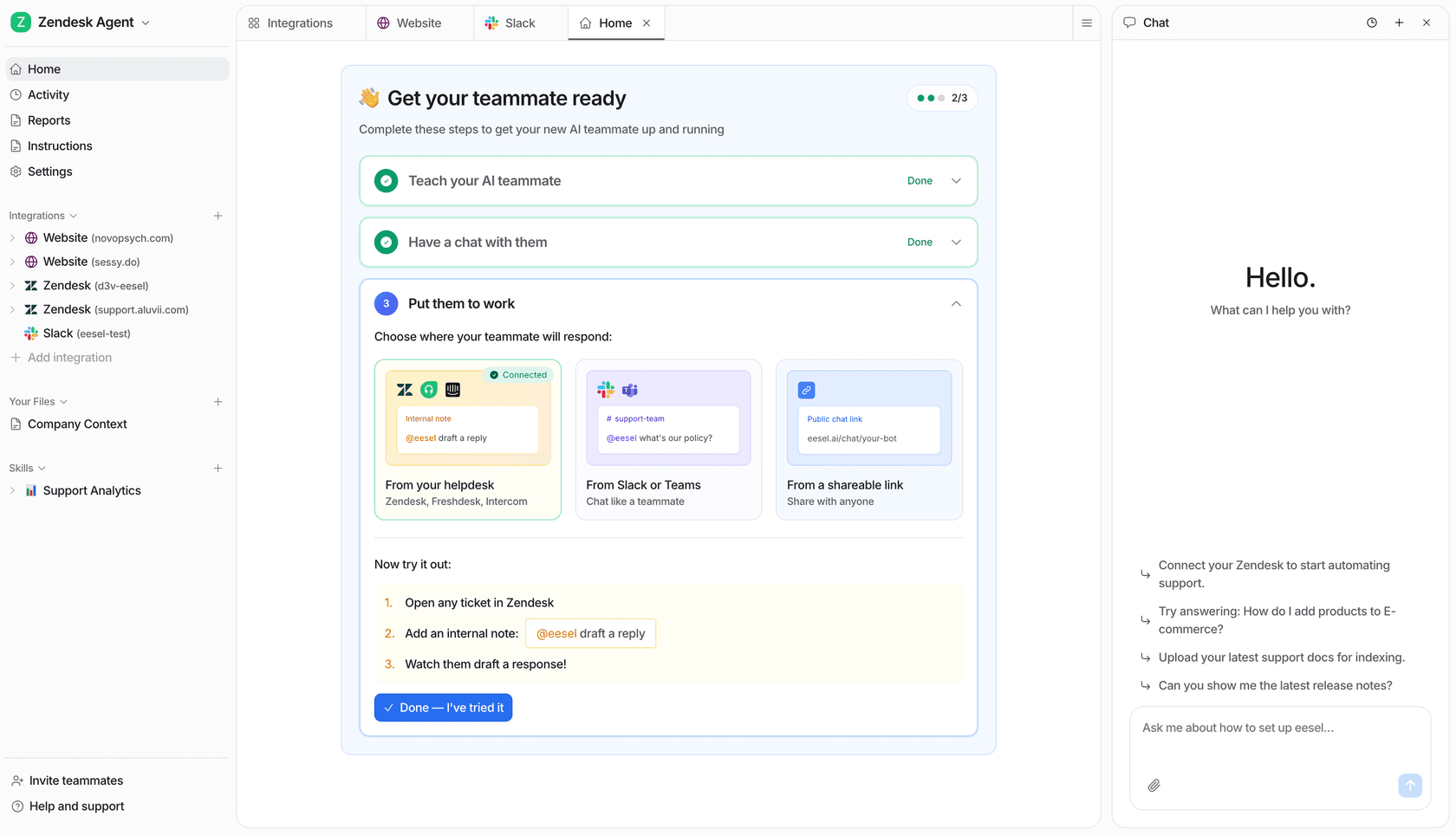
The trade-off runs the other way from Breeze. You're adding a second tool to the stack, which some teams don't love. In exchange you get confidence-based routing so low-confidence answers become drafts instead of live replies, learning from solved tickets, 80+ languages out of the box, and a price that doesn't climb with headcount. If you're weighing the two head to head, we wrote up eesel vs HubSpot Breeze in detail.
Route 3: build your own (and why most teams shouldn't)
You can wire a model API straight into HubSpot with the developer API and a bit of glue code, and there are guides on building a HubSpot chatbot that walk it. For a handful of teams with spare engineering capacity and a very specific need, it makes sense.
For everyone else, it's a trap. You end up rebuilding the unglamorous parts every serious vendor already solved: retrieval over your knowledge, confidence scoring, escalation logic, analytics, and a way to test changes safely. That's months of work before you resolve a single ticket, and then you own the maintenance forever. The build-versus-buy math almost always lands on buy for support AI, because the moat isn't the model, it's everything around it.
Which route fits you?
Not sure which of the three to pick? Answer one question about your situation and I'll point you at the sensible starting place.
Before you go live: simulate against your real tickets
This is the step that separates an AI rollout that works from one that quietly erodes trust. Before you let any agent, Breeze or otherwise, reply to a customer, run it against a batch of your real, already-solved tickets and read what it would have said.
I've watched a bot sound completely confident and be completely wrong, and the customer has no way to tell the difference. A simulation on historical tickets turns that risk into a number: you see coverage by topic, spot the themes where the answer is thin, fill the gaps, and re-run until you trust it. Only then do you flip it on for live traffic, and even then you start with the easy tickets and escalate the rest.
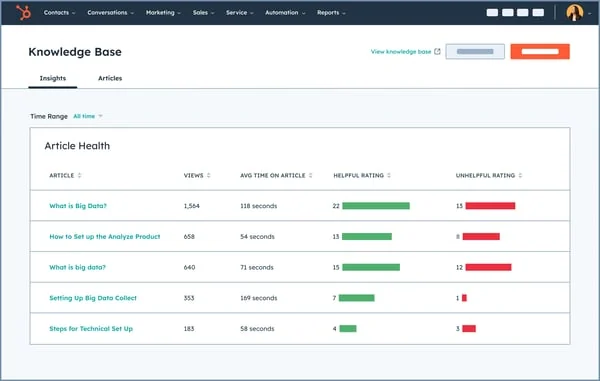
HubSpot's own knowledge base analytics help here too: the article-health view shows which content gets used and which searches return nothing, which is a decent map of where your AI will struggle.
Common mistakes when adding AI to HubSpot
A few things I see teams get wrong, in rough order of how often:
- Going live without a dry run. Covered above, but it's the big one. Test on real tickets first.
- Feeding it only the help center. Your best answers live in solved tickets. If the AI can't see them, it can't use them, which is why training on past tickets matters.
- Turning autonomy to 100% on day one. Start supervised, let it auto-resolve tier-1, and expand as trust grows.
- Ignoring the credit meter. With Breeze billing per resolution, a busy queue adds up fast. Model your real HubSpot AI cost before you scale.
- No escalation path. An AI that can't gracefully hand off frustrates people more than no AI at all. Wire up clean escalation early, and treat it as part of your wider customer service automation, not a bolt-on.
Try eesel on HubSpot
If you want an AI for HubSpot without upgrading your plan or babysitting the rollout, that's exactly what eesel is built for. It connects to HubSpot in a few minutes, learns from your past tickets and help center, and drafts or auto-resolves right inside your existing workspace, so it works like a new hire who already read every ticket you've ever solved.
The part I'd point to first is the simulation: before it answers a single live customer, you see exactly how it would have handled your real history, so you go live on evidence instead of hope. Pricing is one fixed monthly plan from $299/month for 500 credits (1 credit per ticket or chat) with no per-seat fee, and there is a free plan with 100 credits.