How to set up AI responses in Front: a practical guide

Rama Adi Nugraha

Katelin Teen
Last edited September 25, 2026

The three kinds of AI response in Front
Before touching a single setting, it helps to be clear about what "AI response" even means inside Front AI, because Front bundles a few different things under that banner and they do genuinely different jobs.
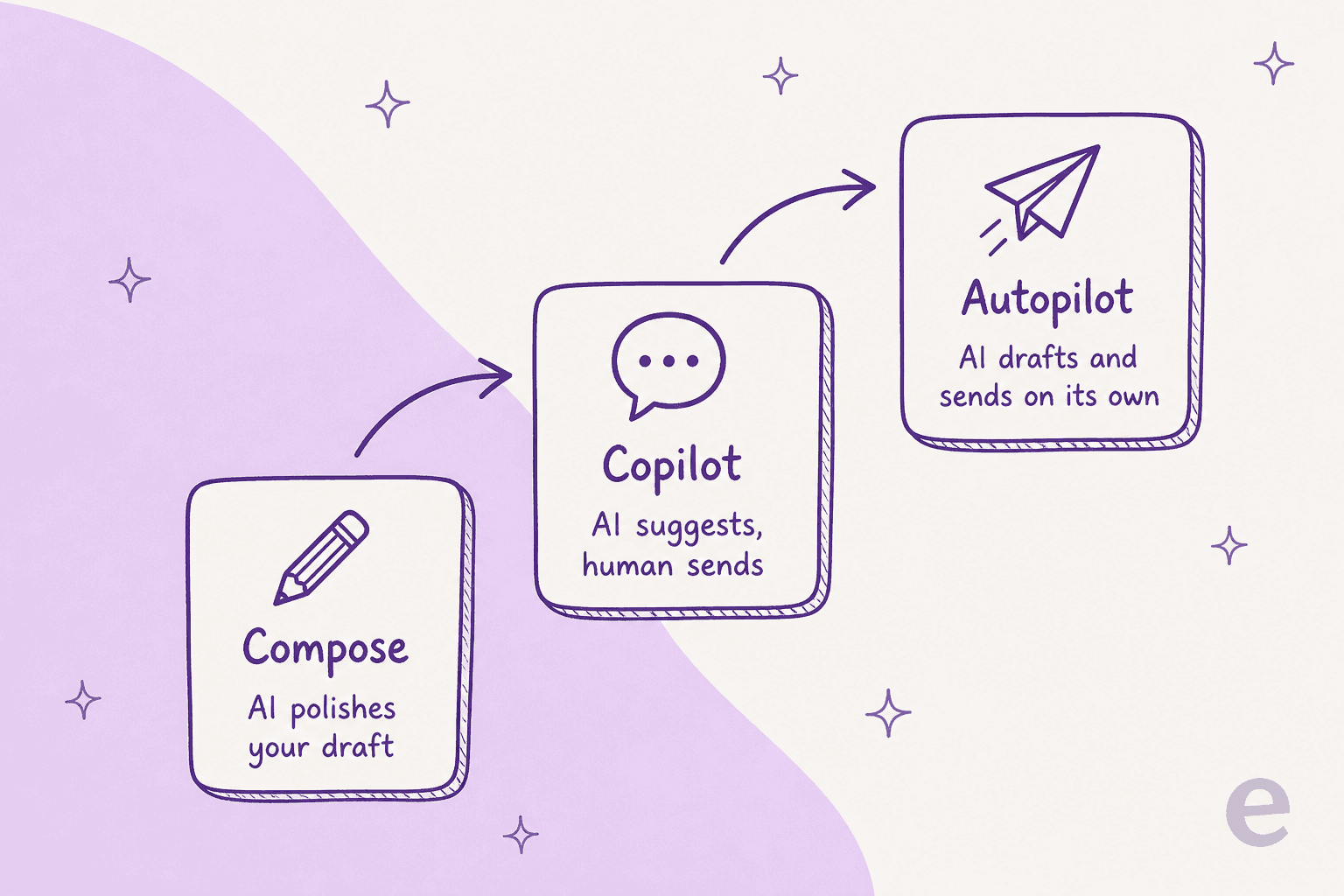
Here's the quick version of each:
- Compose is a writing helper. You start a reply, and AI expands, condenses, changes the tone, or fixes grammar. A human writes and sends. This is the Compose Email tool, bundled into every plan with a cap of 200 actions per teammate per day.
- Copilot goes a step further. It reads the whole conversation and connected context, then hands you a ready-to-send draft. You review and send. It's assistive, so a person is always in the loop.
- Autopilot is the autonomous agent. It can draft and send replies on its own, run multi-step playbooks, triage, and hand off to a teammate when it's out of its depth. This is the one people usually mean when they say "AI is answering my tickets."
There's also a legacy chatbot step called AI Answers that used to power self-serve in Front Chat. Front has since marked it "no longer available for purchase" and steers new customers to Autopilot Resolve instead, so I won't spend long on it here.
Knowing which level you actually need saves you from paying for Autopilot when Copilot would do, or wrestling with Copilot when you really wanted the agent to just handle the easy stuff end to end.
What you need before you start
A couple of prerequisites will trip you up if you skip them, so check these first:
- Admin access. You need to be a company admin to manage most AI features across the company. Some can also be handled by a workspace admin in workspace settings.
- A plan with AI access. Front's plans start at $19 per seat per month on Starter, and AI features layer on top of that (more on cost below).
- A knowledge source. Grounded answers need somewhere to pull from: a published Front knowledge base, or a public website. Front is explicit that its own knowledge base gives the most reliable answers, and an external site is treated as second-class (the first sync can take up to three hours, and you re-sync manually).
- The right channel set up. Autopilot works on shared inboxes only, not individual ones, and self-serve chat needs a live Front Chat widget.
If you're still deciding whether Front is the right home for all this, our Front review walks through the wider platform, and Front alternatives covers the shared-inbox tools people weigh it against.
Step 1: turn on Front AI
Everything lives in one place. Click the gear icon, go to company settings, and open the Front AI tab. You'll see every AI feature listed with its own toggle or "Get add-on" button.
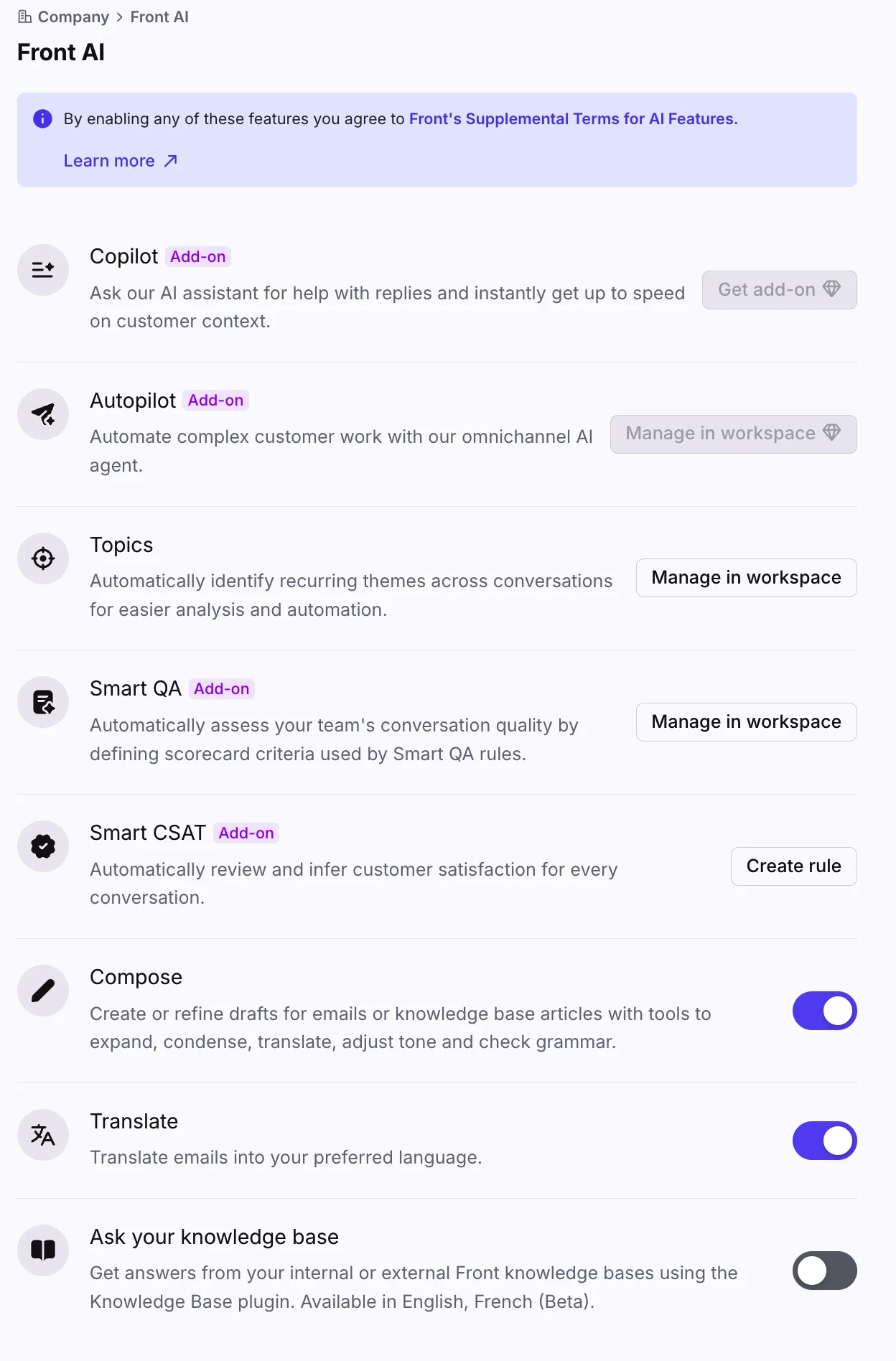
A few things worth noticing on this screen. Enabling anything here means agreeing to Front's supplemental AI terms (the banner at the top). The everyday writing tools, Compose and Translate, are simple on/off toggles. The bigger features, Copilot and Autopilot, carry an "Add-on" tag because they're billed separately. Some features ask you to pick specific inboxes before they turn on, so have that decision made ahead of time. Hit save, and if a feature needs extra tuning you finish it in the Front AI tab of workspace settings.
Step 2: pick and configure your response mode
This is the real decision. Below is each mode and how to get it working.
Compose (AI helps you write)
If all you want is help drafting, Compose is already on most plans. Open a reply, highlight your rough text, and use the AI tools to expand it, tighten it, translate it, or shift the tone. It won't answer for you, it just makes the reply you were already going to write faster and cleaner. Good for teams that want a productivity nudge without handing over judgment.
Copilot (AI suggests, you send)
Copilot is the middle ground, and honestly the one I'd start most teams on. It reads across the conversation, your knowledge sources, and connected systems, then assembles a suggested reply so you're not staring at a blank box.
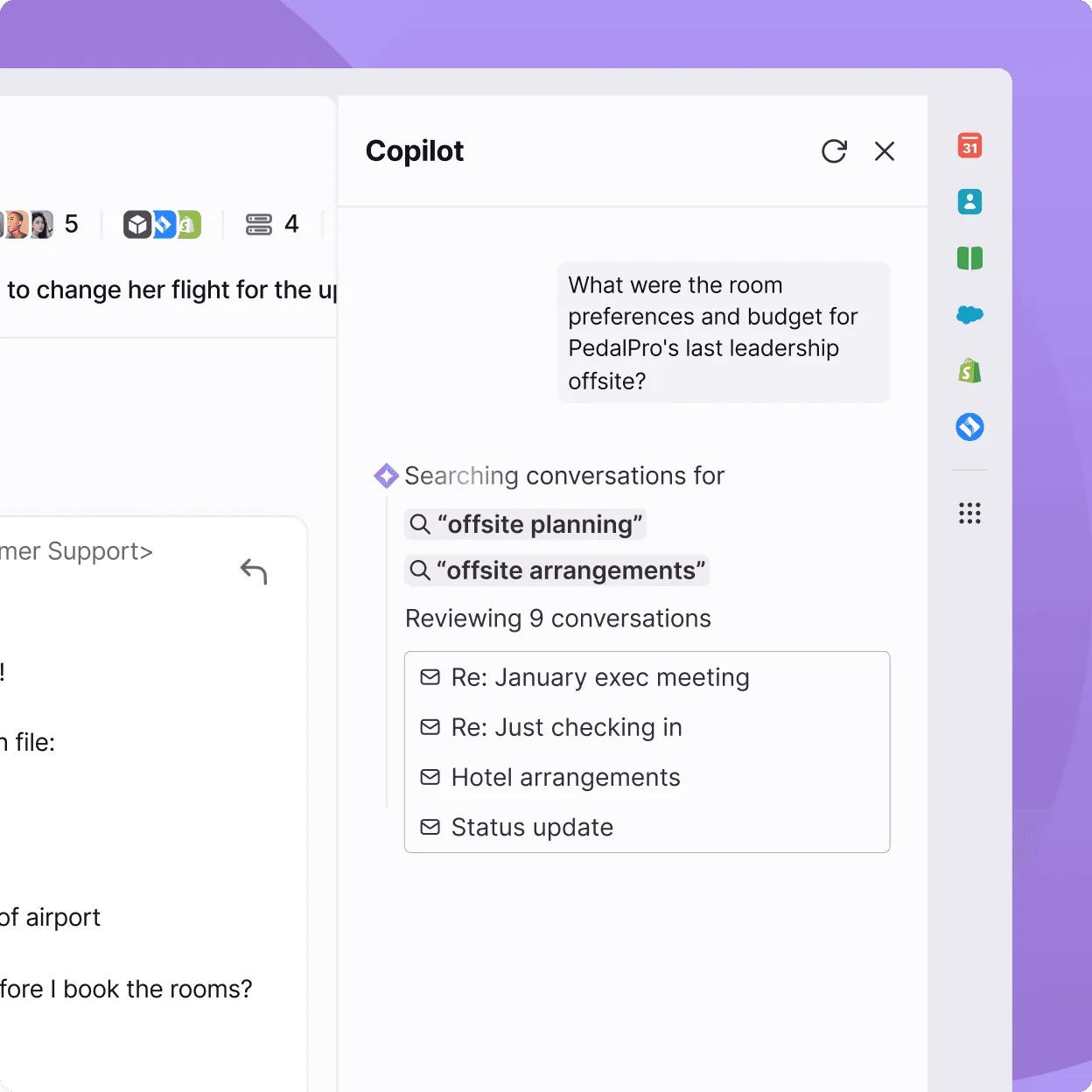
To turn it on, hit Get add-on next to Copilot in the Front AI panel (it's $20 per seat per month, or included on Enterprise). Once it's live, agents get draft suggestions and can refine tone and length before sending. Because a human always sends, it's the lowest-risk way to put AI into your replies, which makes it a sensible first step before you trust anything to send on its own.
Autopilot (AI answers on its own)
Autopilot is Front's omnichannel agent, and it's where "AI responses" get real. It resolves requests end to end across email, chat, Slack, SMS, and WhatsApp, runs structured playbooks, and can create tickets for a human when it needs to.
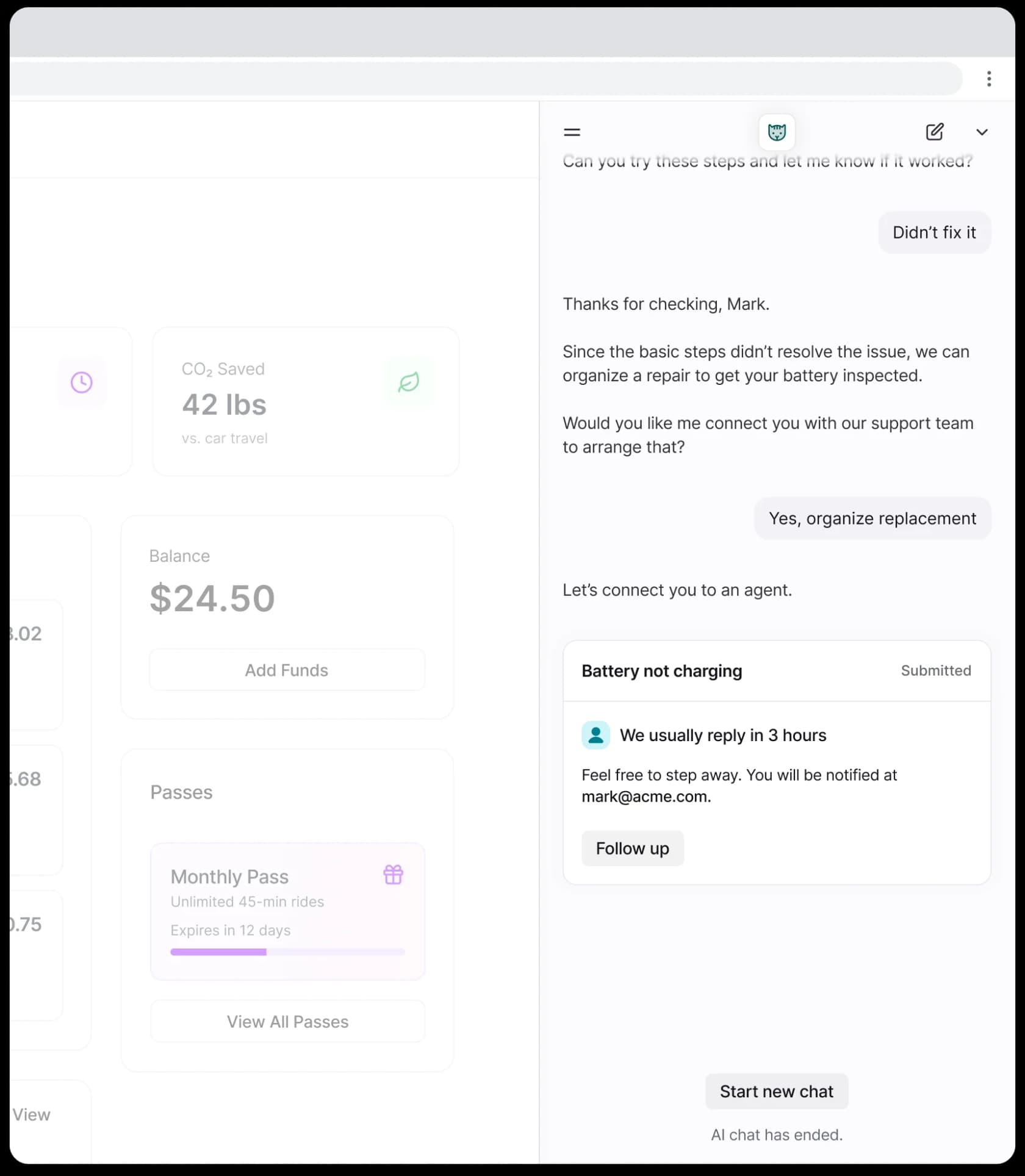
You buy Autopilot through billing settings (it's pay-as-you-go, invoiced monthly on actual usage), or start a 30-day free trial that covers all automations plus up to 1,000 resolutions. Then you build the logic in playbooks: a mix of defined steps and plain-language instructions telling the agent what to do and when to escalate. Front markets Autopilot as resolving up to 70% of requests, though that's the ceiling, not the out-of-the-box number.
Two things to flag honestly. Autopilot officially supports English only, and it needs real setup work, cleaning up Topics, writing rules, connecting knowledge, before answers get good. Reviewers consistently note that the productivity layer is mature while the autonomous agent is newer, so plan for a tuning period rather than a one-click launch.
Step 3: ground the answers in your knowledge
An AI response is only as good as what it can read. This step matters more than the toggles.
In the Front Chat channel's Automation tab, set your AI knowledge source. You can select up to five sources here, a Front knowledge base or a public website. Front's own docs are blunt about the tradeoff: a Front knowledge base updates within minutes and answers more reliably, while a public-website source has a page maximum, a first sync that can take up to three hours, and a manual re-sync you can only run once every 24 hours.
A few best practices from Front's docs that actually change answer quality:
- Consolidate related help content into single articles. AI Answers reads only the three most relevant pages, so a topic split across five short articles can get missed.
- Put a multiple-choice filter before an AI step to keep out questions your knowledge base can't resolve, like account-specific billing.
- Prompt customers to ask specific, detailed questions in the step before the AI answers.
If your knowledge lives in scattered places, past tickets, macros, help center, internal docs, this is exactly where native setup gets fiddly, and where a dedicated agent that imports all of it automatically starts to look attractive. More on that shortly.
What AI responses in Front actually cost
Here's where teams get surprised. The writing tools are included, but the two features people actually want, Copilot and Autopilot, both cost extra, and they're priced in completely different ways.
| Feature | What it does | Price |
|---|---|---|
| Compose / Translate / Summarize | AI writing help, capped at 200 actions/teammate/day | Included on all plans |
| Topics | Clusters why customers contact you | Included on all plans |
| Copilot | Suggested replies, human sends | $20/seat/mo (included on Enterprise) |
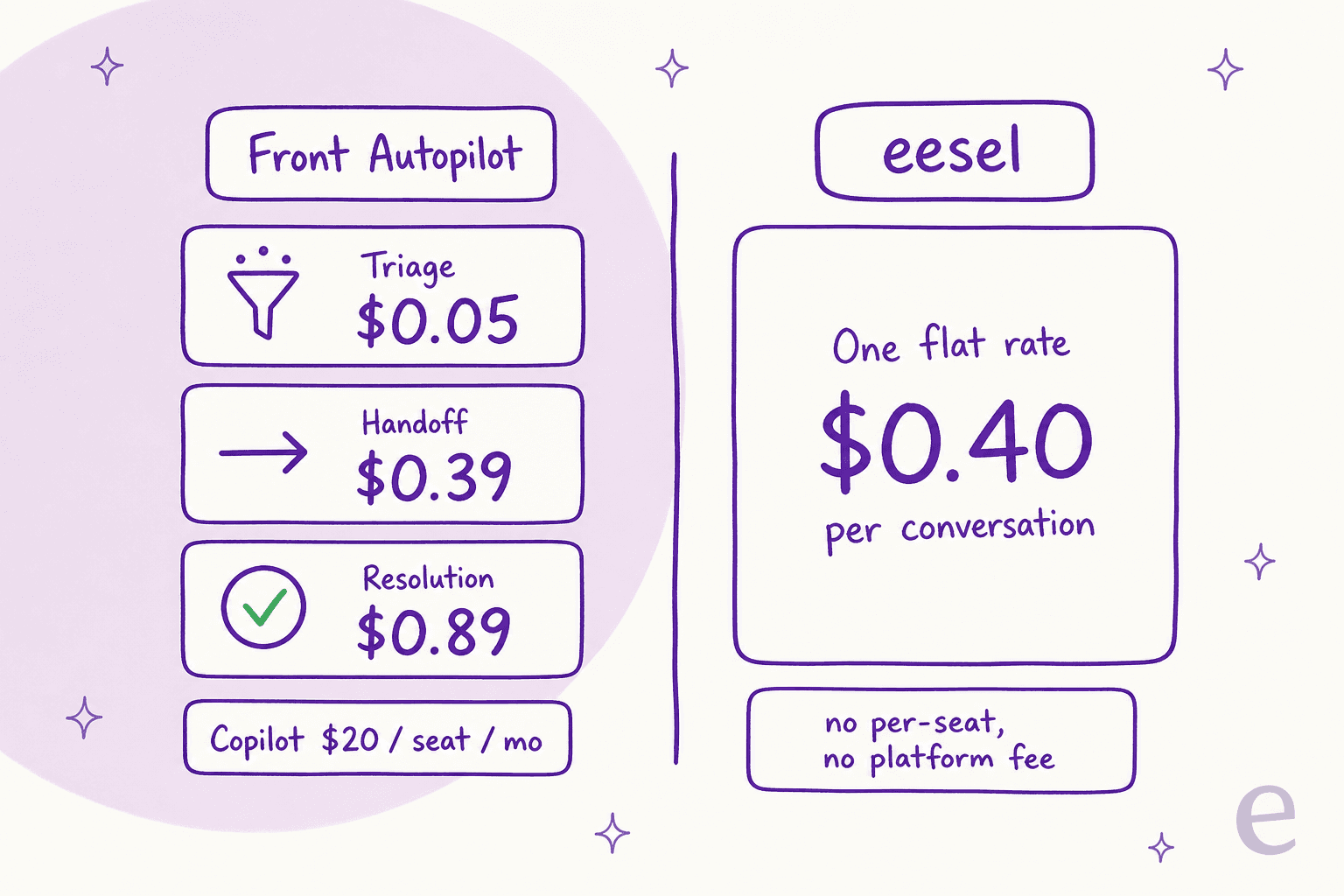
| Autopilot: triage | Route, tag, classify, summarize | $0.05/conversation |
| Autopilot: handoff | Task(s) ending in human takeover | $0.39/conversation |
| Autopilot: resolution | Fully resolved, no human reply | $0.89/conversation |
Autopilot's outcome-based model is fair in theory: you pay only when it delivers, and a conversation is charged once at the highest level it reached. The catch is predictability. A busy month of resolutions at $0.89 each adds up in a way that's hard to forecast, and by default there's no monthly spend cap, you have to contact Front to set one. If you want the full picture, Front's pricing page has the current numbers.
For comparison, eesel charges a flat $0.40 per conversation handled, with no per-seat fee and no platform fee, where one conversation covers all the back-and-forth. Whether that's cheaper depends on your resolution mix, but it's a lot easier to budget.
Common mistakes to avoid
I've watched a few teams stumble on the same things setting this up:
- Turning on Autopilot before the knowledge is clean. A confident agent answering from a messy or thin knowledge base is worse than no agent. Ground it first, then let it send.
- Skipping the test step. Front lets you run Autopilot through simulations against scenarios you write. Use it. The whole reason we simulate every rollout against real history first is that we've watched confident-sounding bots quietly give wrong answers.
- Forgetting the spend cap. No monthly limit exists by default. Set one before Autopilot faces a traffic spike.
- Expecting one toggle to do it all. Native Front AI is powerful but layered. Budget setup time for playbooks, rules, and knowledge, not an afternoon.
What people say about Front's AI
Front itself is well liked. It holds a 4.7 out of 5 rating across 2,499 reviews on G2, with praise clustering on the collaborative shared inbox. The recurring theme in community threads, though, is that the AI and add-ons stack extra cost on already-premium seats, and that Front is loved as a shared inbox more than as a full ticketing engine:
"Front feels like a 'supercharged shared inbox' whereas Zendesk is a proper ticketing system built for customer support from the ground up."

That framing is useful when you're deciding how far to push AI responses inside Front versus layering a dedicated agent on top of the inbox you already like.
A simpler path: AI responses in Front with eesel
If Steps 1 to 3 sound like more configuration than you were hoping for, this is where I'd point you. eesel is an AI teammate platform: you hire ready-to-work AI teammates for specific jobs, and the AI helpdesk teammate is the one that plugs straight into Front.
Rather than a widget or a separate inbox, eesel joins as a real AI agent inside your Front shared inbox. It reads conversations, drafts and sends replies, adds private comments, updates tags, and routes to teammates, working alongside your existing Front routing rules, assignment rules, and SLA policies instead of replacing them.
The parts that address the friction above:
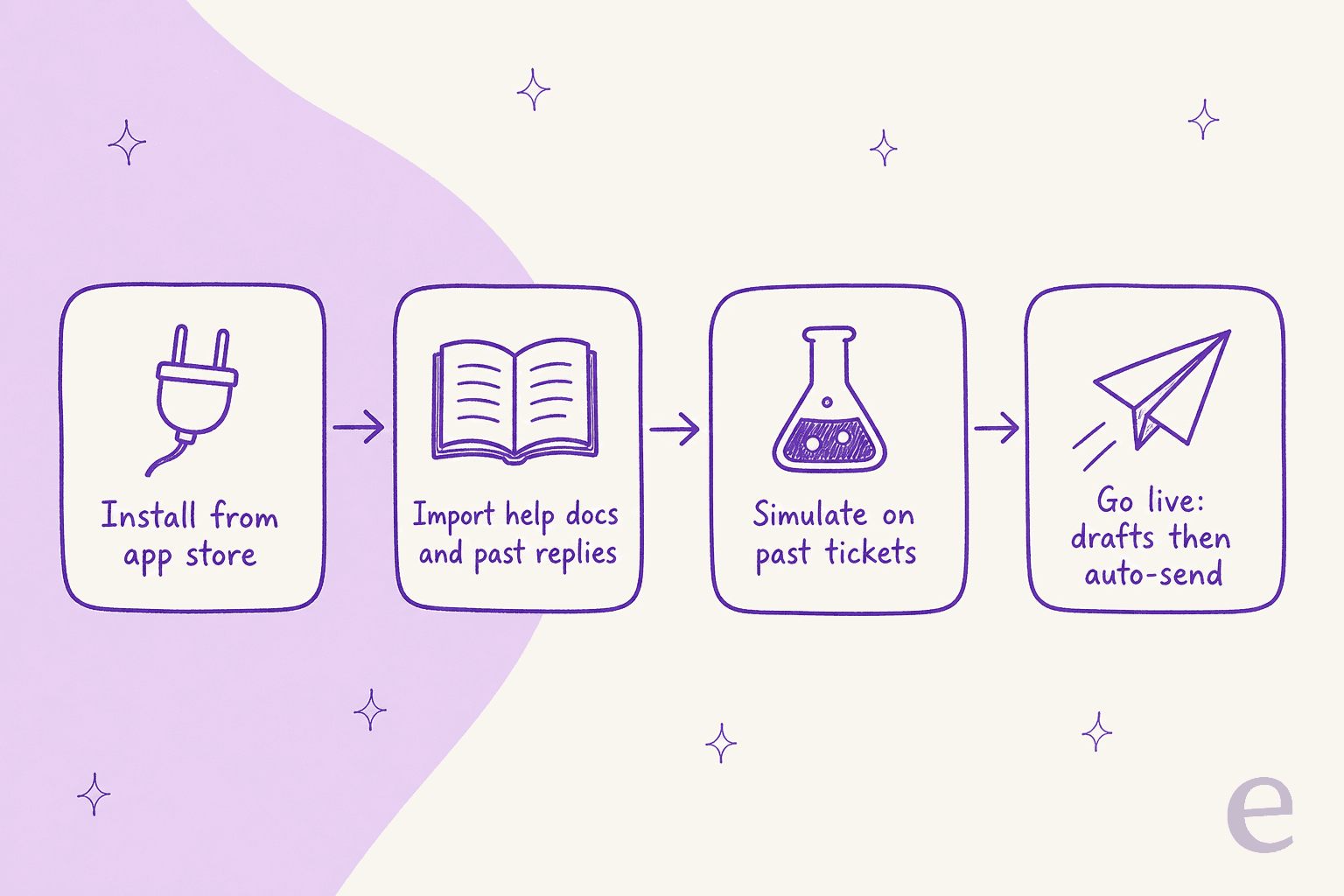
- It learns your knowledge automatically. On connection, eesel imports your Front knowledge base articles, past conversations, and canned responses, no manual training or labeling. That's the messy Step 3 handled for you.
- You test on real past tickets. Simulation mode runs the agent against your actual historical Front conversations, so you see the real reply and resolution rate before a customer ever gets an AI answer. You can control exactly what it writes in plain language.
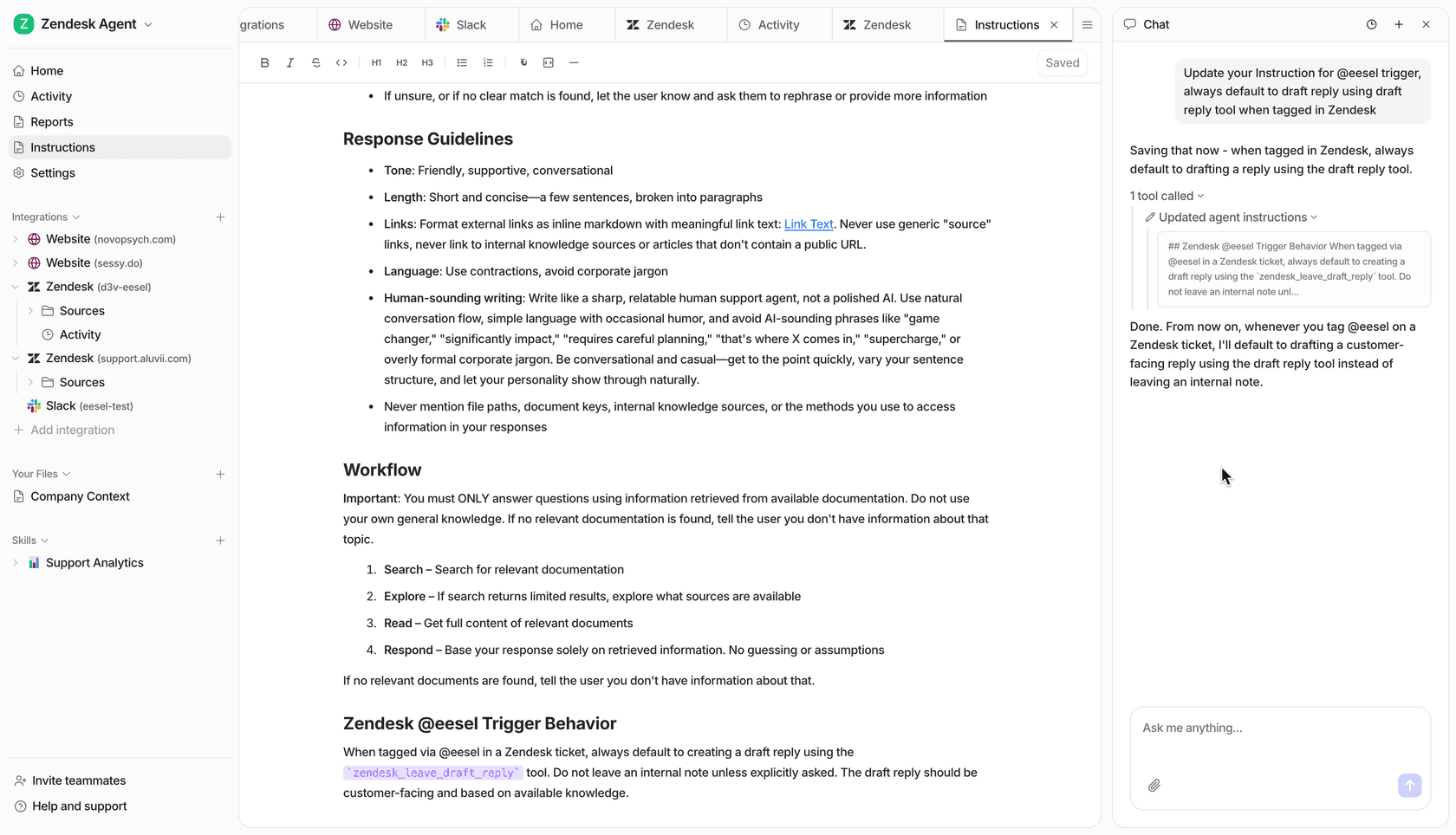
- Setup is fast. Find eesel in the Front App Store, install, and authorize in two clicks. eesel puts full setup at under 30 minutes.
- Pricing is flat. $0.40 per Front conversation handled, no per-seat and no platform fee.
None of this replaces Front, it runs inside it. If you're comparing options, we keep a running list of the best AI for Front, and if you're coming from the native features, Front GPT setup and Front AI software cover the alternatives.
Try eesel for Front
If you want AI answering in Front without the multi-week tuning project, eesel for Front works like a new hire that plugs into your shared inbox in minutes and already knows your help center and past replies. It drafts on-brand answers, resolves tier-1 conversations, and lets you simulate on real tickets before going live, all at a flat $0.40 per conversation with no seats to buy.
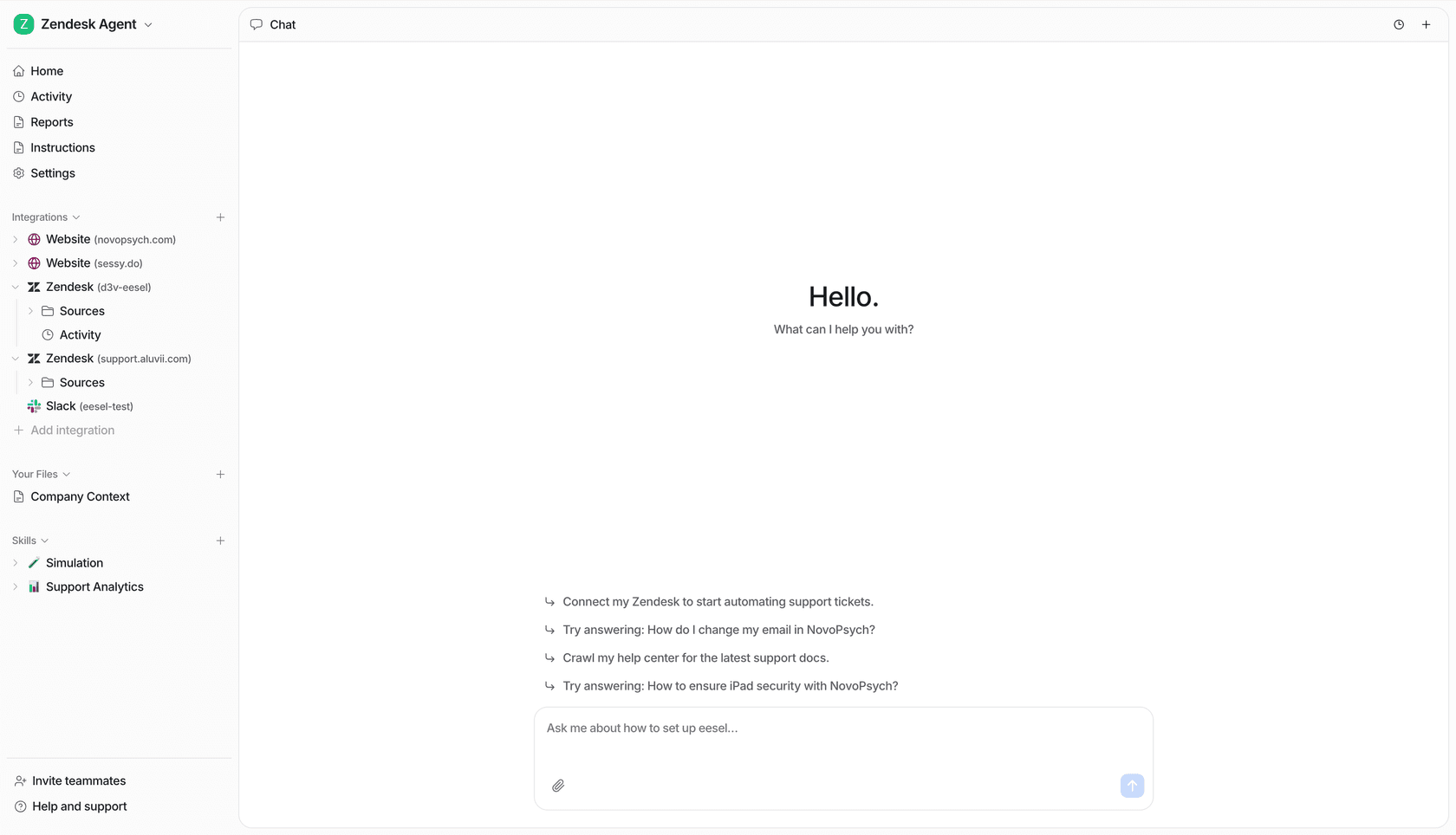
It's free to start, with $50 of usage and no credit card, so you can point it at your own Front conversations and see the numbers before you commit. Try eesel or see how it connects to Front.
Frequently Asked Questions
How do I turn on AI responses in Front?
What is the difference between Front Copilot and Autopilot?
How much do AI responses in Front cost?
Can I test AI responses in Front before customers see them?
What is the best AI for Front responses?


Article by
Rama Adi Nugraha
Rama is a software engineer at eesel AI with two years of experience writing about B2B SaaS, AI tools, and customer support technology. Based in Bali, Indonesia, he brings a developer's perspective to product comparisons — cutting through marketing copy to what the integrations and APIs actually do.