HubSpot help desk channel connections: what you can connect, what you need, and what breaks

Kira

Katelin Teen
Last edited November 8, 2026
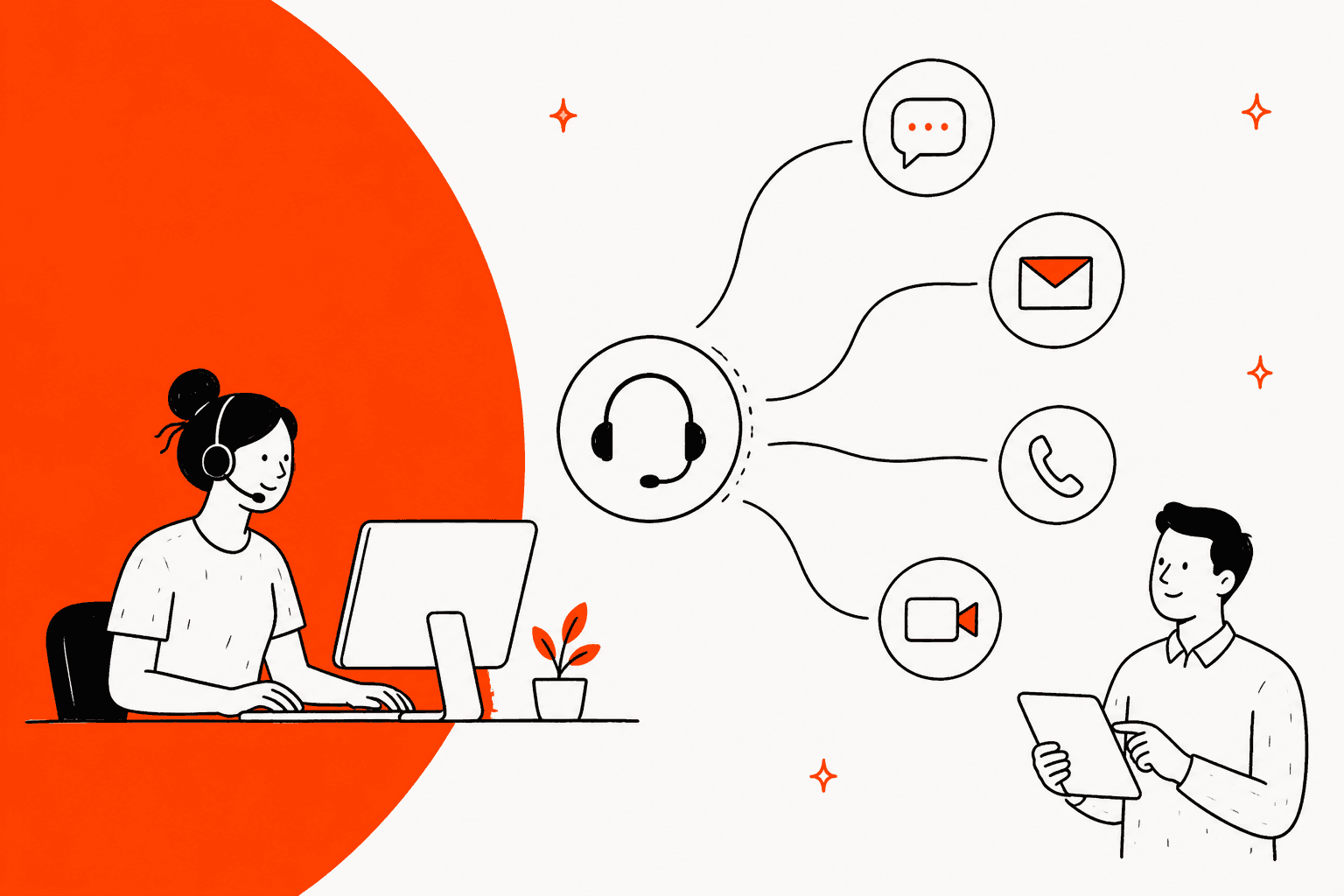
HubSpot's help desk takes seven channel types: team email, chat, forms, WhatsApp, Messenger, calling, and custom channels. You connect them under Inbox & Help Desk > Channels, and each needs Service Hub Professional or Enterprise plus Account Access permission. Routing rules and calling also need a Service seat. Most channels create one ticket per conversation, but rule-based bots don't. eesel works those tickets like a new teammate, reading each with the contact's history and drafting a reply. With the eesel CLI, an AI coding agent can upload approved policies and test answers first, though connecting HubSpot needs admin approval.
Which channels can you connect to the HubSpot help desk?
Seven, and they sit on one settings page. HubSpot's channel overview lists team email, chat, Facebook Messenger, forms, WhatsApp, calling, and custom channels. Custom channels cover apps such as TikTok, Instagram, and Slack from the HubSpot Marketplace, or your own app built on the custom channels API.
I read HubSpot's channel articles, last updated between 19 October and 3 November 2026, plus the pricing page. I build AI agents at eesel, so I care which channel a ticket came from, because it decides what the agent can see and how the ticket is routed. I haven't connected these in a live portal, so what follows is what HubSpot documents, and I say where the docs go quiet.
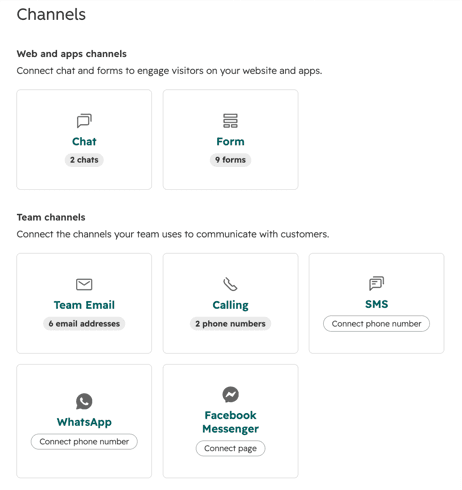
One catch in that screenshot: it shows an SMS tile, but SMS isn't in HubSpot's help desk channel list. The docs I found don't say whether SMS tickets reach the help desk, so I'd check before you plan around it. If you're comparing helpdesks on channel coverage, my multi-channel help desk guide and the Freshdesk omnichannel suite review show how others package it.
How do you connect any channel, step by step?
The first four steps are the same for every channel. HubSpot's connect and manage channels article gives them:
- Click the settings icon, then go to Inbox & Help Desk > Channels.
- Click the channel type you want, such as Team email or Calling.
- In the top right, click Connect for that channel.
- In the Send incoming conversations to dropdown, choose a help desk channel, not an inbox channel, then click Next.
Step 4 is the one that matters. For inbox channels, conversations appear in the inbox and don't create tickets by default. For help desk channels, every incoming conversation creates a ticket automatically. HubSpot adds that accounts created after 1 April 2024 can't create tickets from channels connected to the inbox at all.
After that, each channel has its own wizard. The widget below puts the requirements for each one side by side, so pick the channel you're about to connect.
Which channel are you connecting?
Which plan, seat, and permission do you need?
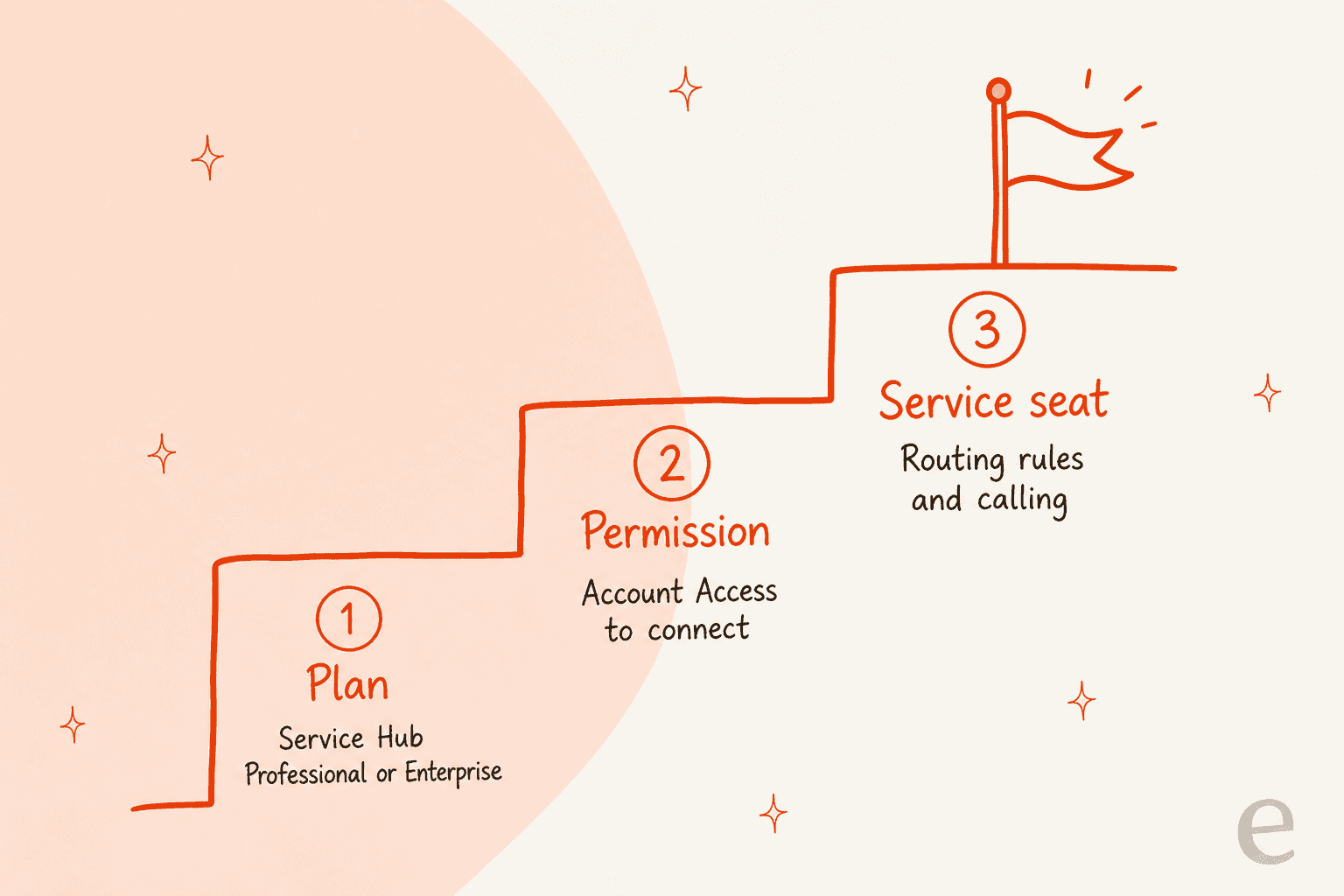
A plan, a permission, and sometimes a seat. HubSpot marks all the help desk channel articles as available with Service Hub Professional and Enterprise. The pricing page lists Professional at $90 per seat per month on annual commitment ($100 pay monthly), with a required one-time $1,500 onboarding fee, and Enterprise with a required $3,500 onboarding fee. My HubSpot pricing post covers the credit side.
| Requirement | What HubSpot's docs say |
|---|---|
| Plan | Service Hub Professional or Enterprise for help desk channels |
| Connect most channels | Account Access permissions |
| Connect custom channels | Super Admin, per the custom channels article. App Marketplace access to install the app |
| Move inbox channels to help desk | Super Admin |
| Restrict send-from permissions | Super Admin and Account Access, on Professional or Enterprise |
| Automatic routing to users | The user must have an assigned seat |
| Team-only routing | The team needs at least one user with a Service Hub seat |
| Make calls in help desk | An assigned Service seat |
| Advanced help desk features (views, SLAs, reply recommendations) | An assigned Service seat |
| Service seat to connect a channel | Not stated |
The permission rows aren't perfectly consistent. Most articles say Account Access to connect, while the custom channels article says Super Admin. I'd use a Super Admin for the first connection and sort out lesser roles later. For seat costs in context, my HubSpot review looks at the plans in practice.
How do you connect team email?
Team email is the channel most teams start with, and it has the most gotchas. HubSpot's team email article, updated 3 November 2026, says each incoming email to the connected address creates a ticket.
- Under Inbox & Help Desk > Channels, open Team Email and click Connect email address.
- Choose help desk, then pick Gmail, Office 365, or Other. Pick Other for Google Groups, aliases, or any inbox that isn't Google or Office 365, and you forward mail into HubSpot instead.
- Accept the sharing terms, sign in to the mailbox, and finish the connection.
- Set the From name and optional team signature.
- Choose a ticket pipeline, stage, and priority for new tickets, then a routing option.
- Choose who can send from the address, Anyone or Specific teams and users.
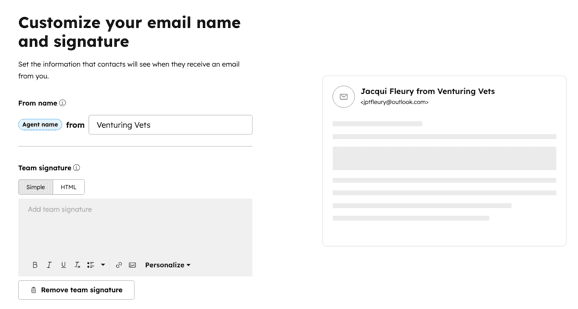
Four limits are worth a screenshot of their own:
- Not every mail setup works. IMAP and Office 365 GCC High and DOD environments are not supported.
- One use per address. A team address can't also be connected as an individual email account, and your own work inbox can't be a help desk channel. If it's already on the inbox, you get The account is already connected to another tool in HubSpot.
- From name is locked for Gmail and Office 365. HubSpot manages it in your email provider. To change it, disconnect and reconnect the channel.
- Forwards can merge threads. Forwarding an email from an existing thread to another connected team address can add it to the original ticket, because the forward keeps the original message ID. For a separate ticket, send a fresh email with a new subject.
Email from someone HubSpot doesn't know creates a new contact record automatically. By default, forwarded mail logs to the original sender's contact, and a toggle switches it to the person who forwarded. If a thread becomes two issues, my ticket splitting post covers that, and the ticket merging post covers duplicates.
Why aren't emails showing up as tickets?
Usually something upstream of HubSpot catches them. HubSpot's troubleshooting list has three checks:
- Spam or junk at your email provider. Mail in spam isn't sent to help desk.
- Filters, rules, and forwarding. Anything that archives or redirects mail before it reaches the connected inbox stops it, including rules left over from a previous support system.
- The help desk Spam view. Role-based senders such as info@ or noreply@ can be filtered there. Select the messages and click Not spam, and tickets are created with the original received time.
For Gmail connected through Other, forwarding needs a confirmation email approved first, and HubSpot says that email may sit in the help desk Spam view. That one is easy to miss on day one. For wider habits, my shared queue management guide and the AI spam ticket filtering post cover keeping junk out.
How do you connect chat and forms?
Chat and forms sit under web channels and both create tickets. HubSpot's chat channel article has you choose Web or Mobile, set widget colors and font, pick availability, write a welcome message, choose routing, and publish. On an external site you also paste the HubSpot tracking code before the closing body tag on every page where the widget should show.
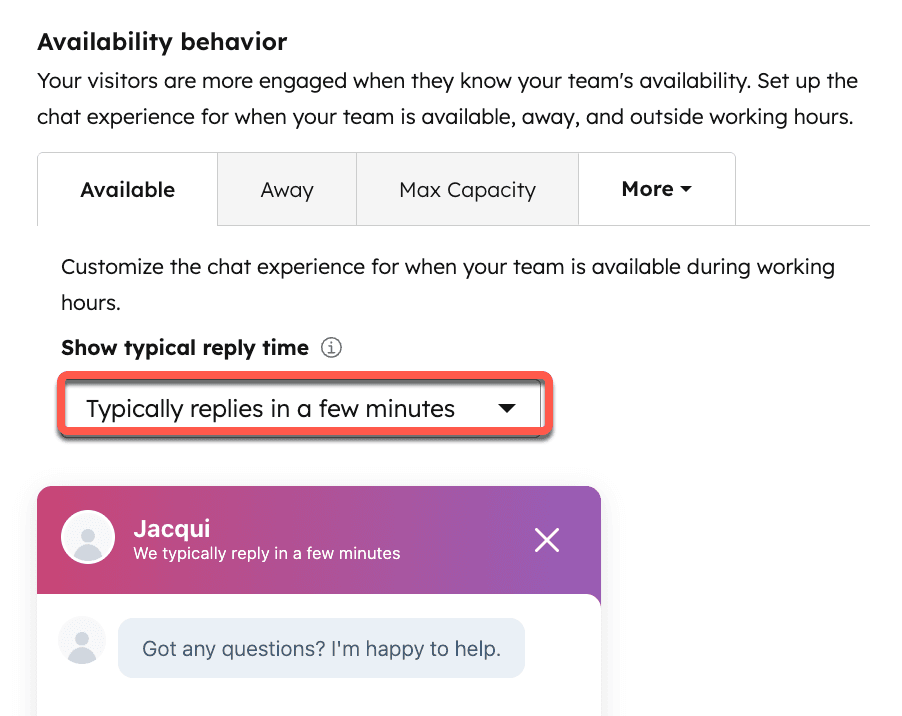
Availability has three modes: based on user availability, based on chat operating hours, or always on. The max-capacity behavior is Service Hub Enterprise only. Two gotchas:
- The out-of-hours text pulls two ways. The article says visitors cannot send messages outside your team's working hours, and it also lists an Allow visitors to send messages toggle for when the team is unavailable. I'd test which one wins on your plan.
- A chat that ends stays ended. HubSpot says once a chat is ended it can't be reopened.
If chats create tickets that don't show in help desk, the channel is probably still connected to the inbox. For accounts created before 1 April 2024, those tickets open from CRM > Tickets but don't appear in help desk views or search. Rule-based bots are different again: tickets aren't created automatically from them, and my HubSpot chatbot post and the AI versus rule-based bots comparison cover why that matters.
Forms are simpler. HubSpot's form channel article has you pick an existing form or create one, set the ticket pipeline, status, and priority, and choose routing. Each submission becomes a ticket. Two details: the Ticket Pipeline and Ticket Status fields on new forms are hidden, and hidden form fields don't appear on the submission in help desk, though they stay in the form submissions dashboard and on the contact timeline. If you also run a website chatbot, decide which entry point owns which ticket type.
How do you connect WhatsApp and Facebook Messenger?
Both need an admin on the outside platform, and neither can be moved from the old inbox. HubSpot's WhatsApp article lists the prerequisites: your company's legal name and display name, a website URL, a business email, Meta Business Manager admin access, full control of the WhatsApp Business Account, and a number that can receive a one-time code by SMS or voice call.
The WhatsApp limits are specific:
- 25 numbers per WhatsApp Business Account.
- New messages only. Historical conversations don't sync.
- Messages leave the phone app. Once connected, they show only in help desk, unless you use coexistence.
- 50 business-initiated conversations a day unless your Meta Business Manager is verified.
- 24-hour sessions. After the contact's last message you can reply freely for 24 hours, then you need a template message.
- 1,000 template messages a month, shared across all connected accounts. The pricing page lists the same
1,000cap on both Professional and Enterprise.
Create a custom view filtered on Originating channel type to keep WhatsApp conversations together. My WhatsApp chatbot roundup and WhatsApp ticket deflection post cover the automation side, and the custom views post shows how to build the view.
Messenger, per HubSpot's Messenger article, needs Account Access plus admin on the Facebook Business Page. You click Connect page, sign in to Facebook, and pick the page. Connecting creates a default chatflow, and you set a greeting and an instant reply. Incoming messages are unassigned by default, and routing needs a seat. A Messenger account can't connect to more than one HubSpot account. HubSpot also warns that Messenger's Profile API doesn't expose email, so duplicate contacts can appear if a visitor starts conversations on several pages. Meta's policy allows replies within seven days for an inquiry that can't be resolved in the standard window, and automated or unrelated messages only within 24 hours. My Messenger support guide covers the AI angle.
How do you connect calling and custom channels?
Calling needs a Service seat and a phone number. HubSpot's calling channel article says an assigned Service seat is required to make calls in help desk, and you need a HubSpot-provided number, generated through Twilio, or a calling app from the marketplace. You can also use an existing HubSpot number, but all users assigned to it are removed, or port a number in. Setup adds a recording consent message, operating hours, routing, voicemail, and after-hours audio.
Inbound calls ring up to 100 available users at once, but there are catches:
- Visit help desk once. An assigned user must open the help desk at least once before they can receive calls on that channel.
- Keep the call window open. The call window must stay open to receive inbound calls.
- Turn on availability. The You're available switch must be on.
HubSpot's article doesn't give per-minute call pricing, so I can't quote a cost. For the AI side of phone support, see my AI phone support roundup and the voice agent guide.
Custom channels bridge any other messaging app. HubSpot's custom channels article says you install a marketplace app (or build one on the API), then click Connect instance under Marketplace channel apps. Messages can start new threads or join existing ones, depending on the app. Routing rules need a Service seat. The pricing page lists the Custom Channels API as a feature row without a limit.
What happens to tickets from each channel?
Most channels create a ticket per conversation, with exceptions. The map below sums up what HubSpot says.
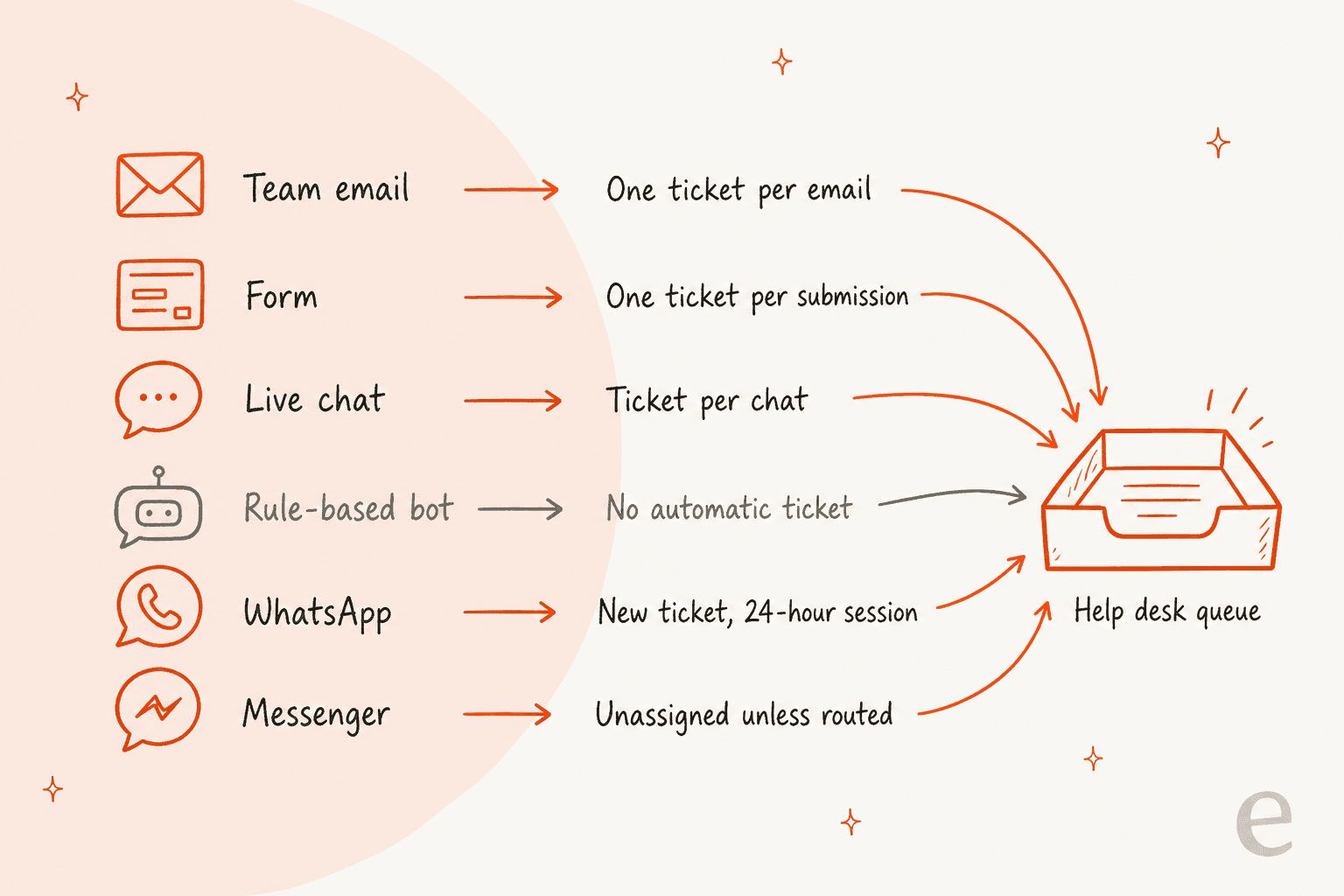
The routing options are the same list on team email, chat, forms, and Messenger: a customer agent, specific users and teams, team only, contact owner, skill-based routing, or an assignment workflow. Three rules from HubSpot's help desk articles:
- Defaults can be overridden. The default ticket properties you set once apply to every new ticket unless a channel overrides them.
- One-to-one emails count. An email sent from an address connected to help desk creates a ticket assigned to the sender. Replying from inside a ticket adds to that ticket.
- Workflow tickets lose threads. A ticket created by a workflow from a channel that isn't connected to help desk won't carry the subject or thread, so connect every support channel.
Contact-owner routing needs an owner on the contact record and a cookie, with a fallback rule if the owner is unavailable. Skill-based routing is its own feature with its own plan limits, and my Service Hub routing post covers which tier carries what. If tickets pile up unassigned, the AI ticket classification and first response automation posts show the fix without more headcount.
How do you move inbox channels to the help desk?
Move them from the same Channels page, as a Super Admin. HubSpot's move article says you can move chatflows, team email, calling, and form channels. WhatsApp and Facebook Messenger can't be migrated directly: you delete the channel from the inbox and reconnect it to help desk. Fallback email addresses can't be migrated either.
- Rule-based bots need a submit-ticket action. If a bot has a send-to-team-member action, it must follow the submit-ticket action directly, and a branch can't hold more than one.
- Settings carry over. Signatures, routing, automation, and ticket creation settings are kept rather than reset.
- History is a one-time choice. You can move historical conversations only during migration, though reverting a channel and migrating again works.
- Expect notifications. Ticket creation during a move can trigger notifications and workflows, so consider switching them off first.
- No mobile app. HubSpot says help desk isn't available in the HubSpot mobile app.
Move form and email together if agents answer forms by email, because HubSpot warns an in-progress thread that began on a form may not move. Choose a quiet hour for the move, and see my CRM ticketing system guide if you're still deciding where tickets should live.
Where does AI fit once channels are connected?
An AI teammate works on the tickets your channels create, so the channel setup shapes what it sees. eesel's documented HubSpot actions are replying, adding internal comments, creating tickets, and updating ticket titles, descriptions and priority (eesel HubSpot docs). I found no per-channel list in them, so I wouldn't assume WhatsApp voice notes or phone calls are covered. HubSpot's own customer agent can be picked as a routing option on team email, chat, forms, Messenger, and WhatsApp, which is a different product from eesel. My eesel vs Breeze comparison covers the gap.
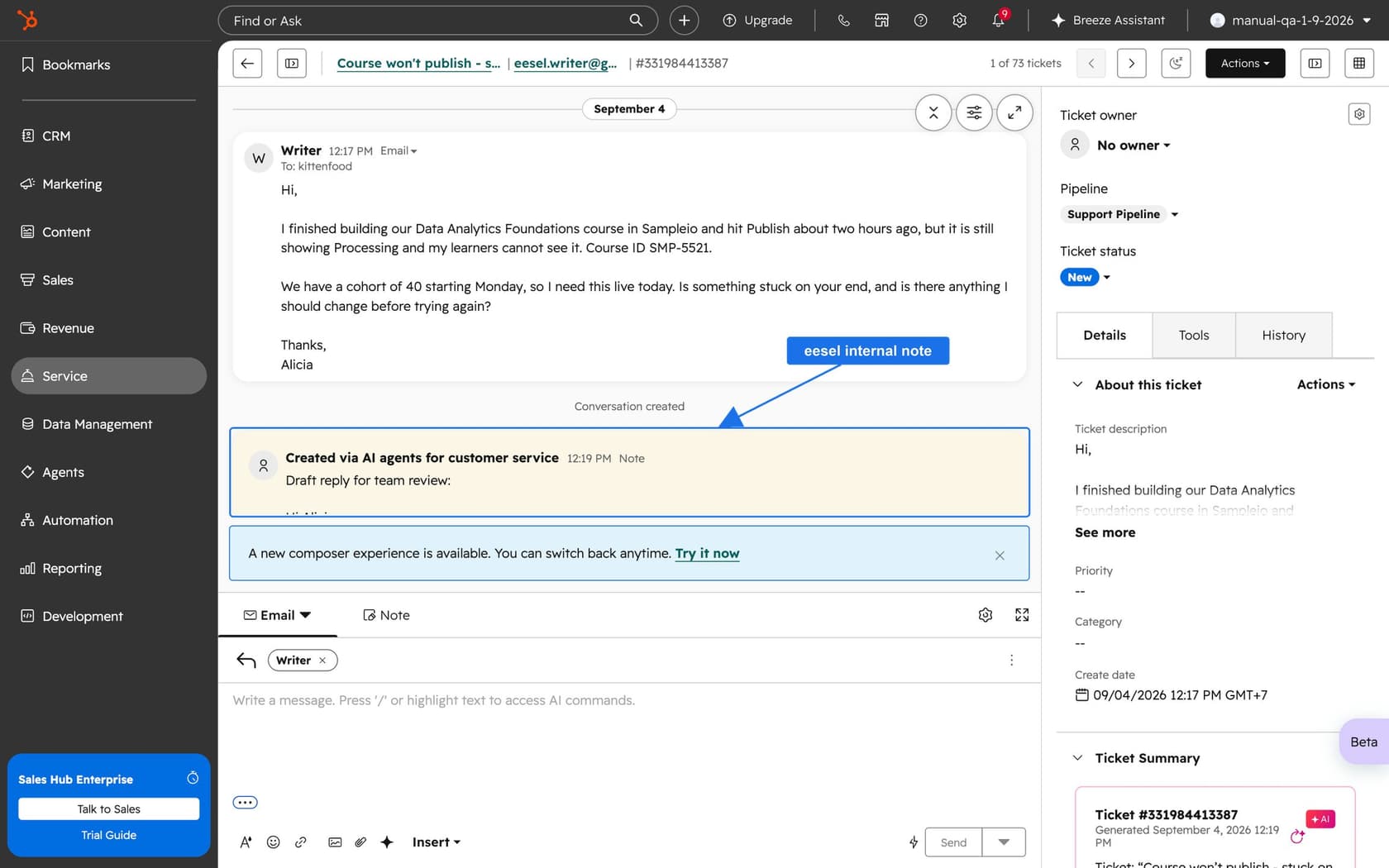
MentorShow, a French online learning platform, runs its whole support team in HubSpot and told eesel it gets 5,000 to 13,000 tickets a month depending on the period. Its story counts two surfaces: between 8 August and 8 September 2026, eesel read 648 inbox conversations and 586 tickets, and wrote 432 reply drafts. That split is the inbox-versus-help-desk choice from the connect step, showing up in a real account. One agent fires on every new customer message, checks the member's subscription and past tickets on the HubSpot contact, and leaves an internal note. A person reads, edits, and sends every draft.
For the HubSpot setup in more depth, see my AI for HubSpot Service Hub guide and the AI response post.
HubSpot's own AI is covered in the Breeze customer agent post and its escalation guardrails companion.
What would I do before connecting the first channel?
Here's the order I'd follow for a new help desk:
- Check plan and seats. Professional or Enterprise, with a Service seat for every agent you'll route to.
- Connect team email first. It's the most common channel, and its limits (one use per address, locked From name) are the ones hardest to undo.
- Set default ticket properties once. Pipeline, status, and priority apply to every channel unless overridden.
- Test spam handling. Send a message from a role address like info@ and see where it lands.
- Connect chat and forms, then phone and social. WhatsApp and Messenger need outside admin approvals, so start those early.
- Build a view per channel. Filter on Originating channel type so each queue is visible.
- Run one test ticket per channel. Check routing, the contact record, and the ticket properties.
For related guides, see automated ticketing, SLA best practices, and the customer portal visibility post.
Try eesel for your HubSpot help desk
If your channels are connected and the queue is outrunning your team, eesel for HubSpot works like a new hire in Service Hub. It learns from your HubSpot knowledge base and past tickets, reads each ticket with its contact record, and drafts replies as internal notes for your team to review and send. It doesn't connect your channels, so do that first. Compare options in my best AI for HubSpot roundup, or read about AI teammates.
The eesel CLI lets Claude Code, Codex, or Cursor upload your approved channel and routing policies as knowledge, adjust the agent's instructions, and ask test questions to check the answers before they go live. Connecting HubSpot itself still needs someone with the App Marketplace Access permission to approve it in the browser.