HubSpot ticket follow notifications: who gets alerted, on what channel, and where the gaps are

Kira

Katelin Teen
Last edited November 9, 2026

In the HubSpot help desk you follow a ticket from Actions > Follow and get notified when there is new activity on it. Owners follow their own tickets by default, notification settings are per user, per topic, per channel, and only Enterprise lets an admin set team defaults. I'd set the ticket topics once, then use workflows for anything the whole team must see, because HubSpot's docs don't say whether followers hear about SLA breaches or internal comments. eesel drafts each reply as an internal comment so followers read an analysis, not a raw email. With the eesel CLI, an AI coding agent can upload your approved notification and escalation policy as knowledge, then ask test questions and check the answers before anything goes live.
What does following a ticket do in HubSpot?
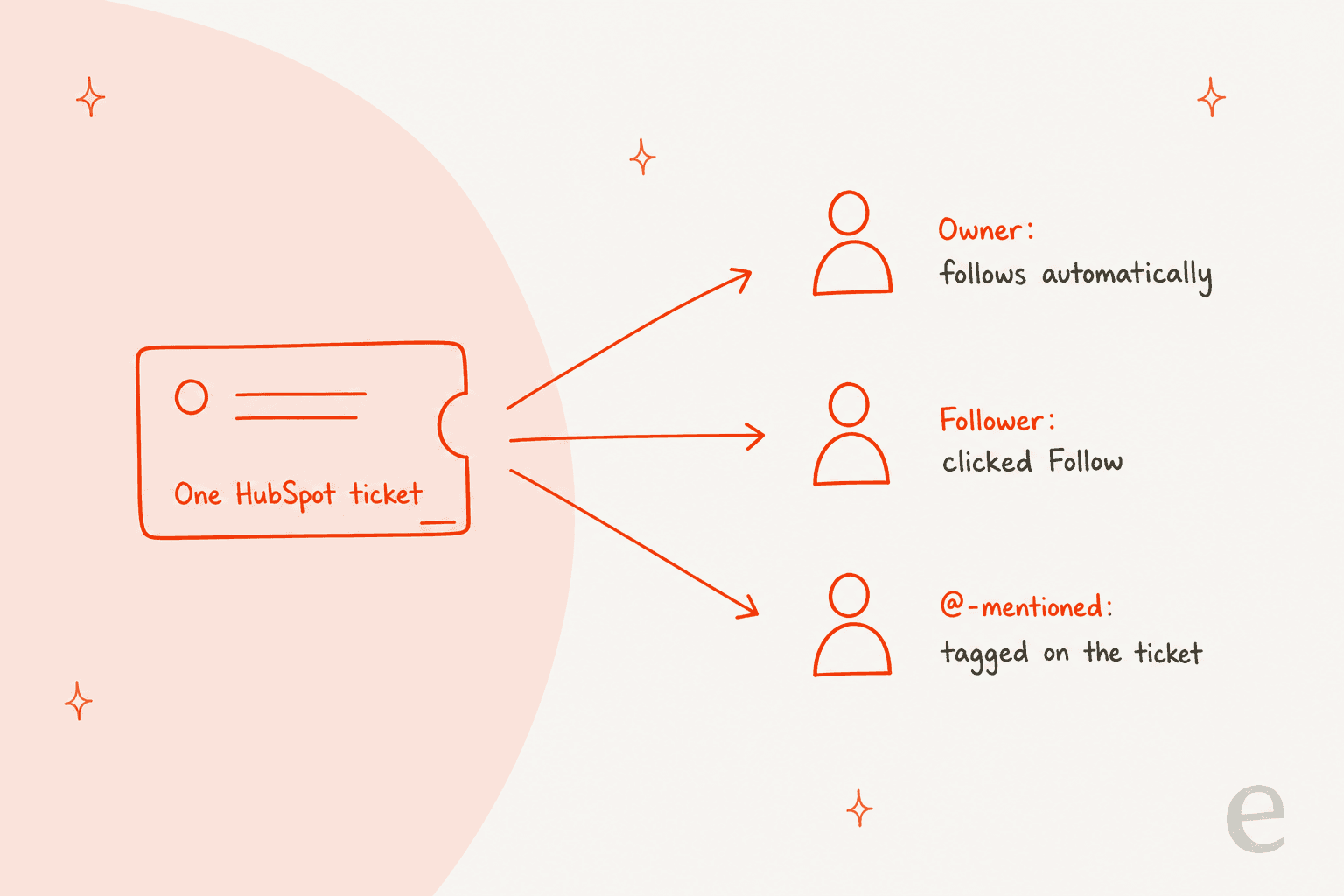
Following a ticket means you get notified when something happens on it, even if it isn't yours. HubSpot's follow a record guide covers tickets along with contacts, deals and other records. It says every user automatically follows records they own, and that following gives you notifications when there is new activity on the record.
I read that guide, HubSpot's help desk ticket article, its user notifications guide and its SLA article. I haven't followed a ticket in a live HubSpot portal, so what follows is what HubSpot documents, and I flag where it goes quiet. I'm writing from a builder's seat: I've shipped integrations like this one, and notification rules are where the docs are thinnest.
A shared queue lives or dies on who sees what. My shared queue management guide and the help desk management overview explain why, and the CRM ticketing system post shows where HubSpot sits.
How do you follow or unfollow a ticket?
You do it from inside the ticket, with one menu click. HubSpot's steps:
- Go to Service > Help Desk and click the name of a ticket in any list view.
- In table or split layout, click Actions in the top right, then Follow.
- In board layout, click the three vertical dots in the upper right, then Follow.
- To stop, choose Unfollow from the same menu. HubSpot says this turns off notifications.
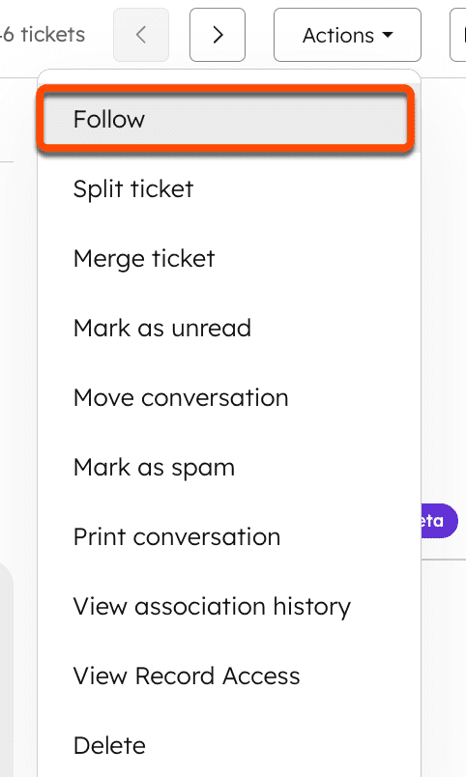
There is a condition. The help desk article says you can follow tickets if the notification type Record updates is turned on. If it is off, HubSpot doesn't say what the Follow option does. I'd check the setting first and then test one ticket.
Following works on one ticket at a time, and I found no bulk follow. The menu is the same one that holds split and merge, so my ticket splitting and ticket merging posts show what else lives there.
Who gets notified without following anything?
Owners, assignees and anyone tagged. HubSpot's notifications guide lists what each topic covers for tickets and conversations:
| Topic | Who is notified, per HubSpot |
|---|---|
| Tickets | You're assigned a ticket, a ticket you own or follow moves to a different status, or you're @-mentioned on a ticket. Users in the default ticket owner property and custom user properties receive them |
| Chat and email conversations | A conversation is assigned or reassigned to you, there's a reply, you're @-mentioned, or a new unassigned conversation arrives |
| Record updates | A record you own or follow is associated with another record, new activity is logged on a record you own, or someone views a document you own |
| Tasks | You're assigned a task, it's due or overdue, or you're @-mentioned in a task note |
Three details from the guide matter in a queue. Conversation notifications only arrive if you have previously gone to the inbox. For unassigned conversations, only main members of a team get notified. And assignment notifications can be delayed by up to five minutes, with larger batches sent sooner.
One more line I'd underline: the Record updates topic says that by default you follow records you own, and that if you unfollow them you won't receive notifications. An owner who unfollows to quiet a noisy ticket also stops hearing about it. Be deliberate about that.
For who becomes the owner in the first place, see my HubSpot ticket routing post and the guide to automatic ticket assignment.
How do notification settings work for each user?
Each user sets their own, topic by topic and channel by channel. HubSpot says preferences are user-specific, so every agent updates their own settings. The path is the settings icon, then Notifications, then a table where each row is a topic and each column is a channel.
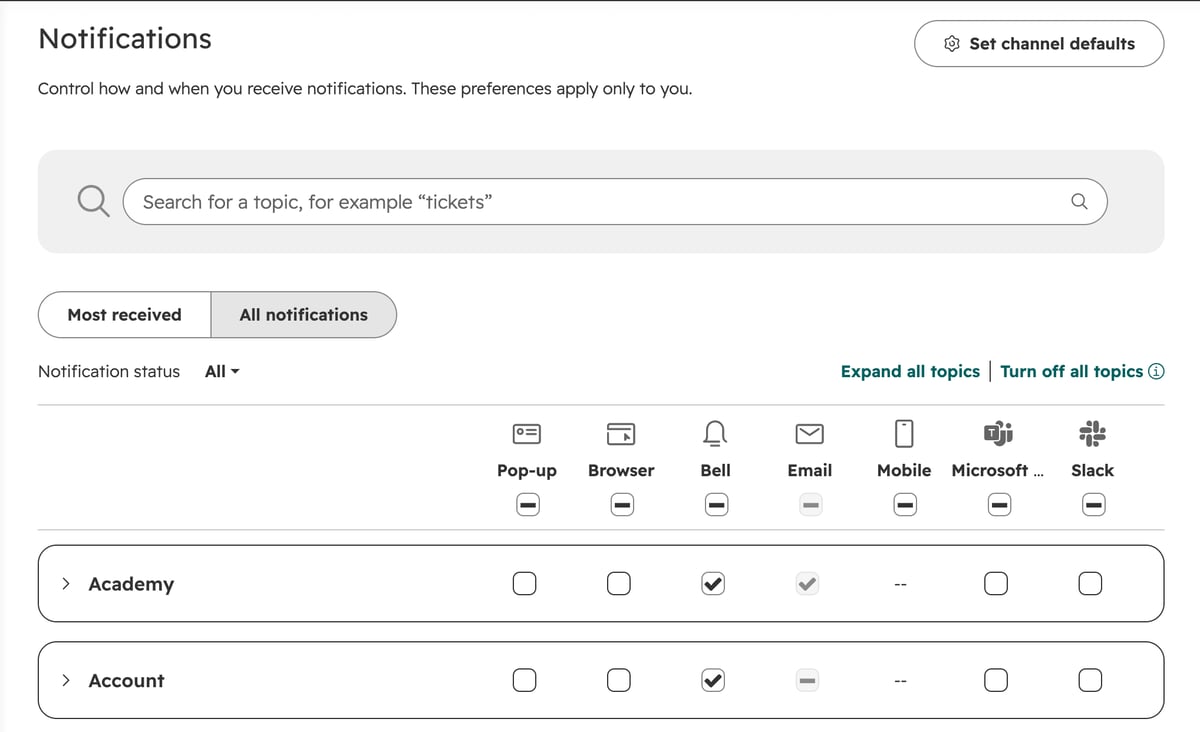
To turn a notification on or off, search or expand the topic, tick or clear the box, and click Save. HubSpot says changes may take a few minutes. The Set channel defaults panel switches a whole channel on or off, which is the quickest way to mute email for a day. The Manage button on a topic opens its details and the pop-up sound.
For team control, there is one rule. Super Admins on Enterprise accounts can set default notification preferences with notification profiles, and a user's own preferences take precedence. So on Professional, you can't push a standard setup to a new hire. You can only document one. My HubSpot pricing and HubSpot review posts cover the plan differences.
Email, in-app, or mobile: which channel does what?
HubSpot lists six channels plus integrations, and each behaves differently.
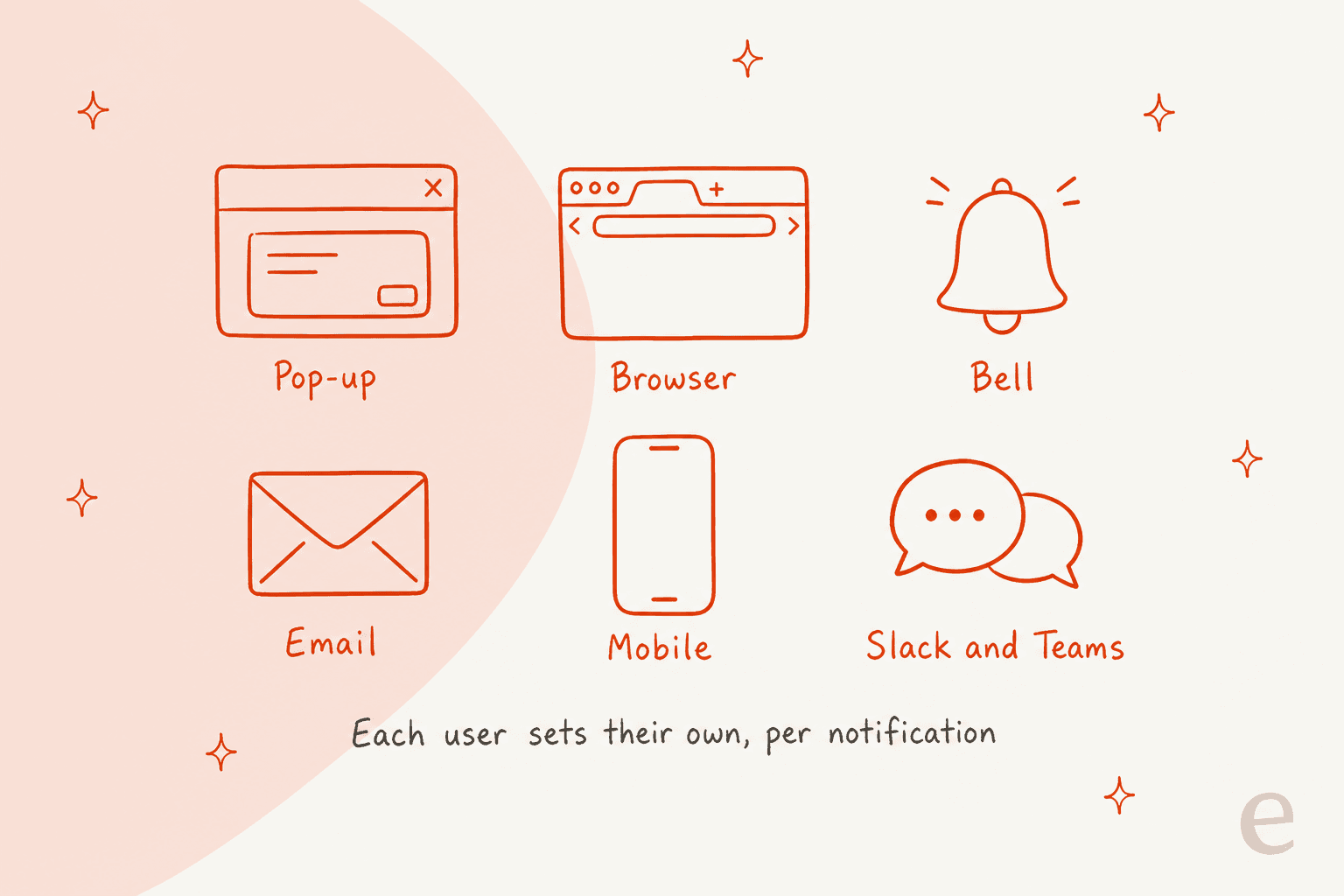
- Pop-up: appears on screen when you're active in HubSpot. You can pick a different sound per notification.
- Browser: sent when HubSpot is open in another tab and you're not active in it. You must click Allow notifications, and again in each new browser.
- Bell: a red badge on the bell in the navigation bar, with recent notifications underneath.
- Email: sent to your address. A user receives at most 1,000 email notifications per day per address, and extra sends are dropped. Unsubscribing from a notification email turns that type off.
- Mobile: push and in-app notifications on your phone, configured in the browser settings or the mobile app.
- Teams and Slack: set per notification in the same table.
The follow guide adds that follow notifications can be set under Email & Desktop, Other apps and Mobile app tabs. The newer notifications guide shows one table with channel columns instead. HubSpot's pages describe two layouts, so your screen may match either, and I'd trust what you see.
Slack alerts for tickets are a common ask, and my Slack ticketing system guide covers that pattern in general. For multichannel quirks, see the multi-channel help desk post.
Which of these reach me? A quick picker
Pick your role on a ticket to see what HubSpot documents.
What is your role on the ticket?
What does HubSpot's documentation leave out?
Several things a support lead will ask on day one. I'd test each before you rely on it:
- Replies from the customer. The ticket topic lists status changes, not replies. The conversation topic lists replies. Whether a follower who isn't the owner gets reply notifications isn't spelled out.
- Internal comments. HubSpot doesn't say whether a note or comment on a ticket notifies followers. That matters for any AI or teammate that writes notes.
- Who auto-follows beyond the owner. The guide mentions owners only. Whether replying, being assigned a team, or being on a custom user property adds you isn't stated, though the Tickets topic does say custom user properties receive notifications.
- Follower lists. I found no way documented to see who follows a ticket, or to add another person as a follower.
- SLA alerts. The SLA article points to workflows for due soon and overdue notifications, not to followers.
- Follow behavior on merge. Whether followers of two merged tickets keep following the new one isn't documented. My ticket merging post covers what is.
Each gap has a cheap workaround: a test ticket, or a workflow that sends a direct notification. For team-wide cases like escalations, see my ticket escalation process and cross-team escalation guides.
How do you alert a team instead of one follower?
Use a workflow. HubSpot's SLA article says to create a ticket-based workflow with an SLA status property, such as Time to first response SLA Ticket Status, as the enrollment trigger. Then add a notification action: an internal email, an in-app notification, or a Slack notification to specific users, teams, owners or channels.
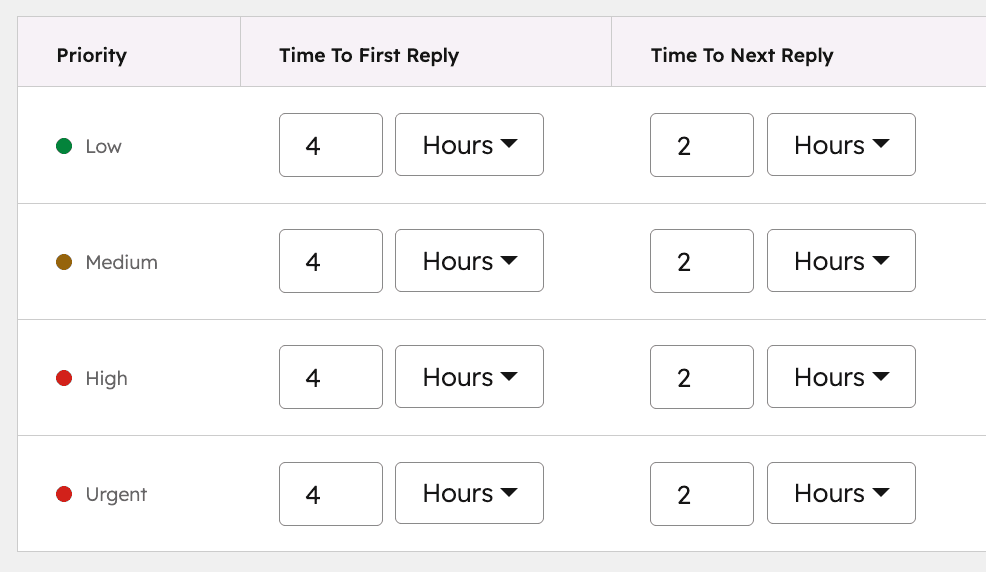
That pattern beats relying on follows for anything that must not be missed. The workflow doesn't care who owns the ticket, and it doesn't depend on each person's personal settings. My SLA management guide and the first response automation post cover which clocks to alert on, and the customer service KPIs guide covers how to measure the result.
Where does AI fit in ticket notifications?
An AI teammate changes what the notification says, not who gets it. eesel's documented HubSpot actions are replying, adding internal comments, creating tickets, changing priority, and updating titles and descriptions (eesel HubSpot docs). I'd treat the helpdesk teammate as a new hire who prepares the ticket before the people following it open it. Whether HubSpot pings followers when that internal comment lands isn't documented, so I'd test it before telling your team to expect it.
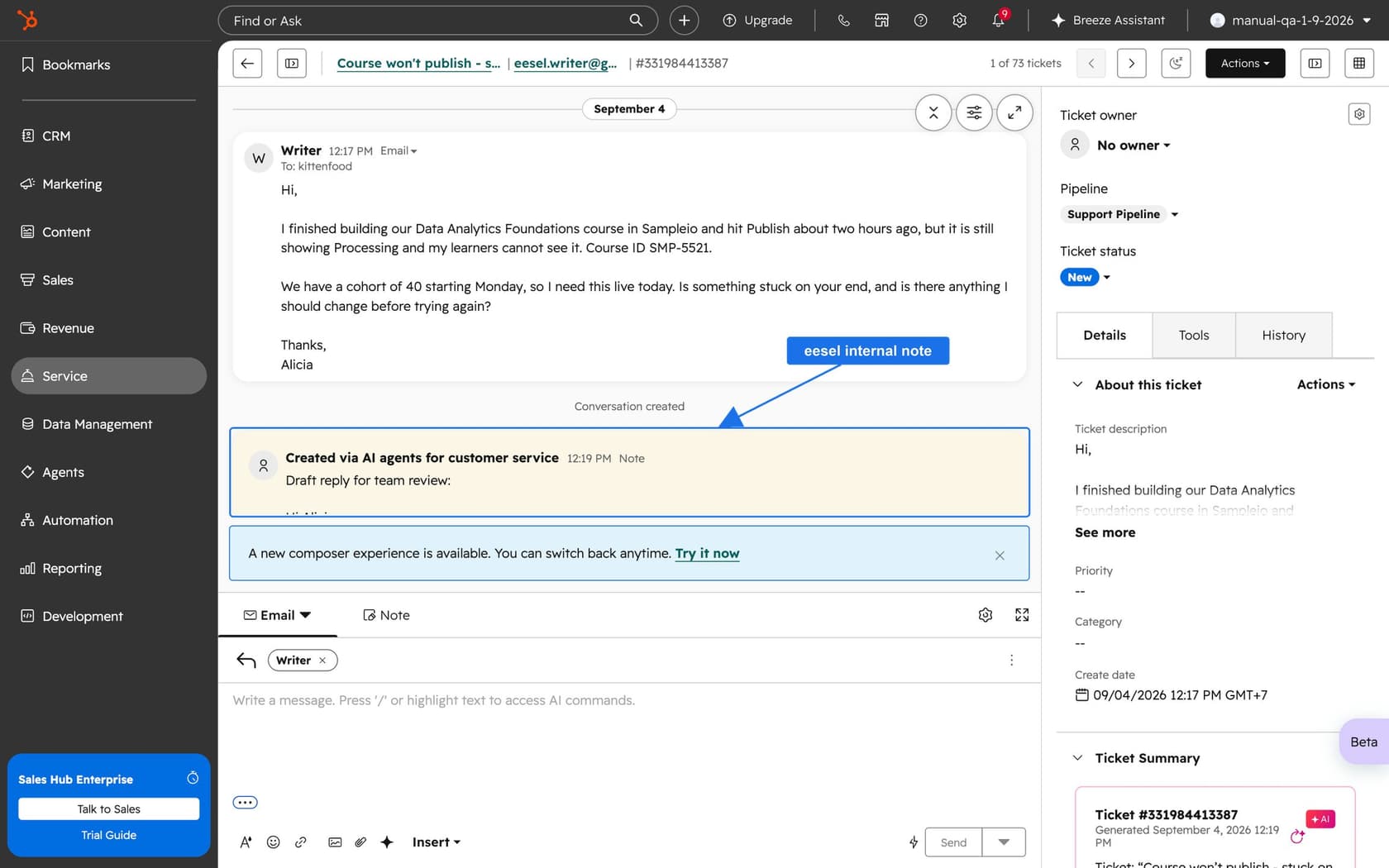
MentorShow, a French online learning platform, runs its whole support team in HubSpot and gets between 5,000 and 13,000 tickets a month depending on the period. Every new customer message triggers eesel, which reads the thread and the member's HubSpot record, then leaves an internal note with an analysis and a draft reply. Between 8 August and 8 September 2026 it read about 1,200 HubSpot items and wrote 432 drafts. A person reads, edits and sends every one, so the people following a ticket open it to a ready analysis.
That is the point for notifications. When volume is high, the number of alerts matters less than what the alert leads to. See my guides to AI ticket summarization, summarizing long HubSpot threads and agent assist tools. For the wider HubSpot AI field, start with AI for HubSpot Service Hub and the complete HubSpot AI guide.
What would I set up first in my own queue?
Here is the short version I'd hand a support lead:
- Check Record updates and Tickets are on for everyone. Follow doesn't work without the first.
- Pick one channel for urgent topics. Bell or mobile for assignments, email for the daily trail.
- Tell owners not to unfollow. It silences their own tickets.
- Build one workflow for SLA alerts. Don't trust follows for due soon or overdue.
- Test the gaps once. Customer reply, internal comment, merge. Write down the result.
- Document settings for new hires. Unless you're on Enterprise, there are no team defaults.
For related automation, see automated ticketing, ticket prioritization, ticket classification and spam ticket filtering. For habits that cut noise, read about ticket swarming, email ticketing and cost per ticket.
If you're comparing HubSpot's own AI, my eesel vs HubSpot Breeze comparison, the Breeze customer agent post and Breeze escalation guardrails cover that side.
Try eesel for your HubSpot help desk
If your followers are drowning in raw tickets, eesel for HubSpot works like a new teammate in Service Hub. It learns from your HubSpot knowledge base and past tickets, reads each ticket with its contact record, and leaves a draft as an internal comment for your team to review and send. It doesn't change who follows a ticket, but it means whoever opens the alert finds the work half done. Compare options in my best AI for HubSpot roundup, or see the Service Hub alternatives and AI teammates overview. Try eesel.
The eesel CLI lets Claude Code, Codex or Cursor upload your approved escalation policy as knowledge, adjust the agent's instructions, and ask test questions to check the answers before they go live. Connecting HubSpot itself still needs someone with the App Marketplace Access permission to approve it in the browser.