HubSpot help desk skill-based routing: setup, plan, and what happens when no one matches

Rama Adi

Katelin Teen
Last edited November 8, 2026
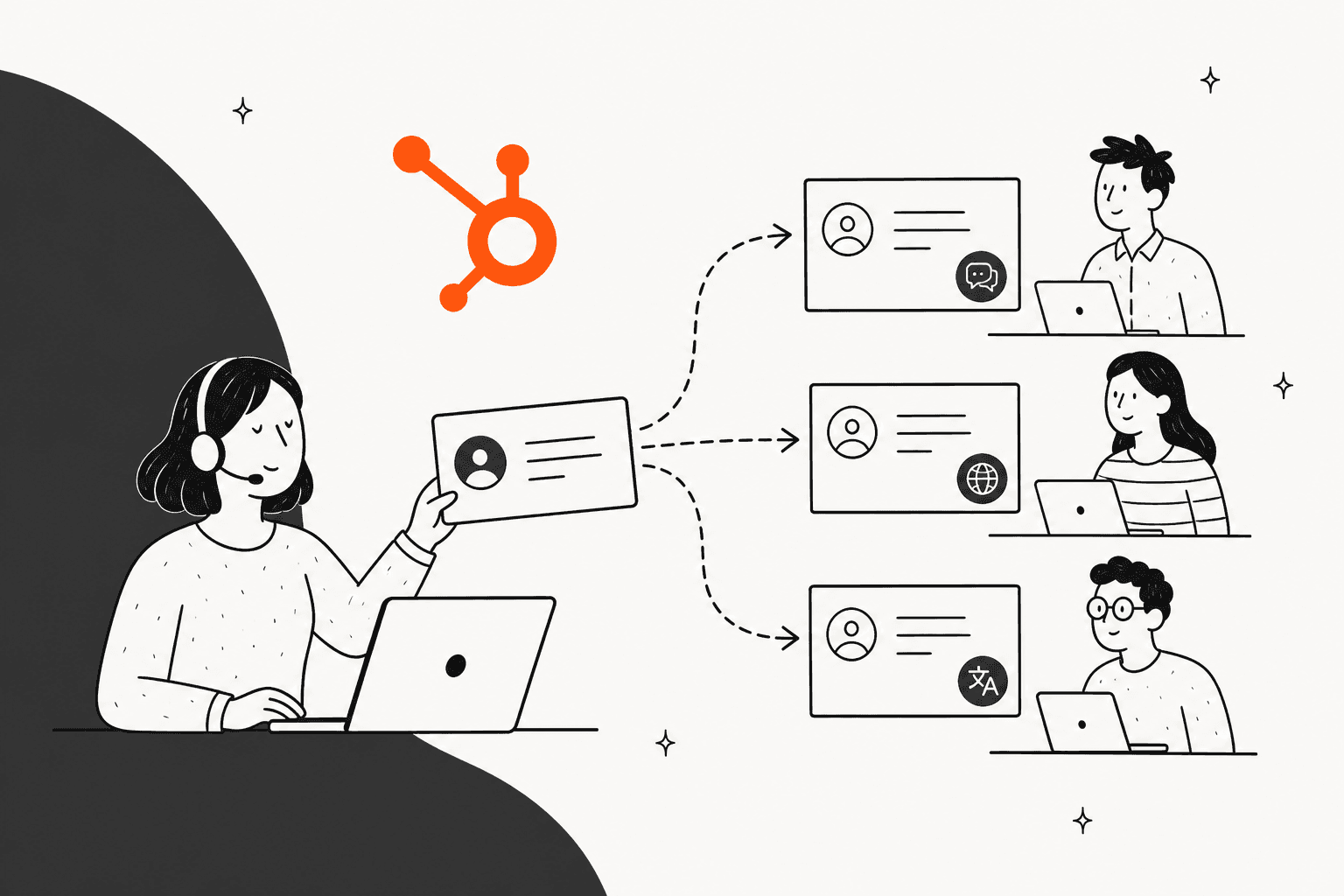
HubSpot help desk skill-based routing sends a ticket to a rep who has the right language or custom skill. It needs Service Hub Enterprise and a Service Seat for every rep who holds a skill. A Super Admin builds the skills, and each channel gets one ruleset whose rules run in order. If no rule matches, the default rule applies, and if a rule matches but no rep qualifies, the ticket stays unassigned. I'd treat skills as a filter on top of availability, not a guarantee. eesel can read each ticket and set priority or leave a note on the language or product so the rules start from cleaner inputs. With the eesel CLI, an AI coding agent can upload your approved routing policy as knowledge, then ask test questions and check the answers before anything goes live.
What is skill matching in the HubSpot help desk?
It is a way to route tickets to users by what they can do, not just by who is free. HubSpot's skill routing article says you can create skills for your users and route tickets by them. Skills can be languages your team speaks or custom skills, such as a specialty in one part of the business.
Without it, help desk leaves incoming tickets unassigned by default, and automatic rules can send them to users and teams. Skills add one more filter to those rules. I read the skill article, the general routing article, the availability and capacity articles, and the workflow action article. I haven't run skill routing in a live Enterprise portal, so this is what HubSpot documents, and I flag where it says nothing.
The setup suits teams that handle several languages or product lines, a common case in multi-channel help desks. My HubSpot ticket routing post covers the general options, and the HubSpot review looks at the product overall.
Which plan, seat, and permissions do you need?
You need Service Hub Enterprise, a Service Seat per skilled rep, and a Super Admin to set it up. HubSpot's skill article is marked as available with Service Hub Enterprise only, while general automatic routing is marked Professional and Enterprise.
| Requirement | What HubSpot's docs say |
|---|---|
| Plan for skill-based routing | Service Hub Enterprise |
| Plan for general automatic routing | Service Hub Professional or Enterprise |
| Seat | A Service Seat is required for a user to be assigned skills |
| Who sets up skills and routing | Super Admin permissions |
| Who can create routing rules | Super Admin or Account Access |
| Channel | A channel connected to help desk |
| Workflow action | Enterprise, ticket-based workflows only |
The article also says new skills are assignable to users and teams with a Service Hub Enterprise seat. Seat prices change, so I'd check HubSpot's pricing page before you plan a rollout, and my HubSpot pricing post lists the tiers I found. For the rest of the stack, AI tools for HubSpot lists what plugs in.
How do you create skills and assign them to reps?
Create the skills first, then assign them per user. HubSpot's steps live in Settings > Inbox & Help Desk > Help Desk, under Ticket sources and routing, then Skill-based routing and the Skills tab.
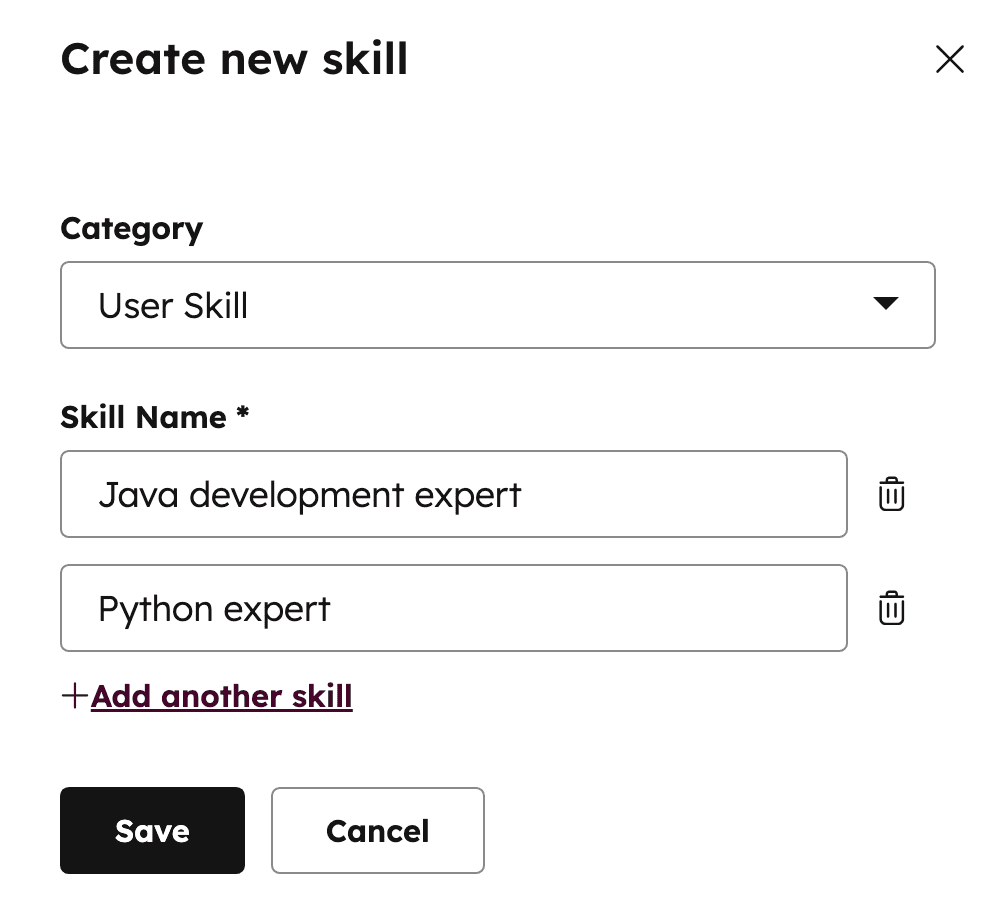
Here is what the guide says about the skills list:
- Languages come built in. HubSpot's supported languages are listed as skills by default.
- Custom skills go in a category you pick, with a name you choose. You can add several in one go.
- Edit options include renaming a skill or category, and seeing which rules or users have the skill.
- Delete is blocked while a skill is assigned to any user.
To assign them, go to Users & teams, click the user, and open the Routing tab, then Skills. You tick custom skills, then set languages as Main or Secondary. HubSpot defines main as high fluency, including industry terms and situations that need advanced fluency. Secondary means conversational fluency, comfortable chatting but not necessarily handling legal copy.
That split is a useful model, since it lets you keep contract questions with fluent speakers. The docs don't say how many custom skills an account can hold, and they don't mention bulk assignment, so for a large team I'd budget for clicking through users one at a time. My customer service team structure guide helps decide which skills are worth the upkeep.
How do routing rules use skills?
Each channel gets one ruleset, and rules in it run in priority order. HubSpot says each channel can have one ruleset, and the rules execute sequentially: if the first rule's conditions aren't met, the second is tried, and so on.
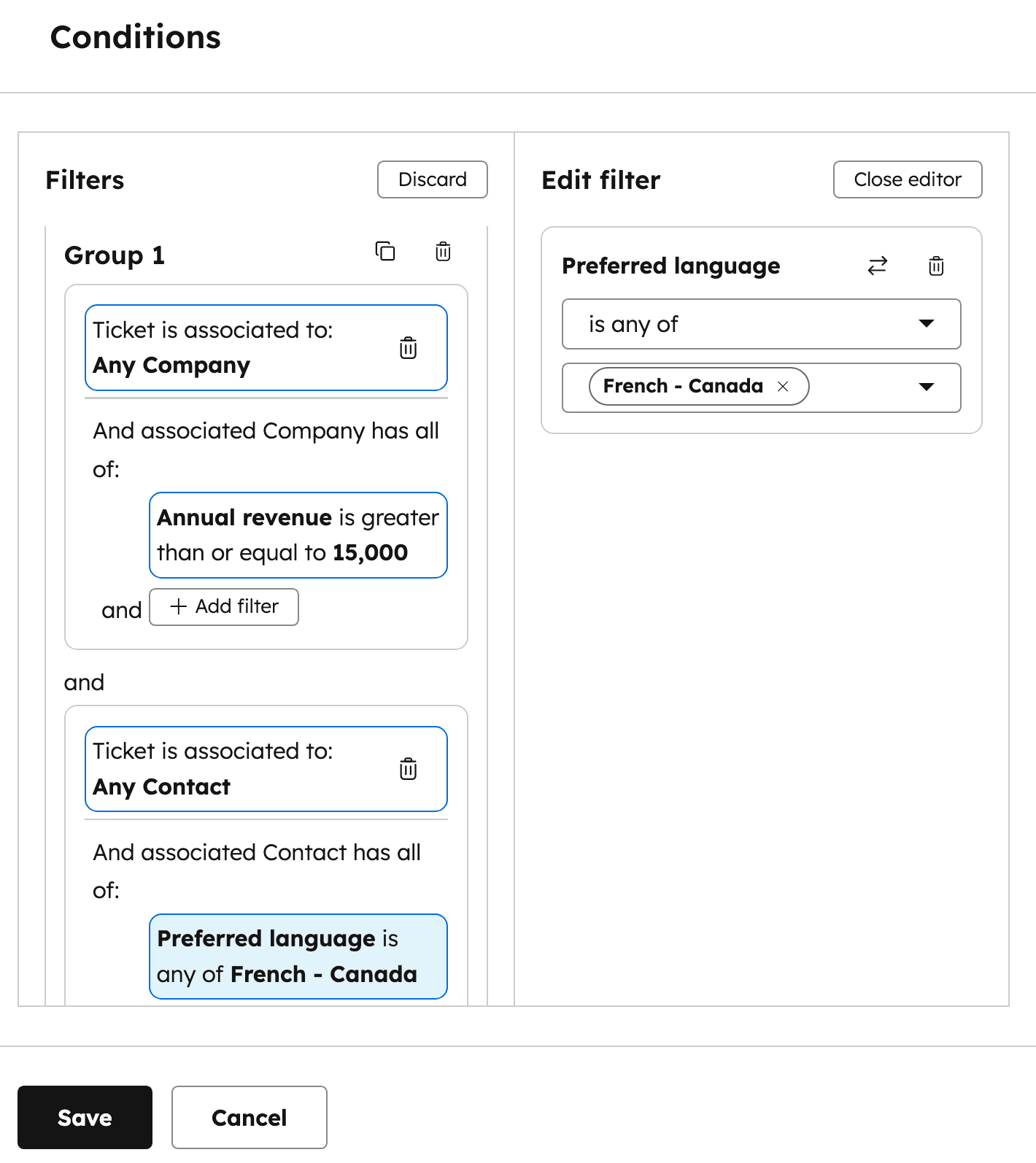
A rule has three parts:
- Conditions. Filters on ticket properties, combined with AND inside a group and OR between groups.
- Team. Optional. Pick the teams the tickets can go to.
- Skill. Optional. Pick the skills of the users who should get them.
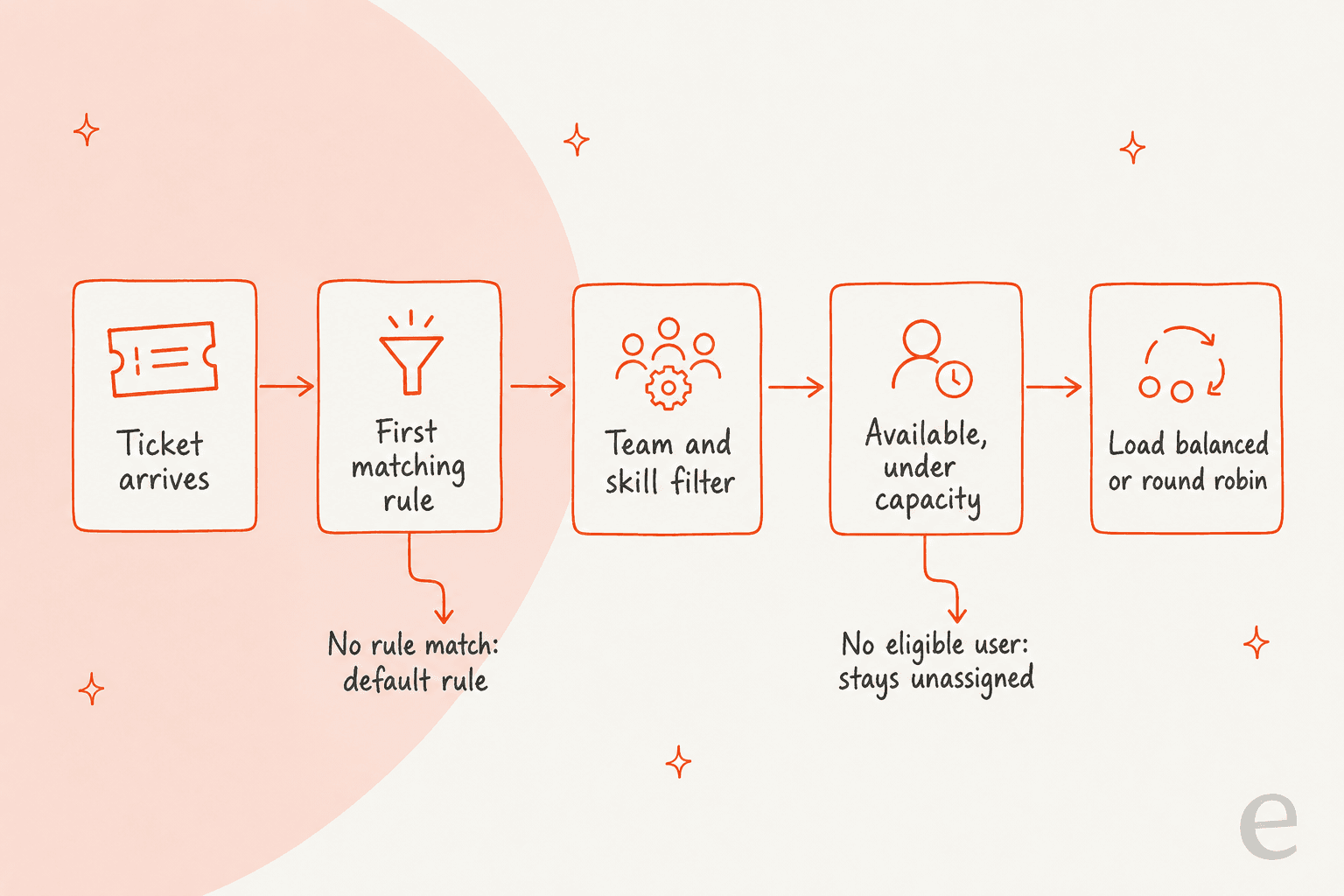
Both team and skill are optional, so you can route by skill alone or by team alone. The pipeline below shows where a ticket can end up.
The skill-based rule works on ticket properties, so what you can match on is only as good as the data on the ticket. A language property filled by a form works well. A language nobody sets is a rule that never fires. That is why ticket classification and ticket prioritization matter before routing.
What happens when no skilled rep is available?
It depends on which of two things failed, and neither triggers an escalation. HubSpot documents three outcomes:
| Situation | What HubSpot says happens |
|---|---|
| No rule in the ruleset matches | The default routing rule is used |
| A rule matches, but no user meets its criteria | The ticket remains unassigned |
| A rep matches but is away | Ineligible by default, since tickets go to available users only |
The general routing article adds that by default incoming tickets are assigned only to available agents, and if none are available the ticket stays unassigned. You can clear Assign to available users only to turn that off. Availability comes from working hours, out of office dates, or a manual setting, per the availability article.
So a French ticket at 3 a.m. with no French speaker on shift lands in the Unassigned view and waits. I found no documented timer, backup skill, or alert for that case. For a team with a response target, I'd pair this with a view for unassigned tickets and a clear SLA, as covered in my AI support SLA guide.
How do round robin, availability, and capacity fit in?
Skills decide who is eligible. Distribution, availability, and capacity then decide who gets it. In the skill article, the distribution choices are Load Balanced (fewest open tickets) and Round Robin (rotating, sequential order). You can also add a delay of up to 10 minutes before first assignment, so workflows or integrations can finish updating the ticket first.
HubSpot's general routing article explains how load is counted:
- Fewest open tickets of the same type. Types are calling, messaging, and email or other.
- Last 30 days only. Only open tickets assigned in the last 30 days count.
- Availability. Set by working hours, out of office hours, or manually.
Capacity limits are a separate setting. The capacity limits article says users at their limit no longer get tickets automatically, tickets go to the next available user, and if all target users are at capacity the ticket stays unassigned. Manual assignment still works. The skill article never says outright that capacity applies to skill rules, though HubSpot's assignment details list a Capacity Check alongside skill-based routing. I'd test one rule with a rep at their limit.
My help desk management guide covers staffing around it.
Can you route by skill with workflows instead?
Yes, on Enterprise, with the Rotate record by skill action in ticket-based workflows. HubSpot's workflow article lists the options.
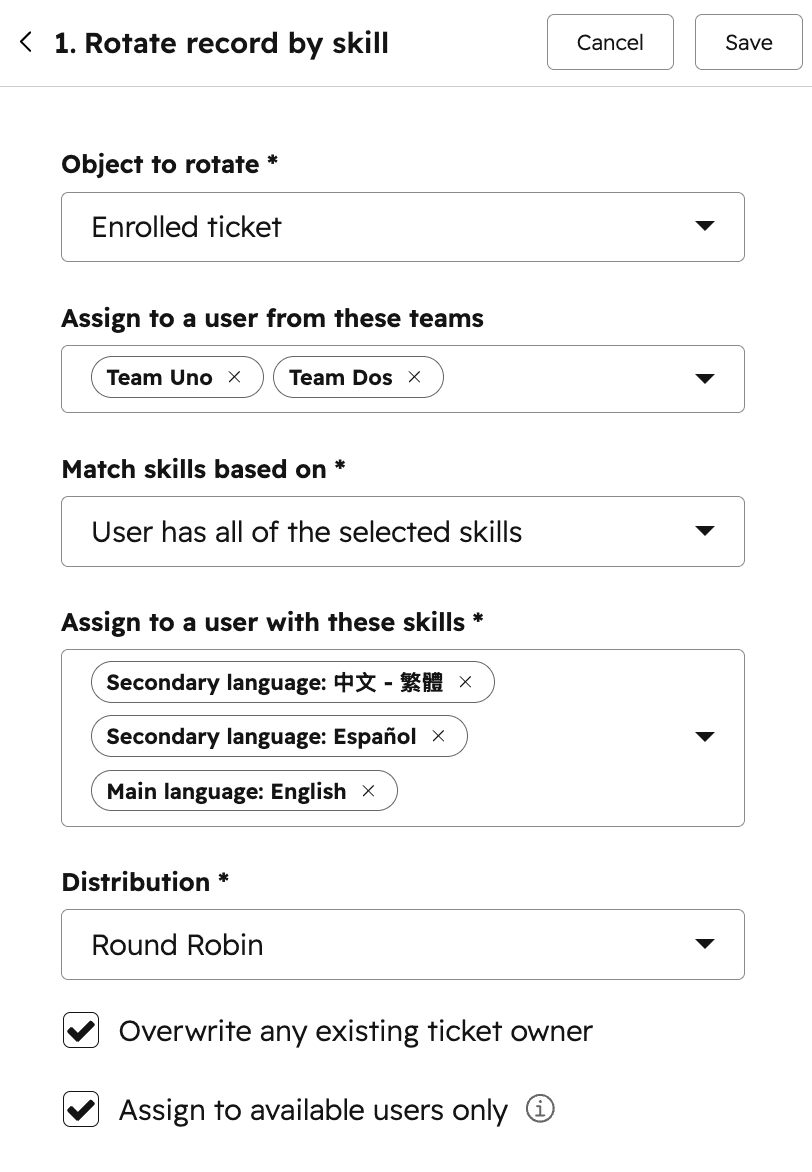
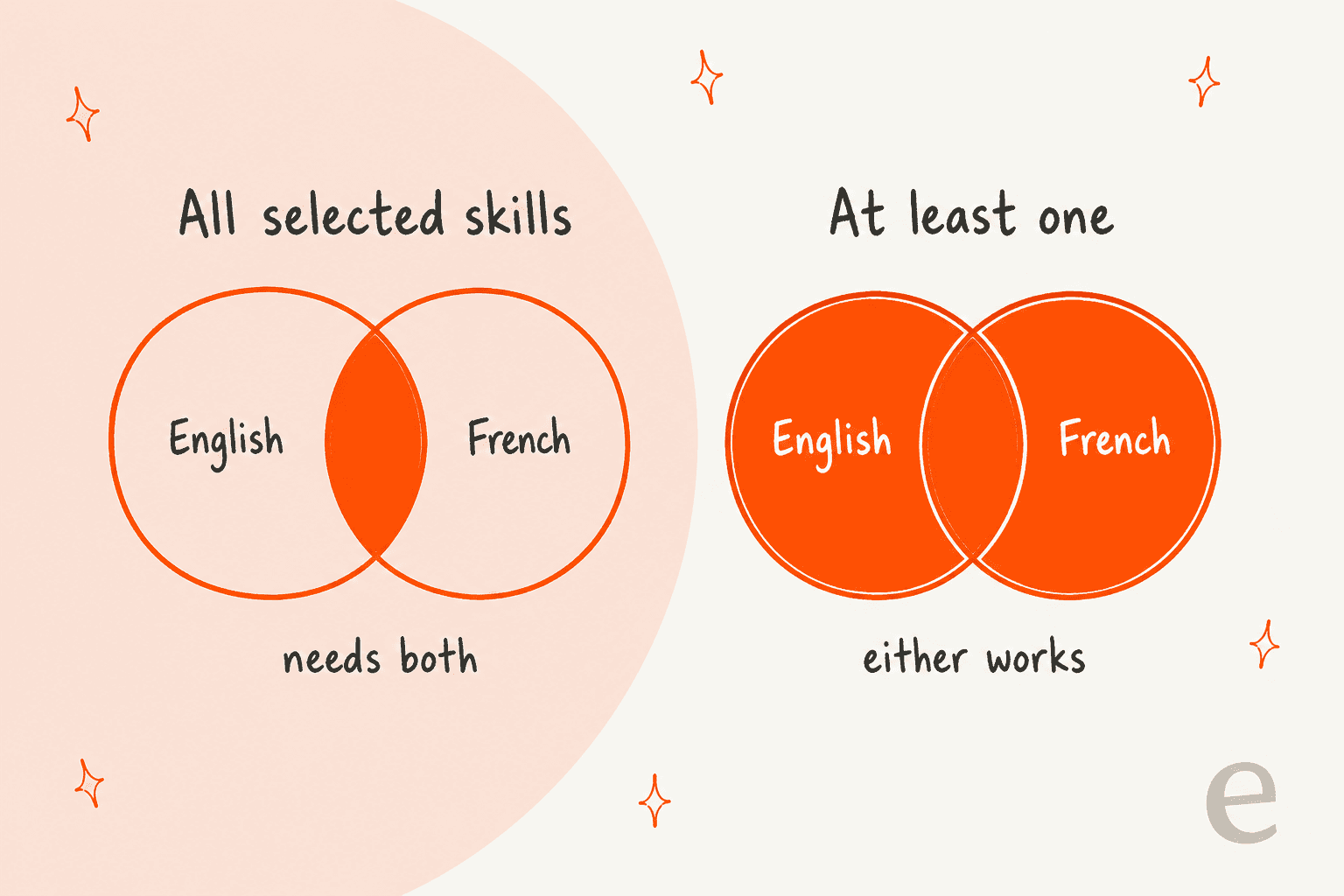
The workflow action has a setting the help desk rule article doesn't spell out: how skills are matched.
| Setting | Options |
|---|---|
| Match skills | User has all selected skills, or at least one |
| Distribution | Load Balanced, Round Robin, Random |
| Overwrite existing owner | If unticked, only unowned tickets are assigned |
| Assign to available users only | If ticked, tickets stay unassigned when everyone is away |
Two cautions from the article. The workflow action doesn't replace help desk skill rules, and both can run at the same time. That can overwrite an owner, for example when a ticket assigned in help desk later enrolls in a workflow with the overwrite option on. The help desk rule's Any skill dropdown doesn't say whether it means all or any, so I'd test it with a two-skill rule before trusting it. For workflow patterns, see first response automation and the CRM ticketing system guide.
How do you check that a rule is working?
HubSpot gives you two views. For one ticket, open Ticket activity, then Assignment details, and expand Routing Rule, User Availability, Capacity Check, or Assignment to see why it went where it did. For a rule, click View metrics and history to see how many tickets entered the ruleset and how many matched any rule, with a count and percent per rule.
A rule that matches nothing is easy to miss without those metrics. HubSpot also lets you pick a single ticket and check whether it matched a rule, which is the fastest way to debug a skill filter. If you track routing quality, my cost per ticket benchmarks and AI resolution rate posts show the numbers that move when routing improves.
Where does AI fit next to HubSpot skill routing?
AI can prepare the ticket. HubSpot's rules still do the assigning. eesel's documented HubSpot actions are replying, adding internal comments, creating tickets, and updating ticket titles, descriptions and priority (eesel HubSpot docs). It doesn't set a ticket owner or a skill, and that split feels right to me: the person who owns routing rules should own the assignment.
What it adds sits before the rule fires. Routing filters on ticket properties, and HubSpot's 10-minute delay before first assignment exists so updates from workflows and integrations can land first. An agent that reads the message and sets priority, or leaves an internal note naming the language or product, gives your rule cleaner inputs. I haven't verified whether eesel's write lands inside that delay window on your account, so treat the timing as something to test. HubSpot's own option to route to its customer agent is covered in my Breeze customer agent post, and the Breeze escalation guardrails post explains its handoffs.
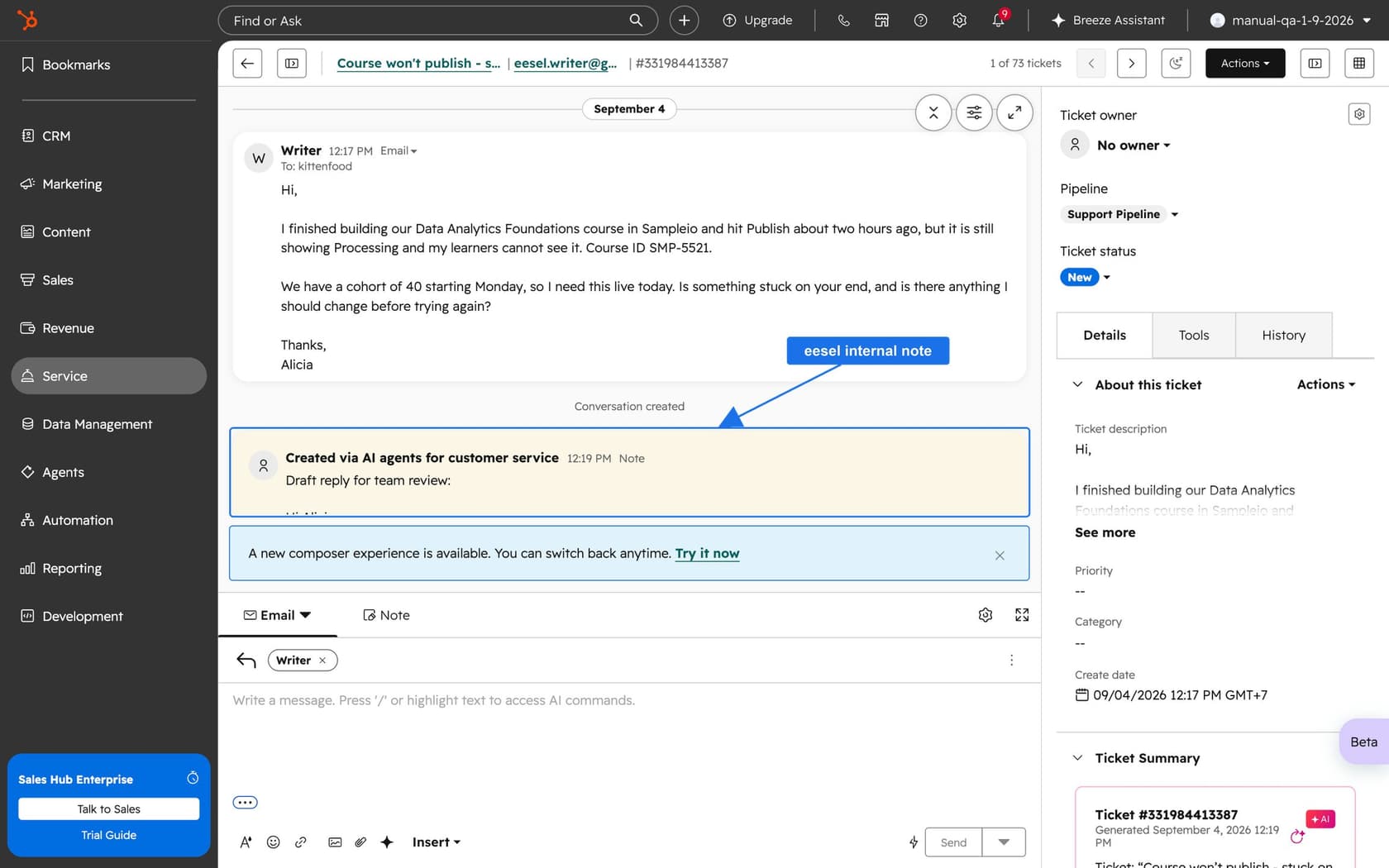
MentorShow, a French online learning platform, runs its whole support team inside HubSpot and gets between 5,000 and 13,000 tickets a month depending on the period. Every new customer message triggers eesel, which reads the thread and the member's HubSpot record, then leaves an internal note with an analysis and a draft reply. Between 8 August and 8 September 2026 it read about 1,200 HubSpot items and wrote 432 drafts, and a person reads, edits, and sends every one. The story doesn't mention skill-based routing, so I'm not claiming it uses it. It shows the pattern: the agent reads and drafts, and your team and your rules decide who answers.
For more on the HubSpot side, see my AI for HubSpot Service Hub guide, the HubSpot AI agent post, and AI response for HubSpot.
What would I set up first?
Here is the short version I'd hand a support lead:
- Start with two or three skills. Languages plus one product line is plenty, and every skill needs reps with seats.
- Use Main and Secondary on purpose. Keep legal and billing copy with fluent speakers.
- Put the narrowest rule first. Rules run in order, and the first match wins.
- Decide what happens at the end. An unmatched skill means an unassigned ticket, so keep a view watched.
- Add the 10-minute delay if workflows touch tickets. It lets property updates land before assignment.
- Test one ticket per rule. Check Assignment details for the rule, availability, and capacity.
For related reading, see ticket swarming, ticket summarization, and spam ticket filtering.
My sister posts on ticket splitting, ticket merging, and custom views cover the rest of the queue.
What does the HubSpot documentation not say?
Several things I'd test before relying on them:
- Capacity with skills. The skill article doesn't state that capacity limits apply to skill rules.
- All or any. The help desk rule's skill dropdown doesn't say whether a rule with two skills needs both.
- Limits. No cap on the number of skills, rules, or categories.
- Bulk setup. No bulk assignment of skills to users or API for it.
- Timeouts. No timer, backup skill, or alert when a skilled rep never frees up.
- Language detection. Nothing about detecting a ticket's language automatically.
- Enterprise price. Seat cost isn't on the article pages.
Try eesel for your HubSpot help desk
If your routing rules are only as good as the ticket data, eesel for HubSpot works like a new teammate in Service Hub. It learns from your HubSpot knowledge base and past tickets, reads each ticket with its contact record, and drafts replies as internal comments for your team to review. It can set priority and note the language or product, and HubSpot's rules still pick the owner. Compare options in my best AI for HubSpot roundup, or read the AI teammates overview.
If you're weighing HubSpot's own AI, my eesel vs HubSpot Breeze comparison is the place to start, and the Service Hub AI alternatives roundup lists the wider field.