WooCommerce download permissions: why links fail and how to fix them

Rama Adi

Katelin Teen
Last edited November 5, 2026
A WooCommerce download link fails for one of five reasons, each with its own message: the order isn't Processing or Completed, the download limit is used up, the expiry date has passed, a login is required, or the email and file no longer match the permission. Ask for the exact error first. Regenerate download permissions wipes counts and logs, and won't reset an expiry on an old completed order, so edit the permission instead. eesel reads the live order to explain locked files and hands permission edits to a person. With the eesel CLI, a coding agent can upload your download policy and test the answers before anything goes live.
How does WooCommerce decide who can download a file?
It writes a permission for each file when the order reaches a paid status, then checks that permission every time the link is clicked. I build eesel's integrations, so for this guide I read the WooCommerce download code itself alongside WooCommerce's downloadable product guide. Everything below was checked on 2026-11-06, when 11.2.2 was the stable release.
The grant happens in WooCommerce's order functions, and it runs on two status changes:
- Completed. Always grants access.
- Processing. Grants access only when Grant access to downloadable products after payment is ticked. That setting is on by default, which surprises store owners who assume customers wait for Completed.
- Pending payment, On hold, Failed. No access. A customer who paid by bank transfer sits in On hold until someone confirms the money, and their link doesn't exist yet.
When the grant runs, WooCommerce stores the order key, the billing email, the customer's user ID (zero for guests), a downloads-remaining count and an expiry date. Two details matter for support. The count is the product's Download limit multiplied by the quantity bought, so a customer who bought 2 copies of a 3-download product gets 6. And the grant runs once per order, so later status changes don't rebuild it.
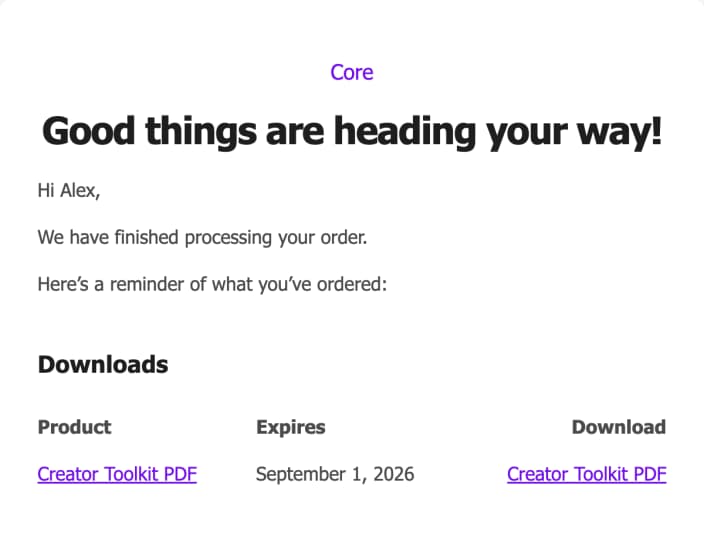
There is one shortcut. An order that contains only products marked both Virtual and Downloadable skips Processing and goes straight to Completed once paid. A product marked only Downloadable doesn't, so if the after-payment setting is off, someone has to mark that order Completed by hand. My WooCommerce order status guide walks through every status, and the manual refund guide explains why a refunded order loses its files.
Which settings control download access?
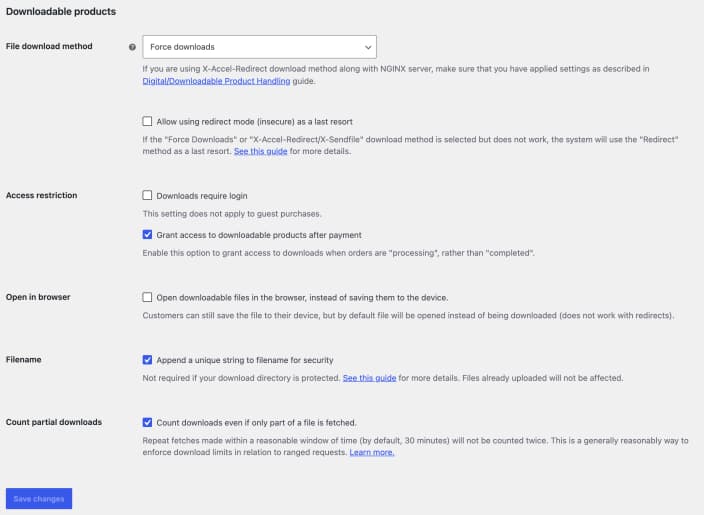
Two groups: store-wide settings under WooCommerce > Settings > Products > Downloadable products, and two fields on each product. The defaults below come from the settings source and the product editor.
| Setting | Where | Default | What it means for a ticket |
|---|---|---|---|
| File download method | Store-wide | Force downloads | How the file is served. Affects large files and link sharing (see below) |
| Allow using redirect mode (insecure) as a last resort | Store-wide | Off | Falls back to exposing the file URL when the chosen method fails on a remote file |
| Downloads require login | Store-wide | Off | Account holders must sign in. Doesn't apply to guest purchases |
| Grant access to downloadable products after payment | Store-wide | On | Files unlock at Processing instead of Completed |
| Append a unique string to filename for security | Store-wide | On | Only affects files uploaded after you change it |
| Count partial downloads | Store-wide | On | A partial fetch counts as a download, but repeats within 30 minutes count once |
| Download limit | Each product | Blank (unlimited) | Number of downloads, multiplied by quantity |
| Download expiry | Each product | Blank (never) | Days before the link stops working |
The Download expiry clock is the one that causes arguments. WooCommerce counts the days from the order's completed date, and if access was granted while the order was still Processing, from that moment instead. A 7-day expiry on an order paid on Monday can run out before the customer ever opens the email if it sat in a spam folder. If your product isn't time-sensitive, leave expiry blank and rely on a download limit.
The products settings docs cover the rest of that screen, and my WooCommerce pricing breakdown and WooCommerce review cover what's free in core.
What does each download error mean?
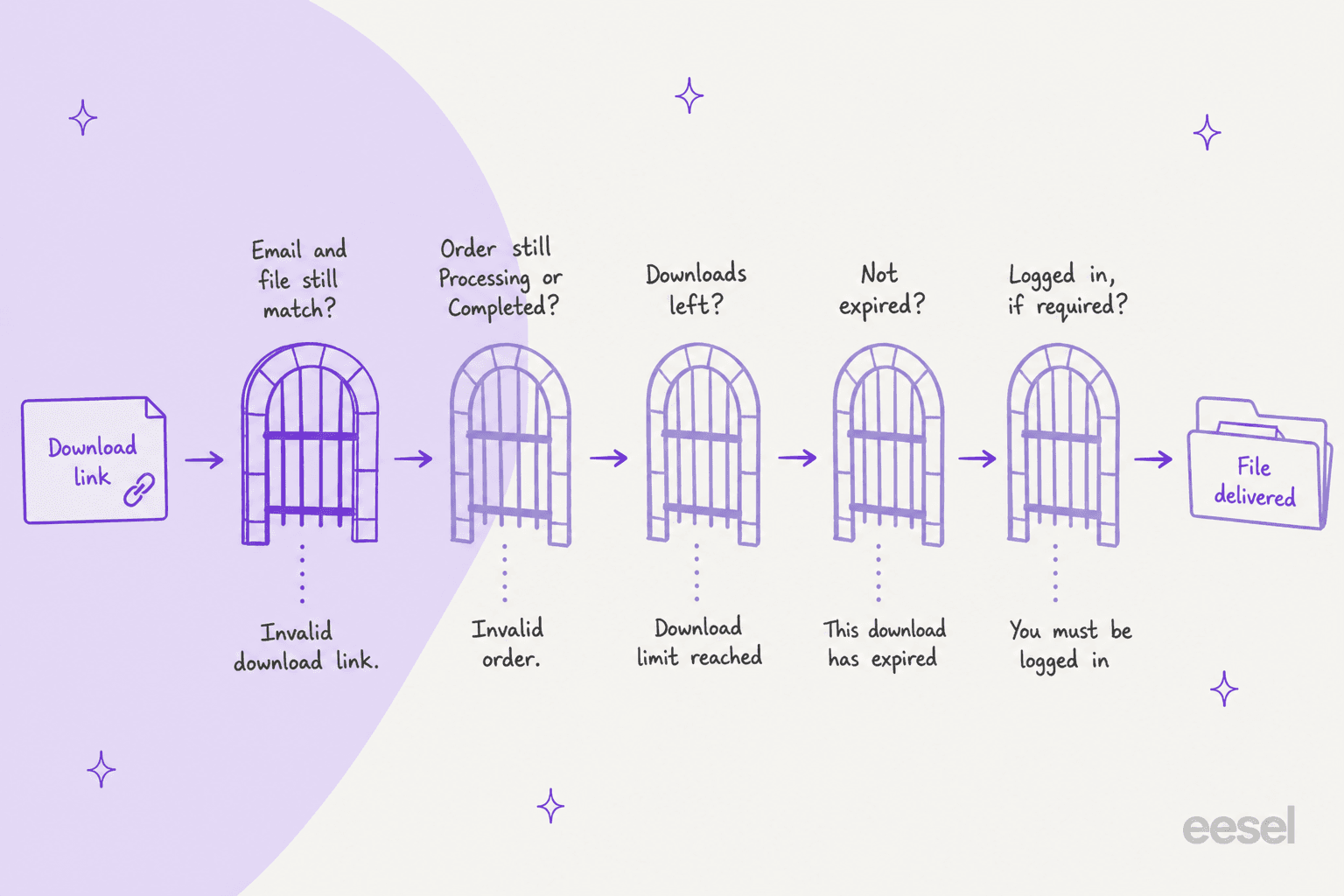
Every click goes through a fixed set of checks in the download handler, and each failure has its own message. That makes the customer's wording the fastest diagnosis you have.
| What the customer saw | What failed | What to check |
|---|---|---|
| "Invalid download link." | The link doesn't match a permission: wrong email, file removed or disabled, or no permission row | The order's billing email, the product's file list, the permissions panel |
| "Invalid order." | The order is no longer Processing or Completed | Was it refunded, cancelled or put on hold? |
| "Sorry, you have reached your download limit for this file" | Downloads remaining hit zero | The count on the permission |
| "Sorry, this download has expired" | The expiry date has passed | Access expires on the permission |
| "You must be logged in to download files." | Require-login is on and the purchase was made from an account | Ask them to sign in to My Account |
| "This is not your download link." | Signed in as a different account | Which account they're signed in to |
| "No downloads available yet." on My Account | Nothing to list | See below, this one is misleading |
That last row catches people out. The My Account > Downloads page builds its list from a query that silently leaves out expired and used-up downloads, along with files from orders that aren't Processing or Completed. So a customer whose download expired sees "No downloads available yet", not an expiry message, and reasonably thinks they were never sent anything. Guests have no My Account page at all, so their only route is the email link.
"Invalid download link" has the most causes. Since 11.2, the docs say WooCommerce "adds checks that reject malformed order or email details in download links". The emailed link carries a hash of the billing email, so if someone corrected the billing email after the email went out, the old link fails, even though WooCommerce updated the permission itself. The fix is to send the order details again. The current code also rejects any link whose order has no billing email, which breaks stores using phone-only checkout plugins. That's reported as an open issue on WooCommerce's tracker as of today. If you see a sudden wave of these tickets after an update, check that first.
For the identity side of these tickets, my guides to AI for account recovery and password reset requests cover the "I can't log in to get my file" variant.
Why did a download stop working after the product changed?
Because a permission points at a specific file entry on the product, not at the product as a whole. The docs spell out what happens when you change files after people have bought:
- Editing an existing file row (new name, new file URL, or both) updates the link on past purchases and keeps their expiry and remaining count. Past buyers get the new version.
- Adding a new file row doesn't touch past orders. Only new buyers get the new file.
- Removing a file row takes it out of every past customer's list.
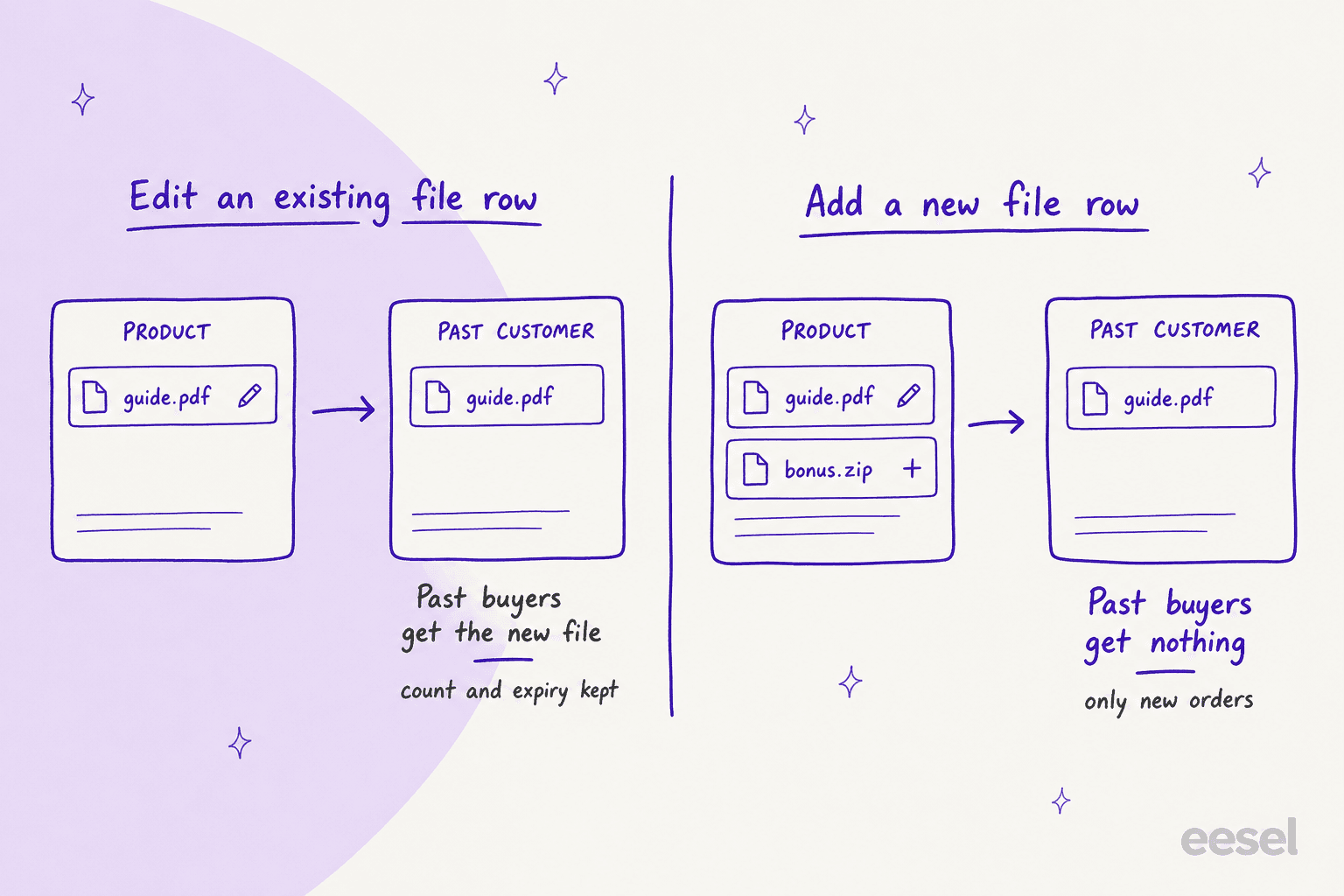
So if you sell a template pack and add a "bonus" file, the customers who bought last month will write in asking where it is. Either replace the existing file with a zip that includes the bonus, or grant the new file on each old order. WooCommerce also publishes a plugin on GitHub that restores the older behaviour of granting new files to past buyers.
The other cause is Approved download directories, added in WooCommerce 6.5. Files must live in an approved location. If someone later disables or deletes the rule covering a file's location, the docs say the file is marked disabled with a red asterisk, and customers lose access to it until an admin fixes the rule.

A disabled file shows the customer "Invalid download link" and drops off their My Account list. If one product's downloads break for everyone at once, check this before you check anything else.
How do you re-grant or edit download permissions on an order?
From the order screen, but you may need to switch the panel on first. Since WooCommerce 11.1, the Downloadable product permissions box is hidden by default. Here are the steps:
- Open the order under WooCommerce > Orders.
- Click Screen Options at the top right and tick Downloadable product permissions.
- Scroll to the panel. Each file shows how many times it was downloaded, with Revoke access beside it.
- Expand a file to edit Downloads remaining (blank means unlimited) and Access expires (blank means never), or click Copy link to grab the customer's link.
- To add a file the customer doesn't have, search for the product and click Grant access.
- Save the order, then choose Send order details to customer under Order actions so they get a fresh email.

The order actions menu also has Regenerate download permissions, and it's the button people reach for first. It's also the blunt one. The docs warn that it "deletes the existing permissions and their download logs, then creates new permissions". In the order actions code it deletes every permission on the order and runs the grant again from scratch. Grant access, by contrast, skips files the order already has, so existing counts stay as they are.
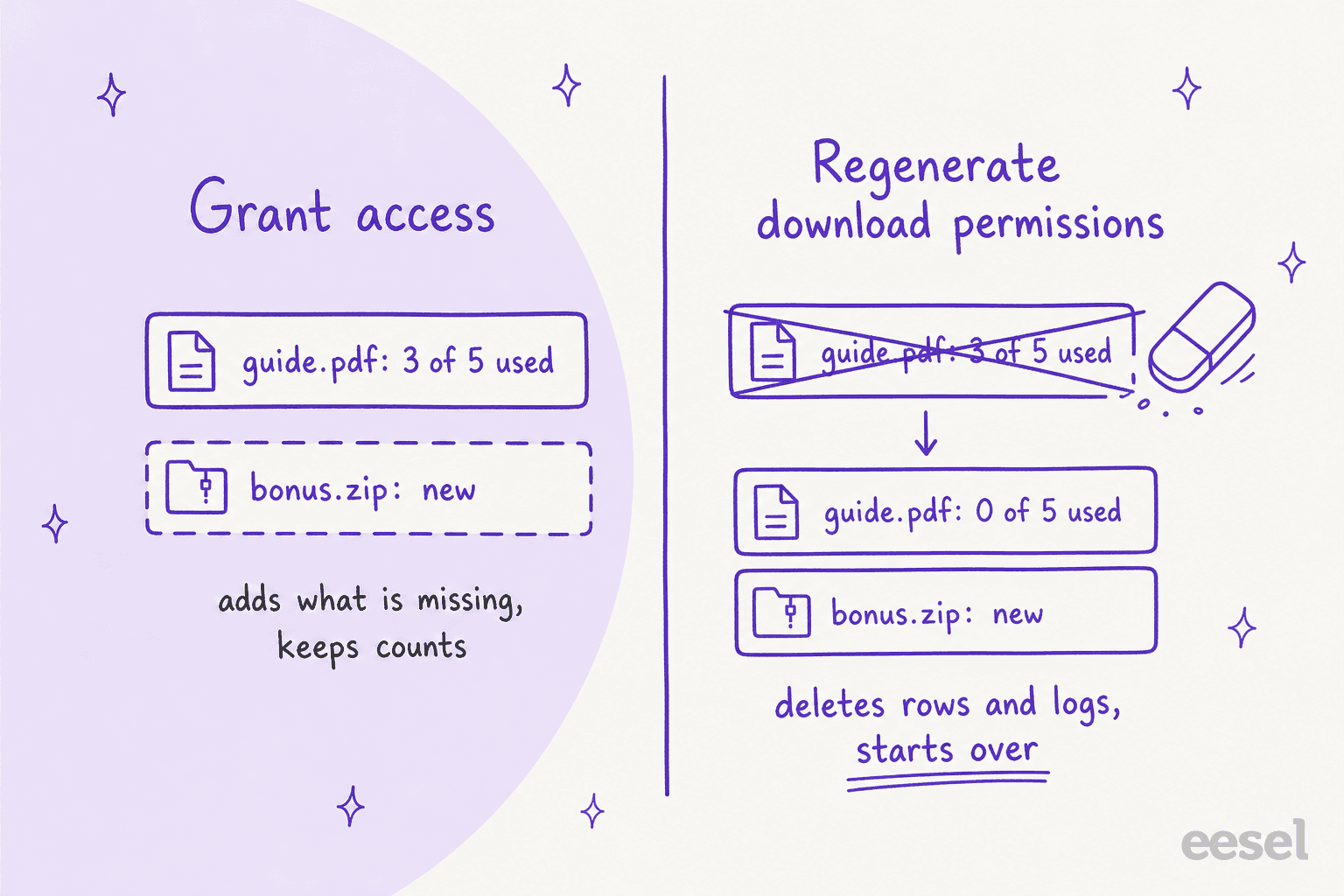
There's a catch I'd want every agent to know. Regenerating does reset the download count, but the new expiry is still counted from the order's completed date. On an order completed 60 days ago with a 30-day expiry, Regenerate rebuilds a permission that is already expired. To give that customer another week, edit Access expires directly. Keep Regenerate for the case the docs describe: a permission that's missing or doesn't match the order.
If you need proof of whether someone actually downloaded, the panel's download log links to the Downloads report in WooCommerce Analytics. That's useful when a "never got it" ticket turns into a chargeback or a fraud question.
Does the file download method matter for support?
Yes, for two ticket types: big files that fail halfway, and links shared with people who didn't pay. The docs describe the three methods:
- Force downloads (default). PHP delivers the file and the real URL stays hidden. Large files on an underpowered server can time out. Remotely hosted files also need PHP's
allow_url_fopen. - X-Accel-Redirect/X-Sendfile. The web server sends the file itself, which handles big files better. It needs the module on your host, and NGINX needs an explicit configuration rule to protect the uploads folder.
- Redirect only (insecure). The customer is sent straight to the file URL. Anyone with that URL can download it, logged in or not.
If customers report a large download stopping partway, that's a server question, not a permissions one, and X-Accel-Redirect/X-Sendfile is the usual fix. One more security note from the same page: files picked from the WordPress media library are public. Upload them from the product's edit page so they land in the protected woocommerce_uploads folder.
What should support say for each download ticket?
Pick what the customer reported to see the likely cause, what to check, what to say and what to fix.
The customer says...
Open the one that matches the ticket.
"I paid but never got a download link"
"The link says it expired"
"It says I reached my download limit"
"It says Invalid download link"
"My account says no downloads available"
"I don't have the new file you added"
"The download starts, then fails"
Two habits make these quick. Ask for the exact error text before anything else, because it points straight at one check. And look up the order by email rather than trusting My Account, since that page hides exactly the downloads the customer is asking about. Writing these replies once as macros, backed by a short knowledge base article on your download policy, saves a lot of retyping.
Can an AI agent answer download tickets?
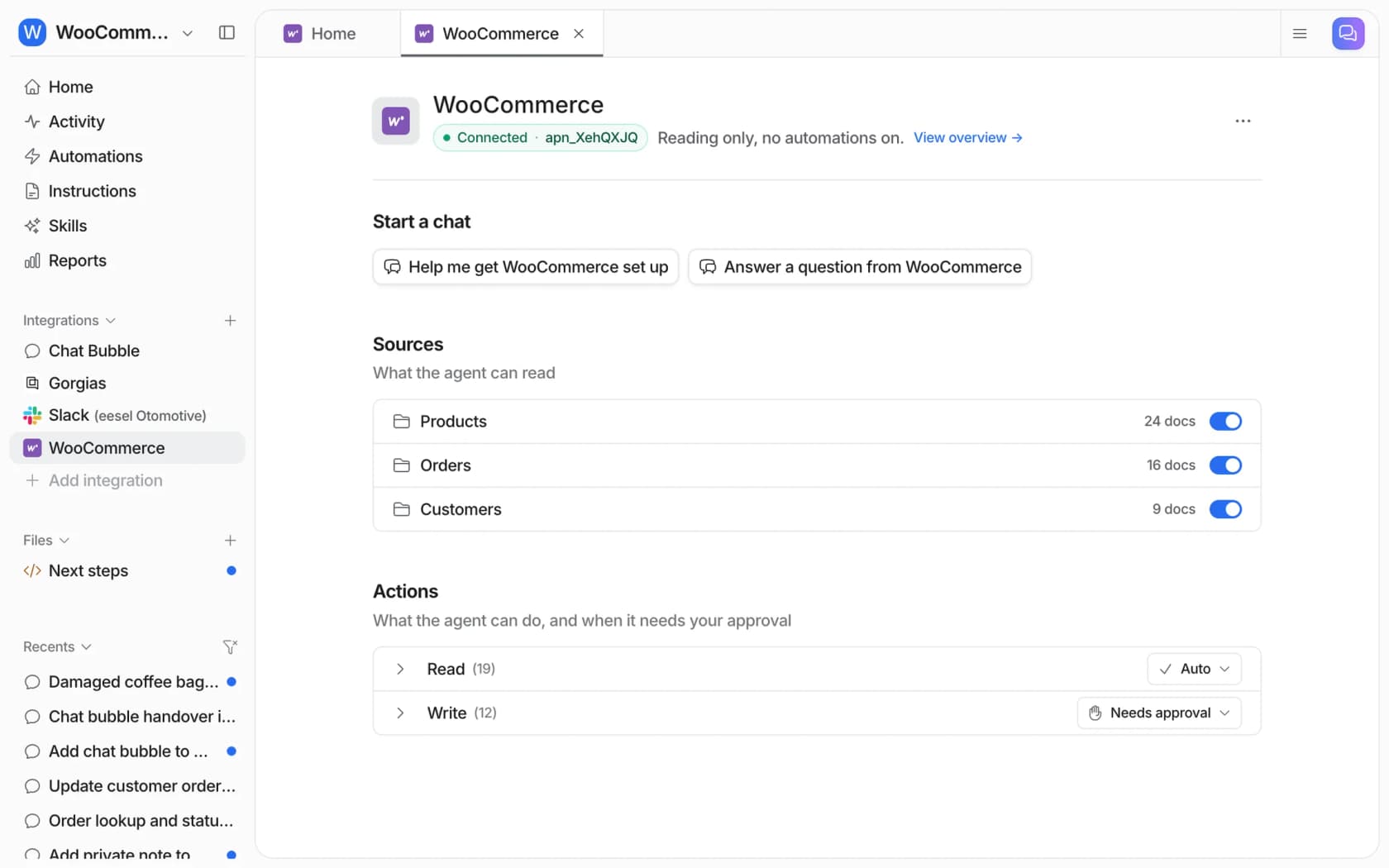
It can answer the "why" from the live order and route the fix, which covers most of the back-and-forth. The eesel WooCommerce integration connects through the free eesel AI plugin or a REST API key. Its Look up orders action reads an order "with its items, totals, status and notes", so the agent can tell a customer their order is still On hold and the files unlock when payment clears, instead of sending a generic "check your spam" reply.
The honest limits, from eesel's own docs:
- No permission actions. Editing downloads remaining, changing an expiry, granting a file and regenerating permissions aren't in eesel's documented WooCommerce actions. Those go to a person.
- Completing an order is possible, with approval. Update order status can move an order to Completed, which grants access on an order that hadn't been granted yet. Each write action follows the approval rule you set, and the docs note a status change can email the customer.
- A private note is the clean handoff. Add order note can leave a private note on the order for whoever picks up the permission edit.
The pattern that works is the one two eesel customers already run on other platforms. Dokument 24 sells legal documents that arrive by email within minutes, and "where is my document" is one of its regular questions. Between 8 August and 8 September 2026, eesel prepared about 680 Zendesk tickets for the team and left about 670 draft replies as internal notes, and when nothing covers the question, the note says so instead of guessing. MentorShow sells subscription access to video masterclasses, and its agent checks the member's record before answering, because access ends on the renewal date. Refunds, billing checks and account changes go straight to a person. Neither store runs on WooCommerce, but that split, AI explains and a person changes access, maps directly onto download permissions.
Connecting the store still needs someone with WordPress admin access to approve it, and the CLI doesn't replace that step. If your helpdesk is Gorgias, read Gorgias with WooCommerce and Gorgias AI for WooCommerce first.
For a broader pick, see best AI for ecommerce support, or, if you sell courses and memberships, best AI for subscription businesses.
Which settings prevent the most download tickets?
These are the ones I'd check first on a store selling files, in rough order of how many tickets they prevent.
- Leave Grant access after payment on. It's the default for a reason. Turning it off means every downloadable-only order waits for a person to click Completed.
- Mark digital products Virtual as well as Downloadable. Orders then complete themselves once paid.
- Prefer a download limit over a short expiry. Expiry runs whether or not the customer opened the email. A limit of
5with no expiry stops abuse without punishing a slow reader. - Ship updates by replacing the existing file. Past buyers get it, with no re-granting.
- Check approved download directories after any storage move. A disabled rule cuts off every past buyer of that file at once.
- Tell support the meta box is hidden. Since 11.1 it's behind Screen Options, and agents who can't find it reach for Regenerate.
Download tickets are part of a bigger "where's my stuff" queue. The ecommerce support contact rate data shows how big that queue gets, and WISMO automation covers the physical side.
For shipped goods, there's also AI for order tracking, and for automations outside support, WooCommerce with n8n. If you're still weighing the platform, start with WooCommerce alternatives.
The same store-side detail runs through my guides to Shopify vs WooCommerce, variation stock availability and coupon usage restrictions.
Try eesel for WooCommerce download questions
Download tickets come down to a handful of checks, and most of the reply is explaining which one failed. eesel reads the WooCommerce order before it answers, so "I never got my file" gets the real reason, an On hold payment or a status that hasn't moved, and a permission fix lands with your team as a private note rather than a guess. It joins your helpdesk, a chat bubble on your store or Slack.
Try eesel on your store.
Want to see the agent first? Read how the WooCommerce AI agent works, or add AI to WooCommerce step by step. New to the terms? Here is what an AI agent is.
For a wider look at shop support, see the ecommerce helpdesk guide, AI chatbots for ecommerce and customer service automation.