WooCommerce shipping zone matching: how WooCommerce picks a zone

Rama Adi

Katelin Teen
Last edited November 5, 2026

WooCommerce shipping zone matching is simple once you know the rule: it takes the customer's shipping country, state and postcode, checks your zones from the top of the list down, and the first match wins. City is never checked. A matched zone with no methods shows "no shipping options" instead of falling through, and US customers typing a ZIP+4 code miss exact and range postcode rules. So most "wrong shipping" tickets are a zone order or postcode format problem, and support can answer them from the address alone. eesel can explain that to shoppers if you write your zone rules down where it reads them.
How does WooCommerce match a customer to a shipping zone?
WooCommerce compares the customer's shipping address with each zone, in the order your zones are listed, and stops at the first one that fits. The shipping zones docs say it in one line: zones are matched "from the top of the list to the bottom", and a customer gets the methods from that one zone only.
I build integrations at eesel, including the WooCommerce one, and the fastest way I've found to stop arguing about what WooCommerce "should" do is to read the function that does it. Here it's get_zone_id_from_package() in WooCommerce core, and it does five things in order:
- Cleans up the address. Country and state are uppercased. The postcode is uppercased and every space and hyphen is removed, so
cb2 3aabecomesCB23AA. The continent is worked out from the country. City and street lines aren't used at all. - Checks the region. A zone passes if any one of its regions matches: the country, the state, or the continent. Continent, country and state have no ranking against each other.
- Checks postcodes. If a zone has postcode rules and none of them match, it's dropped. A zone without postcode rules is unaffected.
- Picks the first survivor. Zones are sorted by their position in the list, and the top one wins. If two zones share a position, the one created first wins.
- Falls back. If nothing matched, the customer gets zone 0, which the admin calls Rest of the world.
Only after that does WooCommerce load the zone's enabled methods. The matching step never looks at methods, which is the single most useful fact in this post, and I'll come back to it.
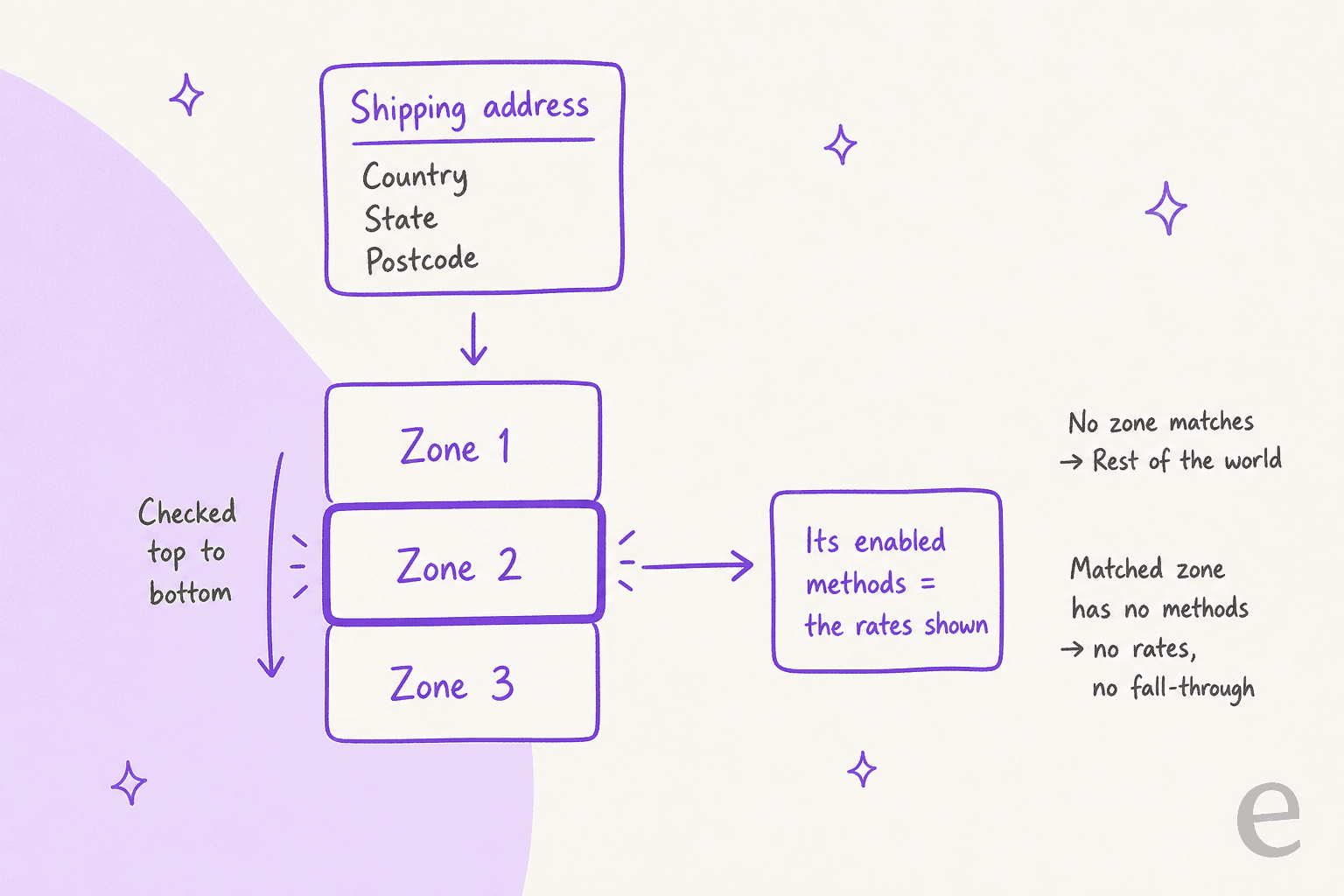
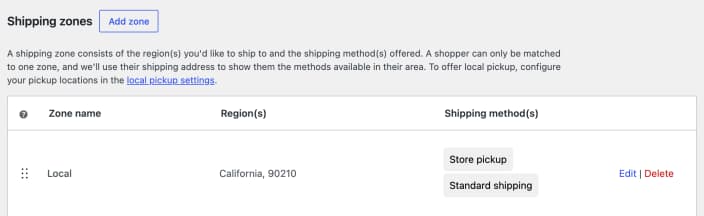
The zones screen says the same thing in its own words: a shopper can only be matched to one zone, and WooCommerce uses their shipping address to show the methods in that area.
If you're new to the rest of the store setup, my WooCommerce review, the Shopify vs WooCommerce comparison and WooCommerce pricing guide cover what you get in core before you add extensions.
What can a shipping zone match on?
Four things, and only four: continent, country, state and postcode. Here's what each one does in practice.
| Zone region | How it's matched | Watch out for |
|---|---|---|
| Continent | Worked out from the customer's country | "Europe" includes the UK, so a UK address matches it |
| Country | Exact country code | Must also be allowed under Shipping location(s) |
| State | Country plus state, stored like US:CA | Only for countries where WooCommerce has a state list |
| Postcode | Exact, wildcard * or range ... | Narrows a zone, never widens it |
Postcodes are the only way to go below state level. That's why city delivery zones trip people up: WooCommerce has no city field in the zone editor, and the city the customer types is ignored. One store owner in the UAE found every customer getting the Dubai rate:
"In checkout, all customers are charged with the "Dubai" shipping method (since its the first option row in backend so wc prioritizes it) Is there a solution to this?"

With no postcodes to narrow by, every zone matched the country, and the first one won. The fix in that thread was a plugin that adds custom states.
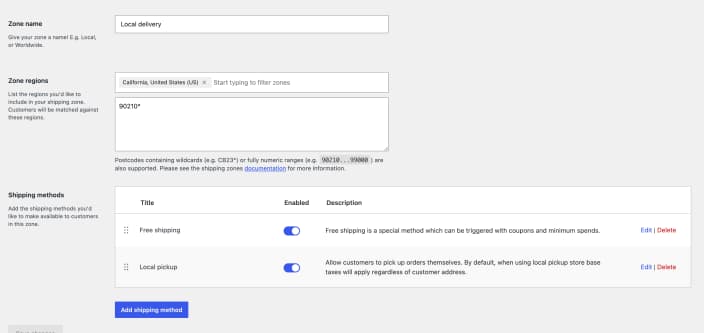
The postcode box takes three formats, per the shipping zones docs and the matcher code:
- Exact:
90210orCB2 3AA. WooCommerce compares it with the customer's postcode, with and without the country's usual space or hyphen, socb23aastill matchesCB2 3AA. - Wildcard: a trailing
*, like902*orCB2*. It matches anything that starts with the text before it. A*in the middle (9*10) never matches. - Range: two values with three dots, like
90210...99000. Numeric ranges compare as numbers. The docs say plainly that wildcards in ranges, like902*...990*, aren't supported.
A useful mental model: the region gets the customer into the zone, and postcodes can only keep them out. A zone with California and 902* matches a California address starting with 902, not every address starting with 902.
Why does a broad zone steal customers from a narrow one?
Because the first match wins, and a continent or country zone matches everything inside it. If "Europe" sits above "United Kingdom", a UK customer matches Europe first and never reaches the UK zone. This is the most common wrong-rate ticket I see in the r/woocommerce threads, and a steady source of ecommerce support contacts, and it takes days to find because both zones look right on their own.
"I added all EU countries separately, instead of just the whole of Europe option, and it has fixed the issue. Thank you so much for your help! It was such a simple fix, yet I spent days and days trying to figure it out"
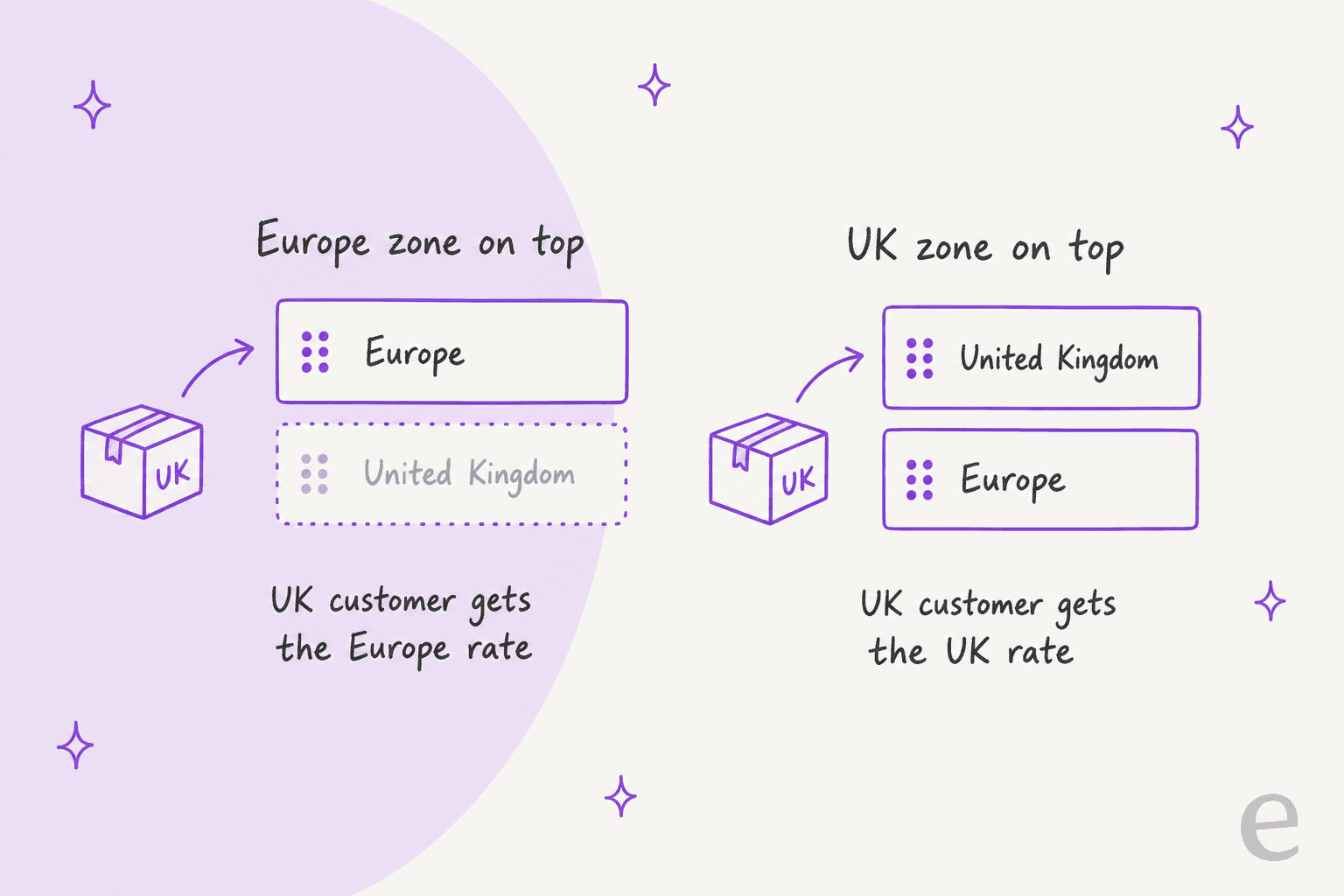
There are two fixes, and the order one is usually cleaner:
- Drag the narrow zone above the broad one. Local delivery first, then state, then country, then continent. The docs' own example list runs in that order.
- Or take the overlap out of the broad zone, like OutdoorG did by listing EU countries one by one instead of "Europe".
Since WooCommerce 11.1, the zones screen helps here. It flags a zone that an earlier zone fully covers, with this message:
This zone will not be matched because "%1$s" covers the same region earlier in the list. Move this zone above "%1$s" to make it available.
The catch is that it only compares continents, countries and states. If the earlier zone uses postcodes, it never warns. The troubleshooting docs are honest about this: no warning doesn't mean no overlap. So after any change, still test one address per zone.
Postcode zones can overlap too. One store split a city by postcode range across two zones, each with a different product's delivery method, and hit this:
"The problem is, that the postcodes overlap in the two different zones. So if select variation B, and enter a postcode that exists in variation A's area, it says that shipping is not possible."
That's zone order again: the first zone won, and it had nothing for variation B. Zones are about where a customer is. If what you ship depends on the product, that belongs in shipping classes inside a zone, not in a second zone. The same "it depends on the product" confusion shows up in variation stock questions.
Why do US ZIP+4 codes miss postcode rules?
Because WooCommerce removes the hyphen. A customer who types 90210-1234 is matched as 902101234, which doesn't equal 90210 and isn't between 90210 and 99000 when compared as a number. The research for this post checked that against the postcode code in PHP 8: exact and range rules both miss, and only a wildcard like 902* or 90210* catches it.
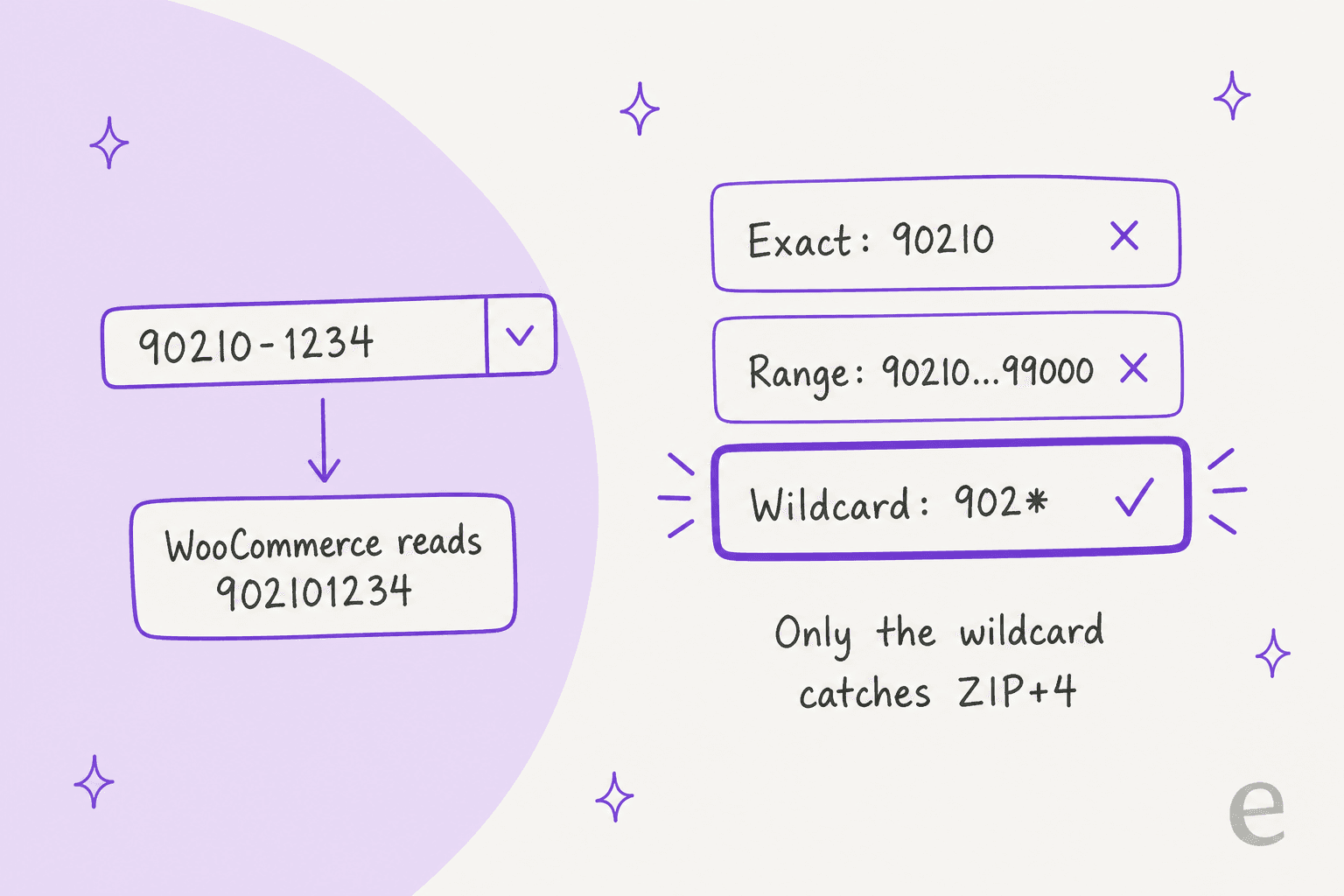
The docs show a 902* example catching a ZIP+4 address, but they don't warn that exact and range rules won't. When they miss, the customer drops to the next zone down, usually your national or Rest of the world rate, and nobody gets an error. So the ticket arrives as "why did I pay $15 shipping when my neighbour paid $5?", not as a bug, and it lands in your ecommerce helpdesk looking like a billing question.
If you ship in the US, I'd use wildcards for any local zone, or check a few recent orders to see how often customers type the extra four digits.
Why does a customer see "no shipping options"?
Four causes cover nearly every case, and the first one surprises people most.
1. The zone matched but has no enabled methods. WooCommerce picks the zone first and loads its methods after. A zone with no methods, or only disabled ones, still wins, shows no rates, and does not send the customer on to the next zone or to Rest of the world. WooCommerce uses this on purpose: the docs suggest adding an empty zone to stop shipping to a region. That's handy, until someone toggles a method off for a day and forgets. A lost sale at checkout like that turns into pre-sales questions in your inbox.
2. The only method has a condition the cart doesn't meet. A zone with just free shipping and a $50 minimum shows nothing to a $40 cart. Same with weight brackets that leave a gap:
"Have you set up shipping methods with weights? If so make sure your weight marry up. I can across this when methods had been set 0-5kg and then 5.5kg+ the weight of the product was between the two."
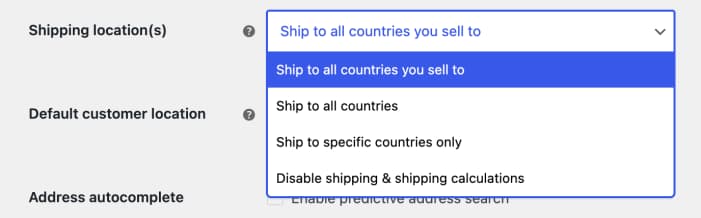
3. The country isn't allowed at all. Before any zone is checked, WooCommerce compares the country with Shipping location(s) in the general settings. If it's not allowed, only local pickup is calculated, whatever your zones say.
4. The address isn't finished yet. Checkout recalculates as the customer types, so the message can flash up mid-address. With Hide shipping costs until an address is entered ticked, no zone is matched until the country and any required state and postcode are filled. Real customers read this as "you don't ship to me":
"if you entered the zip code, but have not entered the city yet, it will show "No shipping options available". Then after entering the city it will select the matching shipping method and the error message disappears. [...] we have had customers message us that they can't order because of it"
That setting can also catch logged-in customers with a saved address. One store owner on WooCommerce 10.7 saw shipping for logged-out customers but none for logged-in ones, and the fix was turning the setting off (thread).
The exact wording tells you which checkout the customer is on, which matters because the troubleshooting page only quotes the blocks version. These are the current strings in core:
| Where | What the customer sees | Usually means |
|---|---|---|
| Classic cart | "No shipping options were found for [address]." | Zone matched, no rates |
| Classic checkout | "There are no shipping options available. Please ensure that your address has been entered correctly, or contact us if you need any help." | Zone matched, no rates |
| Classic checkout | "Unfortunately, we do not ship to [country]. Please enter an alternative shipping address." | Country not in Shipping location(s) |
| Classic checkout | "Please enter an address to continue." | Address incomplete with costs hidden |
| Checkout block | "No shipping options are available for this address. Please verify the address is correct or try a different address." | Zone matched, no rates |
| Checkout block | "Enter a shipping address to view shipping options." | Address not complete yet |
| Checkout block | "Sorry, we do not ship orders to the selected country" | Country not allowed |
| Checkout block | "Sorry, this order requires a shipping option." | Placed with no rate picked |
The classic strings come from cart-shipping.php and class-wc-checkout.php. On classic checkout you can soften the first two with the woocommerce_no_shipping_available_html and woocommerce_cart_no_shipping_available_html filters, which one commenter suggested to stop the panic (comment).
Does WooCommerce use the billing or shipping address?
The shipping address, always. The docs and the cart code agree. The billing address only matters when it's copied in: when the customer leaves Ship to a different address unticked, or when you pick Force shipping to the customer billing address. Then classic checkout copies every billing field into the shipping fields, and matching runs on those.
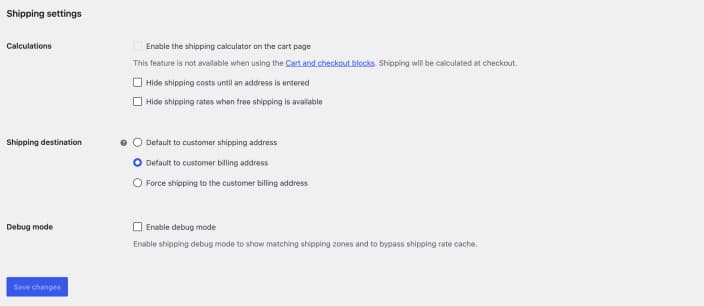
The support version: when a customer says "I changed my country and the price didn't change", ask which address they changed. Gift orders are the classic case, billing in one country and shipping to another.
Two more things on that screen are worth knowing. Enable the shipping calculator on the cart page doesn't apply to the Cart and Checkout blocks. And if you use the blocks version of local pickup, it isn't tied to a zone at all: it shows "regardless of customer location". The older local pickup method is a normal zone method and needs a zone match.
Why doesn't my fix show up straight away?
Usually it does. WooCommerce keeps each customer's calculated rates in their session, but the stored rates are keyed on the address, cart contents, coupons and a shipping settings version that changes when you save shipping settings. The zone lookup cache is reset when zones change too. So a stale rate after an edit usually comes from outside WooCommerce: the troubleshooting docs name page caching of Cart, Checkout and My Account as a cause.
To see what a test address matched, turn on Enable debug mode. It skips the stored rates and shows a notice like Customer matched zone "Local". Two quirks:
- It doesn't show on checkout, during AJAX updates, or reliably in the Cart and Checkout blocks. The classic cart page is the easy place to read it.
- When the fallback zone wins, the notice names it by its internal name, "Locations not covered by your other zones", not "Rest of the world". Same zone, different label.
When the zone is right but the rate still won't change with the country, check the checkout itself. One reply in a September 2026 thread suggested a test I'd copy:
"I'd first try testing it with the classic WooCommerce checkout instead of the Checkout Block. If the shipping cost changes correctly there, then you can probably narrow it down to the Checkout Block or a plugin/theme compatibility issue."
Why doesn't a customer see free shipping?
Free shipping is a method inside one zone, so the customer has to match that zone first. A customer in Rest of the world won't see the free shipping you set up in "United States", however big their cart.
Then the method's own rule has to pass. Per the free shipping docs, it can need nothing, a coupon, a minimum amount, a minimum or a coupon, or both. The minimum is measured after coupon discounts unless you tick Apply minimum order rule before coupon discount. So a $55 cart with a $10 code is a $45 cart for free shipping, and that's a ticket. It's the shipping cousin of the traps in my WooCommerce coupon restrictions guide.
Last, Hide shipping rates when free shipping is available has been a core setting since WooCommerce 9.9. When free shipping qualifies, it keeps free shipping and local pickup and removes everything else. Handy, but if a customer asks why express shipping vanished once their cart passed $50, that's why. (The separate hide other methods doc still says you need code or a plugin. You don't, on 9.9 or later.)
Zones only decide the rate before purchase. After it, the tickets become "where is my order", which my posts on WISMO automation, WooCommerce guest order tracking and AI for shipping delay notifications cover.
How should support check a shipping zone ticket?
Ask for three fields, then walk the list. Every zone answer comes from the shipping country, state and postcode, so you can answer most tickets without logging in as the customer.
| Step | What to ask or check | Why |
|---|---|---|
| 1 | Shipping country, state and postcode, exactly as typed | That's all matching uses. City doesn't count |
| 2 | Did they tick "Ship to a different address"? | If not, their billing address was used |
| 3 | The exact message, word for word | Tells you classic or blocks, and which cause |
| 4 | Walk your zones top to bottom | The first zone whose region and postcode fit is the answer |
| 5 | Does that zone have an enabled method this cart qualifies for? | Empty or conditional zones show nothing |
| 6 | Test the address with debug mode on the classic cart page | Confirms the zone, skips stored rates |
The answer is nearly always a lookup, and a good one to save as one of your shipping issue macros.
What isn't a lookup is the make-good: refunding the difference when a customer was overcharged, or waiving shipping on a reship. That's a money decision, like any refund request, and it should go to a person through a proper handoff.
That's how the stores I work with draw the line. Rúngne, a Norwegian climbing apparel brand that ships US orders from a US warehouse and everything else from Norway, runs eesel on Gorgias and Shopify across 2,100 tickets a month. Its draft agent checks stock at the right warehouse, but a delivery problem gets an apology and an escalation, never a guess about where the parcel is. Koffer.ch, a Swiss luggage shop on Freshdesk, points eesel at its delivery page alongside its terms and FAQ, so shipping answers come from what the shop published. Neither runs WooCommerce, and the setup carries over unchanged: write the rule down, let the agent explain it, keep the money with a person. My approval workflows guide covers where to set that line.
How eesel handles WooCommerce shipping questions
eesel connects to WooCommerce through the free eesel AI plugin or a REST API key, and answers in your chat bubble, your helpdesk (for example Gorgias on WooCommerce) or Slack. For shipping zone tickets, here's what it can and can't see, per the WooCommerce integration docs:
- Look up orders reads an order "with its items, totals, status and notes". After purchase, that's how it checks what a customer was charged and where the order is, alongside the order status.
- Look up products and categories reads your catalogue live, so it can tell a shopper what's in stock before they buy.
- Your zone rules come from your writing. The documented sources are products, orders and customers, not shipping zones. eesel's own docs say written content such as your shipping policy isn't in WooCommerce, so connect your website. I'd write each zone in plain words on your shipping page: which postcodes get local delivery, the free shipping minimum and whether it's before or after coupons, which countries you don't ship to. Without that, the agent can't know your rules, and it shouldn't guess. That's the same hallucination guardrail I'd set for any policy question.
- It can't see the cart or the zone screen. If a shopper says "it shows no shipping options", the agent can ask for their country, state and postcode, check them against the rules you wrote, and tell them which zone that is or that you don't ship there.
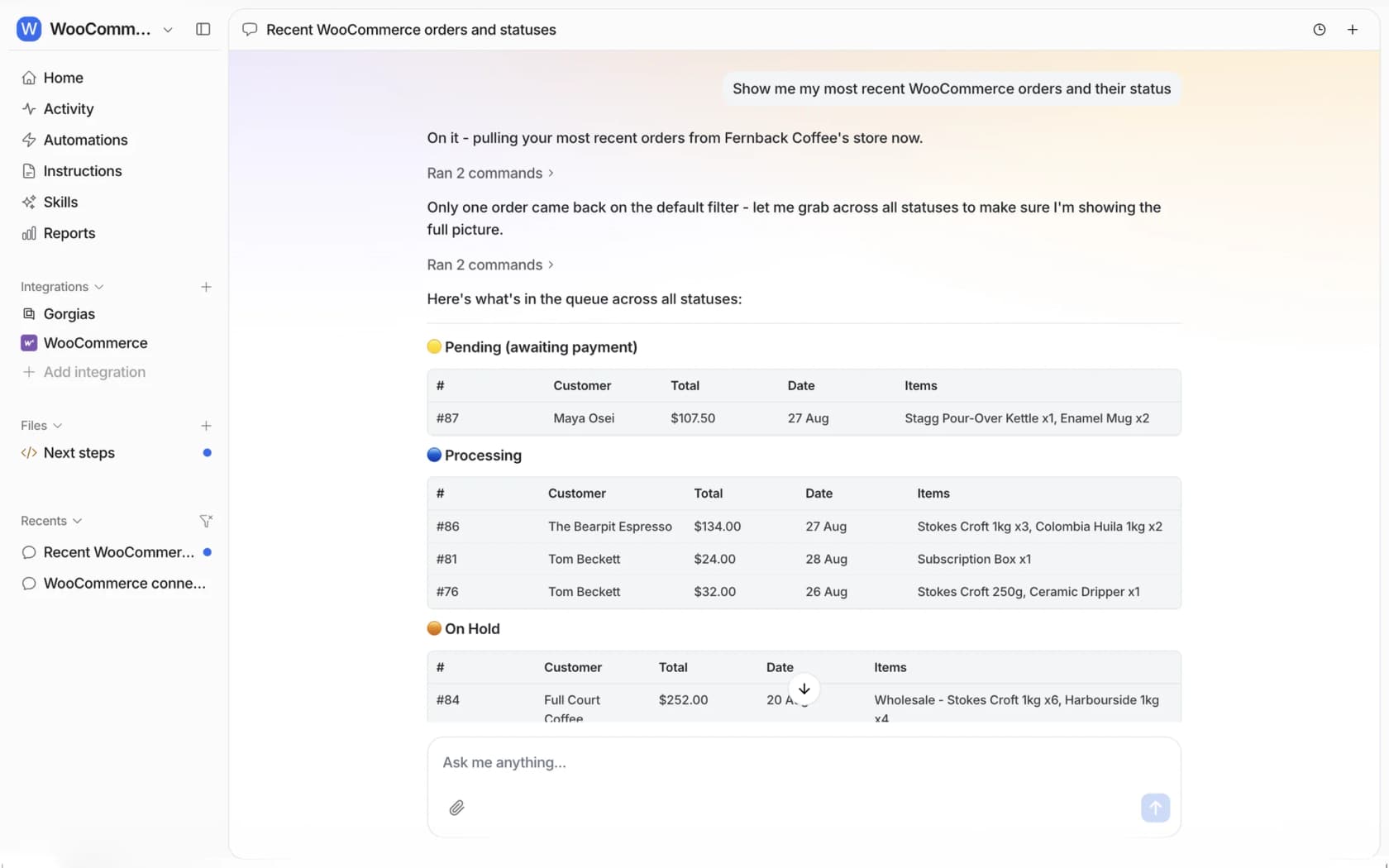
When a shopper needs a person, for a shipping refund say, the agent can leave a private order note with the address they gave and the rule it applied, so whoever picks it up doesn't start over. With Slack connected, that note waits for approval in the thread with Approve and Deny buttons.
If you'd rather set this up from a terminal, the eesel CLI lets Claude Code or Cursor run eesel integrations connect woocommerce to print the connect link, upload your written zone rules and shipping policy as knowledge, and ask test questions like "do you deliver locally to 90210-1234?" to check the answers before anything goes live. A store admin still opens that link and approves the connection on WooCommerce's own screen.
Where eesel isn't the right fit: if your rates come from a live carrier plugin or a table rate extension with dozens of rules, the agent only knows what you write down about them, so it can explain the policy but not quote an exact rate. And a store that ships one country at one flat rate probably doesn't need AI for this at all. For a wider view, see my WooCommerce chatbot guide, how to add AI to WooCommerce, and my roundup of WooCommerce AI options.
Try eesel on your WooCommerce shipping tickets
Want "why can't I check out?" answered with the actual zone rule instead of "please check your address"? eesel is an AI helpdesk teammate, one of the top WooCommerce support tools, that plugs into WooCommerce in a few minutes, reads the order and your catalogue, learns your shipping rules from your site, and tells the shopper what their address matched. Shipping refunds stay with your team, the same way a manual refund does. The free plan includes 100 credits, and paid plans start at $299 a month on the pricing page.
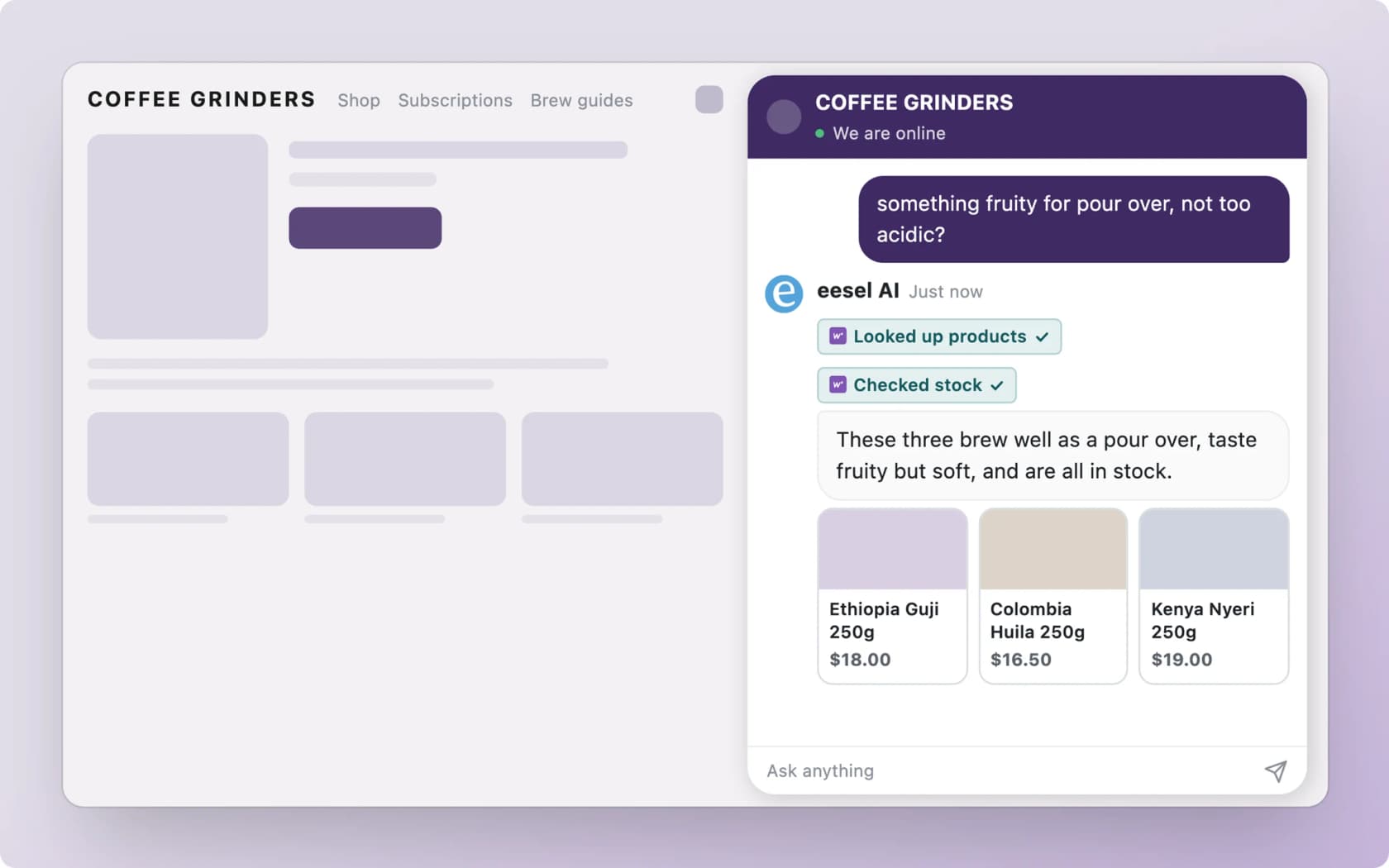
Try eesel on your store, then run it against last month's shipping tickets before it talks to a shopper.
Frequently Asked Questions
How does WooCommerce shipping zone matching work?
Can a customer match more than one WooCommerce shipping zone?
Why does WooCommerce say there are no shipping options available?
How do postcode ranges and wildcards work in WooCommerce shipping zones?
* matches any postcode that starts with the text before it, so 902* matches 90210. Three dots make a range, like 90210...99000, which compares numbers. Wildcards inside ranges aren't supported. US customers who type a ZIP+4 code such as 90210-1234 miss exact and range rules, because WooCommerce reads it as 902101234, so use a wildcard if your customers type ZIP+4.Does WooCommerce use the billing or shipping address to pick a zone?
Can I set up a WooCommerce shipping zone for a city?
How do I see which shipping zone a customer matched?
Customer matched zone notice on a normal page load, such as the classic cart page. It doesn't show during checkout, AJAX updates or in the Cart and Checkout blocks, so test there with care, and turn it off afterwards.