WooCommerce backorder settings: what each option tells the customer, and what to reply

Rama Adi

Katelin Teen
Last edited November 5, 2026

WooCommerce has three backorder settings per product, and the one that causes support tickets is plain Allow. It takes the order when stock is at zero and tells the customer nothing: no label on the product page, nothing in the cart, no "Backordered" line on their order. Allow, but notify customer does all three. If you sell things you don't have yet, pick notify, and reply to "where's my order?" with the restock date before they ask twice.
An AI agent can answer these well once it reads the live order rather than guessing. eesel reads WooCommerce orders, notes and stock, answers the plain "is it in stock?" questions, and leaves anything about ship dates or refunds as a draft for your team.
What do the WooCommerce backorder settings actually do?
They decide whether a customer can buy a product when its stock count is at or below zero, and whether anyone tells them. You'll find Allow backorders? on each product's Inventory tab, and per variation on variable products. It only shows when Manage stock? is ticked, because WooCommerce resets backorders to "no" on any product that doesn't track stock.
The three options, word for word from WooCommerce's code, are Do not allow, Allow, but notify customer, and Allow. The variable product docs put the core idea simply: if a variation allows backorders, "stock can go below zero".
I build integrations into stores like this for eesel, so I went to the source rather than the settings screen. The labels make Allow and Allow, but notify sound nearly identical. In the code they're far apart:
| Where it shows | Do not allow | Allow, but notify customer | Allow |
|---|---|---|---|
| Product page at zero stock | Out of stock, can't buy | "Available on backorder" | Nothing |
| Classic cart | Can't add | "Available on backorder" | Nothing |
| Cart and Checkout blocks | Can't add | Backorder badge | Nothing |
| Order item line | n/a | "Backordered: 2" | Nothing |
| "Stock levels reduced" order note | n/a | Yes, stock goes negative | Yes, stock goes negative |
| Store backorder email | n/a | Sent if enabled | Sent if enabled |
The product page text comes from one line: with stock managed, the availability code returns "Available on backorder" only if the product requires notification, and an empty string otherwise. The classic cart template and the block cart's show_backorder_badge Store API flag use the same check, and so does the code that writes the Backordered line onto the order item.
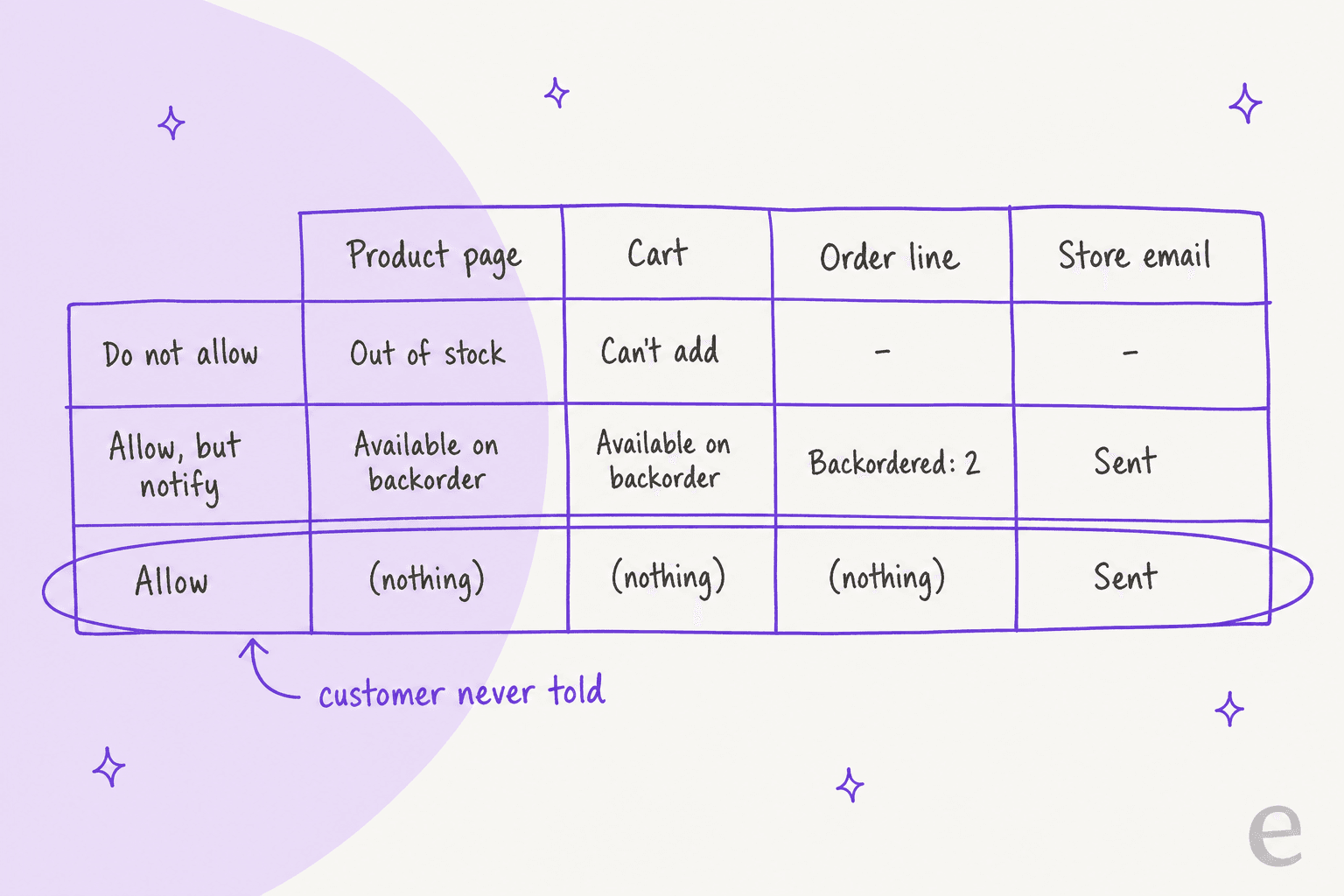
So Allow is a silent backorder. The order goes through, the customer gets the normal confirmation, and the only people who know are the ones reading the store's email. One store owner asked about exactly this:
"I want visitors on my store to see that a product is out of stock but that a backorder is possible with longer lead time. My settings are correct but it still won't show on the product page."

Nine times out of ten, that's Allow where they meant Allow, but notify customer.
Which backorder setting should you pick?
Pick Allow, but notify customer for anything you'll restock, Do not allow for anything you can't, and keep plain Allow for the narrow case where the wait doesn't matter to the buyer. The choice is really about who answers the "where is it?" question: the product page, or your support team.
My rules of thumb:
- Made to order or a known restock date: Allow, but notify. Then edit the product's short description to say how long the wait is, because "Available on backorder" on its own doesn't give a date.
- Discontinued, limited run, or a supplier you can't count on: Do not allow. A backorder you can't fill turns into a refund ticket later, and refunds take more of your time than a lost sale.
- Parts that always ship within your normal dispatch window anyway: Allow is fine. If nobody would notice the difference, nobody needs telling.
- Bundles with dozens of components: think twice. One store owner whose bundles hold "almost 80 products" got "almost 80 emails" per order from the backorder notice. Since WooCommerce 11.0 there's a
woocommerce_should_send_backorder_notificationemail filter that a developer can use to mute it per product.
There's no limit on how far a backorder can go. WooCommerce lets stock run as negative as customers order it, and that gap shows up in a community thread asking "Is there a way to limit backorder quantities?" with no core answer. If you take preorders in bulk, a plugin or a manual stock cap is the only guard.
Pick a setting below to see what your customer saw and what to send them:
How do you tell an order has a backordered item?
Look at the item line first, then the order notes. WooCommerce has no "Backordered" order status, so a paid order with a backordered item sits in Processing with everything else (the order status guide lists the full set). That's a common gripe; one store owner wanted a status so their shipping app wouldn't import the order:
"Pirateship imports all orders with the status "processing", but I don't want it to import "backordered" ones."
Here's where the evidence actually lives, in the order I check it:
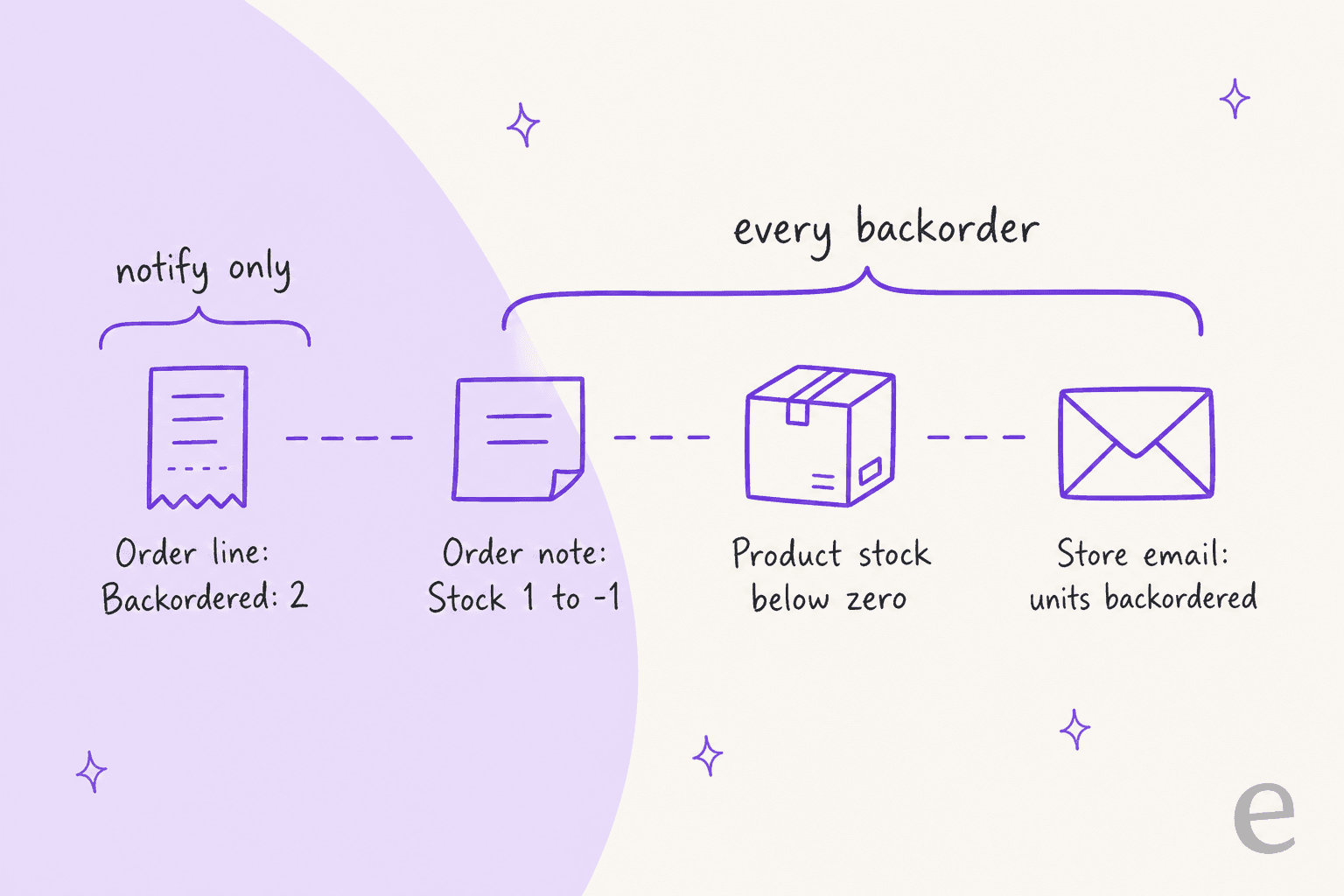
- The item line. With Allow, but notify customer, the item carries a "Backordered" line with the shortfall: order 3 with 1 in stock and it reads 2. The same line shows on the customer's order page. Plain Allow doesn't write it.
- The "Stock levels reduced" note. Every stock-managed order gets a system note listing each product's stock before and after, such as "Hoodie - M (1→-2)". A number below zero means that order dug into a backorder. This works for both Allow options, so it's the check to trust. My order notes guide explains how system notes differ from the ones your team writes.
- The product's stock. A negative count on the product means more units are sold than you hold. It won't tell you which orders, though. The order notes do.
- The store's email. If Enable backorder notifications is on (it's on by default), the inventory settings docs say WooCommerce sends "a backorder stock notification email when an order creates a backorder". The email itself is titled "Product backorder" and reads "2 units of Hoodie - M have been backordered in order #1234."
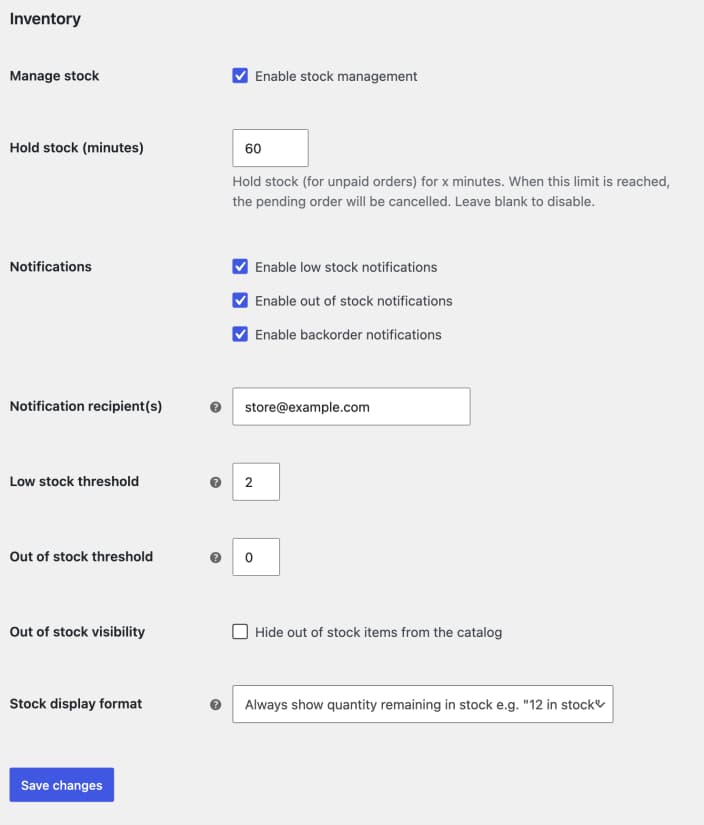
That email goes to the Notification recipient(s) field, not the customer. If customers say they're getting "Product backorder" emails, someone has put a customer-facing address in that field or a plugin is forwarding it. One team looked for it under Settings > Emails and couldn't find it, because it lives on the Inventory tab instead.
Two odd cases are worth knowing before you trust the email. One store owner got a backorder email for an order they couldn't find, on a product that didn't allow backorders. Another saw WooCommerce backorder 2 of a last shirt size with backorders off. Both are reasons not to treat the email as proof on its own. When the email and the orders list disagree, the stock note on the order is your tiebreaker.
Why does a product say on backorder when you still have stock?
Your Out of stock threshold is above zero. WooCommerce only marks a stock-managed product In stock when its quantity is above that threshold. At or below it, the product becomes On backorder if backorders are allowed, or Out of stock if not.
So with a threshold of 3 and Allow, but notify customer, a product with 3 units on the shelf shows "Available on backorder". The customer reads that as "you don't have it", asks support, and your warehouse says it's right there. Stores use the threshold to keep a few units back for damaged returns or wholesale, which is fair. Just know that the label changes at that number, not at zero.
Two more settings interact with backorders in ways that surprise people:
- Hide out of stock items from the catalog doesn't hide backorder products. WooCommerce treats On backorder as purchasable, and the variable product docs say a variation that allows backorders "will remain visible even when the stock quantity reaches zero". The variation stock guide covers which variations do get hidden.
- Shop filters treat backorder as in stock. One store with half its catalogue on special order found that filtering by "In stock" showed "effectively my entire catalogue". If shoppers can't tell what ships today, expect more pre-sales questions.
If you switch stock management off and set a product's status to On backorder by hand, the product page always says "Available on backorder". With no count kept, though, there's no cart notice, no Backordered line, no stock note and no email. Support has nothing on the order to go on.
What should support reply to a backorder customer?
Give them a date and a choice. A customer who ordered a backordered item usually wants three things: when it ships, whether the rest of the order waits, and how to get out if the wait is too long. The fastest replies answer all three in the first message, so the ticket doesn't come back.
What I'd put in each reply, by situation:
| Customer asks | What to check first | What to reply |
|---|---|---|
| "Is this in stock?" before buying | Product stock and backorder setting | In stock now, or the restock date and that they can still order |
| "Why hasn't my order shipped?" | Backordered line or stock note on the order | Which item is waiting, the expected date, and whether the rest ships first |
| "Can you ship what you have now?" | Your split-shipment policy and the extra postage | Yes or no, and any extra cost, before you promise it |
| "I don't want to wait" | Order status and payment | Cancel and refund the item, or offer a swap to something in stock |
| "You took my money for something you didn't have" | Whether the product used plain Allow | Apologise, give the date, and offer to cancel; then switch the product to notify |
Splitting is the one WooCommerce core doesn't help with. One store whose backorders "can take several months to arrive" wanted customers to choose at checkout whether in-stock items ship first, and core has no option for it. Until you add a plugin, that's a person's decision on each order.
Customers also hear nothing after they order, even with notify on. WooCommerce has no "your item is on backorder" email to the customer, and a store owner was asking for one back in 2018. A public order note works as a stopgap, since WooCommerce emails it to the customer the moment you add it. My order notes guide covers how that note behaves. For a delay that affects many orders, the shipping delay notifications guide has wording you can borrow, and proactive support makes the case for writing before customers do.
How can an AI agent handle backorder questions in WooCommerce?
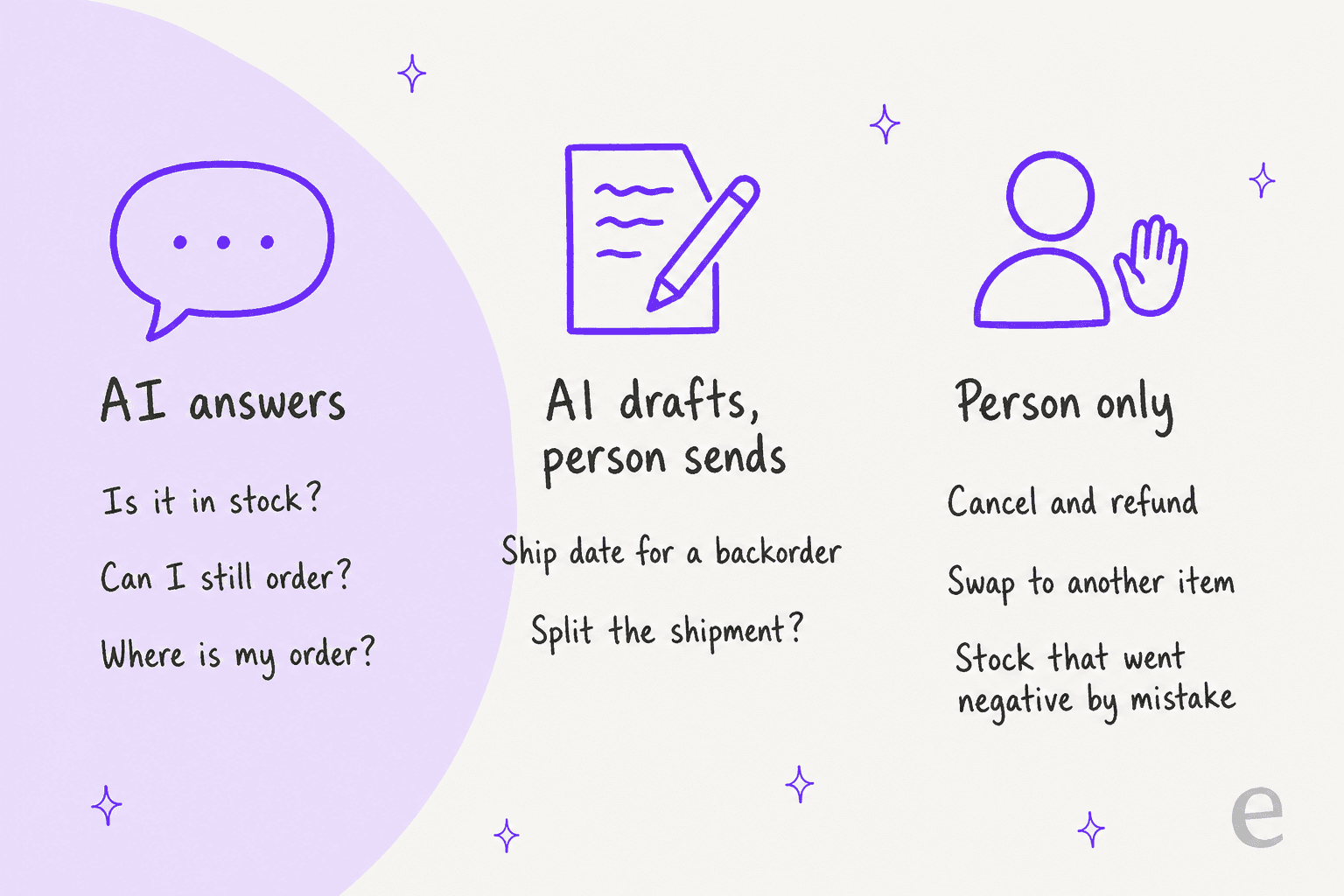
It can answer the stock questions itself and draft the date questions for a person, as long as it reads the live order rather than a help article. Backorders are a case where a confident wrong answer costs you, because "it ships Friday" becomes a promise the moment it's sent.
The eesel WooCommerce integration connects through a free WordPress plugin or a REST API key. Its Products source holds "your catalogue, with SKUs, pricing, stock and variants", and its Look up orders action reads an order "with its items, totals, status and notes". So when a customer asks why their order hasn't shipped, the agent can see the Backordered line and the "Stock levels reduced" note before it replies.
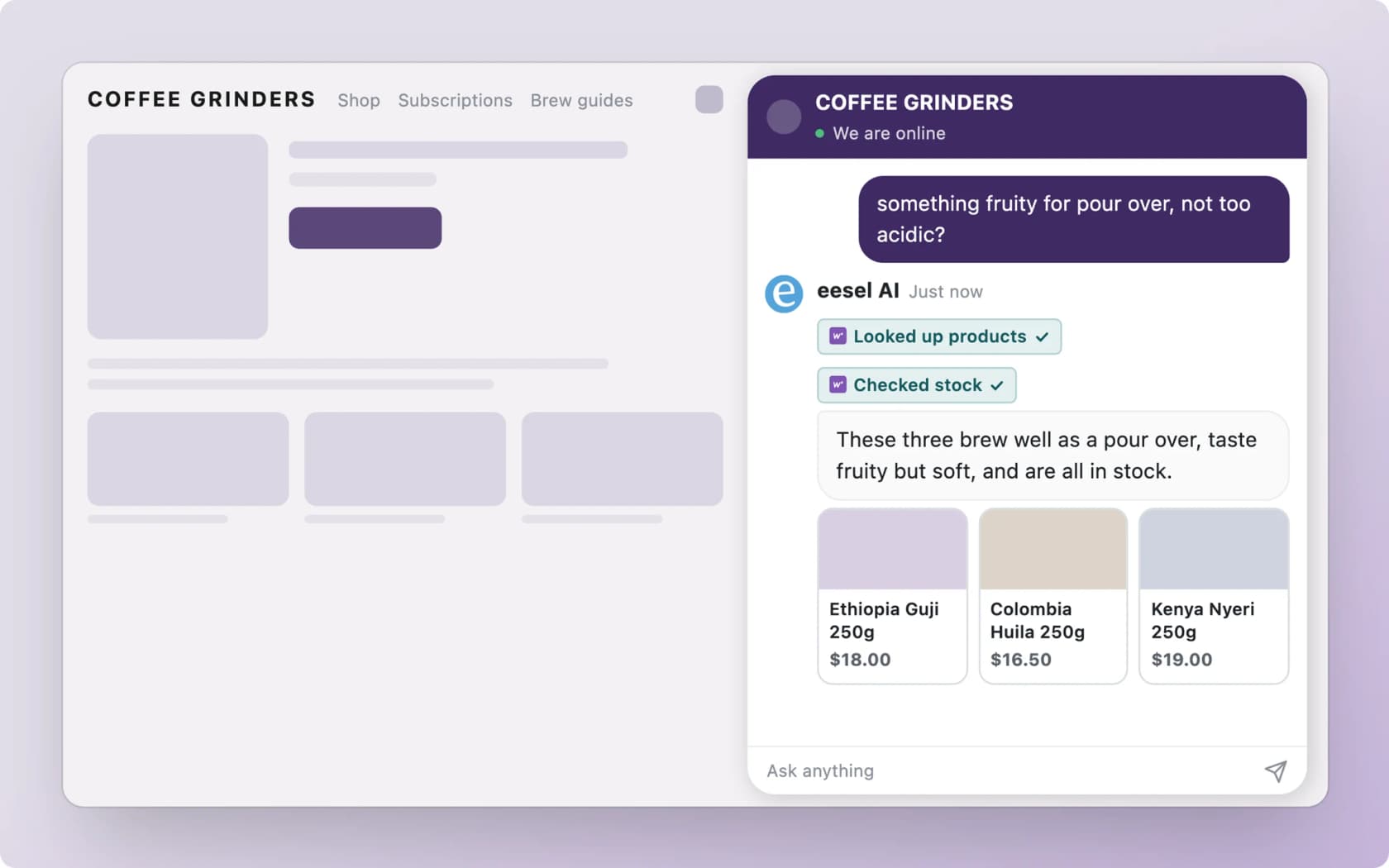
The split in the image above is what I'd set up: let the agent answer stock questions and order lookups, have it draft anything with a date, and keep cancellations with your team. eesel's write actions, like Add order note and Create refund, can wait for a person to approve them, so a customer-facing backorder note doesn't go out until someone has checked the date.
That's how Rúngne, a Norwegian climbing apparel brand, runs it on Shopify and Gorgias. One eesel agent answers only the topics the team chose, including stock and pre-orders, and another checks stock per size at the right warehouse before leaving a draft for a person. In a month that came to about 2,100 tickets handled, 580 drafts left for the team and 440 public replies sent. Cancellations and damaged items never reach the answering agent. Different store platform, same split, and it carries straight over to WooCommerce backorders.
There's also the eesel CLI. With it, an AI coding agent can upload your restock policy and backorder reply templates as knowledge, then ask test questions like "when will my backordered hoodie ship?" and check the answers before the agent goes live. Connecting the store itself still needs someone with WordPress admin access to install the plugin or create the API key.
If you're still comparing tools, my best AI for WooCommerce support roundup goes wider, and the setup guide walks through connecting a store. The WooCommerce AI overview covers what's built in, and if you run Gorgias on WooCommerce, the same draft-for-approval pattern works there. For the wider category, see AI for inventory management and WISMO automation.
Common mistakes with WooCommerce backorders
These are the ones that turn into tickets, roughly in order of how often:
- Using Allow when you meant notify. The customer finds out by not receiving their order. Check every product with stock below zero and switch it to Allow, but notify customer unless the wait truly doesn't matter.
- Saying "on backorder" with no date. The default label gives no timeline. Put the expected wait in the short description, or rename the label for made-to-order items, as one store did.
- Forgetting the threshold. An Out of stock threshold above zero shows "Available on backorder" while units are still on the shelf.
- Assuming the hide setting covers backorders. It doesn't, so backorder products stay in the catalogue and in search.
- Shipping in-stock items without asking. A split shipment can cost you a second postage charge. Decide the policy, then tell the customer before you do it.
- Leaving no note on the order. When you promise a date, add a private note saying what you promised. The next person on the ticket, or an AI copilot, will read it before replying.
If your team answers these often, canned responses or AI macros for the three reply types (date, split, cancel) cut most of the back-and-forth. Tagging backorder tickets helps too, so you can see which products cause them; the ticket tagging guide covers that. If a backorder ends in a cancellation, the cancellation retention and returns guides pick up from there.
Try eesel for WooCommerce backorders
Want an AI for WooCommerce that knows a backorder from a lost parcel? eesel is an AI helpdesk teammate that reads each order's items, status and notes and each product's stock before it replies. It answers "is it in stock?" itself and drafts ship-date replies and backorder notes for your team to approve. It works in your chat bubble, your helpdesk or Slack, and you can try it free on your own orders.
