

Salesforce macros are saved instruction chains that a rep runs in one click, built in the Lightning Macro Builder from the Macros utility on a record page. Use quick text when you only need to drop one message into one field, and a macro when one click should touch several fields, send an email or log a call. Plan for permissions, folders and a 10-second timeout. A macro still waits for a rep to find and click it, so I would pair the library with an AI agent such as eesel for Salesforce that drafts the reply on the case itself.
What are Salesforce macros?
I work the support queue at eesel, so I read Salesforce's macro docs the way an agent does: how many clicks it takes, and what happens when the customer's message does not match the macro. With the eesel CLI, an AI coding agent can upload your approved reply text, such as your best macro bodies and quick text, then ask test questions and check the answers before anything goes live, though a Salesforce admin still approves the connection.
They are saved sets of instructions that tell Salesforce how to complete a repeat task. Salesforce's macro overview says a rep can select an email template, send the email and update the case status in a single click, and that one macro can act on different parts of the case feed at once. Salesforce still files this under Service Cloud, while the newer Agentforce Service name shows on its pricing page, so search for both.
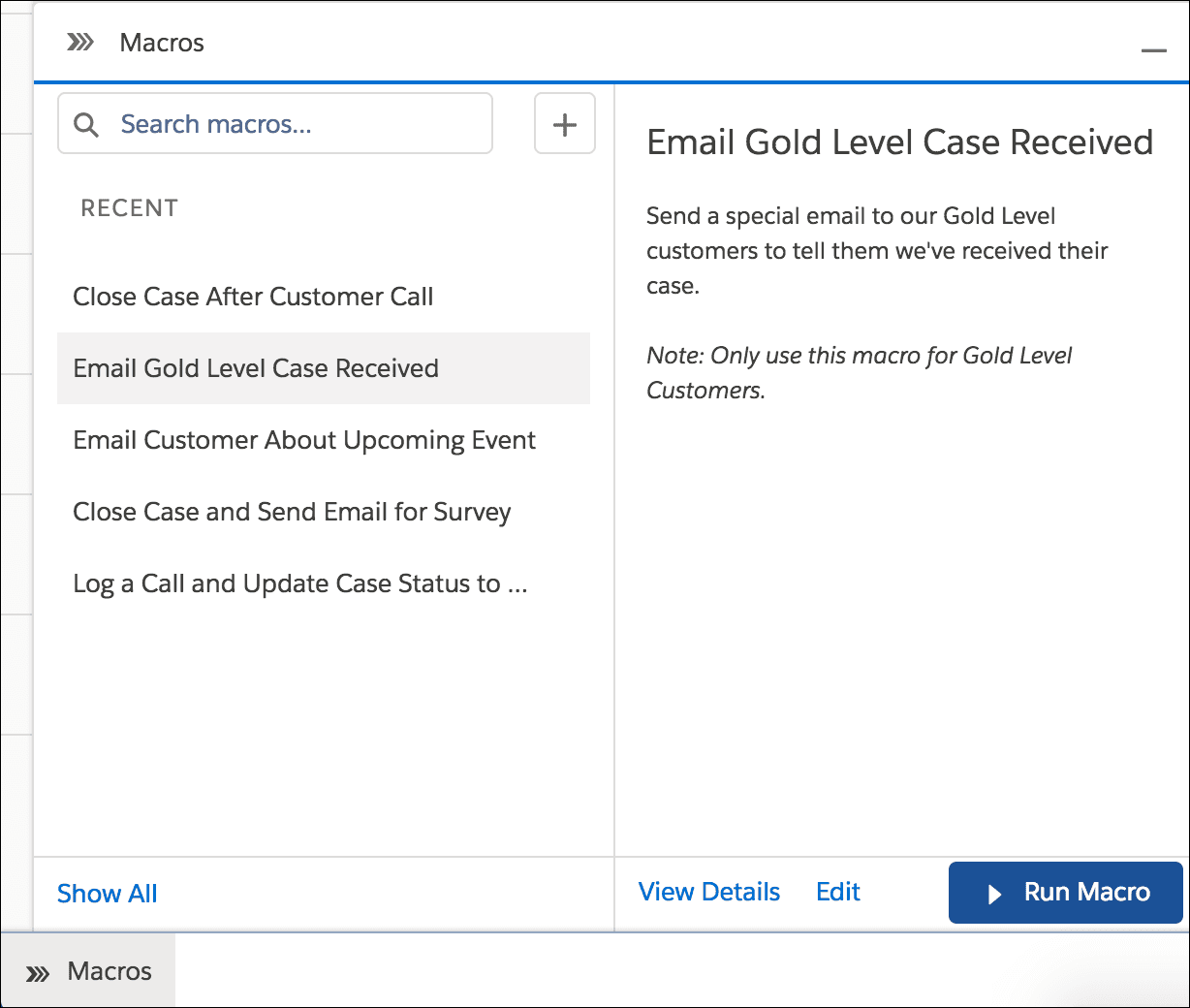
In Lightning Experience, a rep opens a record, clicks Macros in the utility bar, picks a macro and clicks Run Macro. Salesforce's run a macro page adds that each instruction gets a green dot when it works and a red dot with an error message when it does not, so a rep can see exactly where a macro broke.
Two details save an admin an afternoon. Macros are supported on all standard objects except Campaign, and on custom objects that allow quick actions and have a customizable page layout, per the prerequisites page. And the utility page lists the supported editions as Essentials, Professional, Enterprise, Performance, Unlimited and Developer, names Salesforce's current pricing page has replaced with Core, Advanced and Max (my Service Cloud pricing post maps them). I found no separate price for macros.
Should you use a macro, quick text or an email template?
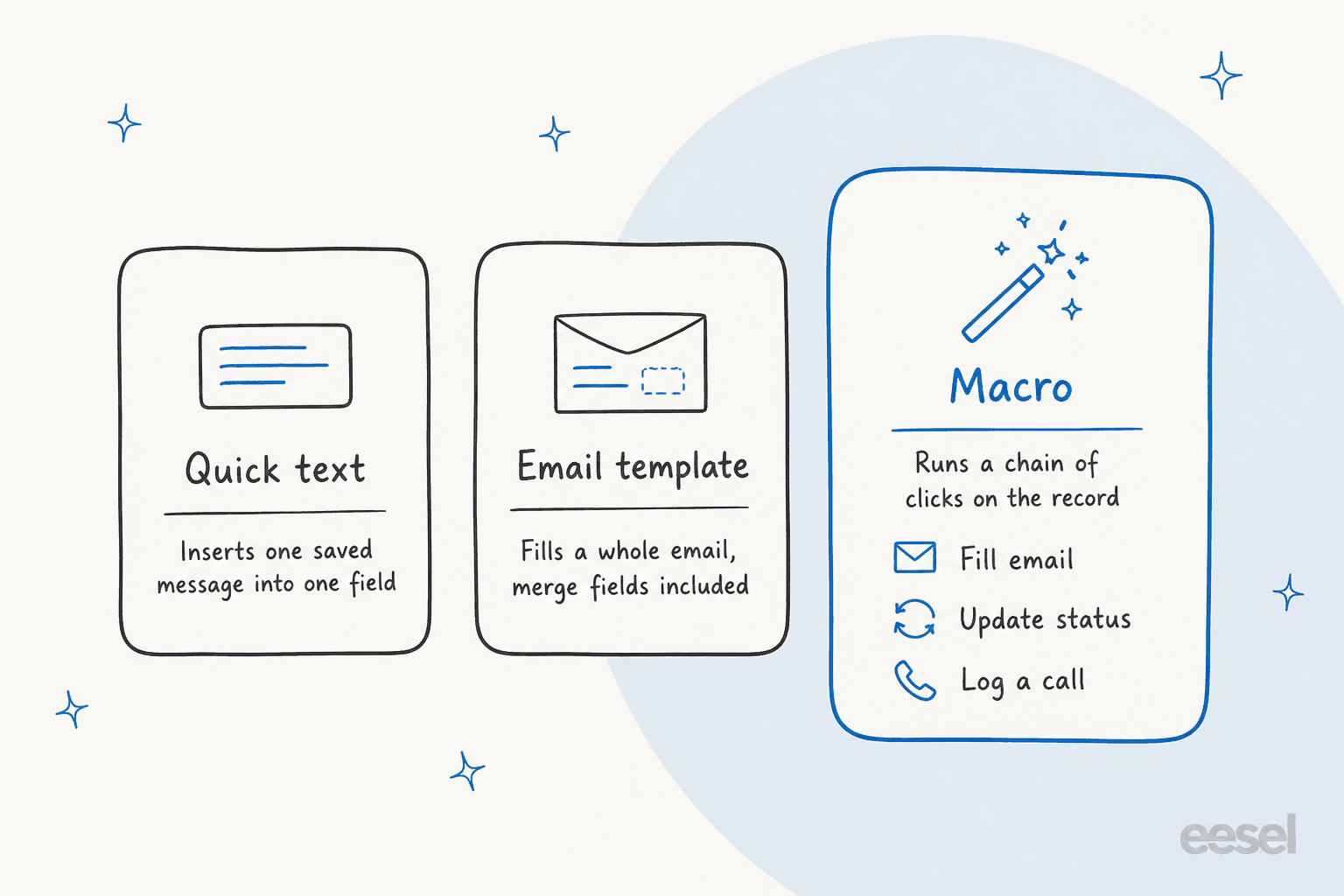
Use the smallest tool that does the job. Salesforce's quick text docs describe quick text as predefined messages like greetings and answers to common questions that reps insert into emails, chats, events and tasks, and a macro as the thing that runs actions.
| Quick text | Email template | Macro | |
|---|---|---|---|
| What it does | Inserts a saved message into a field | Fills a whole email | Runs instructions across fields and actions |
| Who triggers it | Rep, from the quick text browser | Rep, in the email action | Rep, from the Macros utility |
| Merge fields | Yes, Salesforce Merge Language | Yes, Handlebars in Lightning templates | Through the templates and fields it applies |
| Can change case status | No | No | Yes |
| Size limit | Up to 4,000 characters | Not stated in these pages | Up to 4,000 characters in most text fields |
The two interact in ways that trip admins. Salesforce's quick text considerations say macros don't observe quick text channels, so quick text you restricted to Email can still be inserted by a macro into a Log a Call action. Quick text also uses the Classic merge language, not the Handlebars syntax used in Lightning email templates, and a Classic Visualforce template cannot be used in a Lightning macro.
My rule of thumb: if a reply is the same every time, make it quick text. If the click sequence is the same every time, make it a macro. If you keep writing the same email with different greetings, look at email templates for customer service first.
How do you set up macros in Lightning Experience?
In five moves, and the first mistake is skipping the second one.
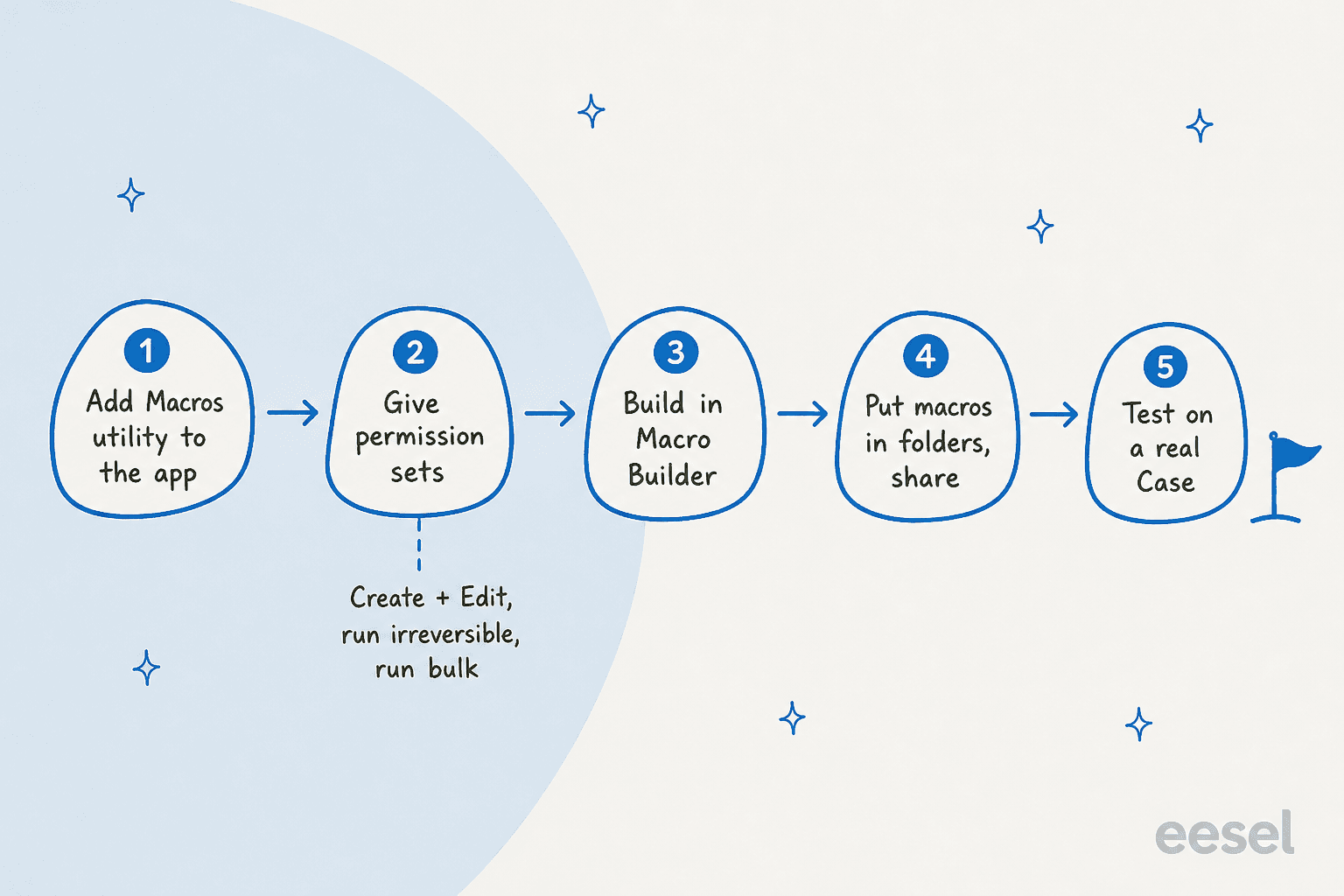
- Add the Macros utility. In Lightning Experience, an admin adds it from the App Manager in Setup, per the prerequisites page. It works in apps with standard or console navigation.
- Check the record page. The page needs a publisher, like the Chatter component, with the actions you want, such as Email or Log a Call.
- Create a permission set. Salesforce recommends one. Give users Create, Edit and Delete on the macro object to manage their own macros, and add Manage Macros Users Can't Undo to let them run macros that send email or update fields.
- Open a Case, click Macros, then Create Macro. Name it, add a description, choose the object under Apply To, optionally choose a folder, and click Save.
- Click Edit Instructions to open the Macro Builder, add instructions, and save.
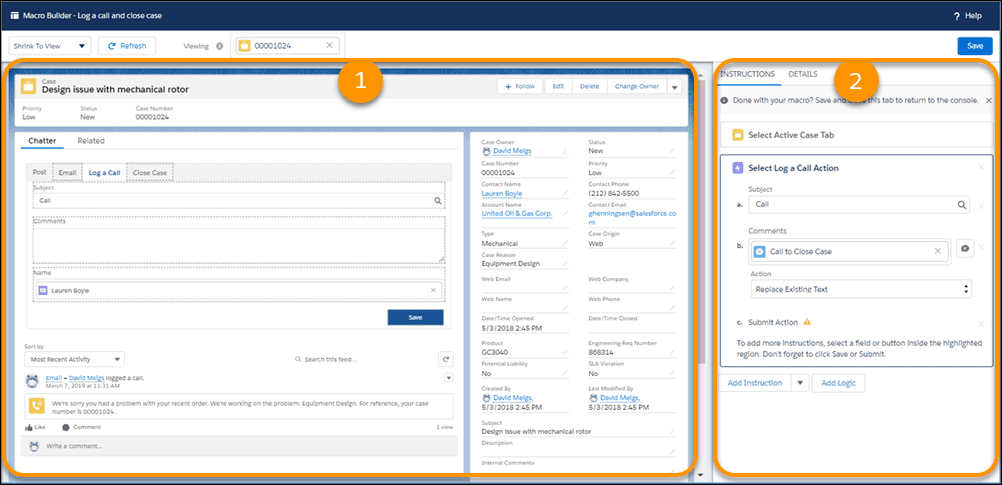
Salesforce's Lightning macro steps describe the Macro Builder as a point-and-click page: a sample record canvas on the left, and Instructions and Details tabs on the right. All fields for the object are available even if the sample record does not show them.
A reality check from the community. A forum ambassador answering a Trailhead learner who saw no create button put it this way:
"Salesforce only shows the Create option when viewing a supported record (e.g., Case)."
That is the page's own rule too: you can't create or run a single macro from a list view. I would put that on the first page of any rep training doc.
What can a macro instruction actually do?
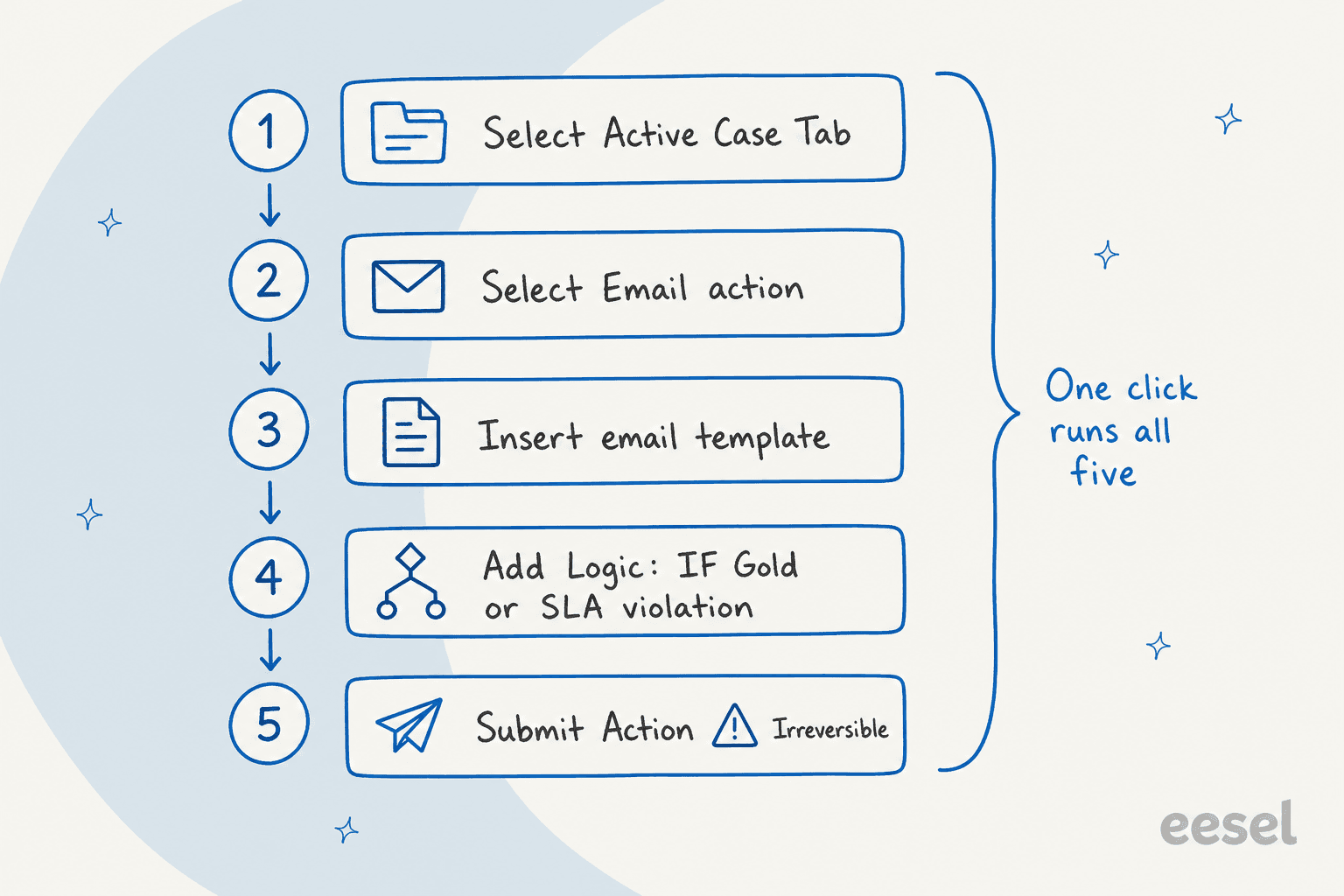
Anything a rep could do with a click on that page, one step at a time. Salesforce's tips page calls instructions "like a little computer program" where each one equals a click. The first instruction is filled in from the object you chose. After that you can select a quick action on the canvas, click a field to set its value, insert quick text, apply an email template, add attachments, create events with relative dates, and optionally add a Close Tab instruction for console apps.
Two instructions deserve a pause.
- Submit Action. A macro with one is irreversible: it might send an outbound email or change a status that you can't undo. You need Manage Macros Users Can't Undo to create, edit or run it.
- Add Logic. Lightning only. You build IF, ELSE IF and ELSE blocks, with up to
30conditions or groups per expression, using the operators EQUALS, DOES NOT EQUAL, CONTAINS and DOES NOT CONTAIN. Salesforce's logic page recommends keeping nesting to three levels, because deeper logic is harder to read and slower to evaluate.
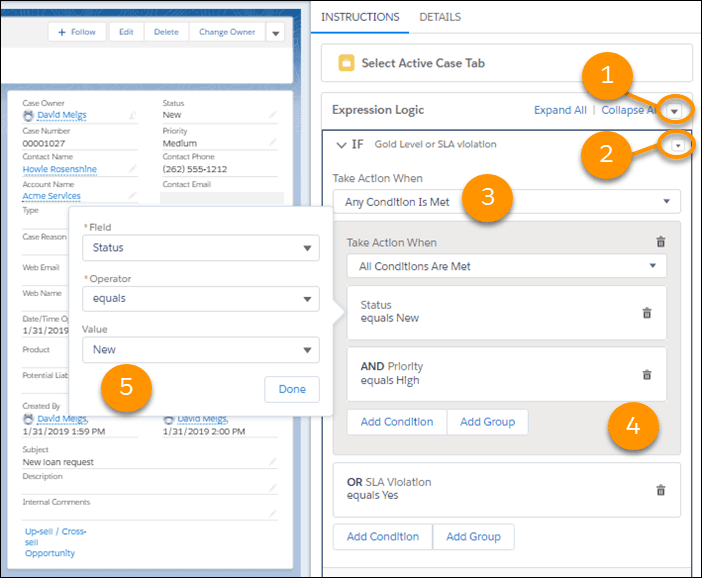
Salesforce's example is the one I would copy: a single "case received" email whose content depends on whether the customer is Gold, Silver or Bronze, with any SLA violation forcing the Gold email. If you run entitlements and milestones, that is the natural place to start, and my Salesforce email guide covers the inbound half.
How do bulk macros work?
They run one macro on many selected cases from a list view, which is the right tool for an outage. Salesforce's bulk macro rules are strict, and I would read them before promising your team a one-click mass reply:
- A bulk macro must contain at least one Submit Action instruction.
- It supports the Email Publisher (one Email Publisher action only) and all quick actions except Social.
- It does not support Knowledge, Experience Cloud or social post actions, Add and Insert instructions (so no Add Logic), the Close Tab instruction, or Date fields set to a relative date.
- From a list view it is restricted to
200cases, and Salesforce's run a bulk macro page says the system processes them in groups of10. - It needs Run Macros on Multiple Records, and Enable Enhanced Lists on in your org.
- It runs on one object's list view at a time: Accounts, Cases, Contacts or Leads.
- If the quick action it targets has a read-only field, the macro fails, even if no instruction touches that field.
One conflict worth knowing. Salesforce's Macros utility page says bulk macros aren't supported in Lightning Experience, while its bulk macro pages describe running them from the Cases list view with the Macros widget. The bulk pages also list email templates, attachments and merge fields in Lightning Experience as unsupported. I can't see your org, so test in a sandbox before an incident, not during one.
Salesforce's bulk tips give the one habit that matters: add an instruction that changes a field value, so you can filter processed cases from new ones two days later when the same outage generates more. Pair it with AI ticket summarization to spot which cases share a cause.
Who can see, run and share macros?
It depends on permissions, then sharing, and the Lightning and Classic models differ.
| To do this | You need |
|---|---|
| View macros | Read on macros |
| Create and edit macros | Create AND Edit on macros |
| Create and run irreversible macros | Manage Macros That Users Can't Undo |
| Run bulk macros | Run Macros on Multiple Records |
| Enable macro folders | Customize Application |
| Share a macro folder | Owner of the folder, or Manage access on it |
Sharing is where teams get surprised. Macros are a standard object, so with org-wide public sharing every macro is shared, and with private sharing you share manually with groups, roles and users. Salesforce's sharing page says Classic shares individual macros, while Lightning shares folders, and then:
- Turn on Share and organize macros in folders on the Macro Settings page. You can have one root folder and up to three subfolders, and you share only root folders.
- Sharing on folders overrides sharing on individual macros. If you later turn folders off, the individual settings apply again, which is why Salesforce recommends not toggling it.
- Folders aren't supported in Essentials Edition orgs, and the macros browser panel supports up to
2,000macros and folder records, per the Lightning considerations. - Prebuilt macros are admin-managed: reps need at least read access and the Basic Macros folder shared with them.
- Optionally turn on Search all macro text fields, so reps can find a macro by a phrase inside its text and not only its title and description, per the search page.
For comparison, Zendesk splits macros into personal and shared ones, and Gorgias macros use a similar library model. My Salesforce versus Zendesk comparison puts them side by side.
What limits and gotchas should admins plan for?
A short list of numbers and traps, all from Salesforce's Lightning considerations page unless noted:
| Limit or trap | What Salesforce says |
|---|---|
| Timeout | Macros have a 10-second timeout error, with a Retry option |
| Text length | Up to 4,000 characters in most text fields |
| Details tab | Macros don't run when launched from a record's Details tab |
| Email attachments | A macro that sends an email with attachments fails the first time while a confirmation pop-up appears |
| Email message object | Email message objects aren't supported (the Email action itself works) |
| Knowledge articles | Can't be inserted into macros |
| Self-related records | Macros don't support components that point to other objects |
| Activity composer | Not supported in the Dynamic Activity Composer; use the Tabbed Activity Composer |
| Close Case macro | Needs Show Closed Statuses in Case Status Field turned on in Support Settings |
| Classic macros | Show in Lightning only when their object and instructions are supported there |
| Insert at cursor | Initialize the cursor first or text lands at the start of the field |
| Pop-out | The macros utility doesn't support pop-out |
Salesforce also recommends not using macros with read-only fields, encrypted fields and opportunity products. Date and time formats can bite too: the tips page says orgs on the ICU library need a comma between date and time, such as 01/09/2018, 00:00, or Classic macros can fail.
Where do macros fall short?
At the moment of choosing. A macro is a rep action: Salesforce's run steps start with "Open the record" and end with "Run the macro," and I found nothing in the macro docs saying an AI agent can run one. So the library only pays off if the rep reads the case, finds the right macro, trusts it, and edits the parts that do not fit.
That last step is where I see the cost. In one eesel trial analysis, agents sent only 12% of AI drafts as-is. The usual pattern was glance and rewrite, mostly for length and tone, and only about 5% of rewrites were the draft being factually wrong. Macros live with the same problem: the library is right on average and wrong for this customer, so the rep rewrites it. A DTC supplements brand on Gorgias handling about 7,000 tickets a month said its knowledge sat in internal SOPs, videos and plenty of outdated macros. Nobody owns the library, so it drifts.
The structural gaps, in my reading of the docs:
- No reading of the case. A macro applies its instructions. It does not decide which one fits.
- Classic and Lightning forks. Logic and relative dates are Lightning only, so older macros can't use them, and some Classic macros don't display in Lightning at all.
- Every reply still costs a click. Macros cut typing, not queue volume, because a rep still opens each case.
- Maintenance. If an email template updates, the macro uses the updated template, which helps, but a macro that hard-codes text goes stale silently.
Salesforce is working on the AI side. Its quick text creation page mentions Einstein Reply Recommendations, which can recommend a quick text message to reps if you tick Include in reply recommendations. Predictive quick text also suggests recently used messages in Enhanced Messaging and Enhanced Chat, per the setup page.
My Service Cloud AI limitations and Einstein in Service Cloud posts go deeper on what ships today.
How does an AI agent change the picture?
It moves the choosing step from the rep to the agent. In my own words: a macro is a recorded click path, and an AI agent is a reader that picks the path and writes the draft.
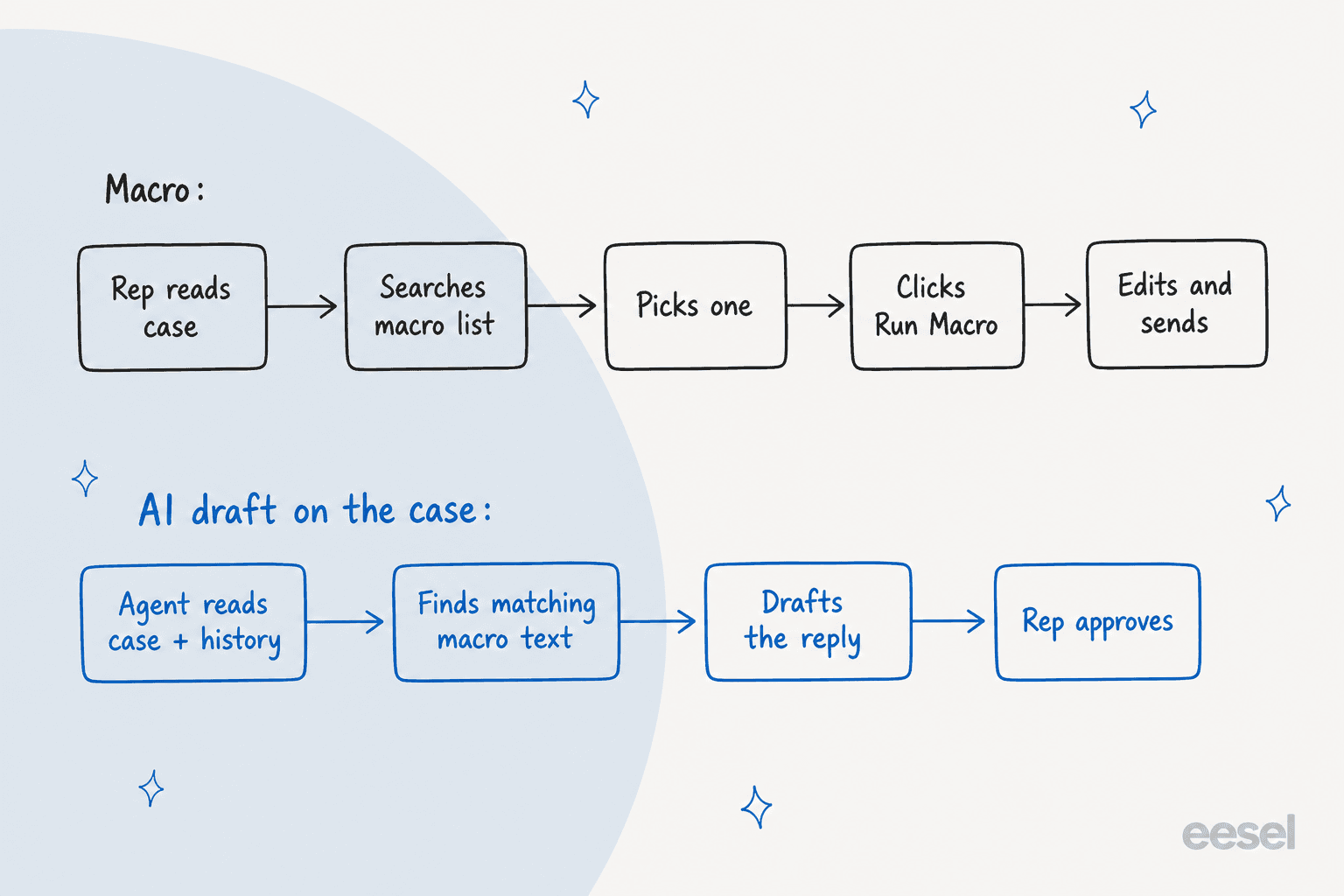
The nearest real example I can cite is not on Salesforce, and I will say so. smava runs eesel on a shared Zendesk for two brands. In one month, from 8 August to 8 September 2026, eesel handled about 27,000 tickets, prepared about 15,300 draft replies, and worked from about 820 macros and help center articles synced from Zendesk. Its drafting agent searches the macro library by intent, reads each candidate in full, and drafts the matching macro word for word with placeholders filled, with Approve and Reject buttons for a person. That is a macro library doing more work, not less, because an agent does the finding.
SaunaSpace shows the other half, on Gorgias: eesel drafts in the brand's calm, direct voice from the help center and past tickets, and a person always sends. About 180 draft replies in a month, from roughly 110 conversations. Both start with drafts a person approves, and that is how I would start on Service Cloud too. My guides to AI macros and to generating macros from past tickets describe the pattern.
On Salesforce itself, eesel's integration works as an agent on Cases: it reads the case with contact and account context, drafts or sends replies, adds internal notes, updates fields and routes to queues. Its page says it learns from past cases, knowledge articles and email templates. I did not find documentation of it reading macro instruction chains, so I would move your best macro bodies into knowledge it can read, and keep macros for the click sequences only a rep should run.
If you want Salesforce to own the AI, Agentforce agents and the Agentforce alternatives roundup are the comparison, and best AI for Service Cloud goes wider.
On cost, eesel's pricing page lists fixed credit plans where a ticket or chat is 1 credit, from 500 credits at $299 a month. A team handling 2,000 cases a month would pick the 2,000-credit size at $849 a month, about $0.42 a case handled, with 100 free credits for 7 days to test on real tickets. Credits count cases handled, not resolved, and Salesforce's own AI usage is metered separately in Flex Credits.
What would I do before building the next macro?
Here is the checklist I would give a support admin:
- Audit what you have. Sort macros by last run, and archive the dead ones. A library of
2,000is a search problem, not a tool. - Fix permissions first. One permission set for creators, one for runners of irreversible macros.
- Turn on folders on day one, then do not toggle it back.
- Mark bulk macros clearly and always change a field value so you can filter processed cases.
- Test with a rep on a real Case, not as admin, because permissions change what you see.
- Move repeat replies out of macros into knowledge an AI agent can read, and keep macros for the clicks.
- Measure rewrites. If reps edit every macro reply, the library is the problem. My AI first response and handoff best practices posts help.
For the wider picture, see Salesforce ticketing, AI for Service Cloud and routing with AI.
Messaging and summaries sit next door: Enhanced Messaging and case summaries. If your tone is inconsistent, start with my customer service tone guide.
Other helpdesks have the same job under other names: Freshdesk canned responses, Help Scout saved replies and Zendesk macro automation.
Try eesel for Salesforce Service Cloud
If your reps spend the day picking macros and rewriting them, eesel works like a new hire that plugs into your Service Cloud org, reads each new case with the account's history, and leaves a draft reply as an internal comment for your rep to approve. Your admin controls what it can see, and you can simulate it on past cases before it touches a live one. Free to try with 100 credits.