HubSpot help desk AI spam filtering: what decides spam, and where AI fits

Riellvriany Indriawan

Katelin Teen
Last edited November 23, 2026
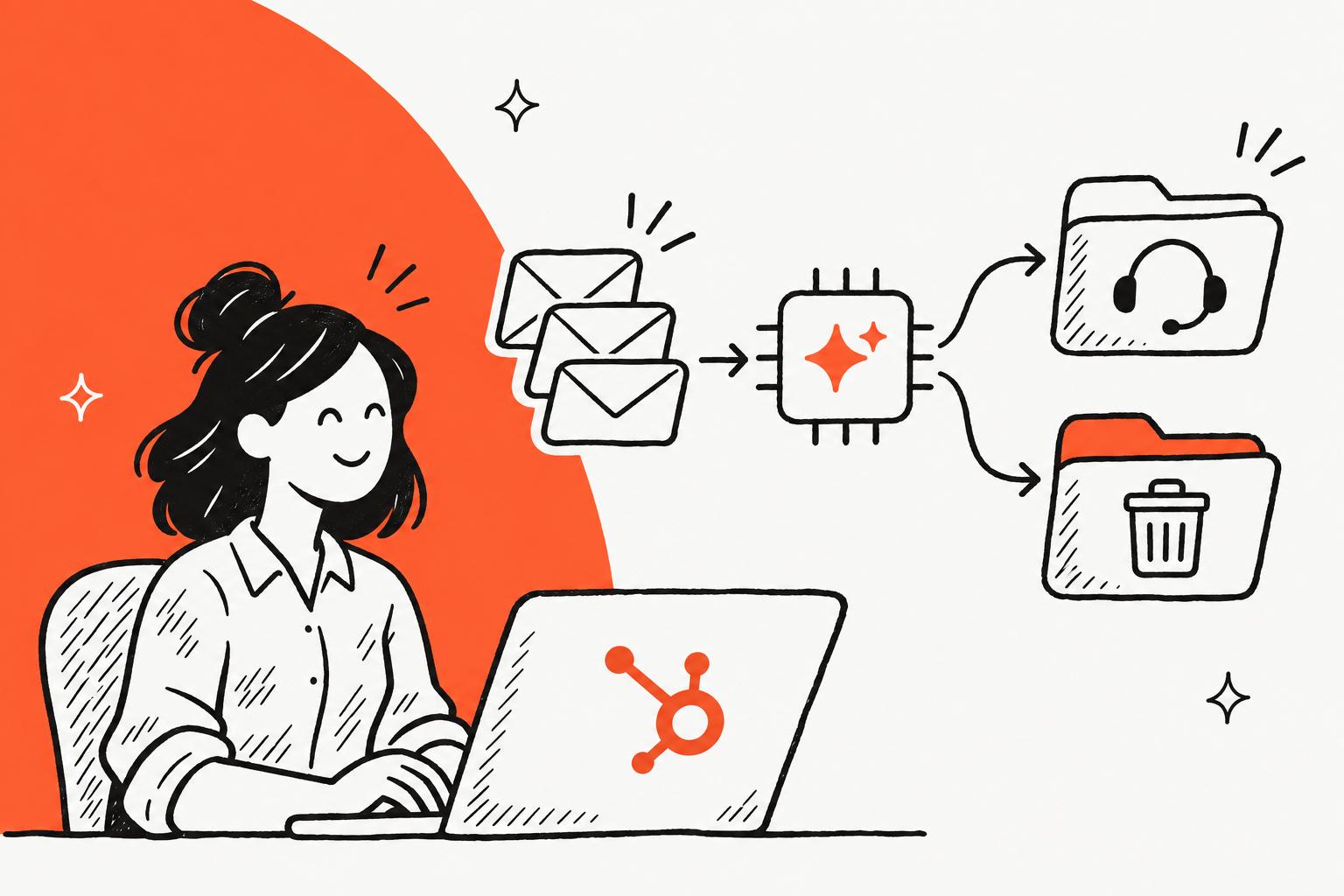
HubSpot's help desk filters spam with rules, not AI: your email provider's verdict, a few built-in rules, four checkboxes and an allow and deny list decide what lands in the Spam view, where it's deleted after 90 days. One checkbox, Role Based Emails, sends mail from addresses like billing@, info@ and support@ to Spam, so a new customer writing from their company's shared address can be filtered before anyone sees it. Mark as spam covers one conversation and doesn't block the sender; Block sender catches their future mail and can delete the ticket. The AI options sit in workflows: the Categorize record action (beta, Service Hub Professional, may use HubSpot Credits) can label a ticket as junk from its properties for an Edit record step to act on, but no workflow action moves a ticket to Spam. If you want junk closed by rules you write in plain words, an AI agent for HubSpot like eesel can label it, close it and leave a note on anything it isn't sure of.
If an AI coding agent such as Claude Code helps run your support tools, it can set up the eesel teammate in HubSpot through the eesel CLI, write its filtering instructions and check them against your past tickets, though connecting HubSpot still needs an admin to approve it in the browser.
How does HubSpot's help desk filter spam?
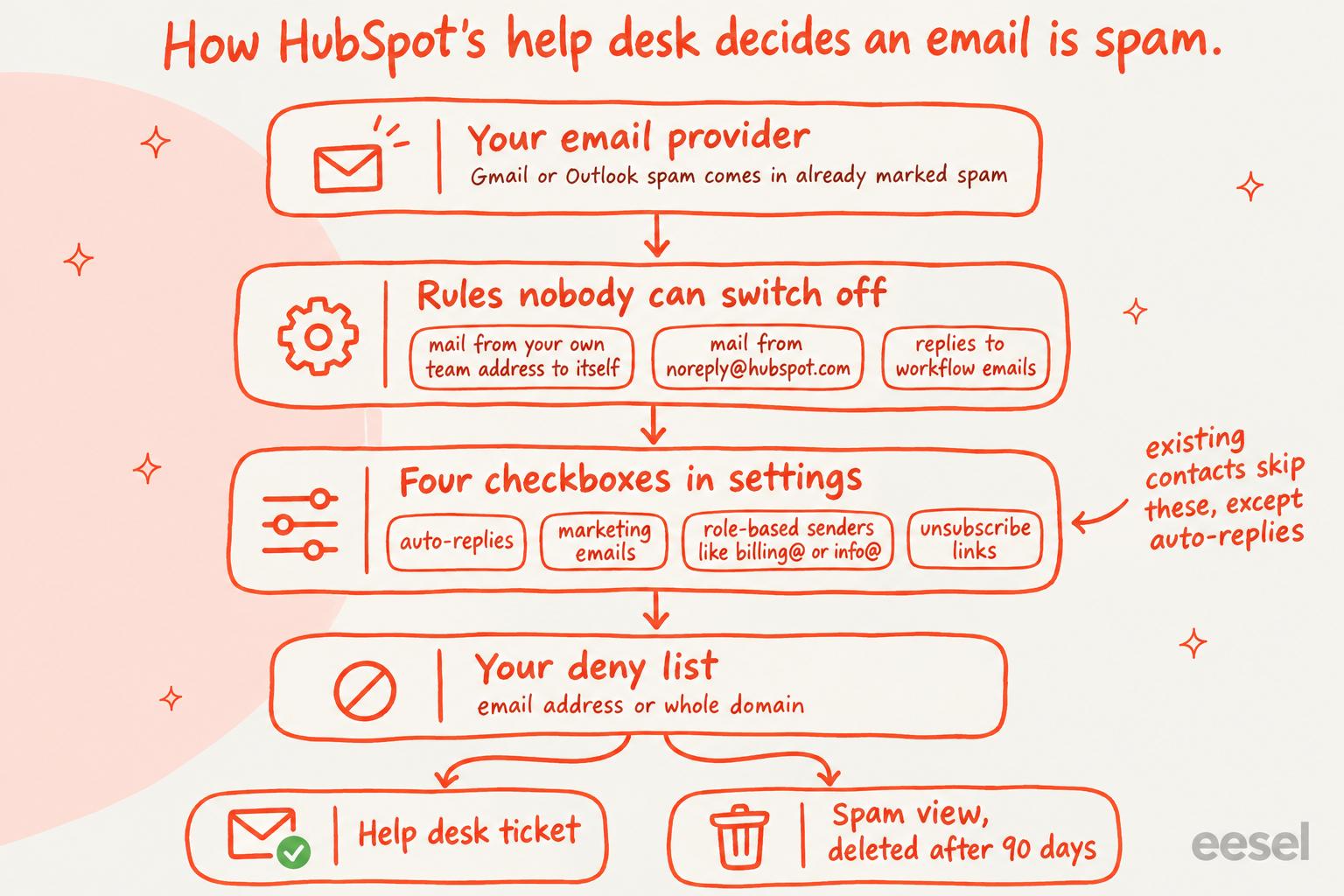
HubSpot's help desk filters spam with a stack of rules that run on every email reaching a connected channel. I'm on eesel's support team, and many of the HubSpot spam complaints I read in its community are about real mail going missing, not just junk getting through. That makes sense once you read how the filter works, because most of it is about who sent the email rather than what it says.
HubSpot's allow and deny list article lays the layers out. The allow and deny list itself is on all plans, while the help desk workspace needs Service Hub Professional or Enterprise, per HubSpot's help desk ticket article.
| Layer | What it does | Can you change it? |
|---|---|---|
| Your email provider | Mail Gmail or Outlook marked as spam arrives marked as spam in HubSpot | Only by putting the sender on HubSpot's allow list, which shows it as a regular email |
| Built-in rules | Marks as spam: mail from your connected team address to itself, mail from noreply@hubspot.com and noreply@notifications.hubspot.com, mail sent from your HubSpot account (such as workflow emails), replies to a workflow email that start a new thread, and mail from a blocked visitor | No. HubSpot says the allow list can't override these |
| Existing contacts | Mail from a contact already in your CRM isn't marked as spam, unless it's an automated response | No |
| Four checkboxes | Automated Response Email, Marketing Emails, Role Based Emails, Subscription Link Emails | Yes, each one, in settings |
| Deny list | Marks mail from an email address or whole domain as spam | Yes, with Account Access permissions |
| Allow list | Mail from these senders is never marked as spam, and provider spam from them shows as a regular email; the built-in rules still apply | Yes, with Account Access permissions |
Compare that with Help Scout, which runs a filter that learns from your team, or Front, which leaves the call to your email provider entirely. HubSpot sits in between: it trusts the provider, then adds its own sender rules on top, closer to Zendesk's email spam filter than to Freshdesk's spam score. None of HubSpot's spam articles I read describe the filter learning from the conversations your team marks.
Where marked mail goes matters too. Per the allow and deny list article, a conversation marked as spam, by hand or by a filtering rule, is permanently deleted from the Spam view after 90 days. If you only check Spam once a quarter, you'll miss what landed there by mistake.
Why does HubSpot mark real customer emails as spam?
HubSpot marks real customer emails as spam mostly because of the four checkboxes, which judge an email by its sender's address or format rather than by what the person wrote. Each one catches something legitimate in the right business.
Role Based Emails is the one I'd check first. HubSpot's list of role-based addresses includes billing, finance, info, sales, support and admin, among 43 entries. A new customer whose company writes from billing@ or finance@ isn't in your CRM yet, so the existing-contact exemption doesn't save them, and the email goes to Spam. The conversations inbox guide puts it bluntly: "Any emails received from a role-based email (marketing@, sales@, etc.) will be sent to the Spam view." For a B2B support team, where customers often write from a shared inbox of their own, that's a real share of first contacts.
Marketing Emails catches more than promotions. One HubSpot customer who uses marketing emails as an engagement channel found that replies to them were landing in Spam:
"As a result, legitimate customer responses are silently lost. The team only finds them later, if at all, which leads to missed conversations, delayed responses, and a poor experience for contacts who clearly intended to engage."
A reply in the same thread describes HubSpot form submissions, sent from noreply@hubspot.com, going to Spam after the team moved its support from Help Scout to HubSpot. That one is a built-in rule, so the allow list doesn't help.
Automated Response Email marks out-of-office and auto-replies as spam, which is usually what you want. HubSpot's article notes the thread moves back out of Spam on its own if the contact later replies in it with a real message.
Subscription Link Emails marks anything with an unsubscribe link as spam. Plenty of software vendors send their account notices and invoices from systems that add one.
The fix depends on which rule caught it. A sender caught by a checkbox or the deny list can go on the allow list. A sender caught by a built-in rule can't, so the only fix is changing how the email is sent.
What do Mark as spam and Block sender do in HubSpot?
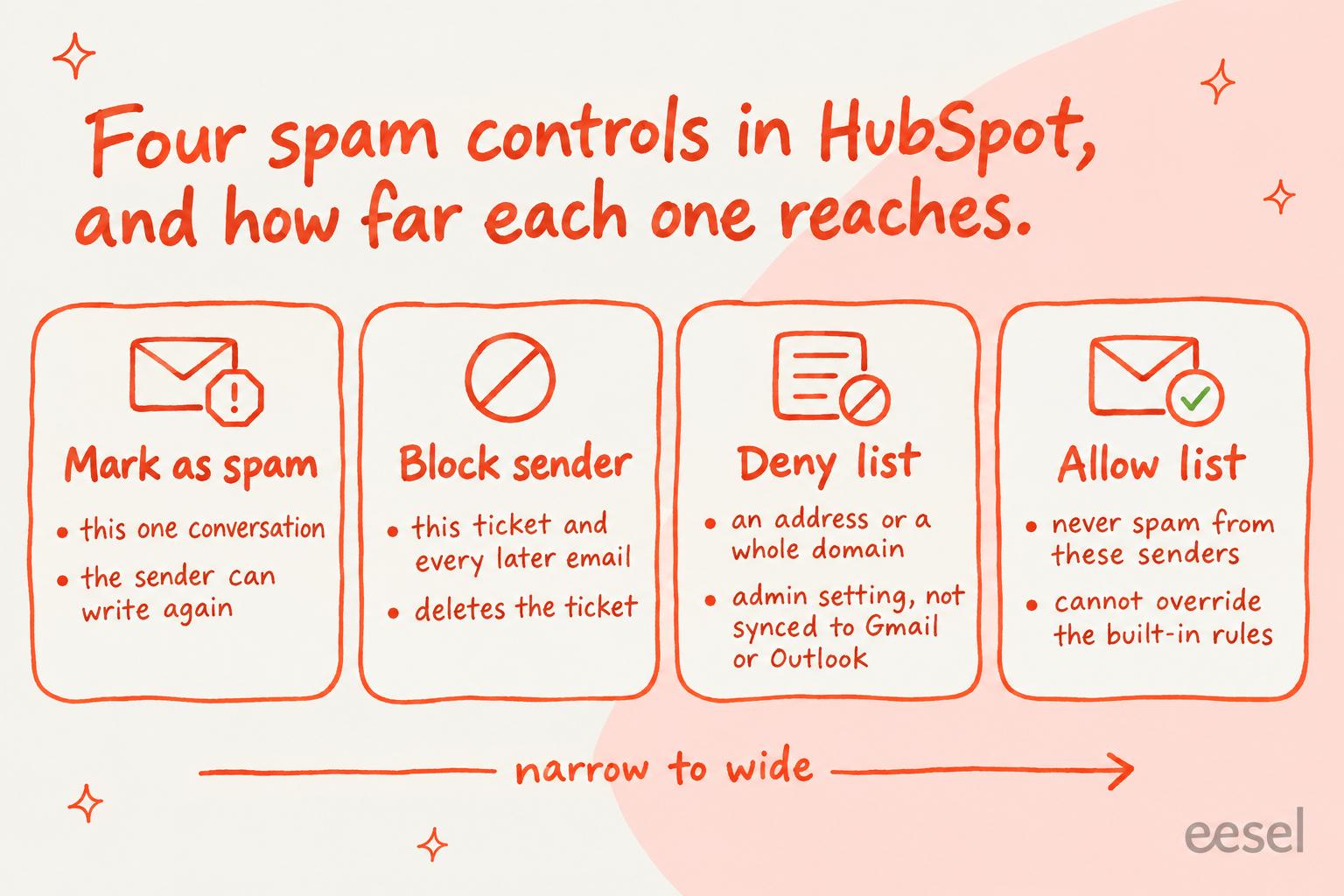
Mark as spam moves one conversation to Spam; Block sender moves this conversation and every future email from that address. Both need Delete ticket permissions in the help desk (a different setting from send-from permissions), according to HubSpot's help desk ticket article.
Mark as spam is under the Actions menu on a ticket (Mark conversation as spam). If a ticket has several conversations, you pick which ones. Select them all and the ticket itself is deleted. The conversation goes to the Spam view and is deleted after 90 days. The sender can write again tomorrow and it lands as a new ticket, which is the part teams don't expect:
"Our team assumes “Mark as spam” will block that sender going forward, but it doesn’t."
The same post describes the workaround: copy the address from the Spam view, then add it under Settings > Inbox & Help Desk > Allow & Deny List.
Block sender sits in the same Actions menu, and its confirm button says what it does: Block and delete ticket. The conversation moves to Spam, and per HubSpot the contact and ticket are deleted only if all the ticket's conversations are marked as spam. Every later email from that address is marked as spam. To undo it, open the ticket in the Spam view and click Unblock sender.
The deny list is the admin version of Block sender, and the only one that takes a whole domain. It needs Account Access permissions and lives under Settings > Inbox & Help Desk > Allow & Deny List. HubSpot's own example is adding tasks.clickup.com so ClickUp notifications stop creating contacts, which is a useful reminder that every email to a connected inbox from an unknown sender creates a contact by default.
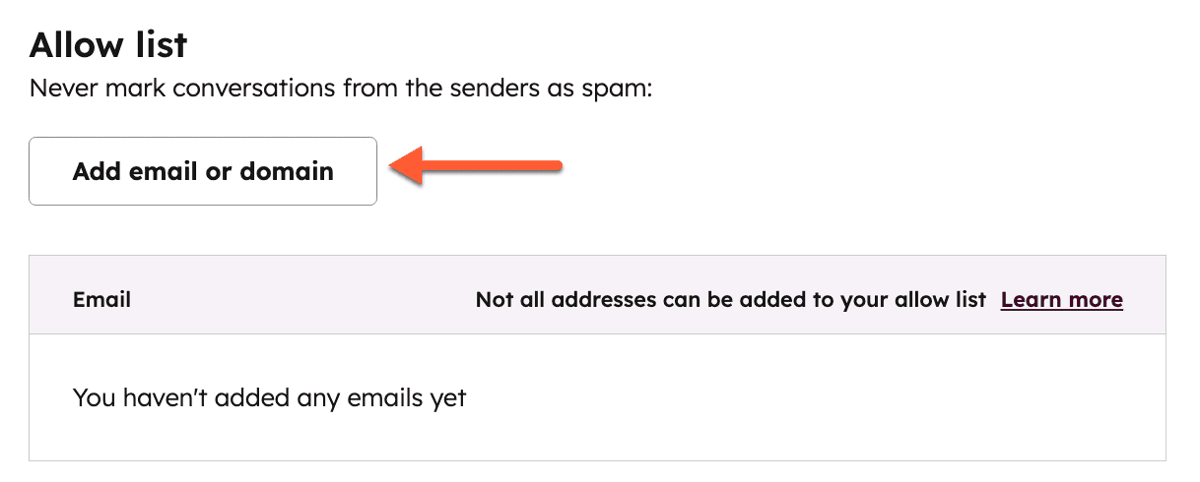
The precedence rules are worth knowing before you add anything. An address on the allow list beats its domain on the deny list, and an address on the deny list beats its domain on the allow list. If the same entry is on both lists, the allow list wins. And none of it reaches your mailbox: HubSpot says a sender on its deny list won't be sent to Spam in your connected Gmail or Outlook.
Does HubSpot use AI to filter spam?
Not in the spam filter itself. Everything above is rules and lists. HubSpot's AI comes in through workflow automation, and it can label junk but not file it as spam. (Breeze in workflows lists the AI actions.)
Categorize record is a beta workflow action, available with Service Hub Professional, that HubSpot's Categorize record article says classifies CRM records "based on their properties using AI". You'd set up categories like "Spam or sales pitch" and "Customer request", each with a description, and the action returns a Category and a Confidence score. It reads only the ticket's properties, such as its subject and description: HubSpot says it "will not take into account a record's engagements or associations", so the email thread itself isn't part of the call. HubSpot recommends acting only above a threshold, such as 0.85. Some of these AI features need HubSpot Credits.
What the workflow can do with that label is the catch. HubSpot's list of workflow actions has Edit record (set a property, or move the ticket to a closed stage), Delete contact (restorable for 90 days) and AI actions like Data Agent: Custom prompt, but no action that marks a conversation as spam or deletes a ticket. In conversation-based workflows, conversation properties "are automatically set by HubSpot and cannot be edited". A community member who asked how to auto-delete SEO pitches got this answer from a HubSpot Hall of Famer:
"Within HubSpot, workflow can’t directly delete emails / conversation inbox entries, so this would require a custom code workflow action based on the HubSpot API that triggers after the fact."
So the AI route ends with junk labelled and closed in a pipeline stage, not in the Spam view. That's fine, and arguably better, because a closed ticket stays searchable instead of being deleted after 90 days. HubSpot AI ticket tagging covers Categorize record and the Category property in more depth.
HubSpot's Customer Agent has one spam-adjacent setting. Its email channel settings include an Ignore list of emails or domains the agent should never reply to, and matching senders "will be automatically transferred to a human agent". That keeps the agent from answering junk, but the junk still lands on a person.
How do I set up spam handling in HubSpot's help desk?
Start with the settings that decide what's spam, then the habits your team uses on what gets through. In the order I'd do it:
- Review the four checkboxes. They're in the same settings area as the lists, under Settings > Inbox & Help Desk. If customers can write from a shared company address, clear Role Based Emails, or plan to check Spam daily. If you sell through marketing emails and customers reply to them, think hard before leaving Marketing Emails on.
- Allow-list your known shared senders. Add the domains of customers, partners and vendors whose mail must never be filtered. It overrides the checkboxes and the deny list (unless a specific address on that domain is deny-listed), but not the built-in rules.
- Deny-list the repeat offenders by domain. One entry for a domain beats twenty Block sender clicks on rotating addresses.
- Make Spam part of someone's routine. It's behind More in the help desk sidebar. With 90-day deletion, a weekly check is the minimum I'd suggest. Use Mark as not spam (checkboxes in the Spam view, then Not spam) for anything real.
- Teach the team the difference. Mark as spam for one-off junk, Block sender for a repeat sender, and a deny-list request to an admin for a whole domain.
- Add an AI label for the junk that isn't spam. Cold pitches from real people won't trip any rule, and left alone they pile into your ticket backlog. A Categorize record workflow, or an AI teammate, can close them with a label you can audit.
If you move channels over from the conversations inbox, the channel connections guide covers what changes, and custom views can give your team a view of AI-closed junk to spot-check.
What goes wrong with spam in HubSpot?
Most of the trouble is mail quietly going missing, not junk getting through.
The Spam view is easy to forget
Users in a HubSpot Community thread say the help desk's Spam view sits behind a More menu and no longer shows a count of what's in it:
"Yes, spam used to display the count of tickets and was very useful to know that spam folder had been reviewed for false positives."
Combine that with 90-day deletion and a real email can disappear without anyone ever seeing it.
A rescued email arrives as an old ticket
When you mark an email as not spam and automatic ticket creation is on, HubSpot creates a ticket timestamped "based on when the email was originally received, not when the email was marked as not spam", per the allow and deny list article. New tickets are only created for emails that were marked as spam automatically. So a customer who waited a week shows up as a week-old ticket against your SLA goals, and one you'd marked as spam by hand needs a ticket made for it.
Block sender deletes more than you'd think
The confirm button says Block and delete ticket. In the help desk, HubSpot deletes the ticket and contact when all of the ticket's conversations are marked as spam, and its conversations inbox guide says blocking there permanently deletes the associated tickets. If someone blocks a sender who turns out to be real, the ticket history goes with it, along with its record associations. Mark as spam is the safer first move when you aren't sure.
Spam contacts pile up in your CRM
Every unknown sender to a connected inbox becomes a contact unless the deny list stops them first. A user in another HubSpot Community thread describes the cleanup:
"Otherwise our contact / companies list would be junked up with 25-50 spam per day at least!"
The HubSpot AI data cleanup guide covers the cleanup side; a Delete contact workflow action can remove contacts you've labelled as spam.
HubSpot's lists don't reach your mailbox
Allow and deny lists only change HubSpot. Your Gmail or Microsoft 365 still makes its own call first, and its spam verdict follows the email into HubSpot unless the sender is on HubSpot's allow list. For keyword-based junk, the same community answer above suggested quarantine rules at the provider instead.
Which HubSpot setting handles each kind of junk?
Each kind of junk, and each kind of real mail caught by mistake, has a different fix in HubSpot. Pick what you're dealing with to see where to handle it.
Pick what's landing in your help desk, or going missing from it, to see the HubSpot setting that handles it.
Can an AI teammate filter HubSpot spam?
Yes, for the mail that reaches your help desk, and it covers the gap the rules leave: junk from senders who look legitimate. It judges the content rather than the sender, so the pairing that works is looser sender rules (Role Based Emails and Marketing Emails cleared, say) with an AI that reads each email and closes what's junk. eesel joins HubSpot as an AI teammate. Per eesel's HubSpot docs, it runs when a customer sends a message or a new ticket is created, and reads the ticket, its pipeline and stage, and every conversation on it before it does anything.
You describe in plain words which tickets it should handle and what to do with the rest, the way you'd brief a new teammate: "close cold sales pitches and link-building offers in a closed stage with the category set to Junk; if an email comes from a shared address like billing@, treat it as a customer; if you're not sure, leave the ticket open with an internal comment saying why." It does that with the same actions a person would use: Update ticket to set a property or move it to a closed stage, and an internal comment or a draft reply on the real ones. Skipped tickets are listed on its Activity page with the reason, so there's no Spam view to forget about. It's the auto-triage step a person does at the top of the queue, written down once, and it runs before ticket routing hands the real ones out.
The closest published example is MentorShow, a French online learning platform that runs its support entirely in HubSpot Service Hub. Its eesel agent reads every new message, and its instructions name nine kinds of ticket to leave alone on purpose, including PayPal notices, out of office replies, survey responses, Trustpilot reviews and thank-you messages. Between 8 August and 8 September 2026 it read about 1,200 HubSpot conversations and tickets for them and wrote 432 reply drafts for the team.
Each action can run on its own, ask a person first, or stay off (actions and approvals). I'd keep closing on ask-first for the first week and read its calls, the same way I'd review AI support conversations for anything new.
Try eesel next to HubSpot
If your HubSpot junk is mostly mail no sender rule can catch (pitches from real people, vendor notices), and your real worry is the customer email a sender rule sent to Spam, a rule-based filter will keep getting both wrong, as the general case shows. Loosen the sender rules and let a teammate judge the content instead. eesel works inside your HubSpot help desk as a teammate you instruct in plain words: it closes the noise with a label you can audit, treats anyone who might be a customer as one, and leaves a note on what it isn't sure of. You decide which of those it does alone.
On cost, eesel's pricing page starts at $299 a month for 500 credits, where a ticket or a chat is one credit, so there are no extra seats to buy for it. If you're weighing that against HubSpot's own AI, Service Hub AI's value covers the trade-off, and the Gorgias version of this guide shows the same pattern elsewhere. Try eesel on one HubSpot inbox and keep closing on ask-first until you trust its calls.