

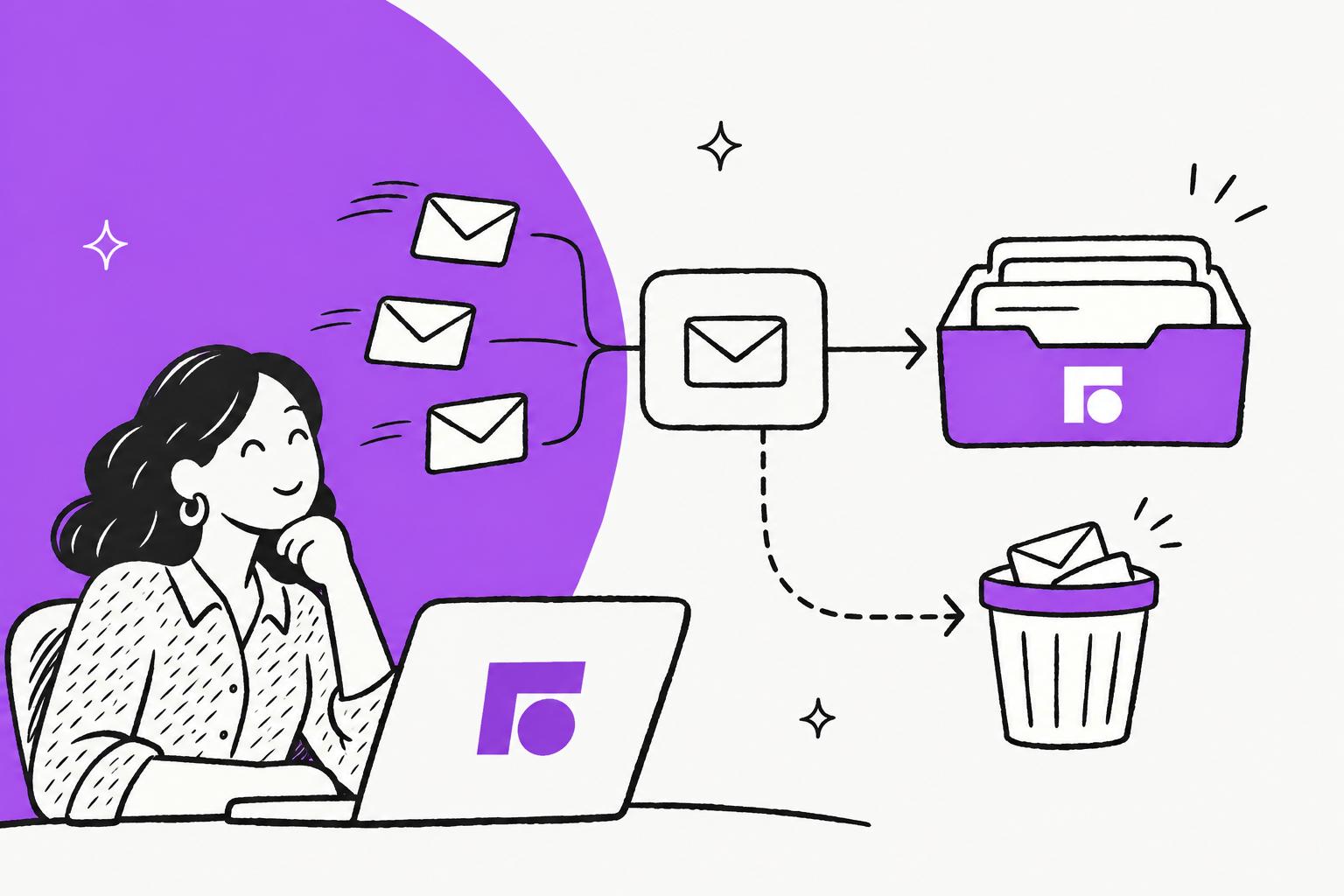
Front doesn't filter spam itself: its help center says it "does not perform spam analysis", so Gmail or Microsoft 365 decides what is spam and Front shows the result in a Spam section. On top of that, Front gives you Mark as spam (this conversation only), Block sender (this and every later message from the contact) and Report phishing. Rules can tag, archive or move a conversation to Trash, but no rule action marks a conversation as spam. The AI part is optional: AI Topics (from the Starter plan, $25 a seat a month billed annually) can label a recurring kind of junk so a rule acts on it, and Enterprise's Branch with AI ($105 a seat) can ask "is this unsolicited?" about each message. When a real sender keeps landing in Spam, fix it at the provider, because restoring it in Front clears only that one message.
If an AI coding agent such as Claude Code helps run your support tools, it can set up an eesel teammate in Front through the eesel CLI, write its filtering rules and test them on past conversations, though connecting Front still needs an admin to sign in and approve it.
How does Front filter spam?
Front filters spam by trusting your email provider. I build AI agents at eesel, so I spend a lot of time reading what a helpdesk does with a message before an agent ever sees it, and Front's answer is the shortest of any tool I've looked at. Its spam help article opens with it: "Front does not perform spam analysis. We sit on top of your email provider, so all messages that make it to your inbox will appear in Front."
That's different from Help Scout, which runs a filter that learns from your team, or Freshdesk's spam score, and from Zendesk, whose email spam filter suspends suspicious mail inside the helpdesk. In Front, the spam verdict was already made before the message arrived, and your team's job is mostly to correct it.
| Layer | What it does | Where you set it | Who or which plan |
|---|---|---|---|
| Your email provider | Decides what is spam; Front syncs that into its Spam section | Gmail or Microsoft 365 | Whoever runs your email |
| Spam and phishing warning | Marks a message with a warning icon when the provider flags it as spam or phishing | Automatic | Everyone |
| Mark as spam | Moves this one conversation to Spam | Three-dot menu, or Shift + J | Everyone (on by default in individual and shared inboxes) |
| Block sender | Moves this conversation and all later messages from the contact to Spam | Three-dot menu | Shared inboxes: an admin must allow non-administrators to block contacts |
| Report phishing | Reports it to Front and moves it to Spam | Three-dot menu | Everyone, unless an admin had Front switch it off |
| Rules | Tag, archive or move to Trash when conditions match | Workspace settings > Rules and macros | Starter up to 10 rules, Professional up to 20, Enterprise unlimited |
| AI Topics and Branch with AI | Label a kind of message, or answer a question about it, for a rule to act on | Workspace settings > Front AI, and the rule builder | Topics from Starter; Branch with AI on Enterprise |
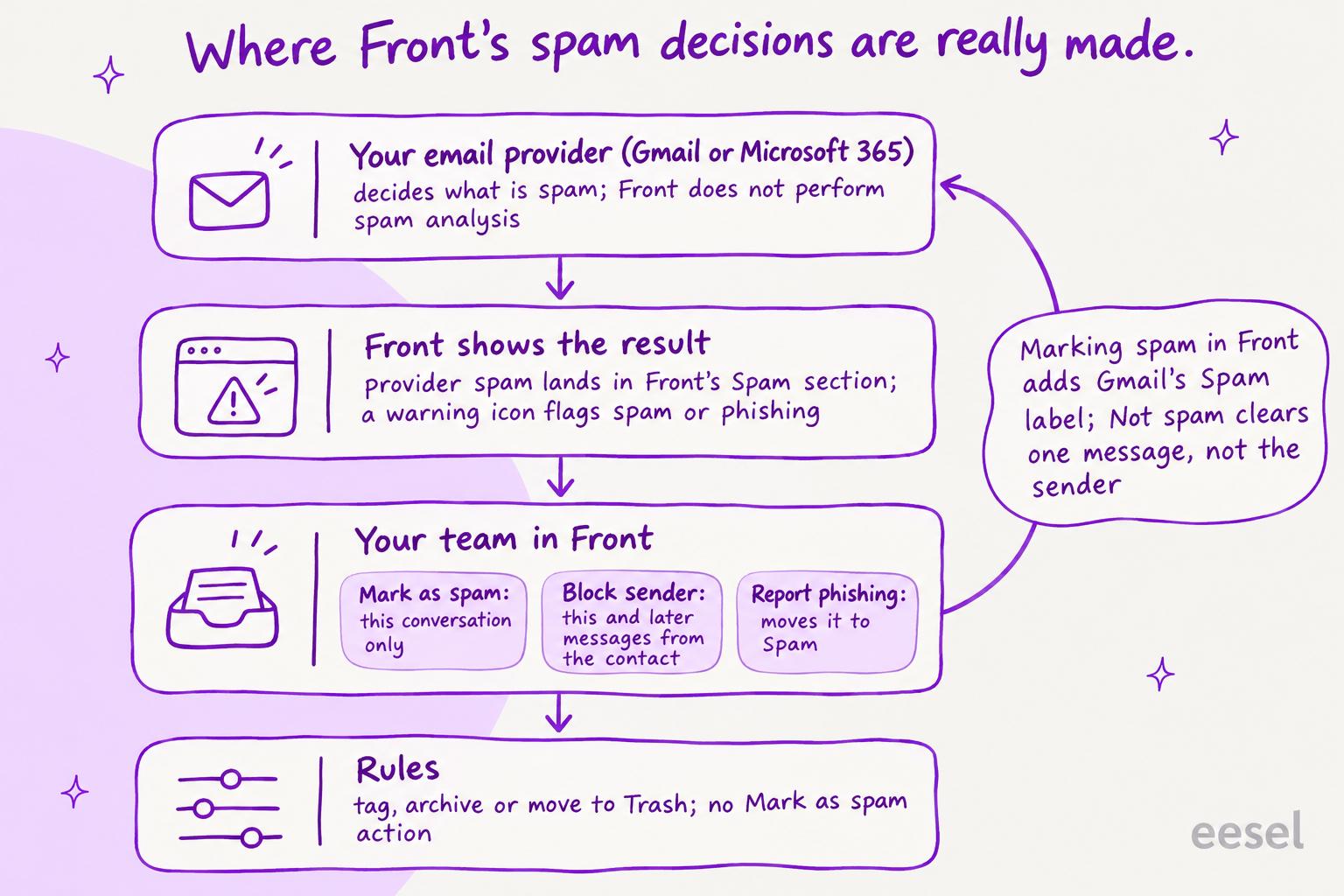
The warning icon has one quirk worth knowing. Front's guide to spam and phishing warnings says a message can show the warning in Front without being spam in Gmail, usually because it carries Microsoft's x-forefront-antispam-report header, which Front reads.
What do Mark as spam and Block sender do in Front?
They differ by how far they reach. Per Front's docs, Mark as spam "will label only the current conversation as spam", while Block sender "will label the current conversation and all subsequent messages from this contact." Both sit in the conversation's three-dot menu, next to Report phishing.
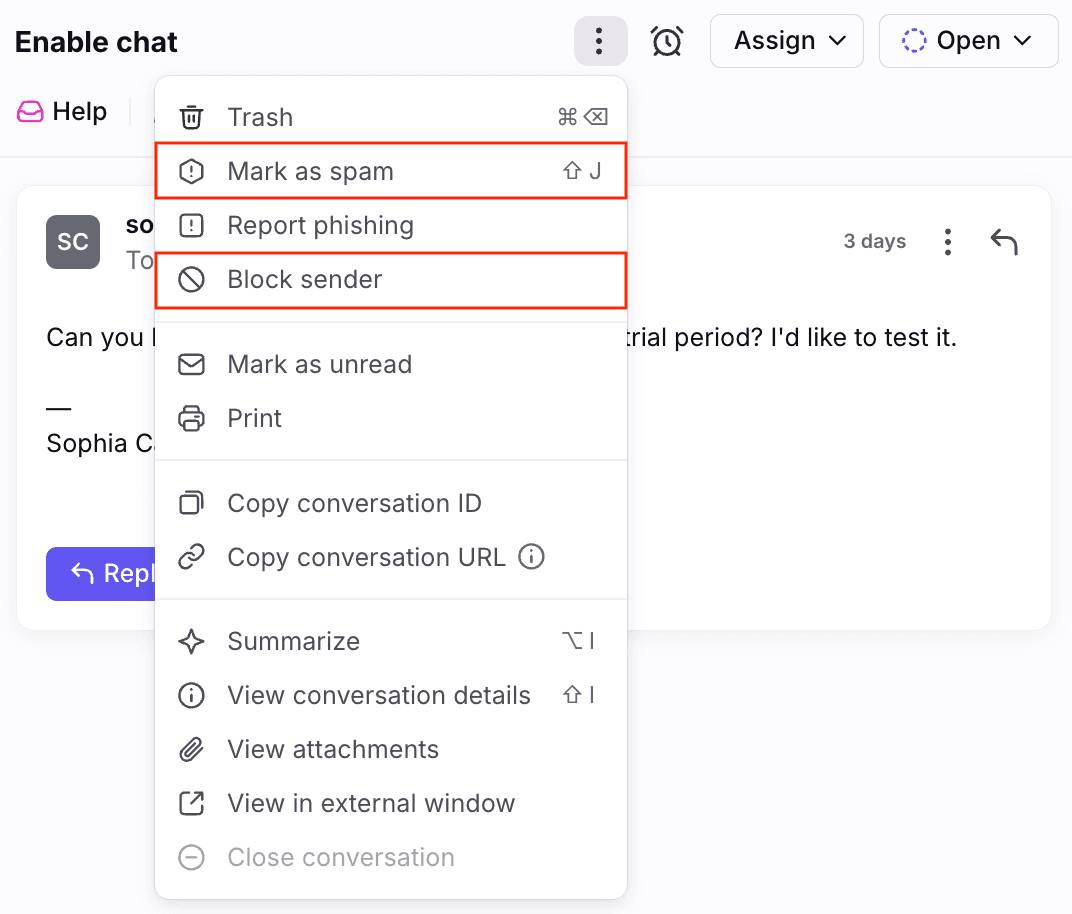
A few details decide how they behave on a team:
- Where you click matters. Front's guide to conversation status says marking spam from a shared inbox moves it to that inbox's Spam tab for everyone, but it stays in followers' Subscribed sections. Marking it from your own Subscribed section only changes your copy.
- Blocking in a shared inbox needs setup. A company admin has to turn on Allow non-administrators to block contacts, and the teammate needs the Conversations - Delete and mark as spam and Contacts - Block senders permissions.
- It syncs back to the provider. With Gmail, marking spam in Front adds Gmail's Spam label, which per Google means Google receives a copy for its spam analysis. With Office 365, the conversation moves to the Spam folder, or to Trash if Outlook has no Spam folder.
- Phishing reports stay inside Front. Report phishing moves the conversation to Spam and sends the report to Front, and Front says it "will not notify your security team." If you have your own phishing process, an admin can ask Front's support to switch the feature off.
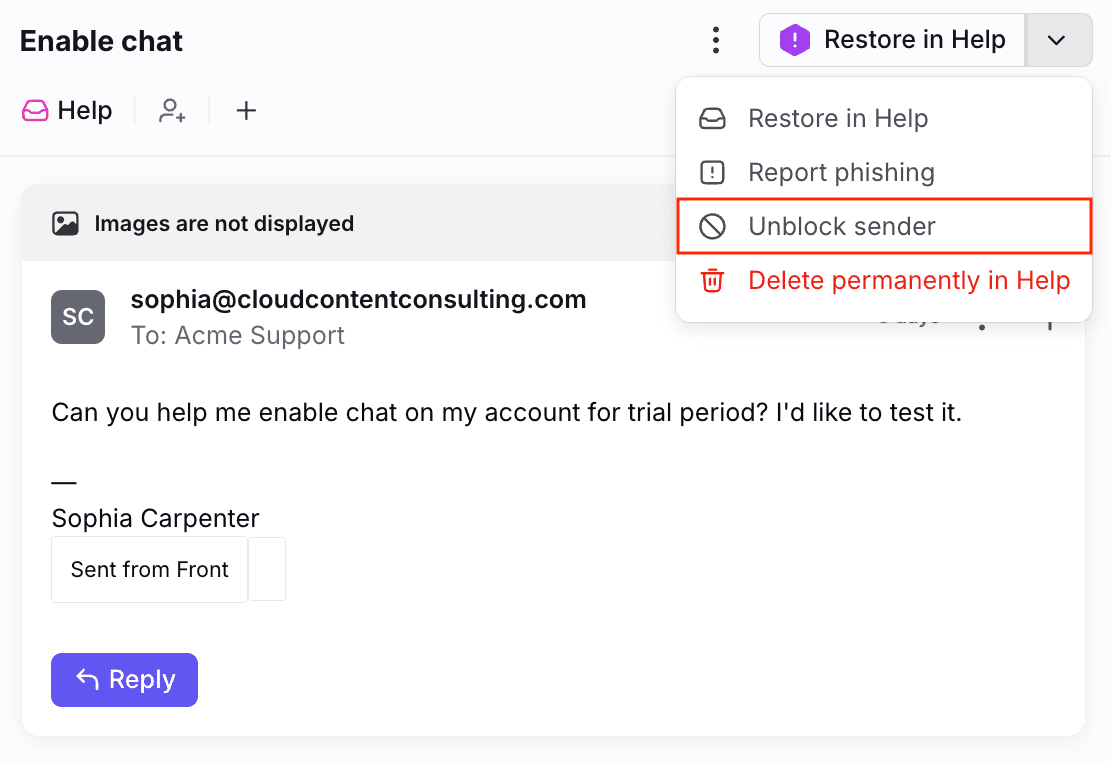
To undo either, open the Spam section, pick the conversation and choose Restore in [inbox], or Unblock sender from the arrow next to it.
Why do real emails keep landing in Spam in Front?
Because restoring a conversation in Front fixes that message and nothing upstream. The clearest write-up I found is a case report from Limehawk, an IT firm, about a title company whose wire confirmations from a bank kept landing in Spam in Front. The team clicked Unblock sender and Not spam on every one, and the next confirmation went back to Spam. Their diagnosis:
"Clicking “Not Spam” reclassifies one message, not the sender. Clicking “Unblock Sender” is a Front-level policy invisible to Gmail."
The fix took five minutes: a Gmail filter on the mailbox Front syncs from, matching the bank's address, with Never send it to Spam checked. For a Microsoft 365 mailbox, Limehawk's equivalent is a mail flow rule or a tenant allow list entry. Front's own support confirmed the diagnosis to them, per the report.
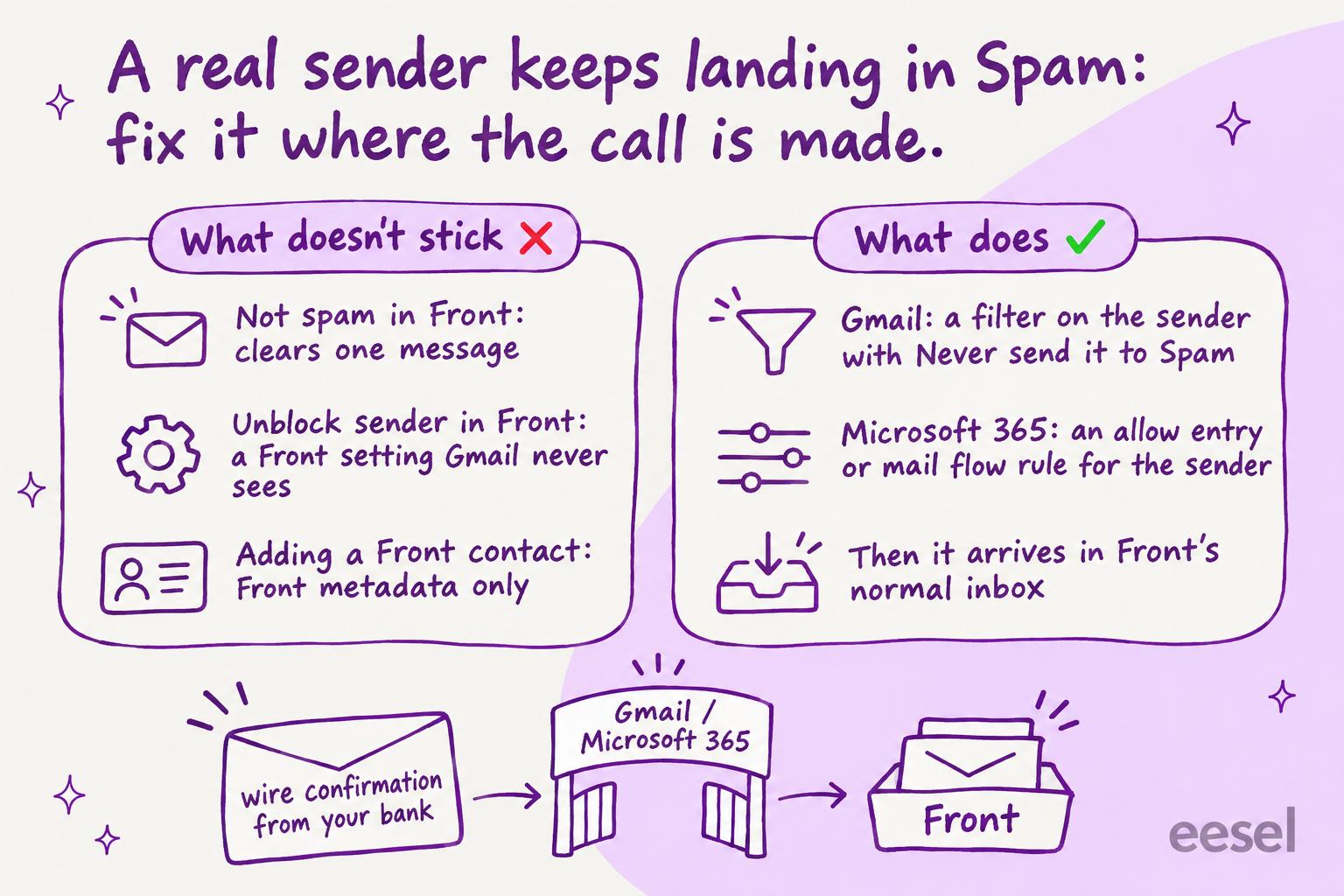
This is the habit I'd change first on a Front team. The emails that hurt to miss (a payment confirmation, a dispute, a supplier's invoice) come from automated senders, and automated senders are exactly what providers misjudge. Restoring them one at a time in Front feels like progress and changes nothing for the next one.
Does Front use AI to filter spam?
Not as a filter. Front's AI features read conversations so rules can act on them, and you can point two of them at junk. Neither marks anything as spam, because Front's rule actions don't include one.
AI Topics groups conversations by why people write in and labels new ones, per Front's Topics guide. It's on every plan (Front's pricing page lists "AI Topics and up to 10 automation rules" on Starter), runs in shared inboxes only, and is built for volume: Front says it is "designed for inboxes that receive more than 1000 conversations per month." If sales pitches are a steady share of your mail, Topics may already have found them. If not, you create one from an existing pitch, and Front starts using it on new messages once 5 conversations are in it. Then a rule with the trigger Topic is identified can tag and archive.
Branch with AI is a rule step on Enterprise ($105 a seat a month, billed annually), per Front's guide to rules with AI steps. You write a yes-or-no or multiple-choice question in plain language, such as "Is this message unsolicited sales outreach?", and the rule branches on the answer, with a third branch for "No answer matched". By default it reads only the latest message; a checkbox makes it review the whole conversation. Front's rule tester lets you run it on real conversations before it acts. I wrote about the same step for urgency in Front AI ticket prioritization.
Either way, the AI only decides the label or the branch. What happens next is a rule action you chose, which is the ticket tagging and archiving you'd do by hand.
How do I set up spam handling in Front?
Start where the verdict is made, then add rules for what still gets through. Here's the order I'd follow.
- Fix the provider first. For each automated sender you can't miss (payments, your store platform, your biggest customers), add a Gmail filter with Never send it to Spam, or the Microsoft 365 equivalent, on the mailbox Front syncs from.
- Decide who can block. If agents should block senders in shared inboxes, a company admin turns on Allow non-administrators to block contacts and grants the two permissions above. If not, leave it to admins.
- Write a rule for notifications. Use conditions such as "From" field contains, Conversation subject contains or Message body contains, and the actions Add tags and Archive conversation. Archived conversations stay searchable and, per Front's guide to trashing conversations, are included in analytics, where trashed ones are not. Front's rule guide covers every trigger, condition and action, and workflow automation basics carry over.
- Test before you trust it. Front's Test rule feature takes the ID of a conversation that should match and shows which conditions passed or failed.
- Use Delete conversation sparingly. A rule's Delete moves the conversation to Trash, where it can be restored. A rule can't permanently delete.
- Add AI for what keywords miss. A Topic for a recurring kind of junk, or a Branch with AI question on Enterprise, followed by tag and archive.
- Check the Spam section. Anything a provider misjudged waits there until someone restores it.
What goes wrong with spam in Front?
Most problems come from expecting Front to own a decision it doesn't. These are the ones I'd watch for.
A rule never fires on notifications
Front's rule troubleshooting section lists auto-generated messages ("no-reply, marketing, out-of-office replies") among the cases where rules will not fire. If you built a rule to tag and archive notifications and it does nothing, Test rule shows whether the conditions match, but it won't tell you the message is suppressed. If the conditions pass and nothing happens, handle that mail at the provider or by hand. Rules that send messages have their own catches, covered in Front auto reply.
An archive rule can undo Gmail's spam verdict
Front's spam guide notes one exception to its Gmail sync: if a Front rule sets a conversation's status to Archived, that removes the Spam label in Gmail. A broad archive rule that also matches provider spam takes those messages out of Gmail's Spam label. Keep notification rules narrow, with a sender or subject condition rather than a catch-all.
Blocked senders still get through in old threads
A Front community thread, Issues with Block functionality, describes blocked senders whose follow-ups "appear in thread under the email we blocked." Front's reply in that thread repeats that it doesn't perform spam analysis. For a sender who should never reach you, block at the provider.
Deleting in Front doesn't delete at the provider
Front's spam guide says deleting spam in Front "will not sync to Gmail/Office 365 or vice versa", because Front doesn't sync permanent deletions. If you clean up spam for privacy reasons, clean up the mailbox too.
Spam is only purged if you set a deletion policy
Front doesn't empty Trash on its own. A company admin can turn on a data deletion policy, and with Automatically delete trashed conversations on, "trashed and spam conversations will be permanently deleted after 7 days." If you turn that on, check the Spam section more than once a week, or a misjudged customer email is gone before anyone sees it.
Which Front setting deals with your junk?
Each kind of junk has a different right answer in Front, and several of them live outside Front. Pick what's cluttering your inbox to see where to handle it.
Pick the kind of junk you see most to find where Front, or your provider, deals with it.
Can an AI teammate sort Front junk?
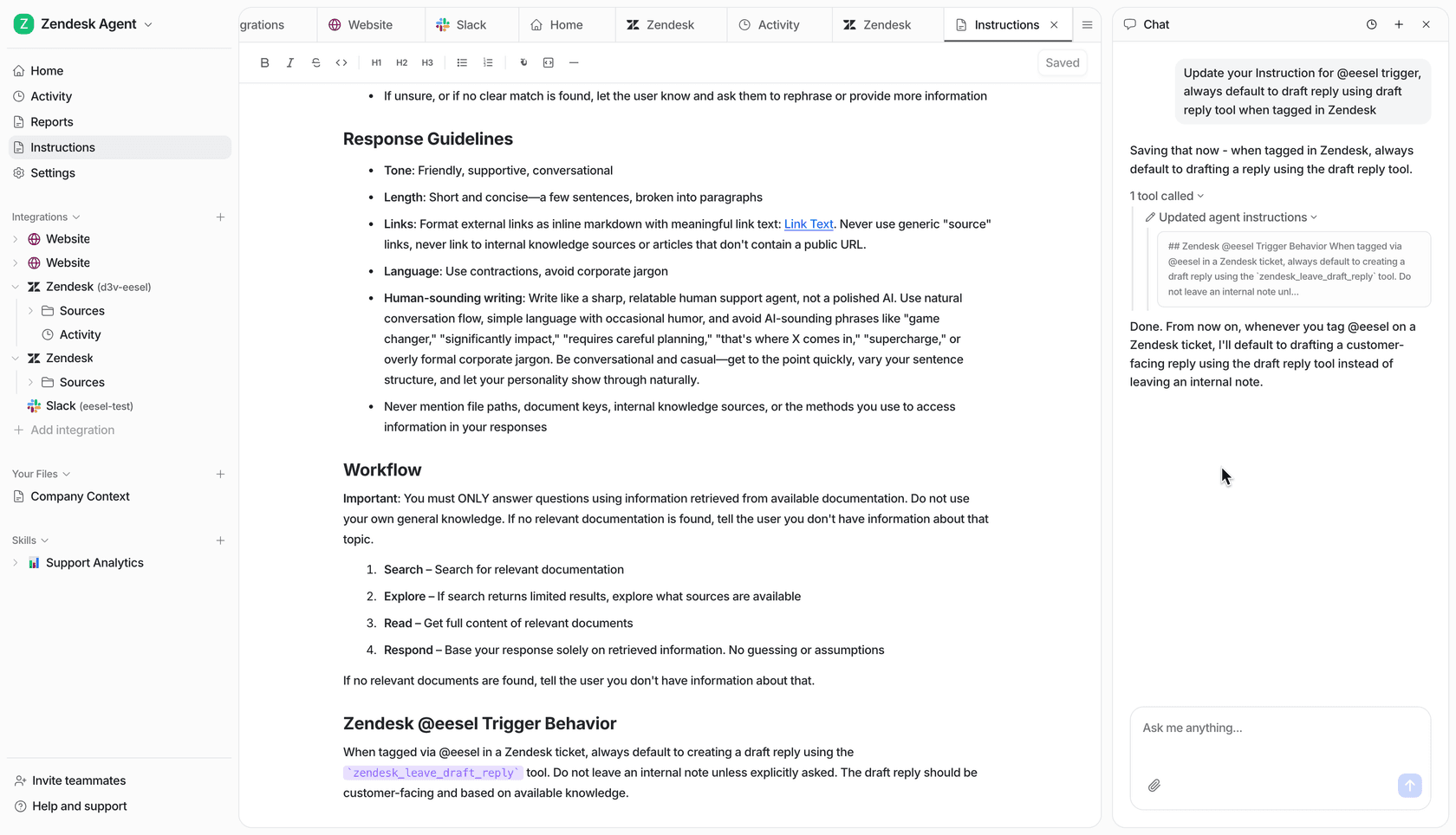
Yes, and it fills the gap between a provider that judges senders and rules that only match keywords. eesel joins Front as an AI teammate, and per eesel's Front docs it can run when a customer opens a new conversation or sends a message, reading the whole thread with its tags, inbox and the customer's contact record. Then it does what your instructions say: add tags from your list, archive the conversation, leave an internal comment, assign a teammate, or leave a draft reply for the real ones. It is the same auto-triage step a person does at the top of a shared inbox, written down once.
The instructions are plain words, the same rules you'd give a new hire: "archive payment receipts and shipping notices with the tag auto-archived; tag sales pitches as pitch and archive them; if you're unsure whether it's a customer, leave it open with a comment saying why". It never marks anything as spam, so it doesn't add to your provider's spam training. Each action can run on its own, ask a person first, or stay off (actions and approvals), so I'd keep archiving on ask-first for the first week and read its calls, the way I'd review AI support conversations for anything new.
The closest published example is on Gorgias rather than Front. Rúngne, a climbing apparel brand, runs a triage agent where social comments, story mentions, out-of-office replies and spam are tagged and closed, and when in doubt it treats the sender as a real customer and leaves the ticket open. That last rule is the one I'd copy first.
Try eesel next to Front
If most of your Front junk is mail your provider let through because it isn't technically spam (the pattern I see across helpdesks, from Gorgias to the general case), no spam setting will catch it, and a keyword rule for every sender gets long fast. eesel works inside your Front inboxes as a teammate you instruct in plain words: it archives the noise with a tag you can audit, comments on what it's unsure of, and drafts replies to the conversations that need a person. You decide which of those it does alone.
Try eesel on one Front inbox and keep archiving on ask-first until you trust its calls.