
If you're a Zendesk admin, you've probably noticed something troubling over the past few months. Your support inbox is being flooded with spam tickets, or worse, people are complaining they're receiving suspicious emails "from" your company that you never sent.
You're not alone. Since early 2025, attackers have been exploiting a configuration weakness in Zendesk to send spam through legitimate company support systems. Over 100 major organizations have been affected, including Discord, Dropbox, Tinder, and NordVPN. The attack is surprisingly simple: submit tickets using victims' email addresses, and Zendesk automatically sends those people a confirmation email that looks like it came from your company.
The good news? This isn't a vulnerability in Zendesk itself. It's a configuration issue you can fix. This guide walks you through native spam filtering features, prevention strategies, and cleanup methods to protect your support queue.
Understanding the Zendesk email spam filter problem
The current spam wave works by abusing Zendesk's default settings. Most instances are configured to allow anyone to submit tickets without verifying their email address. Attackers automate ticket creation using random email addresses, and Zendesk sends confirmation emails to those addresses.
The result is that your Zendesk instance becomes an unwitting spam relay. Recipients get emails that appear to come from your legitimate support address, complete with proper SPF and DKIM authentication. Their email providers can't filter these messages because they technically are legitimate emails from a trusted source.
One user on Hacker News described receiving over 500 emails in just 4 hours from various Zendesk instances. Another watched their spam count tick up in real time: "22... 23... 24... 26... 27... 28..." as they sat helplessly refreshing their inbox.
The emails often contain bizarre subject lines like "TAKE DOWN ORDERS," fake legal notices, or offers for "FREE DISCORD NITRO." While many don't contain direct phishing links, they're designed to confuse recipients or simply overwhelm inboxes (email bombing).
Zendesk's official position is that this isn't a vulnerability. It's a "potential side effect when Zendesk is set to allow unverified users to submit requests." The fix requires changing your configuration, not waiting for a patch.
Native Zendesk spam filtering features
Before diving into prevention, let's understand what Zendesk already provides for spam protection. The platform includes several built-in mechanisms:
Help Center spam filter. This is your first line of defense for community content. The filter prevents new and edited end-user posts and comments that appear to be spam from being published to your help center. Suspicious content goes to a spam queue where you can review it. The filter is enabled by default and cannot be disabled. It learns from what you mark as spam.
Learn more about Zendesk's spam filter documentation.
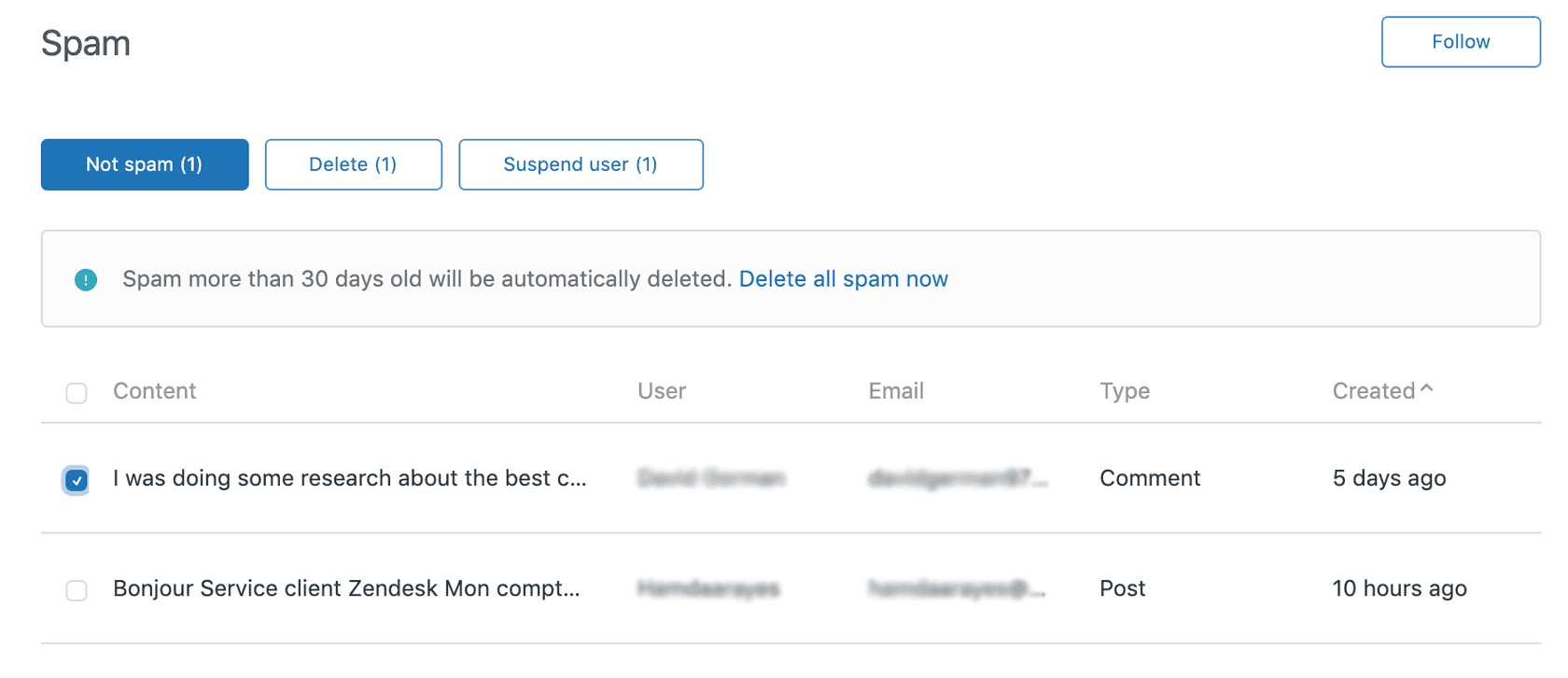
Suspended tickets queue. This is where suspected spam tickets land. Zendesk automatically suspends tickets from known spam domains, messages with invalid headers, automated replies, and emails that fail SPF or DKIM checks. Suspended tickets are held for review and automatically deleted after 30 days if you don't take action.
Read more about the suspended tickets queue.
Rate limiting. Your help center limits how many posts and comments a single user can create within 24 hours. These limits are designed to not affect normal use but target spammers.
CAPTCHA. Zendesk uses Cloudflare's bot management. End users experience CAPTCHA when signing up or submitting tickets via web forms if "Anybody can submit tickets" is enabled.
Blocklist and allowlist. You can control exactly which email addresses and domains can submit tickets. The blocklist sends matching emails directly to suspended tickets. The allowlist ensures legitimate senders never get caught in filters.
These features work well for traditional spam, but the current wave exploits a different vector: unverified ticket submission. That's where prevention comes in.
Prevention checklist: Securing your Zendesk instance
Here's how to harden your Zendesk configuration against the spam wave and similar attacks.
1. Restrict ticket submission to verified users
This is the single most effective prevention measure. By default, Zendesk allows anyone to submit tickets. Change this to require authentication.
Navigate to Admin Center > People > End users. Look for the setting "Anybody can submit tickets" and disable it. Instead, enable options that require users to sign in or verify their email before creating tickets. Zendesk's end user settings documentation has more details.
This setting exists for legitimate reasons. Some companies want to make it easy for customers to get help without creating accounts. But the trade-off is vulnerability to exactly the attack we're seeing now.
2. Remove dangerous email placeholders
Attackers exploit auto-response emails that include user-submitted content. Review your triggers and remove placeholders that echo back ticket content.
Specifically, remove {{ticket.description}} and {{ticket.title}} from any auto-response triggers. These placeholders allow attackers to put their spam message directly into the email that gets sent to victims.
Go to Admin Center > Objects and rules > Triggers. Review each trigger that sends email to requesters. If the email body includes ticket content placeholders, consider whether they're necessary or if they create risk.
3. Enable email authentication
Configure SPF, DKIM, and DMARC records for your support domain. This helps email providers verify that messages claiming to be from your domain actually are.
Zendesk provides documentation on authenticating incoming email. Work with your IT team or DNS provider to set up these records properly.
4. Set up IP restrictions
If your team primarily works from known office locations, consider restricting Zendesk access to specific IP addresses. This prevents attackers from accessing your instance even if they obtain credentials.
Navigate to Admin Center > Account > Security > IP restrictions to configure this.
5. Configure CAPTCHA on all forms
Ensure CAPTCHA is enabled for ticket submission forms. This won't stop sophisticated attackers but will block basic automated scripts.
The setting is typically found in Admin Center > Channels > Help Center or within your ticket form settings.
Cleaning up spam: Strategies by attack scale
If you're already dealing with a spam attack, the cleanup approach depends on the volume.
Small attacks (under 100 tickets)
For manageable volumes, use Zendesk's native bulk actions.
- Navigate to the view containing your spam tickets
- Select up to 100 tickets using the checkboxes
- Click the bulk actions menu at the bottom
- Select "Mark as spam"
When you mark tickets as spam, two things happen: the tickets are deleted and moved to the Deleted tickets view, and the requesters are suspended, preventing them from submitting future tickets.
Suspended users can still email you, but their tickets will land directly in the Suspended tickets queue rather than your main views.
Medium attacks (100-1,000 tickets)
For larger volumes, create an automation to handle cleanup over time.
- Go to Admin Center > Objects and rules > Automations
- Create a new automation that identifies spam tickets (by subject patterns, requester domain, etc.)
- Set the action to add a "spam" tag
- Create a second automation that deletes tickets with the spam tag after a short delay
Automations run hourly and can process up to 1,000 tickets per cycle. They're ideal for ongoing spam management or cleaning up larger backlogs over time.
Large attacks (10,000+ tickets)
For massive attacks, you'll need API-based deletion. This requires technical setup but can delete tickets at scale immediately.
Zendesk provides a mark_as_spam endpoint:
PUT /api/v2/tickets/{ticket.id}/mark_as_spam
This endpoint deletes the ticket and suspends the requester in one call. You'll need:
- A Zendesk API token (generate in Admin Center > Apps and integrations > APIs > Zendesk API)
- Basic authentication with
email/tokenas username and your API token as password - A script to iterate through ticket IDs and call the endpoint
For ongoing protection, combine this with a webhook and trigger:
- Create a webhook in Admin Center > Apps and integrations > Webhooks
- Set the endpoint URL to
https://yoursubdomain.zendesk.com/api/v2/tickets/{{ticket.id}}/mark_as_spam - Set method to PUT and authenticate with your API token
- Create a trigger that calls this webhook when spam conditions are met
Here's an example trigger configuration:
Conditions:
- ALL: Ticket is created
- ANY: Organization is "SpamDomain" OR Subject text contains "suspicious pattern"
Actions:
- Notify active webhook: "Mark as spam webhook"
Place this trigger before any assignment triggers so spam tickets don't temporarily appear in agent views.
Automating spam detection with AI
Rule-based filters work for obvious spam, but attackers adapt. When spammers change their patterns, your triggers need updating. This is where AI-powered detection becomes valuable.
At eesel AI, we approach spam detection differently. Instead of relying on fixed rules, our AI Agent learns patterns from your team's actions. When you mark tickets as spam, it learns what spam looks like in your specific context. When you recover false positives, it learns what's legitimate.
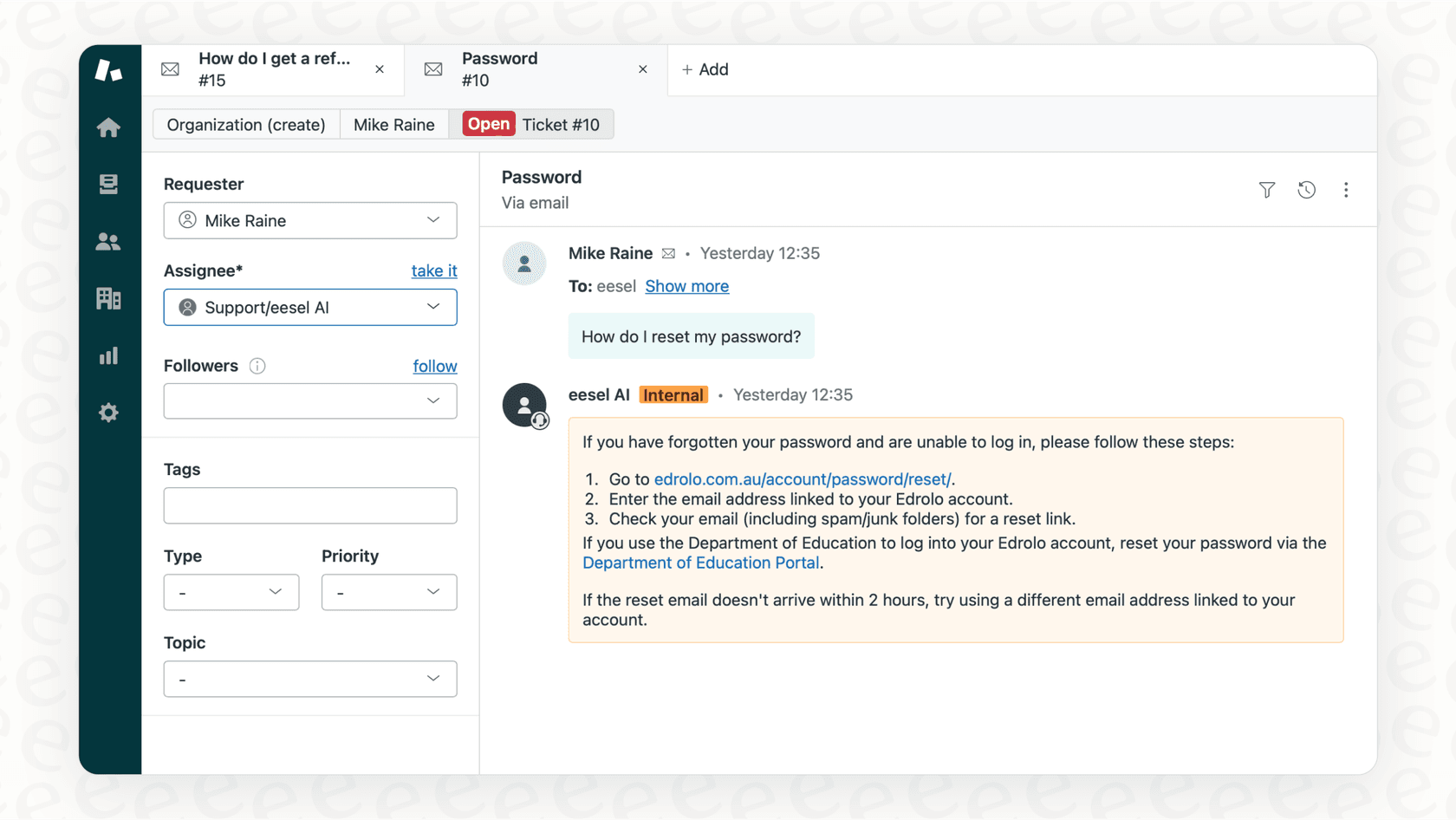
The result is detection that adapts as attackers change tactics. Subtle spam that slips past keyword filters gets caught because the AI recognizes the pattern, not just specific words.
Here's how it works for spam specifically:
- Pattern-based detection: Identifies spam based on structure and context, not just keywords
- Automatic marking: Handles spam without manual review once confidence is high enough
- Continuous learning: Improves from every action your team takes
- Bulk handling: Processes large-scale attacks without rate limiting or manual intervention
Our AI Agent integrates directly with Zendesk and other help desk tools. It can handle the full spectrum of spam management: detection, marking, and prevention.
For teams dealing with persistent spam issues, AI automation complements Zendesk's native features. You get the reliability of built-in filters plus the adaptability of machine learning.
Learn more about eesel AI's Zendesk integration and pricing.
Start protecting your Zendesk from spam today
The spam wave affecting Zendesk instances isn't going away. Attackers have found an effective vector, and they'll continue exploiting it until configurations change. Here's your action plan:
Immediate (today):
- Review your end user settings in Admin Center
- Disable "Anybody can submit tickets" if you don't absolutely need it
- Check your suspended tickets queue for any ongoing attacks
This week:
- Audit your email triggers for dangerous placeholders
- Remove
{{ticket.description}}and{{ticket.title}}from auto-responses - Set up SPF, DKIM, and DMARC if not already configured
Ongoing:
- Review suspended tickets weekly to catch false positives
- Monitor for unusual spikes in ticket volume
- Keep your blocklist updated with spam domains you encounter
For high-volume scenarios: If spam is a persistent problem eating up agent time, consider AI-powered automation. Our AI Agent at eesel AI handles spam detection and cleanup autonomously, learning from your team's preferences and adapting as attackers change tactics.
The configuration changes above will protect you from the current wave. The question is how much manual effort you want to spend on spam management versus focusing on actual customer support.
Ready to stop spam from derailing your support team? Try eesel's AI agent for Zendesk for intelligent spam detection that learns and adapts to your specific needs.


