Help Scout AI spam filtering: what the filter learns and where AI fits

Rama Adi

Katelin Teen
Last edited November 23, 2026

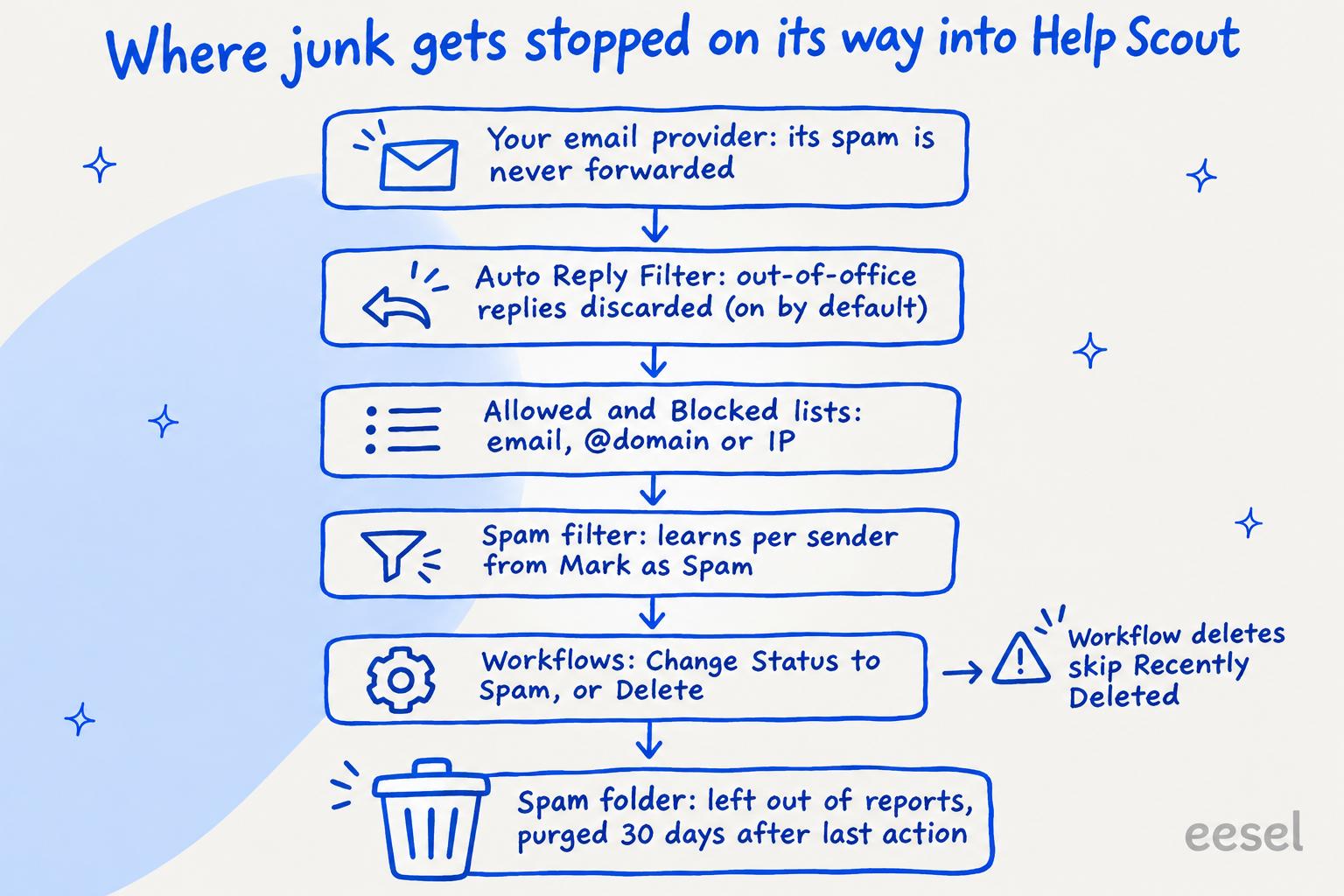
Help Scout's spam help article doesn't mention AI: its filter learns per sender from what your team marks as spam. Around it sit an Auto Reply Filter that discards out-of-office replies (on by default) and the Allowed and Blocked lists an admin keeps under Content Filtering. Anything that lands in Spam is left out of reports and purged for good 30 days after the last action on it. The AI part is Topics on the Plus ($45 per user a month, billed annually) and Pro plans, which only labels: a workflow can use a topic as a condition, and during the beta a workflow can't set one as an action. The one habit to change: don't mark notifications or auto-replies as spam, because that teaches the filter to send everything from that sender to Spam.
If an AI coding agent such as Claude Code helps run your support tools, it can set up an eesel teammate in Help Scout through the eesel CLI, write its filtering rules and test them on past conversations, though connecting Help Scout still needs an admin to sign in and approve it.
How does Help Scout filter spam?
Help Scout filters spam in layers, and only one of them is sold as AI. I build eesel's helpdesk integrations, so I spend a lot of time reading what each helpdesk does with a conversation before an agent ever sees it, and Help Scout's approach is simpler than most: the part of the filter you control works per sender. Zendesk's email spam filter and Freshdesk's spam score work differently, so habits from those tools don't carry over. Help Scout's help article on managing spam says the filter "learns over time based on your actions", and the actions it learns from are your team's clicks.
| Layer | What it does | Where you set it | Who or which plan |
|---|---|---|---|
| Your email provider | Mail it files as spam is never forwarded to Help Scout | At the provider (Google Workspace, Microsoft 365) | Whoever runs your email |
| Auto Reply Filter | Discards auto-generated replies such as out-of-office messages | Settings > Company > Content Filtering (on by default) | Admins and Account Owners |
| Allowed and Blocked lists | Allowed senders never go to Spam; Blocked senders always do. Takes an address, @domain or IP | Settings > Company > Content Filtering | Admins and Account Owners |
| Spam filter | Sends mail to Spam, and learns from Mark as Spam and Unmark as Spam per sender | Automatic | Anyone marking spam |
| Workflows | Change Status to Spam, or Delete, when conditions match | Settings > Inboxes > your inbox > Workflows | Plan-dependent (150 basic workflows on Standard) |
| AI Topics | Labels each conversation with a topic, usable as a workflow condition | Settings > Inboxes > your inbox > Topics | Plus and Pro |
The provider row is the one people forget. Help Scout's guide to inbound email issues says most providers won't forward mail they class as spam, so a customer email caught at Google never reaches Help Scout at all. On Google Workspace, Help Scout's forwarding guide has a fix: Google won't let you switch off spam detection, but a Gmail filter on is:spam with Never send it to Spam checked lets that mail forward normally, so Help Scout's own filter makes the call instead.
What does Mark as Spam do in Help Scout?
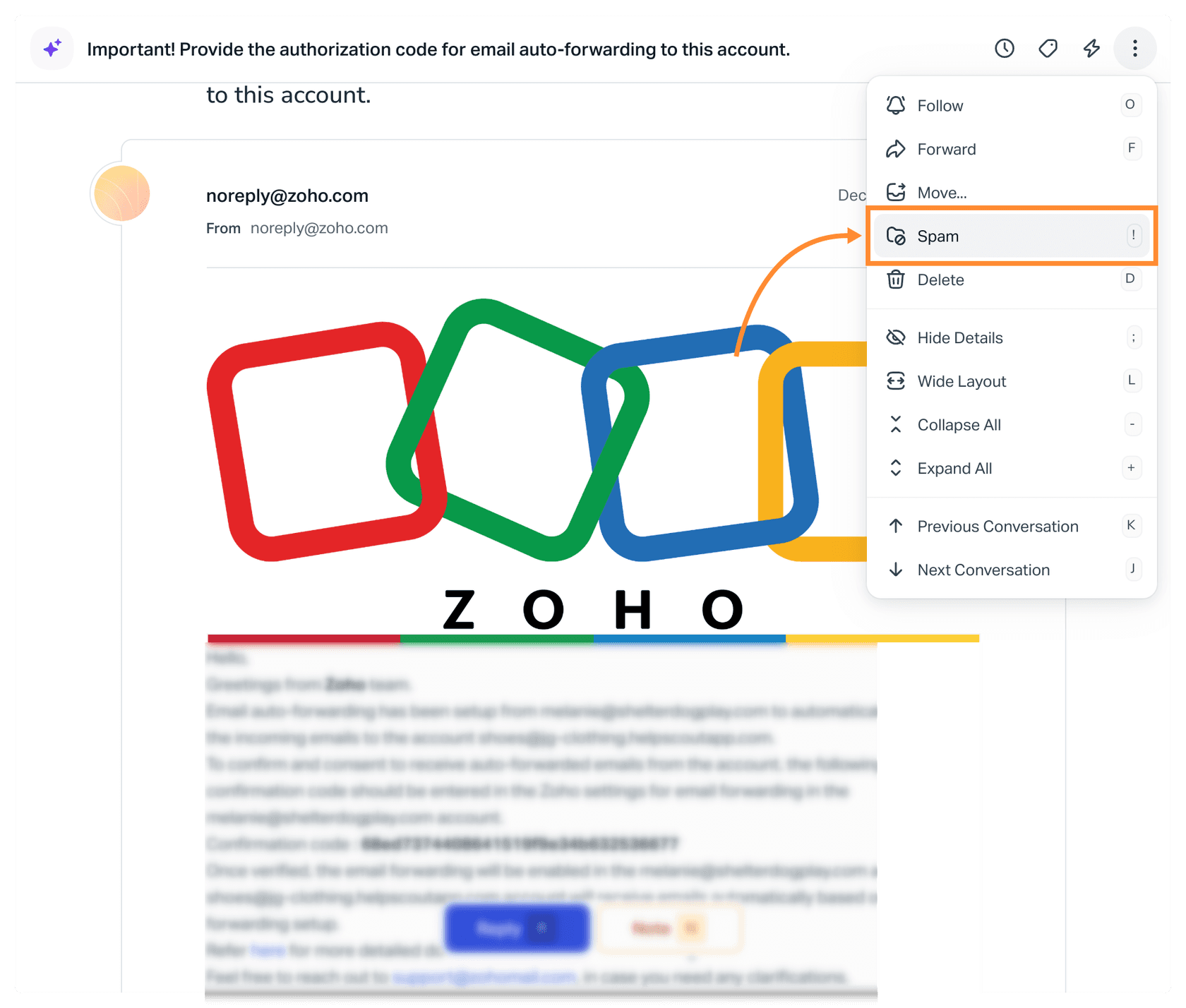
Mark as Spam moves the conversation to the Spam folder and tells the filter to send future conversations from that sender there too. Unmark as Spam does the reverse for that sender. You'll find it under a conversation's More Actions menu, or by pressing !.
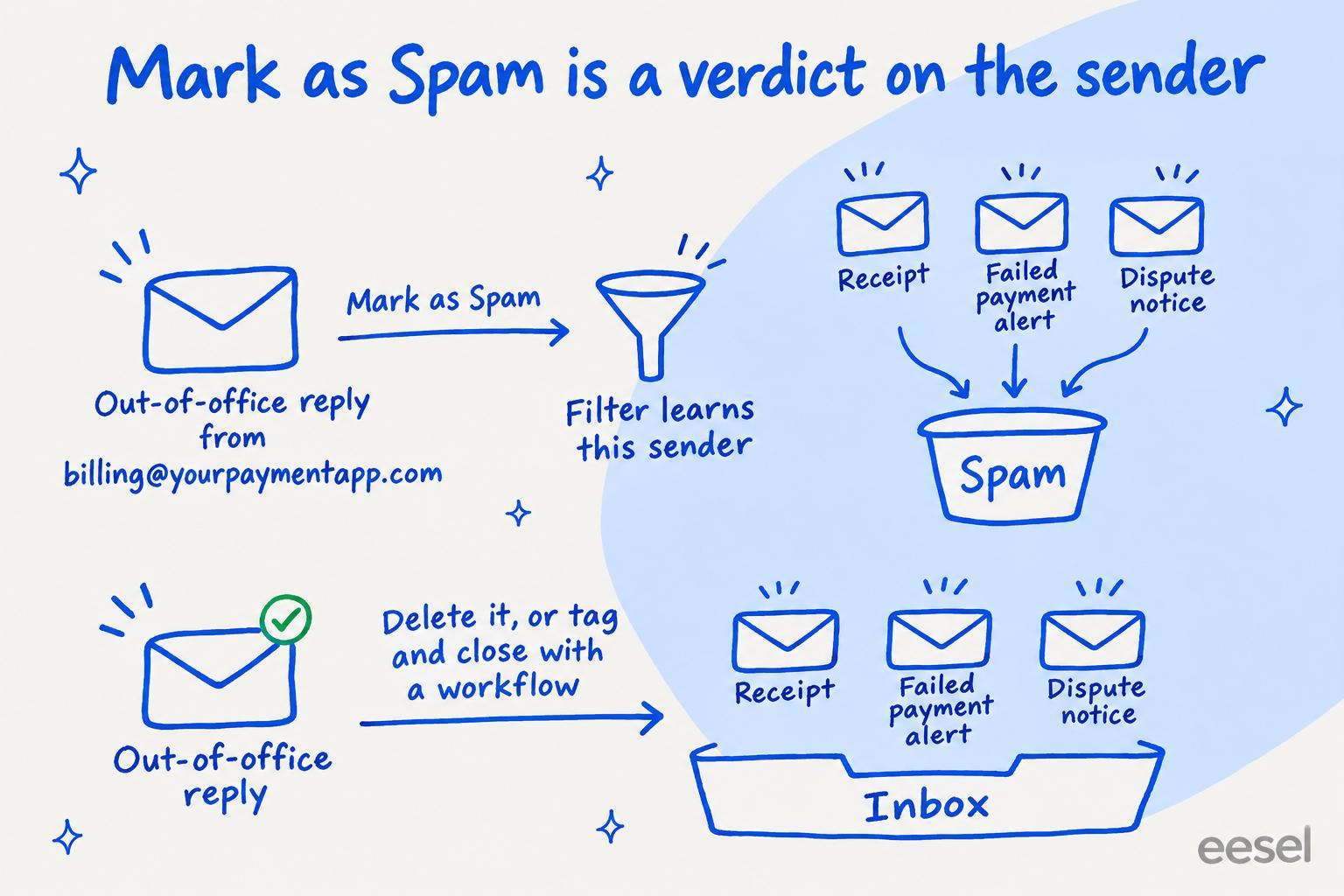
That per-sender learning is why Help Scout's own docs warn against marking mail that isn't really spam. Auto-replies and notifications "will train the spam filter that the sender shouldn't be trusted and the sender can end up blocked." The guide suggests deleting those conversations, or sorting them with a workflow, instead.
In practice, the costly mistake is a tired agent clearing the queue on a Monday. A receipt from your payment provider, a shipping notification, a "your export is ready" email from your own app: none of it needs a reply, so it gets the spam key. The next email from that sender might be a failed payment or a dispute, and it goes straight to a folder that is left out of reports and emptied after 30 days. In my experience the obvious scam emails cost far less time than this kind of mail.
Does Help Scout use AI to filter spam?
Not that its spam docs mention. The spam help article describes a filter that learns from senders and your Allowed and Blocked lists, and it doesn't mention AI. The AI that does read every conversation is Topics, which Help Scout sells as a way to categorize conversations, and you can bend it toward junk.
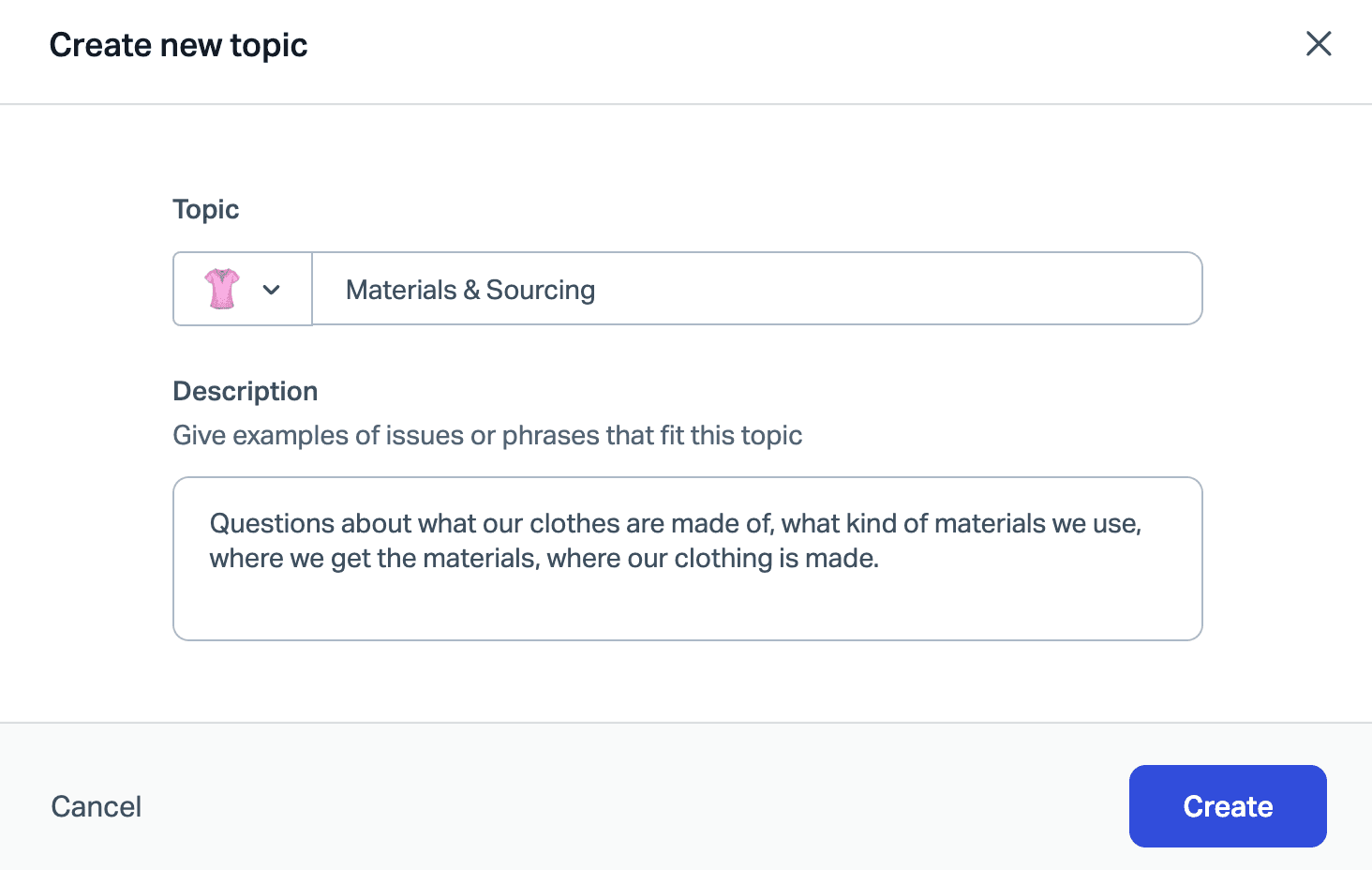
Topics runs per inbox on the Plus and Pro plans (see Help Scout pricing for what else each tier adds). Once an inbox has at least 5 conversations in the last 30 days, the AI creates about 8 to 15 topics from its history, and admins can add their own with a name and a description. So you could add a topic such as "Sales pitches and solicitations" and describe it the way Help Scout's guide recommends: what it covers, two or three examples, and what doesn't belong.
Three limits shape what that topic can do:
- It only labels. During the beta, Help Scout says Topics "can only be used as a condition, not as an action" in a workflow. A workflow with the condition "topic is Sales pitches" can tag, close, move or change status, which is plain ticket tagging and rules. The AI decides the label, and a rule you wrote does everything else.
- Short messages often come back Uncategorized. The AI leaves a conversation Uncategorized when it isn't confident, which "often happens with very short messages, general greetings". A lot of junk is exactly that: a one-line pitch, an empty form submission.
- It's a label, not a verdict on the sender. That's a strength here. A topic doesn't teach the spam filter anything, so tagging and closing on a topic can't block a sender the way Mark as Spam can.
Envoy, Help Scout's AI assistant at $0.75 per resolution, answers customers rather than sorting the inbox, and its pricing doesn't describe any spam handling. For a deeper look at Topics in routing, see Help Scout AI routing.
How do I set up spam handling in Help Scout?
Start with the layers that need no rules, then add workflow automation for the junk that's left. Here's the order I'd follow on a fresh account.
- Check your provider's spam. If you forward from Google Workspace, add the
is:spamfilter with Never send it to Spam so Gmail stops holding back mail Help Scout should judge. - Leave the Auto Reply Filter on. It's under Settings > Company > Content Filtering, and it discards out-of-office replies before they reach the inbox.

- Fill in the Allowed list first. Add the senders you can't afford to lose: your payment provider, your store platform, your biggest customers' domains. Allowed senders never go to Spam automatically, even after someone marks one of their emails as spam. The Blocked list takes the repeat offenders.
- Write a workflow for notifications. Use conditions on Customer Email, Subject or Body (up to 30 per workflow), and actions that Add Tag(s) and Change Status to Closed. A tag keeps the conversation findable, and Closed keeps it in your history, where Spam would drop it from reports. Automatic workflows act only the first time a conversation matches, so they don't loop. Help Scout workflow auto-assignment covers the builder.
- Use Change Status to Spam only for true spam. Help Scout's docs say marking a conversation's status as Spam trains the filter on that sender, and they don't say whether a workflow's status change trains it the same way, so I'd treat it as if it does.
- Turn on CAPTCHA on your web forms. Help Scout says its filter is less likely to catch form spam, because the email's headers identify your form as the source, and marking those conversations as spam won't stop the bots. Help Scout Beacon form fields covers the contact form built into Beacon.
- Check the Spam folder daily. Help Scout's own team says it checks its Spam folder "at least once a day". Unmark anything real, then empty it with the trash can icon, which needs the Delete conversations permission.
What goes wrong with spam in Help Scout?
Most problems come from the filter doing exactly what it was trained to do. These are the ones I'd watch for.
A notification marked as spam blocks its sender
This is the per-sender learning again, and it's the one that bites shared inbox teams most. The fix is quick once you spot it: open the conversation in Spam, choose Unmark as Spam, and add the sender to the Allowed list so the filter can't learn it back.
Spam leaves your reports, then your account
Help Scout states that conversations marked as spam "are not counted in reports", and that the Spam folder is purged 30 days after the last action on a conversation, permanently. Emptying it by hand is permanent too, with no undo. So a real customer email that sat in Spam for a month is gone, and it never showed up in your volume or response-time numbers either.
A workflow delete can't be undone
When a person deletes a conversation, it waits in Recently Deleted for 15 days. When a workflow deletes one, Help Scout's workflow actions list says it "will not appear in Recently Deleted" and is "not recoverable". A Body condition that matches more than you meant will quietly delete real conversations, so I'd tag and close for the first few weeks and only switch to Delete once the tag shows nothing real in it.
Form spam gets past the filter
Because form emails carry your form's headers, they don't look like spam to the filter. The fix is upstream: a CAPTCHA on the form. Inside Help Scout, a workflow on the form's subject line or a Topic can tag and close what gets through.
Provider spam never arrives
If your provider holds an email in its own spam folder, Help Scout never sees it, and nothing in Help Scout tells you. When a customer says they wrote and you can't find it, check the provider's spam before anything else, as Help Scout's troubleshooting checklist suggests.
Which Help Scout setting deals with your junk?
Each kind of junk has a different right answer in Help Scout, and the wrong one usually costs you a sender. Pick what's cluttering your inbox to see which setting handles it.
Pick the kind of junk you see most to find the Help Scout setting that deals with it.
Can an AI teammate sort Help Scout junk?
Yes, and it fills the gap between a filter that learns per sender and a Topic that can only label. eesel joins Help Scout as an AI teammate, and per eesel's Help Scout docs it runs when a customer opens a new conversation or sends a message, reading the conversation's messages, subject, tags and the customer's name and email. Then it does what your instructions say: add tags from your list, close the conversation, leave a private note, assign a person or team, or leave a draft reply for the real ones. It is the same auto-triage step a person does at the top of the queue, written down once.
The instructions are plain words, the same rules you'd give a new hire: "close out-of-office replies, payment receipts and shipping notices with the tag auto-closed; tag sales pitches as pitch and close them; if you're unsure whether it's a customer, leave it open with a note saying why". Instructed to tag and close rather than mark spam, it doesn't train Help Scout's filter against a sender. Each action can run on its own, ask a person first, or stay off (actions and approvals), so I'd keep closes on ask-first for the first week and read its calls, the same way I'd review AI support conversations for anything new. Conversations it shouldn't touch go to a person, as in Help Scout human escalation.
The closest published example is on Gorgias rather than Help Scout. Rúngne, a climbing apparel brand, runs a triage agent where social comments, story mentions, out-of-office replies and spam are tagged and closed, and when in doubt it treats the sender as a real customer and leaves the ticket open. That last rule is the one I'd copy first.
One limit to know: eesel only works the Help Scout mailboxes its connected user can open, and a conversation in any other mailbox never reaches it.
Try eesel next to Help Scout
If most of your Help Scout junk is mail that isn't technically spam (the pattern I see across helpdesks, from Gorgias to the general case), the filter will never be the right tool for it, and a rule for every sender gets long fast. eesel works inside your Help Scout mailboxes as a teammate you instruct in plain words: it closes the noise with a tag you can audit, flags what it's unsure of, and drafts replies to the conversations that need a person. You decide which of those it does alone.
Try eesel on one Help Scout inbox and keep closes on ask-first until you trust its calls.