HubSpot help desk AI ticket tagging: what it sets and what it doesn't

Rama Adi

Katelin Teen
Last edited November 21, 2026

HubSpot's help desk labels tickets with AI in three separate ways, and none of them is a tag. The Category property (Service Hub Enterprise, off by default) reads a ticket's first message, Topics group tickets for reports, and workflow actions can classify any record with credits. I found no HubSpot setting that sets priority with AI. If you want each new message labelled and acted on by rules you write in plain words, an AI agent for HubSpot like eesel can set priority and properties.
With the eesel CLI, an AI coding agent can load your ticket categories, ask test tickets and check the labels before anything goes live. Connecting HubSpot still needs an admin to approve it.
What does HubSpot's help desk actually tag?
It sets four kinds of label for ticket tagging, each in a different place and on a different plan. I work on eesel's integrations, so I read HubSpot's property docs the way someone who writes to those fields does: which field gets the label, who can read it, and what happens when it is wrong. The short version is that "AI ticket tagging" in HubSpot is really a set of separate tools that share a word.
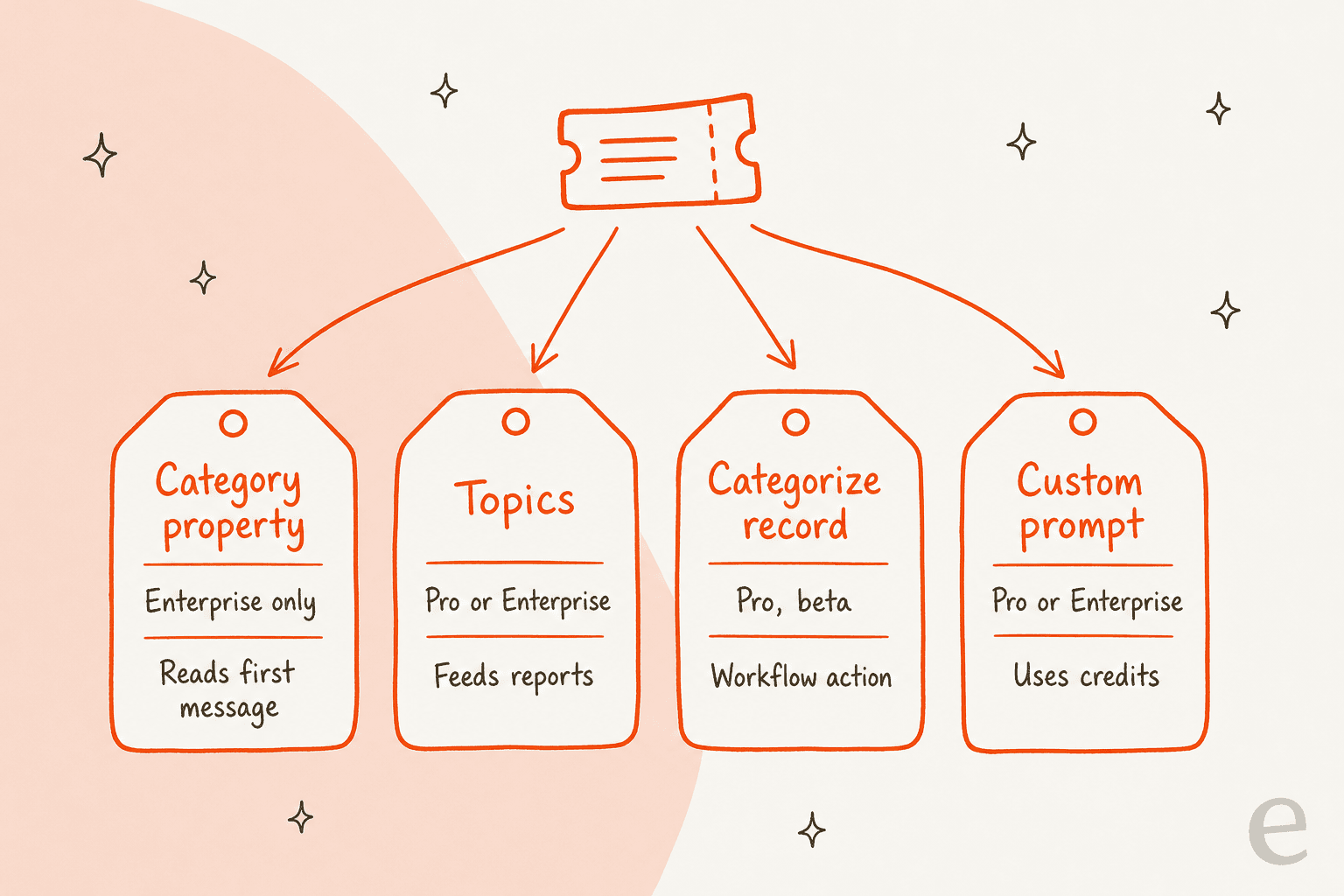
| Option | Where you switch it on | Plan in HubSpot's docs | What it labels | Credits in the docs |
|---|---|---|---|---|
| Category property | Settings > Inbox & Help Desk > Help Desk > AI tools | Service Hub Enterprise | The main reason for contact, from the first message | Not mentioned |
| Language property | Filled in automatically | Service Hub Enterprise | The language of the customer's messages | Not mentioned |
| Topics | Settings > Data Management > Topics | Service Hub Professional or Enterprise seat | Themes across tickets, with a primary topic | Not mentioned |
| Categorize record (beta) | Agent Hub workflows | Service Hub Professional | Records, into categories you write, with a Confidence score | Credits required for certain features |
| Data Agent: Custom prompt | Workflows | Service Hub Professional or Enterprise | Anything your prompt asks for | Uses credits |
HubSpot documents these in its default ticket properties, Topics article, Categorize record article and AI actions article. Routing the labelled ticket to the right person is a separate step, covered in HubSpot ticket routing.
How does the HubSpot Category property work?
It fills one ticket property, Category, from the first message of the ticket, and it is off until you turn it on. HubSpot's default ticket properties article describes Category as the main reason the customer reached out, set by AI "based on both default and custom options". The setting is called Category identification, under Settings > Inbox & Help Desk > Help Desk > AI tools, and the article says it is off by default.
A few details decide whether it fits you:
- Enterprise only. The same article says a Service Hub Enterprise subscription is required for the Category and Language properties. HubSpot's product team said at launch that it needs no paid Enterprise seat, only an Enterprise account, in a community thread about the February 2025 public beta.
- First message only. A customer who opens with "quick question" and reveals a billing dispute in message three is labelled by the quick question.
- Four default options. HubSpot's ticket object reference lists Product issue, Billing issue, Feature request and General inquiry. You can edit the list, and the model "learns from that training action" when someone changes a value, but the docs don't say how many corrections it takes to notice or how to see its accuracy.
- Language comes with it. The Language property is filled by AI from the customer's messages. HubSpot says it "may be incorrect and can be manually edited", and its help desk use-case page says no extra step is needed to turn it on.
HubSpot positions Category as a reporting field, to "identify trends in support ticket topics". That is a fair use. The gap shows up when a team wants the label to do something. Back in 2022 a community member put the original request this way:
"Is there a way to set up keywords for the system to scan for? I'd want it to work like this; if a ticket comes in and has one of those keywords it gets put into a category."
Category answers part of that. It uses AI instead of keywords, and you can branch a workflow on it. What it doesn't give you is control over the logic: you can edit the options, but not tell it that a mention of cancelling beats everything else.
What are HubSpot Topics, and are they tags?
Topics are AI-detected themes tracked across tickets and conversations, built for reporting rather than for sorting. HubSpot's Topics article says they "automatically classify recurring themes" and are available with a Service Hub Professional or Enterprise seat. You switch on Topic tracking under Settings > Data Management > Topics.

There are nine default topic areas: Billing & Payments, Account, Access & Permissions, Subscription & Plan Changes, Bug Report, How-To, Setup & Onboarding, Outage & Service Disruption, Cancellation Request, Feature Request and Other Inquiry. You can add your own topics with a name and a description, nested under a group. Two behaviours are worth knowing before you build on them:
- One ticket, several topics, one primary. Default reports count each ticket once, under its primary topic. HubSpot's custom reports also expose "All topics mentioned", and the article warns that adding those counts up double counts on purpose.
- Some tickets get none. A manually created ticket with no conversation, an automated message or a very recent conversation has no topic, and topics are unavailable for accounts with sensitive data turned on.
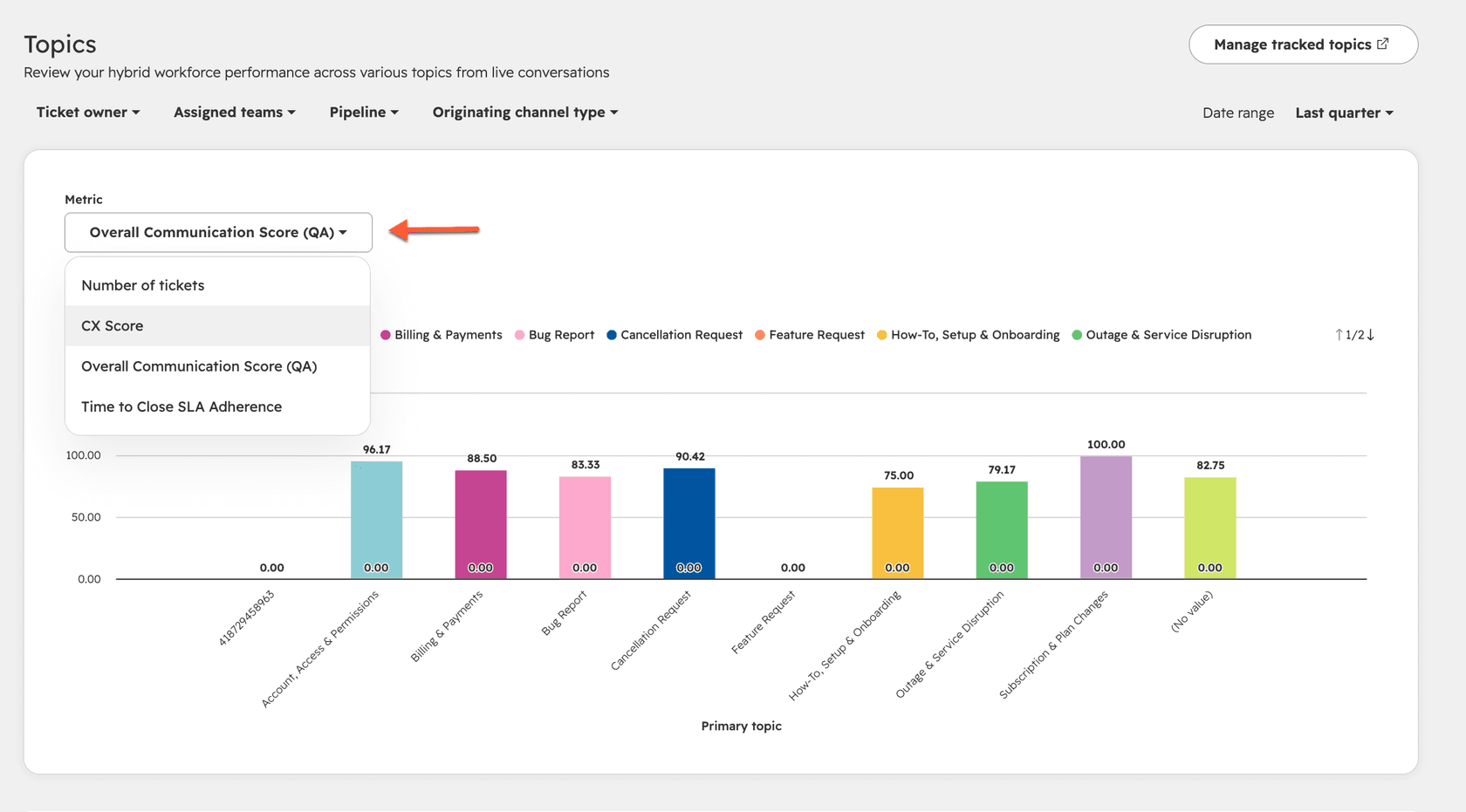
The report is the point: a support manager can see, say, that billing tickets score lower on CX than how-to tickets and know where to coach. HubSpot's own example is a manager who spots a rise in Account, Access & Permissions tickets and rewrites the team's setup instructions. What the articles I read don't describe is using a topic as a workflow trigger or a custom view filter, so I'd treat Topics as the dashboard and Category as the field.
Can a HubSpot workflow classify tickets with AI?
Yes, with two actions, and this is where HubSpot gets flexible. Both live in workflows, both need credits, and both leave the follow-up to you, as in any support workflow.
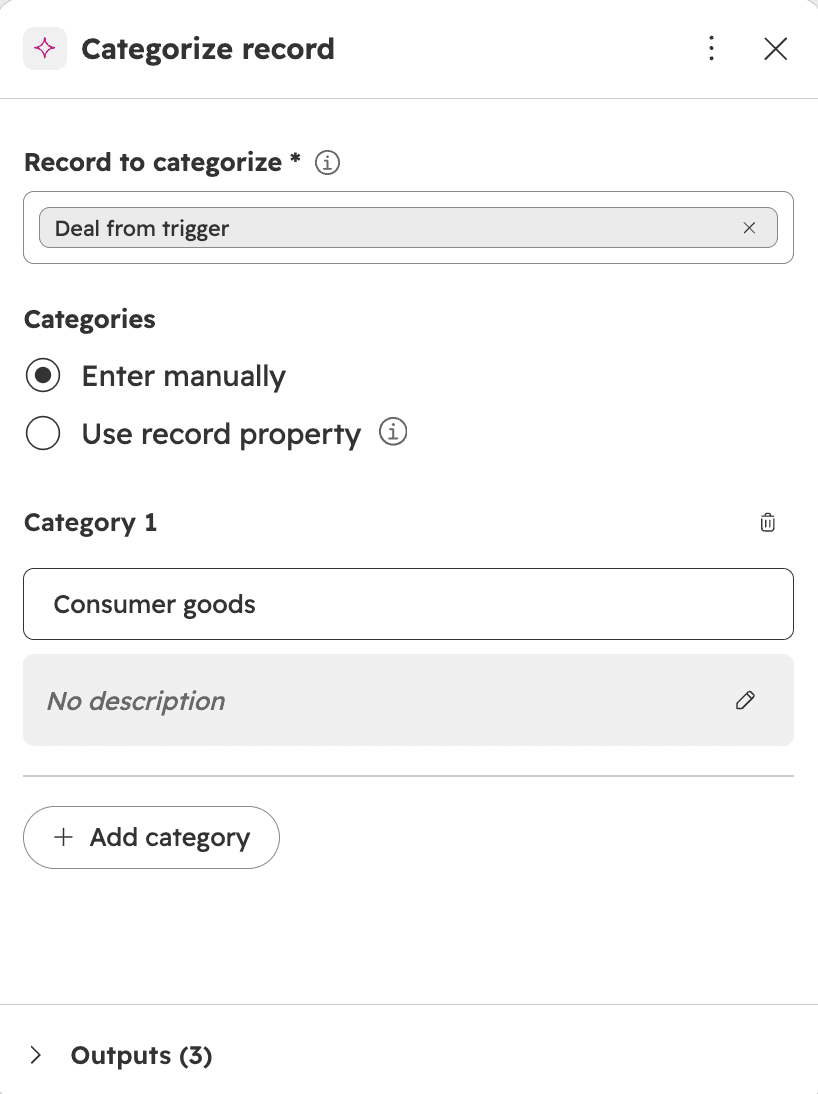
Categorize record is a beta action in Agent Hub workflows. HubSpot's Categorize record article says you define categories by name and an optional description, or reuse the options of an existing dropdown property, and records are assigned "based on the category name and description". It returns two outputs, Category and Confidence (a confidence score), and HubSpot recommends adding Confidence as an extra AND filter, for example updating a record only when it is at least 0.85.
Data Agent: Custom prompt is the open-ended one. HubSpot's AI actions article says you write a prompt of up to 3,000 characters, and the model sees only the data you put in it, not the record's other properties or recent emails. You can define an enumeration output so the answer is one of your values, then use an Edit record action to write it to a property. If the account runs out of credits the action "will fail and result in null values", so a ticket can quietly go unlabelled. The Data Agent's smart properties work for tickets too, but only update when the workflow action runs and spend credits on every fill.
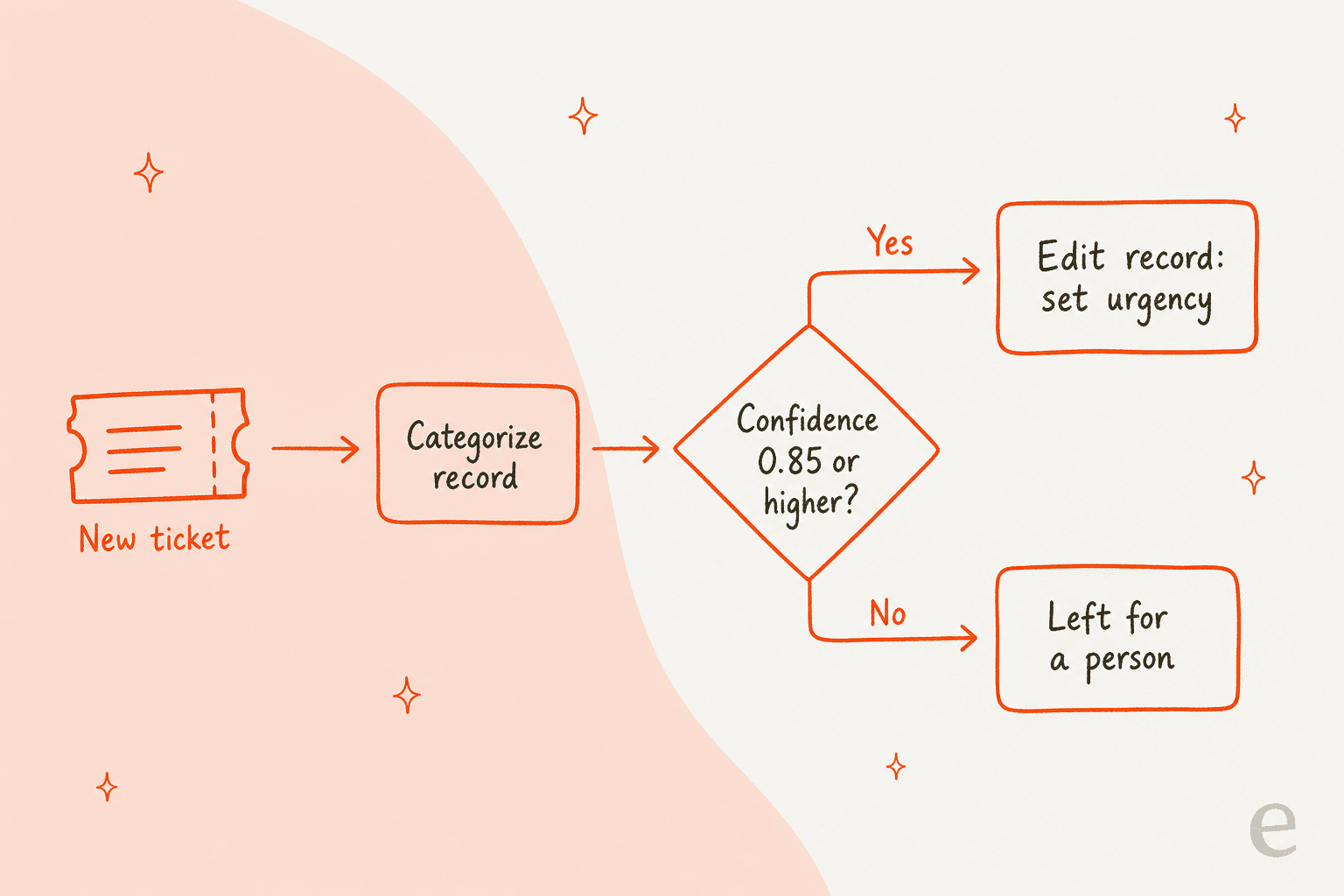
My advice if you build this: write each category description as if briefing a new hire, not as a label. "Customer wants to cancel or is comparing us to a competitor" gives the model something to match; "Churn" does not. And send low-confidence tickets to a person rather than to a default value, since a wrong label that looks confident is worse than a blank one. HubSpot's prompted actions and Data Agent guides cover the wider toolkit.
Does HubSpot set ticket priority with AI?
I found no HubSpot article saying it does. The ticket object reference defines Priority only as "the level of attention needed on the ticket", and the Category property's AI behaviour is documented separately. HubSpot's Categorize record page names urgency as an example of what to update with the Edit record action, so the supported route is a workflow you assemble: classify, check Confidence, then set the property.
That matters because priority is the label that changes what a rep does next, and it is the one HubSpot leaves to you. It is also what SLA goals and skill matching key off, as does skills-based routing, which HubSpot's pricing page lists on Enterprise. HubSpot's customer agent can update CRM properties during a chat, but its CRM-data article says it can only access or update contact properties for now, so it doesn't fill ticket fields either.
Which HubSpot tagging option should you use?
Pick by what you want the label to do. Choose a goal below.
How much does HubSpot AI ticket tagging cost?
The features carry no separate price in the articles I read, so the cost is the plan that unlocks each one. On HubSpot's Service Hub pricing page, Professional is $90 per seat per month on annual billing ($100 pay monthly) with a required one-time $1,500 onboarding fee, and Enterprise is $150 per seat per month with a $3,500 onboarding fee. The page lists 3,000 HubSpot Credits with Professional and 5,000 with Enterprise.
| 10-seat team | Monthly seats | One-time onboarding | Unlocks |
|---|---|---|---|
| Professional | $900 (annual rate) | $1,500 | Topics, Categorize record, Data Agent actions |
| Enterprise | $1,500 | $3,500 | Category and Language properties, plus the above |
So the AI-set ticket properties HubSpot ships cost about $600 more a month for ten seats than the plan that already has Topics and the workflow actions, before any credits are spent. HubSpot pricing and Service Hub AI's value cover the rest of the bill.
Where does HubSpot ticket tagging fall short?
- Nothing sets priority for you. The documented route is a workflow you build and maintain.
- Category reads one message. It labels from the first message, so a ticket that turns into a cancellation stays a general inquiry.
- The best option is Enterprise only. Professional teams get Topics for reports and credit-based workflow actions, not the Category field.
- Accuracy isn't reported. I found no screen showing how often Category was right or how often a rep changed it, so you would have to count corrections yourself.
- Blank can look like done. A custom prompt with no credits returns null values, and a ticket with no conversation gets no topic. The ticket automation review looks at the same gaps.
A HubSpot Community member asking for Breeze to edit properties by language described the same wish from the other side:
"Could it be possible for the AI to help categorize tickets and edit properties in a ticket (forexample a language property) for better categorization and delegation if tickets internally?"
HubSpot's Language property is the answer to the first half of that, and Category to the second. Neither changes a different property because of what the AI read, which is what this member was after. Only a workflow you build does that.
Where does eesel fit?
eesel is an AI teammate that works inside HubSpot Service Hub, one of the options in best AI for HubSpot. Every time a customer writes it reads the whole conversation (up to the newest 100 messages) and the ticket's priority, category, owner and stage, as its HubSpot docs describe. It can then change a ticket's priority, or other properties such as category and your own custom ones, and it lists the options of HubSpot's own properties first so it sets values that exist rather than guessing.
That is the difference from a classifier: the rule is yours, in plain words. "If the customer mentions cancelling, a lawyer or a review, set priority to high and leave a note for the support lead. If it is a how-to question the help center answers, label it that and answer fast." It reads the whole thread each time, not only the first message, and you can set every HubSpot action to On, Ask first or Off, so a week of internal notes shows its labels before it changes a field, much like HubSpot's own batch testing for its customer agent. The AI ticket classification guide and auto-triage explain the approach.
MentorShow works entirely in HubSpot Service Hub and told us it gets 5,000 to 13,000 tickets a month. In one month (8 August to 8 September 2026) eesel read about 1,200 of its HubSpot conversations and tickets and wrote 432 reply drafts, each with an analysis, in the member's language. Its instructions name nine kinds of ticket to leave alone, such as PayPal notices, out of office replies and survey responses, and escalate refunds and legal threats to a person. Its optional lane to categorise and close six simple topics is barely used today, so MentorShow is a story about drafts and judgement, not automatic labelling.
On cost, eesel's pricing page starts at $299 a month for 500 credits, where one ticket is one credit however much the agent does inside it, including updating another tool. That is a flat price for the labelling and the draft together, rather than seats plus credits.
Try eesel next to your HubSpot help desk
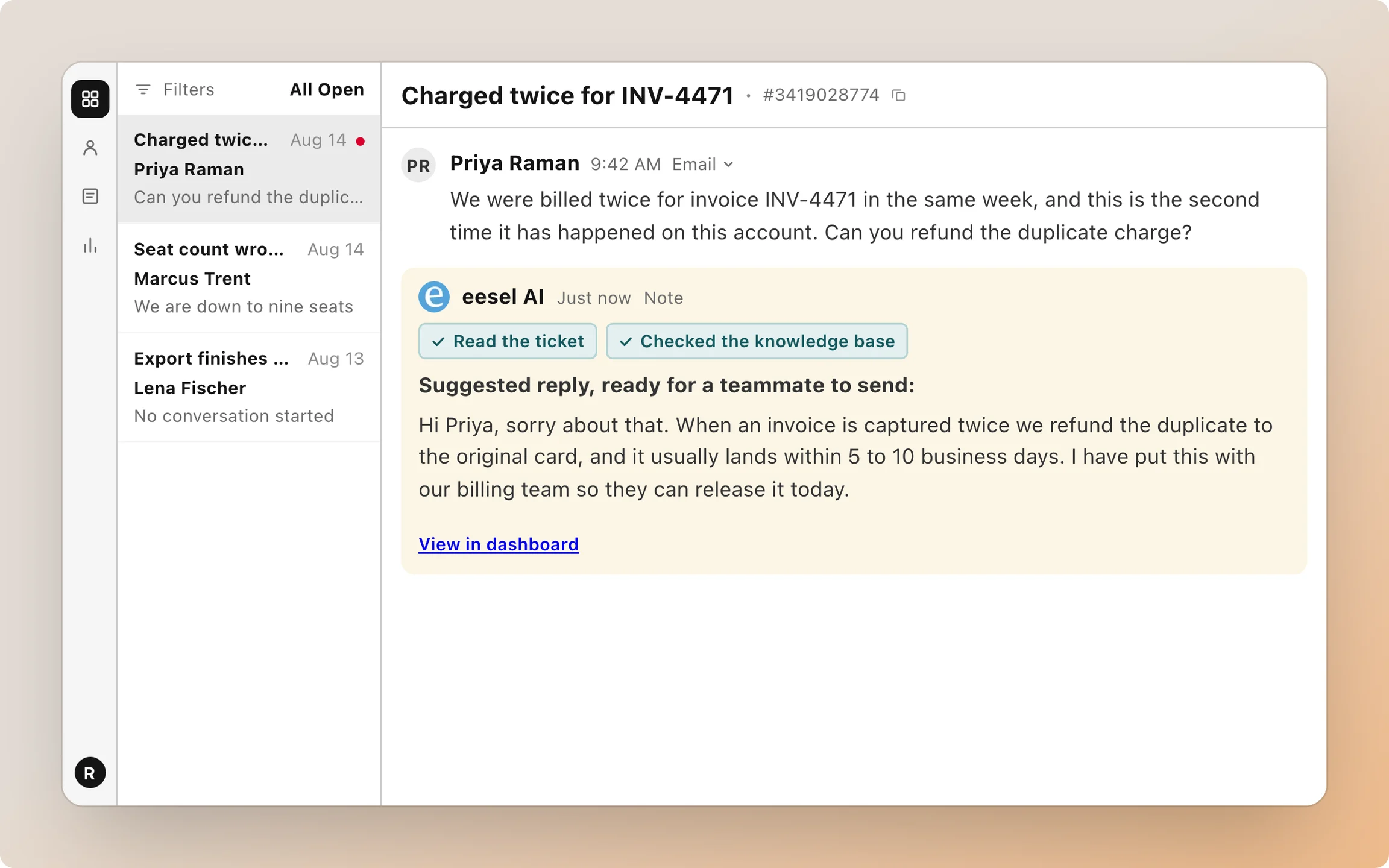
Keep HubSpot's Topics report for the manager's view and, if you are on Enterprise, switch Category identification on to see how it does on a week of real tickets. For the labels that have to change what happens next, give the decision to something that reads the whole thread. Start with internal notes, compare its labels with your reps' for a week, then let it set priority. See also reviewing AI conversations and AI agent observability for how to audit it.
Try eesel on a copy of your category list and see which tickets it would have labelled differently from your reps.