HubSpot help desk capacity limits: how they work and what counts

Kira

Katelin Teen
Last edited November 8, 2026
HubSpot help desk capacity limits are a cap on open tickets per agent that automatic routing respects. Once an agent hits the cap, new tickets skip them and go to the next available person, or stay unassigned if everyone is full. You need Service Hub Professional or Enterprise plus a Service Seat per limited user, and you can cap total tickets or split the cap by calling, messaging, and email. The docs don't state a maximum number, a daily quota, or how limits interact with skills, so I'd test those in a trial portal. eesel reads each ticket and leaves an internal note, so whoever receives the next ticket starts with context. With the eesel CLI, an AI coding agent can upload your approved routing policy as knowledge and test the answers before anything goes live.
What are capacity limits in the HubSpot help desk?
A capacity limit is the maximum number of open tickets one agent can be assigned automatically. HubSpot's capacity limits article, last updated September 9, 2026, says that once a user reaches the limit they stop receiving tickets from automatic assignment, and that this also applies to tickets assigned through workflows. Managers can still assign a ticket by hand, and agents see both their current count and their limit.
I haven't built this in a live HubSpot account. Everything below comes from HubSpot's own pages, plus a few community requests that show where the edges are, and I flag every place the docs say nothing. I read routing rules the way I read a spec: the interesting part is what the system does when its inputs run out. Here the input that runs out is agents under their cap. If you want the wider workspace first, my HubSpot review and HubSpot customer service software guides go broader.
Which plan, seat, and permission do you need?
You need Service Hub Professional or Enterprise, a Service Seat for every user you want to limit, and either Super Admin or the Add and edit users permission to set the limits. All three come straight from HubSpot's article, which also marks the feature as "Seats required".
| Item | What HubSpot says | Price per HubSpot |
|---|---|---|
| Help desk ticket capacity | Service Hub Professional, Enterprise. Service Seat required | $90 (Pro) or $150 (Enterprise) per seat per month |
| Who can set limits | Super Admin, or Add and edit users | n/a |
| Chat capacity in the conversations inbox | Service Hub Enterprise. Super Admin required | $150 per seat per month |
Source: HubSpot Service Hub pricing, which also lists a required one-time onboarding fee of $1,500 for Professional and $3,500 for Enterprise. My HubSpot pricing post explains how seats change the bill. The seat rule has a side effect: routing rules can only include users with a Service Seat, so an agent without one never enters the rotation, capacity or not.
How does routing use capacity?
Automatic assignment gives the ticket to an available user who has the fewest open tickets of the same type, and capacity is a filter on that pool. HubSpot's routing article, updated October 27, 2026, defines three ticket types: Calling (active calls), Messaging (live chat and custom channels), and Email/Other (email, forms, workflows, API). Availability comes from working hours, out of office hours, or a manual setting, and the Assign to available users only checkbox is on by default.
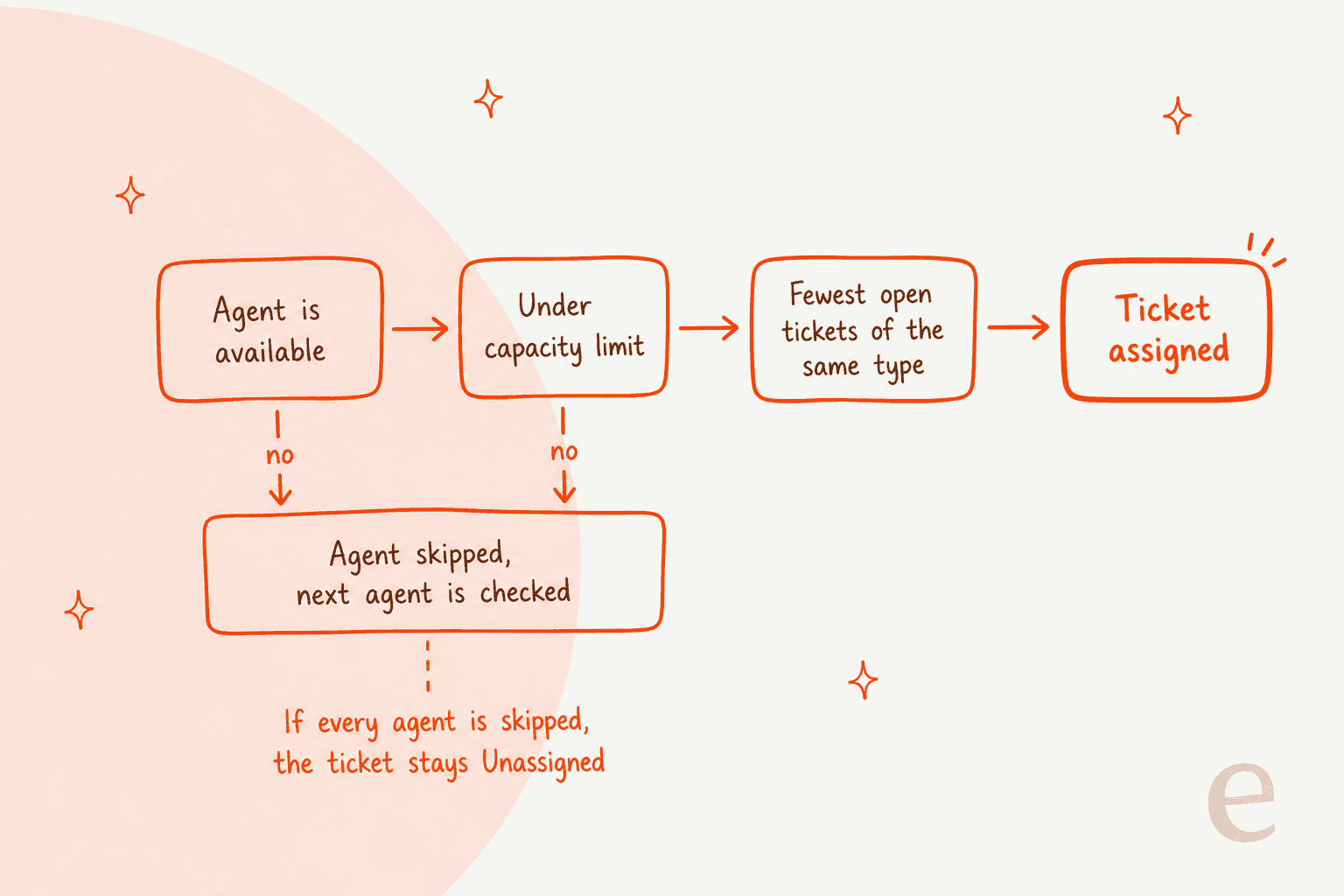
Distribution has three modes: Load Balanced (fewest open tickets), Round Robin, and Random. HubSpot doesn't spell out whether capacity applies in all three, though its capacity article says users at their limit are excluded from automatic assignment for help desk tickets. Load Balanced is the mode where the two ideas feel natural together, and it is the one I'd start with. For the contact-owner option, HubSpot says that if the owner is unavailable, at capacity, or ineligible, the ticket follows your fallback rule. My AI ticket routing guide covers where AI can pick up the slack.
The audit trail is the part I'd show a manager. Open a ticket, expand Ticket activity, click Assignment details, and HubSpot shows Routing Rule, User Availability, Capacity Check, and Assignment sections. When someone asks why a ticket skipped them, that is where you look.
Which tickets count toward a limit?
Only open help desk tickets owned by that user count. HubSpot's capacity article says limits are based on the Ticket owner property and apply only to help desk tickets in an Open status. Tickets assigned to the user from a channel not connected to help desk don't count, and the routing article adds that only open help desk tickets assigned within the last 30 days are counted.
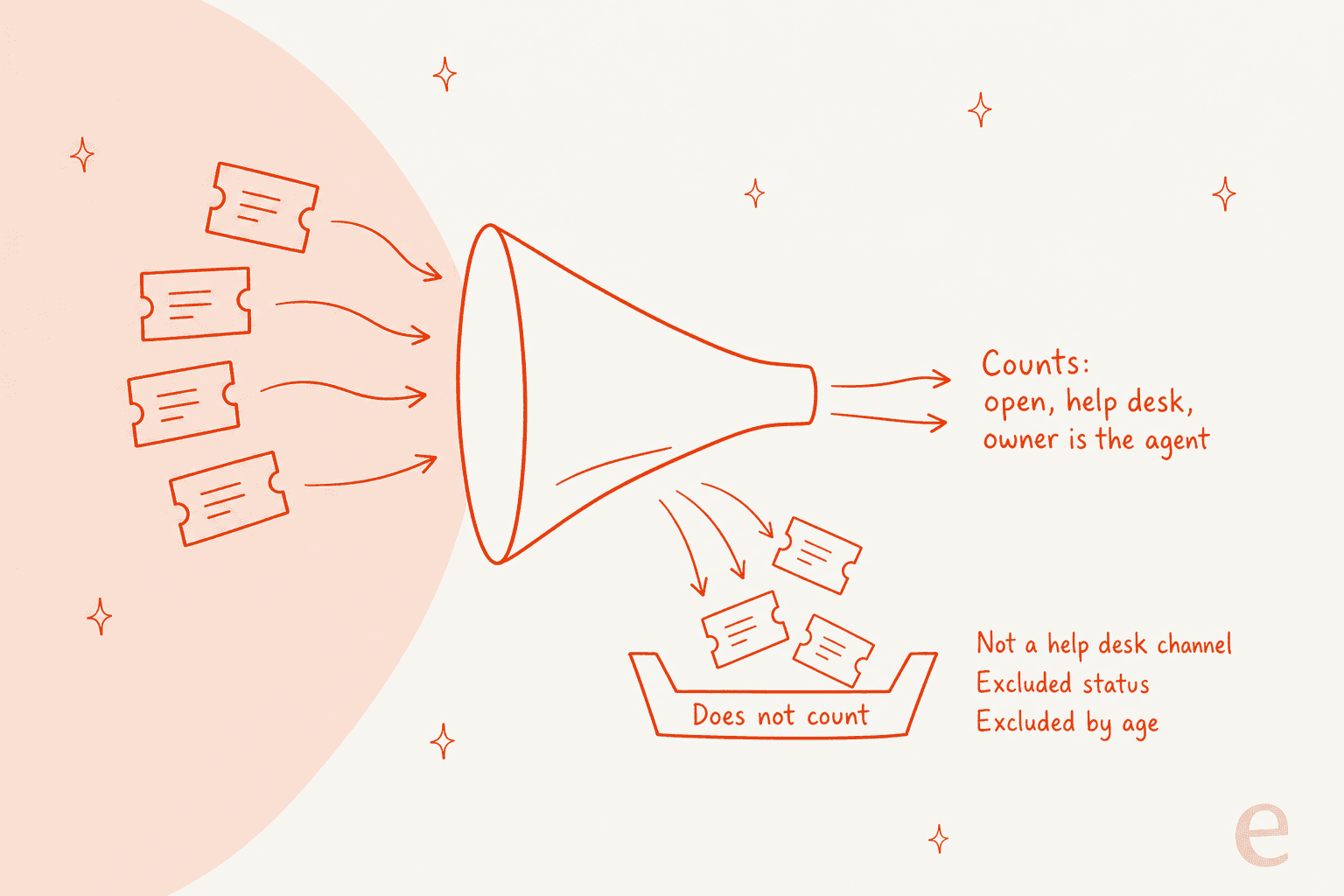
You then tune the count on the Exclusions tab, which is the setting I'd open first. HubSpot lets you exclude tickets by age and by status:
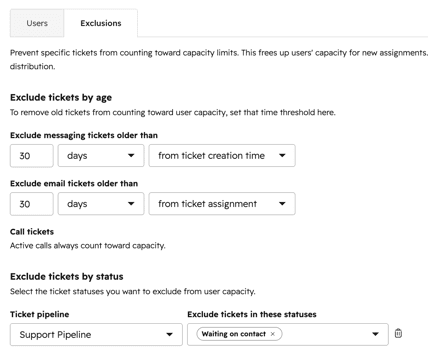
The screenshot shows messaging tickets aged from creation, email tickets aged from assignment, and a per-pipeline status exclusion such as Waiting on contact. It also carries a line that active calls always count toward capacity. If you skip exclusions, a ticket parked while you wait on a customer still uses a slot. That is the quiet way a capacity limit turns into a bottleneck.
Should you cap total tickets or tickets per channel?
HubSpot gives two capacity types, and the per-channel one is the more precise. Total ticket capacity is one number across everything. Capacity by channel splits into three limits: a Calling limit that can only be 0 or 1, a Messaging limit for live chat, WhatsApp, Facebook, and custom channels, and an Email and other sources limit for emails, forms, and tickets without a defined channel.
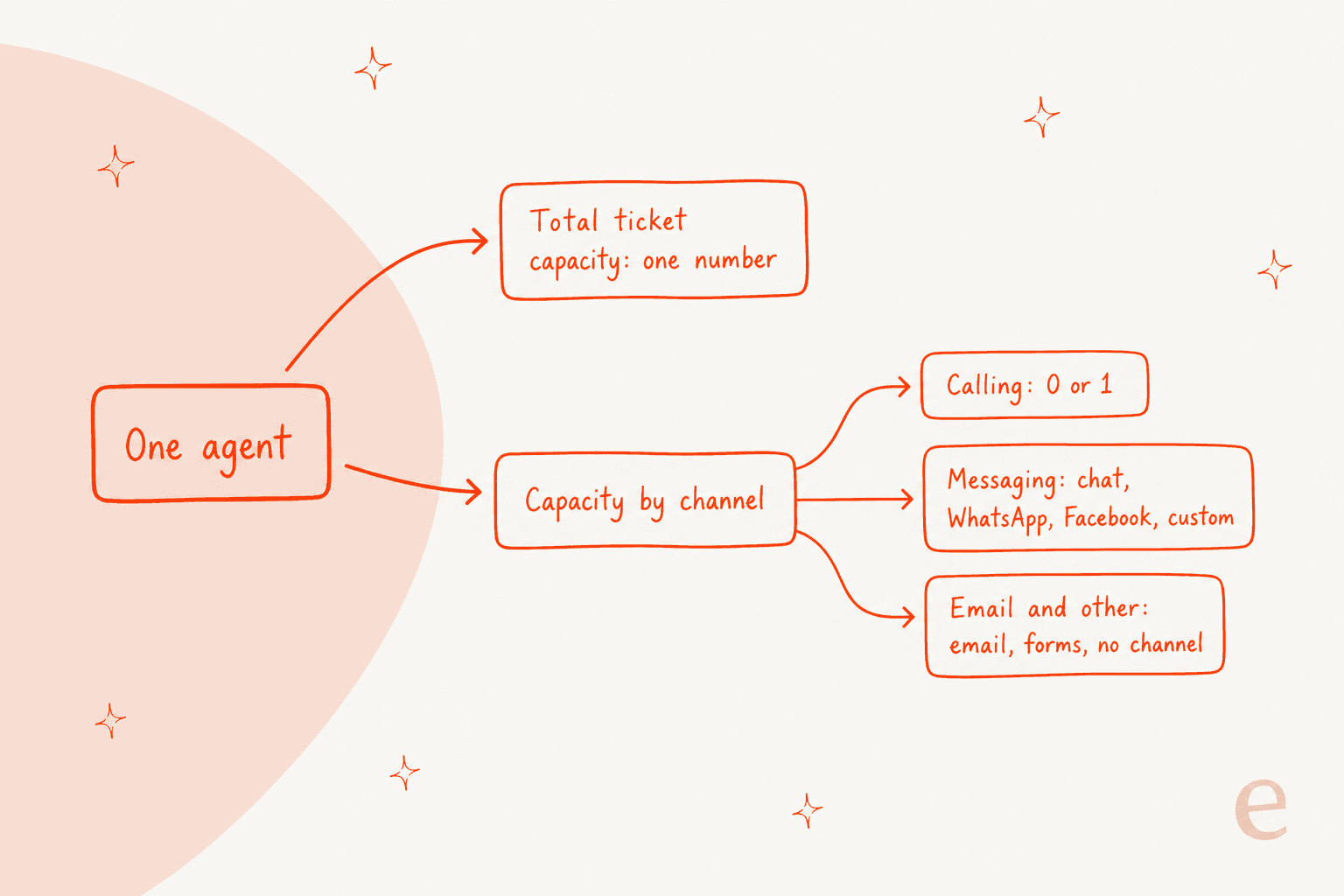
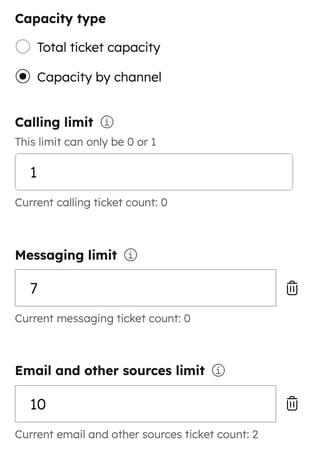
My take: per-channel limits fit any team that mixes chat with email, because a chat is real-time and an email can wait. One total number of 20 treats them as equal, so an agent can fill up on slow email and then get no live chats. The calling limit being 0 or 1 also tells you HubSpot assumes one call at a time, which matches how phones work.
How do you set capacity limits, step by step?
You set them from settings, one user or many at a time. HubSpot's steps:
- Click the settings icon, then go to Inbox & Help Desk > Help Desk.
- In Ticket sources and routing, click Ticket Capacity.
- Hover over a user and click Edit capacity.
- Pick Total ticket capacity or Capacity by channel, click Add limit, and enter the numbers. The current ticket count shows beside each field.
- Click Save.
To edit several people, tick their checkboxes and click Edit capacity at the top of the table. To remove limits, click the delete icon next to a limit, or select users and click Delete capacity. Then open the Exclusions tab and set the age and status rules, and check your channel's routing tab so Assign to available users only matches what you want.
What happens when everyone is at capacity?
The ticket waits in the Unassigned view until a person assigns it. HubSpot's article is blunt about it: tickets route to the next available user, and if all target users are at capacity the ticket remains unassigned until manually assigned. Nothing in the pages I read says HubSpot reassigns it on its own when someone drops below their limit.
Live chat adds a visible behavior. In a chat channel's Availability tab, the Max capacity tab lets you choose what visitors see when all agents are full: show a wait message, hide the chat launcher, or do nothing. If you configured the Away behavior too, HubSpot says the Away setting takes precedence when agents are both away and at capacity.
Try the picker below to see what happens to the next ticket in each situation.
The next ticket arrives and...
What does the chat capacity limit do differently?
Chat in the conversations inbox has its own setting, and it is Enterprise only. HubSpot's chat capacity article (updated July 31, 2026) says a Super Admin turns it on under Account Defaults > User Defaults. The default is three active chats, and you can set up to 99. A chat counts as active when it is open, assigned to the agent, from a connected chat channel, and has had a message in the last 30 minutes.
When an agent hits the limit, their green availability dot becomes a warning triangle and they stop receiving new chats. HubSpot splits the two worlds clearly: chat limits apply to channels connected to the inbox, and ticket limits apply to channels connected to help desk. If your team uses both, you manage two sets of numbers. My multi-channel help desk guide covers how to keep channels from fighting over the same agents.
What are people asking HubSpot to add?
Community requests show where the built-in limit stops. A September 2023 HubSpot Ideas post asked for overflow routing:
"if A and B users are part of a round robin ticket workflow and they both reach 15 tickets in their queue. Then, the overflow tickets are routed to C user instead once both A & B reach the set maximum limit."
A November 2024 post asked for a daily quota instead:
"our team have a goal to solved 120 tickets per day. But that’s the limit per person."
Both posts predate the current documentation, and I can't tell from the docs when capacity limits launched, so read them as demand rather than a current complaint. The second one is the useful contrast. HubSpot's limit counts open tickets at once, not tickets per day, so a team with a daily goal still needs another way to pace work. The first one is nearly the documented behavior today, with one open question: whether an overflow target can be named.
What does HubSpot's documentation leave out?
Quite a lot for a feature that touches every assignment. This is the list I'd turn into a test checklist for a trial portal.
| Question | What the docs say |
|---|---|
| Maximum value for a ticket limit? | Not stated for tickets (chat max is 99) |
| Daily or weekly quotas? | Not documented. Limit is open tickets at a time |
| Do limits differ by plan? | Pro and Enterprise listed together, no per-tier numbers |
| Does capacity apply in Round Robin and Random? | Capacity article says limited users are excluded, modes not broken out |
| Order between skills and capacity? | Both appear in Assignment details, order not stated |
| Do customer agent (AI) tickets count? | Not stated |
| Does an unassigned ticket auto-assign when capacity frees up? | Docs say manual assignment, nothing on automatic retry |
| Priority or complexity weighting? | Not documented. Every ticket counts as one |
| Reporting on capacity use? | Not documented in the pages I read |
| API access to capacity settings? | Not documented in the pages I read |
How would I pick the numbers?
I'd start loose, exclude parked tickets, and tighten after a week. These are my suggestions, not HubSpot guidance.
- Set exclusions first. Exclude the waiting statuses in each pipeline before you set any limit, or the count lies.
- Use per-channel limits if you take chat. Keep the Messaging limit lower than the Email limit, because chats need attention now.
- Start from current load. The panel shows each agent's current count, so set limits a little above what your best agent carries on a normal day.
- Watch the Unassigned view. A limit set too low pushes work there, and HubSpot won't push it back.
- Check Assignment details on five tickets. Confirm the Capacity Check section says what you expect before you roll out to everyone.
- Pair limits with views. A saved view for unassigned and nearly-full agents is the manager's dashboard. My custom views guide shows how.
For wider context, my guides on help desk management, customer service team structure, and customer service KPIs cover what to measure, and the SLA best practices post explains why a stuck unassigned ticket is an SLA risk. If tickets arrive as duplicates or two issues in one, see ticket deduplication, ticket splitting, and ticket merging, since each changes what a ticket count means.
Where does AI fit next to capacity limits?
Capacity limits decide who gets the next ticket, and AI decides how much work that ticket takes. They solve different parts of the same problem. eesel's documented HubSpot actions are replying, adding internal comments, creating tickets, changing priority, and updating ticket titles and descriptions (eesel HubSpot docs). I haven't seen a documented eesel action that edits capacity settings, so those stay with your admins.
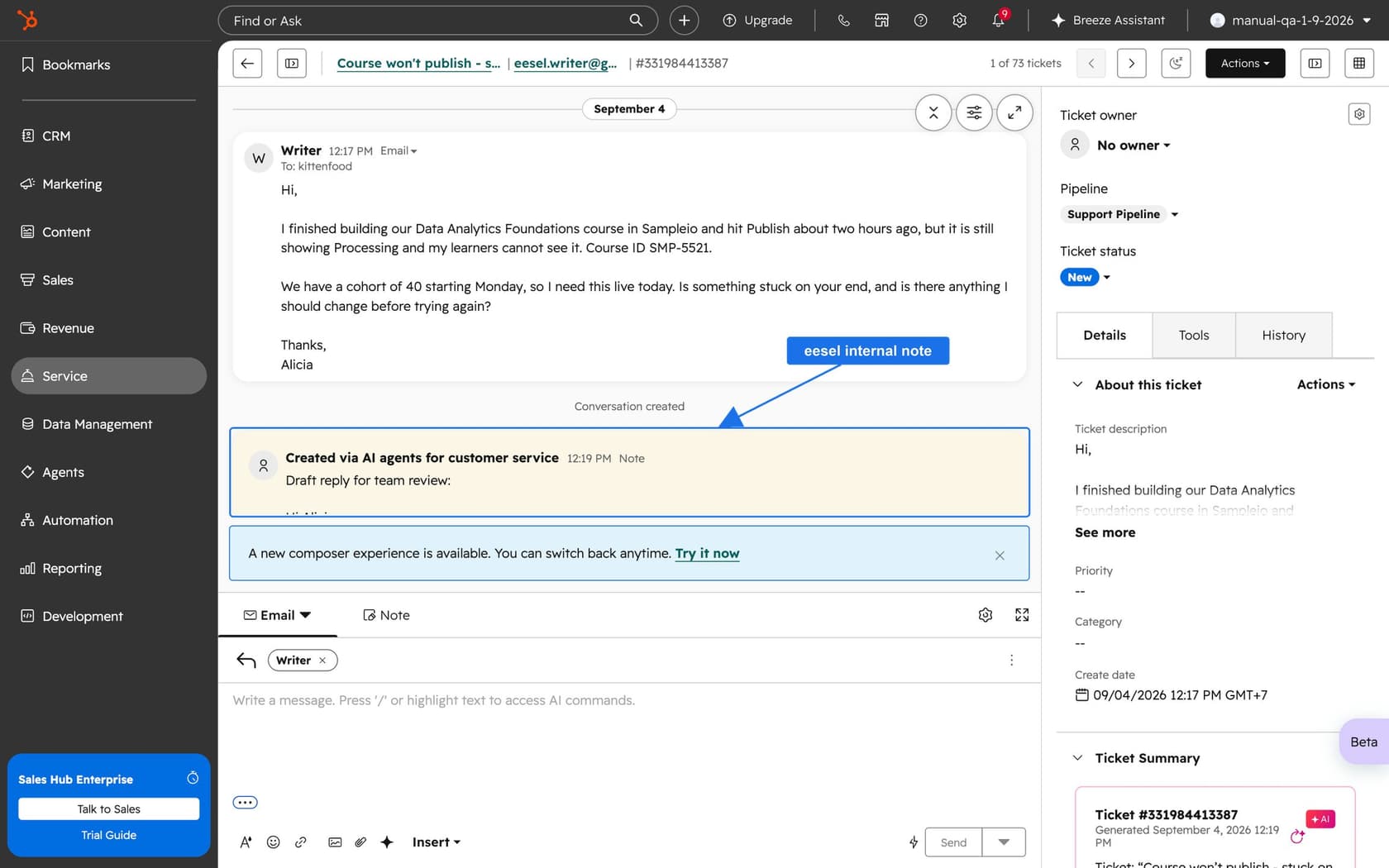
MentorShow, a French online learning platform, runs its whole support team inside HubSpot and gets between 5,000 and 13,000 tickets a month depending on the period. Every new customer message triggers eesel, which reads the thread and the member's HubSpot record, then leaves an internal note with an analysis and a draft reply. It skips nine kinds of ticket on purpose, such as PayPal notices and out of office replies, and it hands refunds and billing checks straight to a person. Between 8 August and 8 September 2026 it read about 1,200 HubSpot items and wrote 432 drafts, and a person reads, edits, and sends every one.
That pairs well with a cap. A ticket that arrives with an analysis and a draft takes less of an agent's slot time, so the same limit can cover more work. That link is my reasoning, not a HubSpot or eesel feature. My guides to AI for HubSpot Service Hub, HubSpot AI alternatives, and the best AI for HubSpot compare the options. For the AI side of HubSpot itself, see Breeze escalation guardrails, the Breeze customer agent, and ticket deflection for HubSpot. The AI teammates overview shows the wider idea.
Try eesel for your HubSpot help desk
If your agents hit their caps because every ticket needs ten minutes of digging, eesel for HubSpot works like a new teammate in Service Hub. It learns from your HubSpot knowledge base and past tickets, reads each ticket with its contact record, and leaves internal notes with draft replies for your team to review and send. It doesn't set capacity limits, but it shortens the time each ticket holds a slot. See the HubSpot customer portal guide for what contacts see, or ticket summaries for the next step.
The eesel CLI lets Claude Code, Codex, or Cursor upload approved knowledge such as your routing and capacity policy, adjust the agent's instructions, and ask test questions to check the answers before they go live. Connecting HubSpot itself still needs someone with the App Marketplace Access permission to approve it in the browser.
Frequently Asked Questions
How do I set a ticket capacity limit in the HubSpot help desk?
Which HubSpot plan includes help desk capacity limits?
$90 per seat per month and Enterprise is $150, per HubSpot's pricing page. My HubSpot pricing breakdown has the full table.