
What a client-specific knowledge base is, and who needs one
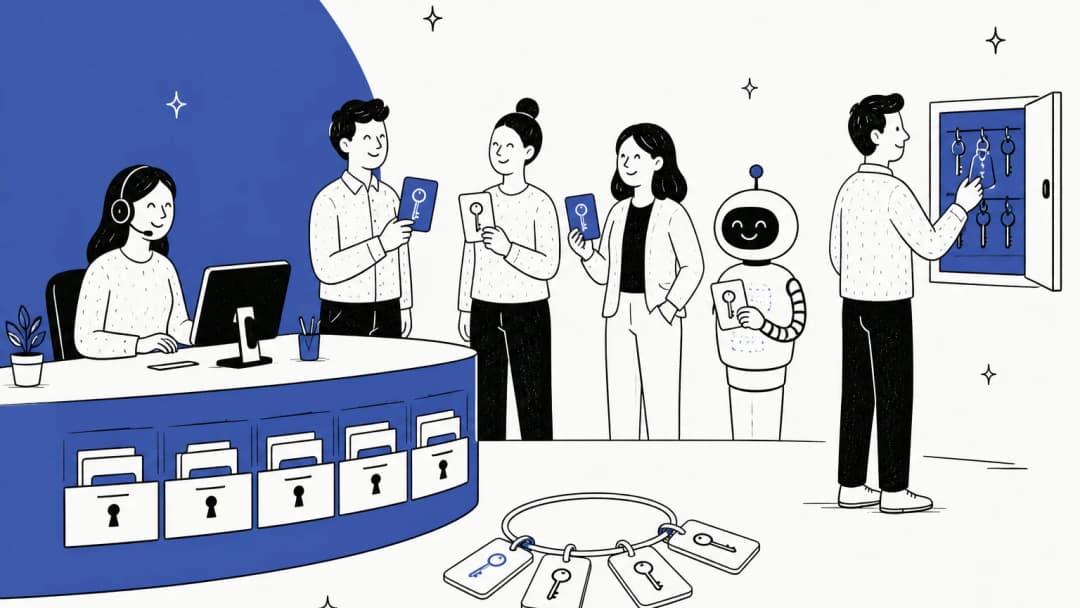
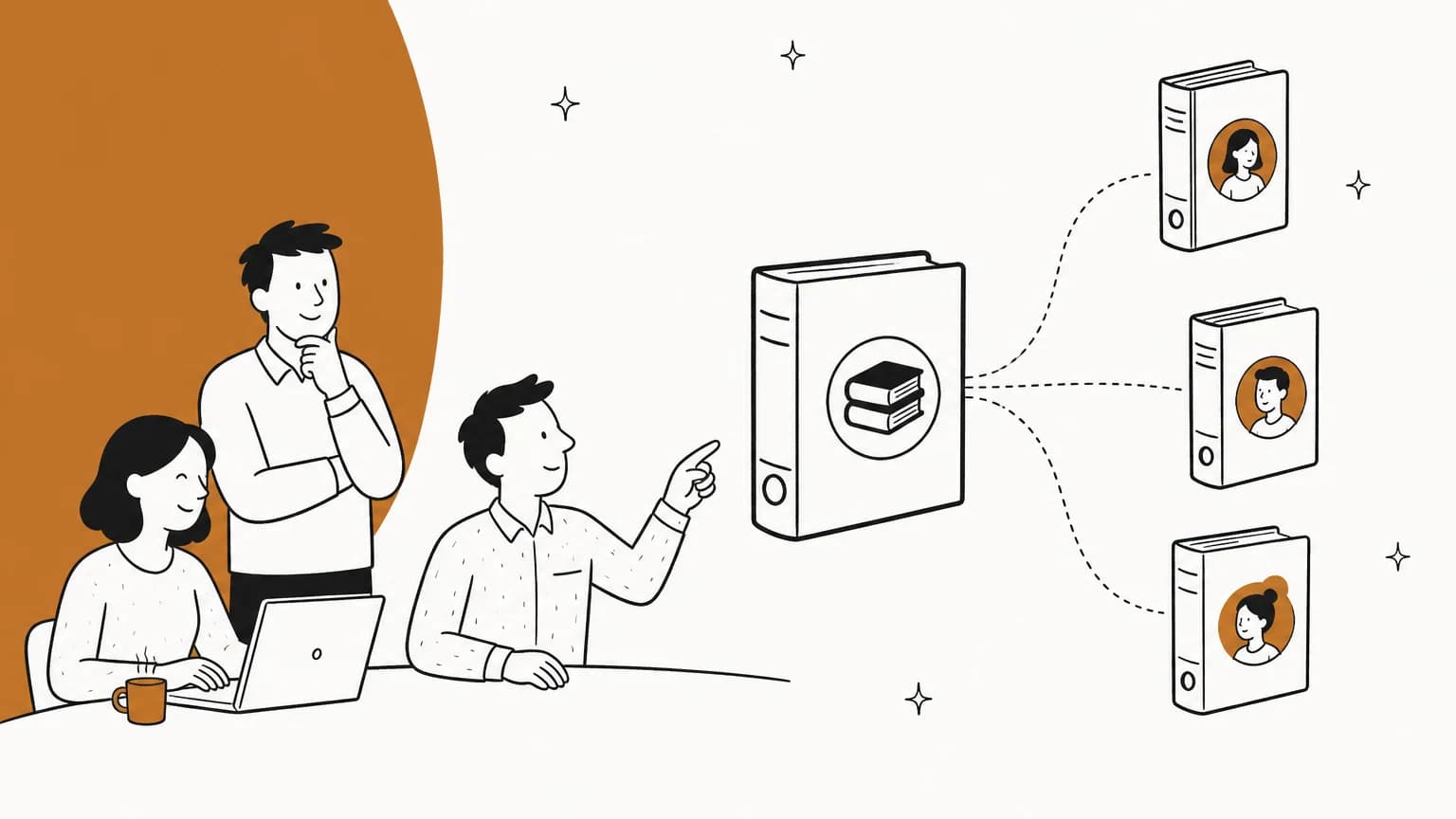
A client-specific knowledge base is help content scoped to one client company or one audience. The client sees their articles plus the shared ones. Everyone else sees only the shared ones.
Four kinds of teams end up needing it:
- Agencies and outsourced support teams running support for several brands out of one helpdesk. Client A's refund policy can't show up in client B's chat.
- MSPs documenting each client's network, vendors and runbooks, which is a whole software category of its own (more on Hudu and IT Glue below).
- B2B SaaS teams whose enterprise customers have custom configurations, SSO setups or contract-specific SLAs.
- Multi-brand companies, which I covered in my guide to multi-brand customer support.
Here's how one Zendesk admin described the shape of the problem, and it's the cleanest version I've found:
"Can anyone advise on configuration for guide where I have 100 unique sites that need a help center? 2/3 of the content needs to be available for all end users but 1/3 of content is site-specific and needs to be invisible to users outside of that specific site. Multi brand? Orgs/tags? Labels?"

Note the ratio. Two thirds shared, one third client-specific. That ratio decides almost everything else in this post, from how you structure your knowledge base management to how you set up the AI.
I'm Alicia, and I build the AI agents at eesel, so I spend a lot of time on the retrieval side of this: what an AI is allowed to read when a customer from client A asks a question. That's where I'll spend the back half of this post, because it's where client-specific content quietly stops being client-specific.
The three levels of separation
Every helpdesk offers some mix of the same three levels, whether it calls them brands, portals, workspaces or Docs sites. Pick the lowest one that does the job, because each step up adds upkeep.
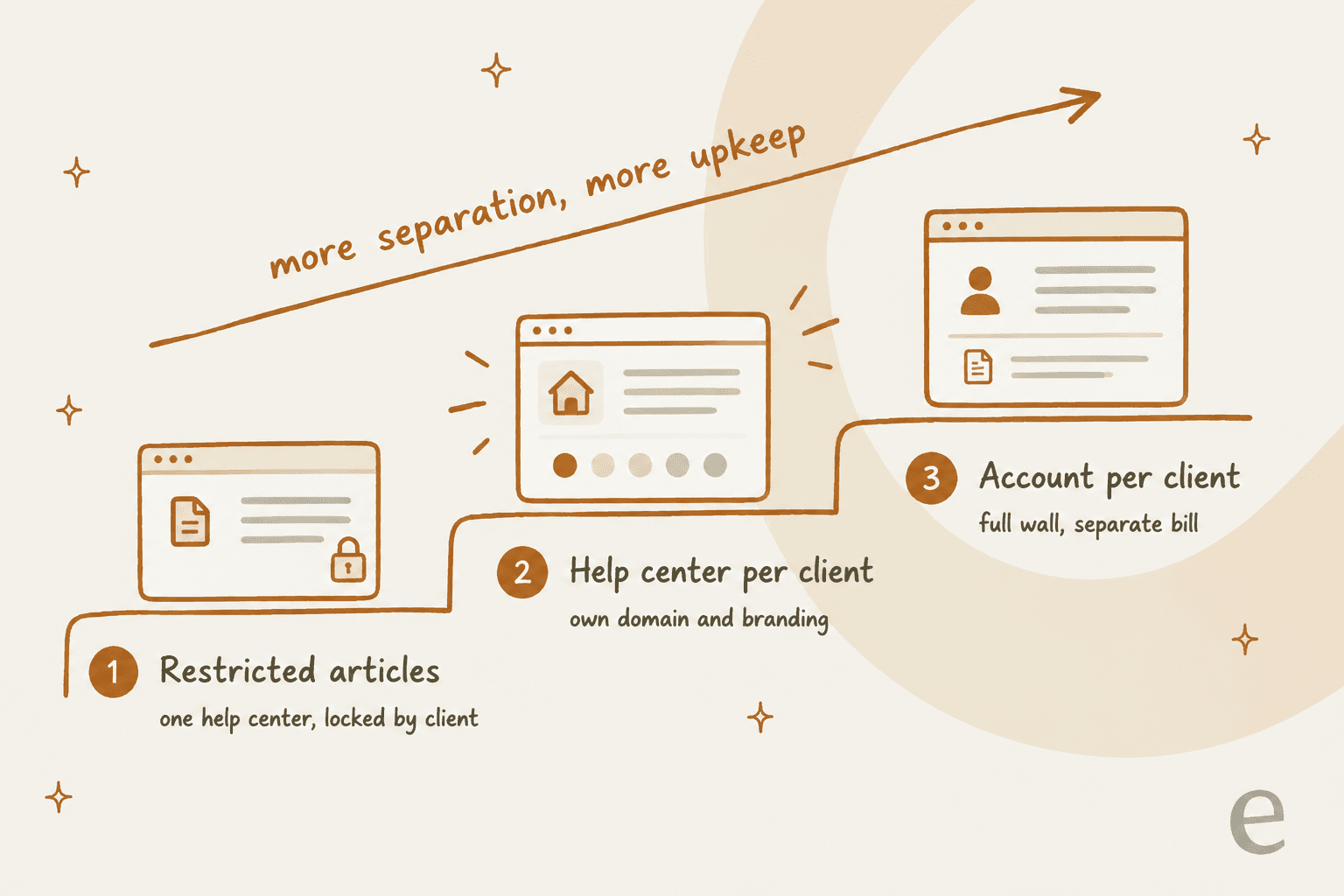
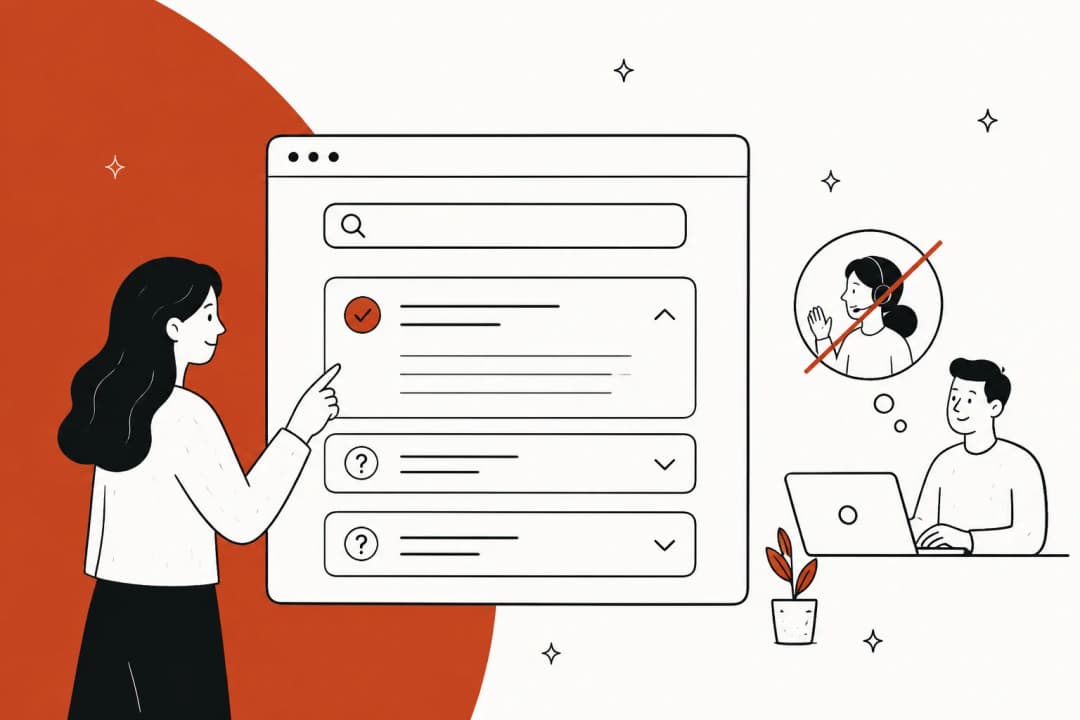
Level 1: restricted articles in one help center. Clients sign in, and each client's users see their articles plus the shared ones. One article library, one URL. This is the right default for most teams, and it's what the r/Zendesk replies pointed to:
"User Segments all the way. Cool part though if you have User data coming from say Azure. You can premap info. Or domains as well. Then user segments check that data and allow access to articles pertaining to their content. Little bit of maintenance but it's the best way"
The catch is sign-in. Restriction only works when the helpdesk knows who's reading, so anonymous visitors only ever see public content.
Level 2: a help center per client. Each client gets its own domain, logo and article set. This is what clients who resell your service or put their own brand on it usually want, and it's the setup my Zendesk multi-brand setup guide walks through. It's not automatically private, though. Zendesk's own doc on brand help centers says "you cannot restrict users to a specific help center. All of your help centers are accessible to all of your end users." A separate help center is a branding decision, not a privacy one. You still need sign-in plus restriction if the content is confidential.
Level 3: an account per client. Separate helpdesk, separate bill, separate admins. Freshdesk's Workspaces doc says separate billing or legal ownership may need separate accounts. This is the full wall, and it's also the most work: every shared article gets maintained N times.
Don't copy every article per client
The most common mistake I see is treating "client-specific" as "copy the whole library per client." With the two-thirds-shared ratio from above, that means most of your edits are the same fix pasted twelve times, and copies drift the moment someone forgets one.
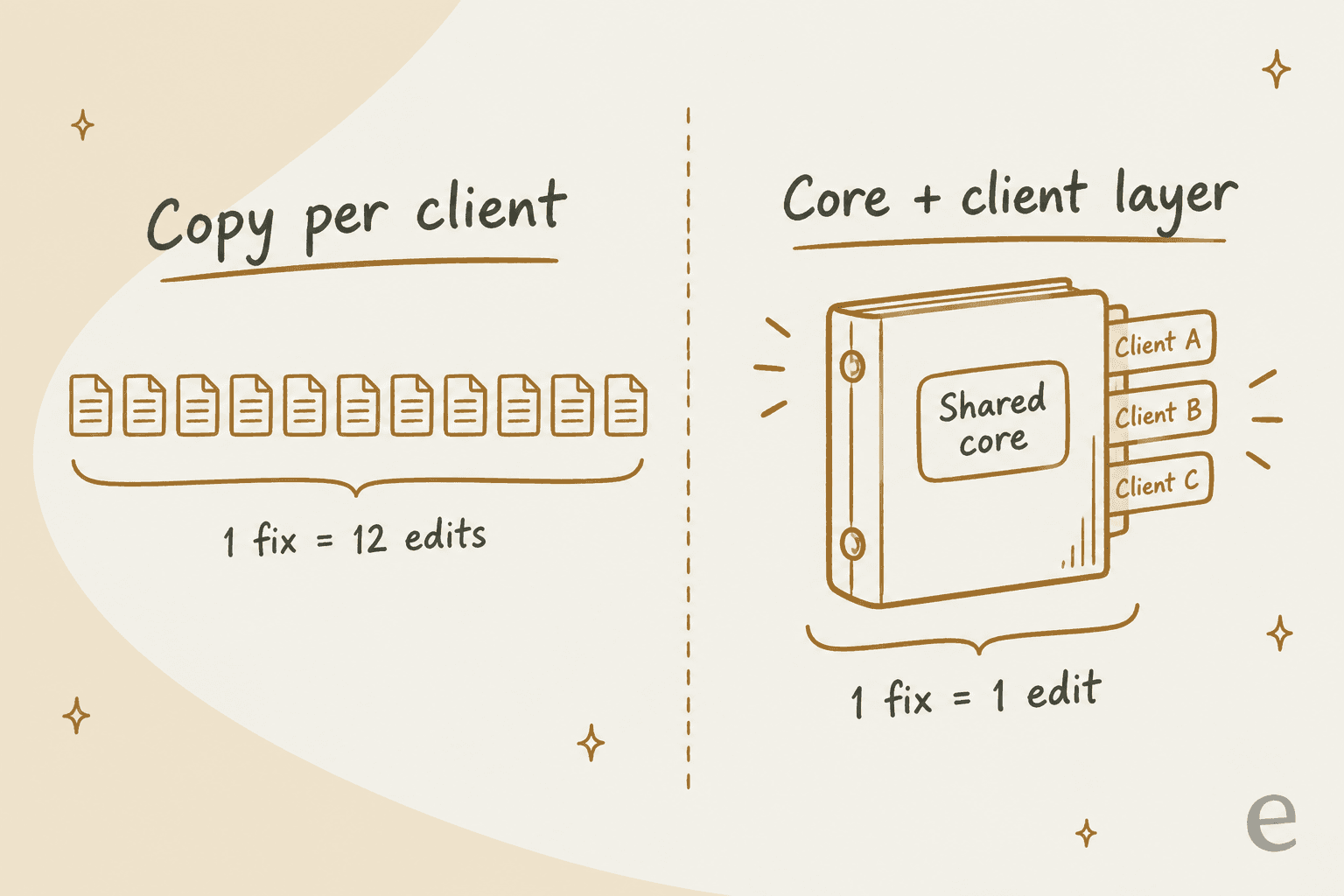
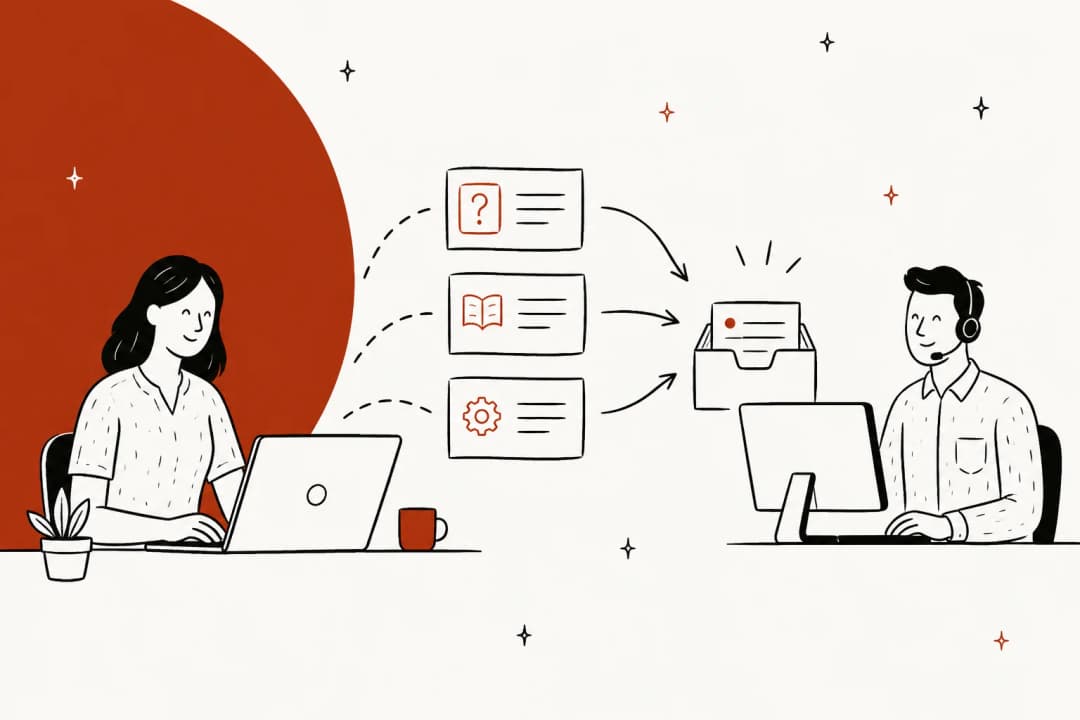
The pattern that holds up is a shared core plus a thin client layer:
- Shared core: how the product works, standard policies, troubleshooting. Written once.
- Client layer: only what differs. Custom configuration, contract terms, named contacts, client-specific escalation paths, exceptions to the standard policy.
The same split works for internal knowledge bases, where the client layer is agent-only notes your customers never see.
The MSP documentation tools are built exactly this way. Hudu calls it dual knowledge base libraries: central articles "for information that pertains to multiple clients" and client articles that "pertain only to that space." Zendesk has two features that do the same job inside one account. Article multiplacement puts one article in up to 10 sections across brands, and each placement keeps its own viewing permissions.
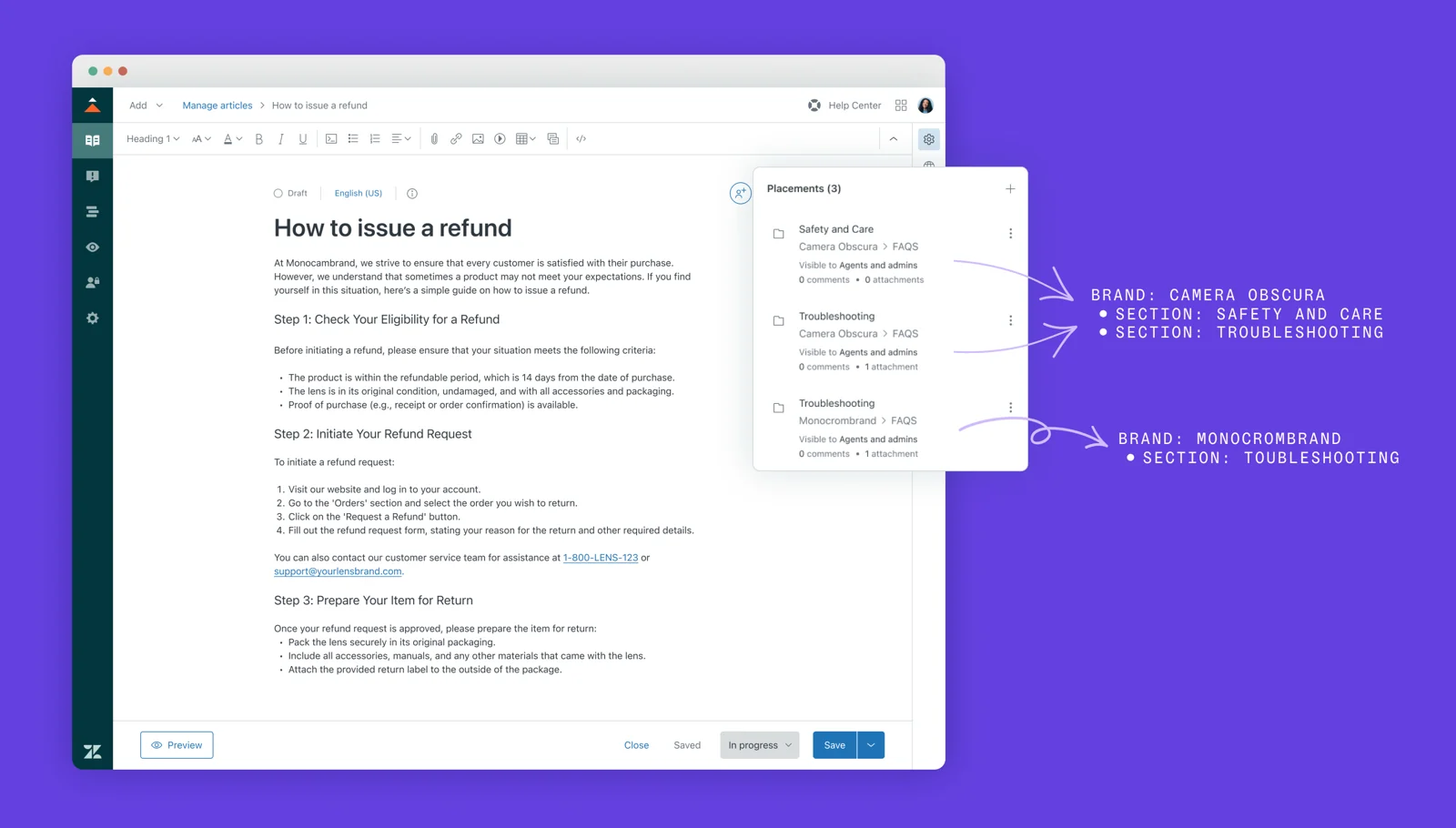
Content blocks go a level smaller: a reusable paragraph or table that updates everywhere it's inserted. They're Enterprise-only, though, so most teams will lean on multiplacement and a clear naming convention instead.
One honest note on IT Glue: it has no native shared library. Its own permissions doc suggests creating an organization "named something like 'Common Documents'" for shared content. That works, but it's a convention you have to enforce, not a structure the tool gives you.
How each helpdesk handles client-specific articles
Here's what each tool restricts, at what level, and on which plan. Prices are per agent or user per month on annual billing, from each vendor's pricing page as of October 2026.
| Helpdesk | Smallest unit you can restrict | Per-client mechanism | Plan for per-client restriction | Separate help center per client |
|---|---|---|---|---|
| Zendesk | Article | User segments by organization, tag or named user | Suite Professional $115 (custom segments); multiple segments per article need Enterprise | 5 on Professional, 300 on Enterprise |
| Freshdesk | Folder | Folder visible to selected Companies, contact segments or company segments | Listed on every plan in Freshdesk's folder docs | Pro $55 (up to 5 portals), Enterprise $89 (unlimited) |
| HubSpot Service Hub | Article or whole KB | Access groups (static or filter-based) | Professional: 2 access groups; Enterprise: 100 | Enterprise only (up to 100 KBs) |
| Help Scout | Whole Docs site | One restricted Docs site per client | Plus $45 or Pro $75, plus custom code | Sites: Plus 3, Pro 5, extra $20/mo |
| Zoho Desk | Category, section or article | Help center user groups (up to 200 per help center) | Not on Free; KB from Standard $14 | Enterprise $40 (multi-brand help center) |
| Front | Whole help center | One login-controlled help center per client | Professional $65 | Professional and above |
A few things in that table deserve more than a cell.
Zendesk: user segments do the real work
Zendesk's user segments are the most flexible option here. A segment can filter on up to 50 organizations, 50 tags in each tag bucket, and 50 named users, and you get up to 200 segments per account, shared across brands. Put each client's users in one organization and you have a one-to-one client segment.
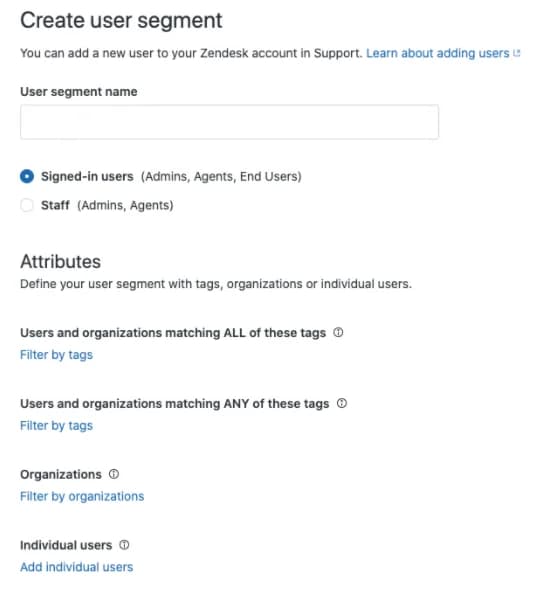
Two plan details matter. Suite Team can only choose "everyone" or "signed-in users," so no client segments and no agent-only articles. And restriction is per article, not per section, so you lock a whole client section with bulk updates. My guide to restricting articles by segment walks through it, and the multi-brand help centers post covers Level 2.
Freshdesk: per folder, and per company out of the box
Freshdesk sets visibility on the folder, not the article. The options include All users, Logged in users, All agents, Bot, and specific Companies, plus contact and company segments. Freshdesk's widget doc names the client case directly: show articles "about a company to just contacts from that company."
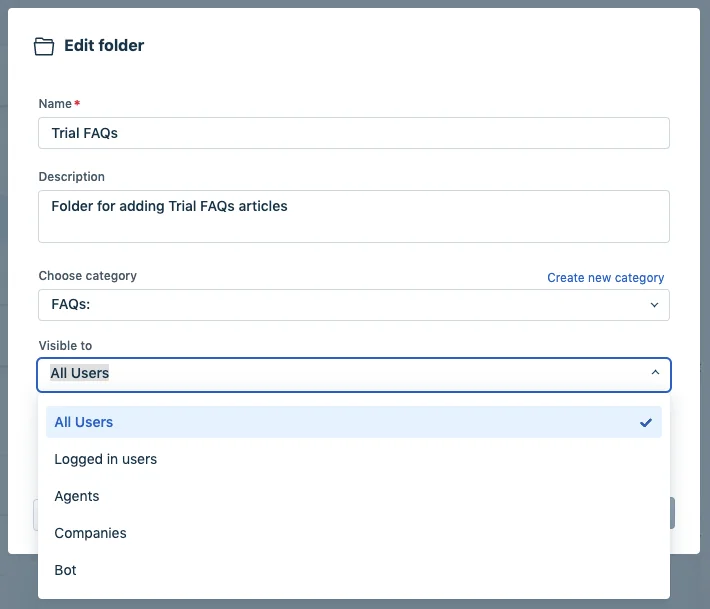
That makes Freshdesk one of the cheapest ways to do Level 1 (my Freshdesk pricing breakdown has the plan grid). The shape to plan for: one folder per client, since visibility can't vary article by article inside a folder.
HubSpot: fine on Enterprise, tight on Professional
HubSpot restricts single articles or a whole knowledge base through access groups. Professional allows 2 access groups and 1 knowledge base. That's enough for "public plus partners plus one VIP tier," not for ten clients. Enterprise allows 100 groups and up to 100 knowledge bases, and HubSpot private content only works on a connected custom domain. More on HubSpot's AI below, because that's where it gets interesting. My HubSpot knowledge base roundup has the rest, and the Service Hub knowledge base AI post covers the AI side.
Help Scout, Zoho Desk and Front
Help Scout restricts whole Docs sites, not collections. Restricted Docs need Plus or Pro and "custom code development by your own team" to issue the visitor token. Private collections exist, but "private" means your own Help Scout users, not a client. Help Scout also notes Docs isn't covered by its GDPR or HIPAA commitments, so keep client account data out of it.
Zoho Desk is the most granular of these three. Categories can be set to None, Groups, Public, Agents or Custom IP, and help center user groups are described as tied to "a specific account." Limits are 200 groups per help center and 2,000 users per group. If you plan to train Zia on it, read the AI section below first.
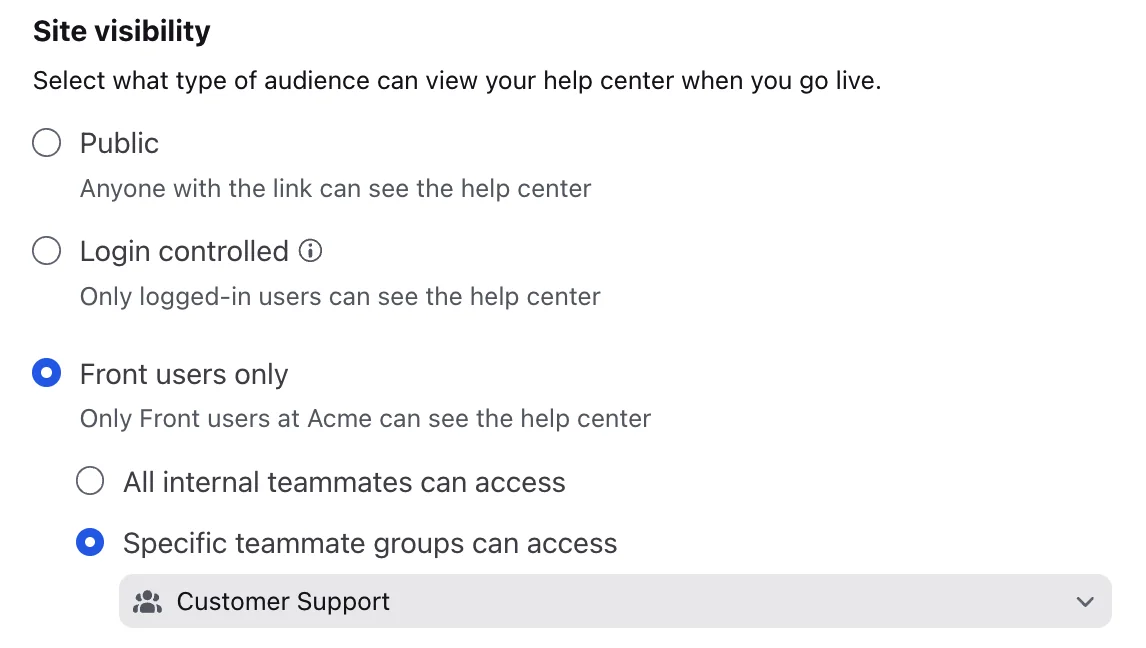
Front restricts at the help center level: Public, Login controlled (through your own identity provider), or Front users only. Its private categories only hide content from navigation, and anyone with the direct link can open them, so they aren't a client wall. My Front AI review covers what its AI reads.
Where client-specific content leaks: the AI
Here's the shift I'd push on. Teams spend weeks getting the help center permissions right, then switch on an AI agent that reads the knowledge base under a different set of rules. The permission model your customers see is not always the one your AI follows.
| AI feature | Uses client-restricted articles? | What that means for you |
|---|---|---|
| Zendesk AI agents (current setup) | Yes, and respects view permissions for signed-in users | Messaging needs JWT sign-in with a matching external ID; restricted answers can't be tested in the test widget |
| Zendesk AI agents bought before Mar 10, 2026 | Articles were "public or private to everyone" | Migration runs July 1 through end of 2026 |
| Freshdesk Freddy AI Agent | No. "Private or restricted articles are excluded" | Client folders aren't a source; you'd have to make them public |
| Freshdesk Freddy Copilot (agent-side) | Yes, scoped to the agent's own access | Good for agents, not for customer-facing answers |
| HubSpot customer agent | Yes, without citations | HubSpot warns private content "may still appear in responses" |
| Help Scout AI Answers | Can opt in private collections in Beacon settings | I'd scope per client with one AI agent per Beacon |
| Zoho Desk Answer Bot | Zoho says "published and public resources" only | A user comment on the same page reports agent-only articles surfacing; test it |
Two rows deserve a closer look.
Freshdesk is strict in the safe direction. The AI Agent knowledge doc says "only articles visible to All users are used for AI learning." So the bot can't leak client A's folder to client B, but it also can't answer client A from client A's folder. Freshdesk's workaround, filtered search, narrows retrieval by contact or conversation properties, yet it can only filter content the AI was allowed to learn from in the first place.
HubSpot goes the other way. The customer agent sources doc says private sources "will not be cited, but their content may still appear in responses," and tells you not to include confidential or private customer data. I found no documented way to limit a private source to its access group at answer time.
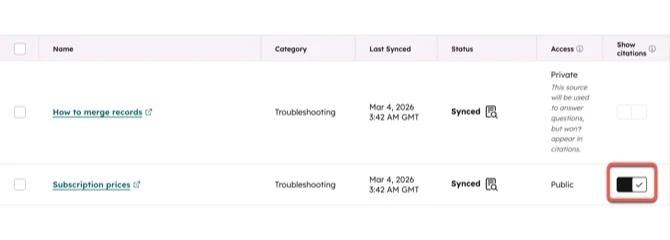
The same problem shows up across regions, not just clients. One Zendesk admin put it well:
"The problem: Zendesk AI pulls knowledge from the Help Centers linked to the same brand, regardless of language or region. So if a Brazilian customer asks something, the AI might base its answer on all related contents, even in articles just created for US."
Scope first, then search
The fix is the same one builders reach for when they roll their own: decide whose content is in play before the search runs, not after. An n8n builder running one AI workflow for ten clients described it this way:
"Once I've filtered the clientid the model won't make a mistake because if it gets the clientid gonna search for everything related to the client id, even the chat history is connected trough clientid so it seems pretty solid."
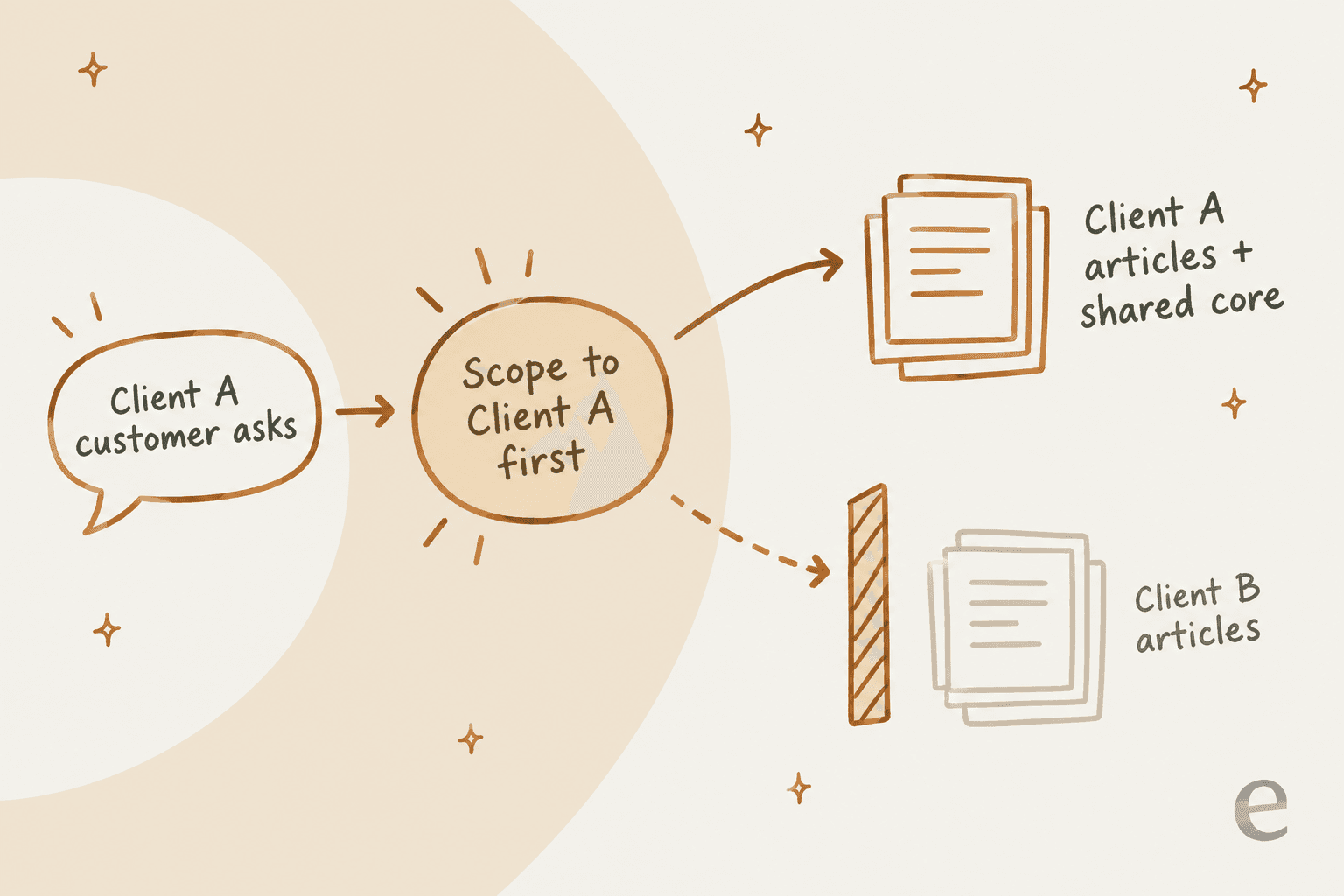
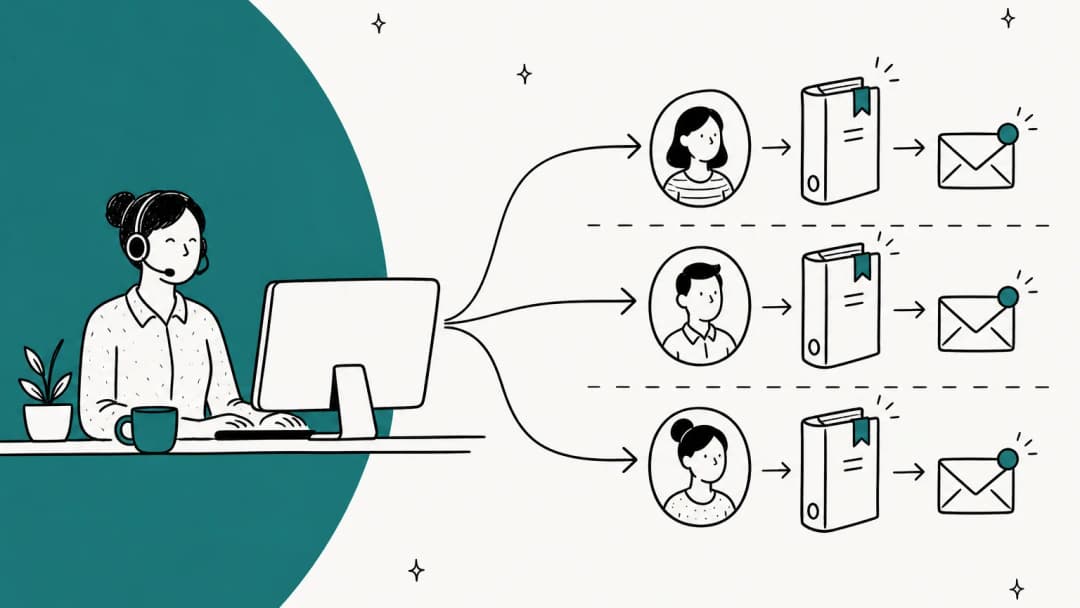
In a helpdesk, the simplest way to scope first is one AI agent per client, connected only to that client's sources. Instructions like "only use client A's articles" are not a wall. If the content is in the agent's index, assume it can come out. That's true whether the AI uses retrieval or a tuned model, as I explain in RAG vs fine-tuning.
This is also where past tickets matter. Ticket history is the richest client-specific knowledge you have, since it holds every edge case the articles never covered. It's also the easiest source to mix up, because one helpdesk usually holds every client's tickets. An agent-side helpdesk copilot is a lower-risk place to start, since a human reads every draft before it goes out.
What I learned building this at eesel
Earlier this year, a Belgian delivery-tech team (Dutch and English, 1,625 documents, the busiest trial in its cohort) wanted two AI agents off one Zendesk. One would answer anonymous users from public articles, the other would answer signed-in users from public plus a subset of restricted articles. eesel's import could filter by category but couldn't pick a restricted subset article by article, so they got stuck. Around the same time, I watched other multi-brand teams churn because per-brand setup was too fiddly to do themselves.
Two lessons came out of that. First, put client-specific content in its own category or section from day one, because almost every tool, AI included, scopes by container more reliably than by individual article. Second, connecting per brand has to be the default, not an advanced setting. Today in eesel, each Zendesk brand connects separately and imports tickets and help center articles from that brand only, and each brand can go to a different agent. One multi-brand wellness company runs 5 brand-specific AI agents this way, each trained on its own brand's tickets.
How to set up client-specific knowledge bases in 6 steps
This works in any of the tools above. The order matters more than the tool.
- Sort your articles into shared and client-specific. Run a quick knowledge base audit and tag each article. Expect something close to the two-thirds-shared ratio, and note any knowledge gaps while you're in there. If one client's layer is bigger than the shared core, that client may need Level 2 or 3.
- Give every client a container your helpdesk understands. A Zendesk organization, a Freshdesk company, a HubSpot access group, a Zoho user group. Map users to it automatically by email domain or SSO data where you can, so new client users don't land in the wrong bucket.
- Put client articles in a client-only category or folder. Not mixed into shared sections. This is the step that makes the AI and bulk permission changes manageable later.
- Decide what to share by reference, not by copy. Use multiplacement, content blocks or portal categories that attach to several portals. Only copy when the client's version actually differs.
- Turn on sign-in, then test as each client. Log in as a real user from client A and client B and search for each other's content. Zendesk's sign-in restriction and segment docs say the organization filter is ignored for signed-in agents and Knowledge admins bypass every restriction, so testing as yourself proves nothing.
- Scope the AI per client and test it on that client's history. One agent per client or brand, connected only to that client's sources. Run it against that client's past tickets before it answers anyone live.
After launch, put the client layer on a review cadence. Client-specific articles rot faster than shared ones, because they depend on a contract or a contact who may have changed. Tie their review to your policy change process so a contract update triggers an article update. My post on outdated help center content covers how to catch that.
MSPs: Hudu and IT Glue already work this way
If you're an MSP, your client-specific knowledge base probably isn't in your helpdesk at all. It's in a documentation tool, where per-client separation is the whole design.
| Hudu | IT Glue | |
|---|---|---|
| Per-client container | Company space | Organization |
| Shared library | Native Central KB | A shared "Common Documents" organization |
| Price | $27/user/month annual, no minimum | $29 / $38 / $44 per user/month, 5-user minimum, 36-month term |
| Client portal | Free portal users | MyGlue add-on, $407/month |
| AI | Hudini assistant and MCP, included | Cooper Copilot, listed on all tiers |
Sources: Hudu pricing and IT Glue pricing.
One date to watch: Hudu's version 2.47 starts rolling out October 12, 2026, replacing client portals with a portal-user role. Hudu's own warning is that portal users will inherit "everything their groups can see," where the old portal only showed records marked for it. If you share client docs through Hudu's portal, check your group permissions before that date.
The finding problem doesn't go away with a dedicated tool, either:
"It can be really difficult to find client specific information unless you know exactly how to search for it. There is sometimes lost time spent there."

My MSP ticketing system guide covers the ticketing side of the same stack.
Try eesel for client-specific knowledge bases
If you run support for several clients or brands on Zendesk, Freshdesk, Gorgias or Zoho Desk, eesel gives each client its own AI helpdesk teammate, the same setup I describe in AI support for agencies. It joins the existing queue, connects per Zendesk brand or per helpdesk account, and learns only from that client's help center, macros and past tickets. Every source is a toggle, so you can switch off a ticket history the agent shouldn't learn from, and "uninstall from agent" removes a connection from one client's agent without touching the others.
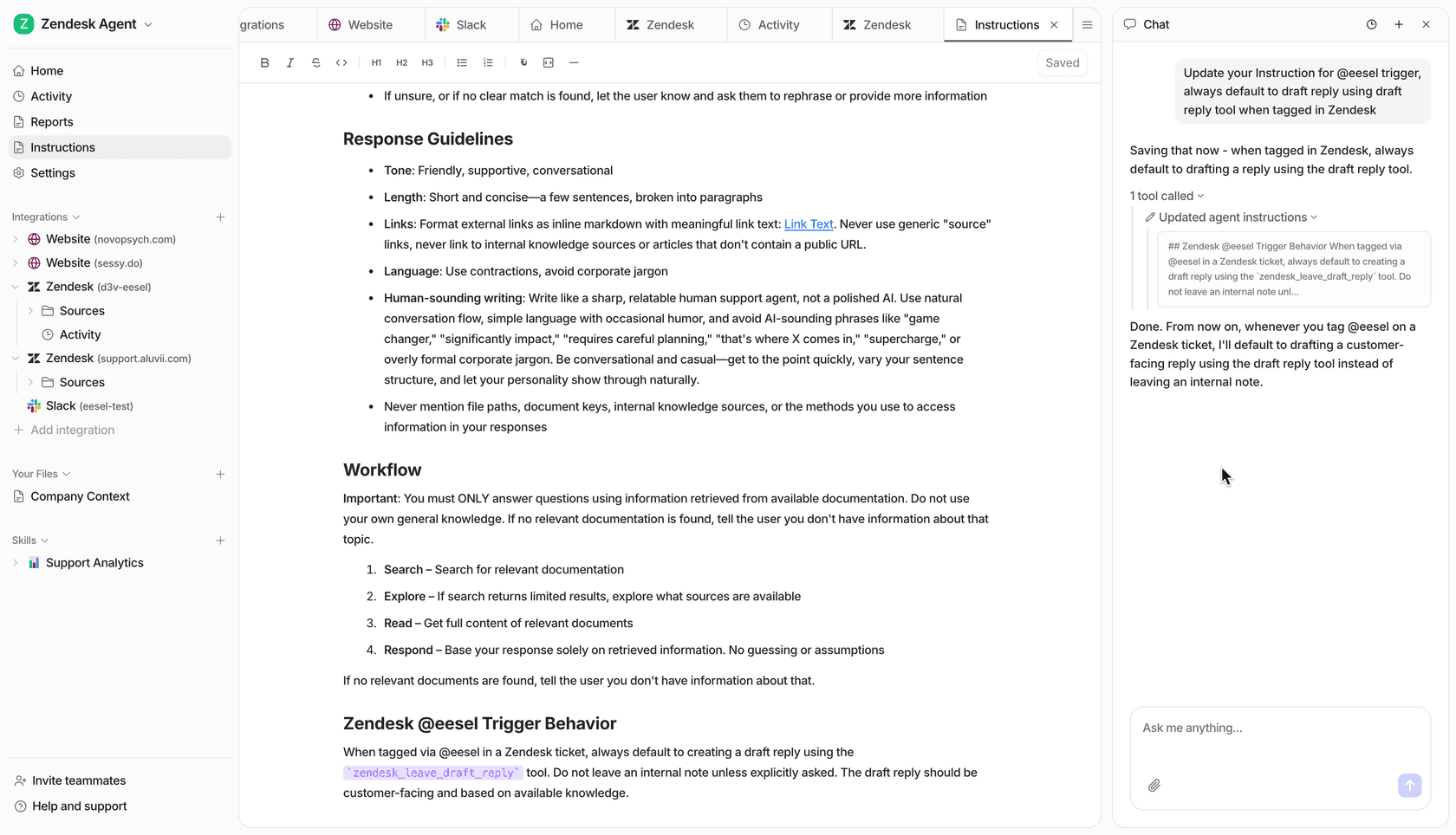
Before an agent goes live for a client, the simulation skill replays that client's real past tickets and compares its answers to what your team sent. Actions are per agent too, so allowing refunds for client A doesn't change what client B's agent can do.
Pricing includes unlimited agents and seats on every plan, starting free with 100 credits, then from $299 a month for 500 credits, where a ticket is 1 credit. Because billing sits at the workspace level, an agency with six small clients buys one credit plan for its total tickets rather than six subscriptions. If you'd rather script one agent per client, the eesel CLI can eesel agents create a new agent and target any of them with --agent, from a terminal or from a coding agent like Claude Code.
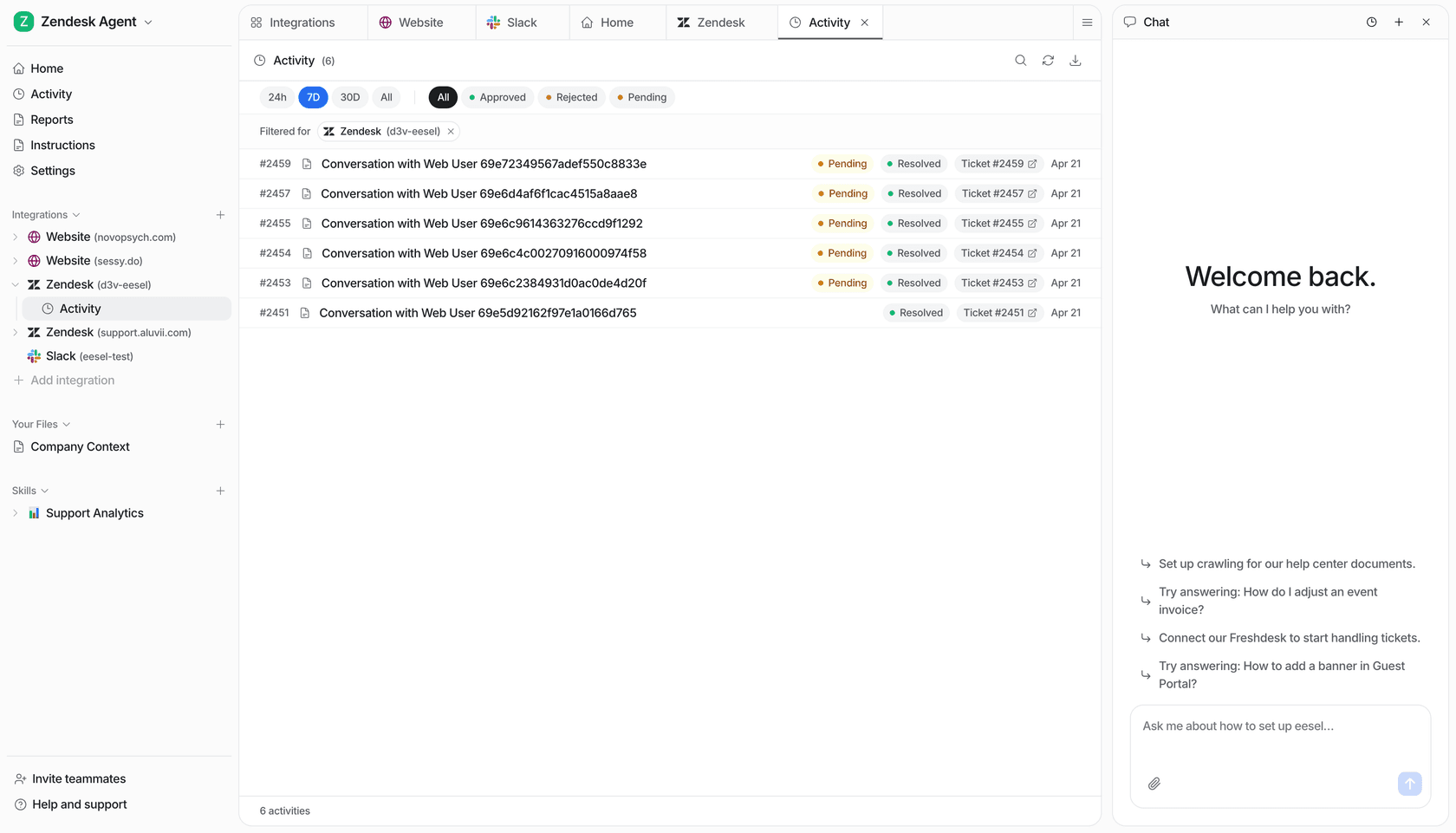
What eesel isn't: a white-label AI platform or a reseller program, and its user roles are workspace-wide rather than per client. If your clients need their own logins to manage their own agent, that's a gap today. If you need each client's AI to stay in its lane, try eesel free.
Frequently Asked Questions
What is a client-specific knowledge base?
How do I create client-specific knowledge bases in Zendesk?
Do I need a separate help center for every client?
Will my AI chatbot use client-specific knowledge base articles?
How much do client-specific knowledge bases cost?
How do MSPs keep client-specific documentation?
Should I copy articles into each client's knowledge base?
How do I stop an AI agent answering from the wrong client's articles?



Article by
Kira
Kira is a writer at eesel AI with a Computer Science background and over a year of hands-on experience evaluating AI-powered customer service tools. She focuses on breaking down how helpdesk platforms and AI agents actually work so that support teams can make better buying decisions.