Managing multiple brands shouldn't mean managing multiple support systems. Whether you've acquired companies, launched product lines, or expanded into new regions, your customers expect a support experience that matches the brand they're interacting with. Not a generic one-size-fits-all help center.
Zendesk's multi-brand feature lets you run separate, fully branded help centers from a single account. Your agents get one unified workspace. Your customers get experiences tailored to each brand. Everyone wins.
We'll walk you through how to set it up properly, what it'll cost you, and how to avoid the common pitfalls that trip up growing teams.
What is a Zendesk multi-brand setup?
At its core, a Zendesk multi-brand setup lets you manage multiple distinct customer-facing support identities from one Zendesk account. Think of it like running several storefronts from the same back office.
For your customers, each brand gets its own identity:
- A unique help center with its own logo, colors, and content
- Dedicated support email addresses (like support@coolbrand.com and help@anotherbrand.io)
- Separate web widgets and contact forms that match the brand
For your support team, everything lives in one place. Agents handle tickets from all brands without logging in and out of different accounts. Reporting is centralized. Workflows are unified.
The key question is whether your customers identify with sub-brands or the parent company. If customers think of themselves as "Acme Gaming customers" rather than "MegaCorp customers," multi-brand is probably the right call.
Plan requirements and pricing
Multi-brand isn't available on every Zendesk plan. Here's what you need to know:
| Plan | Annual Price | Help Centers | Best For |
|---|---|---|---|
| Suite Team | $55/agent/month | 1 | Single brand operations |
| Suite Professional | $115/agent/month | Up to 5 | Small multi-brand setups |
| Suite Enterprise | $169/agent/month | Up to 300 | Large portfolios, enterprises |
Key limitations to know:
- Suite Team includes 1 help center (single brand)
- Suite Professional caps you at 5 help centers
- Suite Enterprise handles up to 300 brands
- Annual billing saves about 20% versus monthly
If you're on Support Team ($19/agent/month), you'll need to upgrade. Multi-brand requires at least Suite Professional.
For companies managing just a few brands, Suite Professional usually covers it. But if you're planning significant growth or managing a large portfolio, Enterprise gives you room to scale without worrying about hitting limits.
Step-by-step setup guide
We'll walk through getting your first additional brand configured. The process is straightforward, but each step builds on the last, so don't skip ahead.
Step 1: Create a new brand in Admin Center
Start by heading to Admin Center, then Account, then Brand management, then Brands. Click "Create brand" (or "Get started" if this is your first time adding one).
You'll need to configure:
- Name: The customer-facing brand name (must be unique across your account)
- Subdomain: This becomes your help center URL (brandname.zendesk.com) and default email (support@brandname.zendesk.com)
- Logo: Optional but recommended (2MB max, PNG/JPG/GIF, square works best)
- Brand signature: Appends to agent email signatures when representing this brand
- Host mapping: If you want a custom domain like support.yourbrand.com instead of the Zendesk subdomain
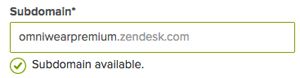
One thing to note: you can't change the subdomain of your original brand without also changing your account subdomain. Plan accordingly.
Step 2: Enable and configure the help center
Once the brand exists, you need to activate its help center. Navigate to Guide Admin, select your new brand from the dropdown, and enable the help center.
Now customize it:
- Apply your brand's theme, colors, and logo
- Configure the homepage layout and navigation
- Set up your knowledge base structure (categories, sections)
- Add your brand's custom CSS if needed

If you're using host mapping (custom domains), you'll need to generate an SSL certificate. You only need to do this once per batch of new brands, not for every single brand. Use a SAN (SubjectAltName) certificate that lists each brand subdomain.
Step 3: Configure channels and business rules
Your brand needs ways for customers to reach you. Set up:
- Email: Add brand-specific support addresses
- Web widget: Configure a branded widget for your website
- Messaging: Set up chat for the brand if you're using it
- Voice: Add phone numbers if you're using Zendesk Talk
Then create your business rules:
- Triggers: Route tickets to the right teams based on brand
- Automations: Set up time-based workflows per brand
- Views: Create filtered ticket lists so agents see relevant work
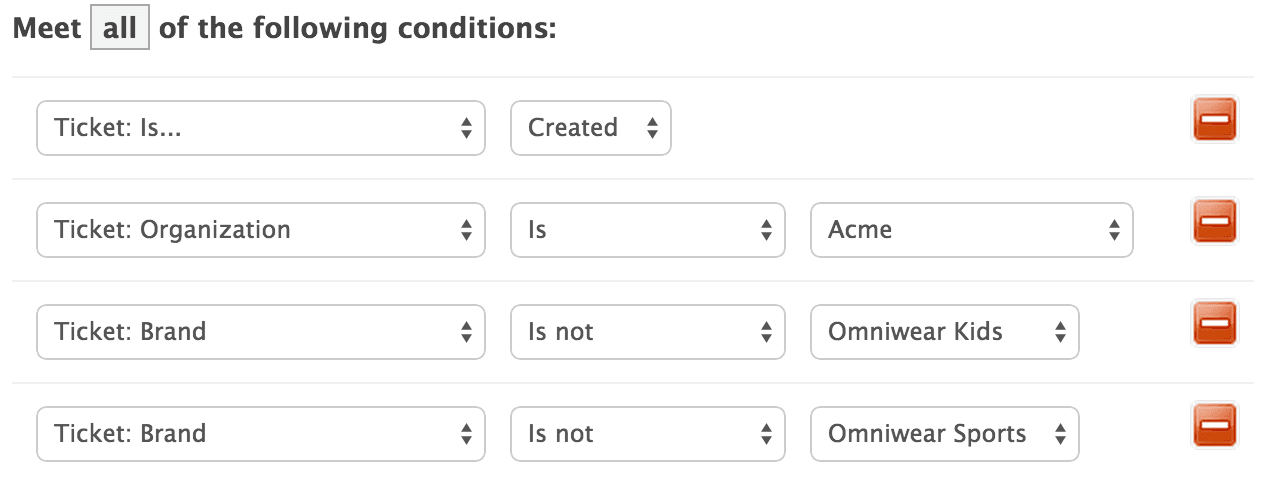
This is where most teams trip up. If you don't set up proper routing, agents will see a mixed queue of tickets from all brands, which gets confusing fast.
Step 4: Enable cross-brand search (Enterprise)
If you're on Enterprise, you can let customers search across all your help centers at once. This is useful when brands share common topics or when customers might not know which brand they need.
Go to Knowledge admin, then Settings, then Search settings. Under Search sources, click Manage and select which help centers to include in search results.
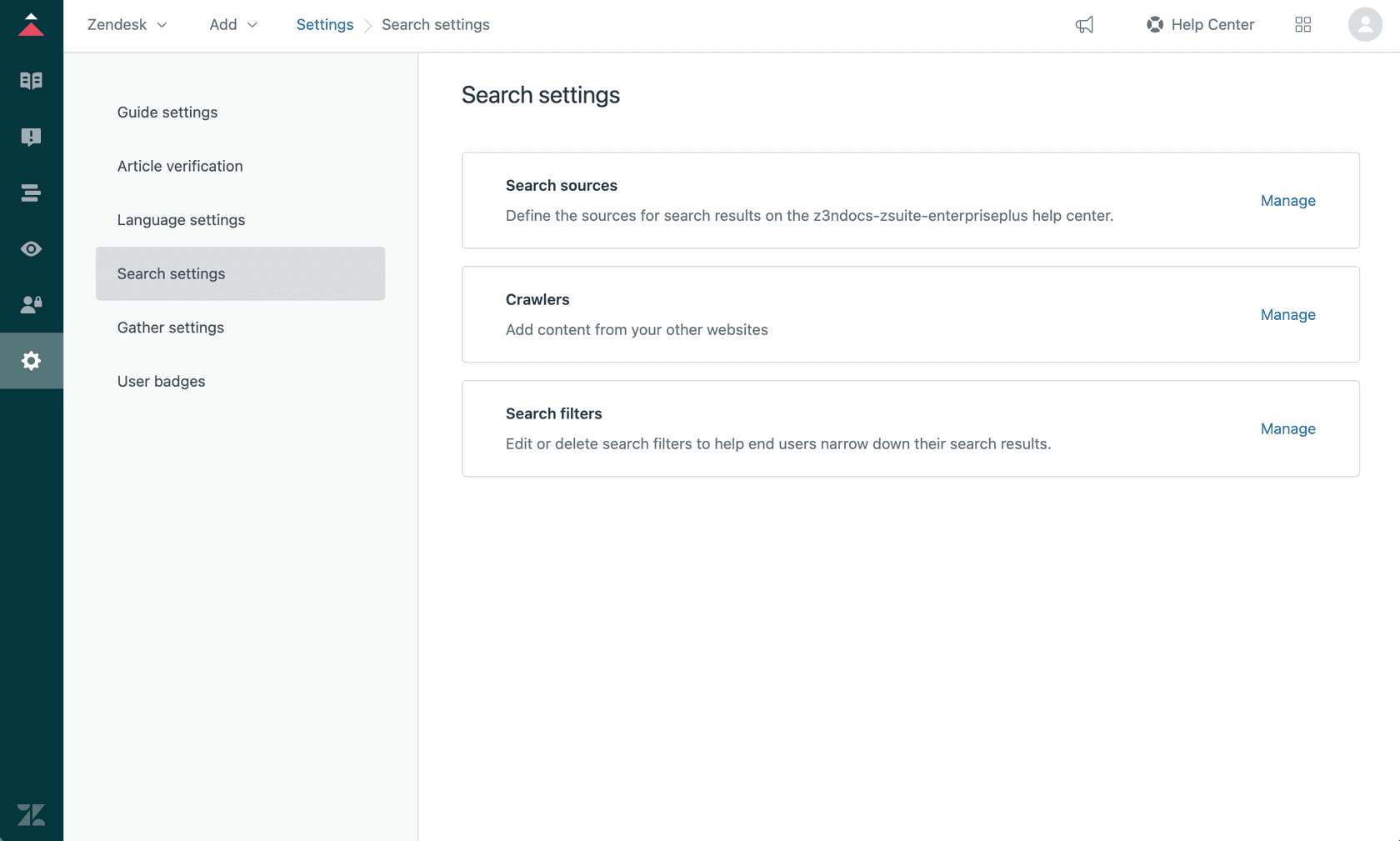
One catch: if you want community posts from multiple help centers to appear, you need to enable community as a search source in each help center's settings.
Best practices for managing multiple help centers
Setting up multiple brands is just the beginning. Keeping them running smoothly requires some discipline.
Centralize knowledge management where possible. Use content blocks for information that applies across brands (like return policies or security practices). This prevents the "knowledge debt" that accumulates when the same article exists in five places and only three get updated.
Keep ticket workflows consistent. While each brand can have its own help center, your internal processes should stay similar. This ensures agents can move between brands without relearning everything, and customers get consistent service quality.
Avoid over-customizing each help center. It's tempting to make every brand completely unique, but this creates maintenance headaches. Keep the structure and navigation consistent. Your agents (and customers who interact with multiple brands) will thank you.
Assign dedicated brand administrators. Someone needs to own each brand's content, settings, and agent access. This doesn't have to be a full-time role, but it should be someone's explicit responsibility. As Hilary Dudek, Head of Customer Experience at Gamma, puts it: "Assign someone to act as admin for the brands, someone who can liaison between multiple stakeholders while also performing the more operational tasks needed."
Use user segments for content visibility. If you have content that only certain customers should see (like VIP documentation or B2B-specific guides), use Zendesk's user segments rather than creating entirely separate articles. This keeps your knowledge base cleaner.
Scaling Zendesk Guide multi-brand help centers with AI
Managing knowledge across multiple brands is hard. Each brand has its own content, tone, and policies. But customers often have questions that span brands, and agents need to find answers fast.
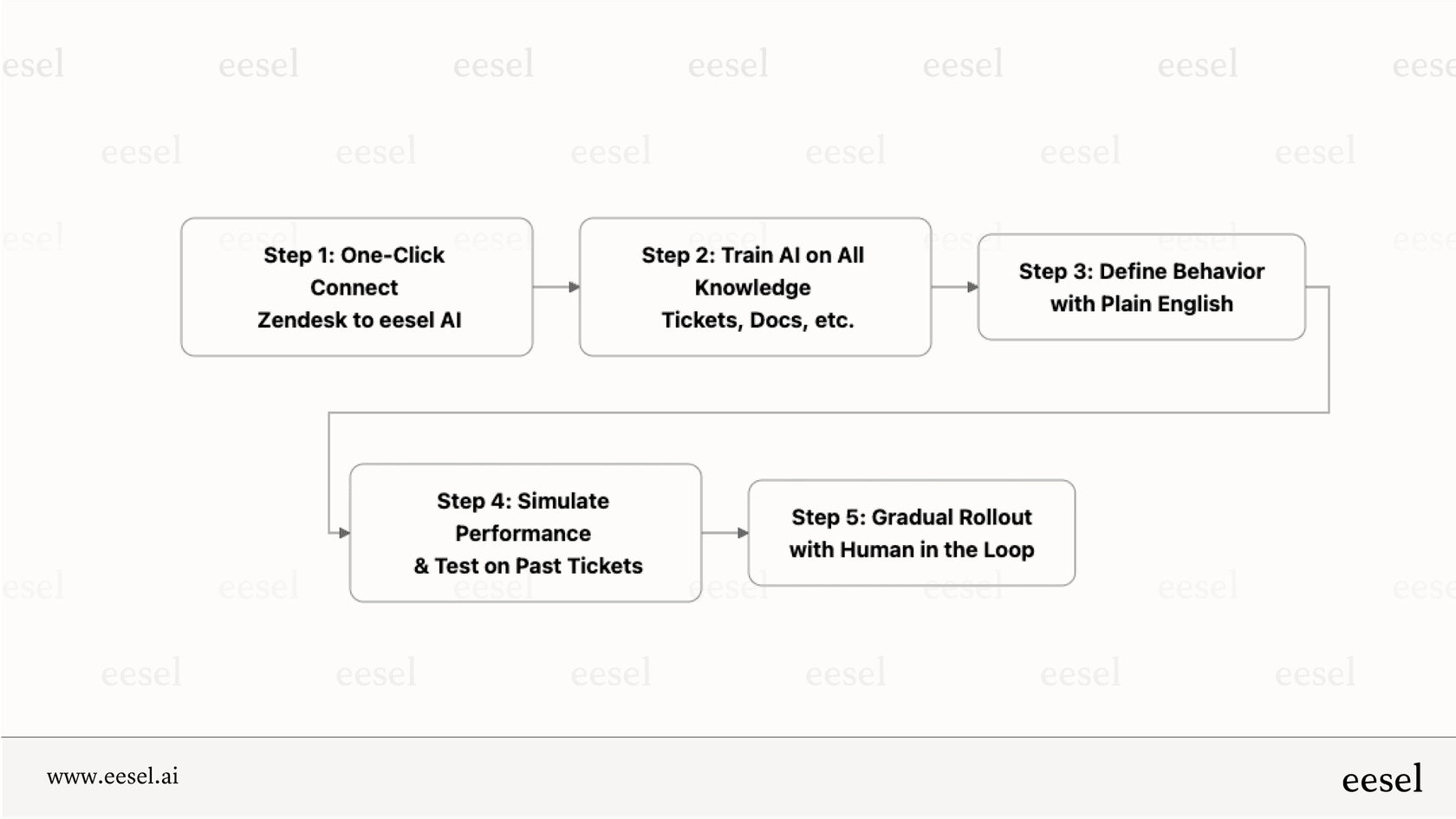
This is where an AI teammate can help. We integrate with Zendesk to connect knowledge across all your branded help centers, plus any other documentation you have in Confluence, Google Docs, or Notion. See the full details on eesel's AI agent for Zendesk and how it handles multi-brand knowledge out of the box.

Instead of agents searching five different help centers to find an answer, they ask a question and get a unified response with citations showing exactly where the information came from.
The AI can also maintain different tones for different brands. Your playful consumer brand can use casual language and emojis. Your enterprise B2B brand stays formal and precise. Same knowledge base, different personalities.
Plus, you can test automation before deploying it. Run simulations on past tickets to see how AI would have handled them. Tune your prompts. Then deploy with confidence.
Common pitfalls and how to avoid them
Knowledge debt from redundant articles. When you have similar content across brands, it's easy for one version to get updated while others don't. Use content blocks and regular audits to keep things in sync.
Inconsistent support quality. If Brand A gets premium treatment and Brand B gets leftovers, customers notice. Establish service level standards that apply across all brands.
Administrative complexity without ownership. Multiple brands mean more triggers, more views, more user segments. Without clear ownership, this becomes unmanageable. Document who owns what.
Over-segmentation. Sometimes teams create separate brands when user segments within a single help center would work better. Ask yourself: do these audiences need completely different experiences, or just different content visibility?
Mario Guisado, former Director of Customer Support at Everbridge, faced this decision when consolidating multiple products. He considered ticketing overlap, knowledge sources, taxonomy complexity, and supplementary tools. His team ultimately chose multiple brands because "customers primarily identified with the sub-brands, rather than the overarching brand." But it was a two-month evaluation process, not a snap decision.
Getting started with multi-brand support
If you're evaluating multi-brand for your organization, start with these questions:
- Do customers identify with sub-brands or the parent company?
- How different are the products, policies, and support needs?
- Is there significant content overlap between brands?
- Are support teams specialized by brand, or shared?
- What's the long-term plan? Will brands eventually merge?
If multiple brands make sense for your situation, start small. Configure one additional brand, get comfortable with the workflows, then expand. The incremental approach beats trying to set up ten brands at once and drowning in complexity.
And if you're looking to make multi-brand knowledge management less painful, our AI agent integrates with your Zendesk setup to unify knowledge across all your brands while keeping experiences distinct. Your agents get one place to find answers. Your customers get responses that feel authentically on-brand.
Check out our pricing to see how affordable adding an AI teammate to your multi-brand setup can be.