
Not every article in your knowledge base should be public. Sometimes you need to keep certain content restricted to specific groups. Whether you're running an internal IT help desk, offering premium support to VIP customers, or managing product-specific documentation, Zendesk Guide gives you the tools to control who sees what.
User segments in Zendesk Guide let you define exactly which users can access specific articles. Think of them as smart filters that automatically grant or restrict access based on user attributes like tags, organizations, or group membership. Instead of managing permissions article by article, you create segments once and apply them wherever needed.
In this guide, I'll walk you through the complete process of setting up user segments and applying them to your articles. By the end, you'll know how to create segments, restrict article access, and even lock down your entire help center if needed.
What you'll need
Before you start restricting articles, make sure you have the right setup:
- Zendesk Suite: You'll need Growth, Professional, Enterprise, or Enterprise Plus. Suite Team has limited permissions (only "everyone" or "signed-in users" options, no custom segments).
- Guide Professional or Enterprise: Article-level permissions require one of these plans.
- Knowledge admin permissions: Only admins can create user segments and set article permissions.
- User data to segment by: Tags, organizations, or groups already set up in your Zendesk instance.
If you're on Suite Team and need custom segments, you'll need to upgrade your plan. The good news is that once you have the right plan, setting up segments is straightforward.
Step 1: Create a user segment
User segments are the foundation of article restrictions. Here's how to create one:
Navigate to User permissions
In your Zendesk admin center, go to Knowledge admin in the left sidebar, then click User permissions. This opens the User Segments page where you can see existing segments and create new ones.
Start a new segment
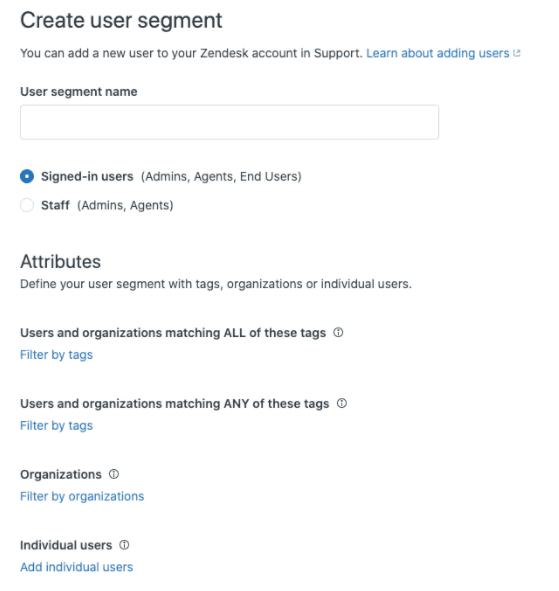
Click the Add new button. If you see an error message here, you've likely hit the 200 segment limit per account. You'll need to delete unused segments before creating new ones.
Choose your user type
Select the base user type for your segment:
- Signed-in users: For end users who have created accounts (internal employees, customers with logins)
- Staff: For agents and admins only (internal team content)
Apply your filters
This is where you define who belongs to the segment. You can filter by:
- Tags: Users matching specific tags (choose "ALL" or "ANY" of the selected tags)
- Organizations: Users belonging to specific organizations
- Groups: Staff members in specific groups (Staff segments only)
- Individual users: Add specific users regardless of other filters
You can combine multiple filter types. For example, you might create a segment for "VIP Customers" that includes users with the "vip" tag OR users in the "Enterprise Clients" organization.
Name and save
Give your segment a clear, descriptive name like "Internal IT Users" or "Premium Support Customers." You'll see a list of matching users on the right side. Review this list to make sure your filters are working as expected, then click Create segment.
Step 2: Apply the segment to an article
Now that you have a segment, it's time to restrict an article:
Open the article editor
Navigate to the article you want to restrict. You can do this from the help center by clicking Edit article in the top menu, or from Knowledge admin by finding the article in your article list.
Access article settings
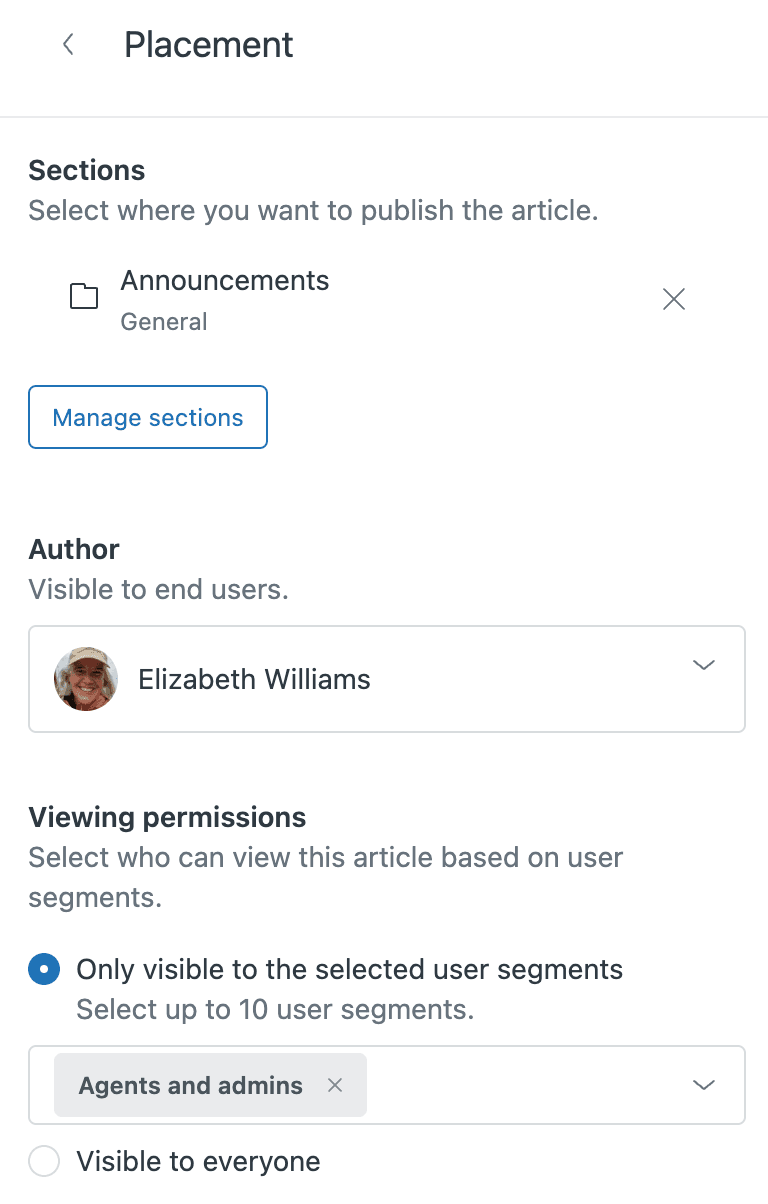
In the article editor, look for the Article settings panel in the sidebar. If you don't see it, click the Article settings icon to expand it. Then click the Placement card to open the placement options.
Set viewing permissions
Under Viewing permissions, you'll see two options:
- Visible to everyone: Anyone can see the article (default)
- Only visible to selected user segments: Restrict access to specific segments
Select "Only visible to selected user segments." Now you can choose which segments can view this article. You can select up to 10 segments per article (Enterprise plan required to select multiple segments).
Save and publish
Click Update settings, then publish your article. The restrictions take effect immediately. Users who don't belong to the selected segments will no longer see this article in search results or navigation.
Pro tip: You can update permissions in bulk using article lists. Create a list filtered by section or tag, select multiple articles, and update their permissions all at once.
Step 3: Restrict your entire help center (optional)
Sometimes you want to restrict access to your entire help center, not just individual articles. Here's how:
Access help center settings
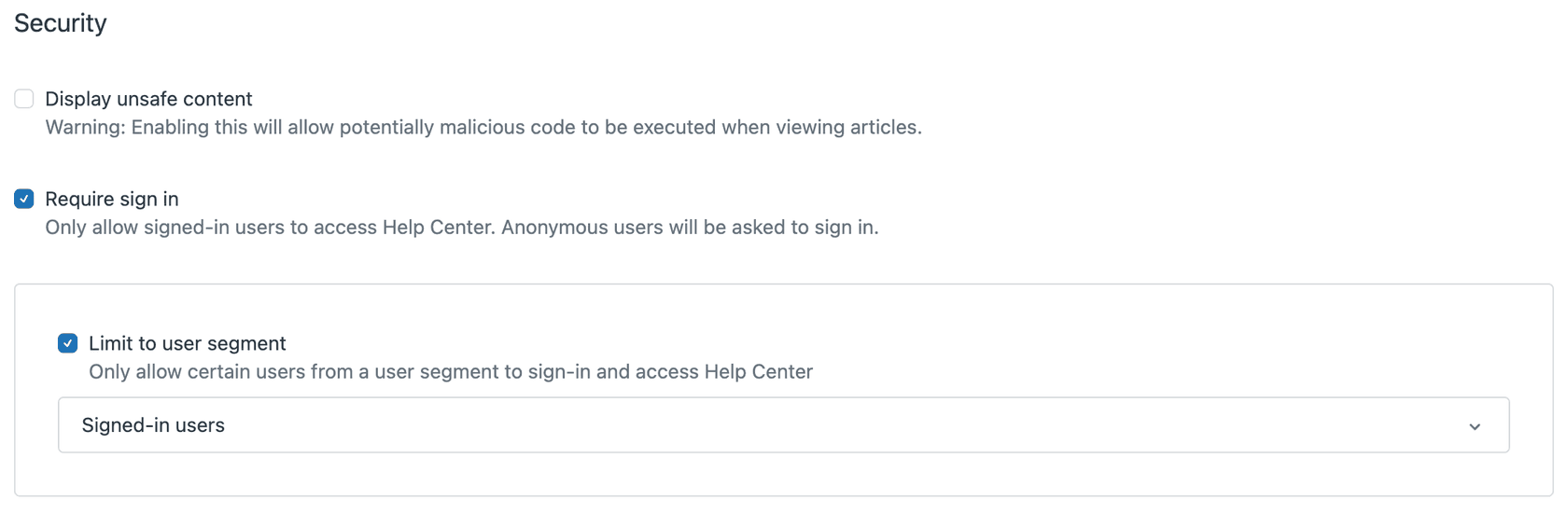
In Knowledge admin, click the Settings icon in the sidebar.
Enable sign-in requirement
Under Security, check the Require sign in option. This prevents anonymous visitors from accessing your help center. They'll only see a sign-in page until they log in.
Apply segment restrictions (optional)
If you want to go further, you can also select Limit to user segment and choose a specific segment. This means only users in that segment can access the help center, even if they're signed in.
Consider the impact
Before restricting your entire help center, think about:
- SEO implications: Restricted content won't be indexed by search engines
- Customer experience: New customers can't browse your help center before creating an account
- Public documentation: Any truly public FAQs or getting-started guides should stay accessible
For most teams, restricting specific articles with user segments is more flexible than locking down the entire help center.
Common use cases for user segments
User segments shine in specific scenarios. Here are the most common use cases:
Internal IT documentation
If you use Zendesk for internal IT support, you can restrict IT policies, network documentation, and procedural guides to employees only. Create a segment for "Staff" or users with an "employee" tag, then apply it to all internal articles.
VIP customer support
Offer premium content to your high-value customers. Create a segment for users with a "vip" or "premium" tag, then create exclusive articles like advanced troubleshooting, early access documentation, or direct contact information.
Product-specific help
If you sell multiple products, you can show documentation only to customers who own specific products. Use organization-based segments (customers tagged by product) or custom user fields that indicate product ownership.
Regional content
Display articles relevant to specific geographic locations. Create segments based on organization ("EMEA Customers," "APAC Customers") and show region-specific compliance information, local contact details, or language-specific content.
SLA-based access
Tier your support content based on service level agreements. Premium SLA customers get access to more detailed documentation, faster escalation paths, and advanced self-service options.
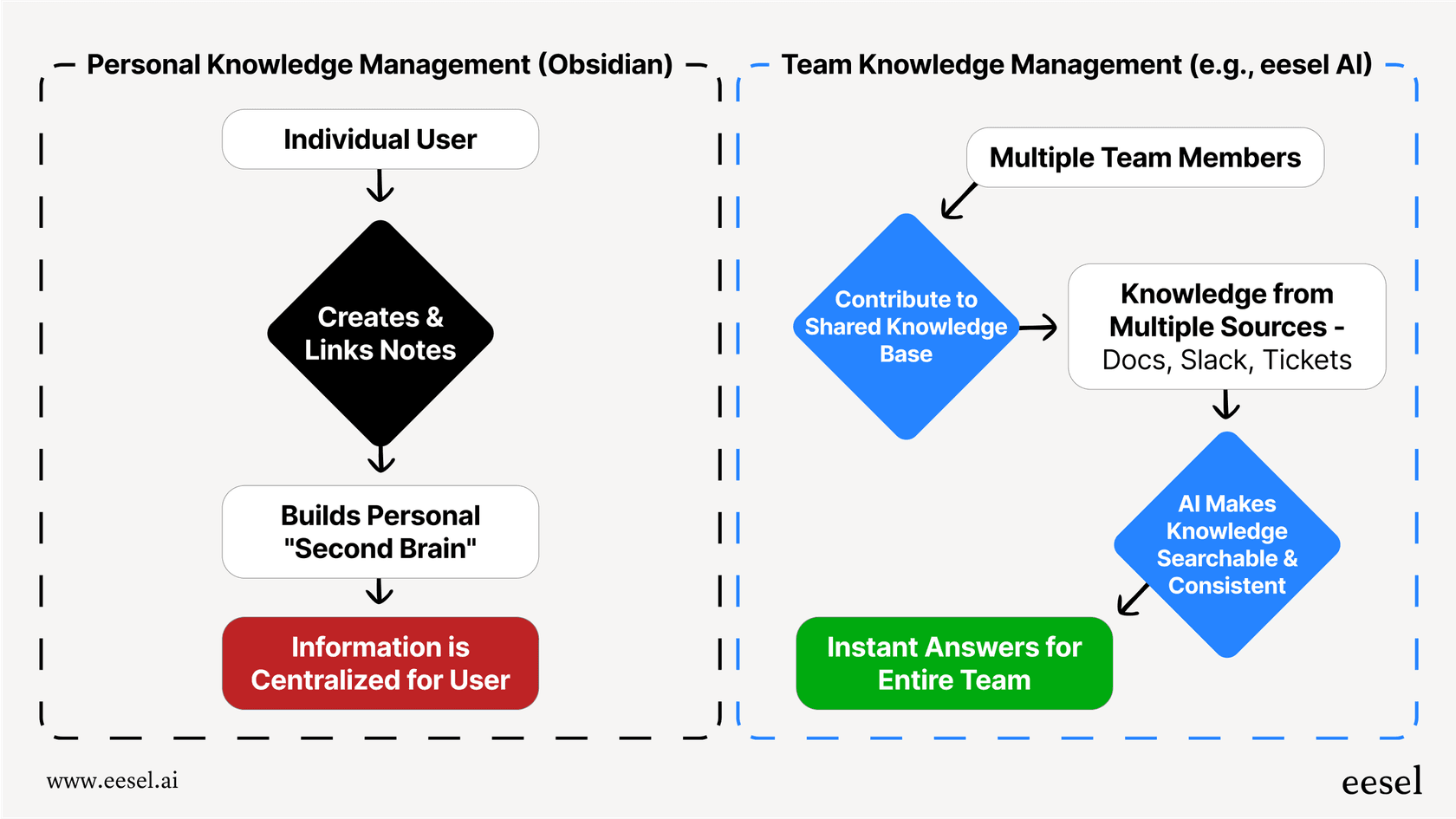
For teams looking to enhance their knowledge management beyond what Zendesk Guide offers, eesel AI works alongside your existing setup. Our AI learns from both your public and restricted articles to provide contextual support through AI-powered internal chat or integrated directly into your Zendesk workflow.
Tips and best practices
Getting the most out of user segments requires some planning:
-
Use clear naming conventions: Names like "VIP Customers" or "Internal IT" are self-explanatory. Avoid vague names like "Segment A" or "User Group 1."
-
Test with different accounts: Create test accounts that belong to different segments and verify they see (or don't see) the right content.
-
Document your strategy: Keep a simple spreadsheet of your segments, what they're for, and which articles use them. This prevents confusion as your team grows.
-
Watch the 200 segment limit: You can create up to 200 segments per account. If you have multiple brands, segments are shared across all of them.
-
Remember admin access: Knowledge admins can see all content regardless of segments. This is by design for management purposes.
-
Consider segment overlap: A user in multiple segments can see content restricted to any of those segments. Plan your restrictions accordingly.
-
Plan for scaling: If you have multiple brands, segments work across all of them. Design segments that make sense globally, not just for one brand.
Start managing your knowledge base access with eesel AI
User segments in Zendesk Guide give you precise control over who sees what in your knowledge base. Whether you're protecting internal documentation, creating premium customer tiers, or organizing product-specific help, segments let you manage access at scale.
But restricting content is just one part of effective knowledge management. The real value comes from making that content work harder for your team and customers.
That's where eesel AI comes in. We integrate directly with Zendesk to learn from your articles (both public and restricted) and deliver contextual AI support. Our AI Agent can resolve tickets using your restricted knowledge base, while our AI Internal Chat helps employees find answers from your internal documentation instantly.
Ready to enhance your knowledge management? Invite eesel AI to your team and see how AI can make your restricted content more accessible to the right people.



