
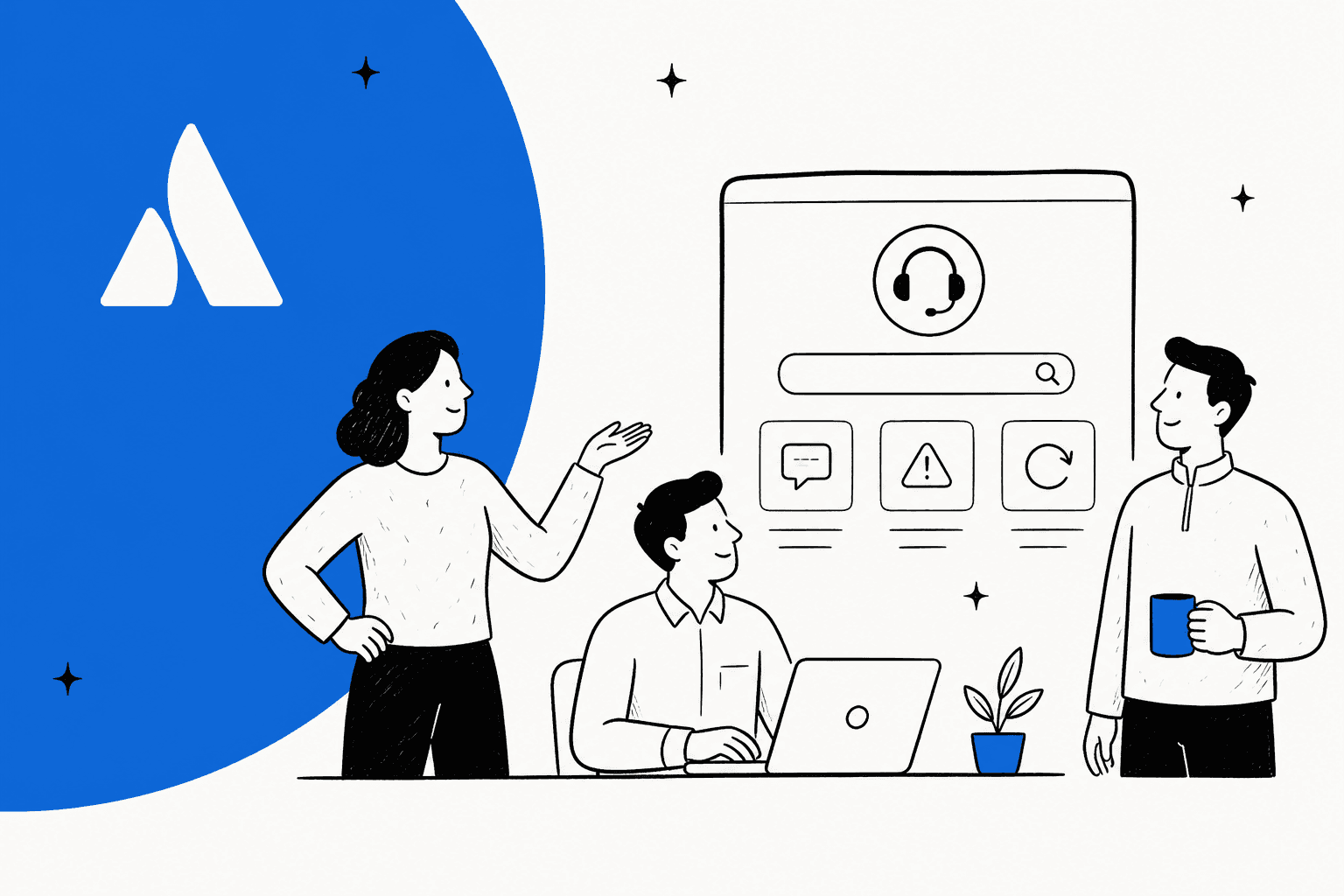
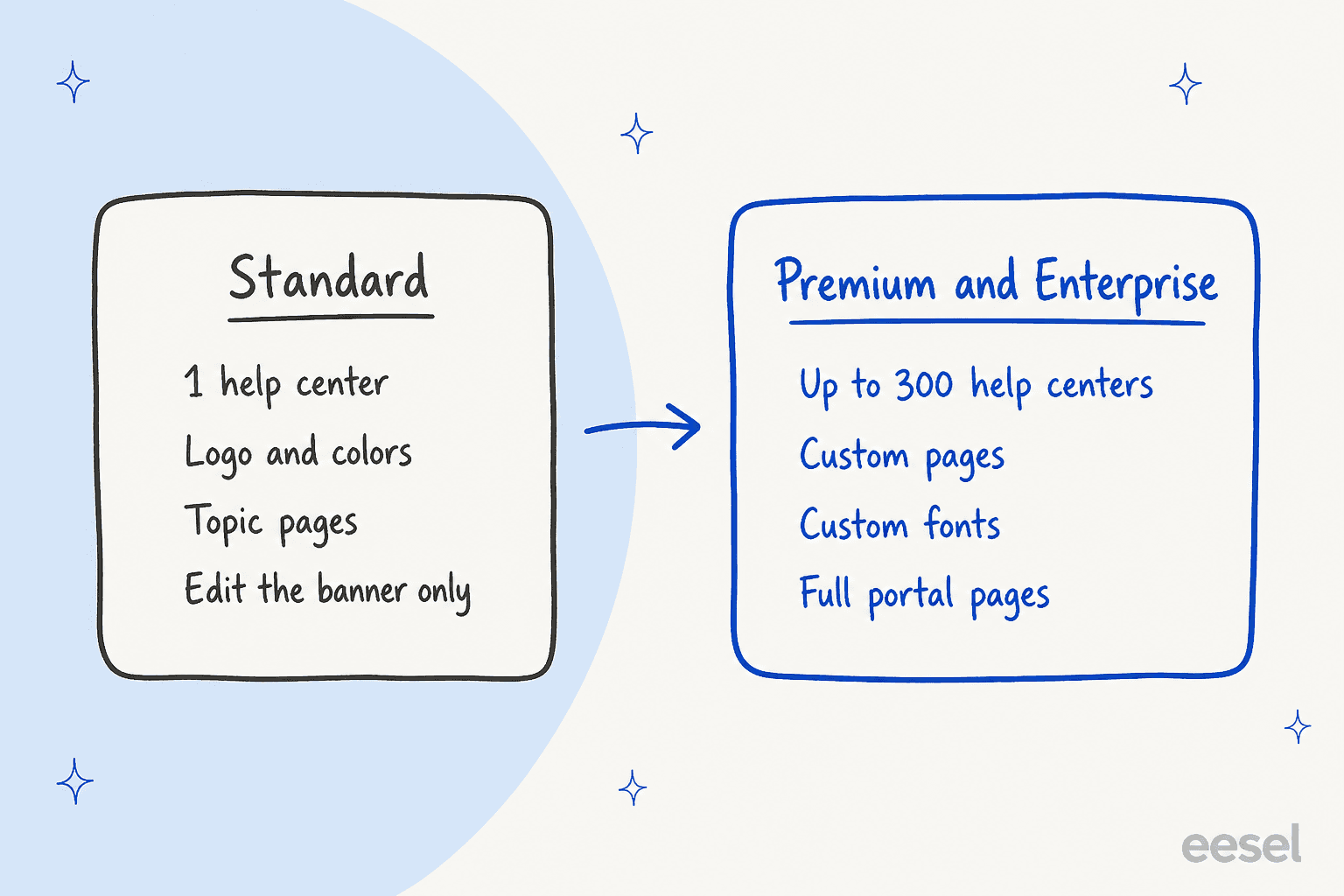
The Jira Service Management help center is the branded front door that sits over your service spaces: it searches their request forms and knowledge base articles in one place, and each space's portal is a page inside it. Standard gets one help center with your logo, colors and topic pages. Premium and Enterprise add up to 300 help centers, custom pages, custom fonts and full portal-page editing, so that is the plan question to settle first. Atlassian now ships two versions, Modern and Legacy, and the AI route differs between them: a Rovo agent on Modern, the virtual service agent on Legacy. eesel, an AI teammate for your desk, can sit behind the help center and draft from the same articles while your agents keep every decision.
I work on eesel's integrations and APIs, so I read a help center the way an integrator does: which settings decide what a customer can see, and who is allowed to change them. I went through Atlassian's help center and knowledge base docs plus the pricing page for this guide. With the eesel CLI, an AI coding agent can upload approved knowledge, like exported articles and your request-type guidance, then ask test questions and check the answers before anything goes live. Connecting the Jira site itself still needs a Jira admin to approve it.
What is the Jira Service Management help center?
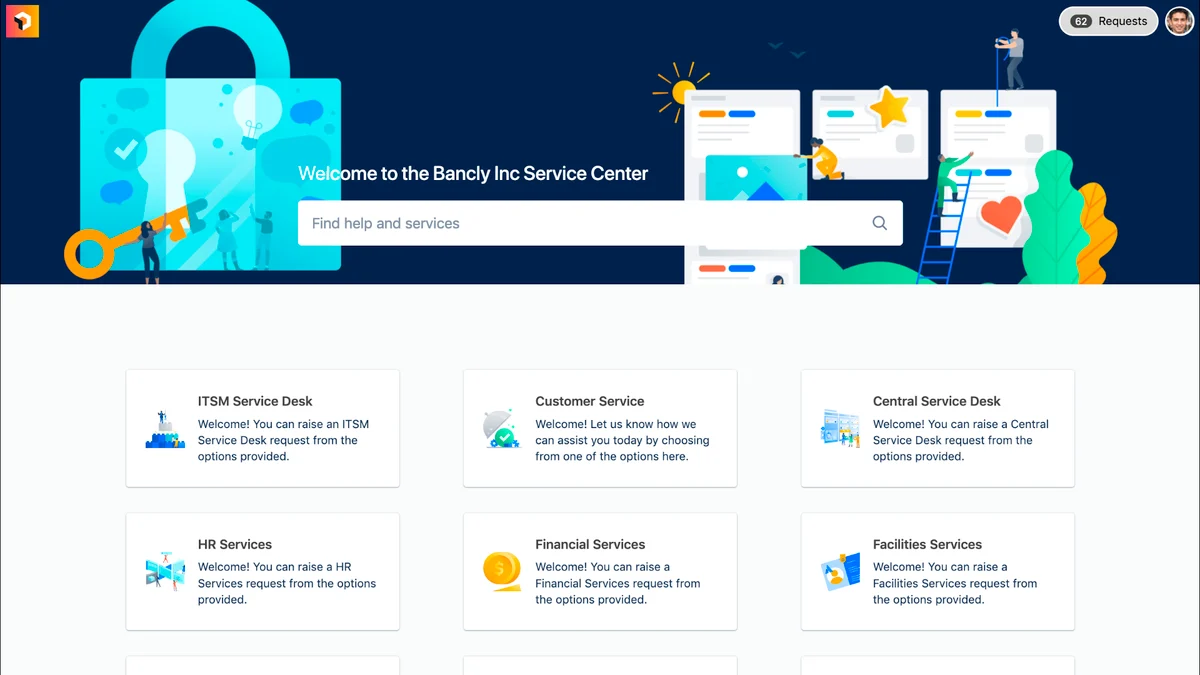
It is the customer-facing site where people search for help and raise requests across all the teams you run. Atlassian describes it as one place where customers search the request forms and knowledge base articles from every linked service space. Your site gets a default help center at your site address followed by /helpcenter/ and a slug, and you can add more.
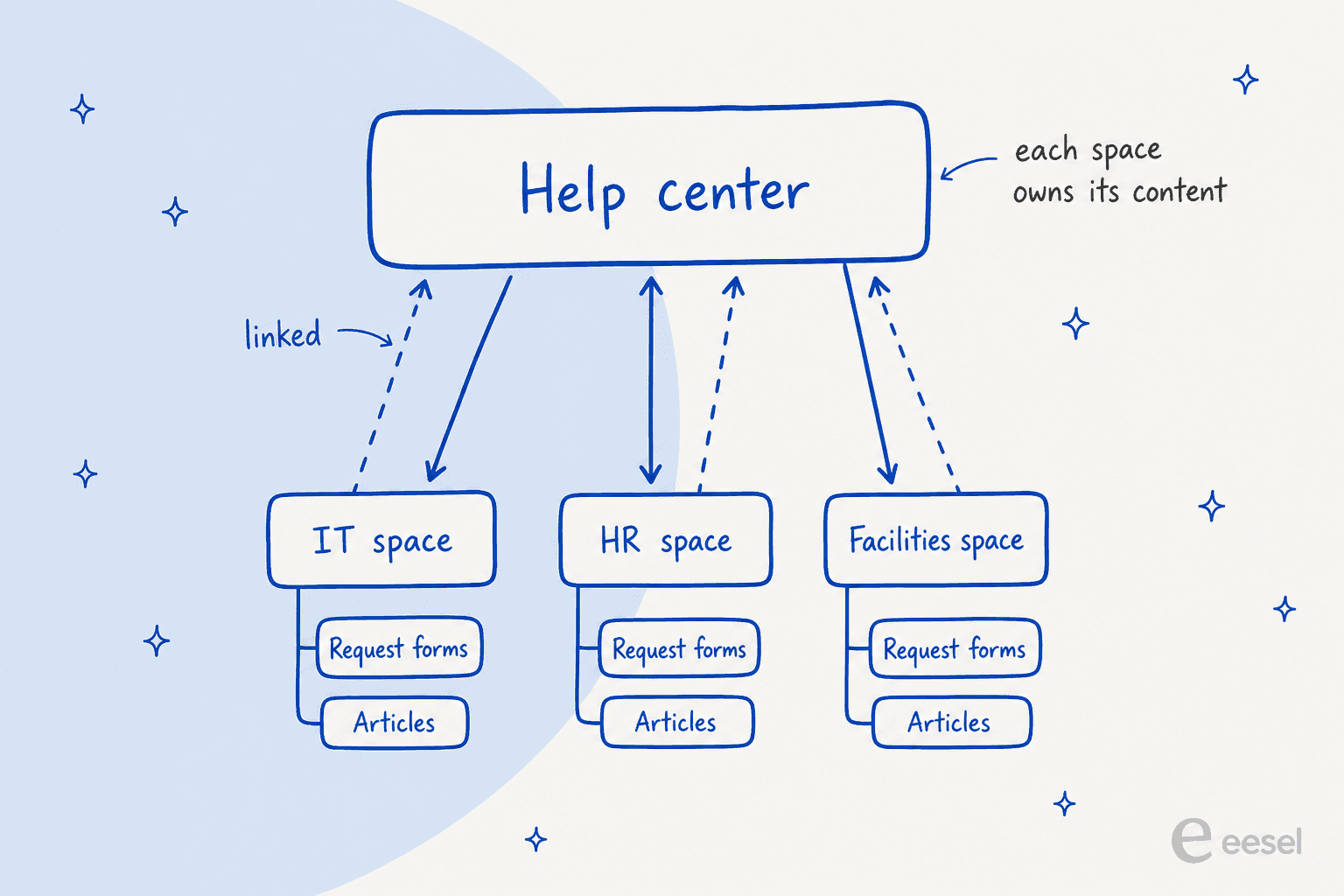
The part that confuses people is ownership. The help center does not hold your content. Per Atlassian, service spaces still own their portals, request types, portal groups and articles, and the help center only shows what you link in. That is why one help center can serve IT, HR and facilities at once without anyone moving a form.
If you are still weighing the product itself, my Jira Service Management review and the Freshservice comparison cover the wider picture. For the service desk versus help desk split, see help desk versus service desk.
What is the difference between a portal and a help center?
A portal belongs to one service space, and a help center sits above many of them. In a Modern help center, each linked space gets a portal page where customers find that space's request forms, articles and external resources, as Atlassian's portal pages doc explains. The help center adds the shared home page, the search bar, the navigation and the theme.
| Portal | Help center | |
|---|---|---|
| Belongs to | One service space | The whole site, many spaces |
| Holds | That space's request forms, articles, resources | A home page, topic pages, custom pages, portal pages |
| Branding | Inherits the help center theme | Logo, colors, fonts and navigation |
| Who edits layout | Jira and site admins | Jira and site admins only |
| How many | One per space | 1 on Standard, up to 300 on Premium and Enterprise |
Two details are worth knowing. Request forms on a portal page are grouped by the portal groups you set inside the space, so to reorder them you change the space and not the help center. And the help center editor is for admins only: Atlassian says you can't give other people access to edit one. If a team lead wants to change a banner, an admin does it for them.
For the request side of that space, my guides on approvals, assets and status pages show how the other pieces connect, and the JSM ticketing system guide covers the queue side.
Am I on a Modern or Legacy help center?
Check the label next to the Help centers heading. Atlassian's which help center page says every help center is labeled Modern or Legacy, and a site can have both at once.
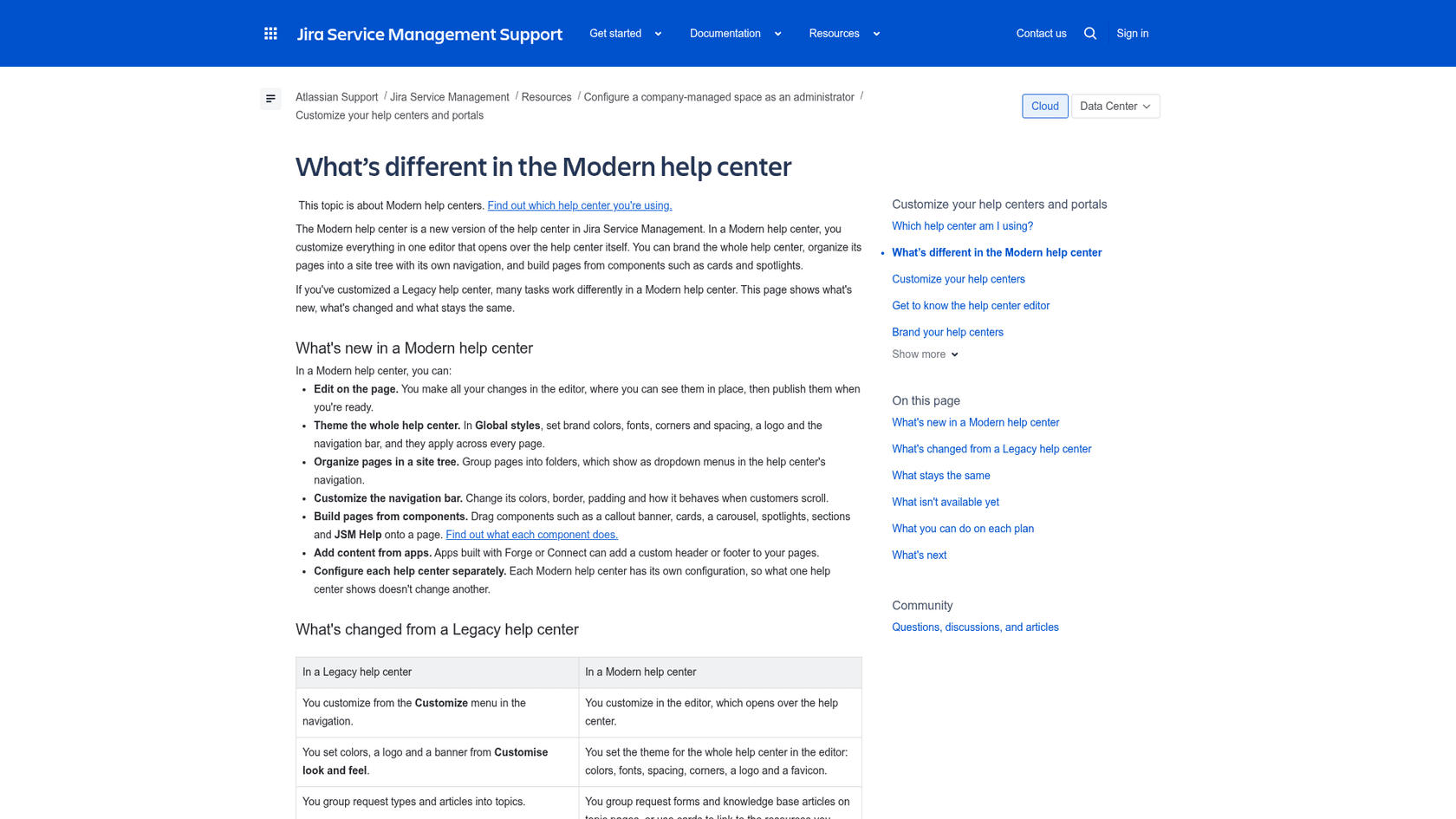
- Modern: select Help centers in the left sidebar. This is where you customize in an editor that opens over the page itself.
- Legacy: go to Settings, then Jira apps, then Help center permissions, then View all help centers. You customize from a Customise menu.
New help centers are always Modern, including the default on a new site. Existing ones stay Legacy until you update them, and when you do, you get a Modern copy to review. Until you publish that copy, customers keep using the Legacy one, which makes the migration safe to do slowly.
Not everything has made the trip yet. Atlassian lists two gaps: sections can be deleted but not hidden, and announcements aren't available. If your team leans on announcements to post outage notices, plan a different home for them before you update.
How do I set up a help center in Jira Service Management?
You need to be a Jira admin, and the wizard has three steps. Atlassian's create and manage doc describes them for a Modern help center:
- Select Help centers in the left sidebar, then Create help center.
- On Add details, enter a Help center name and a Help center URL. The URL is your site address, then
/helpcenter/, then your slug. - On Link spaces, pick at least one service space. Linked spaces show their forms and articles in the help center.
- On Rovo agents, choose an agent you built in Studio, or skip it.
- Select Create help center, then keep editing.
The linking step is where help centers get their audience. Atlassian's link spaces doc says this is especially useful for multiple help centers aimed at different audiences, because you control which content each one shows. There is a Link all new spaces to this help center toggle on the Spaces tab, which I would turn off the moment you have a separate audience, such as contractors, who should not see HR forms.
At least one space has to stay linked, so a help center never ends up empty. If you manage requests across teams, the ITSM ticketing guide and my note on service desk automation show what usually happens next.
How do I customize a Modern help center?
You do all of it in one editor. Open it from Help centers with the pencil icon on the card, and a toolbar floats at the bottom of the page. Atlassian's editor guide lists its parts:
- Components opens the panel of blocks you drag onto a page, such as a callout banner, cards, a carousel, spotlights, sections and a JSM Help block.
- Global styles holds the theme: brand colors, logo and corners on Branding, the top bar on Navigation, and Fonts.
- Pages opens the site tree, where a new help center starts with Home and the Portals and Topics folders.
- Publish makes changes live. Unpublished changes shows until you do, and Restore help center discards them.
Customers see nothing until you publish, which is the single best thing about the editor for a team nervous about a half-finished home page. A few page rules matter. The home page can't be moved or deleted, and the login and portal pages can be moved but not deleted. Folders in the tree become dropdown menus in the navigation bar.
If you have used the Legacy version, the mapping is straightforward. Topics become topic pages, Manage topics and portals becomes the JSM Help component, and landing pages become custom pages. The Legacy Customise look and feel screen, with its banner and color pickers, is replaced by the theme. Atlassian's brand your help center page walks through the colors and logo.
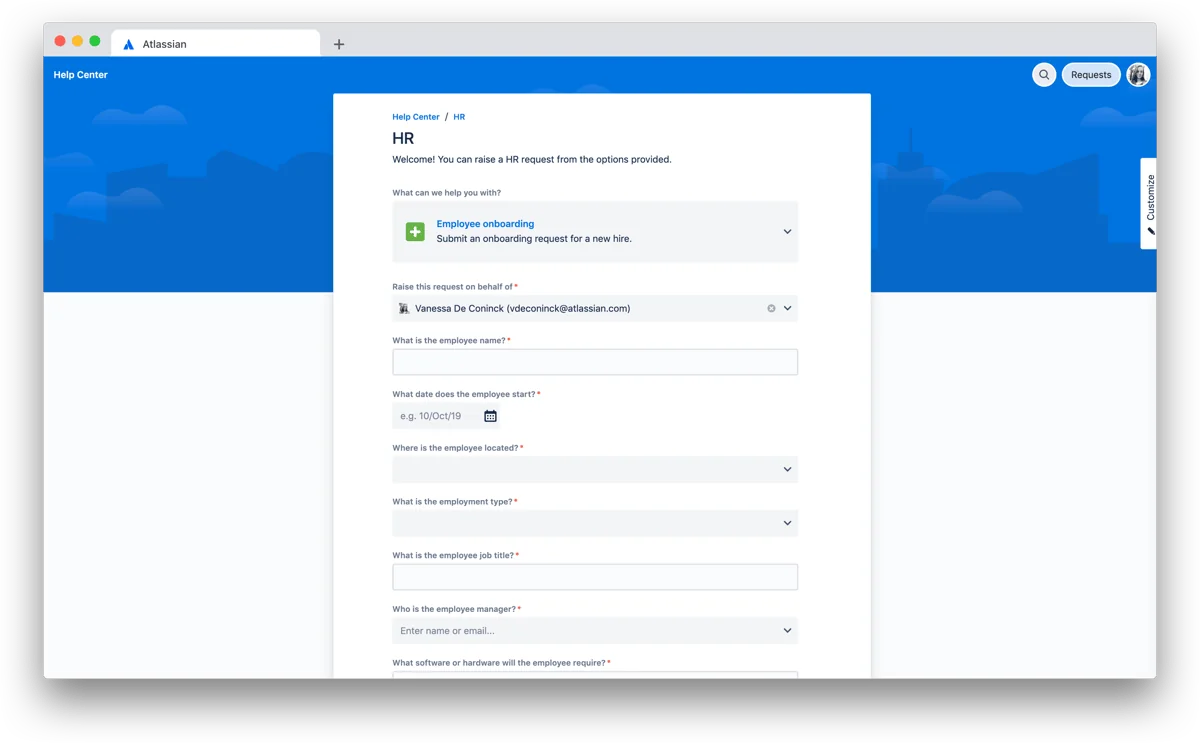
One thing I would not skip is the form itself. Look at the HR page above: a request picker, then field after field. That is a space setting, not a help center one, and it is where self-service quietly fails. My approval workflows guide covers the other end of that form.
Which Jira Service Management plan do I need for a help center?
Standard is enough for one branded help center, and Premium is where the real customization starts. Atlassian's docs give this split, and the pricing page agrees: Free has unlimited service portals, Standard adds custom branding with your company URL, and Premium adds multiple help centers.
| Help center feature | Standard | Premium and Enterprise |
|---|---|---|
| Number of help centers | 1 | Up to 300 per site |
| Logo and colors | Yes | Yes |
| Custom fonts and advanced theming | No | Yes |
| Topic pages | Yes | Yes |
| Custom pages | No | Yes |
| Portal pages | Edit the callout banner only | Change, add and remove components |
| Components | All standard components, including JSM Help | All, including ones that connect to your organization's data |
The table is Atlassian's plan comparison for Modern help centers, with only my formatting added.
On cost, the pricing page showed $21.50 per agent per month for Standard and $55.28 for Premium when I checked on 13 November 2026, with Enterprise on contact-sales terms. Those are blended rates at the calculator's default of 75 agents, and Atlassian states pricing is progressive by seat band, so a small team will pay a different number. My pricing breakdown works through the bands.
Here is a quick way to pick. Choose your two answers.
Which plan does my help center need?
Pick what describes your setup. The answer follows Atlassian's plan table above.
How do I link a knowledge base to the help center?
Link a knowledge base to each service space, then link the spaces to the help center. Atlassian's knowledge base setup page says the aim is to let customers search articles instead of raising a request, and to let agents share articles while they work. The articles live in Confluence, which is why the knowledge base is where most of the surprises are.
Internal or external. Atlassian's internal versus external doc says external articles are reachable from the help center, portal and virtual service agent, while internal articles, such as runbooks, show only inside the space. The internal option isn't available without a Confluence license, and internal bases lack draft support, categories and bulk unlink. For more on that split, see my internal knowledge base piece.
Who can read what. Under Space settings, Channels & self-service, Knowledge base, the Who can view dropdown has options per linked space:
- Only Confluence users limits articles to people with access in Confluence.
- All logged-in users opens them to everyone logged in to your service space, even without a Confluence license. Atlassian warns this also makes them visible to active Atlassian users on Confluence.
- Anyone makes articles public, but only with a paid Confluence plan, Standard or above, powering the knowledge base, and the portal itself must be set to "Anyone can send a request via the portal."
Confluence page restrictions go further. Articles hidden from customers show a red padlock and stay readable to your team on work items, per Atlassian's restrict access page.
More than one source. A knowledge base can link a Confluence space on the same site, a space on another site in the same organization, a single Confluence folder, or a third-party folder such as Google Drive or SharePoint. Atlassian's multiple sources page says linked content appears in the Articles tab, help center search, virtual service agent search and the issue view. It can take a few seconds to show in search.
Deflect before the form. In Space settings, Knowledge base, the article suggestions setting shows articles while a customer types the Summary field, and labels narrow which ones appear. It doesn't work when the knowledge base is linked to spaces on a different Confluence site, a limit worth checking before you promise deflection.
Starting from nothing? On Standard and up with Rovo enabled, Create with Rovo drafts a set of articles from your space's context, and you review them before saving or publishing. A /manage-knowledge-base skill later turns resolved tickets into drafts. My notes on AI knowledge bases, Atlassian's knowledge base and Confluence AI go deeper, and an audit of your knowledge base is the cheapest first step.
What AI options does the help center have?
Two, depending on which version you run, and Atlassian's docs say so plainly. The virtual service agent is documented as Legacy-only for help centers. On Modern, the AI route is a Rovo agent you add from Customize then Rovo agent.
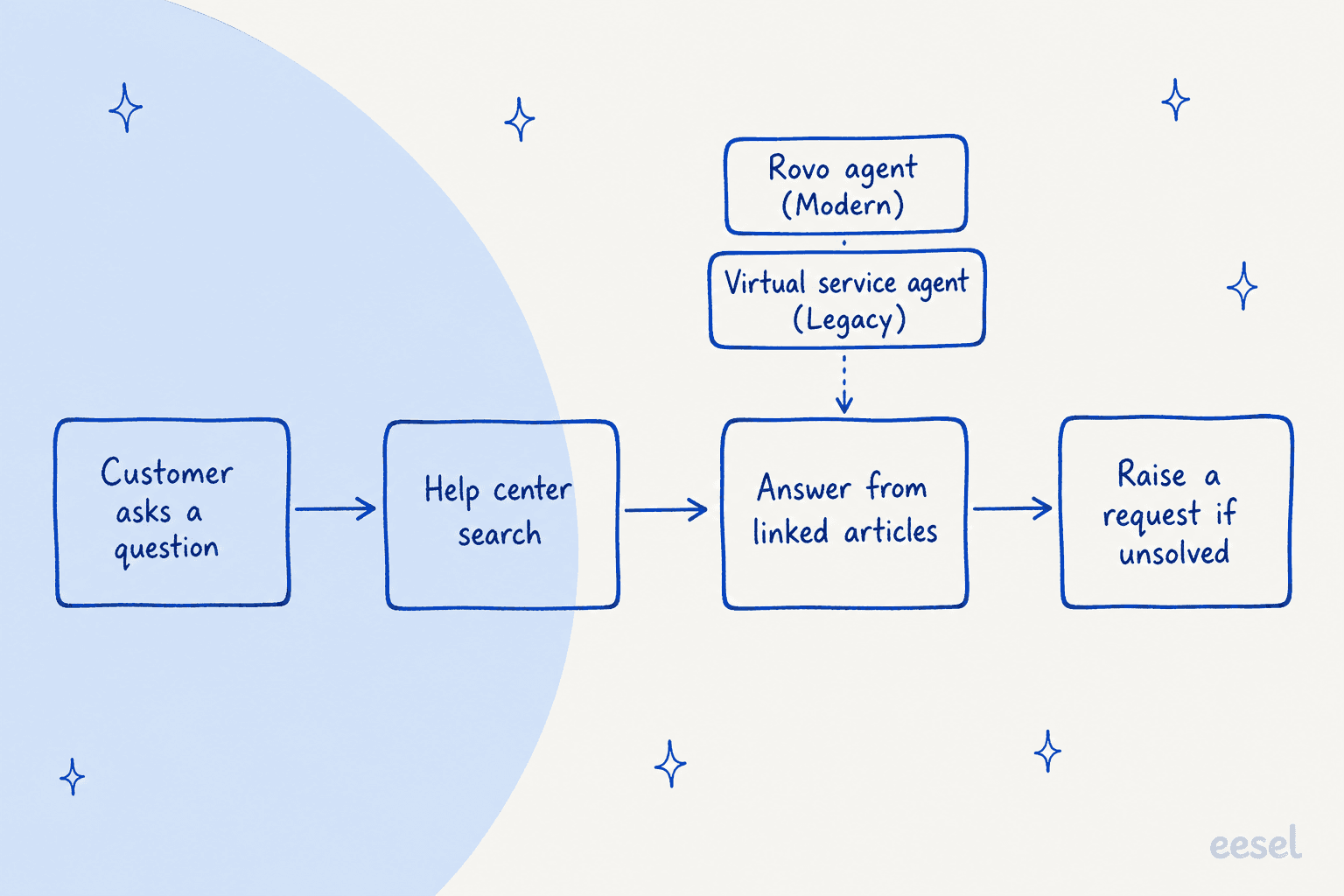
| Virtual service agent | Rovo agent | |
|---|---|---|
| Help center version | Legacy only | Modern or Legacy |
| Where you build it | Space, then help center settings | Studio |
| Answers from | Linked knowledge base through AI answers, plus intents | Help centers you add as knowledge |
| Who can use it | Help center visitors | Logged-in Atlassian accounts on Modern |
| Plan | Premium and Enterprise | Rovo on Standard and up, see below |
Virtual service agent. It summarizes articles from the linked spaces and can use several spaces in one answer. Intents, its scripted conversation flows, can't be created for a help center and must be built at the space level. A site admin or organization admin switches it on.
Rovo agent. You create it in Studio, point its knowledge at Jira Service Management and your help centers, and add up to five skills. Atlassian's create an agent page names a Raise a Request skill that automates ticket creation for up to 50 spaces with routing to request types and prefilled fields. On Modern, only logged-in Atlassian accounts can use the agent, so an anonymous customer won't get it.
Cost is where the pages disagree. The create-an-agent page says you need a Standard, Premium or Enterprise plan, while the add an agent page says Service Collection Premium or Enterprise. The pricing page lists Rovo Agents from Standard and the virtual service agent as not included on Free and Standard, with 1,000 assisted conversations a month on Premium and Enterprise and $0.30 per assisted conversation above that. Rovo credits are 250, 700 and 1,500 per user per month on Standard, Premium and Enterprise, and Atlassian says the self-service agent consumes them. I would ask your Atlassian rep to confirm which applies to your site before you build around it. My JSM AI evaluation and Rovo pricing notes go into the credits.
What do real users say about the portal and help center?
The portal gets praised for being simple, and the complaints are about configuration, not the tool. A reviewer running an 18-person internal service desk wrote:
"The request portal is simple for employees: they pick a request type, fill in a short form and can see the status without chasing anyone by email or phone."

A requester on the other side of the same portal made my earlier point about forms:
"The overall experience depends a lot on how the organization has configured the service portal. Some request forms ask for a lot of information, even for simple issues, so submitting a ticket can sometimes take longer than I’d expect."
The takeaway for me is that a good help center is half theme and half form design. Treat both as part of the same project, and keep the SLA clocks in mind, as my SLA best practices explain.
Where does eesel fit alongside a help center?
Behind the search bar, on the queue your agents already work. eesel does not replace the help center, and an admin still approves the connection to Jira. What it adds is an AI teammate that reads new requests, answers from the same knowledge you linked, and leaves an internal note a person can approve. My guide to AI for Jira Service Management and the best AI for JSM roundup compare options, and adding AI to JSM covers the install route. eesel also reads Confluence, which is where your articles already live.
The pattern holds on a technical desk. An industrial automation company runs eesel over its documentation library: engineers ask a chat that answers only from the documents and names the section, and each support ticket arrives with a drafted answer and a confidence level for an engineer to edit. Weekly volume roughly doubled in its first months, and well over twice as many questions reach the chat as reach the support desk. That is self-service doing its job. At Orosoft, support staff mention eesel on a Freshdesk ticket and get a draft grounded in about 6,100 past tickets, and the draft says which ticket or article it used. That is a different helpdesk from Jira, but it is the same approach I would use on a JSM desk, with a person approving.
You can test setup against past requests first with AI support simulation, and my security review guide covers access levels. If the question is IT-wide, my notes on AI for ITSM, AI IT help desks and AI and ITIL show where each fits.
What would I set up first?
Start small and in this order:
- Check your plan. Settle Standard versus Premium before you design a custom page, since custom pages need Premium.
- Find your version. Look for the Modern or Legacy label, and note if you rely on announcements.
- Link the right spaces. Link only what each audience should see, and switch off auto-linking if you have separate audiences.
- Brand it. Set logo, colors and, on Premium, fonts in Global styles, then publish.
- Shape the forms. Cut request forms to the fields you really need.
- Set article visibility. Choose who can view each knowledge base, and use page restrictions for internal articles.
- Turn on suggestions. Use article suggestions on your top request forms.
- Add AI last. Pick a Rovo agent or the virtual service agent, then check your plan and credits.
Other reads while you do it: ticket escalation for who gets pulled in, my Jira AI automation notes and the Jira add-on roundup. If you are comparing platforms, see the Zendesk comparison, the Freshdesk comparison and the JSM alternatives.
Try eesel for Jira Service Management
If your help center is set up but your agents still answer the same questions by hand, eesel works like a new hire that plugs into your Jira Service Management desk. It reads new requests, drafts replies from your knowledge base and past tickets, and leaves a note when it is unsure, while your team keeps every approval. Free to try.