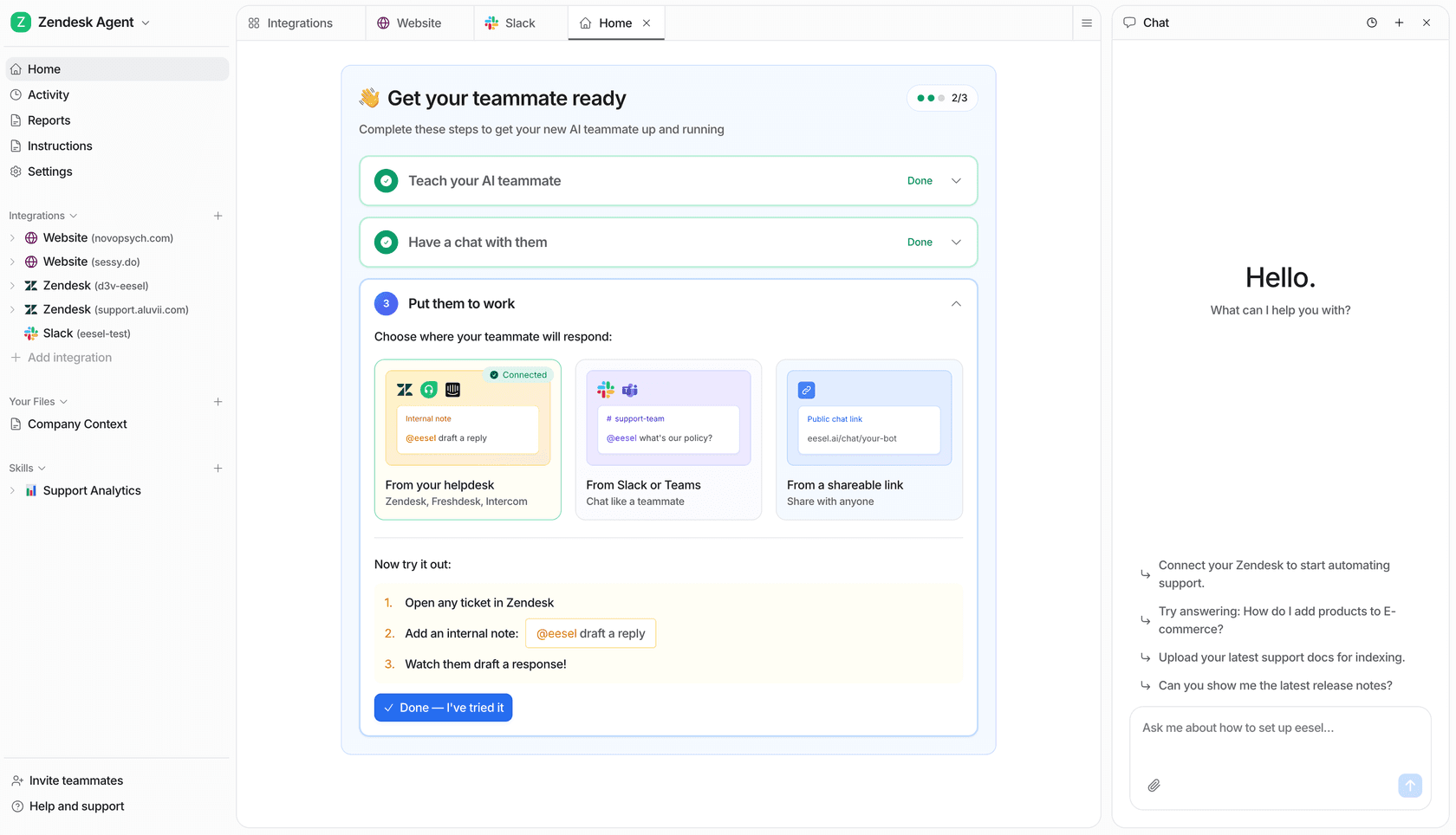
A Jira Service Management approval is a step on a workflow status: the request stops there until the named approvers approve or decline it. Approvers don't need an agent licence, they only have to be customers of the service space, and they can answer from the help center, an email, Slack or Teams. A Jira admin builds the step in a company-managed space, and Atlassian's pricing page lists multi-user and group approvals on Premium and Enterprise only, while the approval help pages carry no plan note at all. Check that on a trial before you plan around it. An AI teammate such as eesel can sit on the other side of the queue, answering "where is my request?" and drafting replies, but it has no approve or decline action in Jira, so every approval stays with your people.
I come at this from search, so I read the docs the way a buyer's questions arrive: who can approve, can a group approve, can I do it from Slack. Everything below comes from Atlassian's own help pages and pricing page, and where they disagree I say so. With the eesel CLI, an AI coding agent can upload approved knowledge, such as your approval policy and the list of who signs off what, then ask test questions and check the answers before anything goes live. Connecting the Jira site itself still needs a Jira admin to approve it.
How do approvals work in Jira Service Management?
A request reaches a status that has an approval step, the approvers are told, they decide, and the request moves on. Atlassian's approvals overview gives the sequence: someone raises a request, it transitions to a status with an approval step, the designated approvers get an email, they approve or decline "from the help center, directly from the email, or in Slack or Microsoft Teams," and the request moves to the next status. The person who raised it is notified of any comment the approver added.
Atlassian's examples show the range: a new system account approved by an IT manager, a phone purchase over a set value approved by Information Security, IT and Finance together, and leave requests approved by a direct manager. You can add the step to any status in any request type's workflow, which is why the same feature covers access requests, purchases and changes.
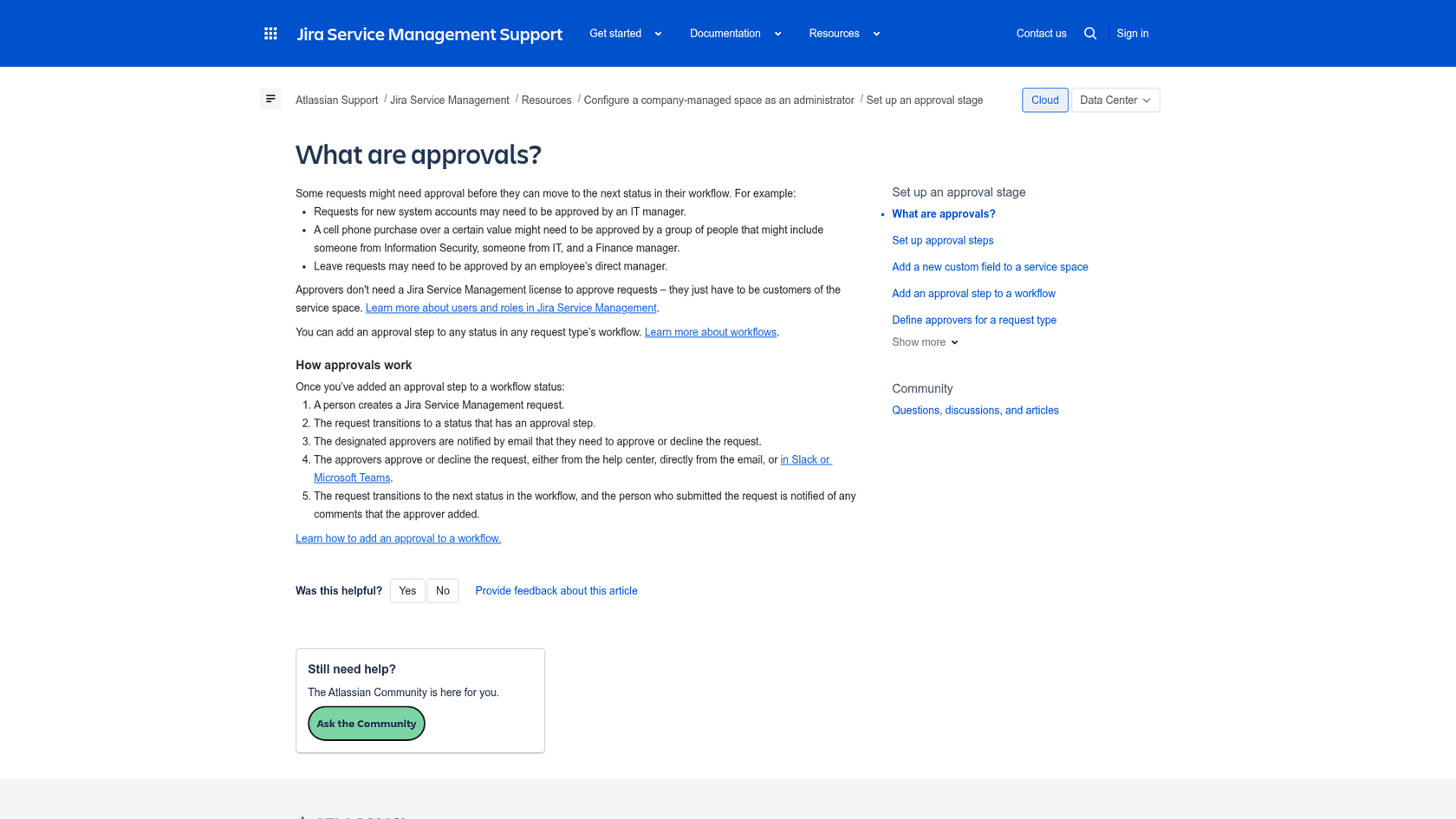
The detail that surprises people is on the same page: approvers don't need a Jira Service Management licence, they just have to be customers of the service space. In a tool priced per agent, that means a finance manager who only clicks Approve doesn't add a seat. A G2 reviewer who uses the tool from the requester side describes the other half of the value:
"I can always see whether a ticket is waiting for approval, assigned to someone, in progress, or completed."

If you are still weighing the product overall, my Jira Service Management review covers the rest. For the pattern outside Jira, see customer support approval workflows.
Which plan includes Jira Service Management approvals?
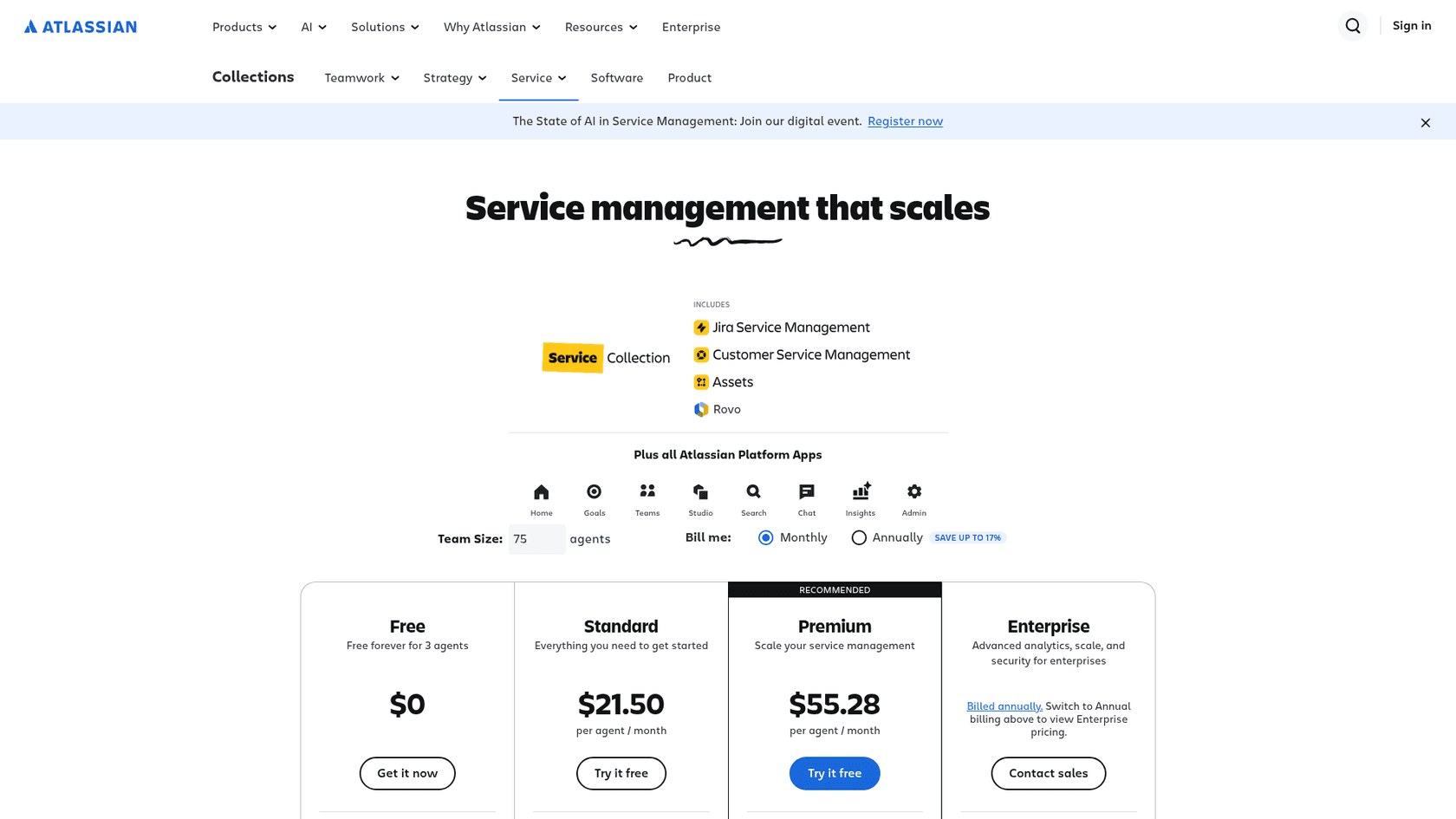
Atlassian doesn't say in the approval help pages, and the pricing page says Premium and Enterprise. That is the first of several places where the sources don't line up, so here is exactly what each one states.
| Item | Free | Standard | Premium | Enterprise |
|---|---|---|---|---|
| Approvals (multi-user and group) | No | No | Yes | Yes |
| Change risk assessment | No | No | Yes | Yes |
| Chat in Slack and Teams | Yes | Yes | Yes | Yes |
| Automation rule runs | 500 per month | 5,000 per month | 1,000 per user per month | Unlimited |
| Price per agent, monthly | $0 | $21.50 | $55.28 | Contact sales |
Those rows come from Atlassian's pricing page, as I read it on 12 November 2026. The Standard and Premium prices are the calculator's blended rates for a default 75-agent team, and Atlassian states that monthly pricing is progressive, so your own number depends on agent count. The row's wording matters: it says "multi-user and group approvals based on your change management practices." I found no Atlassian page that says what a Standard site gets for a plain single-approver request, so test it on a trial before you promise it to anyone.
Change approvals have their own history: Atlassian's risk insights page says change management moved from Standard to Premium on 16 October 2024. My change management guide covers that side, including the CAB stage.
How do you add an approval step to a workflow?
Edit the workflow in Space settings, tick Include approval step on a status, and choose who approves. Atlassian's add an approval step page says you need to be a Jira administrator, and that it applies to company-managed spaces only. The step is added to workflows whose work type is used by a request type.
Prepare first:
- Create a user picker (multiple users) or group picker (multiple groups) custom field for approvals, and add it to the request type.
- If you want approvers from affected services, create a service with change approvers and add the Affected services field to the request type.
Then:
- From your service space, open Space settings, then Workflows, and edit the workflow.
- Switch to the Diagram view and select the status that needs approval.
- Tick Include approval step. This only appears if the status has at least two transitions, one for Approve and one for Decline.
- Select Edit, then set the Number of approvers and the Approver source.
- Pick the statuses to move to when the request is approved or declined.
- Under Exclude approvers from, choose fields whose users must not approve.
- Select Add, then Publish draft.
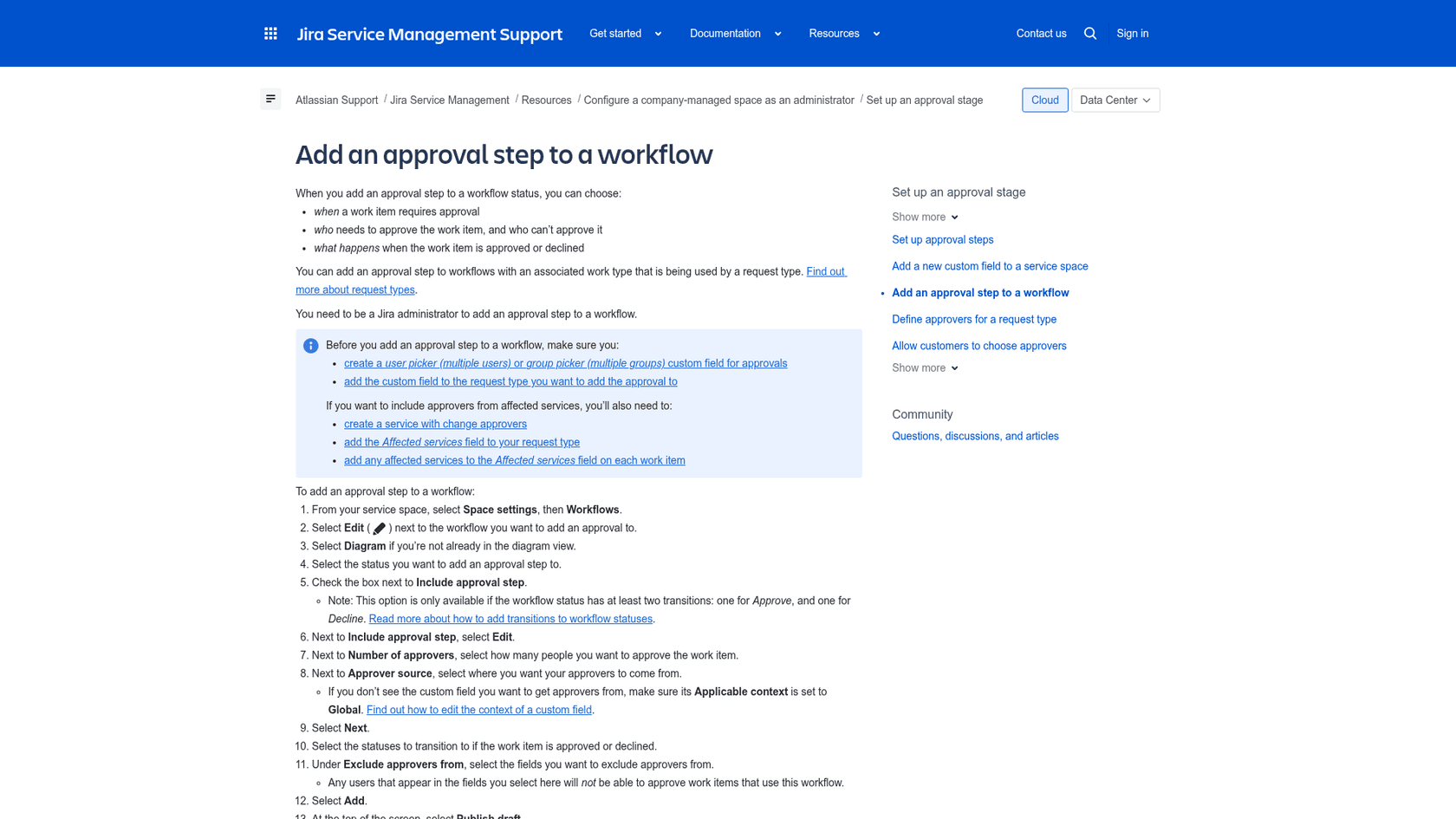
One gotcha is buried in step 4: if your custom field doesn't show up as an approver source, its Applicable context has to be set to Global. Atlassian's setup overview frames the whole job as two parts, fields for entering approvers and the step on a status, and I'd build them in that order.
How many approvals does a request need?
You choose it in the Number of approvers setting, and the page doesn't spell out the options. The sentence is "select how many people you want to approve the work item," with no list of choices such as all, a minimum or a percentage. I can't tell you from Atlassian's text what the dropdown offers, so look at it in your own workflow before you design a two-of-three rule. What the docs do confirm is that multiple approvers are normal: the automation action that approves or declines a request does so "regardless of how many approvers are needed to proceed in the workflow."
Who can approve, and how do you choose approvers?
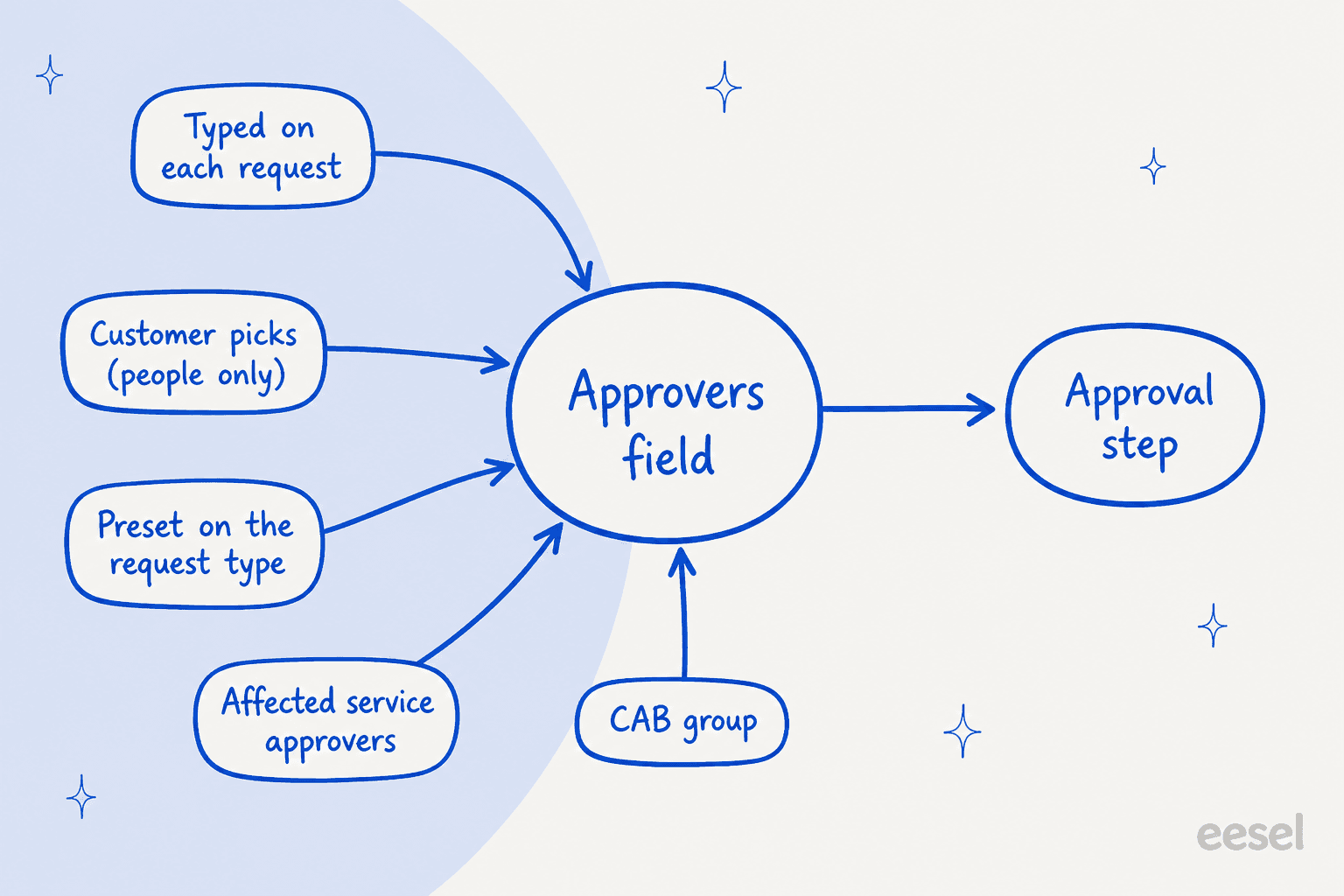
Whoever sits in the approver field you choose as the source, whether that is people, a group, or the approvers attached to a service. Atlassian describes four ways to fill that field, and the right one depends on who knows the answer.
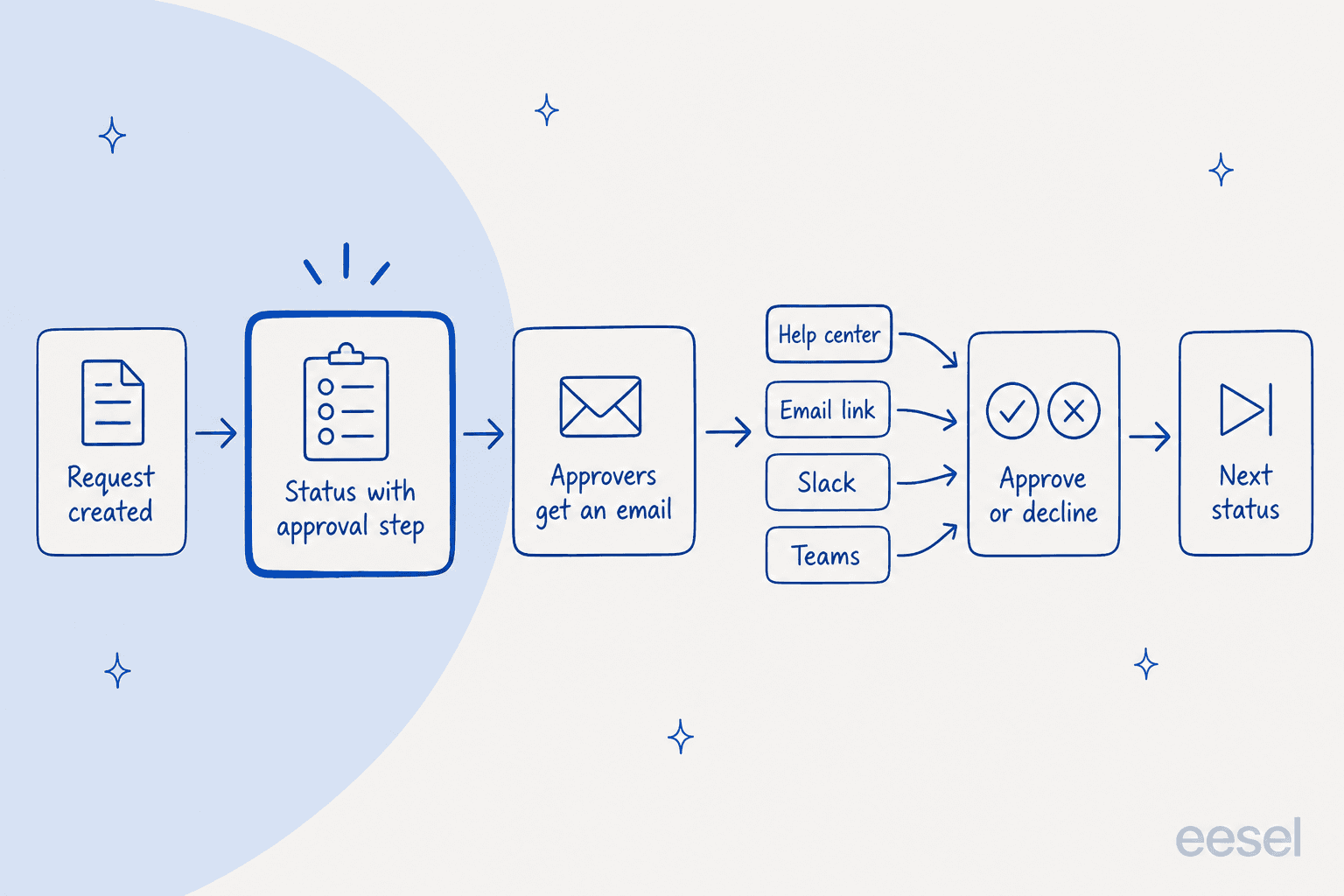
- Typed on each request. Agents enter people or groups by hand. By default an ITSM space ships with an Approvers field for individuals and an Approver groups field for groups.
- Customer picks. Add the Approvers field to the request form. Atlassian's customer-chosen approvers page says customers cannot add groups, a space admin has to set it up, and the space must let customers search for other customers.
- Preset on the request type. Tick Use preset value and hide from portal and enter people or groups. The preset approvers page says this needs a Jira administrator, and that approvers are hidden from customers while agents still see them.
- Affected service. Choose Affected services as the source and the approvers attached to the service are required.
- A CAB. Atlassian's CAB approval page offers three routes: individual members in a custom field, a CAB group in a group field, or the same members for every request of a type.
Here is a small picker I built to turn those rules into a choice. It follows the pages above and nothing else.
Where should the approver list come from?
Pick who knows the approvers and whether a whole group must be able to approve.
Can a group approve a request?
Yes, through a group picker field, with one catch in chat. The default Approver groups field holds groups, and Atlassian's CAB page uses a group as a standing approver. But in the Slack chat settings, Atlassian says that if an approver group is assigned a request, "they won't receive notification in Slack" and need to act from email or Jira Service Management. If your team lives in Slack, name people, not just a group.
How do you stop people approving their own request?
Use Exclude approvers from in the step's setup. Any user who appears in the fields you select there will not be able to approve work items on that workflow, per the add-an-approval page. The docs don't give a ready-made "no self-approval" switch, so you build it by excluding the field the requester or change owner sits in.
How do people approve by email, the portal, Slack or Teams?
Any of the four, as long as the approver is a customer of the space. The overview lists the help center, the email itself, Slack and Microsoft Teams. If your portal is the front door, my notes on self-service portal software show what good looks like. Chat is the one that takes setup: What is chat? explains that the service space connects to Slack or Teams through an app called Atlassian Assist, and that if a request type with an approval step is set up with chat, Assist sends approvers a direct message with the option to approve or decline.
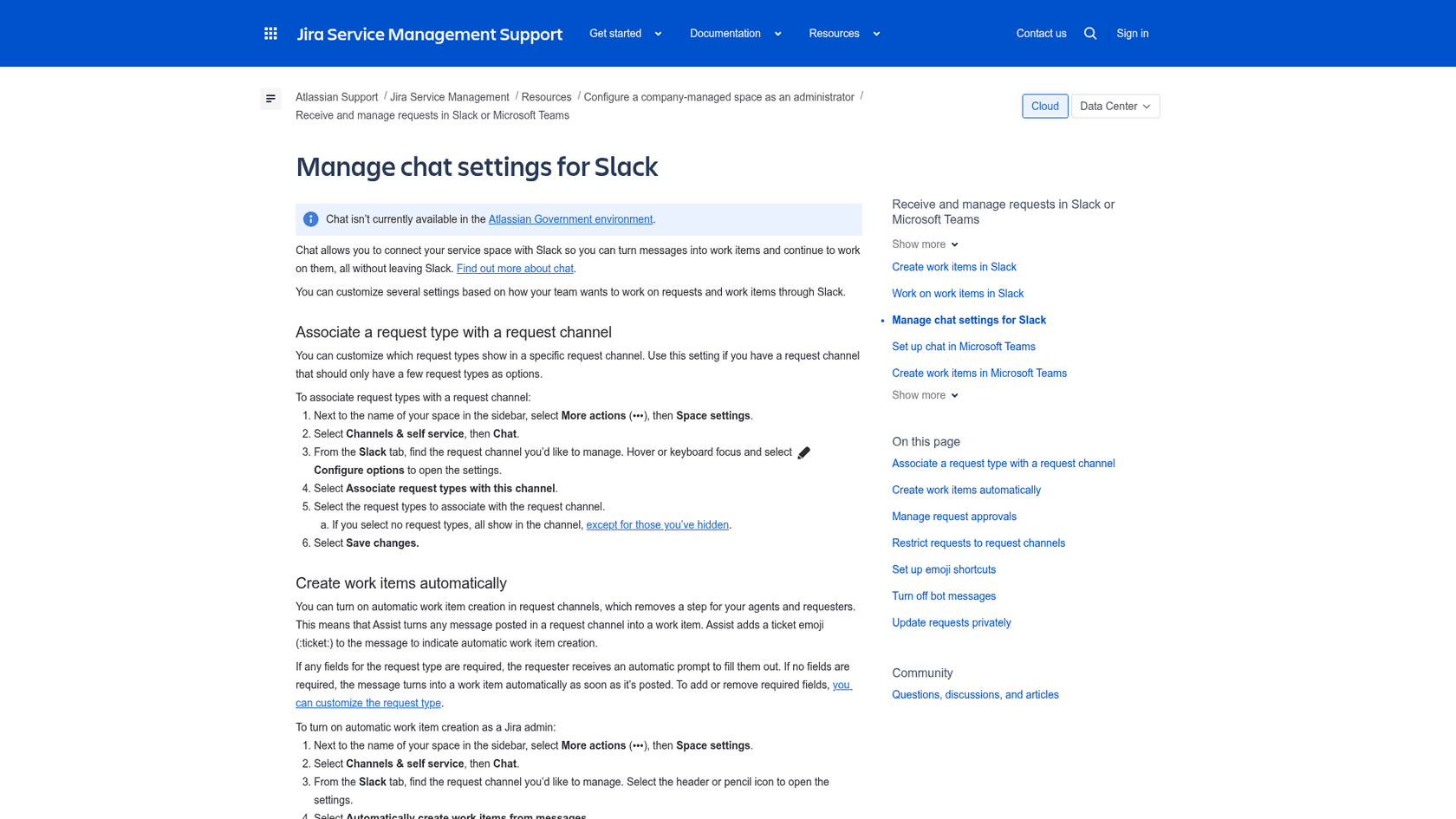
The details that matter:
- On by default. Approvals in chat are active by default. To turn them off, go to Space settings, then Channels & self service, then Chat, and switch off Approvals in chat on the Settings tab.
- Decision is recorded. After you approve or decline in Slack, the message shows a timestamped note of your decision, and Teams works the same way.
- Tenant limits. A Jira site can connect to several Slack workspaces but only one Microsoft Teams tenant, and chat isn't available in the Atlassian Government environment.
- Unsupported fields. If a request type has a required field chat doesn't support, you can't use that request type in chat.
- Plan. The pricing page checks Chat on all four plans, so the channel itself isn't what you pay Premium for.
For help desks that already run on chat, my notes on AI for Slack support cover the assistant side.
On Teams, AI in Microsoft Teams does the same. eesel has Slack and Microsoft Teams integrations too.
How does automation work with approvals?
Jira automation has two approval triggers and one approval action, all marked for Jira Service Management only. Atlassian's triggers page defines them:
- Approval required runs when a work item that requires approval is created or updated, or when new approvers are added.
- Approval completed runs when an approval step is accepted or declined.
The actions page adds Approve/Decline request, which approves or declines a pending request. It says you can use it on items pending approval on the current status, and that approvals are managed through the workflow. Smart values are not available in that action.
My own ideas for these, not Atlassian's: post to a channel when Approval required fires, add a comment when Approval completed fires, or escalate to a backup approver after a delay. They are plain rules, so they count against your plan's monthly automation allowance from the table above. On Standard that is 5,000 runs a month, which a busy approval queue can use faster than you expect. My Jira automation notes and service desk automation guide cover the wider rule set.
Where do the Atlassian docs disagree?
Five places, and they matter if you are scripting or documenting this for your team:
- Plan. The pricing page puts multi-user and group approvals on Premium and Enterprise, while the approval help pages have no plan note. Change management approvals moved from Standard to Premium in October 2024, and nothing I found says whether plain approvals did.
- Duplicate page. The page titled "request approval from approvers associated with a service" returned the same text as "Add an approval step to a workflow," so the service-approver guidance is not on a page of its own.
- Which fields exist. The setup overview says an ITSM space comes with Approvers and Approver groups fields. The add-an-approval page tells you to create a user picker or group picker custom field first, and the CAB page mentions a Group approvals field. They may be the same thing under three names, but the pages don't say so.
- Slack for groups. What is chat? says Assist sends approvers a direct message. The chat settings page says approver groups get no Slack notification.
- Number of approvers. The page names the setting but not its choices.
I'd treat the admin screen as the authority and the help pages as a guide. Two doc trees also exist for the same article, one under jira-service-desk-cloud and one under jira-service-management-cloud, so a link you save can differ from the one a colleague saves.
What goes wrong with approvals in practice?
Mostly setup, not the feature. These are the ones I'd check before blaming the tool:
- No approval option on the status. The checkbox needs two transitions, Approve and Decline. Without both, Include approval step doesn't appear.
- Field missing as a source. If the custom field's context isn't Global, it won't be offered as the approver source.
- Wrong space type. The approval setup pages are marked company-managed only. I found no equivalent page for team-managed spaces.
- Customers can't pick groups. If your form expects a group from the portal, it won't work.
- Admin-only changes. Adding the step and setting preset approvers need a Jira administrator, so a space admin alone can stall.
- Groups and Slack. A group approver gets no Slack message, so the request sits until someone checks email.
- Exclusions. If the requester can approve their own request, check Exclude approvers from.
- Automation allowance. A busy approval queue can burn through a Free or Standard plan's monthly runs.
If you want the context around approvals, SLA best practices explains why a request waiting on an approver still has a clock, and ticket escalation covers who steps in when an approver is away.
Where does AI fit alongside approvals?
On the request side, answering and drafting, never on the approve button. Atlassian's own AI risk assessment is explicit that it does not approve or reject changes, and I'd keep that line for any AI. A Hacker News commenter describes the odd failure when an agent reads a ticket and improvises its own gate:
"Somewhere along the way it said that to do that it needs an approval from a company's VP (ticket requester)"

That is why the real approval should live in the workflow, where it is recorded, and not in a model's guess. It is also why I'm direct about what eesel does here. eesel is an AI teammate that joins your Jira Service Management desk, and its Jira Service Management documentation lists what it can do: reply to the reporter, leave an internal note, assign, label, update fields and transition issues. It has no approve or decline action, and it runs on two triggers only, an issue being created or commented on, so a status change such as an approval completing doesn't start it.
There is also a naming trap. eesel has its own approvals, the Approve and Reject buttons on a drafted reply or an action it wants to take, controlled under Actions and Approvals. They are not the Jira approval step. Both mean "a person decides first," but they sit in different places.
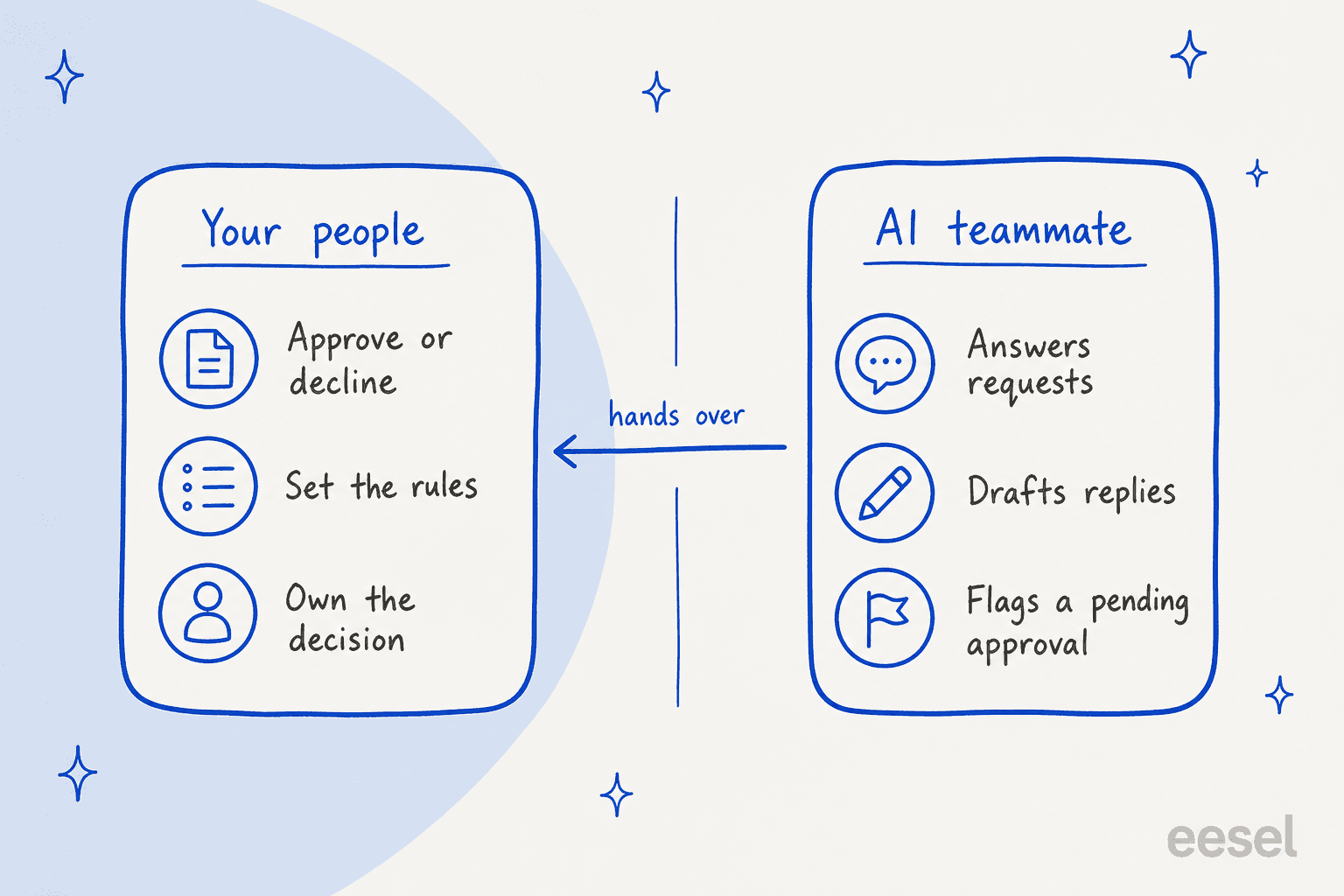
The same pattern works on another helpdesk, and there is a published example. smava runs eesel on a Zendesk that took about 27,000 tickets in one month, from 8 August to 8 September 2026. The drafting agent's only output is a draft reply with Approve and Reject buttons, and it prepared about 15,300 draft replies in that month. Agents approve the draft or write @eesel in an internal note to ask for a different macro. It is regulated finance, so wording matters, and the person still decides what goes out. That is a different helpdesk from Jira, but it is the same split I'd use on a JSM desk: eesel drafts and answers, your approvers approve.
Where this helps in practice is the traffic around an approval, such as "has my access request been approved?" or "who do I ask about my purchase?". Go deeper with these:
- AI for access requests covers the most common approval-heavy ticket.
- AI for ITSM maps where an AI teammate sits in a service desk.
- AI for change management covers the CAB side.
- Adding AI to JSM compares the install routes.
- AI support simulation tests a setup against past requests before it goes live.
- The security review guide covers access levels.
- AI for IT help desks covers the wider IT queue.
- Best AI for ITSM compares tools across the category.
- AI service desk explains the model for internal teams.
If you are choosing an AI for Jira itself, start with AI for Jira Service Management. The best AI for JSM roundup compares the options.
Atlassian's native route is in the Rovo guide, and a separate post looks at JSM's built-in AI.
What would I set up first?
Start with one request type and one approver, then widen. In this order:
- Confirm your plan and space type. Check the pricing row and that the space is company-managed.
- Build the approver field. Create or pick a user picker or group picker field and add it to the request type.
- Add one approval step. Pick a single status, set the number of approvers, and exclude the requester's field.
- Preset the approvers. Use a preset on the request type so nobody types names by hand.
- Turn on chat. Connect Slack or Teams and watch one approval land as a direct message.
- Add two rules. One on Approval required to notify, one on Approval completed to comment.
- Check the quota. Look at monthly rule runs after a week.
- Put AI on the queue. Let a teammate handle the questions around approvals and keep the decisions with people.
For the surrounding stack:
- ITSM ticketing system is the background read on the category.
- Help desk versus service desk explains the split.
- The Freshservice comparison sets the two side by side.
- The ServiceNow review shows the rival approach.
Pairing approvals with Confluence policy pages gives an AI teammate the rules to quote.
Try eesel for Jira Service Management
If your approvals are fine but your queue fills with "where is my request?" tickets, eesel works like a new hire that plugs into your Jira Service Management desk. It reads new requests, answers from your policy and knowledge base, and leaves an internal note for your team to review, while your approvers keep every approve and decline. Free to try.