


Jira Service Management change management gives an IT team change request types, a review-and-CAB workflow, approvals, a risk panel, a change calendar and deployment gating for CI/CD tools. Since 16 October 2024 it lives on Premium and Enterprise only, which is the first thing to check before you plan a rollout. The default workflow doesn't force anyone to approve, so you have to switch approvals on yourself. Of the pieces, deployment gating is the one that changes how a team works, because a pipeline waits for a decision. An AI teammate such as eesel can sit on the request-queue side, answering "how do I raise a change?" from your policy and tying new tickets to a recent change, while people keep every approval.
I work on eesel's integrations and APIs, so I read this feature the way an integrator does: where does each piece of data come from, and what is a connected tool allowed to touch? I went through Atlassian's change management docs and pricing page for this guide, and the answers are more specific than the marketing suggests. With the eesel CLI, an AI coding agent can upload approved change policy, like your standard-change catalogue and CAB charter, then ask it test questions and check the answers before anything goes live. Connecting the Jira site itself still needs a Jira admin to approve it.
What does change management in Jira Service Management cover?
It covers the full lifecycle of a change request, from raising it to closing it. Atlassian's own definition is "the addition, modification, or removal of anything that could have an effect on services," with a process to flag, review and approve those changes before they hit service quality.
In practice the feature is six pieces that you can adopt one at a time:
- Change request types and a workflow based on the ITIL process.
- Approvals, including a CAB review stage and approvers tied to a service.
- Risk insights, a panel showing conflicts, incidents and past failures.
- AI risk assessment, a Rovo-powered summary and a Low, Medium or High rating.
- A change calendar with maintenance and freeze windows.
- Deployment tracking and gating, which connect CI/CD pipelines to change requests.
All of this lives in an ITSM service space. If you are weighing Jira against other tools first, my Jira Service Management review and the Freshservice comparison cover the wider product. If your team is unsure whether it needs a service desk or a help desk, help desk versus service desk explains the split.
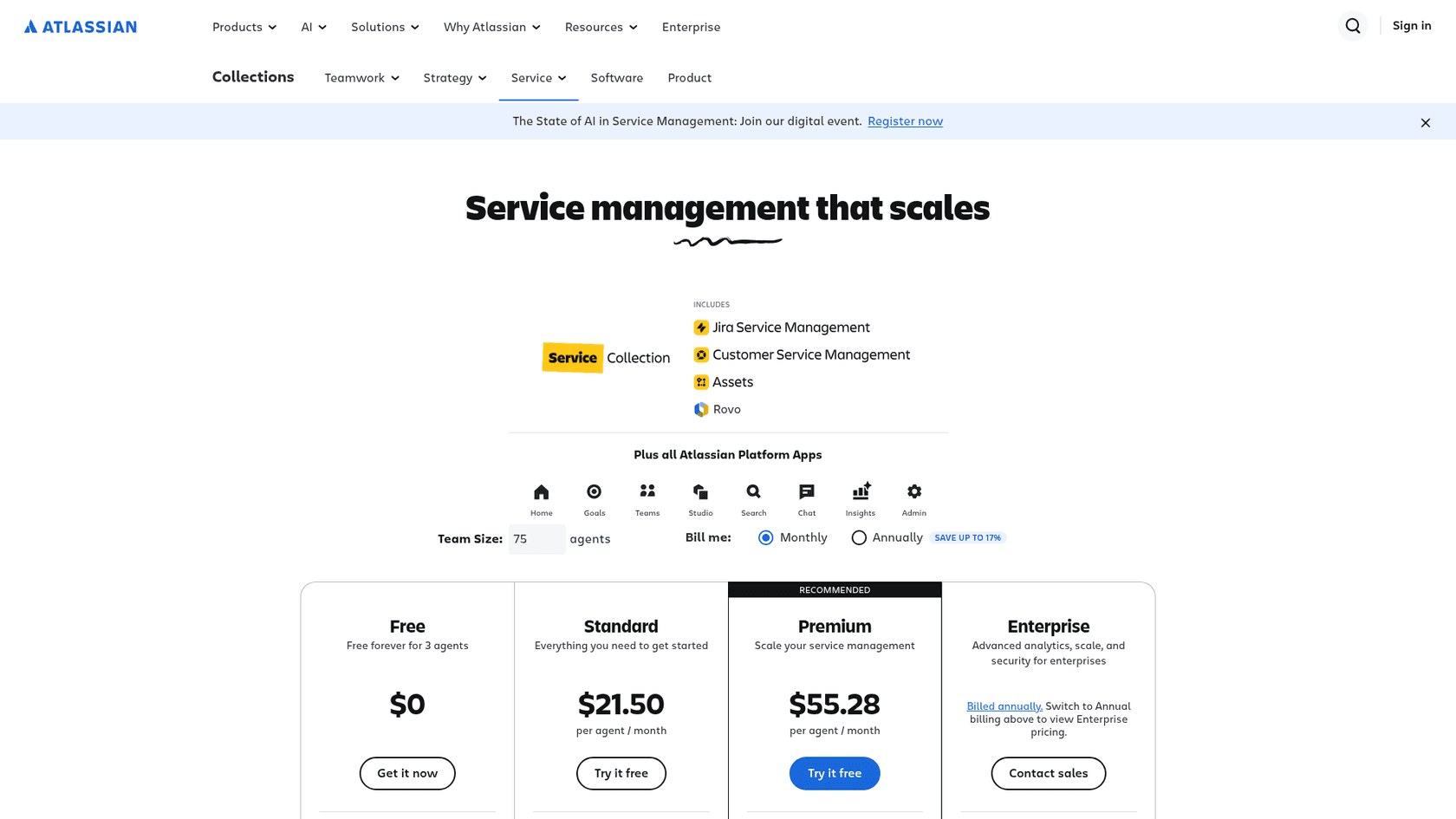
Which plan includes Jira Service Management change management?
Premium and Enterprise. Atlassian's risk insights page says that as of 16 October 2024, change management "has moved from Standard to Premium," and that existing Free and Standard spaces keep their existing request types and work types. New adopters on those plans don't get the feature.
The pricing page lists each piece as a Premium and Enterprise row:
| Change feature | Free | Standard | Premium | Enterprise |
|---|---|---|---|---|
| Approvals (multi-user and group) | No | No | Yes | Yes |
| Change risk assessment | No | No | Yes | Yes |
| Change calendar | No | No | Yes | Yes |
| Deployment tracking | No | No | Yes | Yes |
| Deployment gating | No | No | Yes | Yes |
| AI risk assessment | No | No | Yes | Yes |
| Service registry and dependency mapping | No | Yes | Yes | Yes |
The last row is worth noticing: the service registry and dependency mapping, which give changes their context, start on Standard, but the change tools that use them do not.
On cost, the pricing page showed $55.28 per agent per month for Premium and $21.50 for Standard when I checked on 12 November 2026, with Enterprise on contact-sales terms. Those are the calculator's blended monthly rates for its default 75-agent team. Atlassian states that monthly pricing is progressive, with volume discounts by band, so your real number depends on your agent count. My pricing breakdown walks through the bands.
What change types does Jira Service Management support?
Three, following ITIL. Atlassian's changes page defines them:
- Standard changes are low-risk, pre-authorized and well documented, so they go ahead without extra review.
- Normal changes are scheduled, assessed and reviewed through the process. Raising a change request starts one.
- Emergency changes must happen as soon as possible, for example to resolve an incident, roll back a deployment or apply a security patch. The assessment is fast-tracked, and Atlassian notes that sometimes there is less testing because of time.
The type lives in the Change type field on every change request. The default form also carries Change risk, Impact, Urgency, Change reason, a Change advisory board (CAB) field, Approvers, and four date fields that matter later for the calendar. Atlassian's default fields page adds one rule that trips people up: for deployment pipelines to work, only Summary and Description should be required on the Change work type.
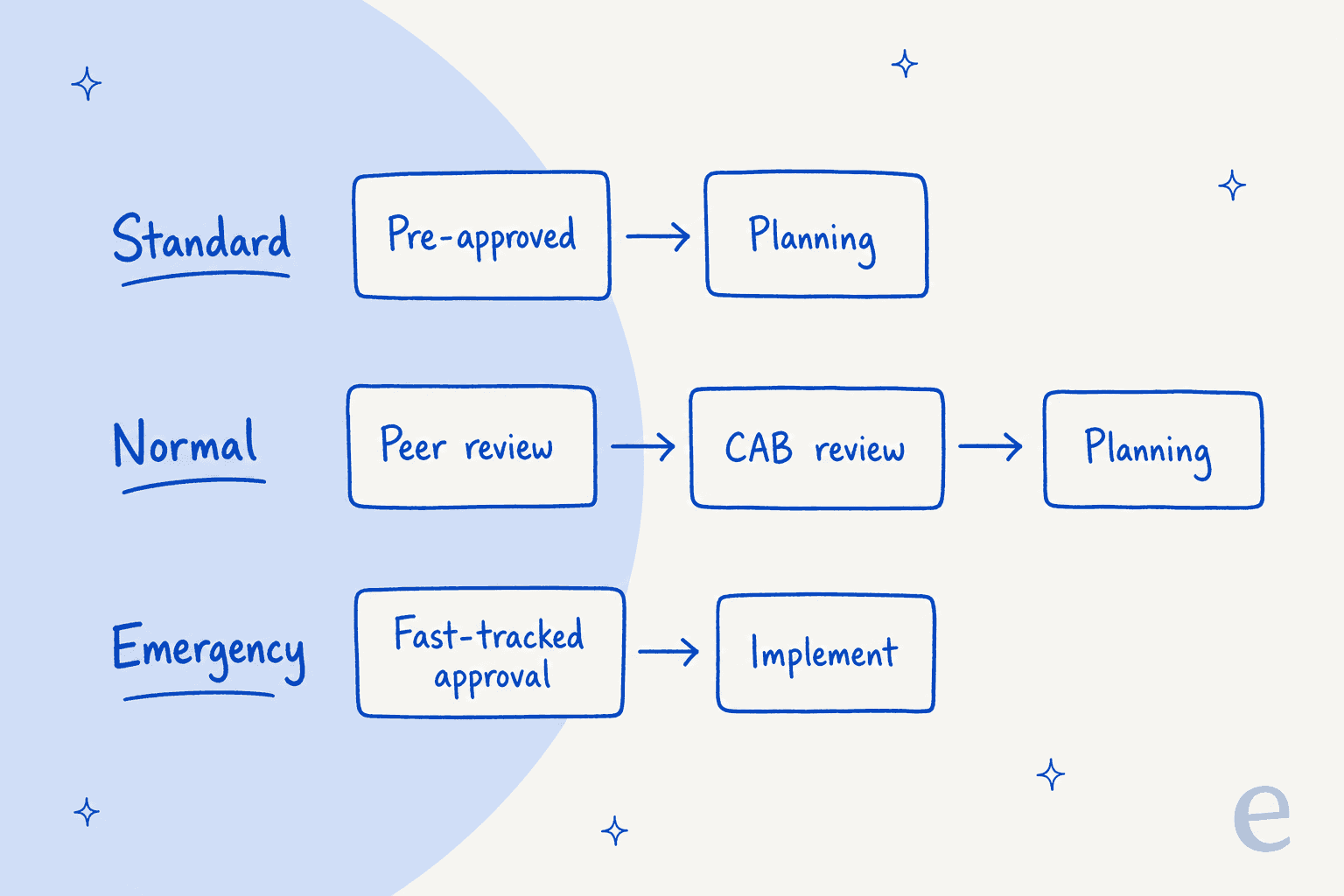
The workflow behind it, described on the change management workflow page, follows six ITIL steps: a request with affected systems and risks, a peer or change manager review, planning (outcomes, resources, timeline, testing, rollback), a CAB review depending on type and risk, implementation, and a closing review by the change manager. The ITSM template adds this workflow to every project, and you can adapt it. For a wider look at ITSM tooling, see my ITSM ticketing system guide. If you want ITIL context first, my AI and ITIL piece covers the framework.
Who reviews this change?
Pick the change type and the risk. The answer follows how Atlassian describes the default workflow.
How do you set up change approvals and a CAB?
You have to enforce them. This is the detail most people miss: by default the change workflow doesn't force approvals, and Atlassian's enforce approval page says any agent or admin can move a work item through either review stage. The workflow has two review stages, change manager or peer review and CAB review, and neither is a gate until you make it one.
To enforce an approval step:
- In your service space, open Space settings, then Workflows.
- Next to Change Management workflow for Jira Service Management, select Edit workflow.
- Select the status that should require approval and tick Include approval step.
- Choose the Number of approvers and the Approver source. Selecting Affected services requires the approvers attached to the service.
- Pick the statuses for approved and declined, and use Exclude approvers from to stop people approving their own request.
- Select Publish draft.
Two limits apply. The page covers company-managed spaces only, and the approval step page says you need to be a Jira administrator. The approval option also appears only when the status has at least two transitions, one for approve and one for decline. If you want approvers per service, create the service first and add the Affected services field to the request type.
Can you auto-approve standard changes?
Yes. The ITSM template includes an automation rule that looks at change requests whose Change type is Standard and moves them through peer review or change manager approval to Planning. The template name says "low risk," but the docs describe the trigger as the Standard type, so check the rule in your space before you rely on either reading. There are two other presets: one that updates change type and risk when a request is created, and one that transitions a request when a deployment completes, fails or is cancelled. Those flows are described on the automation flows page. My approval workflows guide covers the same principle for support teams.
How does risk assessment work?
Jira gives approvers two layers: a data panel and an AI summary. The data panel is risk insights, shown on the change work item. It stays empty until the change has Affected services, Planned start and Planned end filled in, and affected Assets objects if you use them (my IT asset management guide covers why that data matters). It has four tabs:
- Risk summary shows conflicts, freeze and maintenance windows, and open incidents on the same service and timeframe.
- Changes lists other changes in the same window, and changes planned up to seven days after your planned end.
- Incidents shows ongoing incidents on the affected service, plus recently resolved ones.
- Failures (optional) tracks rejected changes, failed deployments and the reporter's rejected changes.
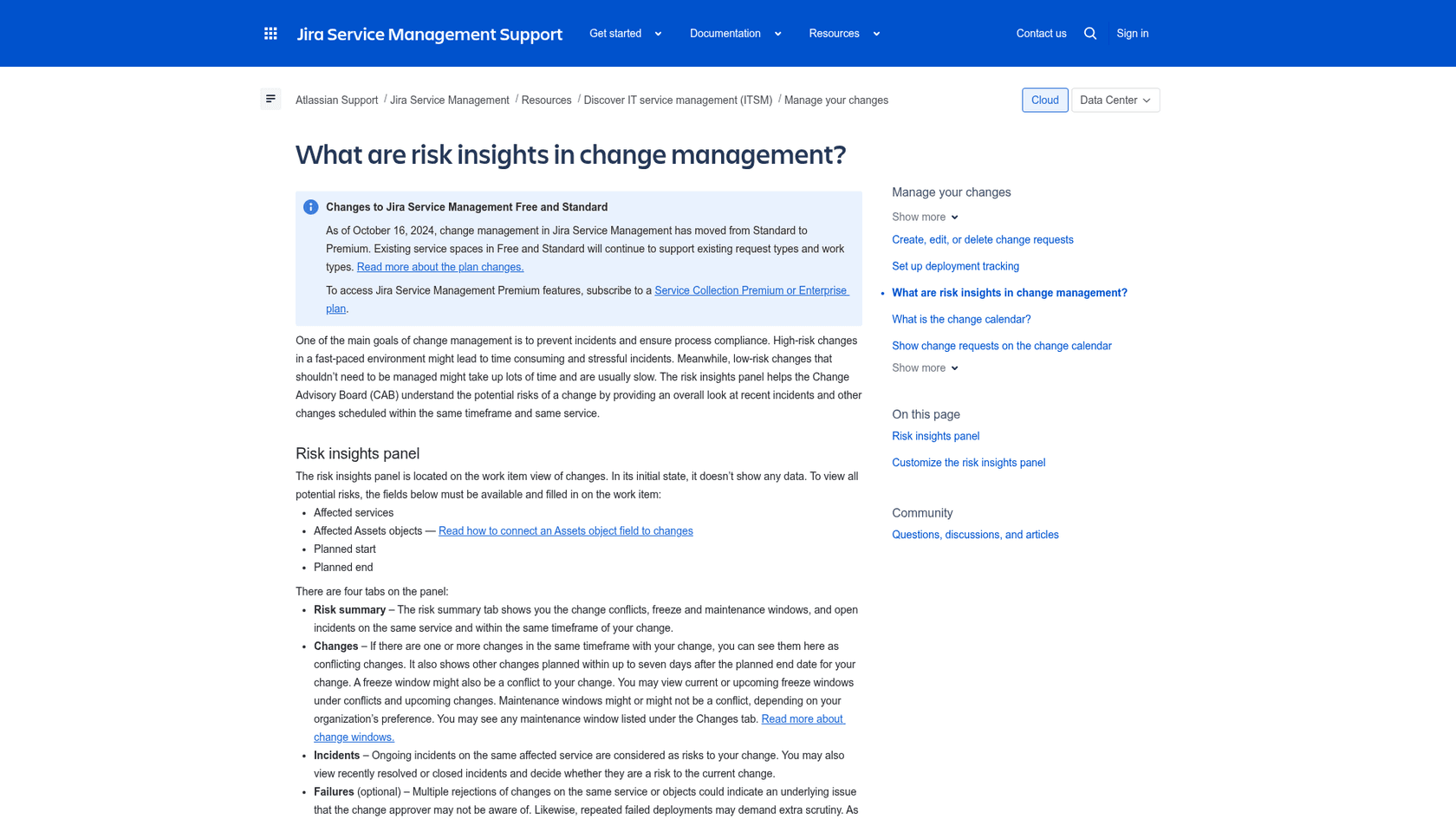
Admins choose which tabs to show under Space settings, then Operations, then Change management, then Risk insights. Switch every tab off and the panel disappears from your changes.
What does AI risk assessment add?
A narrative summary, a Low, Medium or High level and suggested mitigations. Atlassian's AI risk assessment page says it is available on Premium and Enterprise, powered by Rovo (Atlassian's Ops Expert, formerly Rovo Ops), and reads sources such as linked knowledge base articles, URLs in the change description and connected deployment pipelines. It also returns a confidence score.
The limits are stated plainly. It "does not" automatically approve or reject changes, enforce mandatory actions or give guaranteed predictions. It is generated per user, so each person sees a result based on the records they can access. And it is not HIPAA compliant, so Atlassian says not to use it for protected health information. Admins turn it on from the AI risk assessment tab, pick the knowledge bases it may read, and switch the Technical and Operational risk categories on or off, per Atlassian's configuration page.
I'd treat that output as a briefing. If you want the wider picture on Atlassian's AI, my JSM AI evaluation and the Rovo guide cover it, and Atlassian Intelligence explains the older branding.
How does the change calendar work?
It is a calendar of change requests across your service spaces. Atlassian's change calendar page says you see scheduled changes by day, week or month, create a change by selecting a time, edit existing ones, and filter by service project, status and affected service. Access needs a Jira Service Management agent licence.
A change only shows up if its dates are filled in. Four fields drive it, as the calendar setup page lays out:
| Field | Meaning |
|---|---|
| Planned start | When the change is planned to begin |
| Planned end | When it is planned to finish |
| Actual start (change start date) | When it really started |
| Actual end (change completion date) | When it really finished |
If all four are filled, the request appears based on the actual dates. Admins must add the fields to the create, edit and view screens, make sure each has the Date Time Range picker search template, and unhide them in the field configuration. The two "actual" fields can be filled by an automation rule when the change completes.
What are change windows?
They are the colour bands on the calendar. Atlassian's change windows page defines two kinds. Maintenance windows show when changes should be scheduled, to avoid peak usage and make sure enough staff can watch. Freeze windows, sometimes called deployment blackout windows, show when changes should not happen, such as holidays or business-critical events.
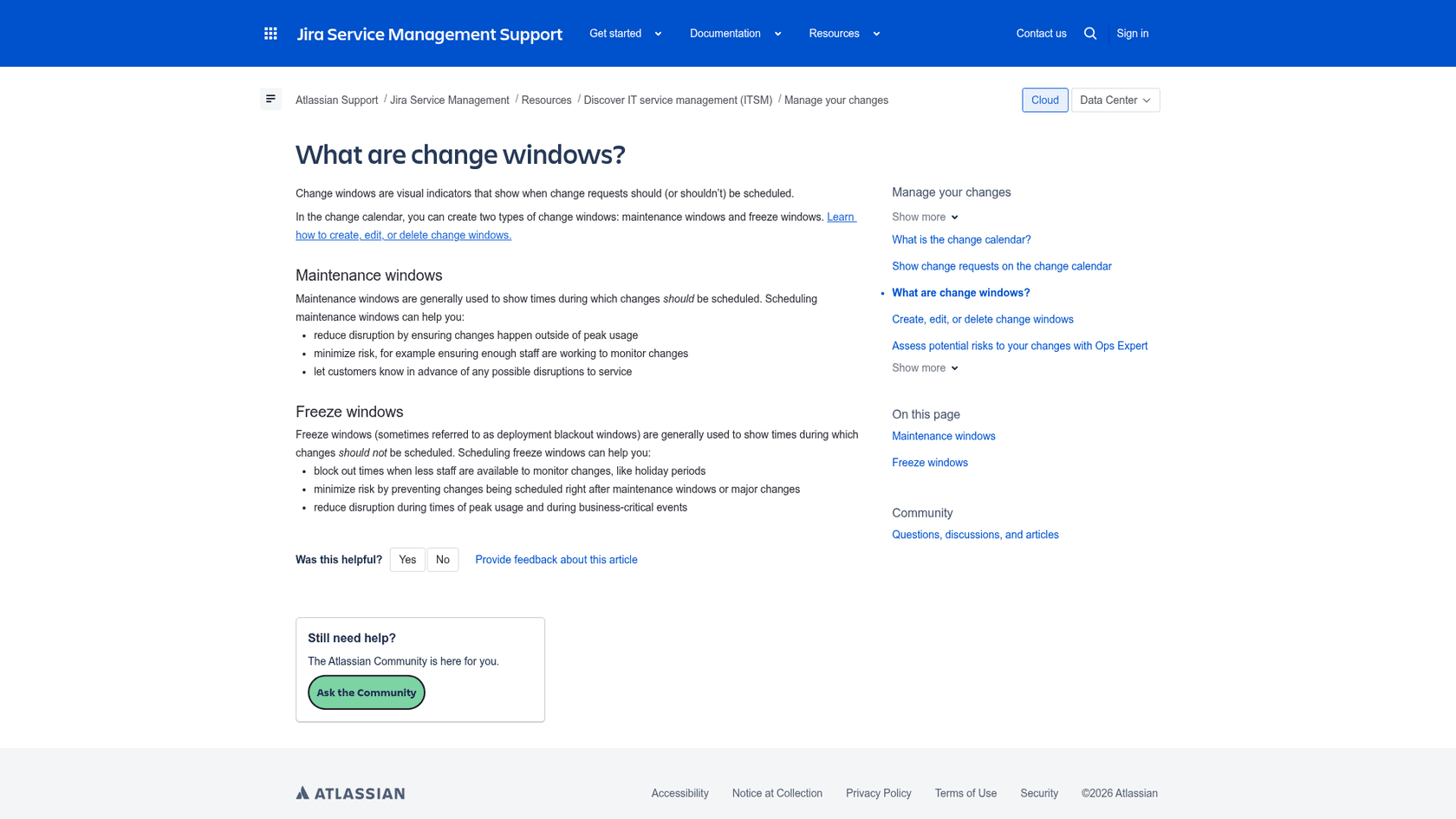
Note the word "should." Windows are visual indicators and conflict signals in the risk panel, and I found nothing in the docs saying they block a change by themselves. You can also subscribe to the calendar from Google, Apple or Outlook calendars.
How does deployment gating work with Bitbucket, GitHub and Jenkins?
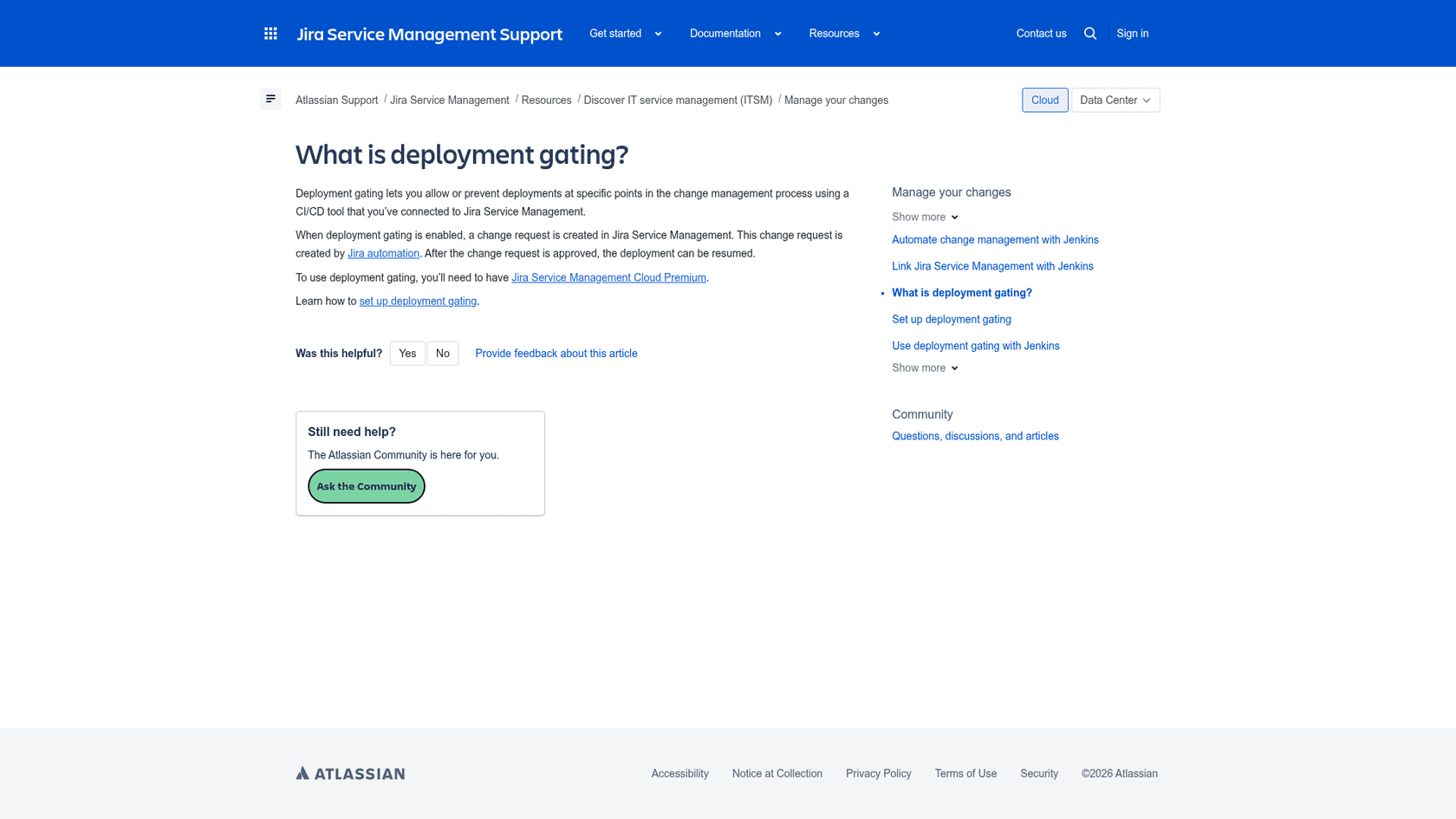
A pipeline starts a deployment, Jira raises a change request, and the deployment proceeds only if the request is approved. Atlassian's deployment gating page says it lets you "allow or prevent deployments at specific points in the change management process," with the change request created by Jira automation, and it requires Premium.
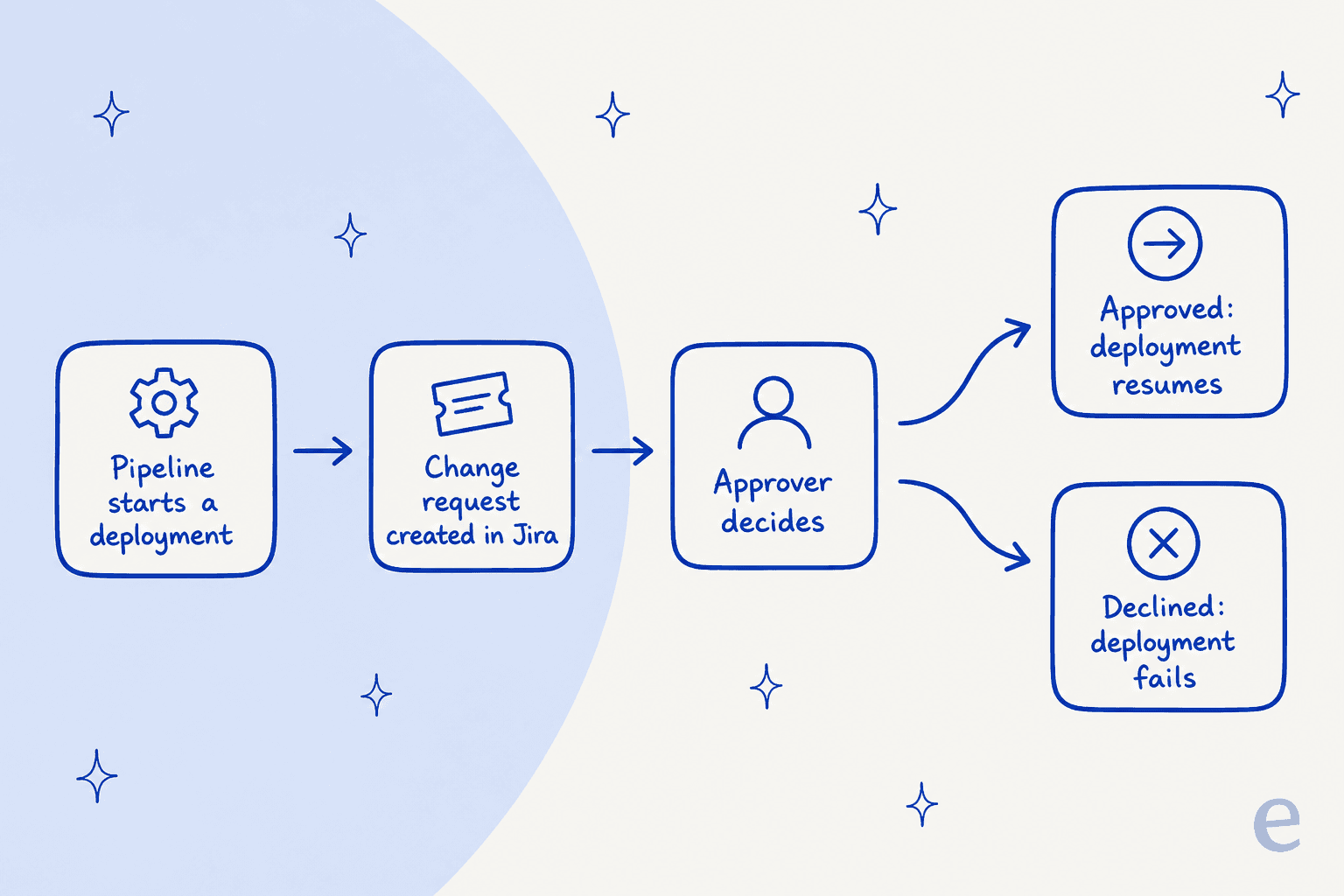
Setup has two halves. First you set up deployment tracking, which connects a pipeline and creates change requests when a team deploys to selected services. Bitbucket is connected in the UI, and Jenkins, CircleCI and Octopus Deploy connect via a service ID you paste into the pipeline. Then, per Atlassian's setup page, you go to Space settings, Operations, Change management, and choose which workflow status means "allow" and which means "prevent."
Each CI/CD tool has its own requirement:
| Tool | What the docs require | How it gates |
|---|---|---|
| Bitbucket | Standard or Premium Bitbucket licence, repo admin, a connected service | Turn on gating per environment under Bitbucket pipelines |
| GitHub | Jira app installed, repo connected, tracking and gating set up | Select Jira as a custom protection rule on the environment, then edit .jira/config.yml |
| GitLab | GitLab Premium or Ultimate, a service account token | Enable gating in the GitLab for Jira Cloud app, with lowercase environment names |
| Jenkins | Jira linked to Jenkins, service IDs copied | Use the service ID in the pipeline |
For GitHub, Atlassian's GitHub gating page gives a sample config that polls for a decision: retry: 50 and sleep: 30 seconds between polls, which is about 25 minutes of waiting. If the approver declines, the deployment shows as failed and a comment links to the change request. The GitLab page has the equivalent steps.
Where do the docs disagree?
Three places, and they matter if you are scripting this:
- Allow status. The setup page recommends Implementing as the "allow" status for the default workflow on the Bitbucket path, but Awaiting Implementation on the Jenkins path.
- Supported tools. The same setup page says gating for "other CI/CD tools is coming soon," yet GitHub and GitLab each have their own gating page. Treat the individual pages as current and the "coming soon" line as stale.
- Plan banner. Some older pages say Premium only, while newer ones say Premium or Enterprise. The pricing page marks both plans, so I follow that.
What are the limits of Jira Service Management change management?
A short list of things I would check before committing:
- Plan. Premium or Enterprise only for new use, and AI risk assessment is not HIPAA compliant.
- Approvals are opt-in. Nothing forces a review until a Jira admin enables the approval step, and that page covers company-managed spaces only.
- Data quality. The risk panel is empty until services, planned dates and Assets objects are filled in. If your changes aren't linked to services, there is nothing to compare against.
- Calendar fields. Four date fields must exist on three screens and be visible, or changes vanish from the calendar.
- Pipeline coverage. Bitbucket gating needs a paid Bitbucket plan and GitLab gating needs GitLab Premium or Ultimate.
- Windows advise, they don't block. Freeze windows flag conflicts. A person still has to say no.
The wider lesson, which I see across ITSM tools, is that a change process only protects you when the inputs are good. If you want to see how it compares, my ServiceNow review and Freshservice versus ServiceNow comparison cover the rival approaches, and service desk automation shows where else rules like this pay off.
Where does AI fit alongside change management?
On the request-queue side, not the approval side. Atlassian's own AI risk assessment explicitly stops short of approving anything, and I'd keep it that way. The jobs worth automating are the ones around the change: answering "how do I raise a change?" from your policy in Confluence, spotting that five new tickets all follow Saturday's firewall change, and drafting the status page update. I cover that split in my AI for change management guide, and the AI for ITSM overview shows where each tool sits.
eesel works for that job inside the queue you already run. Orosoft, a software company supporting a bullion ERP on Freshdesk, has its support staff mention eesel on a ticket and get a draft grounded in about 6,100 past tickets, and the draft says which ticket or article it is based on. When nothing supports an answer, eesel leaves a note asking for a person instead of inventing one. That is a different helpdesk from Jira, but it is the same pattern I would use on a JSM desk: eesel drafts, a person approves. You can test the setup against past requests first with AI support simulation, and my security review guide covers access levels.
If you are choosing an AI for Jira itself, see AI for Jira Service Management and the best AI for JSM roundup. My guide to adding AI to JSM covers the install route.
What would I set up first?
Start small, in this order:
- Confirm your plan. Check that your site is on Premium or Enterprise before you touch a workflow.
- Fill the date fields. Add the four date fields to screens, so the calendar shows real changes.
- Enforce one approval step. Turn on the approval step for the CAB review, with approvers from the affected service.
- Create the standard-change list. Name the changes that are pre-approved, and let the preset automation approve them.
- Add maintenance and freeze windows. Mark holidays and busy periods so conflicts show in the risk panel.
- Link services and planned dates. Fill affected services on every change so risk insights has data.
- Gate one pipeline. Pick a single environment, such as staging, and try deployment gating before production.
- Add AI where it helps. Put a teammate on the request queue and keep approvals with people. My Jira AI add-on and JSM automation notes list options.
Two background reads for the people side: SLA best practices for the clocks that keep running during a change, and ticket escalation for who gets pulled in when one goes wrong.
Try eesel for Jira Service Management
If your change requests are fine but your queue drowns after each release, eesel works like a new hire that plugs into your Jira Service Management desk. It reads new requests, answers from your change policy and knowledge base, and leaves an internal note when a ticket follows a recent change, while your approvers keep every decision. Free to try.
Frequently Asked Questions
What is change management in Jira Service Management?
Which Jira Service Management plan includes change management?
How do I set up change approvals and a CAB in Jira Service Management?
How does Jira Service Management change risk assessment work?
Does Jira Service Management have a change calendar?
How does deployment gating work with Bitbucket and GitHub?
.jira/config.yml file. Atlassian's GitHub gating page has the steps.