


Why "add an AI agent" is mostly not about the install
I spend a lot of my week looking at what people type into search before they buy support software, and "how to add an AI agent to a website" is one of those phrases where the search is smaller than the question. The person typing it rarely gets stuck on the script tag. They get stuck three weeks later, when the bot tells someone the return window is 60 days (it's 30), or when it answers "talk to a human" with a contact form.
When I asked ChatGPT this exact question as a support lead would, it went straight to three searches about web widgets, knowledge sources and handoff, and ended its answer by asking which helpdesk I use. That's the right instinct. The AI chatbot that goes on your site has three layers, and only the top one is the part you paste.
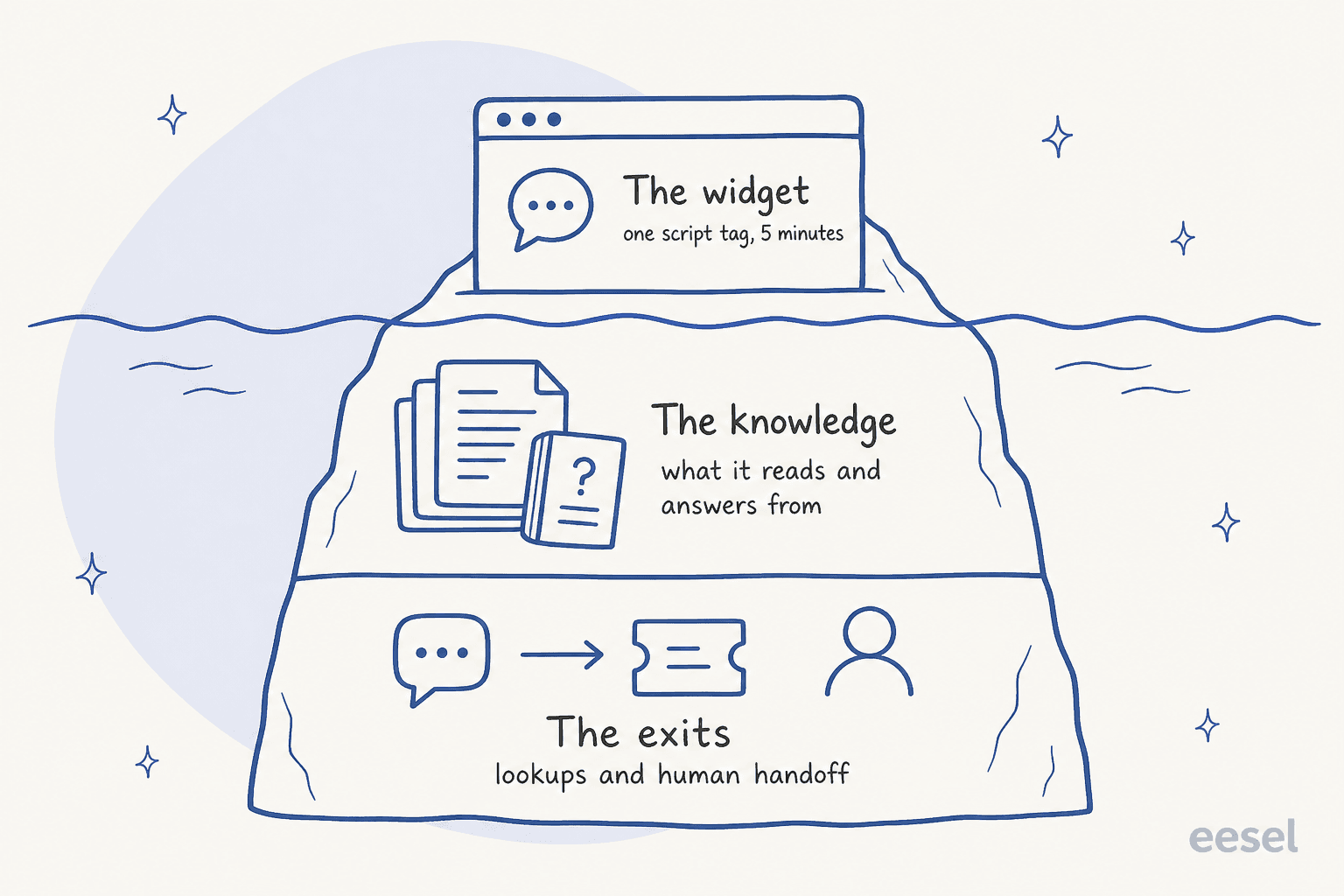
- The widget. The bubble, its colors, the greeting. Every vendor in this guide installs it the same way underneath: a script tag pasted into your pages.
- The knowledge. What it answers from. Your knowledge base, help center, product pages, PDFs, past tickets. This is the layer that decides whether answers are right.
- The exits. What happens when it can't answer, or when the customer needs their order looked up. A widget with no exit is the "fancy contact form" every customer has learned to hate.
I've watched this play out on real eesel rollouts. In one trial, a buyer ran a methodical 67-test evaluation, rated the knowledge answers solid, and still walked away because the widget itself "is quite slow and often gets stuck." In another, a medtech team's message to eesel's agent was "I copied the snippet and it doesnt work in netlify," and then "It worked." Both are install-layer problems. Neither is where most of the time goes.
The difference between a chatbot and an agent here is practical, not marketing. A rule-based bot follows a script; an AI agent reads your content, answers in its own words, and can take scoped actions like creating a ticket. The extra power is why the knowledge and exits matter more.
What to set up before you paste anything
Do these four things before the widget goes anywhere near a live page. Each one takes an afternoon, and skipping any of them is how you end up with a bot that gets pulled two weeks after launch.
1. List the 20 to 30 questions it must answer well
Pull your last month of chat and email tickets and write down the questions that come up most. These become your test set later. If you run Zendesk, the ticket export guide covers getting the full conversations out; the same set doubles as your training material.
2. Clean the knowledge it will read
Every vendor I checked answers from roughly the same sources: help center articles, crawled web pages, uploaded files and sometimes past tickets. The catch is that a crawler reads everything, including the 2022 press release with old pricing. One G2 reviewer of an AI website agent described it plainly:
"With all of the content that Piper crawls in the initial onboarding phase, it makes for a hefty QA experience prior to launch... It would be helpful to have a filter to option to see the content publish date so we can exclude older blogs and press releases that we don't want Piper referencing."

Run a knowledge base audit first. Delete or exclude anything outdated, and write the three or four articles your top questions need but don't have.
3. Decide where the hard questions go
Name the destination before launch: a helpdesk queue, a shared inbox, or a live agent during business hours. Then name the triggers. The common ones are a customer asking for a person, a question with no good source, and any topic you never want the AI to handle alone (refunds, legal, account security). The handoff best practices guide has more on writing these rules.
4. Write down what it must never promise
This is the one most teams skip. When SE Ranking set up its live chat agent, the brief was explicit: answer at once, in the customer's language, without promising things the team could not deliver, such as a live agent joining now, a discount, or a refund. Writing that list down turns a vague worry about AI hallucination into three or four testable rules.
"As a customer, I just want the information I need. While I don't want to talk to a chatbot, I also don't want to talk to a human - and for the same reason: they usually don't have the info I need."

That comment is the whole brief. Customers don't hate bots; they hate not getting the answer.
Pick your install path
There are five realistic ways to put an AI agent on a website, and the right one depends far more on your helpdesk than on whether your site runs WordPress or Webflow. Pick the situation closest to yours.
Pick your setup to see the install path, where the code goes, and the trap people hit most often on that path.
Path 1: turn on AI inside the chat widget you already have
If your team already answers chat in a helpdesk, start here. I'd argue this is the most underrated path, because it's the one where the "exits" layer is already built. The AI answers first, and anything it can't solve drops into the same queue, with the same tags and SLAs your team works from today.
Here's how the four big helpdesks put their own AI agent on the website widget, all from their own docs:
| Helpdesk | Website widget | How the AI goes on it | AI billing unit | Price |
|---|---|---|---|---|
| Zendesk | Web Widget (messaging), snippet before </body> | Create AI agent for Messaging, then Activate on channels | Automated resolution | $1.50 committed, $2.00 pay-as-you-go |
| Freshdesk Omni | Web Chat widget, code from the Deploy code tab | AI Agent Studio, Deploy, Web Chat Topic, Start with AI Agent | Session (24-hour window) | $49 per 100 sessions, 500 free once |
| Gorgias | Gorgias Chat, quick install on Shopify | AI Agent, Deploy, Chat, Enable AI Agent on Chat | Automated interaction | $0.85 to $1.00, plus the ticket fee |
| HubSpot | Live chat via the tracking code | Customer Agent, Deploy, Channels, Deploy agent | Resolved conversation | 50 credits, or $0.50 |
A few details from those docs that change how you'd set things up:
- Zendesk bills per automated resolution,
$1.50committed and$2.00pay-as-you-go on its pricing page, with 5 included per agent a month on Suite Team and 10 on Suite Professional. Since May 18, 2026, Zendesk sorts outcomes into resolution tiers, and only a verified resolution is billed. The Zendesk AI agents guide covers setup in depth. - Freshworks counts a session as every interaction in a 24-hour window. Two things catch people out: a welcome message from a conversation initiation workflow uses a session even if the visitor never replies, and previewing the agent while you build it uses sessions too. More in the Freddy session consumption breakdown.
- Gorgias puts AI Agent on chat only when a Shopify store is connected; its docs say BigCommerce, Magento and WooCommerce stores aren't supported. A ticket the AI fully resolves is billed both the ticket fee and the automation fee, per Gorgias's billing docs. See the Gorgias AI Agent pricing post for worked numbers.
- HubSpot lets you set a conversation coverage percentage, so the agent takes only some chats at first, and choose working hours. That's a built-in soft launch. The Breeze Customer Agent guide covers the rest.
The built-in agent isn't your only option on this path. You can also connect a separate AI to the same widget. That's what SE Ranking did: eesel answers Zendesk live chat for SE Ranking, Planable and SE Visible, one agent per product, each fed by its own help center. Between 8 August and 8 September 2026 it answered about 2,100 live chats and handed about 1,260 to the team, with every chat ending in an answer or a clean handover. The team also asked for an ai_handled tag on every ticket eesel touches, so containment is counted in Zendesk rather than guessed. Whether to use the built-in AI or a layer on top is a real trade, and the built-in vs layer guide walks through it.
Paths 2 and 3: add a standalone AI chat widget with a script tag
If you don't run chat today, or your helpdesk's chat isn't on your site, you'll add a standalone widget. Every one of them works the same way under the hood: a short script loads the vendor's code, which draws the bubble and talks to their servers.
Here's eesel's, from the chat bubble docs:
<script>
(function(){
  var script = document.createElement('script');
  script.src = 'https://cdn.eesel.ai/loader.js';
  script.async = true;
  script.onload = function() {
    if (window.EeselWidgetWithTrigger) {
      window.EeselWidgetWithTrigger({ triggerId: 'YOUR_TRIGGER_ID' });
    } else {
      window.__EESEL_WIDGET_V2_CONFIG__ = { EESEL_TRIGGER_ID: 'YOUR_TRIGGER_ID' };
    }
  };
  document.head.appendChild(script);
})();
</script>
The loader is async, so it doesn't hold up the page, and settings you save reach the live bubble in about 30 seconds, so you only paste it once. Tidio works on the same idea: one line of JavaScript, or a WordPress plugin, or a Shopify app, and its docs say to use only one installation method, not both. Voiceflow asks you to publish a version of your agent first, then copy the snippet from the Widget tab.
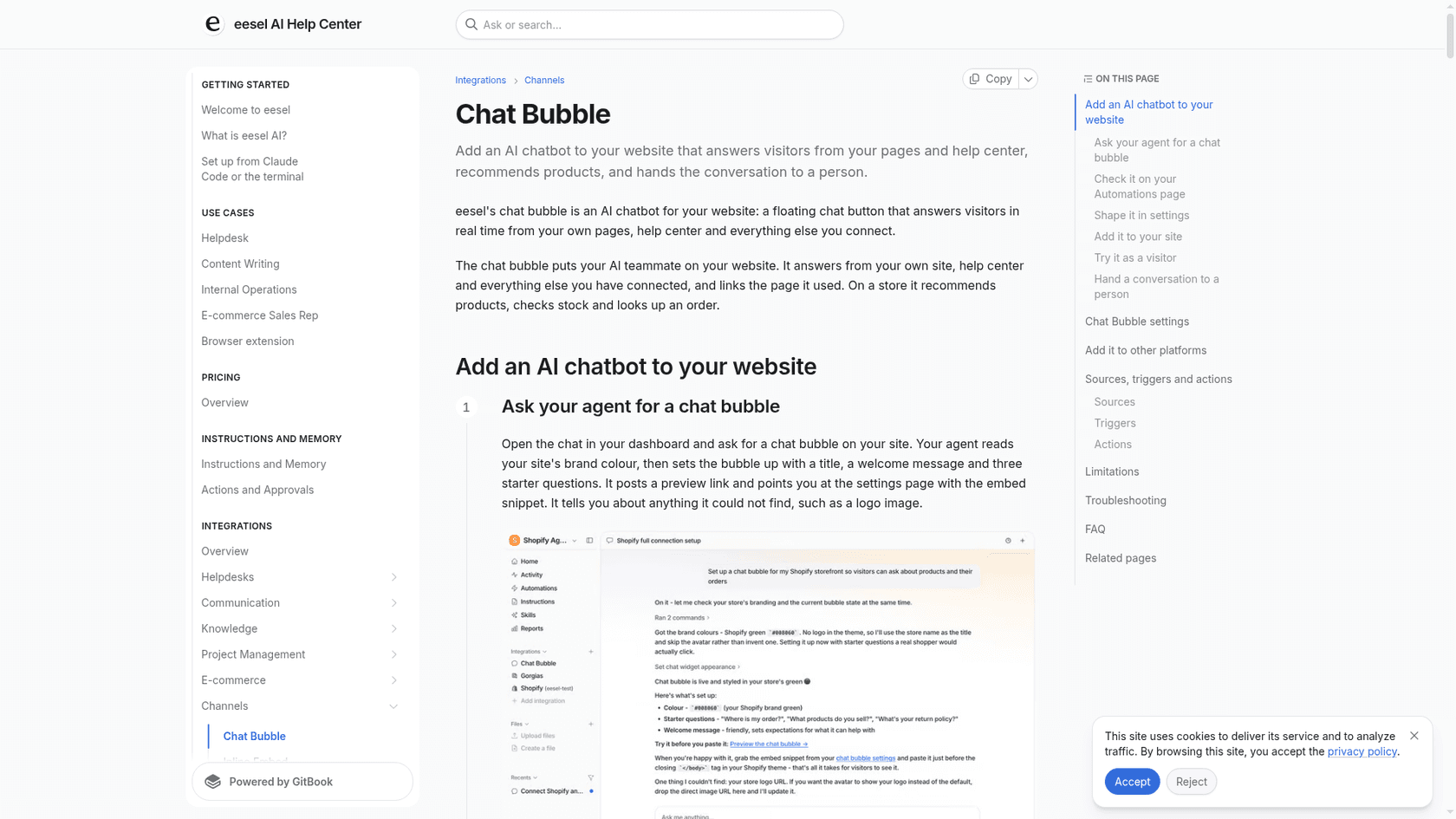
Where you paste it, and whether your plan lets you, varies by platform. Here's where it goes on each platform, taken from each platform's own docs:
| Platform | Where the script goes | Plan needed for custom code | Most common trap |
|---|---|---|---|
| WordPress.com | Header and footer plugin, or a Custom HTML block | Personal, Premium, Business or Commerce for header code | Free plans can't add header code |
| Self-hosted WordPress | Theme footer, or wp_enqueue_script with defer | None | Script loading in the head and slowing the page |
| Shopify | App embed, or theme.liquid before </body> | Any plan; code edits need a purchased theme | App embeds are off after install |
| Webflow | Site settings, Custom code, Footer | Paid site or workspace plan | Code isn't live until you publish |
| Squarespace | Code Injection, Footer | Core, Plus or Advanced for code injection | Lower tiers can't inject code |
| Wix | Settings, Custom Code, Body end | Published site with a connected domain (Premium) | Changing the domain deletes snippets |
| Google Tag Manager | Custom HTML tag | Free | Minifying can swap single quotes for double |
The Shopify one deserves a second look. Shopify's own developer docs say app embed blocks are deactivated after an app is installed until the merchant switches them on in the theme editor. That single default is the most common reason someone tells a vendor "I installed it and nothing shows up." The Shopify chatbot apps roundup covers which ones handle this for you.
When the script loads but the chat doesn't work
If your site sends a Content Security Policy header, a pasted widget can fail in a way that looks like a broken product. MDN breaks it into three CSP rules: script-src decides whether the script loads, connect-src decides whether it can reach the vendor's servers, and frame-src decides whether an iframe chat window can open. Miss only connect-src and you get a bubble that opens and then never answers. For eesel, the docs say to allow https://cdn.eesel.ai for scripts and connections.
Paths 4 and 5: when you have no helpdesk, or can't touch the code
Two situations stall a lot of teams: there's no helpdesk to hand off to, or the website is owned by someone else and changes take a month.
For the first, pick a widget whose exit doesn't need a helpdesk. eesel's bubble can hand off by email, or by creating a ticket in a helpdesk if you have one, and you set the rule in plain language ("always escalate to a human if someone mentions a refund"). When it hands over, it asks for the visitor's name and email, creates the ticket with a summary of the chat as the first message, and tags it.
For the second, skip the site entirely at first. A public chat link is a chat page hosted by the vendor that you link from your nav, footer or help center. eesel's has no sign-in, so anyone with the link can chat; that's fine for public support content and wrong for anything account-specific. An inline embed is the middle ground: one iframe (420 by 600 pixels by default) pasted into a single page, like your contact page. eesel's docs note some page editors strip iframes when you save, so paste it into the page template instead.
Path 6: the developer route, CLI and API
If your site is a custom app, or you'd rather your setup lived in code, load the script once in the app's root layout rather than on every page. eesel's docs show it for Next.js with next/script in app/layout.tsx, and for self-hosted WordPress the wp_enqueue_script WordPress function with in_footer and defer keeps the widget from blocking the page.
The more interesting change is that setup itself no longer needs a dashboard. The eesel CLI (@eesel/cli, Node 18.17 or newer) is the same agent you'd configure in the dashboard, driven from a terminal. A person can run it, a script can automate it, and a coding agent like Claude Code, Cursor or Codex can run the whole setup because every command prints JSON:
npx @eesel/cli init chat-bubble --site https://your-site.com   # no account needed
eesel login                                                     # keep the workspace
eesel files upload ./refund-policy.pdf
eesel chat "what's our refund policy?"
eesel chat "run a simulation on our last 100 tickets and tell me what you would have got wrong"
init chat-bubble picks or creates an agent, adds the chat bubble channel and prints the embed snippet plus a hosted test link; an anonymous workspace gets $5 of usage for 7 days. Commands are safe to re-run, writes support --dry-run, and setup commands are free (only chat is billed). Two honest limits: styling the bubble and writing its handover rules have no command yet, so those happen in the dashboard chat. The workspace is also an MCP server, so eesel mcp token prints a ready-made claude mcp add line. If you want the AI with no widget at all, the headless support guide covers that pattern, and the AI agent CLI post compares CLIs across vendors.
Step by step: add an AI agent to your website
Whichever path you picked, the sequence is the same. Here's the order I'd follow, with the install deliberately near the end.
Step 1: connect the knowledge
Point the agent at your help center, the public pages that answer customer questions, and any PDFs or docs with policies. Limits vary: Freshworks allows 10 URLs per agent and up to 3,000 pages per site, HubSpot can crawl up to 5,000 URLs in a domain, and Tidio's priority-page scan stops at 100 pages. HubSpot also warns that private sources won't be cited but their content may still appear in answers, so think before uploading internal docs. The training an AI support agent guide goes deeper.
Step 2: connect the systems it should look up
Knowledge explains your return policy. Only an integration can tell a customer where their order is. If you sell online, connect your store so the agent can read live orders, stock and prices; if you're SaaS, think about account status. Start read-only. eesel's own docs advise keeping refunds, cancellations and anything that costs money behind an approval at first. WISMO automation is the classic first use case.
Step 3: write the rules and the handoff
Write the never-promise list from earlier as instructions, then set the exits: who gets the handoff, through which channel, and what the agent says while it happens.
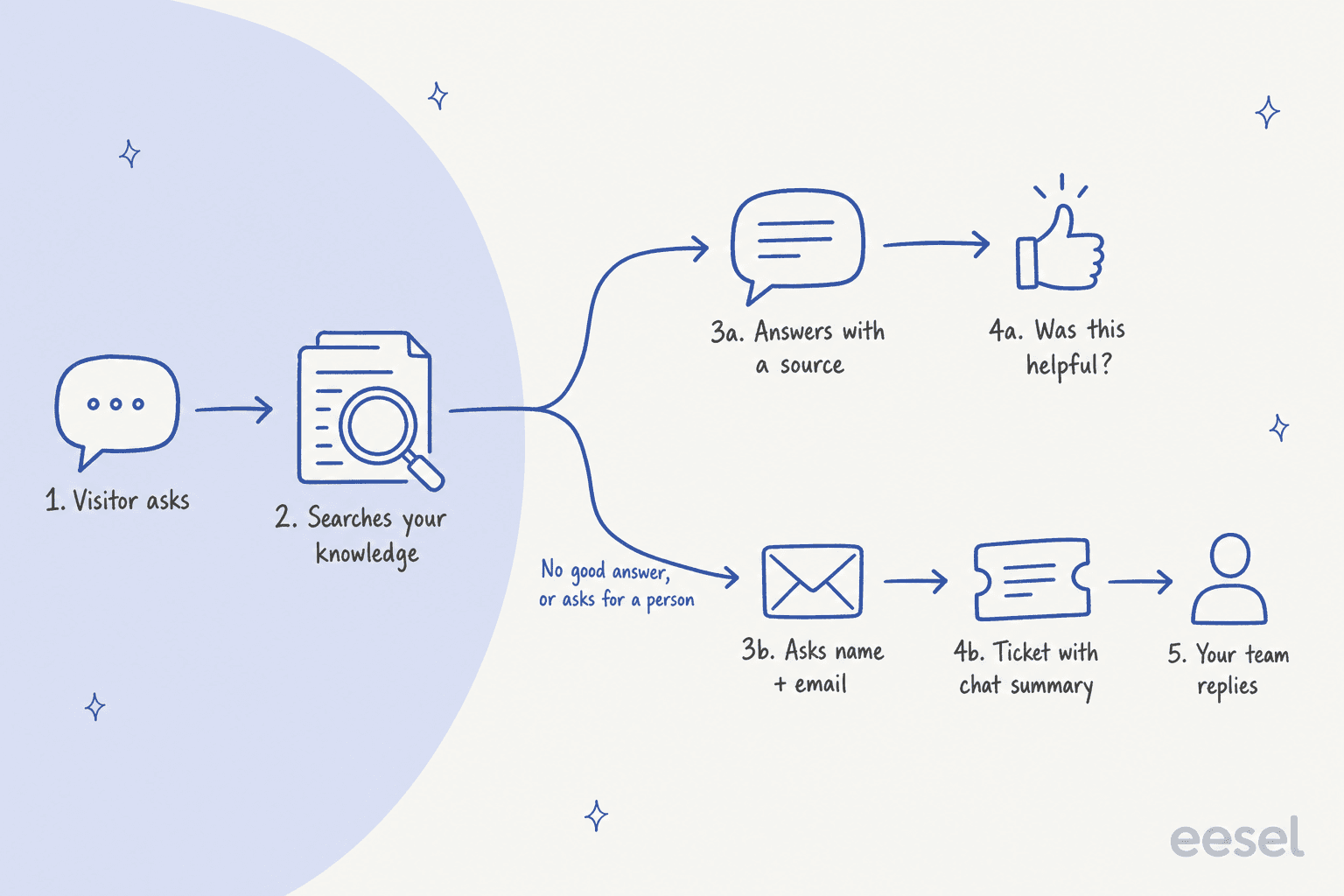
Every vendor here hands over on a direct request for a person. The differences are in the defaults. Gorgias has built-in handover signals that can't be turned off, including anger and legal threats. Tidio doesn't deduct from your Lyro quota if Lyro hands off immediately. Freshworks stops the agent and hands chats to live agents when sessions run out. The thing to check on yours is the line the visitor sees while waiting, because "Someone will get back to you" with no email collected is a dead end.
"If the only "customer support" a company offers is to talk to a chatbot, I think of that as the exact same thing as not having customer support at all, even if the chatbot can be talked into letting me talk to a human."
Step 4: test it on real questions before anyone sees it
Run your 20 to 30 questions from earlier, plus the awkward ones: the angry message, the two-questions-in-one, the question about a product you discontinued. Freshworks' Evaluate agent runs up to 50 queries per batch and can import solved past conversations. eesel's simulation runs the agent against real past tickets, scores each answer and suggests instruction changes. Either way, read the wrong answers yourself. The testing an AI agent guide has a fuller test plan.
The failure you're looking for is the confident wrong one:
"The problem with 'hallucination' is quite apparant and the bot WILL generate a totally wrong answer with that greatest of eloquence and confidence, which might (rightfully so) throw some people off."

Step 5: install the widget
Now paste the snippet, using the path from the widget above. Check it on mobile, check it doesn't sit on top of your cookie banner or a sticky add-to-cart bar (eesel's bubble has a bottom offset for exactly this), and check it on a slow connection. A slow widget costs you as much trust as a wrong answer, as that 67-test trial showed.
Step 6: widen it slowly
Don't flip it on across the whole site on day one. Widen it in stages, and only move up a step when the answers on the current one hold up.
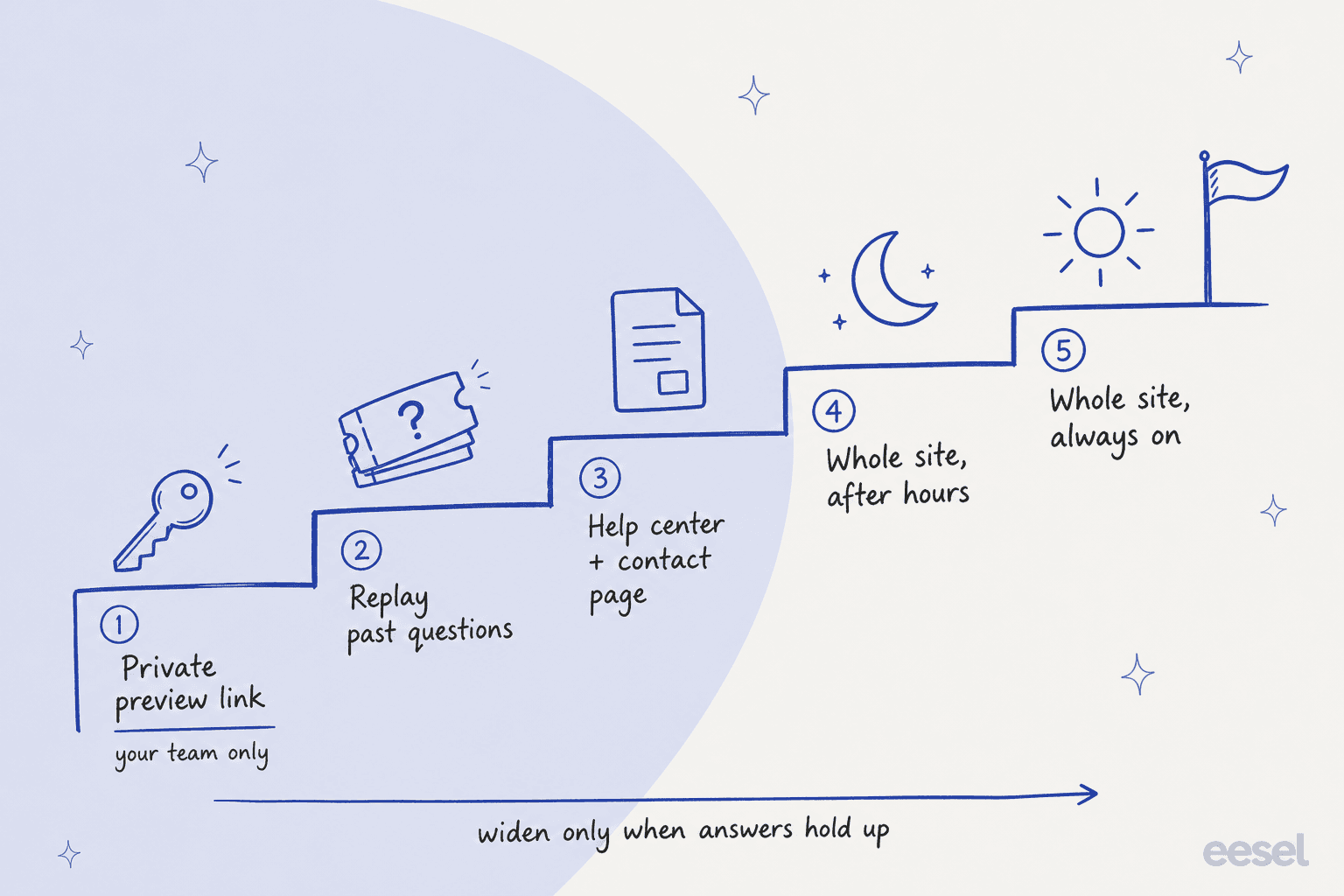
The tools support this in different ways. HubSpot's coverage percentage and working hours, Tidio's option to answer only when agents are offline, and eesel's per-page snippet (paste it only on the pages you want) all let you start small. A support pilot of a few weeks is a sensible first stage.
Step 7: measure the right things
Track three numbers: how often the AI answered without a handoff, how often a handoff was actually needed and happened, and what customers rated the chats. Be careful with the first one. A customer who closes the chat in frustration isn't a resolution, which is why Zendesk now only bills verified resolutions and why SE Ranking tags every chat helpful or not helpful. The pilot scorecard and AI support metrics guides go into how to define these on your helpdesk.
Common mistakes when adding an AI agent to a website
Most of these I've seen more than once, and none of them are about the AI model.
- Shipping a bot that only collects emails. If the first thing the widget does is ask for contact details and promise a reply, it's a contact form with a face. Answer first, collect details only at handoff.
- Letting it read everything. Old blog posts, discontinued products and press releases end up in answers. Exclude them before launch.
- No exit. The Hacker News thread above isn't an outlier; one retail operator with millions of customers wrote that they "had people canceling accounts literally because support agents weren't humans" and ripped their site chatbot out. A visible, working "talk to a person" option is what keeps an AI agent from becoming that story.
- Two bubbles on one page. Adding an AI widget next to your existing helpdesk chat confuses everyone. Either put the AI in the existing widget (Path 1) or replace it.
- Giving it powers before it has earned them. One Hacker News commenter put the fear well: "what if it hallucinated and gives the customer free service for life?" The answer is scoped actions behind approvals, not no actions.
- Forgetting the install details. Shopify app embeds left off, a Webflow site not republished, a Wix domain change that wiped the snippet, a CSP rule blocking the vendor. None of these show an error to the customer; the bubble just isn't there.
For a longer list, see the posts on AI chatbot problems and AI hallucinations.
What it costs to run an AI agent on your website
The install is free almost everywhere. What you pay for is the AI's work, and each vendor counts that work differently. The unit matters more than the headline price, because a vendor that bills per session charges for chats that went nowhere, and one that bills per resolution doesn't.
| Tool | What you pay per unit | What counts as one unit | Source |
|---|---|---|---|
| Zendesk AI agents | $1.50 committed, $2.00 pay-as-you-go | A verified automated resolution | Zendesk pricing |
| HubSpot Customer Agent | 50 HubSpot Credits ($0.50) | A resolved conversation, set 72 hours after the last reply | HubSpot catalog |
| Freshworks Freddy AI Agent | $49 per 100 sessions | Every interaction in a 24-hour window | Freshworks FAQs |
| Gorgias AI Agent | $0.85 to $1.00, plus ticket fee | An automated interaction | Gorgias pricing |
| Tidio Lyro | From $0.50 | A conversation, from Lyro's first reply | Tidio AI agent |
| Voiceflow | $0.005 per message, plus model tokens | Each message a user sends | Voiceflow credits |
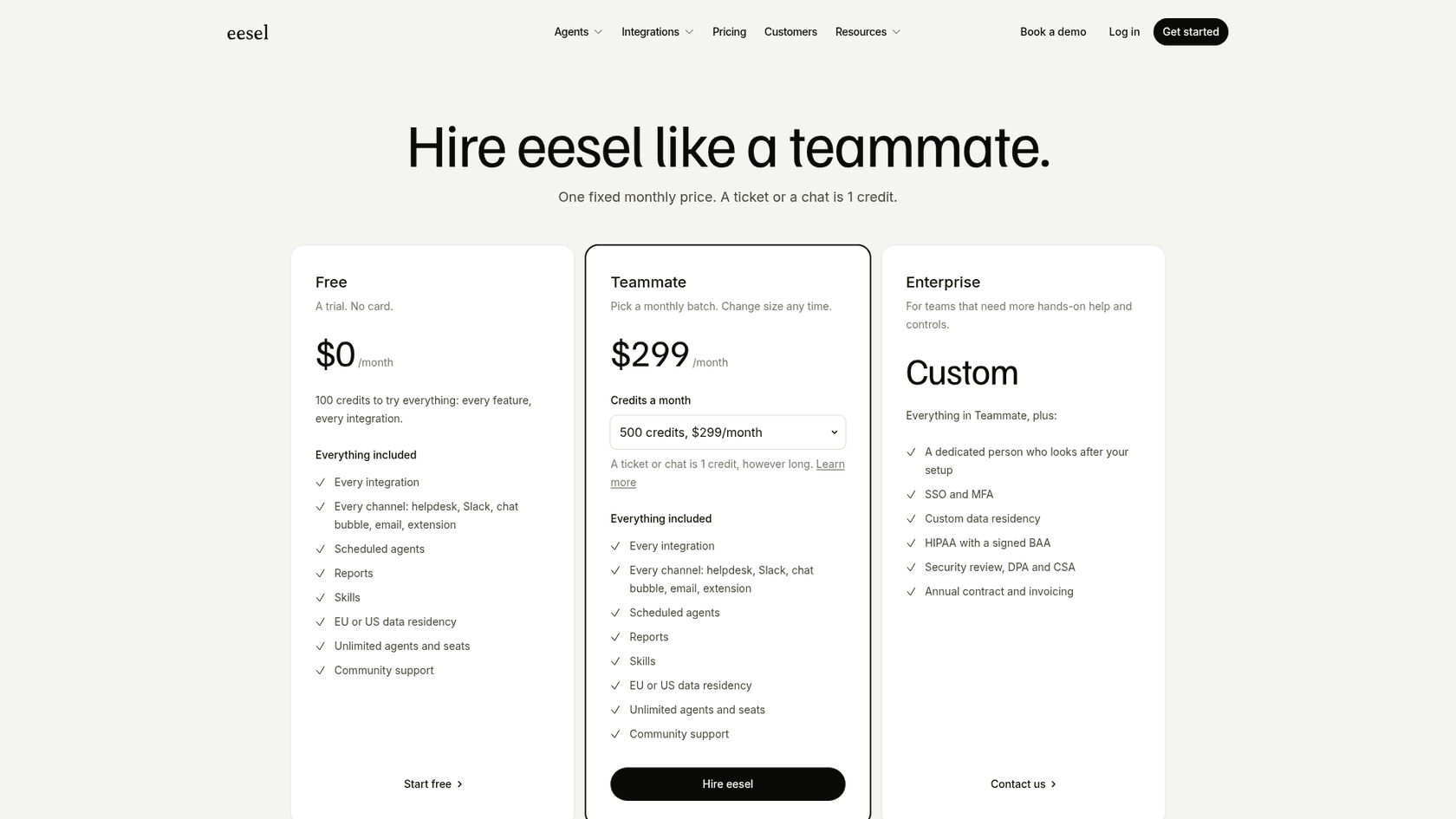
| eesel | $299 a month for 500 credits, $0.80 per extra | A chat, however many messages | eesel pricing |
Remember the seat cost underneath. Zendesk's AI agents sit on Suite plans from $55 per agent a month billed annually, HubSpot's Customer Agent needs Service Hub Professional (from $90 per seat a month plus a $1,500 onboarding fee), and Freshworks' chat AI agent needs a Freshdesk Omni plan. For a deeper comparison, the chatbot cost guide and the Lyro pricing and Voiceflow pricing posts break each one down.
How eesel goes on your website
eesel is an AI teammate you hire for support, and on a website it shows up as a chat bubble, an inline chat on one page, or a hosted chat link, all running the same agent with the same knowledge. It answers from your help center, website, Google Drive, Notion, Confluence, Shopify and past tickets, and it works with any helpdesk or none.
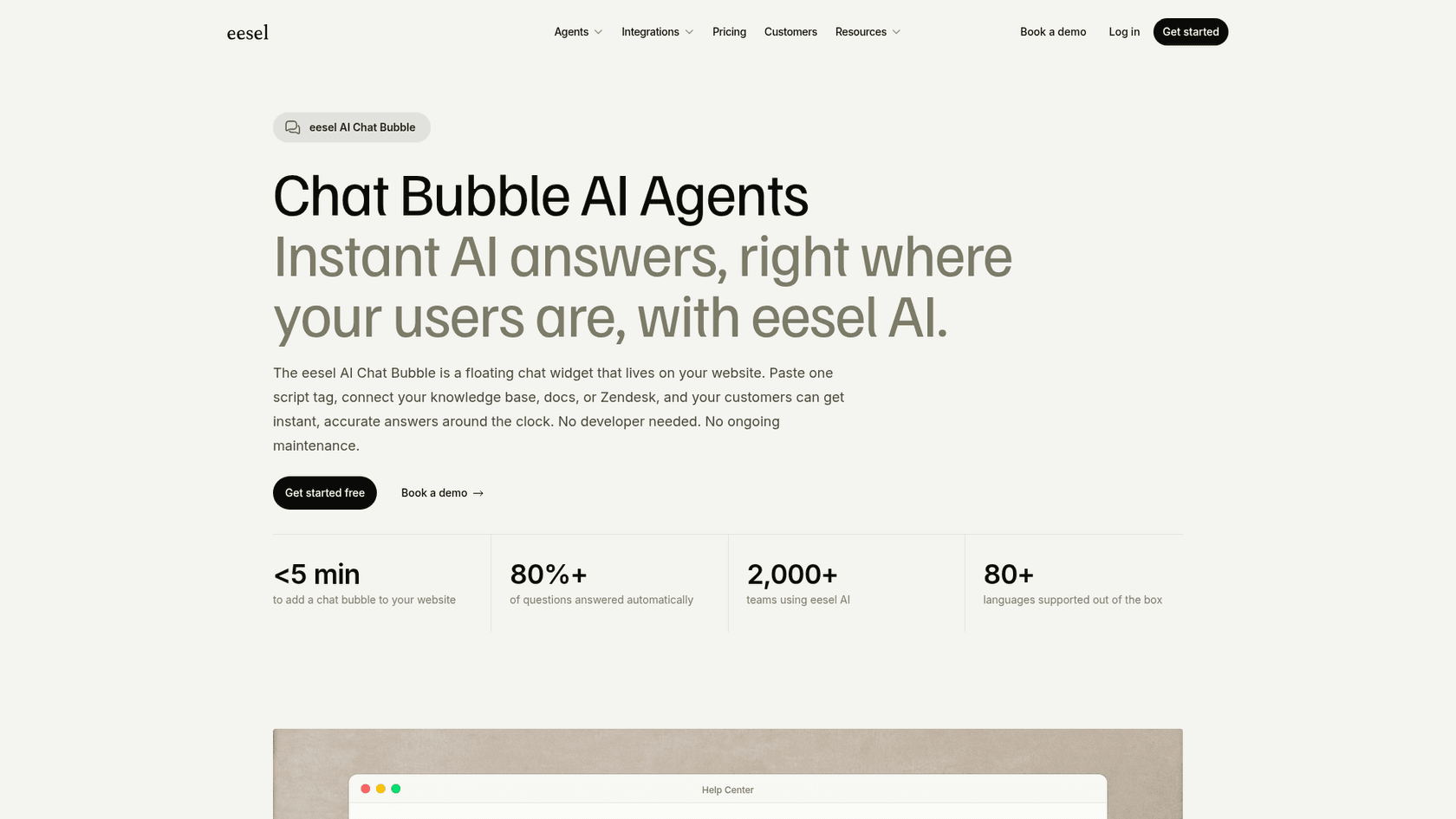
Here's what that looks like on real sites:
- SamCart runs one agent on Freshdesk email tickets and a separate one on its website chat bubble, each with its own greeting and tone, both answering from about 280 help center articles. The chat asks for a name and email before it answers, so the team can follow up.
- BEAUTEK runs a German-language KI-Chat on beautek.de that answers product and order questions, says plainly that it's an AI answer, and gives the team's phone number for anything important. In one month it answered 77 website chats and created 20 Zendesk tickets, most of them sales leads.
- ClutchLoop named its agent Loopy. It answers order status, returns and product questions on clutchloop.com, looks up live prices and stock in Shopify, and creates a Gorgias ticket when a chat needs a person.
On pricing, eesel is one fixed monthly price: a chat is one credit however many messages go back and forth, plans start at $299 for 500 credits, and there's no per-seat or platform fee. The free trial is 100 credits for 7 days with no card.
Where it's not the right fit: if you're happy with Zendesk's or Freshdesk's own AI and only need the basics, the built-in agent keeps everything in one bill. A handover from eesel's bubble into a second live-chat widget works only with Zendesk Messenger or Freshchat. Its SOC 2 Type II audit is in progress, with the observation period started 1 October 2026; it uses SOC 2 Type II certified processors and doesn't train models on your data.
Add an AI agent to your website with eesel
If you want an agent on your site that answers from what you've already written and hands anything else to your team with a chat summary, eesel's chat bubble is one script tag, and you can try it from a preview link before a single customer sees it. Connect your help center, replay last month's questions through the simulation, and only then paste the snippet. If your team already lives in Zendesk or Freshdesk, it can sit inside that chat instead, the way SE Ranking runs it.
Try eesel free for 7 days, or book a demo to see the setup running on your own site.