AI escalation from Zendesk to Jira: triage bugs, skip duplicates, close the loop

Rama Adi

Katelin Teen
Last edited September 30, 2026
The escalation loop has four jobs
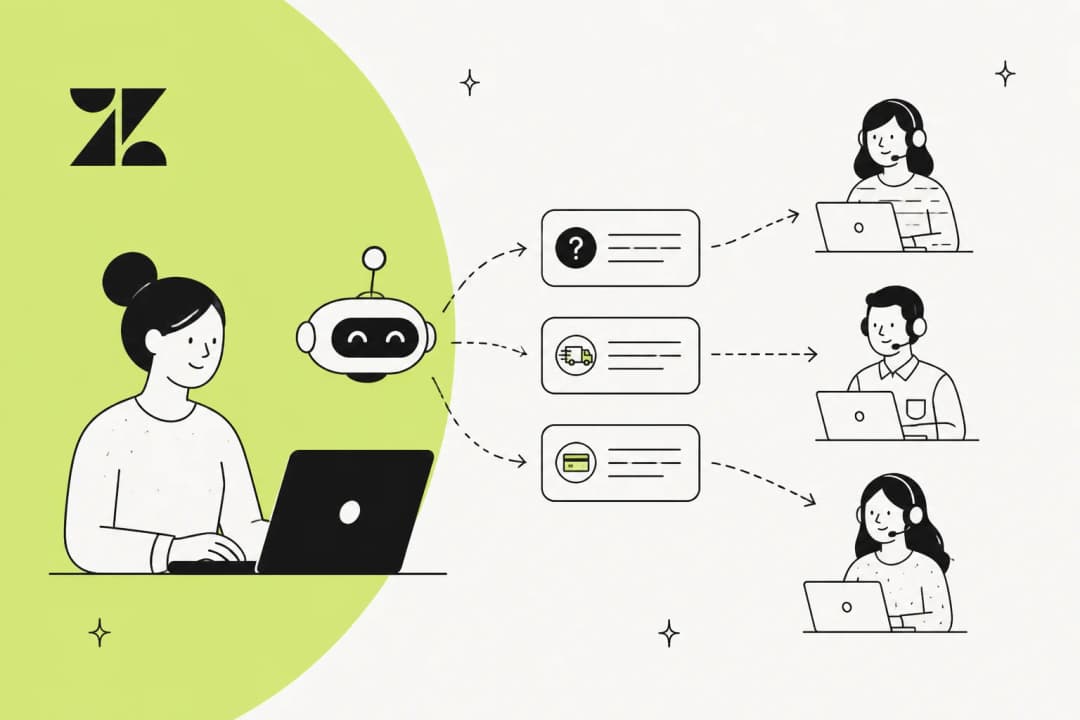
I build integrations at eesel, and the Zendesk plus Jira pattern comes up on sales calls all the time. One US digital-media network handling about 1,000 Zendesk tickets a week described the workflow they wanted almost word for word: the user contacts support, AI troubleshoots, and anything unresolved escalates to Jira. That sounds like one step. In practice it's four, and each tool on the market covers a different subset.
| Job | What it means | Who usually does it today |
|---|---|---|
| 1. Triage | Is this a how-to question, an account issue, or a real product bug? | An agent reading the ticket |
| 2. Dedupe | Is there already a Jira issue for this bug? | An agent searching Jira, or nobody |
| 3. File or link | Create the issue with repro steps, or attach this ticket to the existing one | An agent in the Jira sidebar app |
| 4. Close the loop | Tell the customer when the issue is fixed or its status changes | Whoever remembers |
Job 2 and job 4 are where most setups leak. Skip the dedupe and engineering gets five copies of the same bug, each with a fifth of the customer impact attached. Skip the follow-up and the fix ships while the customer still thinks nobody listened. A developer on Hacker News put the missing piece plainly:
"A bug tracker by itself... doesn't feel as valuable as the integration that enables the smooth management of a bug for all those who interact with it."

If you're newer to this, my guides to the ticket escalation process and ticket triage cover the basics, and SaaS support best practices covers the wider workflow. This post is about who, or what, does each of the four jobs in a Zendesk plus Jira stack.
What the native Zendesk Jira app does
The native integration is the baseline, and it's good at what it was built for. I covered setup step by step in my Zendesk Jira integration guide, so here I'll stick to how it maps onto the four jobs.
Filing and linking (job 3). From the Jira sidebar app in a ticket, an agent can create an issue or link an existing one. My guides to creating issues from tickets and linking tickets to issues show both flows. Linking takes an issue key, a pasted link, or a keyword or JQL search that suggests issues as you type. A single Jira issue can be linked to up to 200 tickets. Creating or linking adds a jira_escalated tag to the ticket and a matching label to the issue, and any ticket tag starting with jira_ gets copied across as a label.
Dedupe (job 2). That keyword search is the dedupe tool, and it's a manual one. The agent has to think to search, pick the right words, and judge whether a result is really the same bug. On a busy queue that's the step people skip.
Closing the loop (job 4). This part is more capable than most people realise. Zendesk's status-change article explains that the integration adds a "Notify Zendesk Support" post function to Jira workflows. Put it on a transition and it can change the ticket status, add an internal or public comment, and add tags, with placeholders like {{issue.key}}. Zendesk's own example is the conservative version:
"For example, after an engineer changes the Jira workflow status of an issue from "In progress" to "Done," Jira can automatically add an internal note to the linked Zendesk ticket notifying the agent. The agent can then notify the customer."
You can make that comment public, but it's one template per transition. Every linked customer gets the same text, whatever they originally asked, in whatever language they wrote in. The docs also note that post functions can't solve tickets with empty required fields, and deleting tags isn't supported. Setting it up means editing and republishing a Jira workflow, which usually needs a Jira admin.
Triage (job 1). Not in scope. The app does nothing until an agent decides a ticket is a bug.
It works on every Zendesk Suite plan and on Support Team and above, with Jira Cloud and Data Center, and you need admin permissions in both tools to install it.
The 2026 app reversal
One thing to know before you install: the app you get is the original one. On April 28, 2026, Zendesk announced it was delisting the newer Jira app and re-listing the original version, after customers found the migration "confusing" and it "could lead to issues during setup or transition". Customers already on v2 stay there for now. Zendesk says it will work with Atlassian to bring the newer features into the original app "over the next few months". So if a blog post shows you a v2 screen you can't find, that's why.
What Zendesk AI adds on top
Zendesk's AI stack, from intelligent triage to AI agents, touches the loop in three places. Each one is real, and each one stops short of the duplicate check.
Intelligent triage labels the ticket
Intelligent triage classifies new tickets by topic, sentiment, language and entities such as product names. The classification is based on "a ticket's subject and the text of the first public comment", and each field comes with a confidence score. You can add custom topics, so a "Bug report" topic is something you can define yourself. Sentiment can flag the angriest bug reports too, as I cover in Zendesk sentiment analysis.
The catch is on the plan side. Classifications show up on Suite and Support Professional and above, but "Using them in workflows requires the Copilot add-on", which the Zendesk pricing page lists at $50 per agent per month billed yearly. Triggers that route on the topic are a Copilot feature. I compare the options in my Zendesk AI ticket triage guide, and the Copilot add-on post breaks down what else the $50 buys.
The label also lives only in Zendesk. Triage can tell you a ticket looks like a bug, but it doesn't know whether Jira already has that bug.
Similar tickets look inside Zendesk
Copilot also includes "Similar tickets" and "Merging suggestions". Both look at other Zendesk tickets, and merging suggestions only covers the same requester within two weeks either side, per the pricing table. They're useful for merging duplicate conversations, but they don't search Jira.
Action flows can file the issue
This is the piece most people miss. Zendesk's action builder has a built-in Jira connector on Suite Growth and above and Support Team and above, with four actions: create issue, get issue, edit issue and transition issue. Zendesk's own examples include creating Jira issues for bugs reported in tickets and checking an issue's status before closing a ticket.
Two details matter for escalation. First, there's no search action, so a flow can read an issue whose key it already knows but can't look for one. A duplicate check means building a custom action against Jira's search API yourself. Second, every Jira action is attributed to whoever connected the account, so Zendesk recommends a dedicated service account.
Atlassian has its own AI on the Jira side, which I cover in Jira AI ticket creation, but it works from Jira, not from your Zendesk queue.
There's also a Copilot workflow recipe where auto assist guides an agent through troubleshooting and then creates a Jira issue through a custom action. It needs the Copilot add-on, a Jira OAuth client, and a written procedure. I dig into that side in Zendesk auto assist actions.
Where each option stops
Here is the four-job loop again, with what each option covers out of the box according to its own docs.
| Native Jira app | Zendesk AI (Copilot + action flows) | eesel AI teammate | |
|---|---|---|---|
| 1. Triage bug vs. question | Agent decides | Intelligent triage topic, used in workflows with Copilot | Reads each new ticket against your instructions and knowledge |
| 2. Check Jira for an existing issue | Agent runs a keyword or JQL search | No search action; custom action needed | JQL search before filing |
| 3. File or link | Create or link from the sidebar, up to 200 tickets per issue | Create issue step in an action flow | Create issue, or comment on the existing one; key saved as a Zendesk tag |
| 4. Update the customer | Templated comment from a Jira post function | Transition and get steps; no built-in status-change listener | Jira rule or schedule wakes it to draft or send each update |
| Shows in the Jira sidebar app | Yes, native link | Only if you also use the app | No, it records links as tags and comments |
| Extra cost | None beyond Zendesk plan | $50/agent/month for Copilot; action flows on Suite Growth+ | From $299/month for 500 credits |
In short, the native app has the best linking, Zendesk AI has the best in-product labels, and neither checks Jira for you. That duplicate check, plus a follow-up written per customer, is the part I'd hand to an AI teammate.
How an AI teammate runs the loop
When I say AI teammate, I mean an agent that works in both tools like a support engineer would. eesel connects to Zendesk and Jira with separate integrations and follows instructions you write in plain English. Here is the setup I'd build for a SaaS team, using only actions the eesel Jira docs and Zendesk docs list.
Step 1: Connect Zendesk and Jira
Connect Zendesk with a full connection, so the agent can read your help center, macros and past tickets and act on tickets. Then connect Jira with your Atlassian subdomain, an account email and an API token. There's no Marketplace app to install on the Jira side.
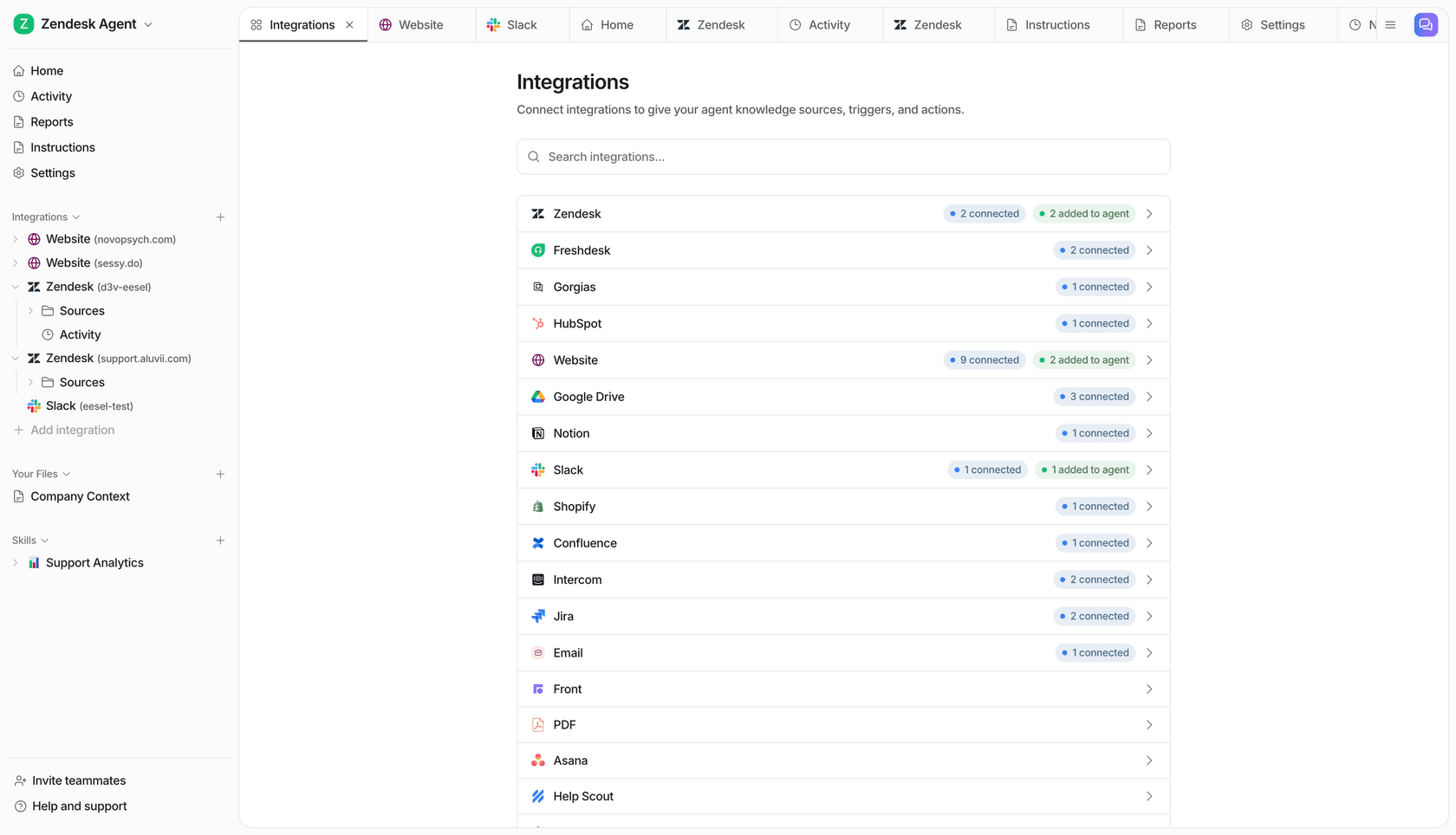
Two practical notes. The agent sees only the Jira projects that the token's account can see, so use an account with access to your bug projects. And Atlassian sets an expiry date on API tokens, so put a reminder in the calendar to reconnect. If your product docs live in Confluence, connect that too, since Confluence is where the agent will look for known issues and workarounds.
Step 2: Triage on the first message
Create an automation on the Zendesk trigger "Only on the customer's first message". If you've built Zendesk triggers before, think of it as one that hands the ticket to an agent that can read it. eesel's docs describe it as the trigger for triage and routing. It fires once per ticket, before anyone has replied. On Zendesk you can also hold each event for up to 15 minutes so your own Zendesk triggers run first.
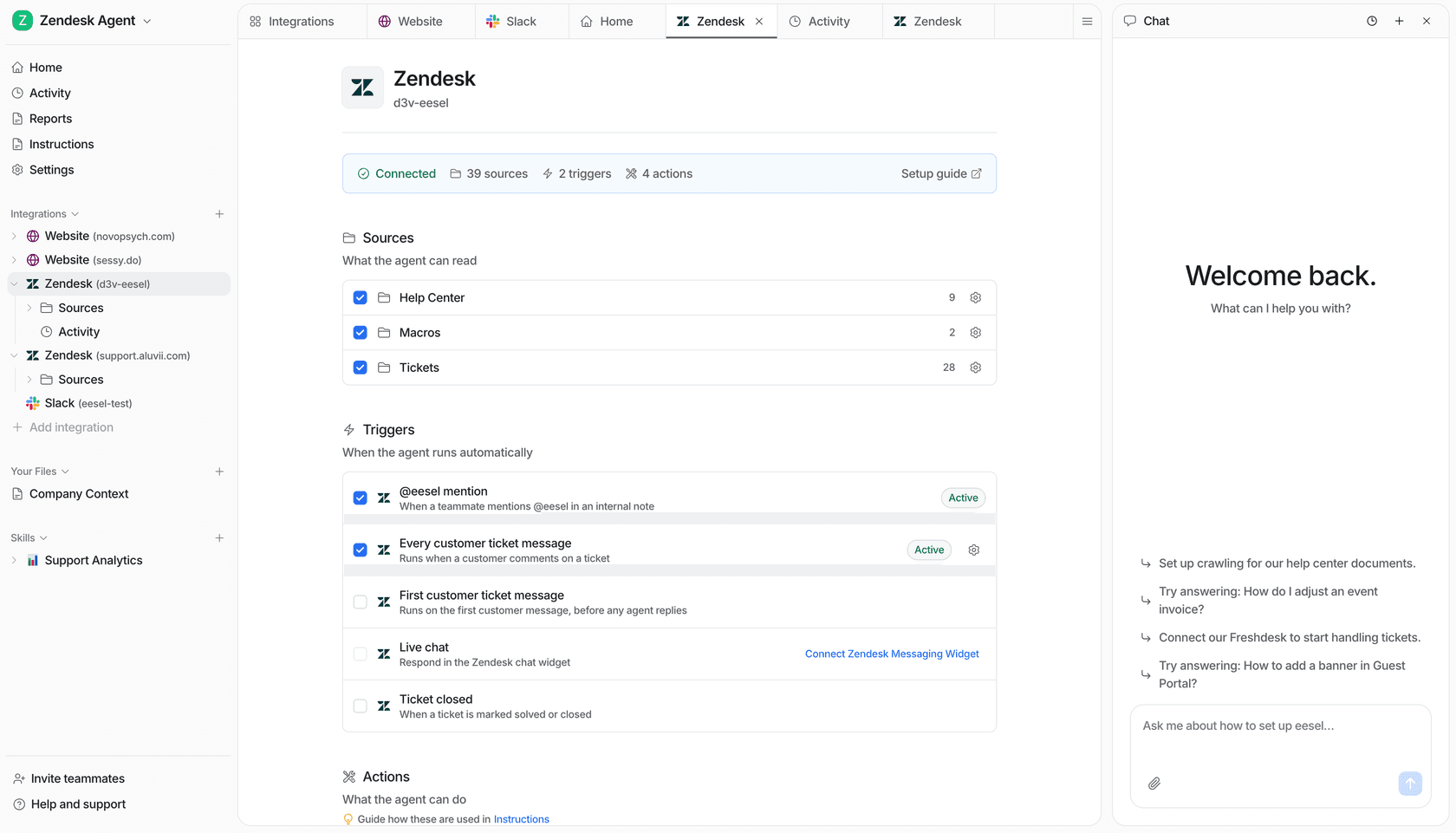
The instructions do the triage. Something like: "If the ticket is a how-to or billing question, answer it from the help center as a draft for review. If it describes the product doing something wrong, treat it as a possible bug: ask for missing repro details, then run the Jira steps below." Because the agent reads your past tickets and docs, it can tell "export is greyed out on the Free plan" (working as intended) from "export times out on files over 10 MB" (a bug). That's a judgement keyword rules and a single topic label struggle with. My guide on automating ticket triage covers how to write those rules.
One limit to design around: eesel's first check can't see custom Zendesk ticket fields or the requester's email. If a field like plan tier matters, add a Zendesk trigger that turns it into a tag, and write the instruction against the tag.
Step 3: Search Jira before filing anything
This is the step that stops the duplicates. eesel's Jira integration includes Search Issues, which runs a JQL query, and Get Issue, which reads one issue by key. The instruction is simple: search first, file second.
project = BUG AND statusCategory != Done AND text ~ "export timeout"
The agent writes the query from the ticket, so it can try the customer's words and the product's own names for the feature. Atlassian's JQL reference covers the ~ text operator. Then it branches:
- A match exists. The agent comments on the Jira issue with the ticket link and a one-line summary of the customer's case. It tags the Zendesk ticket with the issue key, for example
jira-bug-1432, and leaves an internal note for the agent. - No match. The agent creates the issue with project, summary, description, labels and assignee, then tags the ticket the same way. Tell it to add a
zendesklabel to every issue it files or comments on, so the close-the-loop step below can find them. Assigning by name works because it looks the person up first.
A few details from eesel's docs shape how I'd write those instructions. Update Issue replaces an issue's description in full, so tell the agent to add impact as a comment, never by editing the description. On Jira projects that aren't Jira Service Management, every comment is visible to anyone who can see the issue, which is fine for an internal bug project but worth knowing. And eesel can't change Jira issue links or watchers, which is why the Zendesk tag is the link.
That last point has a practical upside. Because the link is a plain tag, it shows up in Zendesk views and reports. Engineers can also see how many customers are waiting from the comments on the issue, which matters when, as one engineer on Hacker News described, they don't have Zendesk seats:
"However pricing is definitely an issue - at both these companies us engineers did not have individual zendesk accounts as it was deemed too expensive. So we couldn't check the ticket ourselves for details. Jira-zendesk integration mitigated this to some extent though."
Step 4: Close the loop when the issue moves
Here is where I'll be precise. eesel's Jira triggers fire when a Jira Service Management issue is created or commented on. A status change on a Jira Software bug doesn't wake the agent by itself. There are two ways to close that gap.
Option A: a Jira automation rule plus an eesel webhook. If Jira automation is new to you, this is its most common use. Create a webhook automation in eesel, which gives you a private URL. In Jira, add an automation rule on "Issue transitioned" with a "Send web request" action that posts the issue key and new status to that URL. The eesel instructions: "Search Zendesk for open tickets tagged with this issue key. For each one, draft a reply telling the customer what changed, in their language, referencing what they originally reported."
Option B: a schedule. If you'd rather not touch Jira automation, a schedule can run as often as every 10 minutes and ask Jira what changed:
labels = zendesk AND status CHANGED AFTER -15m
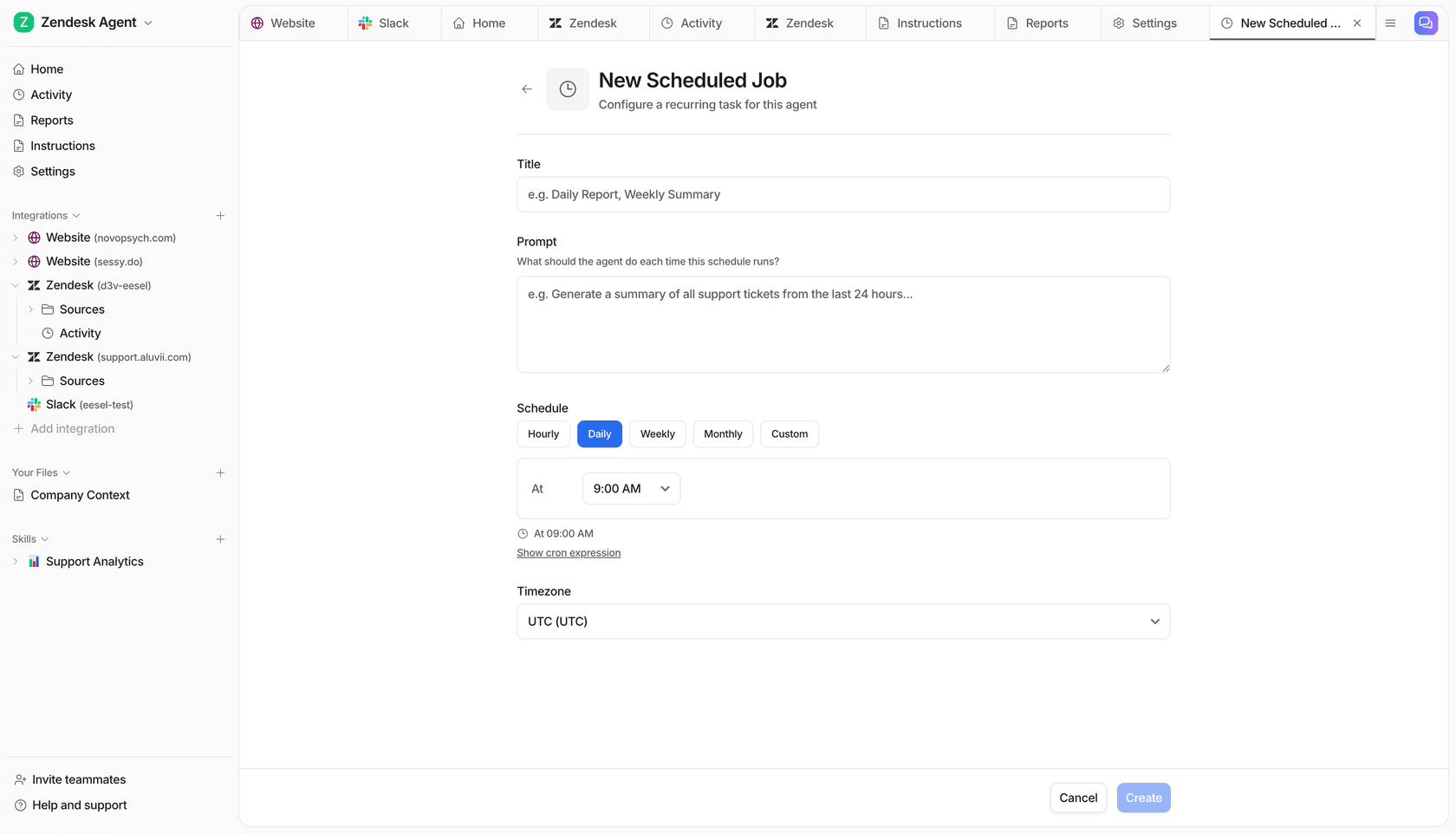
I'd pick option A for most teams. It reacts on the transition itself. Each delivery your agent processes counts as a run, but a delivery your instructions filter out isn't billed. Jira automation isn't free, though. Atlassian now meters automation steps, where every trigger, condition and action counts. The Jira pricing page lists 150 steps a month on Free, 400 per user on Standard and 750 per user on Premium. A two-step rule on a busy bug project fits easily on Standard and can run out on Free. My post on whether Jira automation is free has the detail.
Either way, the reply is where the AI earns its keep over a template. A customer who reported a CSV export timeout gets told the export fix shipped, and one who asked about a workaround gets that answered too. Start with "Draft ticket reply", which holds each reply until a person approves it, and switch to sending once you trust it.
Guardrails before you let it file issues
An AI that can create Jira issues can also create noise in the engineering backlog, and engineers notice fast. Here's how I'd roll it out.
- Make creating issues ask first. eesel's actions and approvals let you set each action to run on its own, ask first, or stay off. Set Create Issue to ask first, and approve from the dashboard or Slack for the first few weeks.
- Replay history before going live. The helpdesk simulation skill replays past tickets and scores the agent's answers against what your team actually sent. Run it on a month of tickets that were escalated, and check what it would have filed.
- Give engineering a template. Put your bug template in the instructions: steps to reproduce, expected versus actual, plan, browser, number of affected customers. An issue that arrives complete gets picked up faster than a pasted ticket.
- Read the Activity log. Every run shows what the agent searched, which actions it took, who approved them, and why.
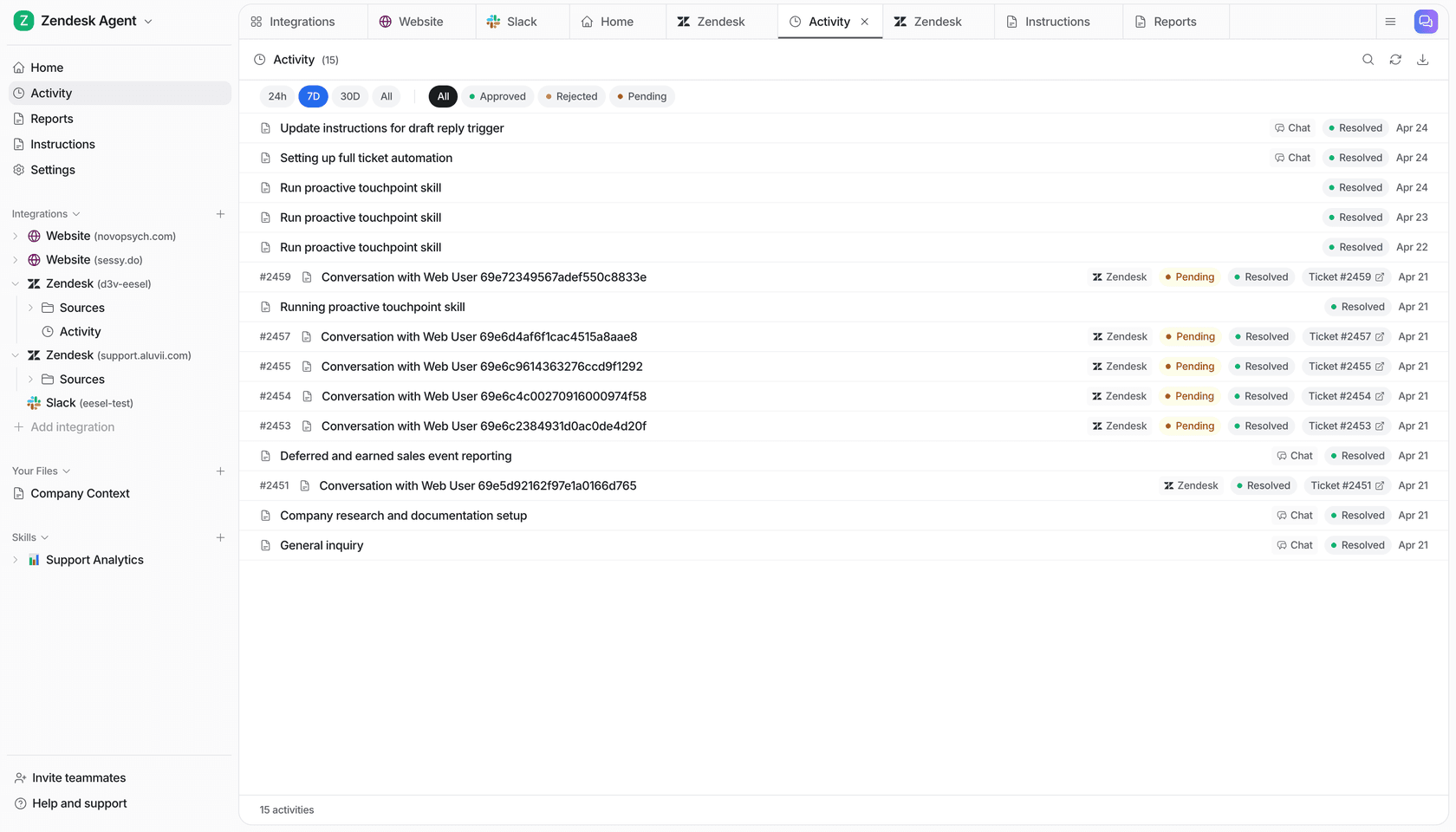
For more on the handoff side, my posts on AI escalation and Zendesk AI escalation rules go deeper. If escalations also go to people rather than Jira, see escalating to a specialist.
What it costs
The three options bill in different units, so here's a worked example. Take a SaaS team with 10 agents on Zendesk Suite Professional, getting 1,500 new tickets a month, of which about 100 turn out to be bugs.
| Native Jira app | Zendesk Copilot + action flows | eesel | |
|---|---|---|---|
| Billing unit | Included in plan | Per agent per month | Per ticket or run (1 credit) |
| Extra monthly cost | $0 | $500 for Copilot (10 × $50, billed yearly) | $699 for 1,500 credits, or $999 for 2,500 |
| What the volume looks like | Agent time on every escalation | Classifies every ticket; Jira steps use action credits | 1,500 triage runs plus about 100 status-update runs |
| Jira side | App install | Jira connection in action builder | API token; automation steps if you use option A |
A few notes on those numbers. Zendesk prices are from its pricing page: Suite Professional is $115 per agent per month billed yearly, and action credits are included with every plan, with more at $200 per 100K. eesel's pricing is a fixed monthly batch of credits with no seat fees. A ticket is one credit however many steps it takes, webhook deliveries count as runs, and extra credits are $0.80 each if you turn overage on. In this example 1,600 runs sits just over the 1,500 plan, so the $999 plan or $80 of overage covers it.
Copilot does more than triage, including auto assist and writing tools, so it isn't a like-for-like swap. Zendesk's outcome-based pricing for AI agents is a separate meter again. If you already pay for it, the cheapest path is often Copilot for labels plus an AI teammate for the Jira round trip. My Zendesk AI pricing calculator helps with the Zendesk side, and the Jira pricing guide covers Atlassian's.
Which setup I'd pick
Walk through where your loop breaks today, and the right setup usually picks itself.
In short:
- Low bug volume, agents already escalate well. Stay on the native app and add the Notify Zendesk Support post function. It's free and it's enough.
- You already pay for Copilot. Use intelligent triage for the bug label and an action flow to file. Accept that dedupe stays manual, or build a custom search action.
- Duplicates and silent fixes are the real pain. Add an AI teammate for jobs 2 and 4. You can keep the native app for agents who like the sidebar.
- You're a small SaaS team with no Jira admin to spare. An AI teammate on a schedule avoids editing Jira workflows at all.
For more options in this space, see my AI for bug report triage roundup and the best AI for ticket triage list. The AI ticket routing for SaaS guide covers routing beyond bugs.
If your bugs arrive through a Jira service desk instead, AI agents for Jira is the better starting point.
eesel for Zendesk and Jira
If jobs 2 and 4 are where your team loses time, that's the work eesel is set up for. It's an AI helpdesk teammate that joins Zendesk, learns from your help center, macros and past tickets, and drafts or sends replies, tags and routes. With Jira connected, it searches for an existing issue before it files one, and it drafts each customer's update when the issue moves.
You set it up by chatting with it, and every action can wait for your approval until you trust it. Try eesel free with 100 credits and no card. Run it on your last month of escalated tickets and see what it would have filed. If you're still comparing, the Zendesk AI alternatives roundup and eesel vs Zendesk AI are good next reads.
Frequently Asked Questions
Can I escalate Zendesk tickets to Jira automatically?
Does Zendesk AI check Jira for duplicate issues?
How do I notify a Zendesk customer when a Jira bug is fixed?
How much does AI triage for Zendesk and Jira cost?
Is the Zendesk Jira integration free?
What happened to the new Zendesk Jira app in 2026?
Can an AI agent triage Jira Service Management tickets too?
Will an AI agent file bad Jira issues if I automate escalation?



Article by
Rama Adi
Rama is a software engineer at eesel AI with two years of experience writing about B2B SaaS, AI tools, and customer support technology. Based in Bali, Indonesia, he brings a developer's perspective to product comparisons — cutting through marketing copy to what the integrations and APIs actually do.