
When your support team identifies a bug or feature request that needs engineering attention, getting that information to your development team efficiently matters. Linking Zendesk tickets to Jira issues creates a bridge between customer-facing support and behind-the-scenes development work.
This guide walks you through three ways to connect these systems: the native Zendesk-Jira integration, third-party tools for more complex needs, and API-based automation for technical teams. Let's break it down.
What you'll need to get started
Before you start connecting Zendesk and Jira, make sure you have:
- A Zendesk Support account on the Team plan or higher. The native Jira integration requires at least Team-level access.
- Jira Cloud or Jira Service Management with admin permissions. You'll need to authorize the connection from both sides.
- Admin access in both systems to install apps and configure integrations.
- Clarity on your workflow. Decide which types of tickets should create Jira issues versus which should simply link to existing ones.
One thing to note: the native integration works best in Chrome. Firefox users sometimes encounter issues due to Jira's security headers, so stick with Chrome for setup and daily use.
Method 1: Using the native Zendesk-Jira integration
The official Zendesk-Jira integration is free and handles the basics well. It lets you create Jira issues from tickets, link to existing issues, and keep comments synchronized between the two platforms.

Step 1: Install the Jira app from Zendesk Marketplace
Start in your Zendesk Admin Center. Navigate to Apps > Marketplace, then search for "Jira." You'll see the official Jira integration app. Click install and follow the prompts.
The app needs permissions to read ticket data and create links. Grant these during installation. If you don't see the Marketplace option, your Zendesk account may need a higher plan level.
Step 2: Connect your Jira instance
After installation, you'll configure the connection. Enter your Jira Cloud URL (something like yourcompany.atlassian.net) and authenticate with your Jira admin credentials.
Select which Jira projects should be available for linking. You can restrict this to specific projects if you want support creating issues only in certain areas. Configure field mappings to determine how Zendesk ticket data appears in Jira. By default, the ticket title becomes the issue summary and the description carries over.
Step 3: Create a Jira issue from a Zendesk ticket
With the integration active, open any Zendesk ticket. You'll see a Jira panel in the right sidebar. Click Create Issue to start the process.
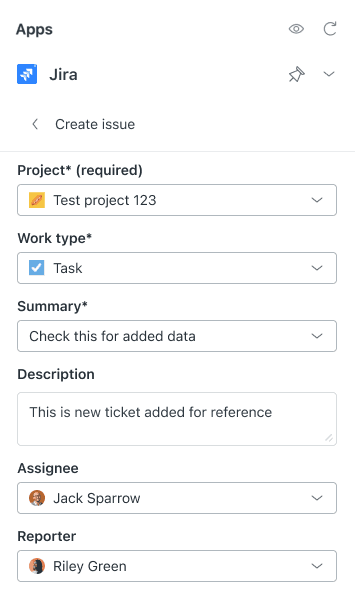
Select the Jira project, issue type (Bug, Story, Task, etc.), and confirm the details. When you save, Zendesk creates the issue in Jira and automatically links the ticket to it. The link appears in both systems, so anyone viewing the Jira issue can jump back to the Zendesk ticket.
You can create multiple Jira issues from a single ticket if needed. Up to 200 Zendesk tickets can link to a single Jira issue, which is useful when multiple customers report the same bug.
Step 4: Link to an existing Jira issue
Sometimes the engineering team already has an issue tracking the problem your customer reported. Instead of creating a duplicate, link the ticket to the existing issue.
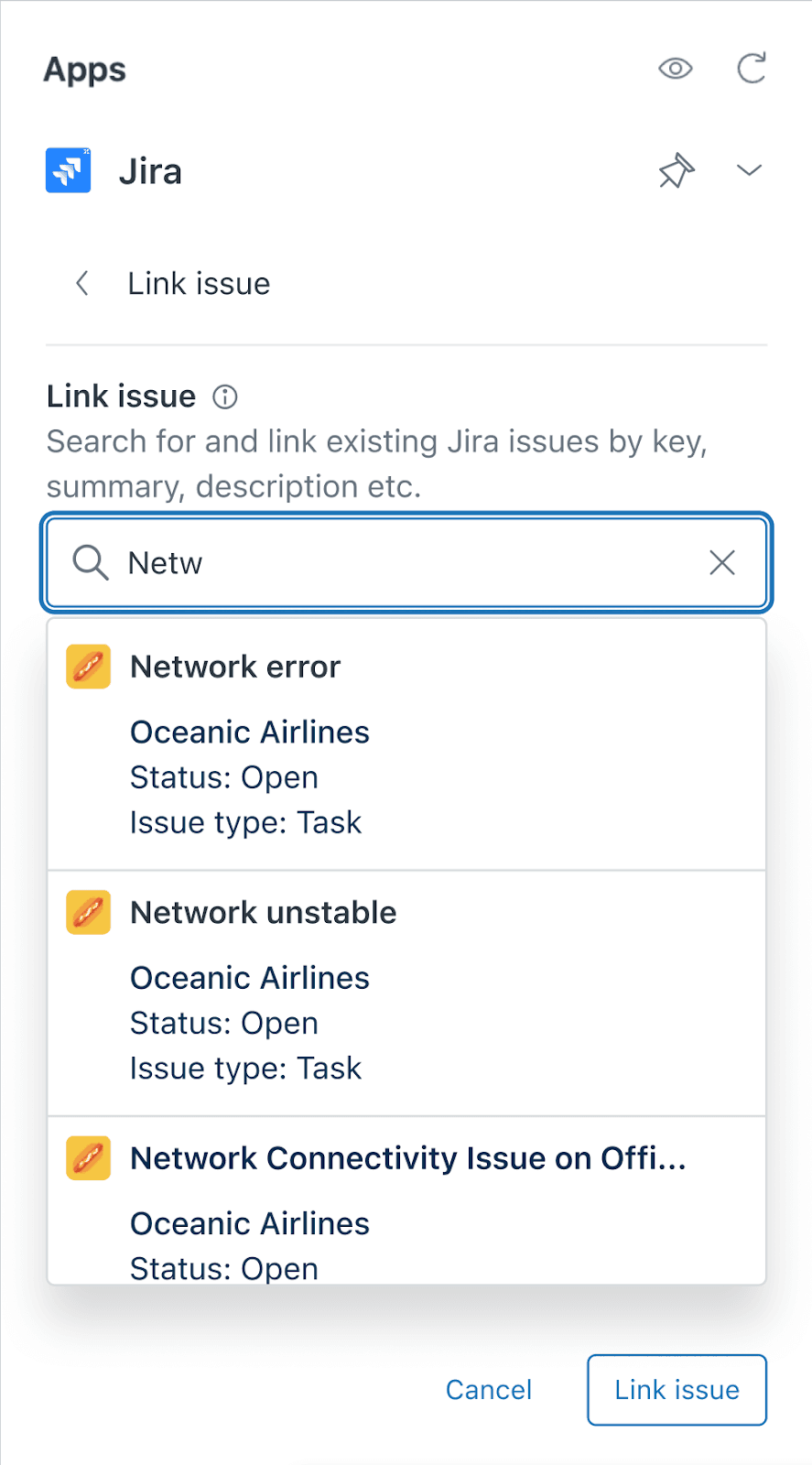
In the Jira panel, click Link Issue instead of Create Issue. Enter the Jira issue key (like PROJ-123) or search by keyword to find it. Select the issue and confirm. The ticket now links to that existing issue, and comments will sync between them.
Method 2: Third-party integration tools
The native integration works for straightforward use cases, but it has limitations. It requires manual linking for each ticket, doesn't offer true two-way field synchronization, and lacks advanced filtering rules. If you need more automation, consider these alternatives.
Unito
Unito specializes in two-way synchronization between work tools. Unlike the native integration, Unito keeps fields synchronized in both directions automatically. When a developer updates the priority in Jira, that change reflects in Zendesk. When a support agent adds a comment, it appears in Jira.
Unito is SOC 2 Type II certified and offers custom field mapping, so you can sync Zendesk tags to Jira labels, custom fields to custom fields, and more. Pricing is custom based on the number of items you sync and which tools you connect. You'll need to contact them for a quote, but plans typically start around $65 per month for smaller teams.
Exalate
Exalate takes a different approach with its no-code interface for building sync rules. You can create sophisticated workflows: for example, only sync tickets tagged "engineering" to Jira, or automatically escalate high-priority bugs while logging feature requests for later review.
Exalate pricing starts at $100 per month for 25 active items in sync, scaling up to $325 for 100 items. Enterprise plans with unlimited syncing and premium connectors like ServiceNow and Salesforce require custom pricing. All plans include unlimited users and connections, so you only pay for what you sync, not how many people use it.
Zapier
If your needs are simple, Zapier offers workflow automation between Zendesk and Jira. You can create "Zaps" that trigger when new tickets are created or updated, then perform actions in Jira.
The catch? Zapier doesn't support the specific "link ticket to issue" action natively. You can create issues, update them, and add comments, but linking existing tickets requires using Zapier's API Request action or custom webhooks. This makes it less ideal for linking workflows, though it works fine for automatic issue creation.
Third-party comparison
| Tool | Pricing | Best For | Key Strength |
|---|---|---|---|
| Unito | Custom (from ~$65/mo) | Real-time 2-way sync | SOC 2 certified, deep field mapping |
| Exalate | $100-$550/mo | Complex sync rules | No-code rule builder, unlimited users |
| Zapier | $19.99-$69/mo | Simple automation | Easy setup, 5,000+ app connections |
Method 3: API and webhook automation
For teams with development resources, building a custom integration using the Zendesk API and Jira REST API offers maximum flexibility.
The basic approach involves:
- Zendesk webhooks trigger when tickets meet certain conditions (like being tagged "escalate-to-engineering")
- Your middleware receives the webhook, creates or finds the appropriate Jira issue via API
- Jira automation rules link back to Zendesk using the API token
- Bidirectional updates keep both systems in sync
This community solution from the Atlassian forums shows the pattern: create a Zendesk trigger that calls a webhook when tickets need escalation. Your server receives the payload, authenticates with both systems, and uses Zendesk's /api/services/jira/links endpoint to create the link programmatically.
This approach requires technical expertise but enables fully automatic linking without manual steps. It's best for teams with specific workflow requirements that off-the-shelf tools can't meet.
Common issues and troubleshooting
Even straightforward integrations hit snags. Here are the problems you'll most likely encounter and how to fix them.
Firefox compatibility issues. The Jira app in Zendesk sometimes fails to load in Firefox due to security header conflicts. Switch to Chrome for the most reliable experience.
Permission errors. If agents can't see the Jira panel or create issues, check their permissions in both systems. They need appropriate Zendesk ticket access and Jira project permissions. Admin setup is required initially.
"Processing" stuck errors. Some users report the sync panel getting stuck showing "Processing" indefinitely. This often relates to the "Show sync panel only for admin users" setting being enabled. Check your integration settings if non-admin users can't see linked ticket information.
Field mapping problems. When data doesn't appear where you expect in Jira, review your field mappings in the integration settings. Custom fields may need explicit mapping to transfer correctly.
Authentication failures. If the integration stops working, re-authenticate both connections. API tokens can expire, and password changes break existing connections.
Best practices for Zendesk-Jira linking
Getting the integration running is step one. Making it work well for your team requires some process thinking.
Create new issues for actionable work, link to existing for tracking. If engineering needs to fix something, create a fresh issue. If you're just noting that a customer's problem relates to known work in progress, link to the existing issue instead.
Use consistent labeling. Consider a tag like jira_escalated in Zendesk for any ticket that has a linked Jira issue. This makes reporting easier and helps agents quickly identify which tickets have engineering involvement.
Set up problem tickets for related issues. When multiple customers report the same bug, create one Jira issue and link all related Zendesk tickets to it. Use Zendesk's problem-incident ticket type to group them.
Keep communication in the right platform. Comments sync between systems, but that doesn't mean every conversation should happen everywhere. Use Jira for technical discussion and Zendesk for customer communication. The sync is there when you need cross-team visibility, not for duplicating every comment.
Monitor linked ticket metrics. Track how many tickets get escalated to Jira, how long they take to resolve, and whether linked tickets have different satisfaction scores than unlinked ones. This data helps you refine when and how you use the integration.
An alternative approach: AI-powered support with eesel AI
Linking Zendesk to Jira solves the handoff problem, but it doesn't address a deeper question: how many of those escalations could be handled without ever creating a ticket?

At eesel AI for Zendesk, we take a different approach. Instead of building complex integrations to move tickets between systems, we help teams resolve issues at the support level using AI. Our AI Agent learns from your past tickets, help center articles, and connected documentation to answer customer questions directly.
Here's how it changes the equation: when a customer asks about a known bug, eesel AI can acknowledge the issue, provide the workaround, and set expectations for the fix without escalating to engineering. When a feature request comes in, it can log it for product review without creating a Jira issue that sits untouched for months.
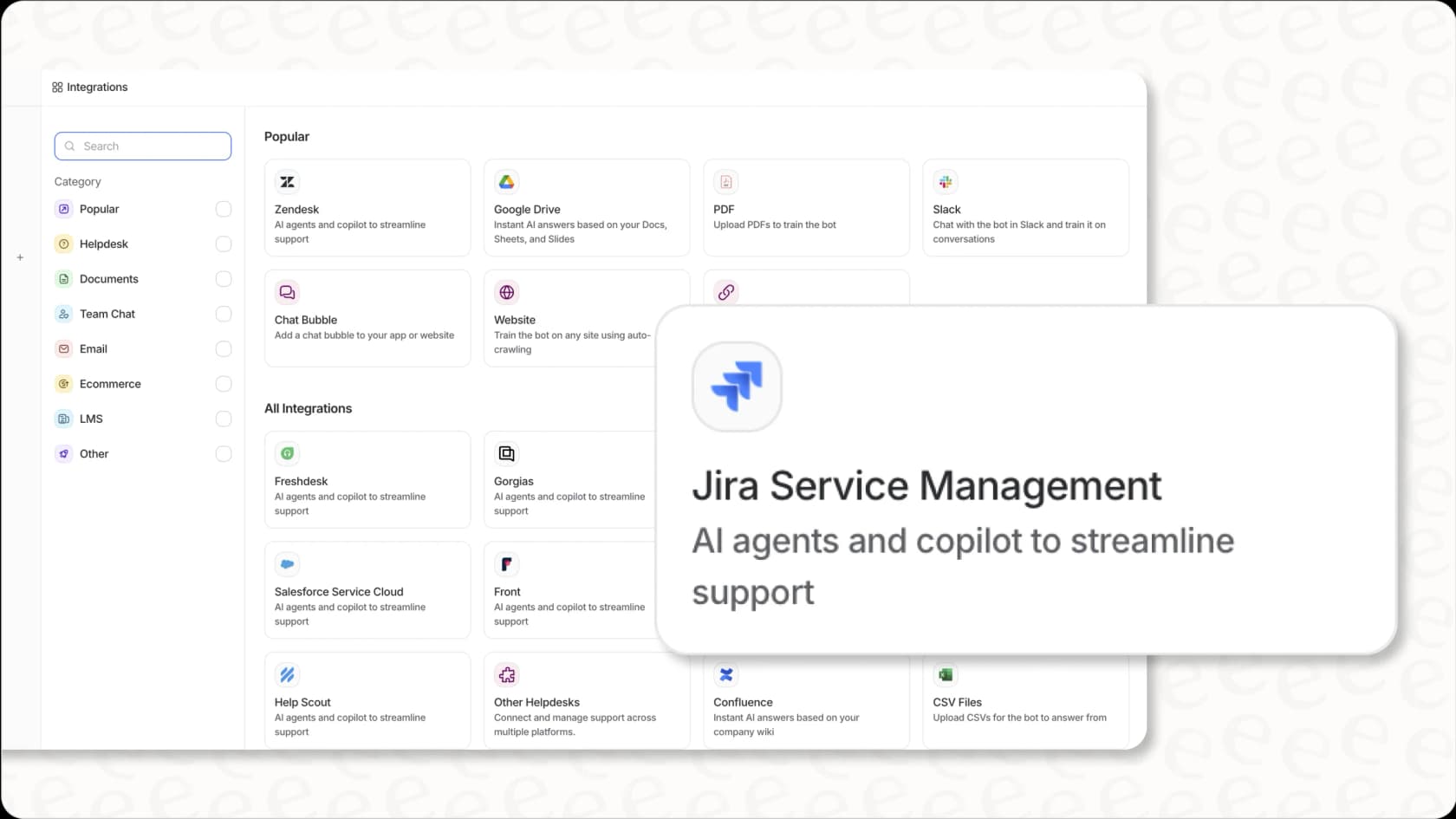
For issues that do need engineering attention, our Jira integration lets the AI create properly categorized issues with full context, reducing the back-and-forth between teams. The AI can look up order information in Shopify, check account details in your CRM, and only escalate when human judgment is truly needed.
Pricing starts at $299 per month for up to 3 bots and 1,000 AI interactions, with no per-seat fees. You can start with our AI Copilot drafting replies for agent review, then level up to full AI Agent autonomy as you gain confidence.
The real question isn't how to link Zendesk to Jira more efficiently. It's whether every ticket needs to become a Jira issue in the first place. If your team is drowning in escalations, AI might be the integration you actually need.