
Support teams are under constant pressure to resolve tickets faster without sacrificing quality. Zendesk's answer to this challenge is Copilot, an AI assistant designed to help agents work smarter. At the heart of Copilot are auto assist actions, automated tasks that can update tickets, query external systems, and even process refunds, all with minimal agent effort.
But how do these actions actually work? What can they do, and what are their limitations? Let's break it down.

What are Zendesk Copilot auto assist actions?
Auto assist actions are automated tasks that Zendesk Copilot suggests or executes to help agents resolve tickets faster. Think of them as shortcuts that eliminate repetitive manual work. Instead of an agent manually updating a ticket field, looking up an order in Shopify, or reassigning a ticket, Copilot can handle these tasks automatically once approved.
The shift here is subtle but significant. Traditional support workflows rely on agents to identify what needs doing and then do it. With auto assist, the AI analyzes the conversation, understands the context, and suggests the appropriate action. The agent simply reviews and approves.
This is part of a broader trend in support technology where AI moves from being a passive tool to an active assistant. We see this in our own work at eesel AI, where we approach AI as a teammate that learns your business and helps handle the repetitive parts of support.
To use auto assist actions, you need the Copilot add-on, which comes at an additional cost on top of your existing Zendesk plan. Third-party sources estimate this at around $50 per agent per month, plus per-ticket resolution fees.
Types of auto assist actions in Zendesk
Not all actions are created equal. Zendesk offers three distinct types, each with different capabilities and setup requirements.
Standard actions
Standard actions are built into Zendesk and require no configuration. They're ready to use as soon as you enable Copilot.
Here's what you can do with standard actions:
- Update ticket status, priority, type, and tags
- Modify custom fields including checkbox, date, decimal, dropdown, number, and regex fields
- Look up Shopify orders, cancel and refund entire orders, or process partial refunds
- Update ticket assignee and group
These actions cover the most common ticket management tasks. When you insert a standard action in a procedure, you specify the value you want to update. You can reference values directly (like "set priority to High") or pull them dynamically from the conversation or other fields.
One important note: if you're updating conditional ticket fields, you need to update the child field before the parent field. Actions execute sequentially, so required fields must be set first for subsequent actions to work properly.
Custom actions
Custom actions extend Copilot's capabilities beyond Zendesk's native features. They let you connect to external systems via APIs, query internal databases, or trigger processes in third-party tools.
Setting up custom actions requires some technical knowledge. Each action has three components:
Inputs are the data points your action needs to run. You define the name, type (string, integer, decimal, or boolean), and where the input appears in the request. Auto assist uses generative AI to extract this information from the conversation. For example, if you need an order number, you might create an input called "order_id" with a description like "the customer's order number, typically 9-10 digits." When the customer mentions their order number, Copilot extracts it and passes it to the action.
The API call defines the actual request: HTTP method, endpoint URL, authentication, headers, and body. You set up authentication through Zendesk's Connections feature, which keeps credentials secure rather than hardcoding them.
Outputs capture data from the API response that you want to use later. You can send test requests to preview the JSON response, then select specific fields to extract.
Custom actions have limits to keep in mind: 100 actions per account, 100 inputs and 100 outputs per action, a 2MB maximum response size, and a 10-second timeout for external calls. If a request times out or fails, the action won't be performed.
Pre-approved actions
In February 2026, Zendesk introduced pre-approved actions, a significant update that allows certain actions to execute automatically without agent approval.
This is how it works: admins mark specific custom actions or action flows as pre-approved within procedures. When auto assist decides to execute such an action, it runs automatically instead of waiting for an agent to click approve.
Pre-approved actions make sense for low-risk, information-gathering tasks like checking a shipping status or verifying account details. Actions that write data, like processing refunds, should still require agent approval.
There are risks to consider. Pre-approved actions may execute in a different order than specified in the procedure if auto assist determines the context warrants it. Also, actions that should only run when prior conditions are met might execute without those conditions being fully satisfied. Both behaviors are logged in the ticket's events for transparency.
How procedures and action flows work
Actions don't exist in isolation. They're embedded in procedures, which are step-by-step instructions written in plain English that guide auto assist through resolving a ticket.
Think of a procedure as a playbook. It outlines what questions to ask, what information to gather, and what actions to take. The key difference from traditional scripts is that procedures are dynamic. Copilot uses generative AI to understand the conversation and skip steps when the information is already present.
For example, a return procedure might include these steps:
- Ask for the order number and reason for return
- Look up the order in Shopify
- Verify the order is eligible for return
- Process the refund
- Send confirmation to the customer
If the customer already provided their order number in the initial message, Copilot skips step 1 and moves straight to the lookup.
Action flows are related but distinct. While procedures guide the conversation, action flows are pre-defined series of automated actions that execute together. You can include custom actions as steps in action flows, creating complex automations that span multiple systems.
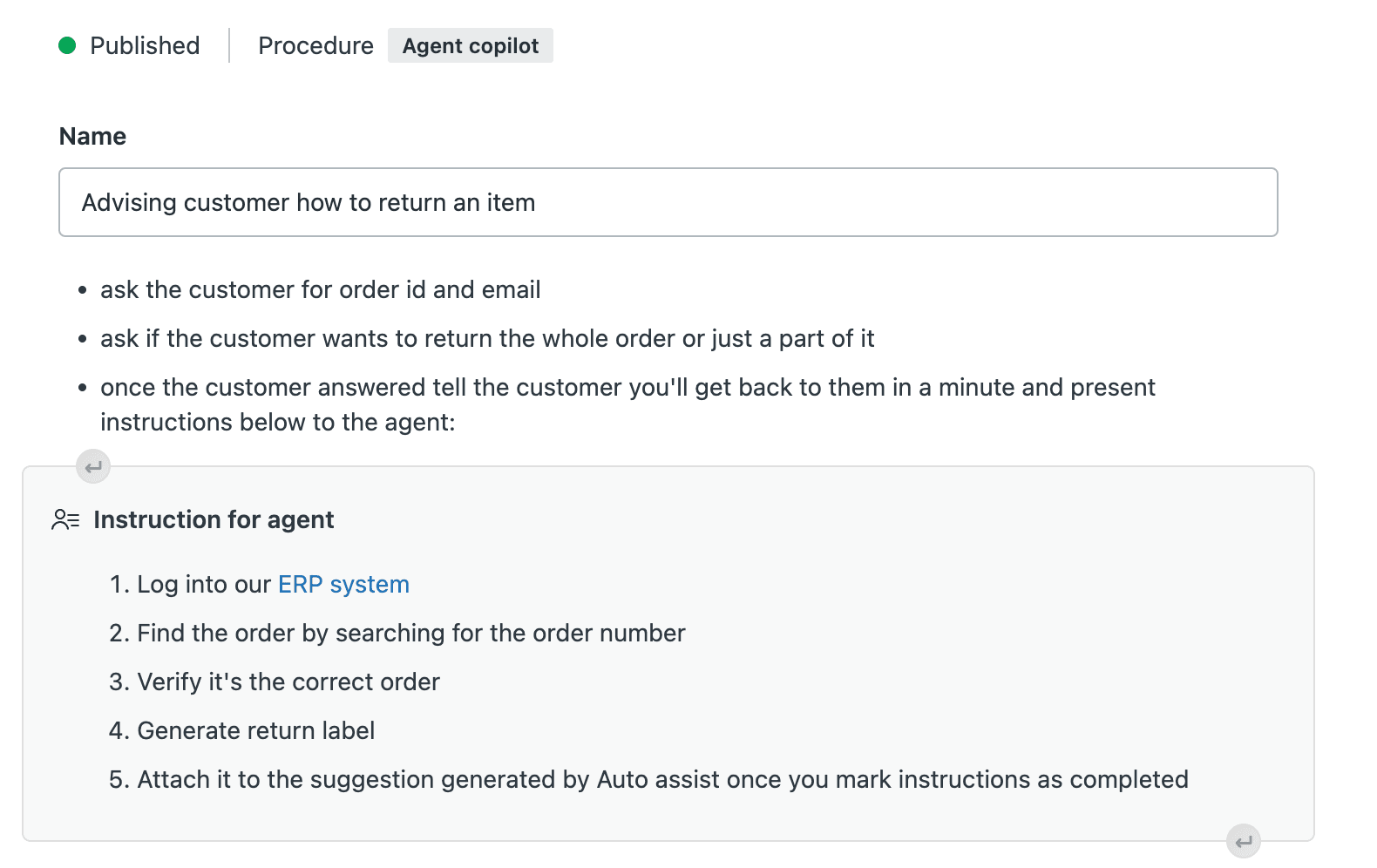
Procedures live in your knowledge base alongside help center articles. You create and manage them from Knowledge admin under Manage articles > Procedures. When writing them, use clear, actionable language as if you're guiding a new agent. The AI uses these instructions to understand what to do in each situation.
Setting up auto assist actions
Getting auto assist actions working requires several steps, from enabling the right features to writing procedures and configuring triggers.
Prerequisites
Before you start, you need:
- The Agent Copilot add-on enabled on your account
- Your account migrated to Zendesk's improved messaging backend
- Admin access to the Zendesk Admin Center
The Copilot add-on is separate from your base Zendesk plan. Pricing isn't publicly listed, requiring you to contact sales, but third-party sources suggest around $50 per agent per month plus usage fees.
Creating your first procedure
Procedures are the foundation of auto assist. Here's how to create one:
- Navigate to Knowledge admin > Manage articles > Procedures
- Click to create a new procedure
- Give it a clear, descriptive name that reflects the ticket type it handles
- Select which brands the procedure applies to (or leave as all brands)
- Write the procedure content as step-by-step instructions in plain English
- Add actions using the / command where automated tasks should occur
- Save and publish the procedure
When writing procedures, phrase steps as if you're talking directly to an agent. Use consistent terminology for products and services. Include specific details rather than vague instructions. For example, write "Ask the customer to visit example.com/reset" instead of "Share the relevant help article."
Configuring custom actions
For actions beyond Zendesk's standard capabilities, you'll need to set up custom actions:
- Go to Admin Center > Apps and Integrations > Actions
- Click Add action
- Define your inputs with clear names and descriptions
- Configure the API call with endpoint, method, and authentication
- Set up outputs to capture response data
- Test the action with sample inputs
- Save the action
The quality of your input descriptions matters. Auto assist uses these to extract the right information from conversations. A description like "the customer's 10-digit order number" helps the AI identify and extract order numbers more accurately than simply "order number."

Activating with triggers
Auto assist only engages when tickets have the agent_copilot_enabled tag. You control this through triggers.
For messaging tickets coming through your conversation bot, add the agent_copilot_enabled tag to all bot answers. The tag carries over when a ticket is created.
For email and other channels, create a trigger that adds the tag based on conditions like ticket intent, assigned team, or channel. A typical trigger might look like this:
Meet ALL conditions:
- Ticket status is New
- Tags contains none of the following: agent_copilot_enabled
Meet ANY conditions:
- Channel is Email
- Intent is Return request
This ensures auto assist activates for new tickets matching your criteria without re-tagging existing tickets.
Agent experience with auto assist
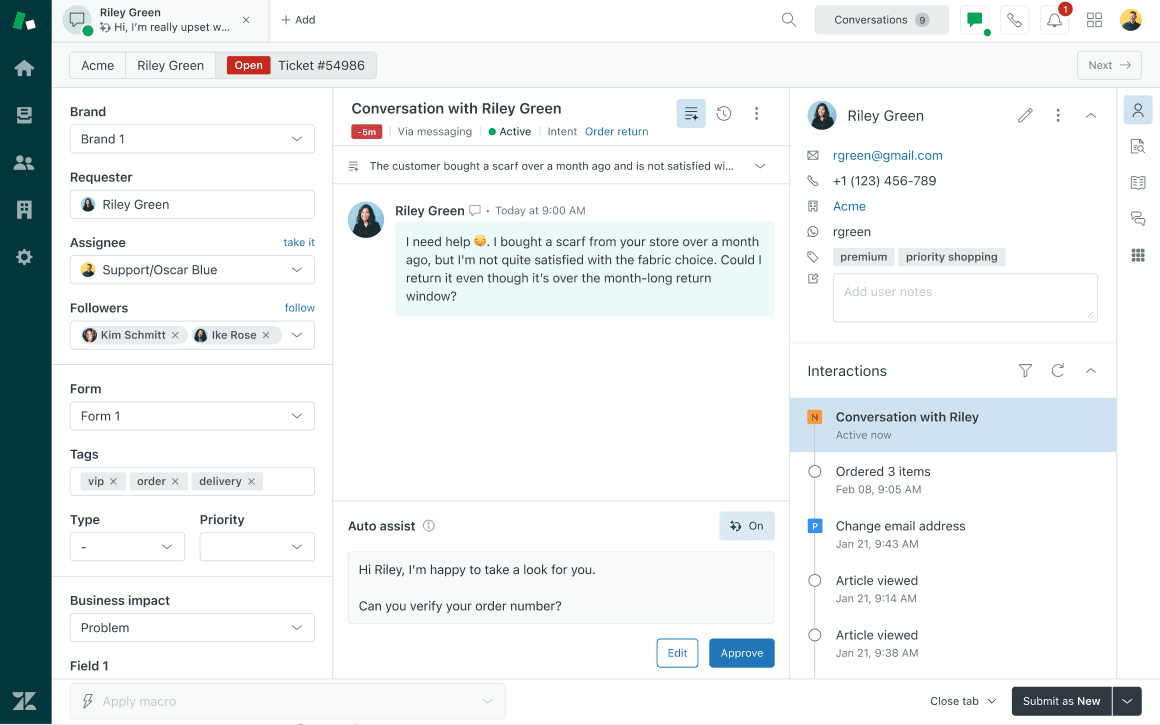
From an agent's perspective, auto assist appears in the Agent Workspace as suggestions they can review and approve.
When working on a ticket, agents see the auto assist panel where suggestions appear. These might include suggested replies, recommended actions, or macros. Agents can approve suggestions as-is, edit replies before sending, or remove actions they don't want to perform.
For pre-approved actions, the execution happens automatically and appears in the ticket's conversation log. Agents see what was done but don't need to click approve. This is clearly marked and not attributed to the agent personally.
Agents can also view the sources auto assist used to generate suggestions. If a suggestion came from a specific procedure or help center article, hovering over the info icon reveals this context. Procedures are marked with a star icon, articles with a book icon.
If auto assist isn't helpful for a particular ticket, agents can take over by clicking the auto assist icon to toggle suggestions off. They then compose messages normally. They can re-enable auto assist at any time.
Best practices for auto assist actions
Getting the most from auto assist actions requires more than just turning them on. Here are practices that make a difference:
Start with high-volume, straightforward ticket types. Look at your most common issues, the ones your team handles dozens of times daily. These are perfect candidates for procedures because the ROI is highest and the patterns are clearest.
Write procedures as if training a new agent. Use clear, actionable language. Be specific about what to ask and when. Include examples in your instructions. The AI interprets these instructions literally, so clarity matters.
Test before rolling out widely. Start with a small group of agents or a specific ticket queue. Monitor how often suggestions are accepted versus rejected. Refine procedures based on what you learn.
Use consistent terminology throughout. If you call it a "return" in one place and a "refund" in another, the AI may struggle to match tickets to the right procedure. Pick terms and stick with them.
Mark information-gathering actions as pre-approved, keep data-writing actions agent-approved. This balances efficiency with control. Reading data is low-risk. Changing data deserves human oversight.
Document your custom actions thoroughly. Future you (or your teammates) will thank you when you need to troubleshoot or update an API integration six months later.
Limitations and considerations
Auto assist actions are powerful, but they have boundaries you should understand.
Action limits: Auto assist can suggest up to four actions at a time in most cases. This includes reply suggestions and agent instructions. The exception is macros. When auto assist suggests a macro, it can only include agent instructions alongside it, no other actions.
Account limits: You're capped at 100 custom actions per account, with 100 inputs and 100 outputs per action. For most teams, this is plenty. For large enterprises with complex integrations, it's worth planning your action architecture carefully.
Technical constraints: External API calls timeout after 10 seconds. Responses are limited to 2MB. If your external system is slow or returns massive payloads, actions will fail.
Scope limitations: Actions don't work on AI agent tickets. They're designed for human-assisted conversations, not fully automated ones.
Pre-approved action risks: As mentioned earlier, pre-approved actions may execute out of order or without satisfying all prior conditions. This is a trade-off for automation speed.
Custom field access: Currently, Copilot can only retrieve name and email from user objects and words from conversations. Custom field values from tickets or users aren't accessible as action inputs, which limits some integration possibilities.
Pricing considerations: Beyond the base Copilot add-on cost, you pay per automated resolution. For high-volume teams, these costs add up. One source estimates around $1.50 per automated ticket, meaning 1,000 automated resolutions could add $1,500 to your monthly bill on top of the per-agent fees.
An alternative approach: eesel AI
If Zendesk Copilot's complexity and pricing give you pause, there are alternatives worth considering. At eesel AI, we take a different approach to AI-powered support.
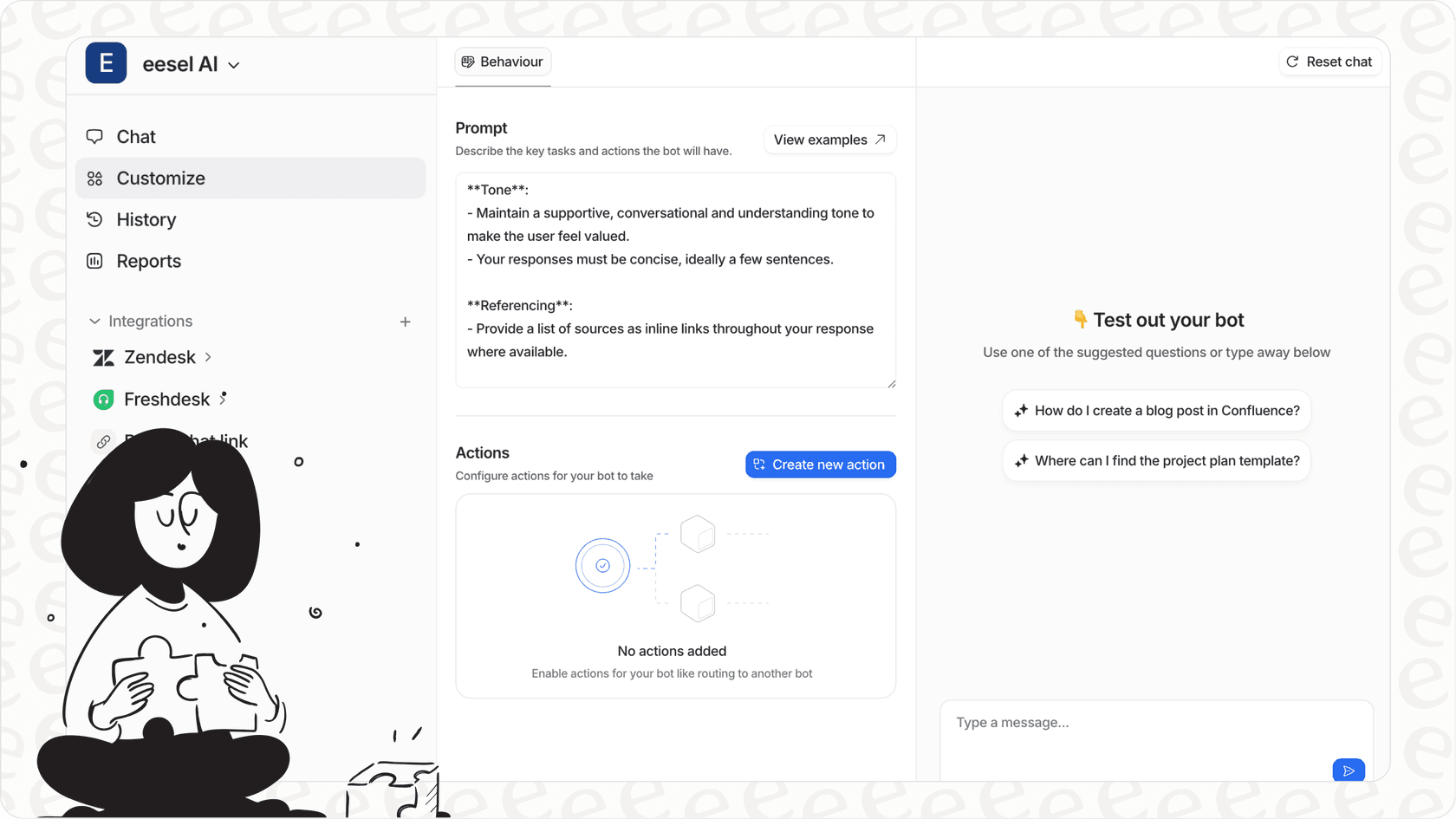
Where Copilot requires you to write procedures, configure actions, and manage triggers, we designed eesel AI to learn your business automatically. Connect us to your help desk, and we absorb your past tickets, help center articles, and macros. Within minutes, we understand your tone, policies, and common issues.
Instead of requiring the Copilot add-on on top of your existing plan, we offer a standalone solution with simple, transparent pricing. You pay per interaction, not per seat, which often works out more affordably for growing teams.
Our AI Copilot drafts replies for your agents to review, just like Zendesk's approach. But as the AI proves itself, you can level up to full autonomy, having it send replies directly and handle tickets end-to-end. You're always in control of the pace.
If you're already using Zendesk, we integrate seamlessly. But unlike Copilot, we don't require complex configuration or API knowledge to get started. You can learn more about eesel's AI agent for Zendesk or explore our AI Copilot features to see how we compare.