

Why the follow-up is the work that slips
I'm Rama, and my job at eesel is building integrations. A big part of my week goes into the plumbing that lets an AI read a ticket, a CRM record or a call transcript and then actually do something useful with it. The lesson that stayed with me from all of this: an AI follow-up is only as good as the trigger behind it and the number of edits it needs before you'd send it. A perfect draft that arrives tomorrow morning is, in practice, a worse follow-up than a decent one sitting in your drafts five minutes after the call ended.
That is the lens I'm using for this whole guide. Town is a personal AI assistant. You give your Townie a name, it gets an @town.com email address of its own, and from there it works across your email, calendar, Slack and docs.
Town left beta on June 3, 2026, together with a $55M Series A that a16z led. Its co-founder and CEO, Jean-Denis Greze, was the CTO of Plaid before this.
It belongs in the same new category as the AI teammates I have been comparing all year, meaning software you hand a job over to, rather than a chatbot you keep prompting.
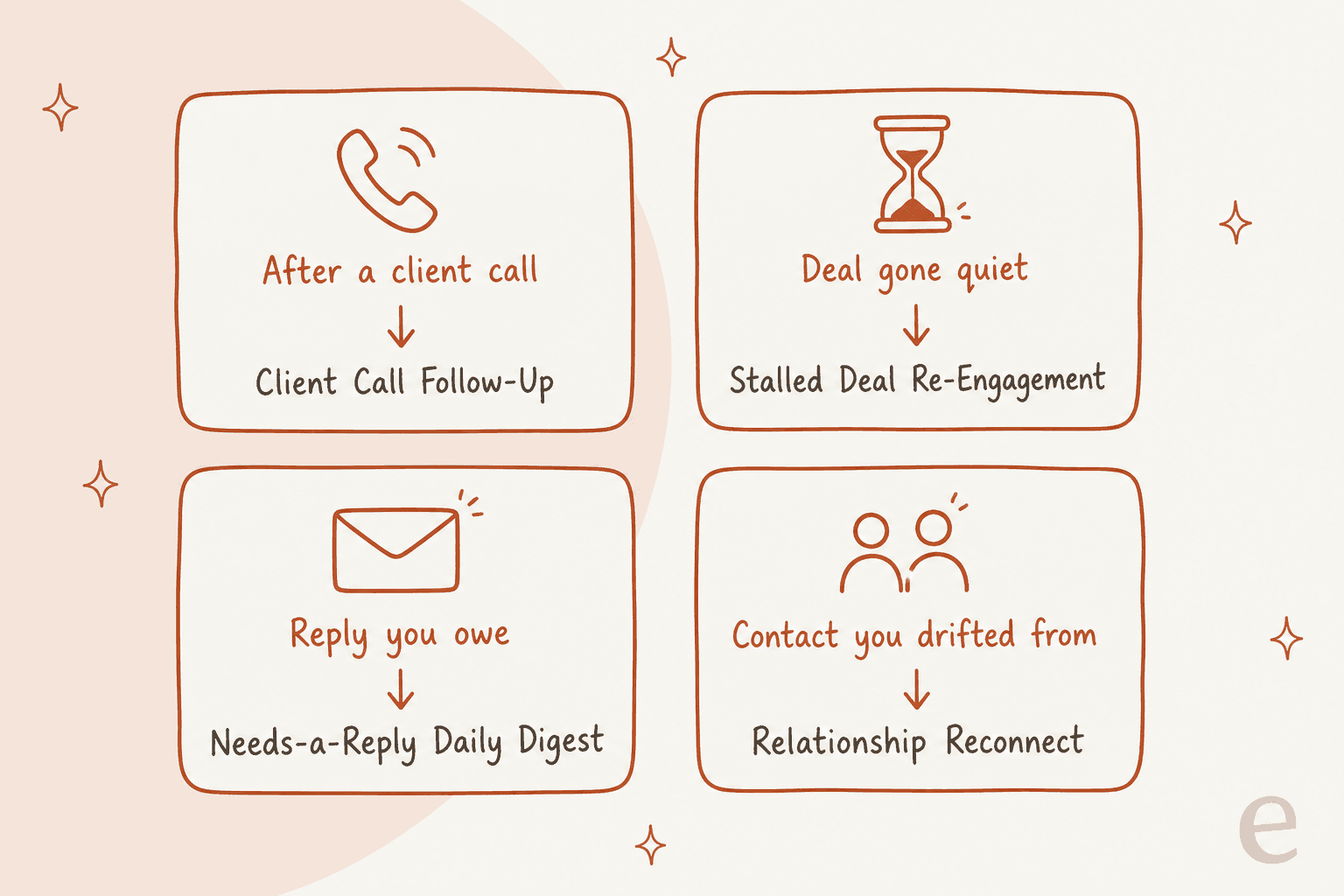
When it comes to client follow-ups, the chat box is not really the interesting part. The interesting part is the routine library, a set of ready-written routine requests you send to your Townie, which it then builds and tests and switches on for you. Four of these line up with the four usual ways a client follow-up slips.
Which Town routines handle client follow-ups?
Below is the shortlist, taken from Town's own routine pages. Every one of them runs on a different trigger, and as it turns out, the trigger matters more than whatever it writes.
| Routine | When it runs | What you get | What it needs |
|---|---|---|---|
| Client Call Follow-Up | When a call recording or transcript is ready | Recap email in your drafts, action items, CRM note | Meeting notes tool, email, optional CRM |
| Post-Meeting CRM Update | When a transcript lands, plus an hourly backup sweep | Call note on the right deal, tasks with due dates, drafted follow-ups, recap to you | Meeting notes tool, email, CRM or a Google Sheet |
| Client Next-Step Log | When a client call transcript is ready | Every action item with owner and due date, logged per client | Meeting notes tool, calendar, a doc or sheet |
| Proposal Follow-Up Cadence | On incoming deal email | Timed follow-up tasks, stage moves, flags when a deal slips its window | Email, a task tool like Asana, a sheet or CRM |
| Stalled Deal Re-Engagement | Weekly, every Monday | Ranked nudge drafts for quiet deals | CRM and email |
| Needs-a-Reply Daily Digest | Each morning | One list of threads waiting on you, or silence | Email and Slack |
| Relationship Reconnect (stock routine) | Your chosen weekly schedule | Catch-up suggestions for people you haven't contacted recently |
There is one quiet theme running across every page: nothing client-facing sends itself. The default of Client Call Follow-Up itself is "draft and hold for my review; never send on my behalf." Even the Needs-a-Reply digest does nothing more than surface threads and link to them. For a tool that reads your client email that's the right default, and it also shapes how you end up using it in practice, which is that Town writes and you press send.
How to set up Client Call Follow-Up in Town
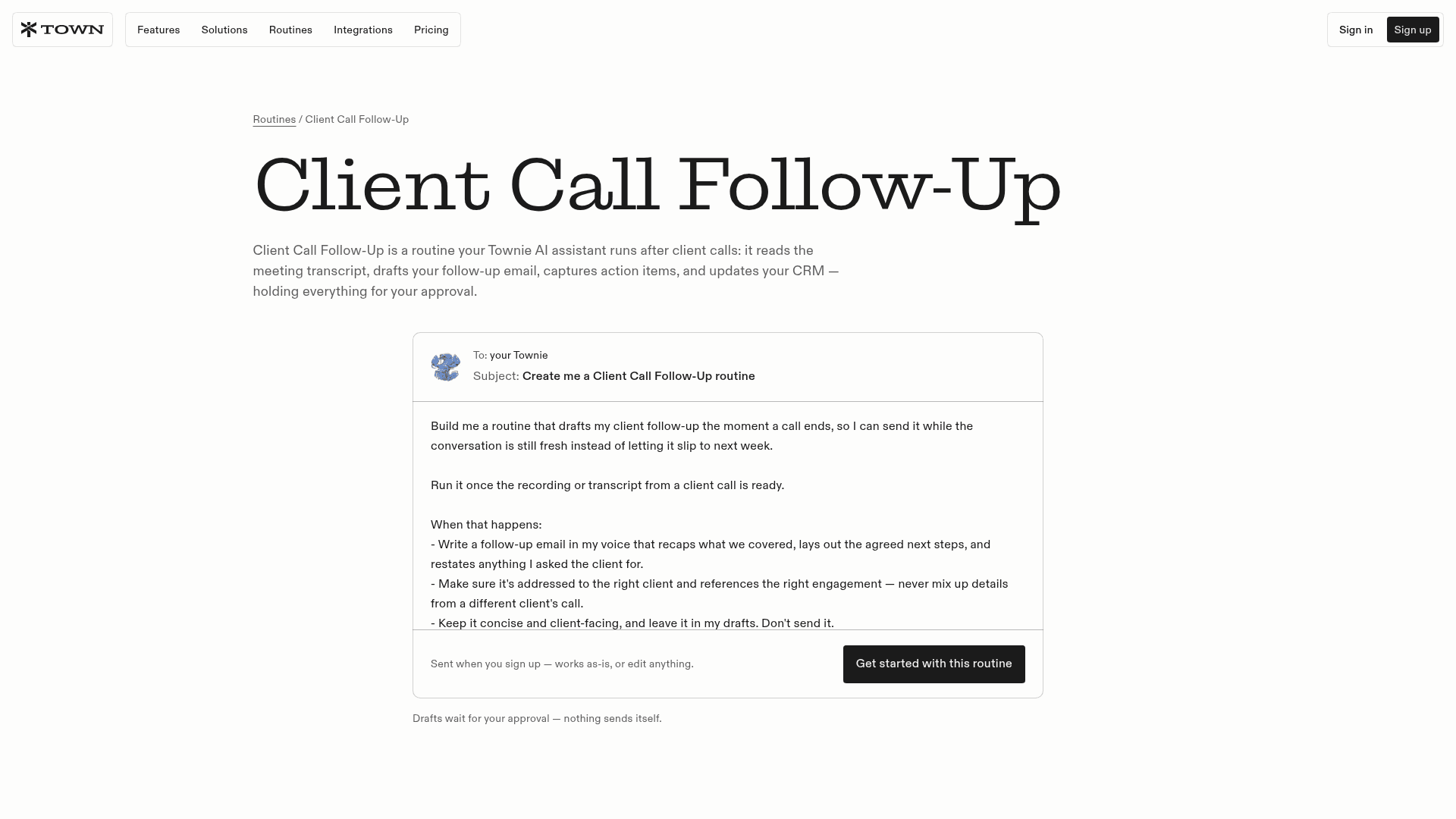
This is the routine I would start with, since the post-call recap is the follow-up with the shortest shelf life of all. If your notes tool is connected already, setup takes about 15 minutes.
- Sign up and connect your email. Town works with either Gmail or Outlook. New accounts get a 7-day Pro trial, and that is enough time to try this routine on a week of real calls.
- Connect a meeting notes source. Without a transcript the routine has nothing to work from. Town lists Granola, Fathom and Fireflies, and on top of that it can record meetings itself and do the transcription in the background. In case you don't use one yet, my meeting notes app guide and Otter alternatives list are a good place to start.
- Connect your CRM (optional). HubSpot connects with one click through HubSpot's official MCP server. Salesforce and Attio are listed as well, and so is Pipedrive. All integrations are included on every plan.
- Send the routine request. On the routine page, the "Get started with this routine" button pre-fills the request to your Townie for you. The request itself tells your Townie to ask you questions before it builds anything, about which tools to use and what the output should look like, and also how much it should do on its own.
- Answer its questions properly. This is the step where the routine gets good. Tell it which calendar events count as client calls and whether internal meetings should be skipped, plus who gets copied. According to the routine page, you can later ask it to "add deal-risk flags, skip internal meetings, or copy a teammate on recaps" in one message.
- Keep it on approval-required. For routines that send emails or messages, Town's docs recommend approval-required mode. There's more on modes further down.
- Test it manually first. The triggers docs suggest that you run a new routine by hand before switching on the automatic triggers. Run it against yesterday's call and read the draft properly before you trust it with tomorrow's.
One detail I like here is that client attribution gets treated as the whole point. The routine request says "if you're not certain which client or thread this belongs to, ask before drafting," and on the Client Next-Step Log page, ambiguous attribution "gets a question, never a guess." For anyone running several client accounts with similar names, that's the line that stops you from emailing Acme the notes from Acme Labs.
How Town catches the clients who went quiet
The post-call recap is the easy kind of follow-up, because you already know it's owed. The harder one is the client who stopped replying three weeks ago without anybody noticing. For that, Town has three different tools, each working at its own level.
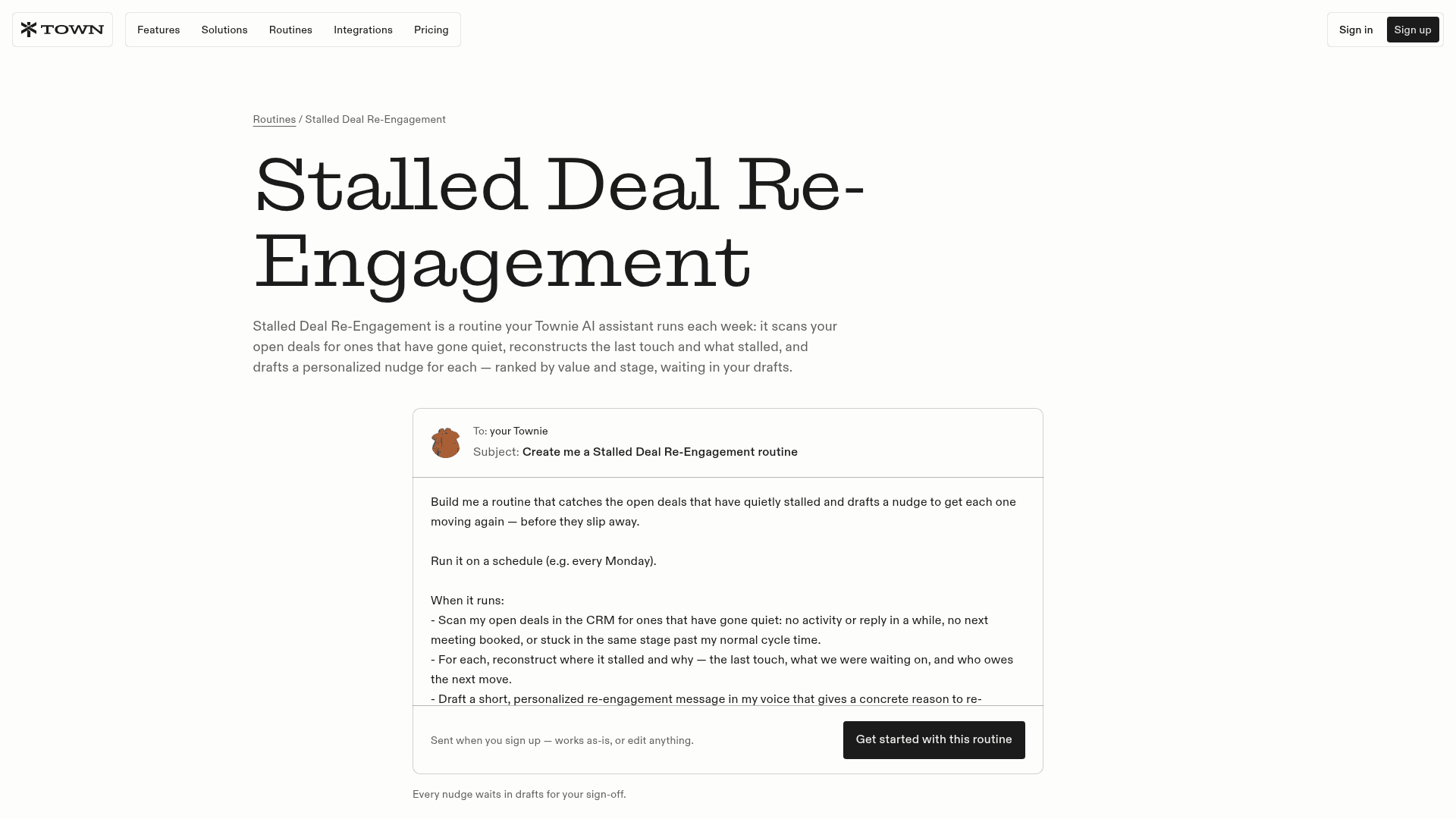
Stalled Deal Re-Engagement is the one driven by your CRM. Each Monday it goes through your open deals looking for ones with "no activity in a while, no next meeting booked, or stuck in a stage past your normal cycle time," rebuilds the last touch from your CRM and email history, and then drafts a nudge for each one, ranked by value and stage. Deals where you are legitimately waiting, for example on their legal team or on a booked meeting, get skipped, and it tells you the reason.
Proposal Follow-Up Cadence is meant for agencies and consultants who send proposals. It keeps an eye on deal email for milestones (discovery done, proposal sent, client reply, contract activity) and kicks off a timed cadence from there. You set the numbers yourself; Town's own cadence example uses follow-ups at 3, 7 and 14 days after the proposal. It handles tasks and stage moves on its own, while client-facing outreach stays in drafts.
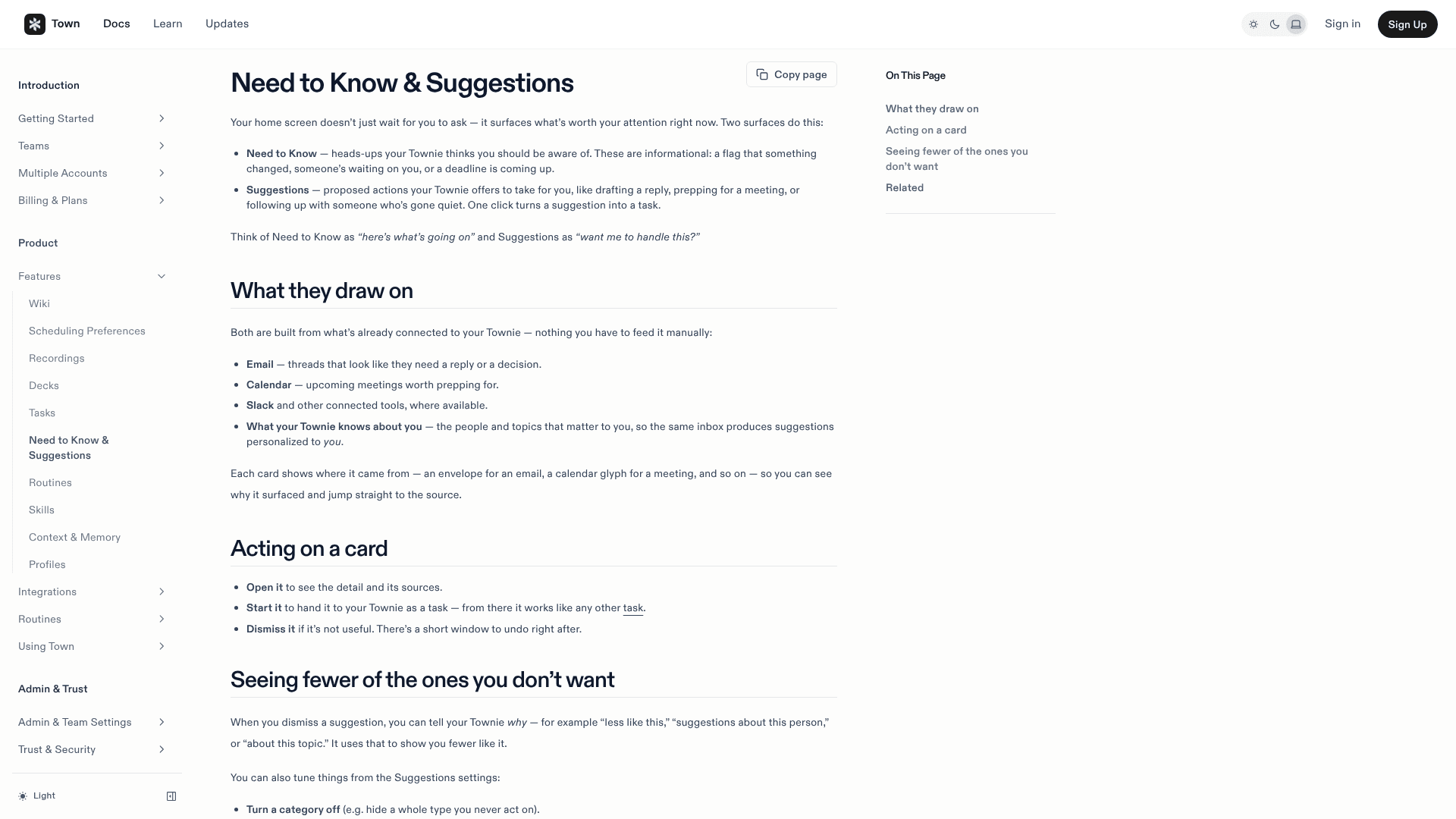
Relationship Reconnect and Need to Know are the lighter-touch pair. Relationship Reconnect sends you weekly catch-up suggestions for people you've had a meaningful connection with but haven't been in contact with recently. Then on the home screen, Suggestions proposes actions such as "following up with someone who's gone quiet," and one click turns that into a task.
Neither one needs a CRM, and that makes them the better fit for freelancers who keep track of clients in their inbox instead of in HubSpot or Pipedrive.
If you're already using Gmail's built-in nudges, what's different is the context. A nudge only tells you that a thread is old, whereas Stalled Deal Re-Engagement tells you what the deal was waiting on and gives you a draft with an actual reason to reconnect.
Which Town plan do you need for client follow-ups?
Most "Town for follow-ups" demos skip this part, and this is also where I'd push back on the $15 sticker price. Town gates both custom routines and trigger types by plan, and every routine in the library above gets built as a custom routine from your request.
| Plan | Price per month | Credits | Custom routines | Triggers |
|---|---|---|---|---|
| Free | $0 | 30 chats | None | Weekly Briefing only |
| Starter | $15 (monthly only) | 1,250 | 2 | Daily or scheduled only, at most once a day |
| Pro | $49 annual / $59 monthly | 5,000 | Unlimited | All trigger types |
| Power | $99 annual / $119 monthly | 12,000 | Unlimited | All trigger types |
| Power Plus | $199 annual / $239 monthly | 40,000 | Unlimited | All trigger types |
| Team | $59 annual / $71 monthly per seat | 6,000 per seat, pooled | Unlimited | All trigger types |
Source: Town Plans & Pricing docs and pricing page.
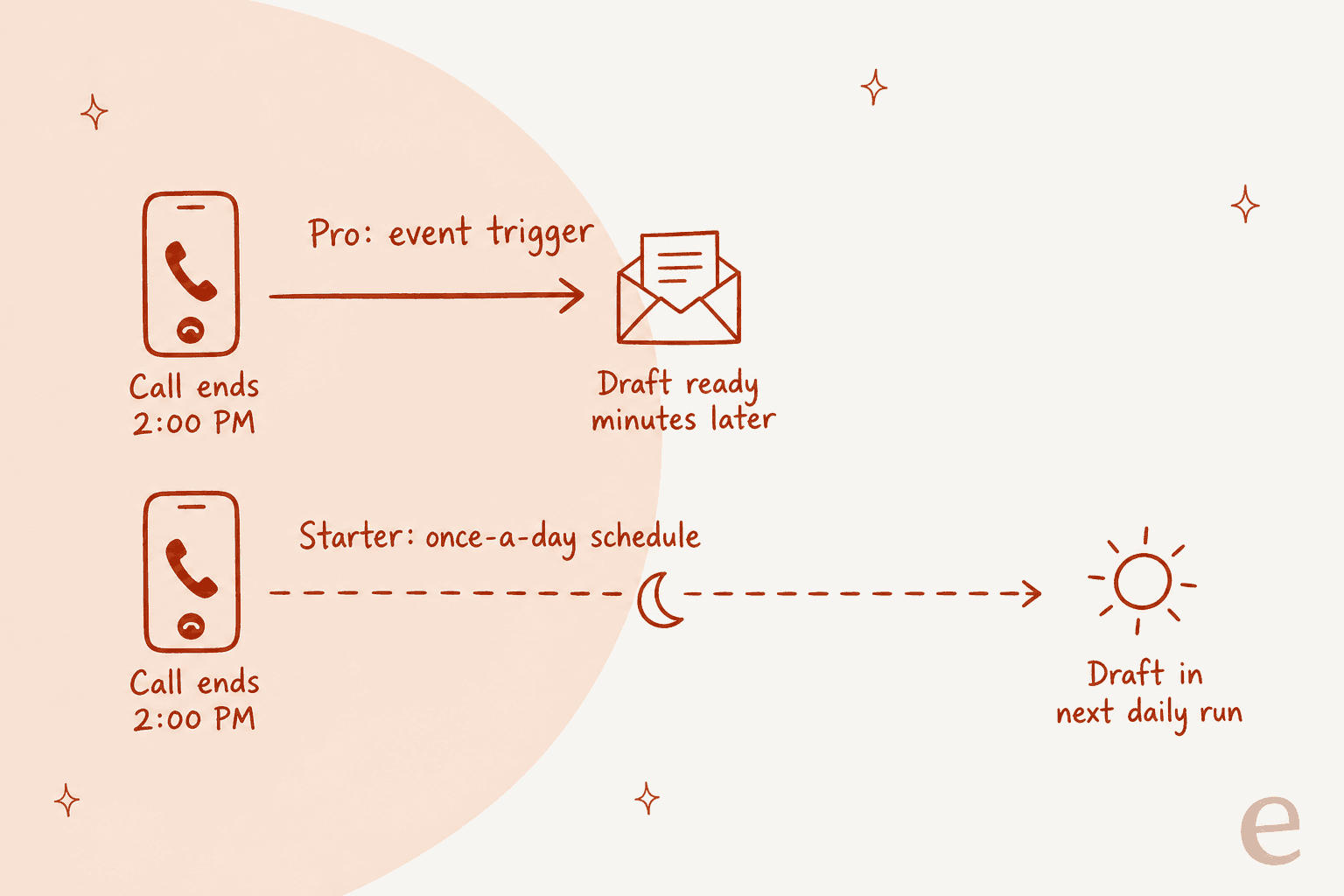
The docs are explicit about the Starter limit: "A routine can run on a schedule (at most once a day), but not on live events." Event triggers, like a new email or a meeting starting, need Pro or higher. What that means on Starter is that Client Call Follow-Up turns into a once-a-day sweep, and Proposal Follow-Up Cadence, since it runs on incoming deal email, isn't really possible there at all. On top of that you only get two custom routines, so you would be choosing between the call recap and the stalled-deal sweep.
There are two smaller gates that matter for client work as well. On the pricing page, Starter comes with 15 on-demand meeting briefings a month, while Pro and above get automatic ones. For person research lookups it is 10 a month on Starter against 50 on Pro. Once you're running more than a handful of client calls a week, Pro is the plan that actually matches the job.
The other variable is credits. Town doesn't publish a fixed credit cost for each routine run; according to its credits docs, usage depends on how much a run reads and acts, and the per-routine totals are visible under Settings → Plan. A recap that runs once per call is light compared with a routine firing on every incoming email, which the same docs describe as "the heaviest setup there is." If you are close to a plan boundary, my Town AI pricing breakdown has the overage math.
How to keep Town's follow-ups safe
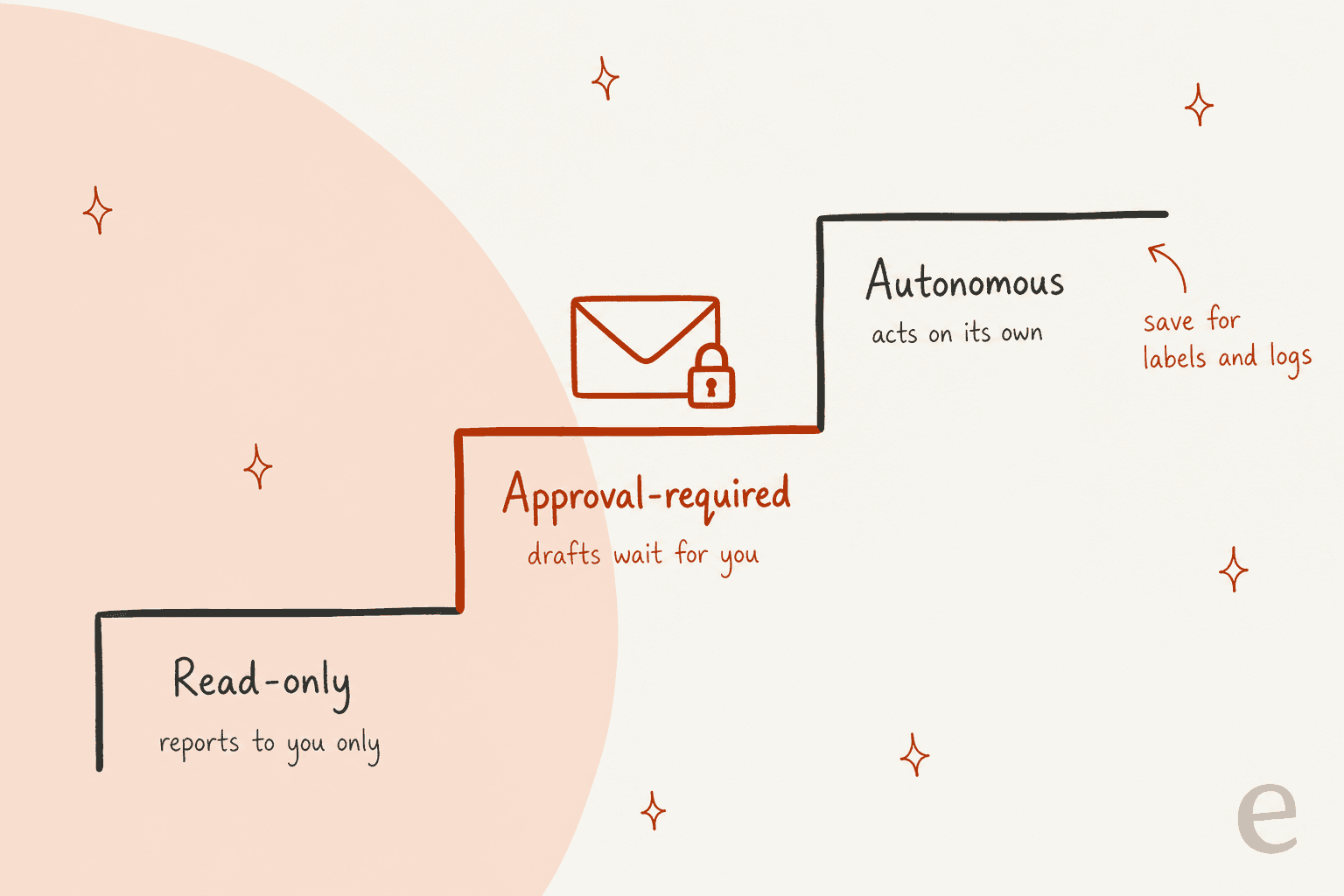
Of everything you could automate, client follow-ups carry the most risk, because a mistake lands in somebody else's inbox. Town gives every routine one of three modes: read-only, approval-required and autonomous. Inside a single routine you can mix them per tool.
This is how I would set up a follow-up routine:
- Emails to clients: approval-required. In Town's docs, "routines that send emails or messages" is the listed use case for this mode.
- CRM notes and tasks: these are fine to run on their own. By default, Post-Meeting CRM Update handles notes, tasks and drafts automatically, while stage changes and outbound email are held until you confirm.
- Deal stage changes: keep these on approval and add hard guardrails on top. The example Town gives is "never moving a deal to Pass automatically."
- Digests and reports to you: read-only is enough here, because a read-only routine can still email the results to you.
For HubSpot in particular, the integration FAQ says record updates are "drafted and held for your approval" by default, with autonomy being opt-in for each routine.
For a CRM that your whole sales team reads, that's a sensible line to draw, and it is stricter than what you'd get from wiring Claude to HubSpot yourself. Town also keeps a full audit log of whatever it does on your behalf.
Will the drafts sound like you?
This is the question that decides if the routine saves time or only moves the typing somewhere else. Having put AI drafts in front of support teams at eesel, I've seen a blunt pattern. In one e-commerce trial I looked at, agents sent only 12% of AI drafts as-is. Most of the rest were cut from 8 to 15 sentences down to 1 to 3, and about 65% of those rewrites had to do with length and tone rather than facts. What fixed it was training on the replies the team had already sent.
Town's way of answering that problem is its Wiki and profile. It builds a profile of your role, key people, projects and writing style from the accounts you connect, then refreshes the Wiki nightly and lets you edit any line of it. For follow-up drafts that's the right input, since the voice comes from emails you've already sent. On the inbox side, early users seem to agree:
"I've become a DAU of Town and it's surprising that I find it more valuable than Claude. I think Town is the only reason I stay on top of my email inbox."
Even so, I'd give it a week. Read the first ten recaps closely and tell your Townie what you would change ("shorter," "no bullet lists to clients," "always restate the next meeting date"). A routine updates from one message, so the editing loop stays cheap. In case what you mostly need is one-off outreach copy and not recaps, an AI sales email generator is the lighter tool for that kind of job.
Where Town fits for client follow-ups, and where it doesn't
Town fits well if you're a founder, consultant, recruiter or account manager who owns the client relationships personally. The routines are written for exactly that kind of person, and it spreads well inside small teams too:
"Town is the Devin for Everything Else i was talking about at AIE Europe i brought it into our company one day and a few weeks later was shocked to hear that it had just organically spread to @liamcbride and the rest of our team with no further hyping or enablement from me."
A few limits that are worth knowing before you commit:
- Stock routines are fixed. You can change the settings and the mode, but a stock routine's logic can't be rewritten. The library routines are built as custom routines, which is why they're editable, and also the reason they need Pro.
- WhatsApp and Telegram are inbound-only. Your Townie can't send messages there on your behalf, which means client follow-ups go through email.
- Team pools have no per-member limits. On the Team plans, Town's team billing docs point out that a single heavy member can drain the shared credit pool.
- It's young. There are no reviews of Town on G2 or Capterra yet, so most of what you'll find comes from early users on X.
If you are weighing it up against other assistants, my AI personal assistants roundup and Instinct AI review cover the nearest options, and Lindy is the alternative where you build it yourself.
For the wider small-business field there is my best AI agents list. For sales-led teams, HubSpot's deal insights and AI sales assistant software live closer to the pipeline.
When your client follow-ups are really support tickets
There's a pattern I see quite often. Somebody searches for an AI to handle client follow-ups, but the thing actually piling up is customers waiting on answers, like order questions and account issues, plus the "any update on this?" replies. That is a customer service queue, and often one shared across a team, not one person's client relationships.
A personal assistant can watch that inbox, but it's the wrong shape for the job. It meters credits on each run and works out of one person's mailbox, and on top of that it doesn't know your help center or the answers in past tickets. When your "client" follow-ups live in Zendesk, Freshdesk or a shared inbox, what you want is something sitting inside the helpdesk that treats each ticket as the unit. The difference between customer success and customer service roughly marks the line between Town and a helpdesk tool.
This is the job eesel was built for. eesel is a set of AI teammates that you hire for specific jobs. The helpdesk teammate joins your existing queue and learns from the tickets your team has already answered, then drafts or sends the replies. Think of it as the support-shaped version of an AI employee. You can begin in draft mode and move over to full replies once you trust it, which is the same adoption path most teams follow with any AI email assistant.
Try eesel for the follow-ups your customers are waiting on
When the follow-ups slipping through are customer tickets and not your own client calls, eesel's AI helpdesk teammate plugs into Zendesk, HubSpot and other helpdesks in minutes. It trains on your past tickets and help center, then works the queue so that nobody waits three days for a reply.
Per the eesel pricing page, a ticket or a chat counts as 1 credit no matter how many replies it takes, which lets you forecast the bill from last month's ticket count.
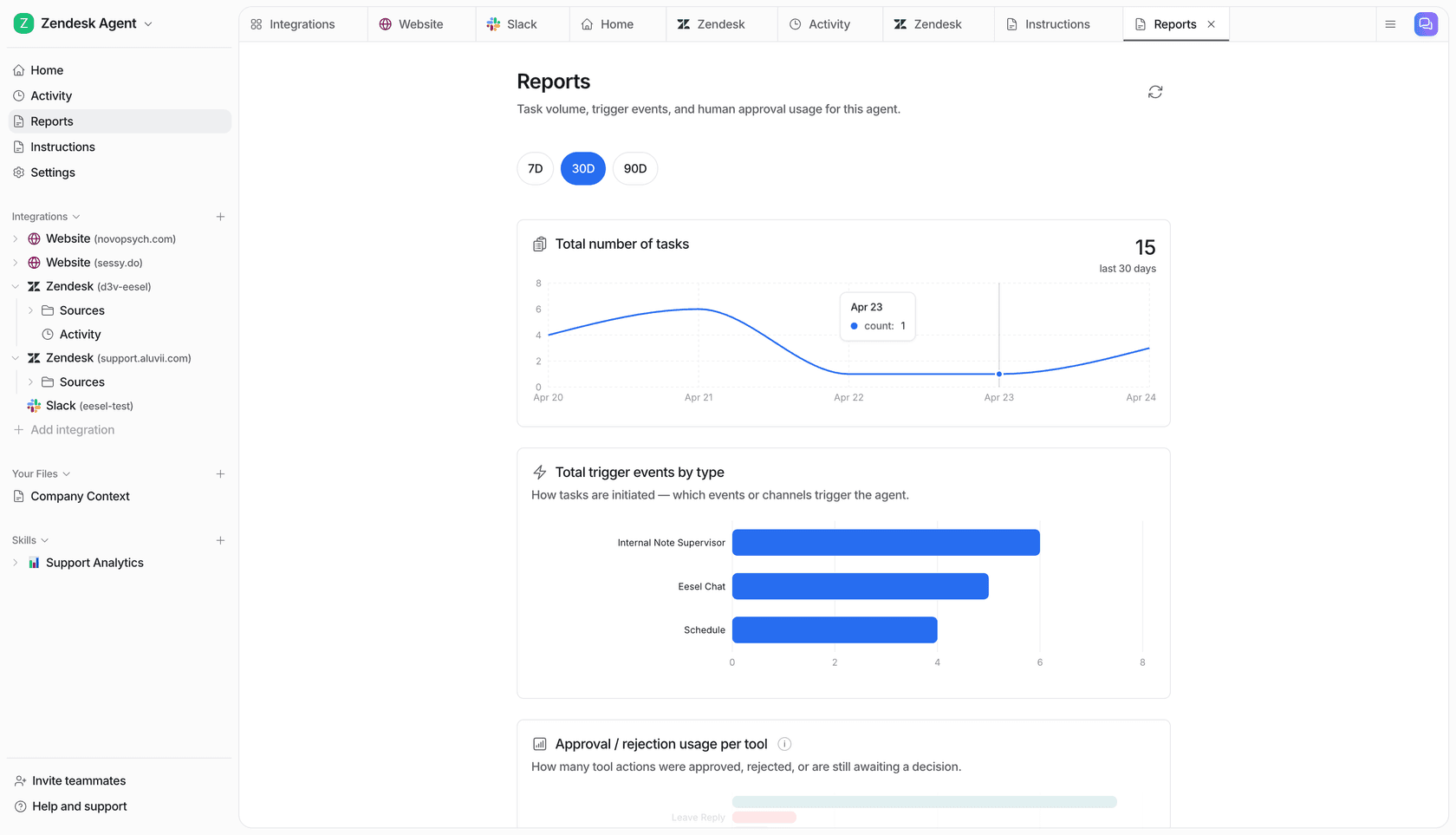
You can start free with 100 credits and no card, point it at last week's pending tickets, and see how many of those follow-ups it would have drafted for you. Try eesel
Frequently Asked Questions
Can Town AI do client follow-ups automatically?
Yes, through routines. Town's Client Call Follow-Up routine reads a call transcript, drafts the recap email in your voice, captures action items and logs the meeting to your CRM. By default the draft waits for your approval, so nothing goes to the client until you send it. My AI email assistants roundup compares how other tools handle the same job.
Which Town plan do I need for client follow-ups?
Pro at $49 a month (annual) is the practical minimum. Starter at $15 allows only 2 custom routines and runs them at most once a day, so a call recap can't fire the moment a call ends. Free has no custom routines at all. The full breakdown is in my Town AI pricing guide.
Will Town AI send follow-up emails without asking me?
Not by default. Town's follow-up routines draft and hold, and routines that send emails are meant to run in approval-required mode. You can switch a routine to autonomous, but I'd keep anything client-facing on approval, the same rule I'd apply to any AI personal assistant.
Does Town AI work with HubSpot for client follow-ups?
Yes. Town connects to HubSpot through HubSpot's official MCP server, and HubSpot record changes are drafted and held for approval. Routines like Post-Meeting CRM Update and Stalled Deal Re-Engagement read deals and log notes. If you live inside HubSpot, compare it with HubSpot's AI email assistant.
What does Town need to draft a follow-up after a call?
A meeting notes source for the transcript (Granola, Fathom or Fireflies, or Town's own recordings), a connected Gmail or Outlook account to hold the draft, and optionally a CRM like HubSpot, Salesforce or Attio. If you don't have a notes tool yet, my meeting notes app guide covers the options.
Can Town AI follow up with clients who went quiet?
Yes, in three ways: Stalled Deal Re-Engagement drafts nudges for quiet CRM deals every week, Relationship Reconnect suggests catch-ups with people you haven't contacted recently, and Suggestions surfaces one-click tasks like following up with someone who has gone quiet. For a lighter option inside Gmail, see Gmail nudges.
Is Town AI good for customer support follow-ups?
It works for one person's client inbox, but it's a personal assistant metered in credits, not a helpdesk tool. If your follow-ups are customer tickets waiting on a team, an AI helpdesk agent like eesel fits better, because it works inside the helpdesk and bills per ticket.


Article by
Rama Adi
Rama is a software engineer at eesel AI with two years of experience writing about B2B SaaS, AI tools, and customer support technology. Based in Bali, Indonesia, he brings a developer's perspective to product comparisons — cutting through marketing copy to what the integrations and APIs actually do.