


An AI email agent for Outlook is AI that automatically handles new mail: it reads each email as it arrives, answers from your docs, drafts or sends the reply, and files the message. Copilot in Outlook is the best built-in Outlook AI for drafting, summarizing and prioritizing, but Copilot never sends a reply on its own. Microsoft's words: "You decide when it's ready to send."
For your own inbox, MailMaestro, Fyxer and Superhuman pre-draft replies in Outlook for $12 to $40 a month. To build an agent on Microsoft's own stack, Copilot Studio can trigger on "When a new email arrives".
For a shared business inbox, eesel is the one I'd pick: it fires the moment a new email lands in Outlook, answers from your help center and docs, and sends the reply, leaves a draft, or moves it to a folder. It has 100 free credits, then from $299/month for 500 credits.
What is an AI email agent for Outlook?
An AI email agent for Outlook is software that acts on each new email without you asking. It does the work you would do: read, look up the answer, reply, and file.
Most Outlook AI is an assistant instead. You open a message and select Draft, Summary by Copilot or Coaching, and it helps with that one email. That is useful, and I use it. But the inbox still waits for you.
| Outlook AI assistant | AI email agent | |
|---|---|---|
| Who starts the work | You, inside one email | A new email arriving |
| Where the answer comes from | The thread and your Microsoft 365 data | Your docs, help center, helpdesk and other tools |
| What it produces | Suggested drafts, summaries, coaching | Sent replies, drafts, folders, categories |
| Works while you are away | No | Yes |
| Examples | Copilot Draft, Coaching, Grammarly | eesel, Copilot Studio agents, Fyxer auto drafts |
I work on the agents at eesel, and the useful question is not "which AI writes the best email". It is "which emails do I never want to open again, and where does the answer to them live?"
Can Copilot in Outlook automatically reply to emails?
No. Copilot drafts, summarizes, coaches and triages on request, and Microsoft keeps the send button with you: "select Send when you're ready" (Microsoft support).
Here is what Copilot in Outlook does well in 2026, per Microsoft's Copilot in Outlook FAQ:
- Prioritize my inbox. "Copilot reviews your emails as they arrive in your inbox and assigns a priority (high, low, normal)", with a reason for each (Microsoft support). It labels; it does not move or answer mail.
- Triage by command. Ask it to pin, flag, archive, delete, move or categorize mail. If the action affects more than five emails, it shows a confirmation card first.
- Rules in plain words. Copilot creates standard inbox rules, shows a summary and asks for confirmation. The rules then run on future mail like any Outlook rule.
- Draft, Summary and Coaching. In new Outlook the button is Draft; in classic Outlook it is Draft with Copilot.
Since April 27, 2026 there is also an agentic Copilot in Outlook that "triages emails, reschedules conflicts, and surfaces what matters most before you even ask", including "drafting follow-ups, and setting up rules". It is only available "via the Frontier program", Microsoft's early-access program (Outlook Blog).
What does it cost? Copilot Chat, which "also includes Copilot in Outlook", comes at no extra cost with Microsoft 365 business plans: Business Basic $7, Standard $14 and Premium $22 per user a month, paid yearly (Microsoft 365 plans). The full Microsoft 365 Copilot add-on is $30 per user a month paid yearly. Copilot Business lists at $21, on promotion at $18 from July 1 to December 31, 2026, for the first year (Copilot pricing). At home, Microsoft 365 Personal ($99.99 a year) and Family ($129.99) include Copilot in Outlook for the subscription owner.
Can Copilot Studio build an Outlook email agent?
Yes, if you are willing to build it. Copilot Studio agents can start from the Office 365 Outlook trigger "When a new email arrives (V3)" and then "Reply to email (V3)" or "Draft an email message" (Microsoft Learn). Microsoft says event triggers "allow your agent to act autonomously in response to the defined event occurring."
The cost is in credits: $200 a month for a pack of 25,000 Copilot Credits, or $0.01 per credit pay-as-you-go (Azure pricing). Microsoft's own example puts one grounded generative reply at about 12 credits, roughly $0.12. Two caveats from the docs: event-trigger activity counts toward billing, and a trigger can occasionally take "up to one hour" to fire.
My view: Copilot Studio is a good fit for an IT team that already builds in Power Platform. If nobody on your team wants to own flows and connectors, a ready-made agent gets you there faster.
Which AI email assistants for Outlook draft and send replies?
I compared seven tools on the jobs an agent has to do. Prices are for one buyer: a single inbox for one user, billed yearly where that is cheaper.
| Tool | Starts on new mail by itself | Answers from your docs | Drafts | Sends on its own | Files mail (folders, categories) | Gmail too | Free plan | Price for one inbox |
|---|---|---|---|---|---|---|---|---|
| eesel | Yes, as mail arrives | Yes: help center, docs, helpdesk, Shopify and more | Yes | Yes, or held for approval | Yes: folders, categories, flags | Yes | 100 credits | From $299/mo for 500 credits, no per-seat fee |
| Copilot in Outlook | Prioritize only | Microsoft 365 data | Yes, on request | No | On request; rules after you confirm | No | Copilot Chat in business plans | Included; full add-on $30/user/mo |
| Copilot Studio | Yes, on email trigger | Yes, via connectors | Yes | Yes, if you build it | Yes, via connectors | Via connectors | No | $200/mo per 25,000 credits |
| MailMaestro | Yes (auto drafts, auto labels) | Learns how you write | Yes | Not documented | Yes, auto labels | Yes | 3 AI requests a week | $12/seat/mo yearly |
| Fyxer | Yes, on Pro | Your past emails and tone | Yes | No | Yes, fixed categories | Yes | Yes, no auto drafts | $37/user/mo yearly ($49 monthly) |
| Superhuman | Yes, on Business | Knowledge base listed on plans | Yes (Auto Drafts) | Not documented | Yes, six fixed Auto Labels | Yes | No | $33/user/mo yearly ($40 monthly) |
| Jace | Yes | Your email history | Yes | Yes, opt-in per label | Yes | Yes | 7-day trial | $20/mo yearly ($25 monthly) |
The pattern: the personal tools learn your voice; the agents learn your business. If the emails you want gone are your own, a $12 to $37 tool is the right call. If they are customer questions in a shared mailbox, you want something that reads your docs and lets you set what it may do alone.
The 7 best AI email agents for Outlook in 2026
Each entry uses the same shape: best for, what it does in Outlook, pros, cons, pricing, and my take.
1. eesel
Best for: shared business inboxes where the answer lives in your docs, help center or store.
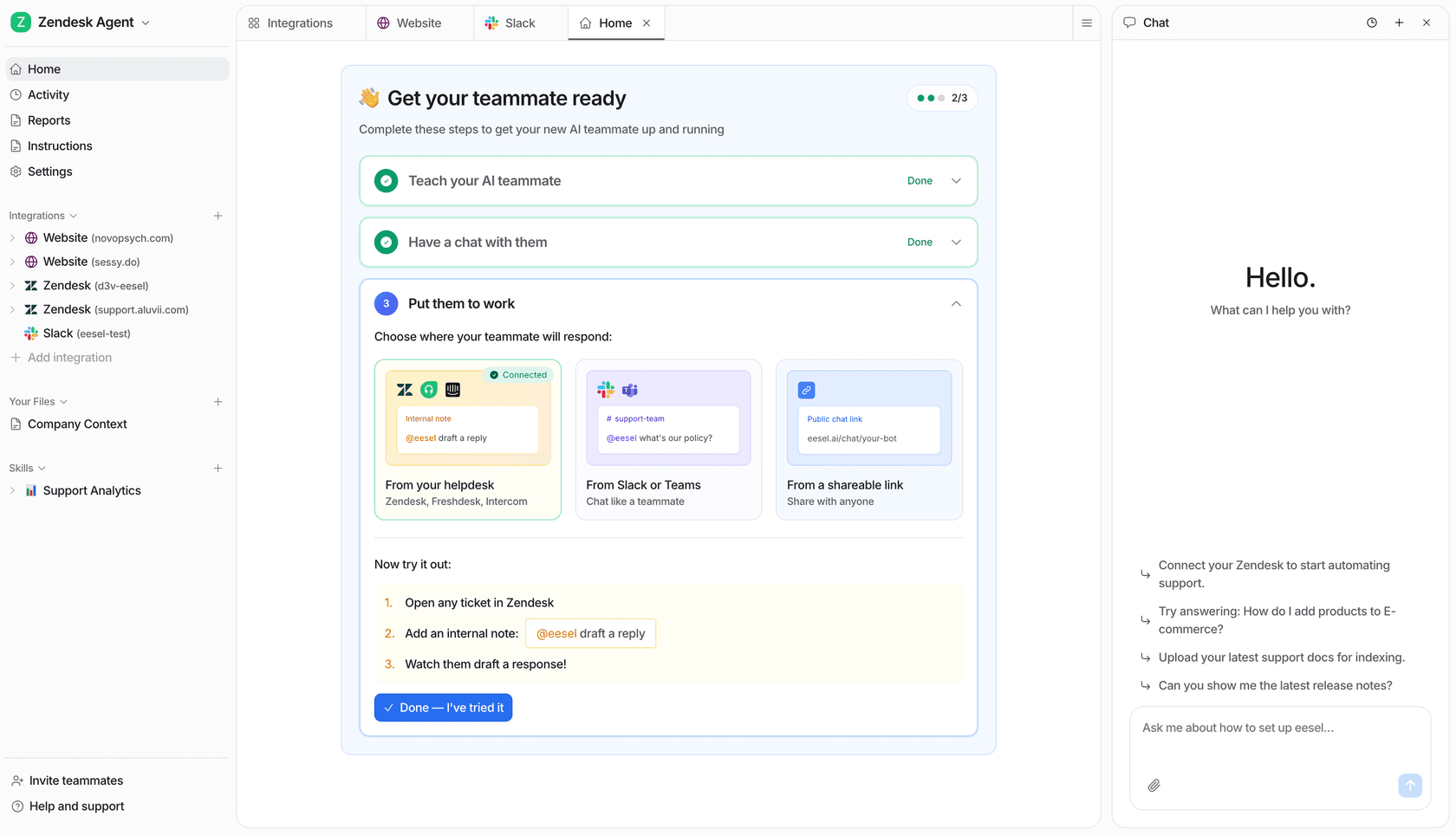
What it does in Outlook. You connect the Outlook mailbox with a Microsoft sign-in and describe, in plain words, the mail you want handled. eesel's Outlook trigger, New email received, fires as mail arrives. On each email the agent reads the message, looks up the answer in your help center, files, helpdesk or store, then replies in the same thread or saves a draft in Drafts for a person to send. It can move mail to folders, add or remove categories, mark it read or flag it, and create or update contacts (eesel for Outlook).
The same agent works elsewhere too: ask it in Microsoft Teams or Slack, forward a thread to its own email address for an answer, or run it on a helpdesk like Zendesk or Freshdesk.
Pros
- Acts as mail arrives, with no prompt and no flows to build.
- Every action (send, draft, move, categorize) can run alone or wait for a person to approve.
- Answers from company knowledge, not just your sent folder.
- The same agent runs on Gmail, Teams, Slack and your helpdesk.
Cons
- One mailbox per connection, and it replies as that account.
- On some older workspaces the Outlook page shows "Contact us" instead of Connect, and the team switches it on.
- Priced for business inboxes. For one person's mail, the tools below cost less.
Pricing. Free plan with 100 credits, no card. Then one fixed monthly price: 500 credits for $299, 1,000 for $499, 2,500 for $999, 5,000 for $1,749 (eesel pricing). A ticket or chat is 1 credit however long, every integration is included, and there is no per-seat fee. Pay a year upfront and you get two months free.
My take. Pick eesel when the inbox is a team's job. It does the same jobs on helpdesk queues today: smava runs one eesel agent that categorizes every ticket and another that drafts from its macro library, across 27,000 tickets a month. Rúngne has eesel tag every ticket, leave drafts and answer the plain questions itself. Outlook gives you that same agent on a plain mailbox.
2. Copilot in Outlook
Best for: Microsoft 365 users who want help writing, catching up and sorting, with no new vendor.
What it does in Outlook. Drafts, summaries, coaching, Prioritize my inbox, triage by command, rules in plain words and scheduling. It works in classic and new Outlook for Windows, Mac, web, iOS and Android. My AI for Outlook email guide walks through each one.
Pros
- Built in, and Copilot Chat comes with business plans at no extra cost.
- Prioritize labels new mail as it arrives, with a reason.
- Works on shared and delegate mailboxes, per Microsoft's FAQ.
Cons
- It does not send replies on its own.
- The agentic inbox mode is limited to the Frontier early-access program.
- It "can't access S/MIME or Double Key Encryption encrypted emails" and does not work on group mailboxes.
Pricing. Copilot Chat included with Business Basic ($7), Standard ($14) and Premium ($22) per user a month yearly. Microsoft 365 Copilot $30 per user a month yearly, or $31.50 monthly; Copilot Business $21 ($18 on promotion to December 31, 2026). More detail in my Copilot pricing post.
My take. Turn on Prioritize and use Draft before you buy anything. When you want mail handled while you are away, add an agent.
3. MailMaestro
Best for: Outlook-first professionals who want auto drafts at a low price.
What it does in Outlook. MailMaestro installs from Microsoft Marketplace and offers "Unlimited auto labels that sort your inbox", "Unlimited auto drafts, ready before you open an email" and "Unlimited auto follow-ups when someone hasn't replied" on Pro (MailMaestro pricing). It also works in Gmail through a Chrome extension.
Pros
- The lowest paid price here, at $12 per seat a month on annual billing.
- Some features are Outlook-only, like attachment summaries and "Ask AI about your inbox".
- Its security page lists SOC 2 Type II, GDPR and HIPAA.
Cons
- The free plan is "3 AI requests a week".
- Learns how you write, not your company's docs.
- Auto-send is not documented.
Pricing. Free; Pro $12 per seat a month, "Billed annually at $144 per seat"; Enterprise on request.
My take. The best value for one person who lives in Outlook.
4. Fyxer
Best for: executives and busy professionals who want their inbox sorted and pre-drafted.
What it does in Outlook. Fyxer sorts email "into categories like To respond, FYI or Marketing" and drafts "Replies drafted in your tone" in Outlook or Gmail. It also takes meeting notes (Fyxer pricing).
Pros
- One seat covers both Outlook and Gmail.
- Lists SOC 2 Type II, ISO/IEC 27001 and GDPR.
- A free plan to start.
Cons
- It never sends: "Can Fyxer send emails on my behalf? No."
- Auto sorting and drafts start on Pro.
- No help center or business system knowledge.
Pricing. Free with 400 credits a month; Pro $49 a month or $37 yearly; Team $99 or $64 yearly. More in my Fyxer pricing breakdown.
My take. Strong for a personal inbox. If you need replies from company docs, see Fyxer alternatives.
5. Superhuman
Best for: people who want a premium client with AI drafts, now on Outlook as well as Gmail.
What it does in Outlook. Superhuman's Email Assistant "brings Auto Labels, Auto Archive, Auto Drafts, and Auto Reminders directly into your existing [Outlook] inbox", with no new app to install (Superhuman help).
Pros
- Works inside your existing Outlook inbox.
- Drafts follow-ups and replies before you open the email.
- Business adds HubSpot and Salesforce context.
Cons
- Auto Drafts need the Business plan.
- Six fixed Auto Labels that you cannot rename.
- No free plan.
Pricing. Starter $30 a month or $25 yearly; Business $40 a month or $33 yearly (Superhuman plans).
My take. Good for an individual who wants speed and drafts in one place.
6. Jace
Best for: people who want auto-send on a few safe categories.
What it does in Outlook. "Jace connects to Gmail and Outlook via OAuth. Drafts sync back into your native client." It can auto-send, but only "if you explicitly enable it per label with warnings" (Jace blog).
Pros
- Opt-in auto-send, per label.
- Custom rules for CCs, templates and actions.
- 7-day trial and 30-day money-back guarantee.
Cons
- Knowledge comes mostly from your email history.
- Its site lists a SOC 2 Type 1 examination, not Type 2.
Pricing. Plus $25 a month or $20 yearly; Pro $50 or $40 yearly (Jace pricing).
My take. A cheap way to try auto-send on your own inbox.
7. Lindy
Best for: builders who want one agent for email and other workflows.
What it does in Outlook. "Link Gmail or Outlook. Lindy starts organizing in under 60 seconds." It triages and drafts replies "written in your voice", and connects to 1,500+ integrations (Lindy email).
Pros
- One agent for email, scheduling and more.
- SOC 2 and GDPR; HIPAA with a BAA on Enterprise.
Cons
- "Anything with outside impact waits for approval such as sending an email."
- Credit-based, and credits don't roll over.
Pricing. $50 in free credits for 7 days, then Team from $29.99 per active user a month (Lindy pricing).
My take. Pick it if you want to build. See Lindy alternatives for more.
Can AI answer customer emails from a shared Outlook inbox using your help center?
Yes. You need a trigger on the shared mailbox, access to your help center and docs, and rules for what the agent may send alone.
With eesel you connect the Outlook account that receives customer mail, add your help center, SharePoint or helpdesk as sources, and describe the mail to handle. It writes from those sources, and when it cannot find an answer your instructions tell it to leave a draft or move the email to a folder for a person, instead of guessing. Copilot can summarize a shared mailbox for you, but it will not answer it unprompted.
How do you set up eesel as an AI email agent in Outlook?
It takes about ten minutes, and nothing runs until you switch an automation on.
- Connect Outlook. Open Integrations > Microsoft Outlook in the eesel dashboard and sign in with Microsoft.
- Add knowledge. Connect your help center, SharePoint, docs or helpdesk.
- Describe the job. In the dashboard chat, say which mail to handle, for example "answer delivery questions, move invoices to the Finance folder, and leave refund requests as drafts for me".
- Choose draft or send. Keep Send email on approval first. Approve or deny from the dashboard until you trust it.
- Test it. Email the mailbox from another address and check the thread in Outlook.
Should your Outlook agent draft or send?
Start with drafts, then let it send on the routine mail it gets right every time. A wrong draft costs ten seconds; a wrong sent reply costs a customer.
I let an agent send first on order status, opening hours and "where is my invoice". Refunds, complaints and anything that needs a decision stay as drafts or go to a person with a note. That is how Question Beauty runs eesel on its helpdesk: 960 replies sent in a month, with refunds and complaints passed to the team. For more, see email response automation and can AI respond automatically.
Try eesel as your AI email agent for Outlook
If you want AI to handle the email, not just help you write it, connect eesel to Outlook. It acts the moment mail lands, answers from your docs, and sends, drafts or files on the rules you set, with any action held for approval until you trust it. The free plan has 100 credits and needs no card. Try eesel.
On Gmail too? The AI email agent for Gmail guide covers Gemini and the alternatives, and AI email assistants explains the wider category.