

What does Martin actually do with your email?
Martin is a personal AI agent you reach by phone, SMS, WhatsApp, email or Slack. Its email features fall into two groups: things you ask for, and things it does by itself. Here is every email feature in Martin's docs, and where each one lives:
| Feature | What it does | Plan | Where you set it up | Where the output lands |
|---|---|---|---|---|
| On-command email | Read, draft, reply, forward on request | All plans | Inbox card, "Connect Gmail" or "Connect Outlook" | Your inbox |
| Email Triage | Labels mail by topic, then can text you or add a to-do | Pro | Settings, "Email Triage" | Labels (Outlook: folders) and the Inbox Display app |
| Proactive Drafts | Writes draft replies per topic you describe | Pro | Proactive drafts card, settings | Your inbox and the Proactive Drafts app |
| Cc to Schedule | Finds a meeting time on a thread you cc it on | Pro | Nothing to set up, cc martin@trymartin.com | The email thread and your calendar |
| Daily email digest | Sends a daily summary of your inbox | Pro | Inbox settings, web app | Your messages |
| Email briefings | Daily or weekly briefing by email on topics you pick | Not marked Pro-only on its docs page | Briefings card, settings | Your email |
| Forward to Martin | Add events from a forwarded email to your calendar | Not marked Pro-only | Add a verified primary email | Your calendar |
Everything marked Pro is labelled "only available for Pro Users" on its docs page. The briefings and forwarding pages carry no such note, so check them in the trial before you count on them for Basic.
How do you set Martin up for email?
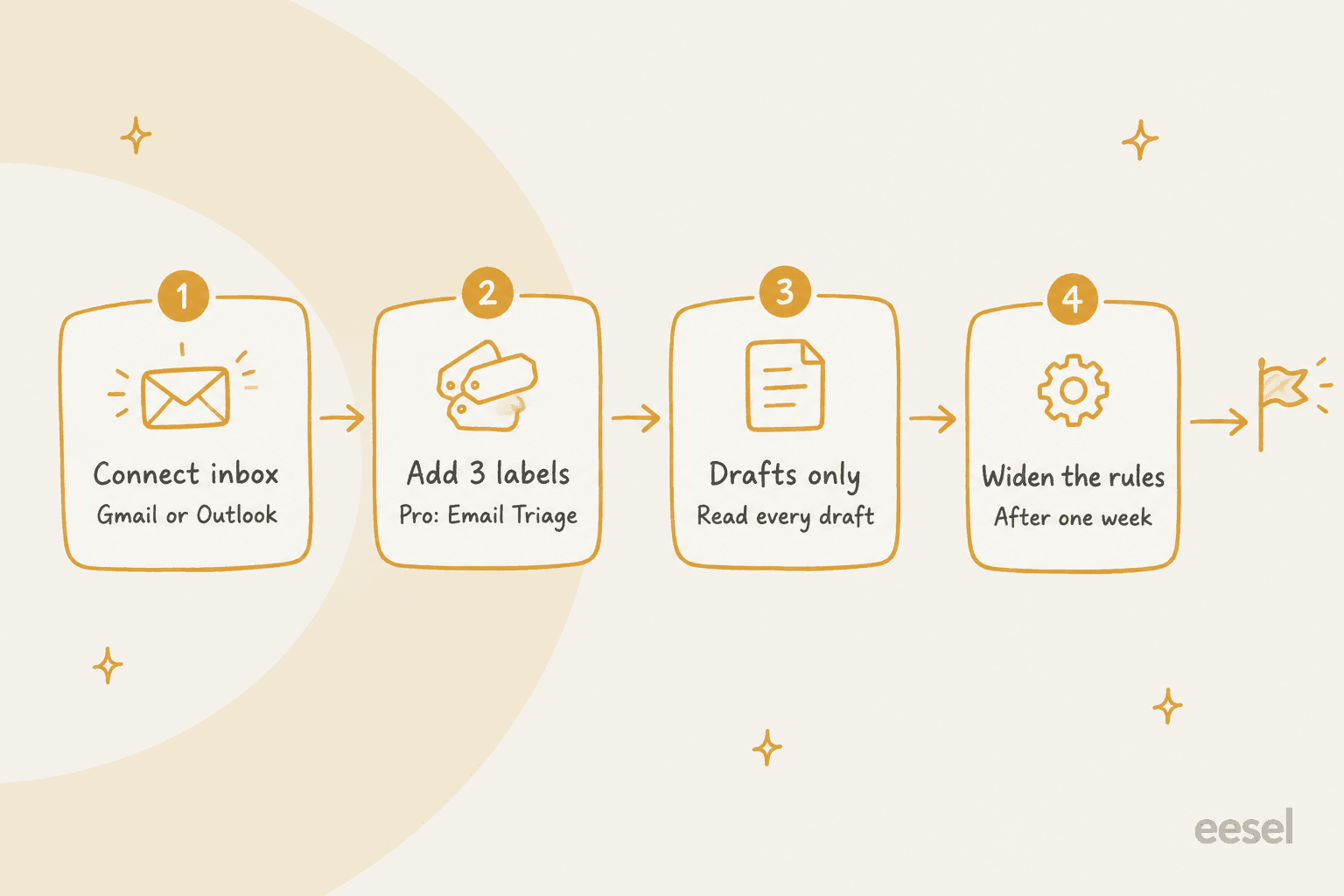
Allow about 15 minutes. Here is the order I would use, with the exact screens from the docs.
- Connect one inbox. In the Martin dashboard, open the inbox card, click the settings button and choose "Connect Gmail" or "Connect Outlook". You sign in on Google or Microsoft's side. The inbox docs allow up to 5 accounts of each kind. I would start with one, and not your main one.
- Add a primary email, if you want to email Martin. Per the email interface docs, click the account icon at the bottom of the sidebar, choose "Add a primary email", and verify it with the code Martin sends. After that you can forward Martin mail with events and "he'll add them all to your calendar."
- Add three Email Triage labels (Pro). In Settings, scroll to "Email Triage" and click "Add instruction". Each label gets a name and a description, plus optional "Additional Steps" such as texting you or adding a to-do.
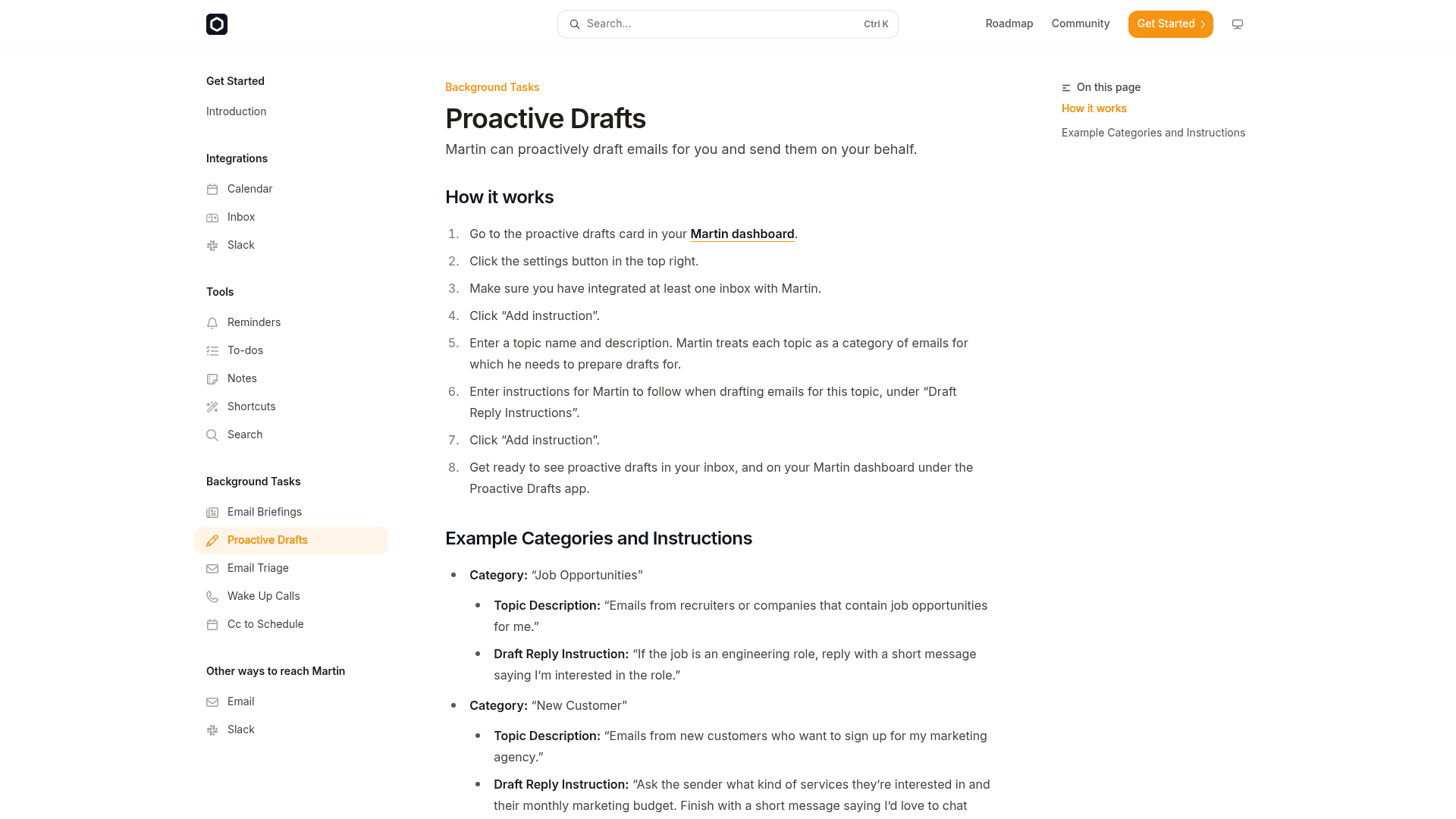
- Add one Proactive Drafts topic (Pro). Open the proactive drafts card, click settings, make sure an inbox is connected, then enter a topic name, a description and "Draft Reply Instructions".
- Cc Martin on one real scheduling thread (Pro). No setup. It is the lowest-risk background task to try first, because the output is a meeting time, not a judgment call.
- Optional: turn on the digest and a briefing. The digest sits in your inbox settings in the web app. Briefings take a frequency and a topic list, such as "Important emails from my team."
Two small things I would do before step 3. Write the label descriptions the way you would brief a new assistant, in one plain sentence about who sends it and what they want. And keep the number of labels low: Basic gives "2 tasks at a time", and even on Pro a fuzzy label set makes triage hard to audit.
How does Email Triage work, and what should you label?
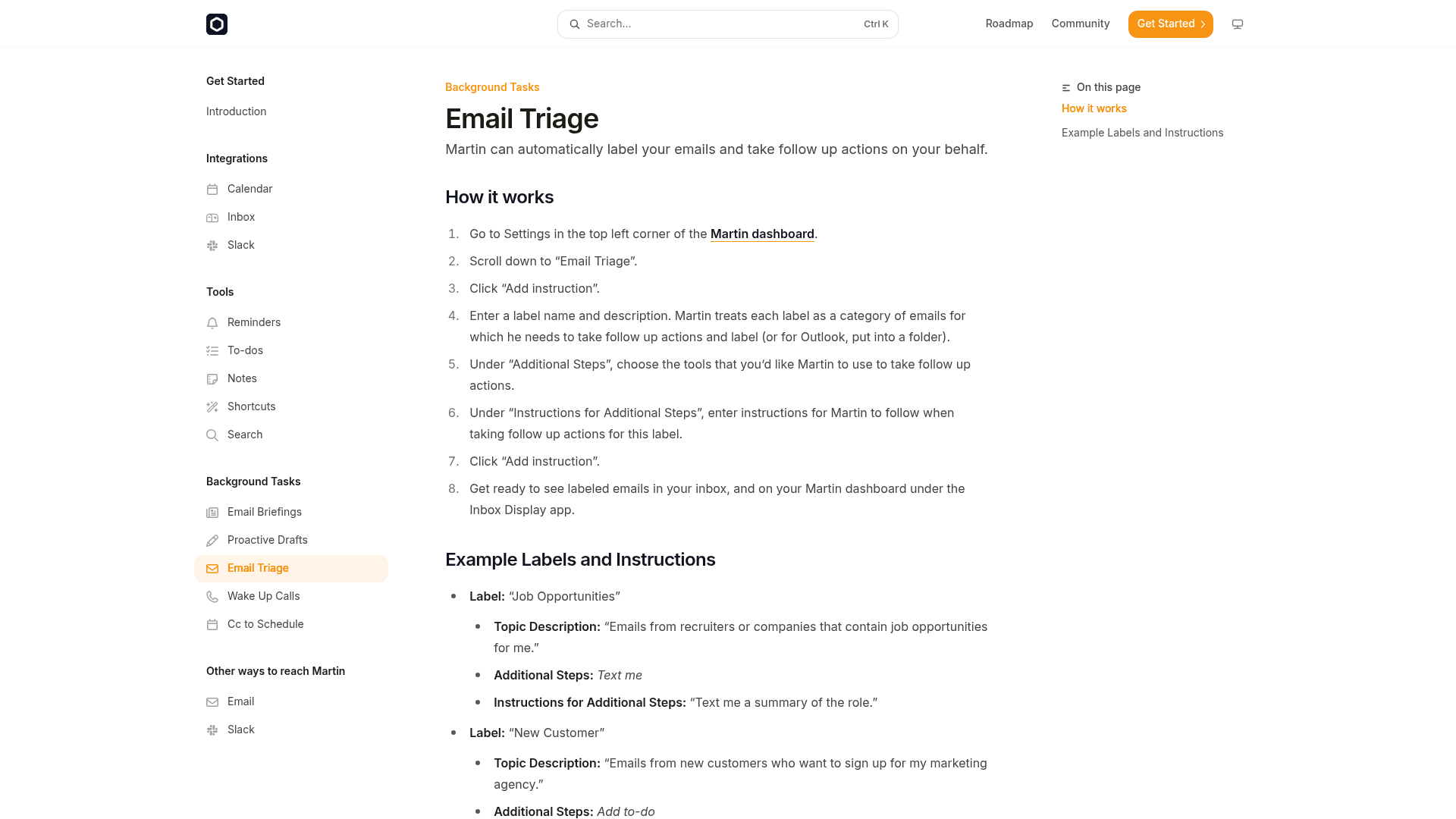
Triage in Martin is a label plus a follow-up. Martin "treats each label as a category of emails for which he needs to take follow up actions and label," per the triage docs. The docs' own examples are "Job Opportunities" (text me a summary of the role) and "New Customer" (add "reply to the sender's name" to my to-do list).
Here is a starter set I would write for a freelancer or small-business owner, in the same format. These are my examples, not Martin's defaults:
| Label | Description to enter | Additional step | Why it earns a slot |
|---|---|---|---|
| Client Urgent | "Emails from my current clients that mention a deadline, a problem or 'ASAP'." | Text me | The only label allowed to interrupt you |
| Invoices | "Invoices, receipts and payment reminders sent to me." | Add to-do | Gets money mail out of the pile without a reply |
| Meeting Requests | "People asking to schedule a call or meeting with me." | None | Pairs with Cc to Schedule for the reply |
Three labels is deliberate. A label that texts you is a notification you will start ignoring if it fires ten times a day, so reserve "Text me" for one category. If you want more on how triage rules behave in general, my guide to AI email triage covers the pattern, and the email response automation explainer shows where plain rules stop and AI starts.
How do Proactive Drafts and Cc to Schedule work?
Proactive Drafts is a topic, a description and a reply instruction. The docs' sample for a "Meeting Request" topic is: "Tell the sender I'd love to chat with them more on a call this week. Ask them what time works best for them." Drafts then show up "in your inbox, and on your Martin dashboard under the Proactive Drafts app."
What makes a good instruction? The docs' samples are short and literal, so I would write the safe version of the reply, not the clever one:
- Say what the reply should never include. "Do not quote prices" is a better line than hoping it stays vague.
- Keep to one outcome per topic. "Ask what they need and their budget" works. "Handle new customers" invites improvisation.
- Use a topic you would answer the same way every time. Recruiter outreach, meeting requests and vendor pitches fit. Disputes and refunds do not.
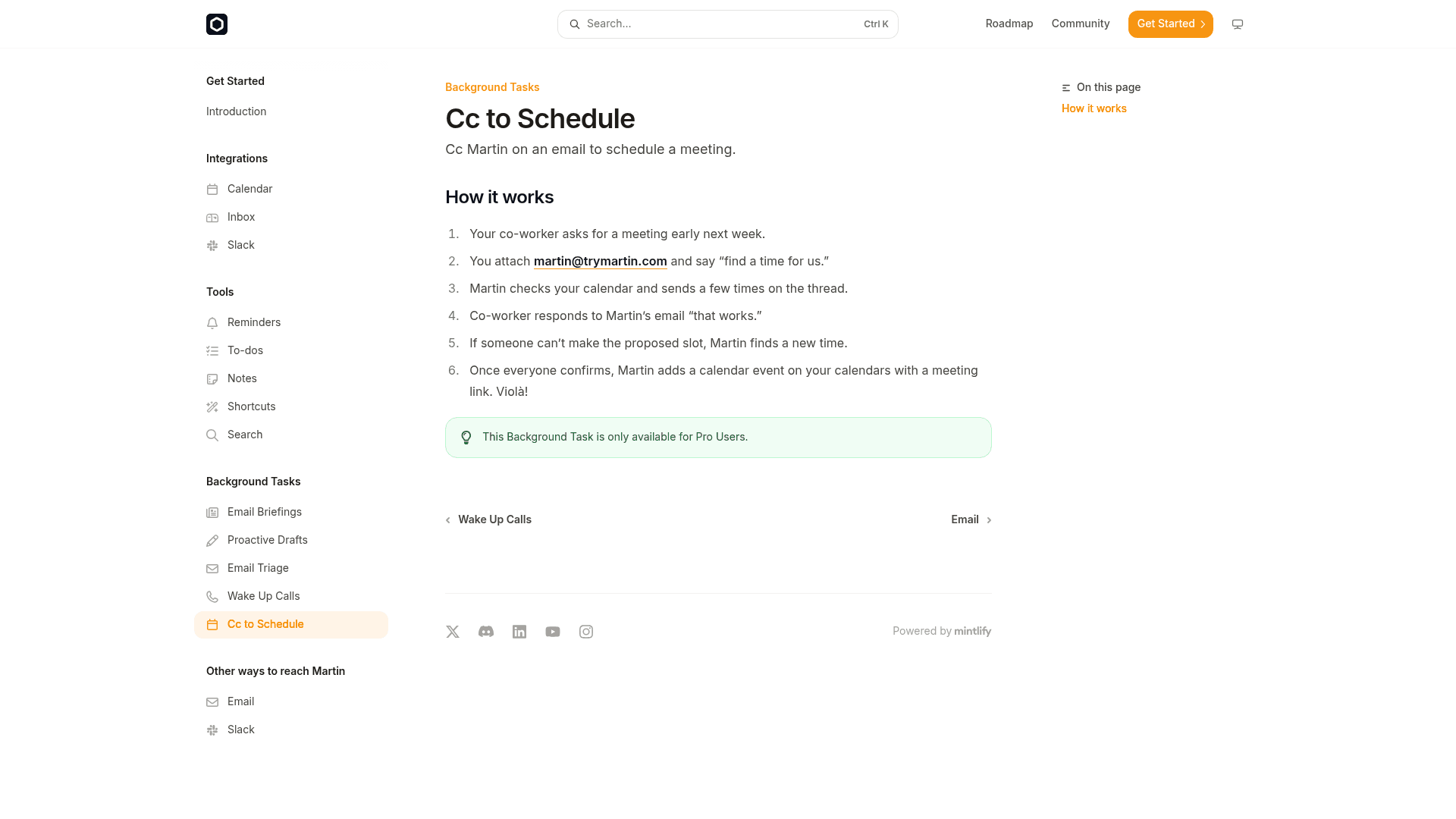
Cc to Schedule is the most self-contained flow. A co-worker asks for a meeting, you cc martin@trymartin.com and say "find a time for us", and Martin checks your calendar and sends a few times on the thread. If someone cannot make a slot, it finds a new one, and "once everyone confirms, Martin adds a calendar event on your calendars with a meeting link" (cc to schedule docs). Calendar coverage is Google, Apple (iCloud) and Outlook, up to 5 of each, per the calendar docs. For tools built only for this job, my AI scheduling assistant guide is the comparison.
What does a day with Martin's email features look like?
The docs do not publish when the digest arrives, so this is my suggested routine, using only features the docs describe:
- Morning. Scan the digest and any texts from your one "Text me" label. If you set up an email briefing, it arrives by email on the topics you picked.
- Midday. Open the Proactive Drafts app on the dashboard. Read each draft, edit, and send from your own inbox.
- When a meeting request lands. Cc Martin and move on.
- Once a week. Check the Inbox Display app for mail Martin labelled that you would not have. Delete or sharpen any label that misfired.
Anything you forgot to put behind a label stays in the normal inbox, and you can still ask on the fly: "Draft a reply to Dawson's new email saying I can meet tomorrow at 9am" is one of the docs' example commands. It also works by voice, per the docs' "Read me the email about the project plan out loud."
Which plan do you need for your email workflow?
Basic is $21 a month billed yearly ($35 monthly) and Pro is $30 yearly ($49 monthly), per the pricing page as I checked it on October 7, 2026. For email, the difference is blunt: Basic is the on-command assistant, and Pro is the one with background tasks. That is $252 versus $360 a year on yearly billing, a $108 gap, or $420 versus $588 if you pay monthly.
Pick the job you most want help with and the picker below tells you where it lands.
Which Martin plan fits your email job?
Tap the one that matters most to you.
If the answer is Basic, remember the plan is a useful on-command assistant, not an always-on one. If it is Pro, factor the same $360 against what the mail is worth to you. My AI personal assistants and best AI assistants lists show where that price sits in the field.
Where do you stay in the loop before anything is sent?
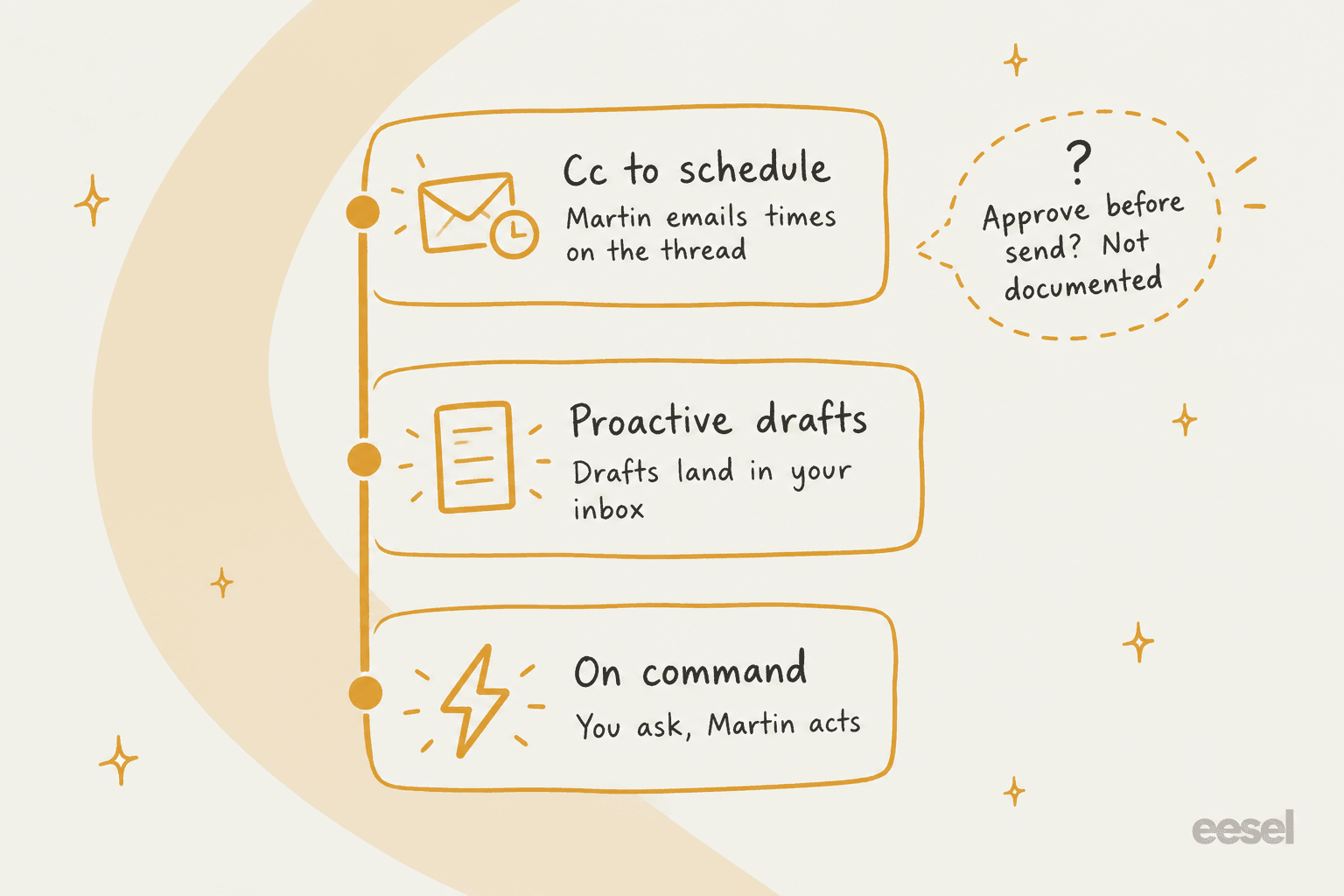
Here is the part to settle before you add a second label. Martin's docs index describes Proactive Drafts as an agent that can "proactively draft emails for you and send them on your behalf." The how-to page itself talks about drafts appearing in your inbox. Between those two lines I could not find a setting that says "ask me before sending." That is a gap in the documentation, not proof the product lacks one, so the fair move is to test it.
An early commenter on the launch thread asked the question directly:
"Will I always be notified before new texts / calls / actions are taken on my behalf?"

The founders have said Martin "reports back to you via a notification and a text," and that you can watch its messages in the app. They also wrote that the main feedback they got was "I don't trust AI to take actions like sending texts/emails on my behalf if it's not 100% reliable," adding that Martin's failure rate "is now a lot lower than before" (Show HN, November 2024). A log is useful, but a log is not an approval step.
This is a pattern that recurs across eesel's demo calls: teams start with the AI drafting for a human, and only graduate to sending on its own once they trust it. Here is how I would apply that to Martin:
- Use a throwaway or secondary account first. Connect a mailbox where a wrong reply costs nothing.
- Send yourself the test mail. Write three messages that match your topics and watch what Martin does, including whether anything leaves the mailbox.
- Keep money, legal and customer topics out. No label or draft instruction should touch them.
- Ask Martin's team for the answer in writing. If approve-before-send exists, the docs should say so. If it does not, you want to know before you rely on it.
For how other tools set this default, my folk email management post covers one that asks before it sends, and the Instinct email management post covers the opposite design.
What are the limits to know about?
A missing feature is a fact, so here are the ones that matter for email, each from the docs or Martin's own pages:
- Built around one person. I found no shared-inbox, assignment or team-queue features in the docs. The 5 Gmail and 5 Outlook slots are all for accounts you own.
- Gmail and Outlook only. Other mailbox providers are not named in the inbox docs.
- Background tasks are Pro only. Triage, drafts, cc-to-schedule, the digest and wake-up calls all carry that note.
- Privacy details are thin. The /privacy, /terms and /faq addresses on trymartin.com returned "Page Not Found" when I checked, and the CEO's 2024 Hacker News comments are the only compliance statements I found. My Martin AI review lists them, and my guide to AI data privacy lists what to ask any vendor.
- No Android app in the founders' last word. In November 2024 they said it was not out yet, so confirm current status if you need it.
None of this makes Martin a bad pick for a founder's own inbox. The first user quote I would point to is the practical one: "I use Martin to manage my todo list while i'm coding (on an hourly basis)... It's very nice to have a cloud-based agent that can access my todo whichever device/app i'm on" (xhhaha, Hacker News). If that kind of cross-channel reach is the draw, you are in the right place.
What if the email you want handled is customer email?
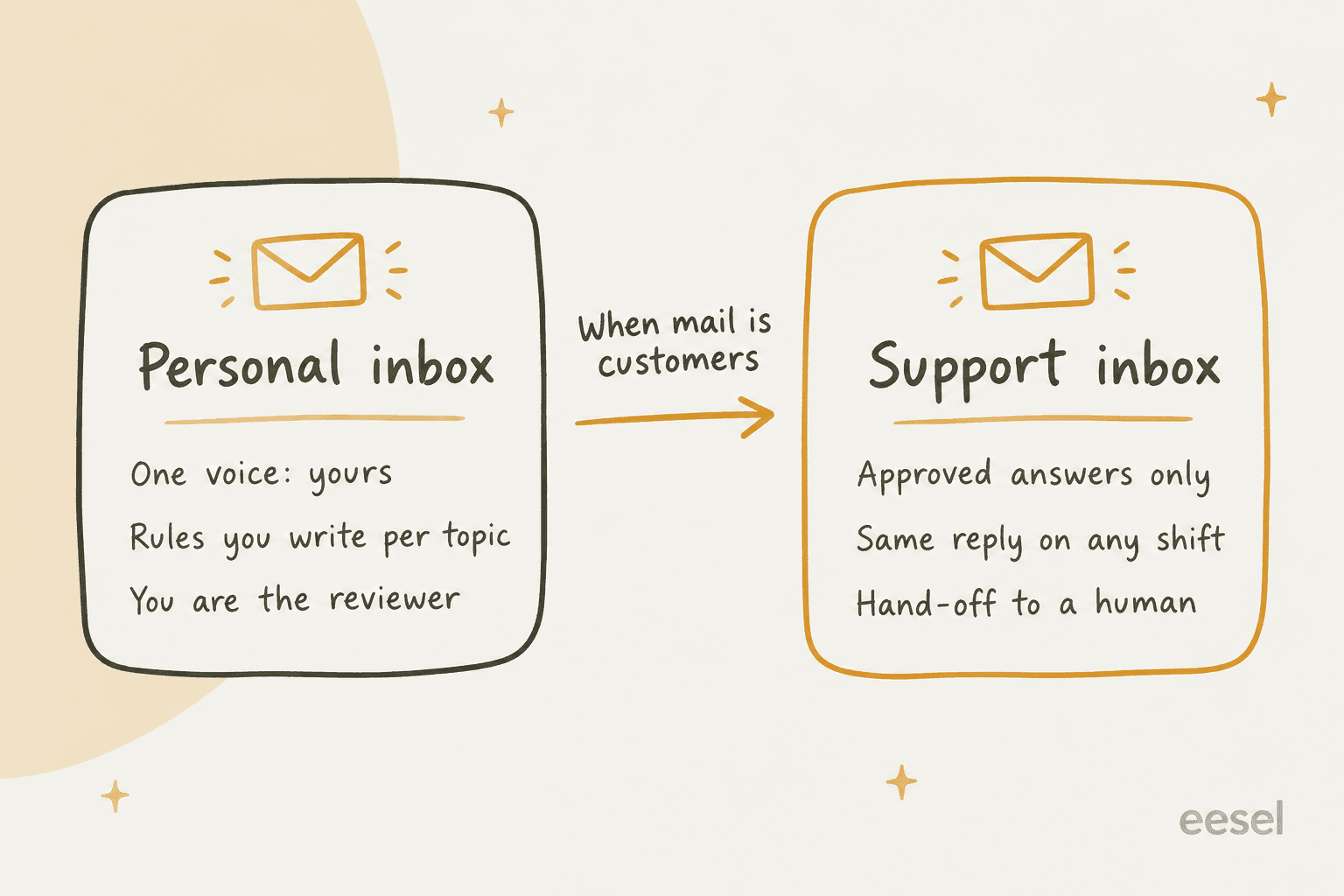
I see this every week from the helpdesk side. Someone signs up for a personal assistant because "email is out of control", and the mail turns out to be customers asking about refunds, logins and delivery, landing in the same Gmail or Outlook account. A personal assistant fits that badly for three reasons. It writes in one person's voice from rules that person typed. The answers come from instructions, not from your help center. And the person who reviews every draft is the same person who is already drowning.
A support inbox needs the opposite shape: answers from approved knowledge, the same reply on any shift, and a clean hand-off to a human when the AI is unsure. That is exactly the "only handle what you are confident about" test from the top of this post, and it is why my guides to AI for email support and automating email support look so different from a personal-assistant setup.
If your team is outgrowing a single mailbox, these are the next reads: shared inbox vs ticketing, the best shared inbox software, and the best helpdesks for small business. If customers also write on chat apps, my WhatsApp chatbot guide covers that.
Martin versus other inbox assistants
If you are shopping before you commit, here is how I would sort the field for email work. Details are in my linked posts:
- Wants an assistant you text, with approval first: folk and its alternatives.
- Wants iMessage-style: Orchid, with an alternatives roundup and a client follow-ups guide.
- Wants a builder: Lindy and its alternatives.
- Wants help inside Gmail or Outlook: Fyxer, plus Gmail's built-in Help me write and nudges.
- Wants an agent that acts for you: Instinct, or the open-source OpenClaw and Hermes Agent.
For the category as a whole, AI personal assistant is the starting point, and AI agents vs chatbots explains why "it acts inside your accounts" is the real difference.
Try eesel
Martin is a personal assistant for your own inbox. eesel is a different kind of hire: an AI teammate platform where you bring on ready-to-work teammates for specific jobs. Today that is an AI helpdesk teammate for customer support and an AI blog writer for content.
If your customer mail already lands in Gmail, the helpdesk teammate works right there. You connect the account and describe in plain words which mail it should handle, and per eesel's Gmail docs it skips anything you did not describe, so your personal threads stay yours. It learns from your help center and your team's past replies, so drafts sound like your team and not a generic bot.
The part I would point a Martin user to is the testing. Before eesel answers a customer, you run it against your historical tickets and read what it would have said. Start in draft mode and switch on sending only when you trust it, which is the approval step I could not find for Martin's background tasks. Pricing is one fixed monthly price, from $299 for 500 credits, where a ticket is 1 credit, and the free trial includes 100 credits with no card. If customer email is what is really filling your inbox, try eesel on it.
Frequently Asked Questions
How do I connect my email to Martin AI?
Can Martin AI sort my email automatically?
Does Martin AI write email replies for me?
Does Martin send emails without my approval?
How much does Martin AI cost for email management?
Can Martin AI schedule meetings from my inbox?


Article by
Riellvriany Indriawan
Riell is a designer and writer at eesel AI with about two years of experience researching CX platforms, AI chatbots, and helpdesk software. She combines her design background with a sharp eye for how these tools actually look and feel in practice — making her comparisons unusually visual and user-focused.