Recharge update payment method not working: causes and fixes

Rama Adi

Katelin Teen
Last edited November 6, 2026

A customer who can't update their card in Recharge is usually looking in the wrong system. The update path follows whoever holds the card: Shopify's email or frictionless update for Shopify Checkout Integration stores, the Recharge portal on BigCommerce, and the PayPal or Shop Pay account for those methods. Fix the path first, then read the charge error, because hard declines will not retry until the card changes.
An AI agent like eesel can find the subscriber, read the payment methods on file and tell the customer which update path applies, but it can't send the update email or change a card. With the eesel CLI, a coding agent can upload approved knowledge such as your payment-failed macros and decline guide, then ask test questions and check the answers before anything goes live. Connecting Recharge itself still needs someone with admin access.
Why can't customers update their payment method in Recharge?
Because in most Shopify setups the card does not live in Recharge, and Recharge says so plainly. Its guide notes you cannot delete a customer's payment method in Recharge: it has to be removed from the customer's Shopify profile, and a new method means going through Shopify checkout again.
This is one more in our Recharge set, after skips, pause dates, product swaps, addresses and prepaid deliveries. It is also the ticket with the most time pressure, because every day without a working card is a missed charge. The message usually arrives as "I changed my card and it still failed," by email, chat or Instagram DM.
I'm working from Recharge's own help center, and I have not tested every flow on a live store. Where a page does not say, I say so.
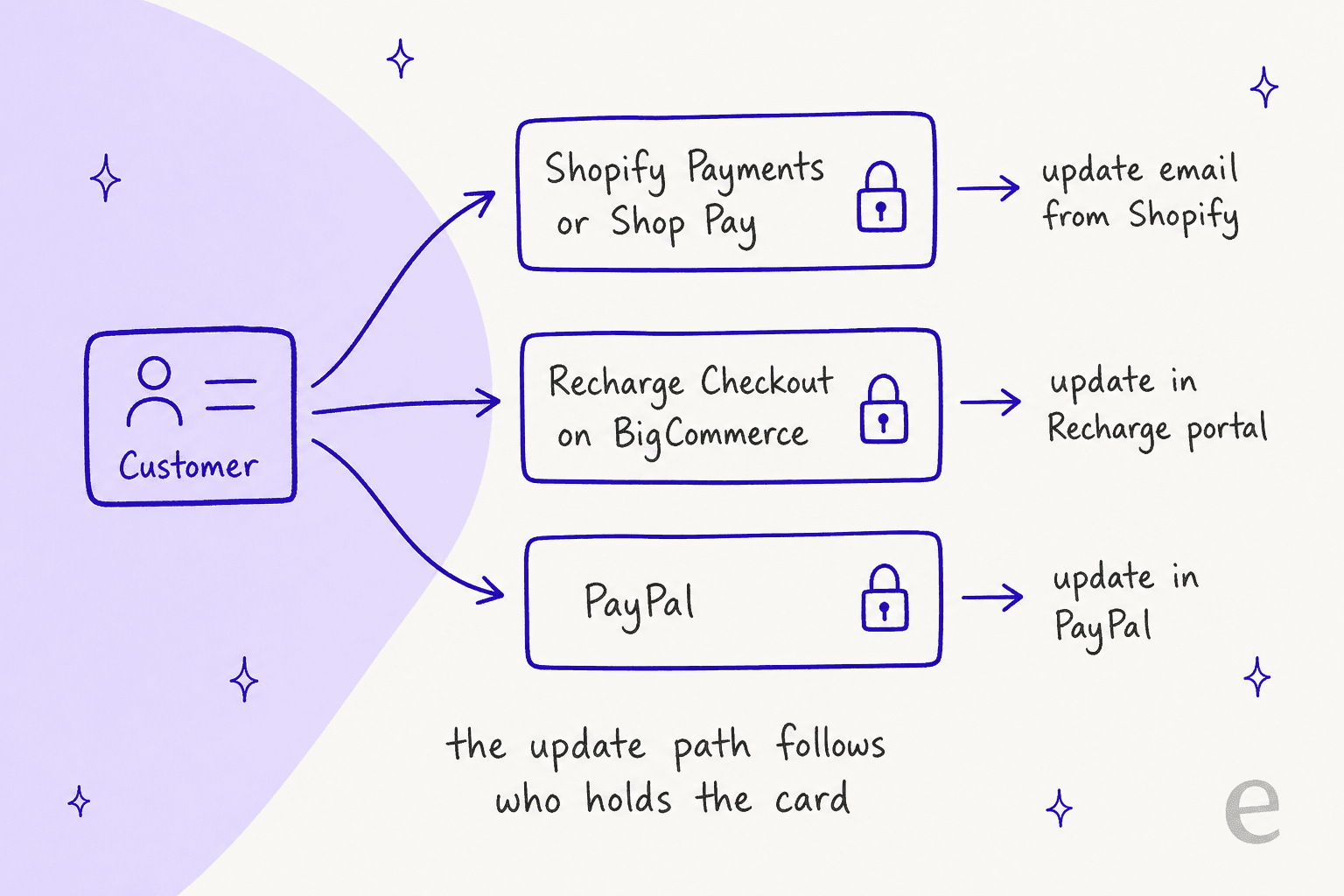
Three things decide the path: your checkout platform, the payment processor, and the method type. Recharge's processor guide says Shopify decides the eligible subscription processors for the Shopify Checkout Integration, while BigCommerce stores connect Stripe, Braintree or Authorize.net inside Recharge. On a migrated Shopify store, Shopify processes new subscriptions through Shopify Payments or another eligible gateway, while Recharge keeps processing the pre-migration ones through the gateway configured in Recharge. One store can therefore have two billing paths.
Where does a customer actually update their card?
It depends on the platform. Pick the row that matches the store, then give the customer one instruction, not three.
| Store setup | Where the customer updates the card | What you can do from the merchant portal |
|---|---|---|
| Shopify Checkout Integration | Send update email in the portal (Shopify sends it), or frictionless update if enabled | Manage payment methods, then Request an update via email |
| Migrated Shopify Checkout Integration | Same email flow, saved directly in Shopify Payments, or the frictionless modal | Same; customers with several Shopify Payments methods may temporarily use the Recharge portal |
| Recharge Checkout or BigCommerce Checkout Integration | Add payment method or edit in the Recharge portal | Change payment method and enter new card details; remove a method once it is unlinked |
| Shop Pay | The customer's own Shop Pay account | Cannot edit it for them |
| PayPal | The customer's PayPal account | Cannot edit it for them |
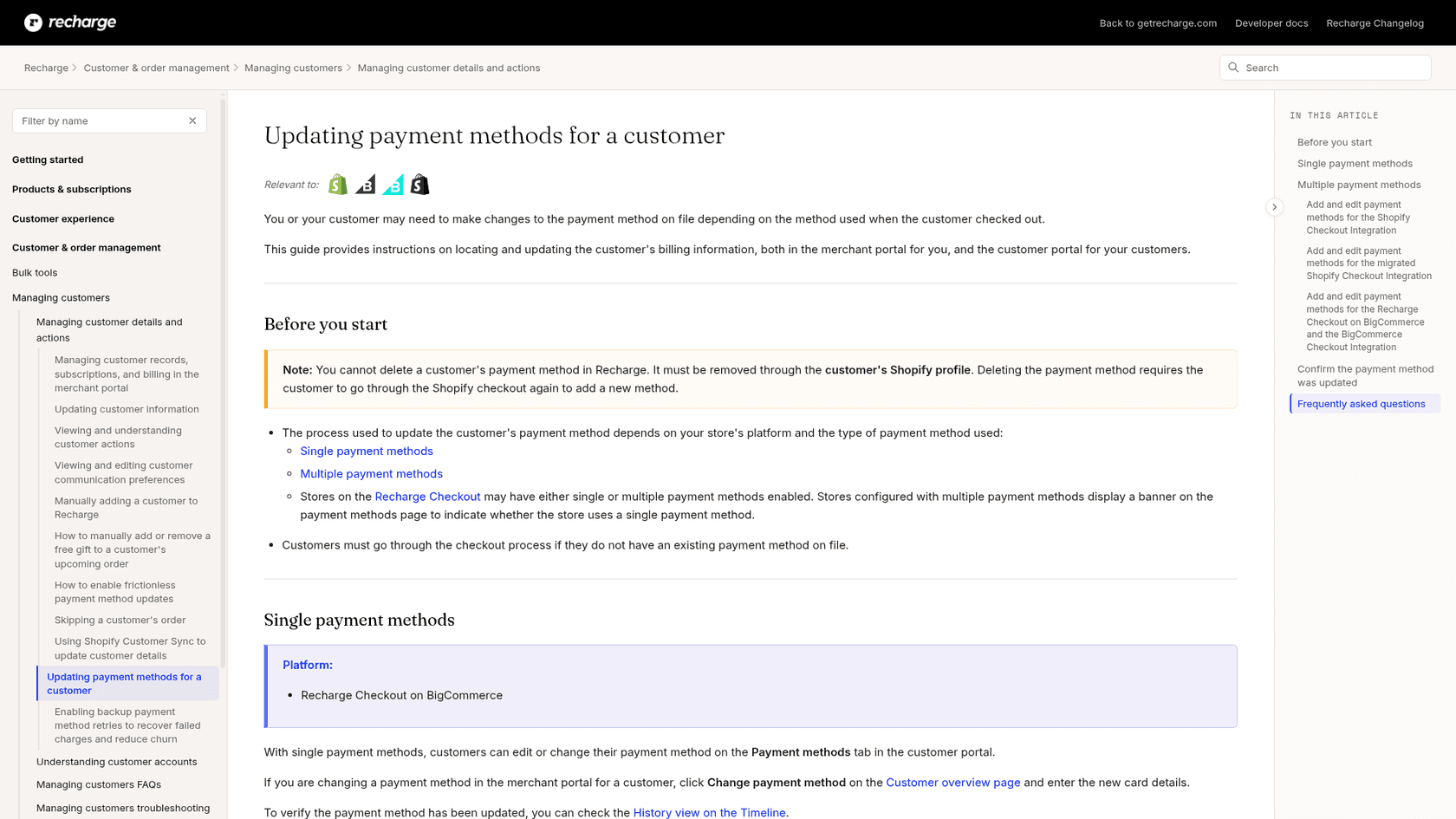
Two details change the reply. Recharge's frictionless updates guide says the feature needs the Shopify Checkout Integration or its migrated version and Shopify Payments as the primary provider. When it is on, customers add or update methods in the Recharge portal and you can add one for them in the merchant portal. And Recharge's customer accounts guide advises against editing billing information in the Shopify profile, because you then can't tell which payment method belongs to which subscription.
Also check the customer can reach the portal. Recharge ties the portal to the checkout email, so a customer on a new address hits a wall before the card step. Our portal login guide covers that.
Why does Shopify's update email never arrive?
On Shopify Checkout Integration stores, Recharge does not send it. Most subscription notifications are Recharge's, but Recharge's missing email article says the update payment method email is handled by Shopify.
So check three things in order:
- The template. In Shopify, open Notifications and look at Customer payment method update request. It can be customized or broken there.
- The address. Confirm the email on the Recharge customer matches the one the customer checks.
- Shopify Support. If delivery still fails, Recharge's answer is to reach out to Shopify.
A support teammate who tells the customer "we've resent it" from Recharge's side is promising something Recharge did not do. Say "I've requested a new update email from Shopify" instead.
What if Delete is greyed out or Shop Pay keeps failing?
Both have a documented cause. For a greyed-out Delete or Remove option, Recharge's Shopify article lists three reasons: Shopify still links the method to an active subscription, a subscription was just cancelled but Shopify still treats the method as in use, or Recharge and Shopify are briefly out of sync.
The fix path is:
- Confirm the method is not linked to any active subscription.
- If everything is cancelled and Delete is still unavailable, ask Recharge Support for a manual sync, then Shopify Support if that fails.
- For PayPal, the customer updates or removes it in their PayPal account.
Shop Pay has its own throttle. Recharge's Shop Pay article says updates are limited to two per payment method in a 20-minute window, so a customer who tries a third time has to wait. And the payment guide says a customer cannot switch from Shop Pay to a standard credit card on an existing method: they go through checkout again with the new card.
Which decline errors need a new card?
Recharge sorts every failed charge into three buckets: retried automatically, retried only by manual action, and hard declines that do not retry until the customer updates the method. The full table sits in Recharge's order errors guide.
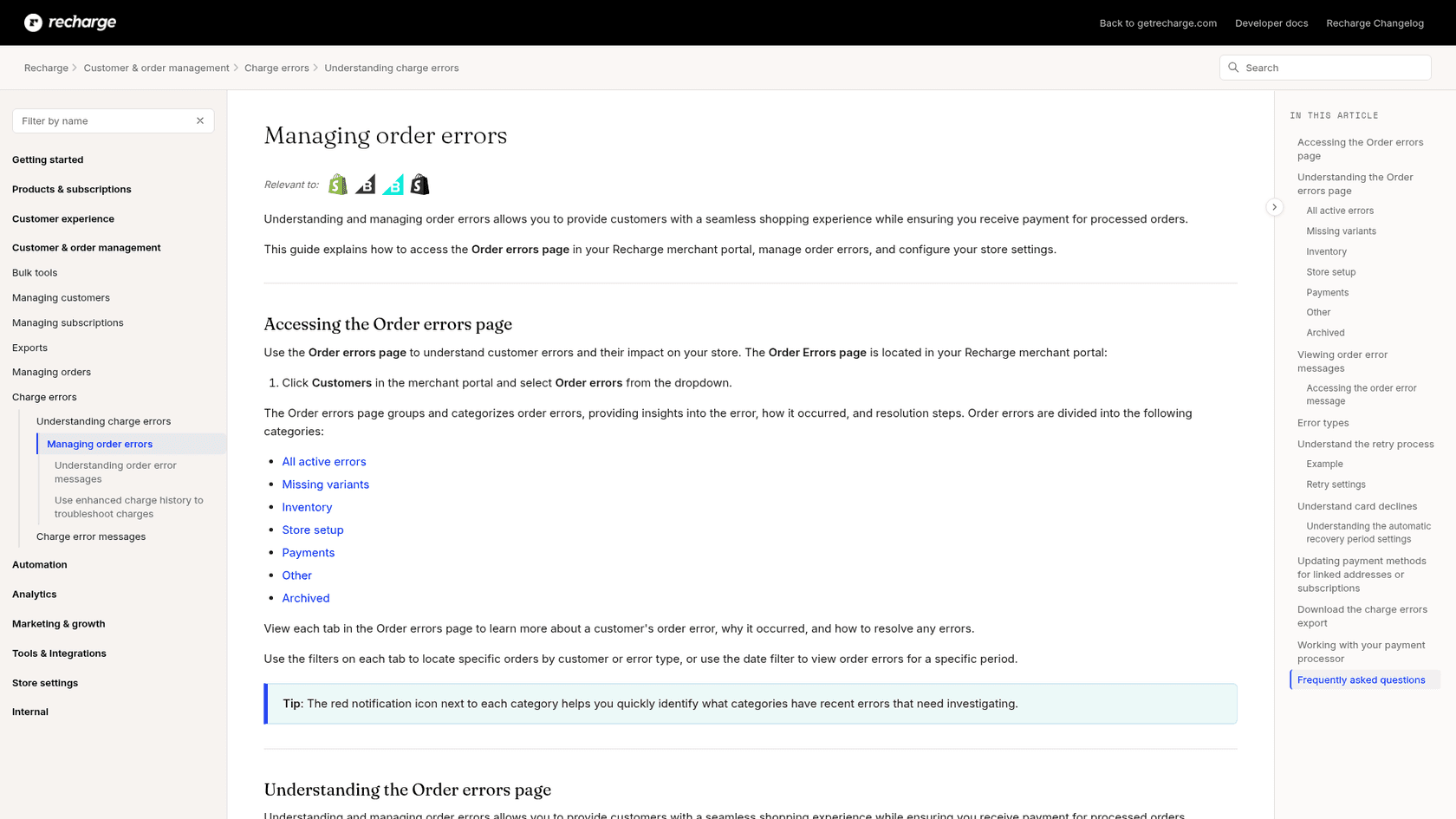
A few I would memorize, with the bucket Recharge assigns:
| Error code | Retried by Failed Payment Recovery | Hard decline |
|---|---|---|
CARD_EXPIRED | Yes | No |
INSUFFICIENT_FUNDS | Yes | No |
DO_NOT_HONOR | Yes | No |
CARD_ZIPCODE_FAILED_VALIDATION | Yes | No |
PAYMENT_METHOD_REVOKED | Yes | No |
AUTHENTICATION_REQUIRED | No | Yes |
PICK_UP_CARD | No | Yes |
FRAUD_SUSPECTED | No | Yes |
PENDING_SCA_AUTHENTICATION | No | No |
The reading that matters: an expired card still retries, but a frozen or flagged card does not. Recharge's hard declines guide says those charges don't enter the recovery strategy, and that the Card Declined email for them is off by default. If the store never turned it on, those customers get no automatic prompt, and the first sign is a support ticket.
Recharge also says it never receives specific bank reasons for card declines. Banks often flag charges as a precaution, especially when they don't recognize the company name, so a customer who keeps failing after updating the card should call the bank.
What about expired cards, zip codes and 3D Secure?
- Expired card. Recharge's charge error messages say the customer must replace the method. On the retry side, its dunning guide says expired cards are retried on Shopify charges as Shopify requests, but not automatically for stores using Stripe, Braintree or Authorize.net.
- Billing zip or address mismatch. The card can fail zip validation because the billing address has wrong information. Recharge's advice is to look up the address, correct the zip if needed and retry, and only then ask the customer to update billing details. It adds that Authorize.net uses this code for other address problems too.
- 3D Secure. The enhanced charge history records a "Payment attempt challenged" activity when 3D Secure blocks a payment and needs the customer to accept it. That is a customer action, not a card fault.
- Processor error or payment method not found. Recharge's processor error article says to have the customer remove and re-add the method in the portal, retry the charge, and if it persists, send them back through checkout. Its missing method guide adds that on Shopify checkout, without frictionless updates, the customer may have to cancel and check out again.
What should you say for each error?
Pick the situation. Each tab gives the reply shape I would use.
Card problem checker
What does the charge error or the customer say?
Do: send the update path for their platform and the date of the next charge.
Retry: yes, automatically once the card changes (next day).
Check: the processor. Stripe, Braintree and Authorize.net stores do not auto-retry expired cards.
Do: tell the customer their bank blocked or flagged the card and they need a new method or a call to the bank.
Retry: no, until the card is updated.
Check: whether the Card Declined email for hard declines is switched on.
Do: request a fresh email from the merchant portal and check Shopify's payment update template.
Retry: not until the card is updated.
Check: the email on the customer record, then Shopify Support.
Do: confirm the billing address and zip with the customer and correct it, then retry the charge.
Retry: yes, manually if needed.
Check: shipping zip too. A blank or invalid shipping zip fails the charge on its own.
Do: ask them to contact their bank. Recharge never receives the bank's reason.
Retry: yes, after the bank clears it.
Check: the Message and Payment gateway fields on the error panel.
What happens to the charge after a decline?
Recharge retries the next day for retryable errors, emails the customer, and keeps going until the recovery window ends or the card changes. Its order errors guide says charge errors are retried according to your automatic retry settings at 4 PM ET on the retry date, and that the card declined email goes out on the first decline but not after every retry: it is sent after any attempt that falls seven days after the last notification.
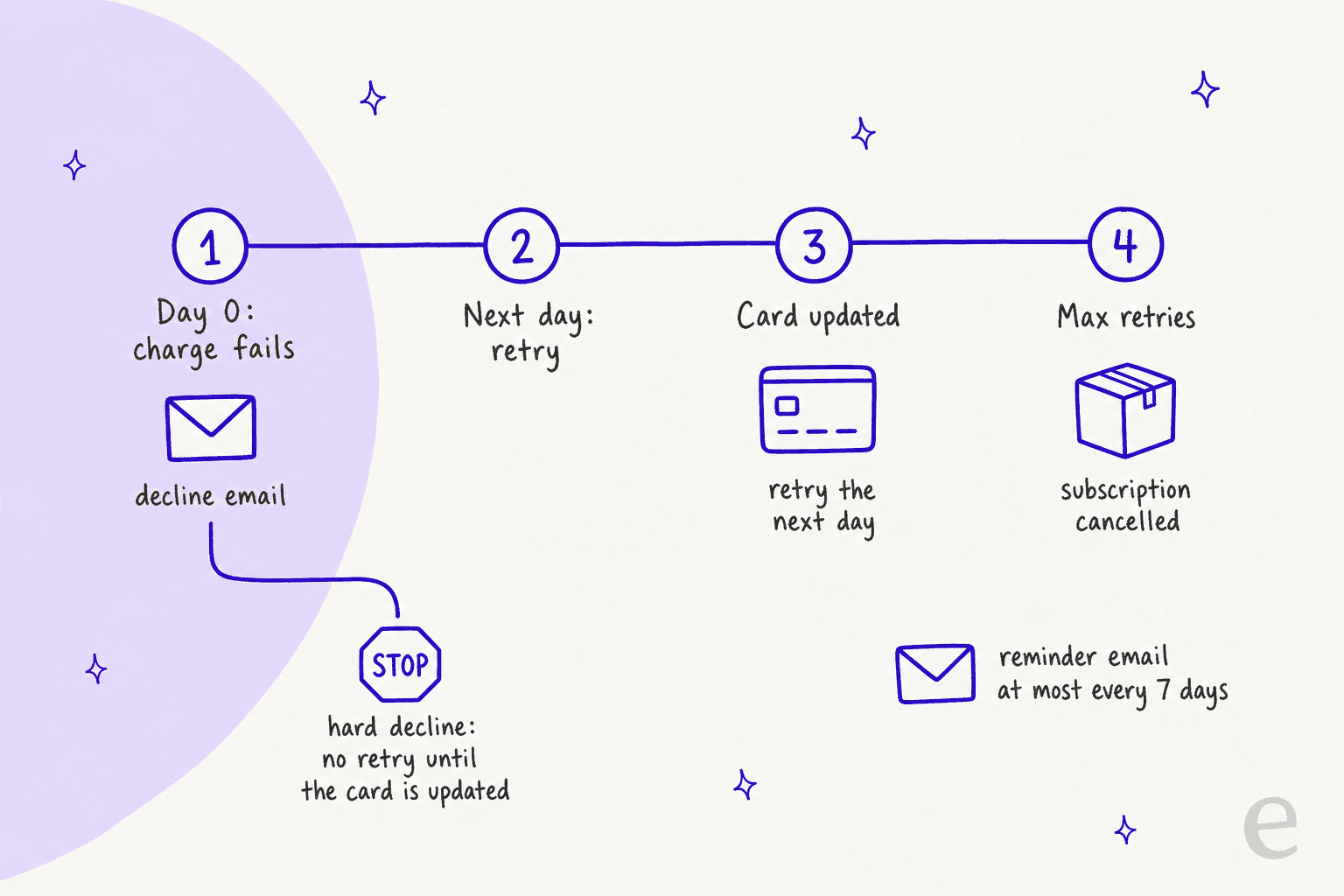
Recharge's own example makes the cadence concrete. With retries set to every 5 days, the first decline email goes out on the failure day, the retry runs the next day, the next retry lands on day 6 with no email because one went out within seven days, and day 11 triggers the next email. The Failed Payment Recovery guide adds that smart retry timing varies with error type and customer behavior, so a store on that strategy does not configure intervals by hand.
Windows and limits:
- Recovery window. The default automatic recovery period is 120 days from the original charge date, and it can extend to 180 if the customer updates the card inside the window, per Recharge's strategy notes.
- Card update inside the window. The charge is retried the next day and its state becomes
CARD_UPDATED_NOW_PENDING_NEXT_ATTEMPT. Outside the window, it stays in that state and Recharge does not retry. - Linked subscriptions. Updating one method that is used by several addresses or subscriptions resets the tries for all of them, and subscriptions cancelled for max retries are reactivated, per the dunning guide.
- End state. If every retry fails, the subscriptions are cancelled with the reason Failed Payment flow max retries.
- Who can change it. The merchant cannot edit the recovery period or retry intervals. Recharge says to contact its support team.
If you run a third-party dunning tool, Recharge's guide says to disable it before activating the strategy to avoid conflicts. Our churn prevention guide and churn-risk detection guide cover the support side of that.
What can a merchant do from the admin, and what can't they?
Merchants can see why a charge failed, nudge the customer, and retry. They can't hold the card.
You can:
- Open Customers, then Order errors, and read the Message, Payment gateway, Charge attempts and Recharge error code on the error panel, per Recharge's order errors guide.
- Request the Shopify update email, or change the method directly on BigCommerce stores.
- Retry a charge manually after the cause is fixed, using the three dots next to the error and Retry charge.
- Export charge errors from Exports, using Orders - Errors, to see patterns.
- Turn on backup payment methods and the hard-decline email in Failed Payment Recovery settings.
You can't:
- Delete a payment method on Shopify Checkout Integration stores.
- Edit a customer's Shop Pay or PayPal account.
- See the bank's specific decline reason.
- Change retry intervals yourself.
Recharge's backup payment methods deserve a mention here. When the primary method fails, Recharge tries the customer's other saved methods, newest first, and if one works it replaces the primary for that address. The catch: only Shopify Payments methods are used, it is limited to Shopify Checkout stores, and it needs Affinity or custom portals. For the order-side picture, see our ecommerce order management guide.
Pricing context: Recharge's pricing page lists Starter at $149 a month and Scale at $499, and its hard-decline email guide says that email is available on all plans. Check the current page before quoting either to a customer or a manager.
What can eesel do on a payment method ticket?
Read and explain, not change. From eesel's Recharge docs, the customer lookup finds the subscriber by the email they wrote from and returns their subscriptions, addresses and payment methods in the same call. It also lists subscriptions and orders with status and scheduled date, so the agent can see the next charge before it answers.
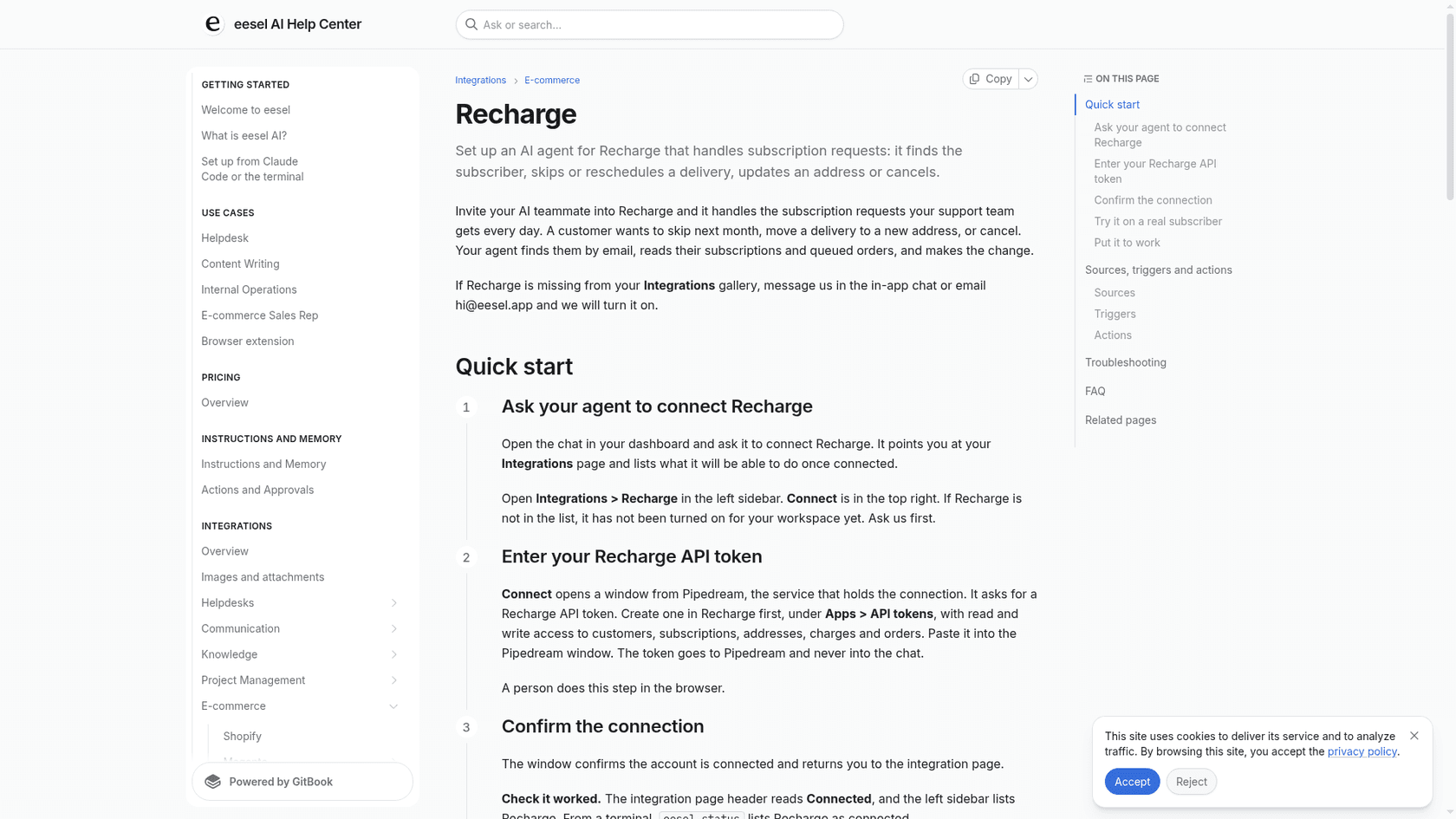
The docs list no action that sends an update email, adds a card or edits a payment method. What it can do is the surrounding work: look up the subscriber, check which platform and method apply, explain the update path, say when the next charge is, and hand the case over with that context. If a customer wants to skip while sorting out the card, its Skip charge action covers one upcoming charge on a month-to-month plan, as our skip guide explains. Every write action can wait for approval under your action rules.
None of the stories below run Recharge, so I'm not claiming a Recharge result. They show the habit worth copying: answer from the real record, hand off what needs a person. SamCart runs eesel on Freshdesk tickets and its website chat, answering from about 280 help center articles on checkout, subscriptions and why a payment did not go through, and tags a ticket for a person when the question is beyond the help center. STIL Classics runs eesel on Gorgias and Shopify, and any ticket with an order number gets the order and its status pulled before a draft is written, with a person checking each one.
What I'd look for before letting any agent near a card ticket:
- It never asks for card numbers in chat. The update path is always the platform's own page or email.
- It knows who holds the card. Ask it what it says to a Shop Pay customer versus a BigCommerce one.
- It separates retryable from hard declines. It should not promise "we'll retry tomorrow" on a frozen card.
- It's tested on real tickets. Replay past card tickets with simulation testing before go-live.
- It has a clean handoff. Follow your handoff rules for anything involving money or identity.
Payments questions also overlap with billing questions, payment disputes and chargeback inquiries, so route those separately.
How should you reply to a "my card won't update" ticket?
Name the platform path, say what happens to the next charge, and never ask for card details in the thread.
For a Shopify Checkout Integration customer:
Hi Sam, sorry the card change didn't go through. In your subscription portal, open Address & payment details, choose Manage payment methods and click Send email to update. Shopify sends that email, so please check spam too. Once the card is updated, we retry the failed charge the next day.
For a Shop Pay customer:
Hi Sam, your card is saved in your Shop Pay account, so the change has to happen there. Shop Pay allows two updates per card in a 20-minute window, so if you've tried a couple of times, please wait 20 minutes and try once more.
For a hard decline:
Hi Sam, your bank declined this charge, and we don't get the reason from them. Please call the number on your card, and update your payment method once they've cleared it. We'll retry the day after you update.
Each reply gives one path, one date and no card details. Saved as macros they are easy to reuse. A few things cut these tickets at the source:
- Turn on frictionless updates if you're eligible, so the card changes in the Recharge portal.
- Turn on the hard-decline email after customizing its wording.
- Enable backup payment methods where your portal supports them.
- Warn before the charge. Proactive notices before an expiring card catch most of these.
- Tag the tickets. A consistent tag with AI ticket tagging shows which error types dominate.
Anyone changing payment details is a risk check too. Confirm the person writing is the subscriber, as our fraud-related support guide and security review guide describe, and note refund approval rules if a failed payment turns into a money dispute.
Try eesel for Recharge card tickets
If "my card won't update" fills your queue, eesel can handle the lookup and the first answer inside the helpdesk you already use. It is an AI helpdesk teammate for Shopify support: it finds the subscriber in Recharge, reads their payment methods and queued orders, explains the right update path, and hands card changes to the customer or your team.
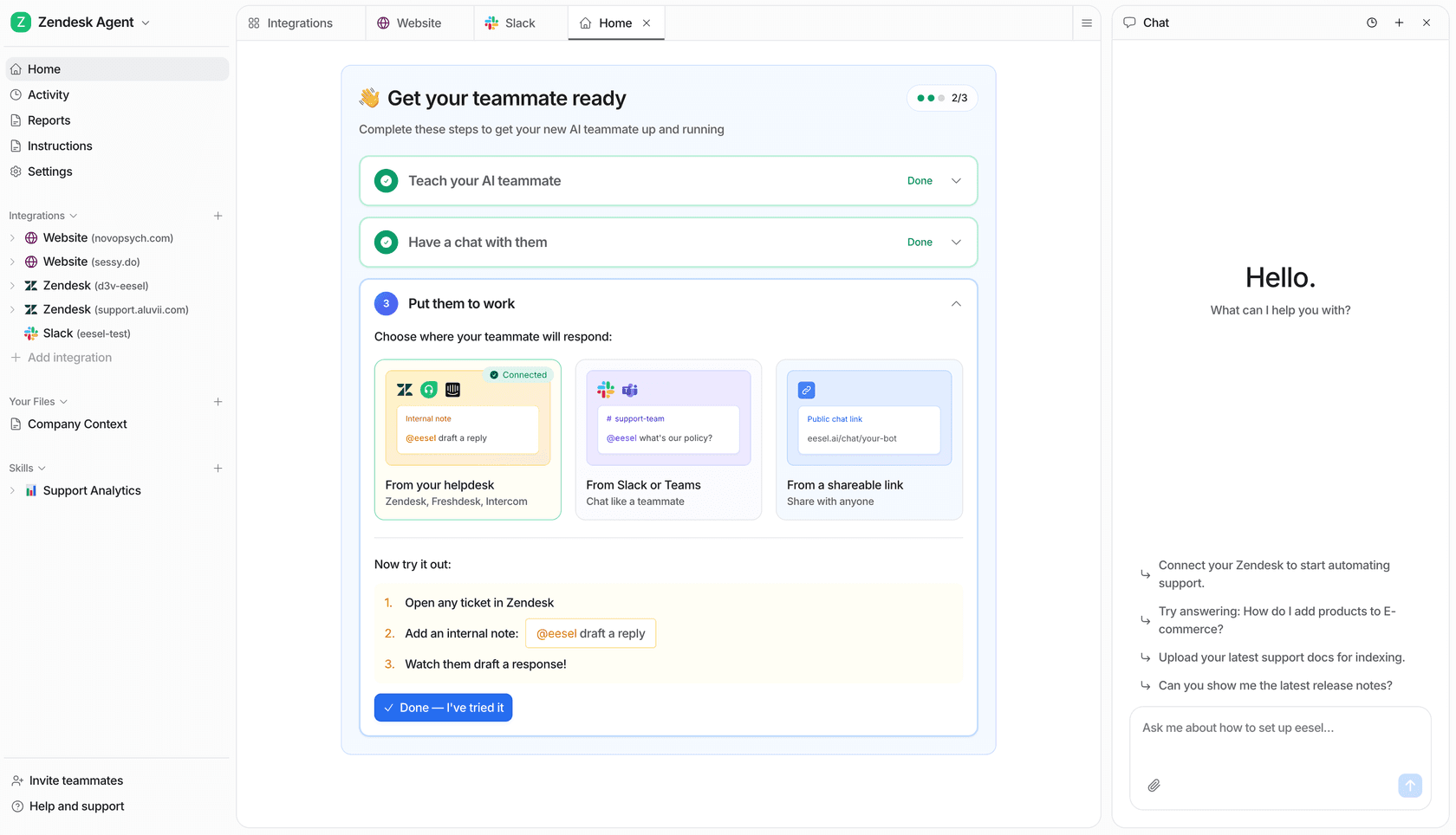
Connect Recharge and Shopify, point the agent at a real subscriber with a failed charge, and ask what it would tell them. Running Gorgias or Zendesk? It works from there. Our Gorgias and Recharge guide, subscription business roundup and Shopify support roundup are the next stops. Try eesel free.