Recharge customer portal login: why customers can't get in and how to fix it

Riellvriany Indriawan

Katelin Teen
Last edited November 6, 2026
Most Recharge "I can't log in" tickets are a door problem, not an outage. Customers have four ways in (an email link good for 24 hours, the store login plus Manage subscriptions, a 4-digit code valid for 4 minutes, or Shopify's Subscriptions page), and each fails differently. Ask which door they used and which email they wrote from, then copy a fresh link from Customer portal links in the merchant portal. eesel can find the subscriber by email and often skip, change or cancel for them, but it cannot send a login link.
With the eesel CLI, an AI coding agent can list the Recharge actions on your workspace and test lookups on a real subscriber before anything goes live. A person still approves the Recharge connection itself.
Why do "I can't log in" tickets keep coming back in Recharge stores?
Because the customer is not logging in to Recharge. They are logging in to your store, and Recharge hangs a portal off the side of it. Two systems, one email address, four doors, and a link that dies in a day.
On eesel's support team I read these tickets the way an AI agent has to: a one-line message, a sender address, and nothing else. "Can't get into my account" says nothing about which door the customer tried. That is why the first reply should ask one question, not offer five fixes.
The pain is well known to the people who run these stores. A G2 reviewer on Recharge put it plainly:
"I wish there were better features to make things easier for customers. We often receive complaints that they have a hard time navigating their accounts, and it can be frustrating for them to find what they need."

Login tickets also hide other tickets. Half of them are really skip requests, pause requests or cancellations, where the customer only wants to be logged in to do the task. That matters later, because a task can often be done without the login.
How do customers actually get into the Recharge customer portal?
Through one of four doors, and Recharge's access guide describes three of them. The fourth lives in Shopify's newer customer accounts.
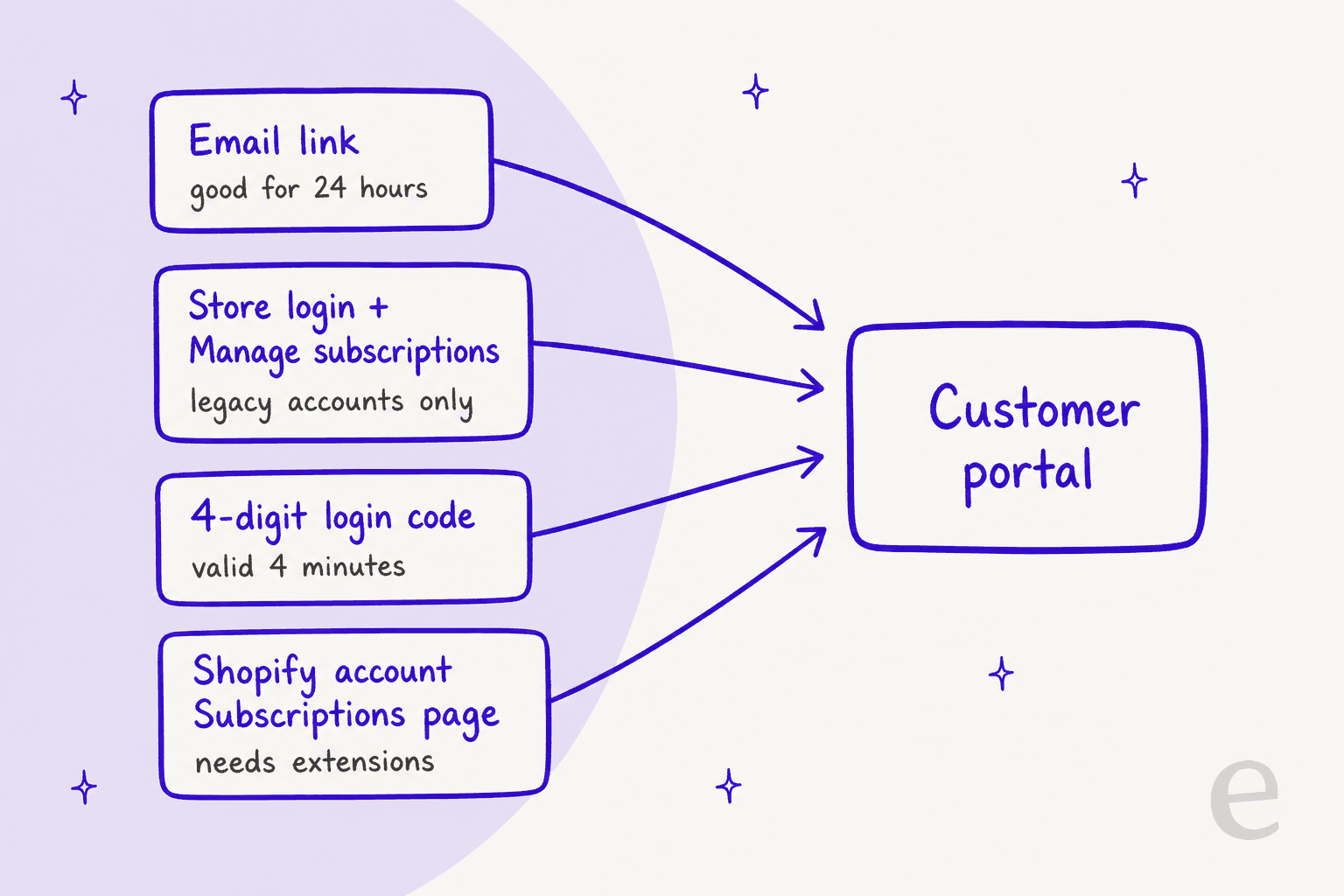
| Door | What the customer does | What can go wrong |
|---|---|---|
| Email link | Clicks a tokenized link in a Recharge email | Token expires after 24 hours |
| Store login | Logs in at /account/login, clicks Manage subscriptions | Link missing, or the account was never activated |
| Passwordless code | Enters their email, then a 4-digit code | Code not received, expired, or email not in Recharge |
| Shopify Subscriptions page | Opens the Subscriptions page inside Shopify's customer accounts | Extensions not installed |
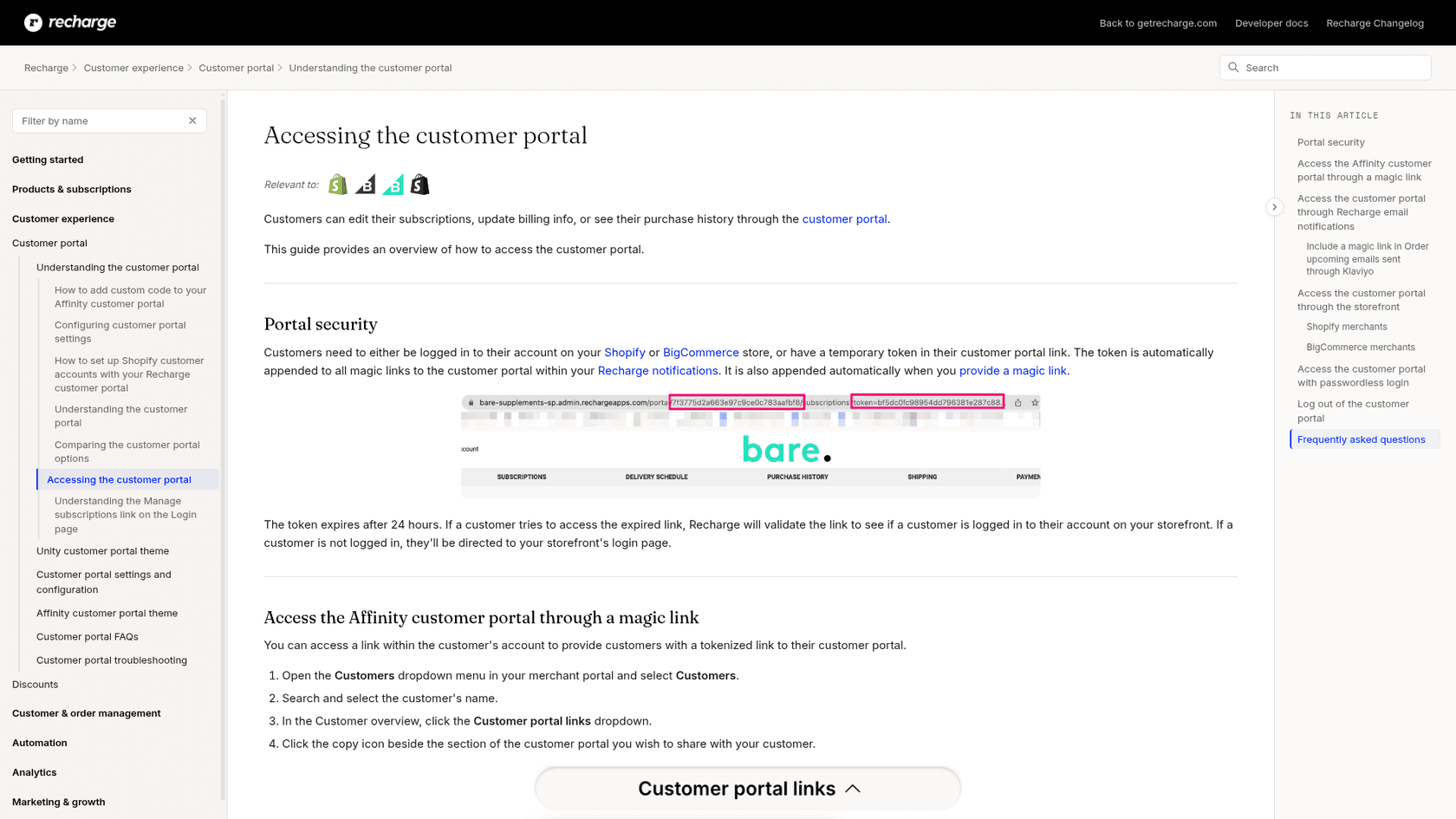
The security rule behind all of it is short. Recharge's guide says customers either need to be logged in on your Shopify or BigCommerce store, or have a temporary token in their portal link. If someone opens an expired link, Recharge checks whether they are logged in to the storefront, and if not, sends them to your login page. That redirect is why "your link doesn't work" and "I'm stuck at a login page I never set up" are often the same ticket.
Why do login links and codes expire so fast?
Because each door is built to be temporary, and the numbers differ per door. That is the part support teams get wrong most often, so I would put them on one card.
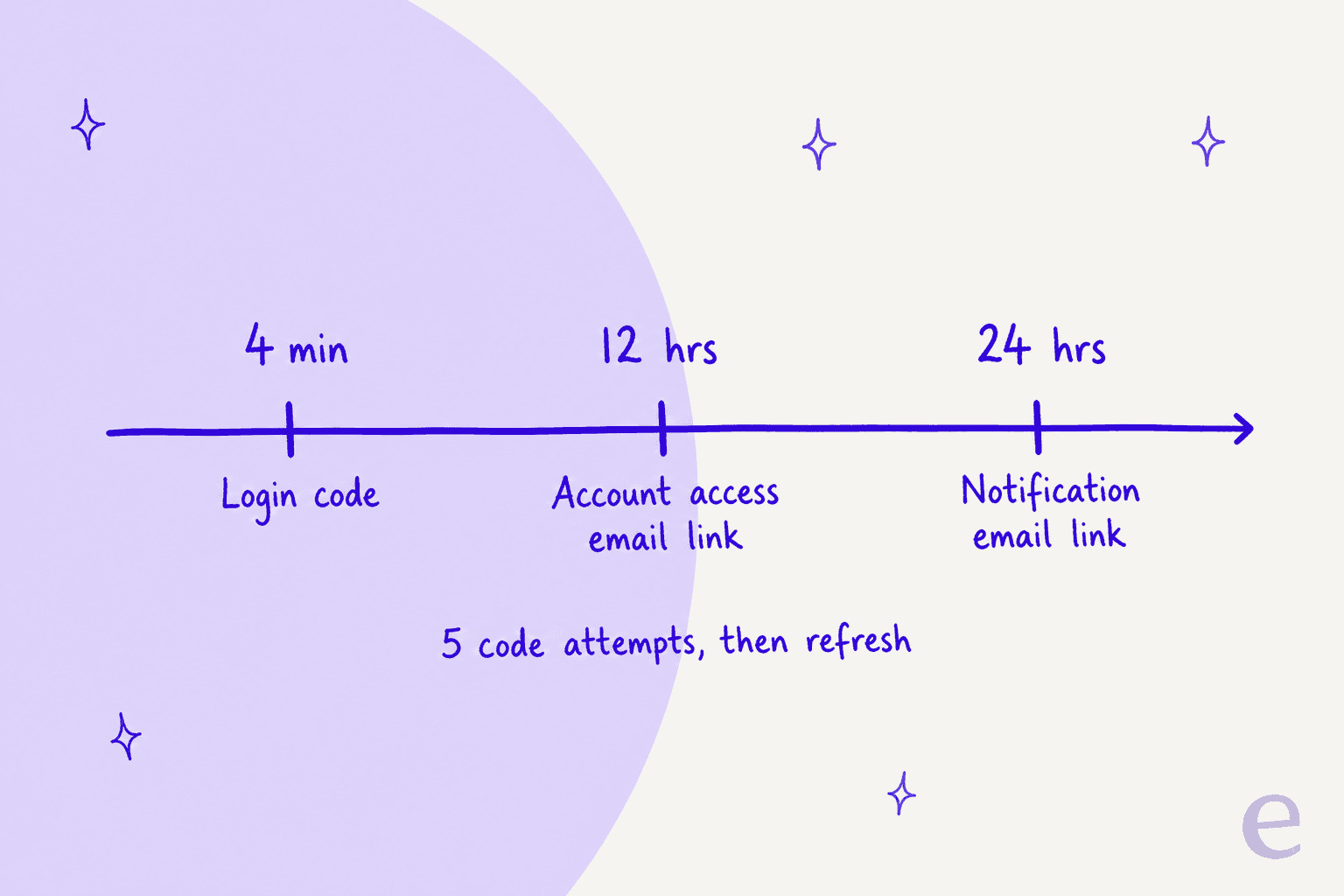
- Notification email link: 24 hours. Recharge's guide says the token appended to magic links in notifications expires after 24 hours.
- Account access email link: 12 hours. The Manage subscriptions guide says the fallback link in the account invite expires in 12 hours, and Recharge's changelog says the same. The access link a customer requests is shorter-lived than the one in their order emails.
- Passwordless code: 4 minutes, 5 attempts. The passwordless login guide says to request a new code after four minutes, and that after five failed attempts the customer must refresh the page and start again.
There is one more clock, and it runs the wrong way. If a customer logs out on the Shopify account page instead of inside the portal, Recharge says they remain signed in to the portal until the token expires in 24 hours. That is a privacy question on shared computers, not a login failure, but it arrives as a ticket too. Anyone worried about it should read our AI support security review before handing agents account access.
Why does the email address matter so much?
Because the email is the only thing tying the pieces together. Recharge's customer accounts guide says it uses the customer's email address to associate the portal with the Shopify account, and that customers should use the same email they checked out with for earlier subscriptions to appear.
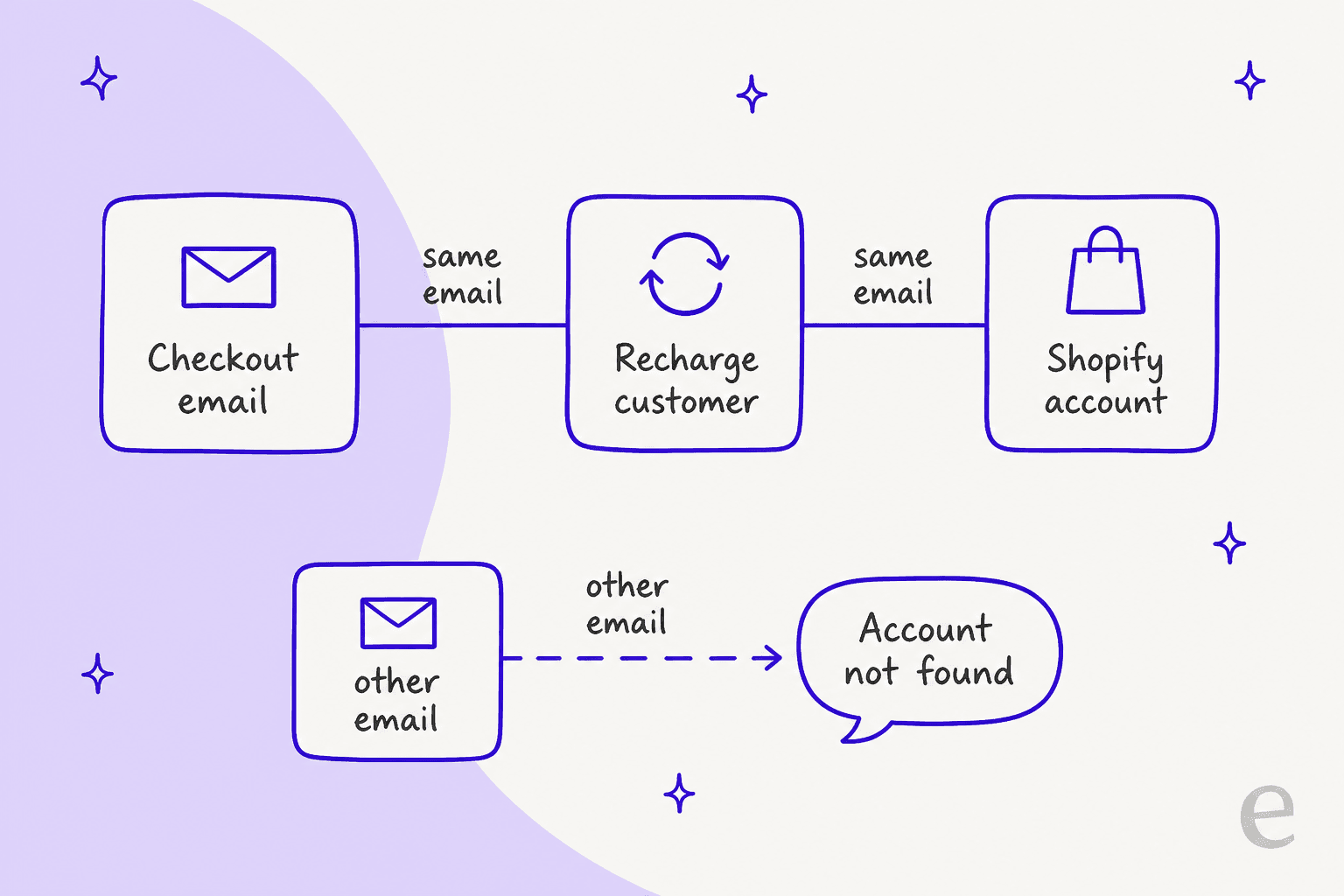
Four things follow from that:
- A different email means "account not found." On stores with passwordless login and no Multipass, the guide says an email that is not on a Recharge customer returns an error. Customers who exist only in Shopify are not created in Recharge on the fly.
- Optional accounts stay inactive. If Shopify accounts are set to optional, a customer who enters through the activation email is not automatically activated. The guide says you can spot this when Send account invite appears on their Shopify profile.
- Gift and guest buyers have the wrong email. Whoever received the box is rarely the person whose email is on the subscription.
- BigCommerce needs full registration. Recharge's troubleshooting article says account creation is not completed automatically when a subscription order is placed.
The cheapest check in this whole post is looking up the customer's email in the merchant portal. If the email the customer wrote from is not there, no amount of link-sending will help. It is also the lookup an agent does first, and the point of our guide to password reset requests: find the real account before touching anything.
Why is the Manage subscriptions link missing?
Almost always because of which kind of Shopify customer account the store uses. Recharge's customer accounts guide says the Manage Subscriptions link works only with Shopify's legacy customer accounts. If a store switches to Shopify's newer Customer accounts, the link no longer appears.
The newer accounts work too, but Recharge's setup guide says you must add four extensions in the theme editor: Subscription page, Upcoming Orders, Payment Methods and Addresses. A store that moved to new accounts and skipped them has a login that works and a portal nobody can find.
Other reasons the link goes missing:
- A theme change removed it. Recharge's troubleshooting article says you may need to reinstall the link if you have changed your theme.
- Accounts are turned off. The login page only exists when customer accounts are optional or required in Shopify.
- The passwordless page is not linked. A Recharge help article says that if a customer cannot find the page, the account login should link to
/tools/recurring/get-subscription-accesson your store.
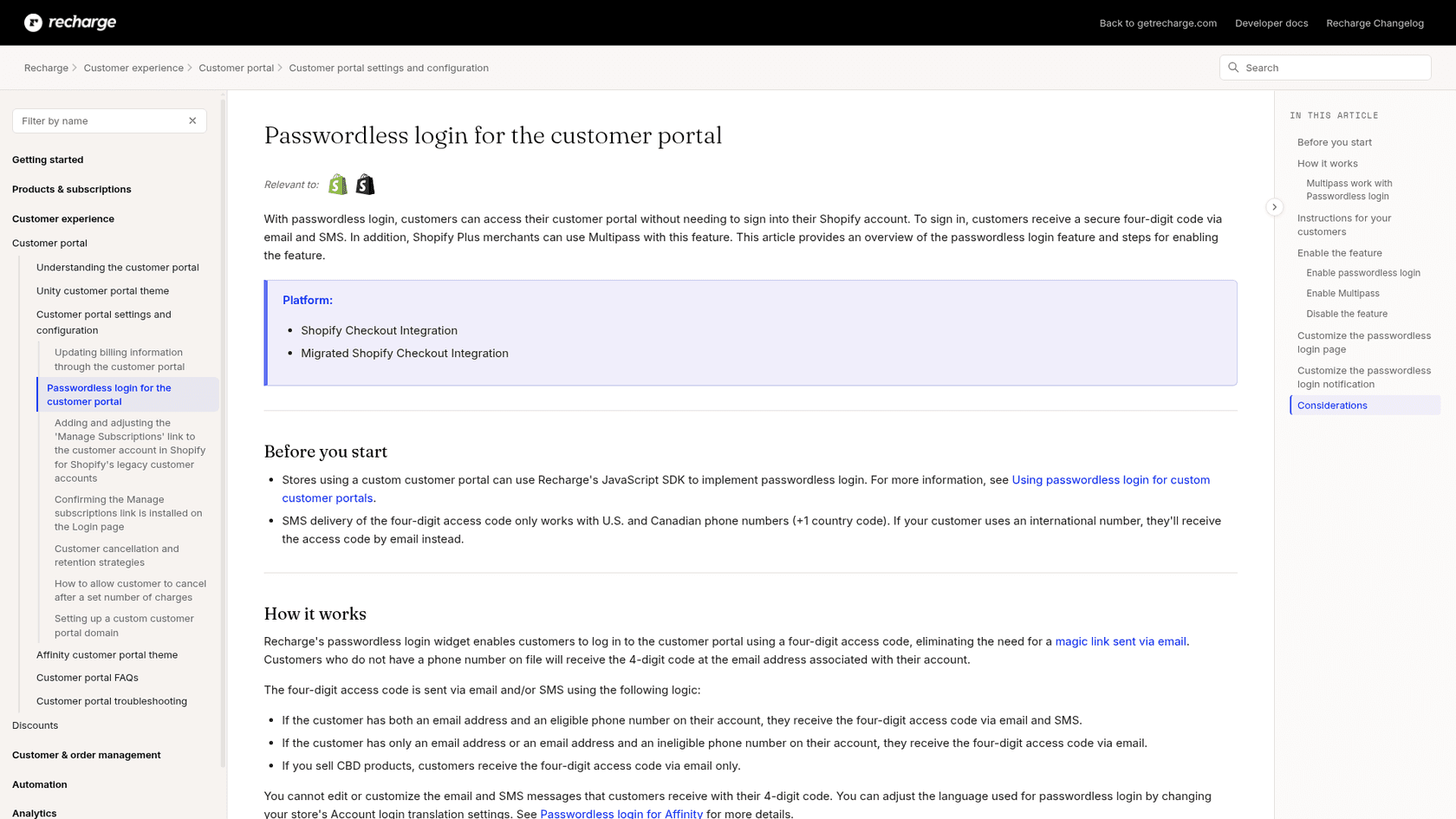
Test it yourself the way Recharge suggests: add /account/login to your store URL and look for Manage subscriptions under the login form. If you have never done this, do it today. It takes a minute and tells you which of your four doors exist.
The code door has its own limits. SMS delivery only works for US and Canadian numbers (+1), so international customers get the code by email. Stores that sell CBD products get email only. Recharge says you cannot edit the code messages. If a customer says no code arrived, the help article tells you to check spam, check the phone number on their profile, then have them refresh and re-enter their email.
Which fix fits this ticket?
When the ticket says "can't log in," match what the customer saw. Click it and read what to check and what to say.
Recharge login ticket checker
What did the customer run into?
Cause: email links last 24 hours (12 hours for the account access link), then the customer lands on your store login page.
Do: copy a fresh link from Customer portal links in the merchant portal, or have them use Manage subscriptions on the login page.
Tell them: the new link works for 24 hours.
Cause: the store uses Shopify's new Customer accounts, a theme change removed the link, or accounts are off.
Check: open /account/login on your store and look under the form. For new accounts, check the four Recharge extensions.
Tell them: a direct link now, and that a fix on the store is coming.
Cause: spam folder, a non-US/Canada phone number for SMS, or a code older than 4 minutes.
Check: the phone number on their Recharge profile.
Tell them: check spam, refresh the page, re-enter their email for a new code.
Cause: the email entered is not on a Recharge customer.
Check: search the merchant portal for the sender address and any other emails they might use.
Tell them: which email the subscription is under, or ask them to try the other one.
Cause: they logged in with a different email than the one they checked out with.
Check: the checkout email on the subscription against the Shopify account email.
Tell them: to log in with the checkout email, or send a direct portal link for that subscription.
Cause: they logged out on the Shopify account page, not inside the portal.
Check: nothing is broken, the token stays valid up to 24 hours.
Tell them: click Logout inside the Recharge portal on shared computers.
How do you send a customer a fresh portal link?
For the Affinity portal, copy it from the merchant portal. Recharge's access guide gives the steps: open Customers, search the customer, open the Customer portal links dropdown in their overview, and click the copy icon beside the page you want to share. There are separate links for Overview, Subscriptions, Delivery schedule, Order history and more, so you can send the customer straight to the right page.
That link carries a token that expires after 24 hours, so it is the right fix for an expired-link ticket and the wrong one for a customer who keeps running into your login page. For custom storefronts, Recharge's developer docs describe building the link from the customer's hash, returned by the Customers API.
Reply with the link, the lifetime, and the permanent route:
For an expired link:
Hi Sam, that link has expired, so here is a fresh one for your subscriptions: [link]. It works for 24 hours. Next time you can also go to our login page and click Manage subscriptions to get in without waiting for an email.
For "account not found":
Hi Sam, I could not find a subscription under this email. Do you have another address you might have used at checkout? If you tell me which one, I will look again.
For a missing code:
Hi Sam, codes are valid for 4 minutes and sometimes land in spam. Refresh the login page, enter your email again, and a new code will arrive. If it still does not, reply here and I will send you a direct link.
Store these as macros and keep the wording consistent. If you are training an AI on past tickets, simulation testing against old login tickets shows whether it would have asked the right question.
What can helpdesks and AI agents do about login tickets?
Most teams handle these in the helpdesk with Recharge open in a second tab. The costly part is not the fix. It is the lookup: finding the subscriber, checking their email and status, and deciding which door failed. eesel works from Gorgias, Zendesk or a shared inbox, and our Gorgias and Recharge post covers the Gorgias side.
I checked eesel's Recharge integration docs for this post. Here is what it can and cannot do on a login ticket:
- It can find the subscriber. It looks them up by the email they wrote from, and lists their subscriptions with status, frequency and next charge date. That answers "is this email even in Recharge?"
- It can do the task the login was for. It can skip a charge on a month-to-month plan, change quantity or frequency, cancel, and reactivate. A customer who wanted to skip does not need a login to get that done.
- It cannot send or reset a login link. None of its actions generate a portal link, send a code, or reset access. It does not pause or change a charge date either.
- It will not guess an email. If the customer used a different email in Recharge, the docs say to give your agent that address.
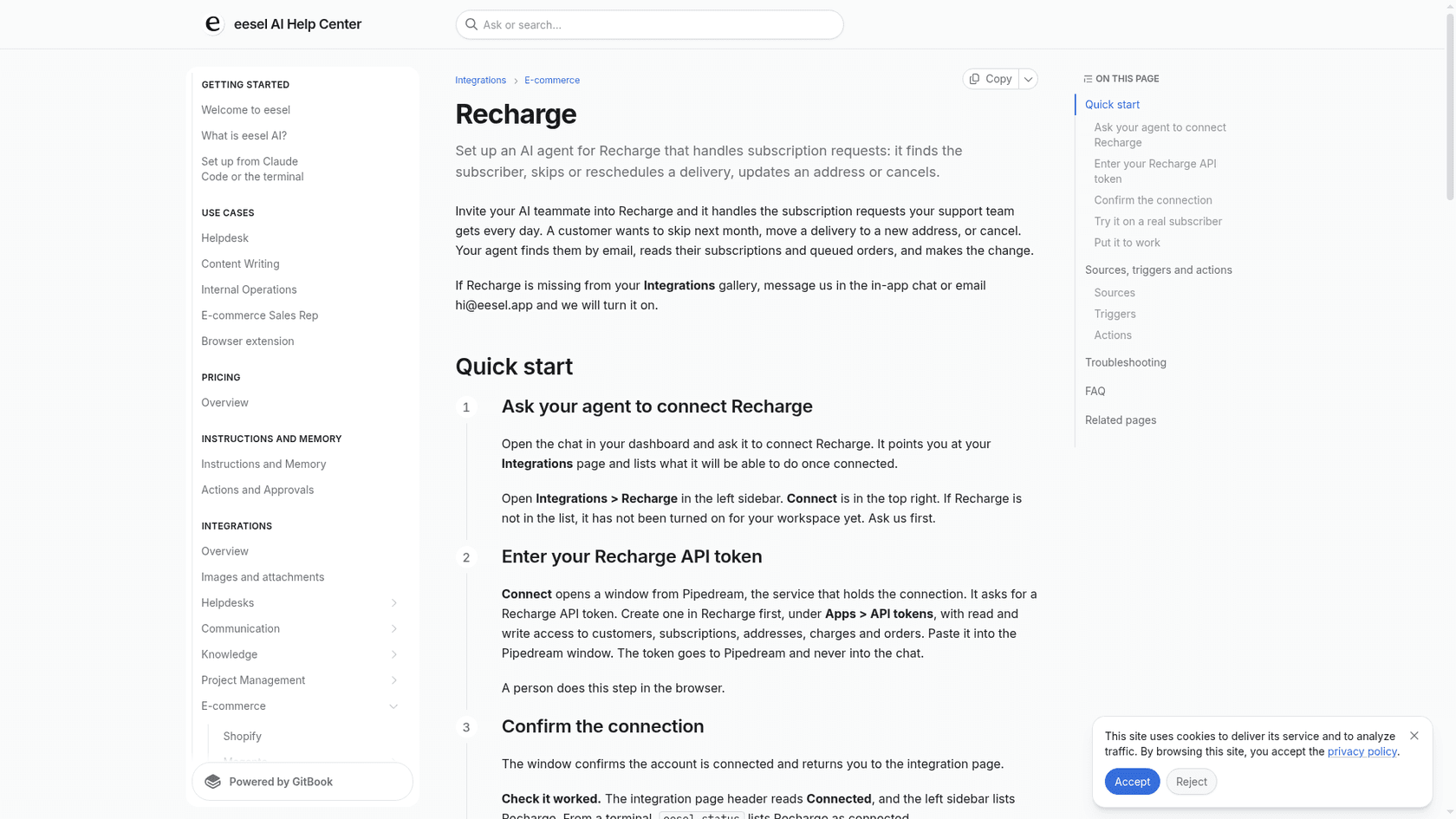
That makes the sensible setup a split. Let the agent find the account and handle the actual request, and hand anything that needs a link or an access change to a person. Editing the email on a Recharge customer is an action I would keep behind approval, because "change my email so I can log in" is also how account takeovers start. Our guides on fraud-related support and approval workflows cover why.
Neither of the customers below runs Recharge, but they show the same split between lookup and handover. Question Beauty, a cosmetics brand on Gorgias and Shopify, had eesel look up 290 Shopify orders by customer email in one month before answering, across 990 tickets. 280 of those tickets closed without a person, and the rest were tagged and left for the team. Poseidon Animal Health runs the other model: eesel drafts replies inside Gorgias for about 610 conversations a month, and a person reads every draft, including auto-ship changes, before it is sent.
What I would look for before letting an agent near login tickets:
- It looks the email up first. A reply without that lookup is a guess.
- It says what it cannot do. "I cannot send you a link, but I have asked my team" beats a fake promise. See human handoff.
- It tags login tickets. A ticket tag tells you later whether the login page is your biggest source of tickets.
- It treats identity carefully. A message from the email on file is not proof of ownership. Put approvals in front of anything that changes access.
- It is tested first. Run it on past login tickets before it touches live ones.
If you want the wider picture, our roundups of Shopify support tools, subscription business tools and AI helpdesk agents are the next stops.
How do you cut login tickets at the source?
Fix the doors before you write better replies. Most of these are one-time store changes.
- Turn on passwordless login. Recharge's guide says to go to Storefront, then Customer portal, then Login settings and choose Recommended: allow passwordless login. It removes the Shopify password from the picture.
- Add the right link for your account type. Legacy accounts need Manage subscriptions. New Customer accounts need the extensions.
- Test the four doors every quarter. Themes change. Recharge's own troubleshooting says a theme change can remove the link.
- Put a portal link in your emails. Recharge's
{{link}}variable fills in a unique tokenized link per customer in its notifications. Anything sent from Klaviyo can use the Order upcoming event for the same purpose. - Say how to log out. One line on the portal: use Logout here, not Shopify's.
- Send the upcoming-order email. It is a natural place to answer questions before they become tickets. Our proactive support guide shows how.
If the login ticket is really a skip, a swap or an add-on, those have their own posts: skip orders, product swaps and one-time add-ons. If it is a cancellation, retention flows matter more than the login.
Does the Recharge plan change any of this?
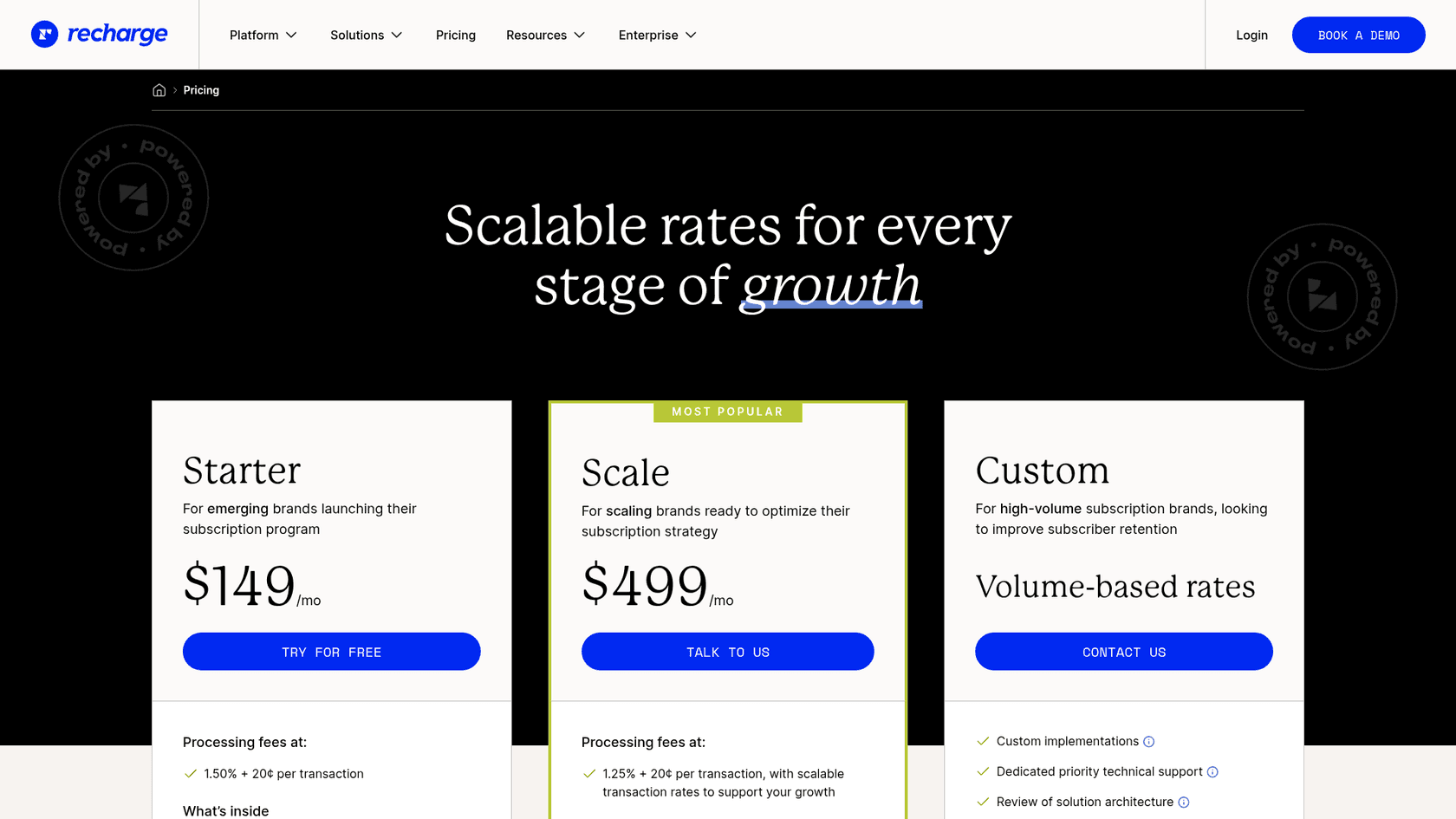
I found no plan restriction in the login and portal guides, so these features are not described as gated. Here is Recharge's current pricing:
| Plan | Monthly fee | Processing fees |
|---|---|---|
| Starter | $149/mo | 1.50% + 20¢ per transaction |
| Scale | $499/mo | 1.25% + 20¢ per transaction, with scalable rates |
| Custom | Volume-based rates | Custom |
Check the pricing page for what each plan includes before you decide.
Try eesel for Recharge login tickets
If "I can't log in" fills your Recharge queue, eesel can find the subscriber by email inside the helpdesk you already use, answer from the live subscription, and do the skip, frequency change or cancellation the customer actually wanted. It is built for Shopify support. Anything that needs a login link goes to your team with the account already found.
Connect Recharge and Shopify, point the agent at a real subscriber, and ask it to look them up by email before it touches a live ticket. Try eesel free.
Frequently Asked Questions
How do customers log in to the Recharge customer portal?
Why is my Recharge login link not working?
Why can't customers see Manage subscriptions on my store?
/account/login on your store first.