Zendesk web crawler: setup, limits, plans and gaps

Rama Adi

Katelin Teen
Last edited November 12, 2026
Zendesk's web crawler copies pages from a public website into Zendesk as external content, so help center search, quick answers and AI agents can answer from your marketing or docs site. It is a scheduled snapshot, not a live lookup: Weekly by default, up to 500 start URLs per crawler, 50 crawlers per account, and no pages behind a login. The catch is that Zendesk's own pages disagree on crawl depth, refresh rate and authentication, so test with one crawler first. If you also want the AI to learn from past tickets and a per-brand sitemap, eesel's Zendesk teammate does that, and the eesel CLI lets a coding agent load approved pages and test answers, while an admin still approves the Zendesk connection.
What does the Zendesk web crawler do?
It fetches pages from sites you name and stores their text in Zendesk as external records, so the rest of Zendesk can search them, from the help center to knowledge management workflows. Zendesk's web crawler article says it works "without developer resources" and can crawl a whole site or a list of specific URLs. Each crawler gets a name, and that name becomes the source label customers can filter by in help center search.
I work on eesel's integrations, and the first question on almost every Zendesk rollout is the same: where does the answer live if it is not in the help center? Often it is on the marketing site, a docs subdomain or a product pages section. This crawler is Zendesk's answer to that, and it is useful, as long as you know it is a snapshot.
Under the hood the steps are simple. The crawler starts at your URL, or at a sitemap if you give it one. Zendesk announced automatic link discovery in May 2026, so a sitemap is no longer required: if none exists, the crawler follows links, and it follows nested sitemap files too. It only follows links inside the site's own domain.
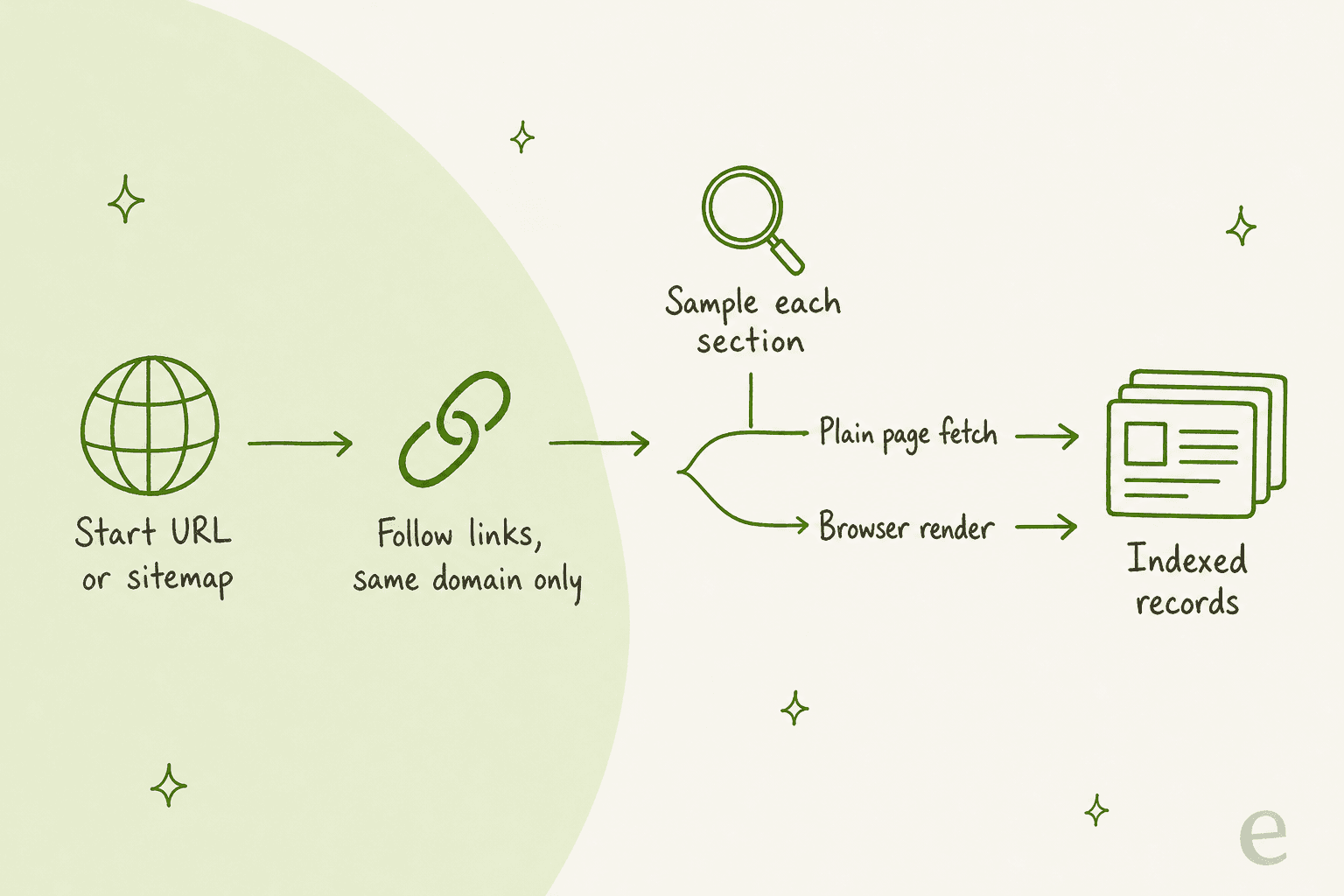
The third stop is the clever part. Zendesk's adaptive browser rendering announcement says the crawler samples a few pages of each section, compares a plain fetch with a full browser render, and switches to browser mode when the render captures significantly more. So a static blog and a JavaScript app on the same site can be crawled in different modes, with no setting to change.
Which plans include it, and what does it cost?
Zendesk's article lists every Suite plan (Team, Growth, Professional, Enterprise, Enterprise Plus) and, for Support, Knowledge Professional or Enterprise. I found no separate crawler fee in any of the crawler articles. What you pay for is the plan underneath, and then the AI agent usage on top.
| What | Detail | Source |
|---|---|---|
| Eligible plans | Suite Team, Growth, Professional, Enterprise, Enterprise Plus; Support with Knowledge Professional or Enterprise | Zendesk crawler article |
| Suite Team | $55 per agent per month, billed yearly | Zendesk pricing |
| Suite Professional | $115 per agent per month, billed yearly | Zendesk pricing |
| Suite Enterprise | Talk to Sales | Zendesk pricing |
| Crawler fee | None listed | Crawler articles |
| Storage | Crawled content counts toward account data storage | Zendesk limits article |
| AI agent answers | Billed per automated resolution | Zendesk pricing |
The hidden cost is storage and resolutions, not the crawler itself. Zendesk's limits article caps external records per plan, and you can buy extra storage if you exceed them. If an AI agent answers from crawled pages and fully resolves the chat, that counts as an automated resolution. My guides to Zendesk AI pricing and Suite pricing price both layers.
How do you set up the Zendesk web crawler?
You set it up in Knowledge admin in six short steps (the Knowledge Professional and Enterprise tiers are compared in Guide Professional vs Enterprise), and the form is shorter than you would expect. Zendesk's steps, as of the article's October 22, 2026 edit:
- In Knowledge admin, click Settings in the sidebar, then Search settings.
- Under Crawlers, click Manage, then Add Crawler, then Continue.
- On the Source and URLs tab, add a connection name, pick a syncing frequency, and enter your URLs.
- Decide whether to tick Sync only specified URLs.
- Optionally open Advanced settings and add URL filters.
- Check the Summary banner and click Sync.
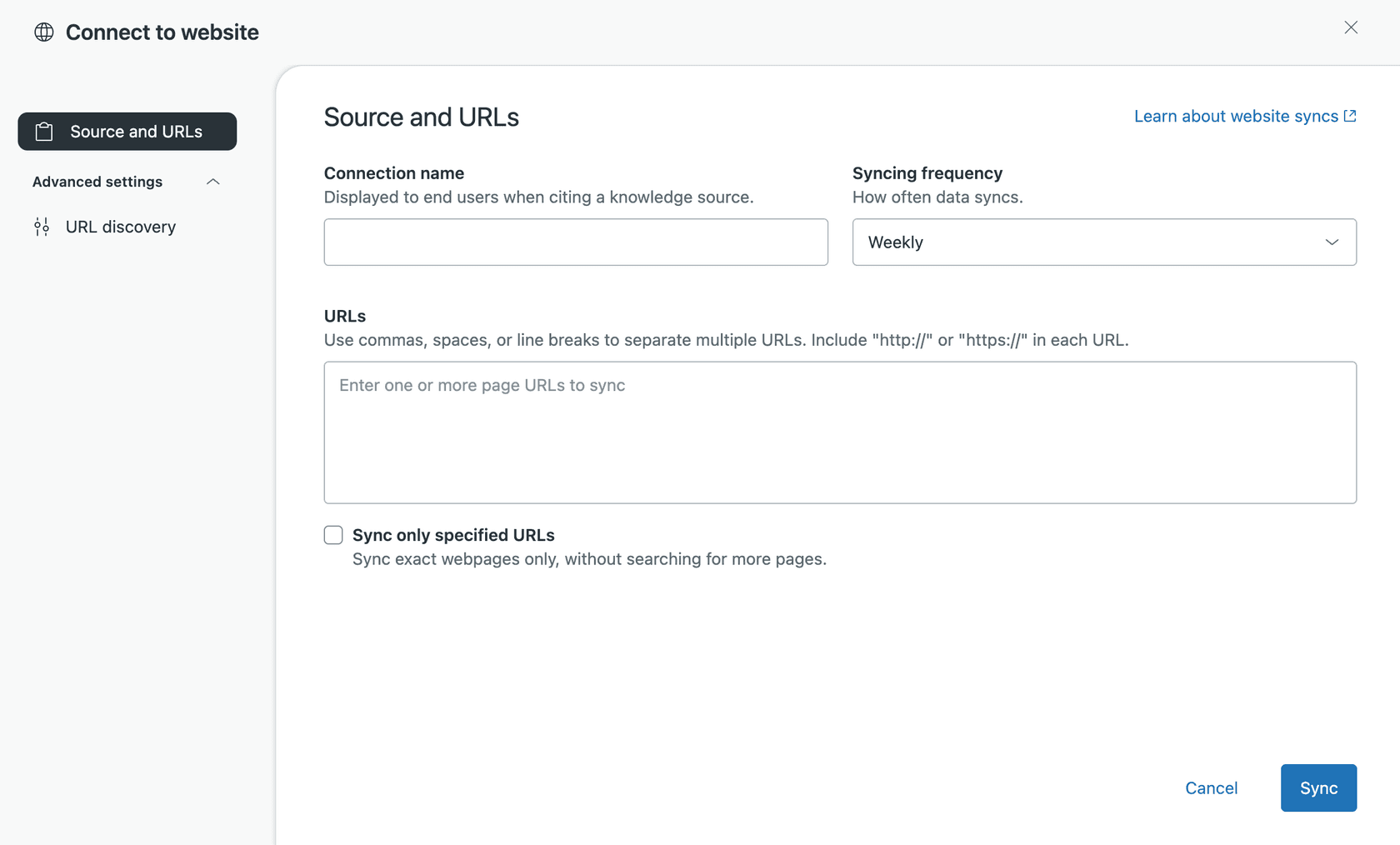
Two settings carry most of the decisions. Syncing frequency defaults to Weekly, with Never (a one-time sync), Daily and Monthly as the other options. And Sync only specified URLs decides whether the crawler stays on the pages you typed or follows links from them. Enter more than one URL and the checkbox ticks itself. Give it a sitemap and the option is disabled, because the crawler has to read every page in the sitemap.
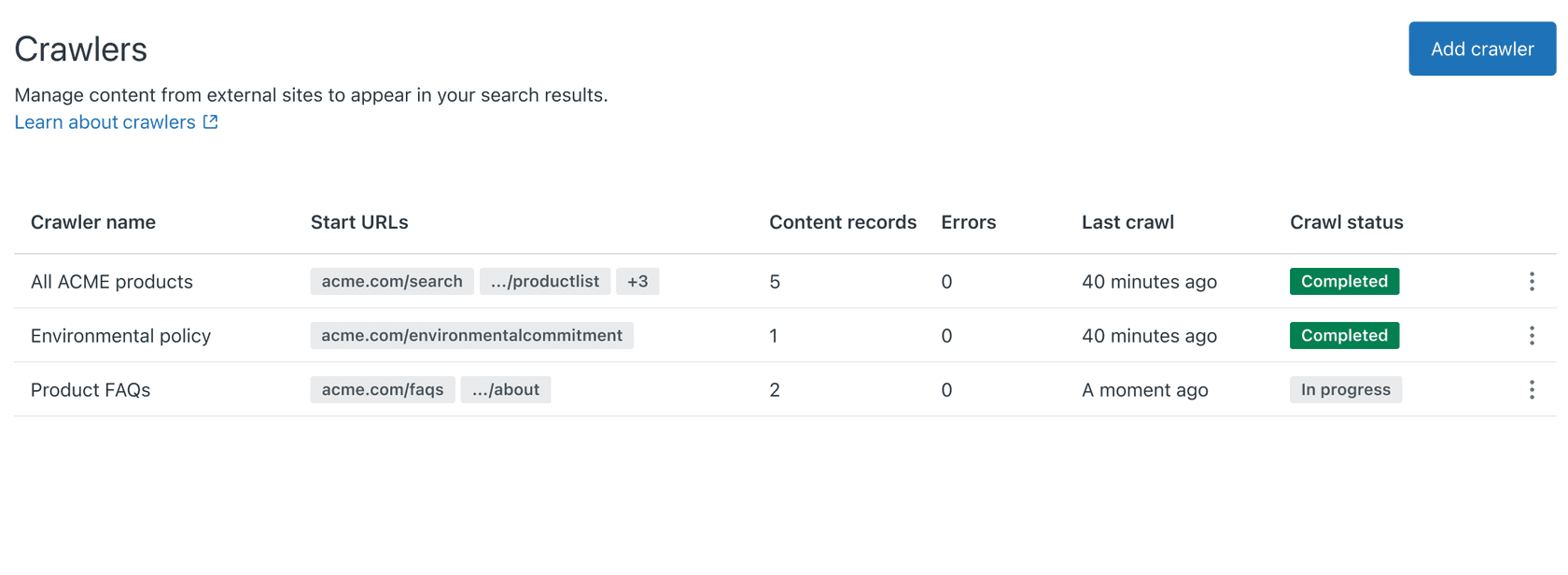
After that, Zendesk says the crawler runs on your schedule, emails the crawler owner with troubleshooting tips if it fails, and tries again. If a scheduled crawl fails, the help center keeps the previous crawl's results, so search does not go empty. Setting up the crawler does not show the content anywhere by itself: you still choose it as a search source under Search settings, and connect it to AI agents separately.
Before the first run, allow Zendesk through your firewall. The user agent is Zendesk/External-Content, and Zendesk's migration announcement says to allow the IP range 216.198.0.0/18, because some pages are fetched through a browser. A blocked crawler leaves a source with little or no content.
How do URL filters work?
URL filters are the way to keep admin pages, staff-only sections and noisy paths out of the index. You find them in the Advanced settings tab, under URL discovery, after you toggle on Look for more URLs while syncing.
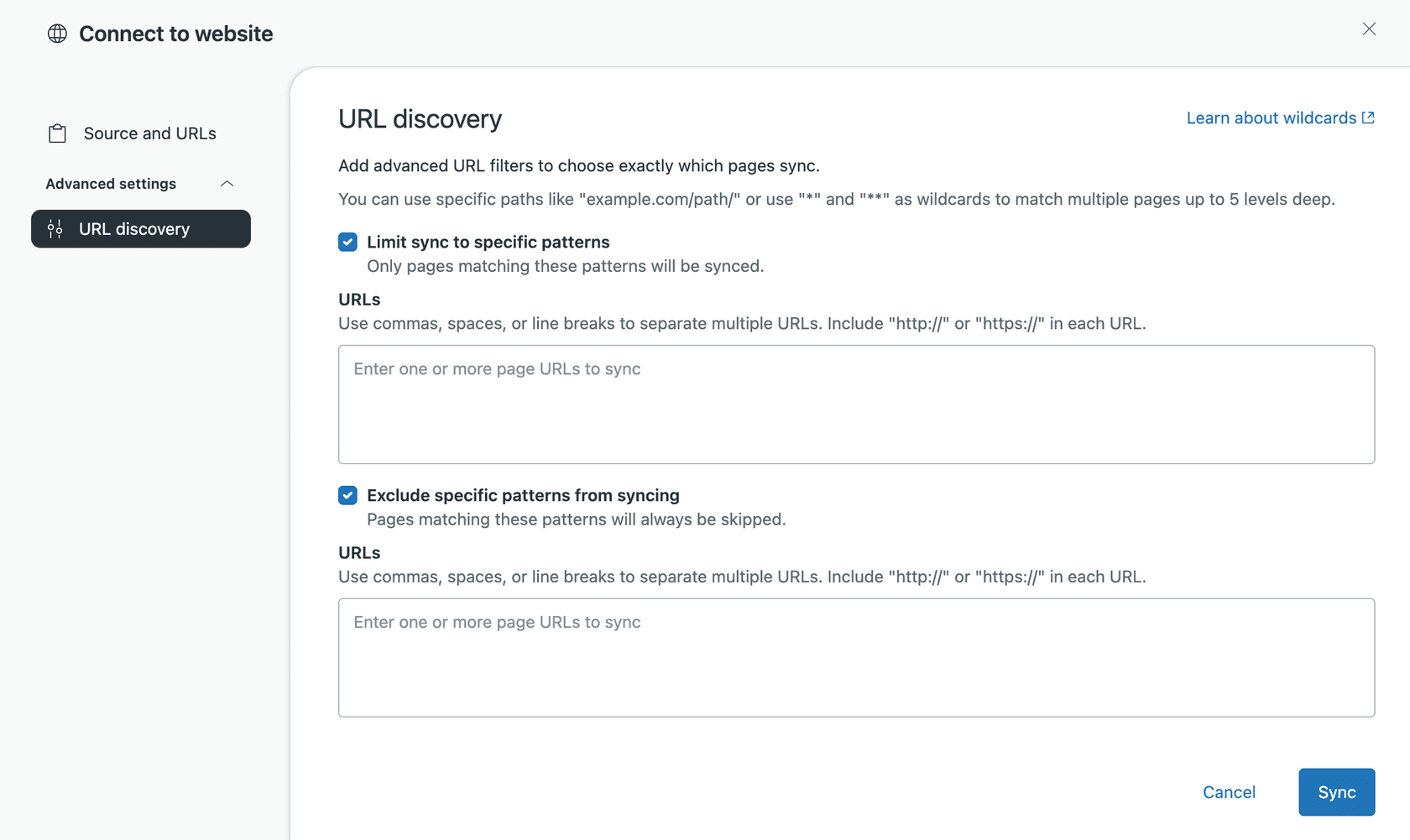
Zendesk's URL filters article sets the rules. Exclude filters are evaluated first, so a URL that matches an exclude is rejected even if it also matches an include. Include filters act as an allowlist when you set any, and with no filters everything is allowed.
| Pattern | What it matches |
|---|---|
https://example.com/solutions | That exact URL only |
https://example.com/solutions/ | Everything under that directory |
https://example.com/solutions/* | One level below /solutions/ |
https://example.com/solutions/** | All levels below /solutions/ |
https://*.example.com/** | Any subdomain of example.com |
The trailing slash is the trap. Zendesk's migration notes warn that a filter ending in /section can exclude that page even when it is a start URL, while one ending in /section/ excludes pages beneath it. Matching is also case-sensitive, and off-domain URLs are dropped before filters run.
What can the crawler index, and what does it miss?
It indexes content that is in the page source on first load, including text hidden behind an accordion, and it can render JavaScript when sampling says it needs to. The list of things it does not do is longer, and it is where I would spend my testing time.
- Pages behind a login. The crawler article says external sites must be public (non-authenticated).
- gzip-compressed sites. Zendesk says the crawler does not work with them, and you will not see search results from those sites.
- Crawl-delay. A crawl-delay in the external site's robots.txt is not respected, and the sitemap
changefreqtag has no effect. - Other domains. The crawler only follows links inside the site's domain.
- Language mismatches. Per the locales article, the crawler reads the
langattribute first, then the Content-Language header and meta tag, then falls back to language detection. If nothing matches a help center locale (see my multi-language help center guide), you get a "Locale not detected" error in the report email.
Zendesk also puts the legal responsibility on you: add sitemaps only for domains you own, and you confirm you have the right to crawl the site.
Where does the crawled content show up?
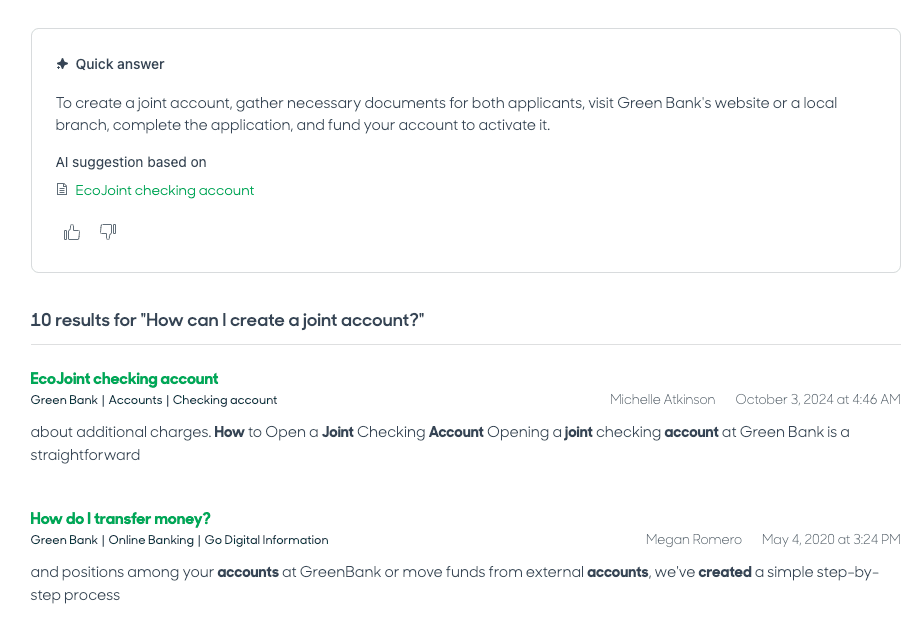
It shows up in four places, and the plan tier matters for the last two. Zendesk's external content article lists them.
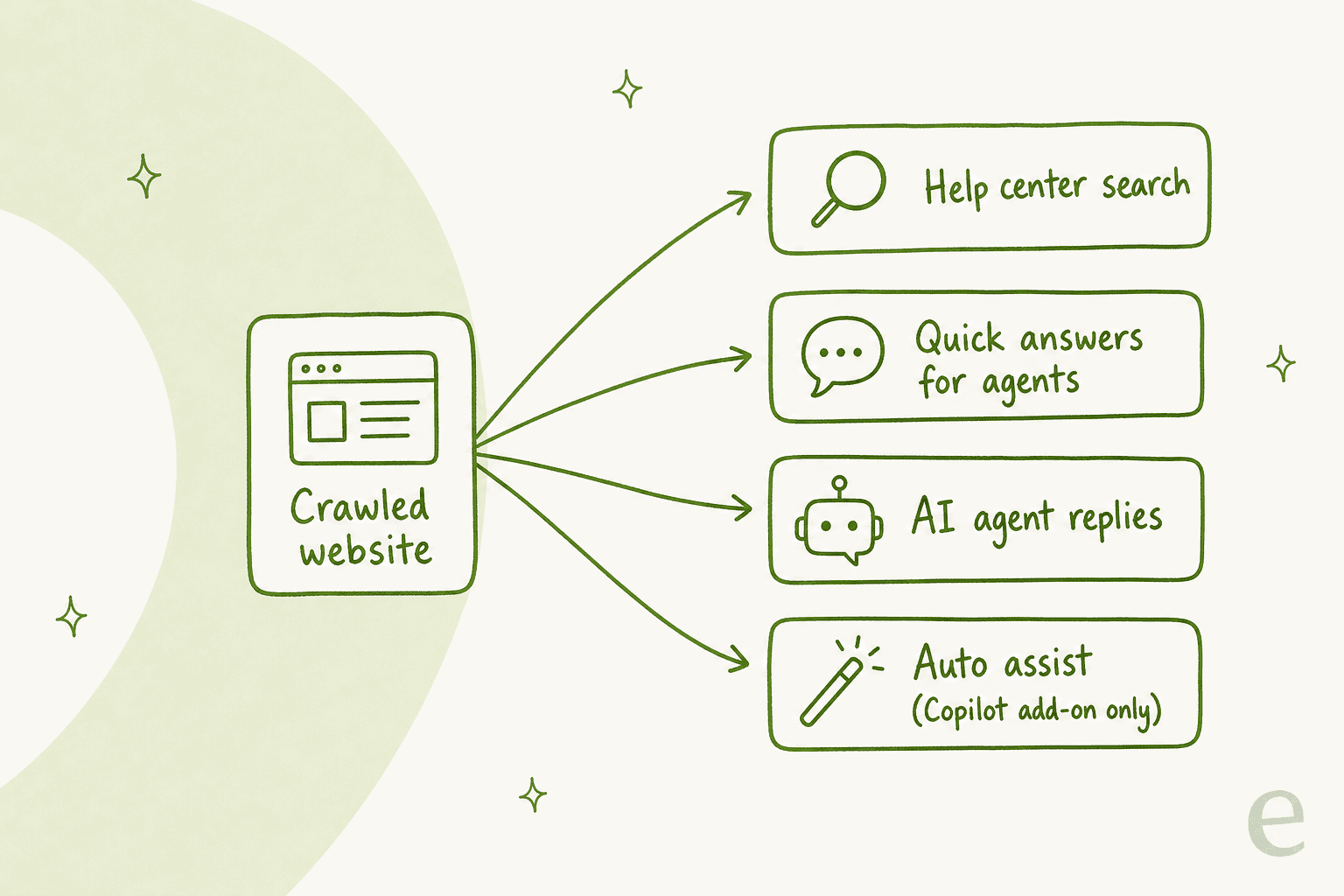
- Help center search. External results appear next to your articles, grouped by source (the conversational help center builds on the same sources). With generative search on, external content also feeds the AI answer above the results.
- Knowledge in Agent Workspace. If quick answers are on, agents get AI answers in the context panel from external content, once you add it to the default search filters.
- AI agent replies. External content is available to AI agents at the Essential and Advanced levels. My Advanced vs Essential comparison and the new AI agent guide cover the difference.
- Auto assist (Copilot add-on only). Auto assist can use external content as extra sources for drafted replies. See Zendesk Copilot.
One point worth saying out loud: Zendesk's outside-the-help-center article states that AI agents do not search live data or the internet in real time. They use the imported copy. So a price change on your website is invisible to the AI agent until the next crawl, and Weekly by default means up to a week of stale answers. Zendesk also recommends keeping the number of knowledge sources "reasonable", because too many can reduce accuracy and increase latency. For the underlying idea, see retrieval-augmented generation.
What are the limits?
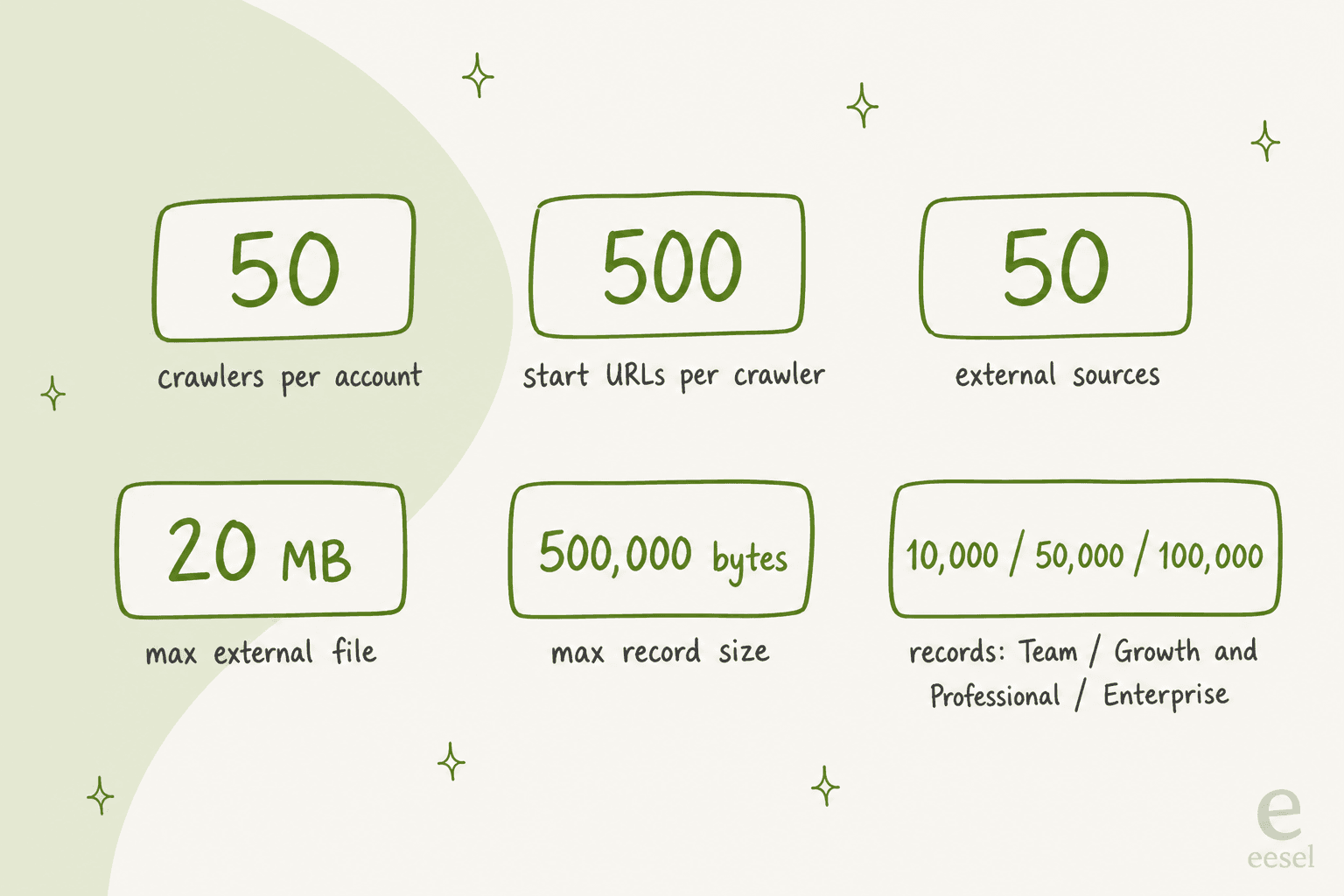
Zendesk's limits article puts the crawler in the external content tier, and the numbers are tighter than you might guess.
| Limit | Maximum |
|---|---|
| Crawlers per account | 50 |
| Start URLs per crawler | 500 |
| External sources (all types) | 50 |
| External file size | 20 MB |
| External record size | 500,000 bytes |
| Record title length | 255 characters |
| External types | 20 |
| External records | 10,000 (Team), 50,000 (Growth and Professional), 100,000 (Enterprise) |
The 50-source cap is shared across crawlers and knowledge connectors, so an account with a Confluence space, a Google Drive and a few crawlers uses it faster than it looks. If you are on Team with 10,000 records, a large docs site can hit the ceiling by itself.
Where do Zendesk's own docs disagree?
Four places, and I would verify each one in your own account. I found all four by reading the live articles and their comments in November 2026.
| Topic | One page says | Another page says |
|---|---|---|
| Crawl depth | "four levels deep" in the body of the crawler article | "up to 14 levels deep" in the same article's Q&A; the URL discovery screen says wildcards match "up to 5 levels deep" |
| Refresh rate | Weekly default, set by you | The legacy AI agent article, edited June 29, 2026, says "every 30 minutes" |
| Authentication | Sites "must be public (non-authenticated)" | The outside-the-help-center article lists "public or authenticated websites" |
| Settings after migration | New crawlers use adaptive crawling only | Max pages, depth and proxy are "not configurable yet" and imported crawlers keep old values |
Customers notice. One commenter on the crawler article described the gap between the documented 30 minutes and what their crawlers actually did:
"Since our first crawlers were set up in 2023, and until 18 December 2025, the crawlers ran about twice a day (every 12 to 14 hours). Since 19 December, this is no longer the case: they now run every 2 to 4 days."
Another questioned why robots.txt rules affect what the crawler can index:
"Just because we don't want AI tools crawling certain pages doesn't mean those should be excluded from our help center search or from allowing our AI Agent to use them."
My read: treat the refresh rate on your Crawlers page as the truth, and check "Last crawl" in the list rather than trusting any article.
What goes wrong in practice?
The failures I see are about scoping, not about the crawler being broken. Three come up the most.
One platform, several brands. Nordbutiker sells e-bikes and mobility scooters in Sweden, Norway, Denmark and Finland, with a bot per brand and country running on Zendesk. Its first setup hit a classic problem: crawling one brand's site picked up every brand's sitemap, because the stores share a platform. Pointing each bot at its own sitemap fixed it. The same shape applies to Zendesk's crawler: if your sitemap covers every brand, use URL filters, or one crawler per brand with separate start URLs, so a Danish customer does not get a Swedish product page. My multi-brand help center guide covers the Zendesk side.
Login-gated knowledge. When the AI cannot answer, escalation rules decide what happens next. In eesel sales calls, a hardware support team asked for a Zendesk copilot trained on past tickets and the knowledge base, plus a chat bubble that cites sources, and also wanted crawling of a login-gated help center. That is why the public-only rule matters: if the answer sits behind a login, plan on Confluence, Google Drive or another connector instead. My guides to the Confluence and Google Drive integrations are the next stop.
Stale and missing pages. A weekly snapshot goes quiet when a page is removed or when a sitemap lists pages that return errors. Run knowledge gap analysis to see which questions the crawled content fails to answer, and read the AI agent conversation logs for the wrong answers.
If you have an older crawler (test any change in a sandbox first), Zendesk's migration to its new web crawler infrastructure changes things: crawlers set to Never are not imported (the content stays as an external record), proxy and depth settings are frozen at their old values, and the crawler name must now be unique per account. If you plan to delete and recreate one, Zendesk warns that custom HTML filtering, click-element actions and residential proxies are not available yet, so you may get less content on the fresh copy.
Is the crawler enough, or do you need something else?
The crawler is enough when your answers live on a public website, you are happy with a weekly or daily snapshot, and you want to stay inside Zendesk's own AI. It is the cheapest way to add website knowledge, since the crawler itself carries no listed fee.
I would look further in three cases. First, when you need knowledge that is not public, which the crawler cannot reach. Second, when you want the AI to learn from solved tickets and macros too, not only pages: smava runs eesel on one Zendesk with about 820 macros and help center articles synced, plus a category map its team wrote. Third, when you want to preview answers before they reach customers. My Zendesk AI vs eesel comparison and the alternatives roundup go through where each fits, and my guide to training AI on a knowledge base covers the mechanics.
If you do keep the Zendesk crawler, two habits help. Name each crawler after what it covers, because the name shows to end users as the source. And start with Sync only specified URLs on your 20 most-asked pages before you let it loose on a whole site. Check results with search keywords and your self-service deflection numbers.
Try eesel for Zendesk
eesel works like a new hire for your Zendesk queue: it plugs into Zendesk, reads your help center, macros, past tickets and website pages, and drafts or sends replies, with a person approving anything sensitive. You choose which sources it can read, so a crawled site, a help center and solved tickets can sit side by side instead of competing for 50 source slots. See the Zendesk integration and pricing.
Frequently Asked Questions
What is the Zendesk web crawler?
It is a Knowledge admin tool that crawls and indexes public external websites so their pages can be used as external content in help center search, quick answers and AI agents. Zendesk describes it in its web crawler article. My Zendesk AI search guide covers the search features that consume it.
How often does the Zendesk web crawler run?
You pick Never (one-time), Daily, Weekly or Monthly, and Weekly is the default. One older Zendesk article still says crawlers refresh every 30 minutes, so I would trust the setup screen. For the wider picture on keeping answers current, see detecting outdated help center content.
Can the Zendesk web crawler index pages behind a login?
Zendesk's crawler article says external sites must be public (non-authenticated), although another Zendesk article lists "public or authenticated websites". Plan on public pages only and test before you rely on gated content. Confluence and Google Drive have their own connectors, covered in my Confluence integration guide.
Does the Zendesk web crawler cost extra?
Zendesk's crawler articles list no separate fee. You need an eligible plan, and external content counts toward your data storage. The AI agents that use it are billed through automated resolutions, so see my Zendesk AI pricing breakdown.
How many pages can the Zendesk web crawler index?
Each crawler takes up to 500 start URLs, an account can have 50 crawlers, and external records cap at 10,000 on Team, 50,000 on Growth and Professional, and 100,000 on Enterprise. Check the Suite plan comparison to see which tier you are on.
Why is my Zendesk web crawler not finding pages?
The usual causes are a firewall blocking the Zendesk/External-Content user agent, gzip-compressed sites, an exclude filter that matches too much, or a locale the crawler cannot match. My fallback message guide shows what customers see when the agent finds nothing.
Can an AI agent use the crawled content?
Yes. Zendesk says external content is available to AI agents at the Essential and Advanced levels, and agents use the synced copy, not live internet search. See Advanced vs Essential for the difference between the two levels.
What is a good alternative if I need more control over website knowledge?
If you need per-brand sitemaps, ticket history or per-source control, an AI teammate that sits on top of Zendesk can learn from your site directly. eesel's Zendesk integration does this, and my Zendesk AI vs eesel comparison lays out the trade-offs.