Supporting customers in their native language is not just a nice-to-have anymore. It is a competitive advantage that can significantly improve customer satisfaction and reduce support costs. If you are using Zendesk, you have access to a robust multilingual support system. But setting it up properly requires understanding how the pieces fit together.
This guide walks you through configuring Zendesk for multi-language support, from adding languages to managing translations at scale. We will also look at how modern AI-powered alternatives can simplify the process.

What you'll need to get started
Before diving into configuration, make sure you have the following in place:
- Zendesk Support account with Growth, Professional, Enterprise, or Enterprise Plus plan (Team plan has limited multilingual features)
- Admin Center access to configure language settings and dynamic content
- List of languages your customers actually need (more on choosing these later)
- Translation resources or budget for third-party translation apps
The key thing to remember is that not all Zendesk plans offer the same multilingual capabilities. Dynamic content, which is essential for automated translations, requires at least the Growth plan.
Step 1: Configure your account language settings
The first step is telling Zendesk which languages you want to support. This affects everything from your agent interface to automated email notifications.
Navigate to Admin Center > Account > Appearance > Localization. Here you will set your default language (what agents see by default) and add additional languages for your customers.
To add a language:
- Click the Account icon in the sidebar, then select Appearance > Localization
- In the Additional languages section, select or search for your target language from the dropdown
- Click Add for each language you want to support
- Click Save when finished
Your language settings are used throughout Support to help manage your workflow. For example, you can create automations or triggers that route tickets based on the requester's language.
Important: Agents always see the complete list of supported languages for the Support UI, regardless of your account's language settings. But end users can only select from the languages you have explicitly added.
Step 2: Enable languages in your help center
Once you have configured languages in Support, you need to enable them in your Help Center (Zendesk Guide) so customers can access self-service content in their preferred language.
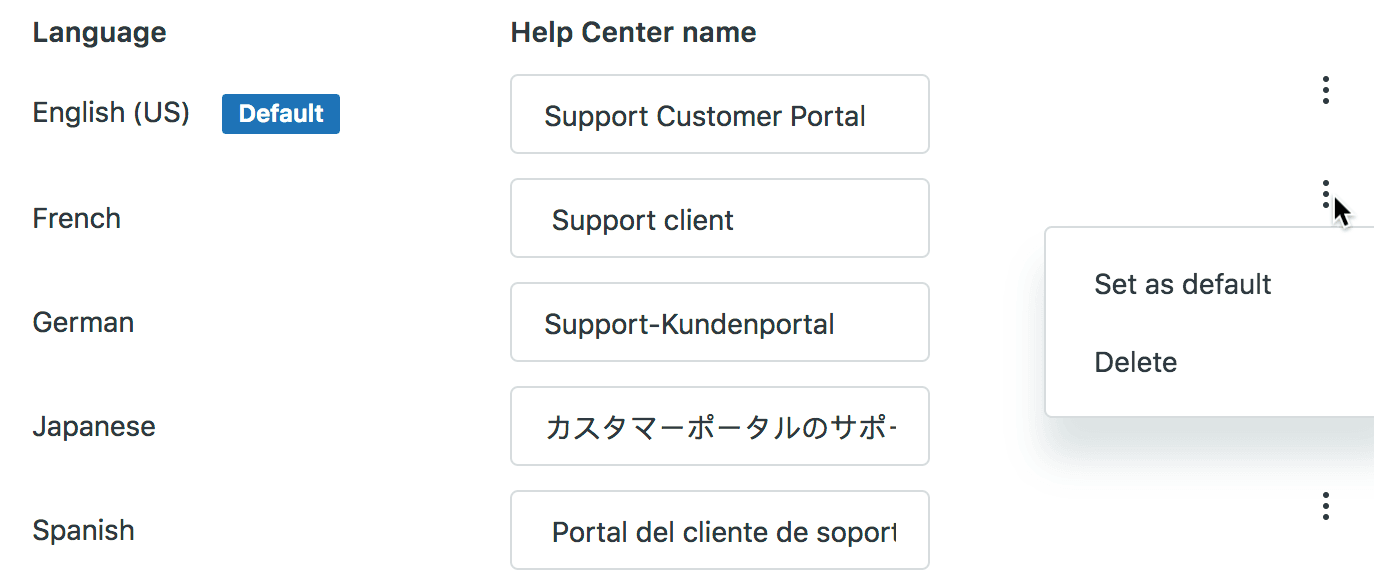
The process involves:
- Access your Guide admin settings
- Enable the same languages you configured in Support
- Set up language-specific URLs or subdomains if needed
- Configure the language switcher so end users can select their preferred language
When an unregistered end user selects a language in the help center, the support request form and all content display in that language. When they submit a request, Zendesk identifies the language and flags their profile accordingly.
Pro tip: Test the language detection by opening your help center in an incognito browser with different language settings. This helps you understand what your customers experience.
Step 3: Create dynamic content for translations
Dynamic content is the backbone of Zendesk's multilingual support. Instead of writing static text in your macros, triggers, and automations, you create placeholders that automatically display the correct language variant based on the user's preference.
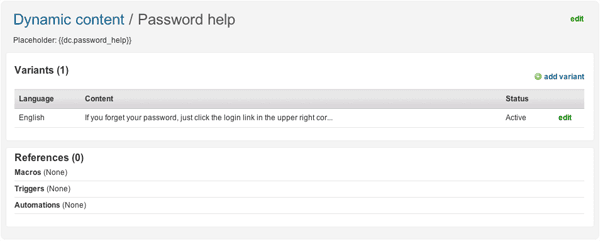
Here's how it works:
- Navigate to Admin Center > Workspaces > Agent tools > Dynamic content
- Create a new placeholder with a default version (typically in your primary language)
- Add language variants for each supported language
- Reference the placeholder using syntax like
{{dc.password_help}}in your business rules
For example, instead of hardcoding "If you forget your password, click the reset link" in a macro, you would:
- Create dynamic content called
password_help - Add the English text as the default
- Add French, Spanish, German (or whatever languages you support) as variants
- Use
{{dc.password_help}}in your macro
When the macro is applied to a ticket, the content automatically appears in the requester's language. If their language is not one of your supported languages, the default variant is used.
Best practices for organizing dynamic content:
- Use descriptive names that indicate the content's purpose (e.g.,
welcome_message,refund_policy) - Group related content with consistent naming conventions
- Document which placeholders are used where to avoid confusion
- Regularly audit unused placeholders
Step 4: Set up language detection and routing
Now that your content can display in multiple languages, you need to ensure tickets reach agents who can handle them. Zendesk provides several ways to detect and act on language preferences.
How Zendesk detects user language:
- Email: The language in an end user's email support request is automatically detected
- Help Center: When a user selects a language, their profile is updated
- Web Widget: Zendesk can detect preferred language from the browser's accept-language header
- Manual: Agents with user management permissions can set a user's language preference
To route tickets by language, use the Requester's language condition in your triggers and automations. This condition is available in automations, reports, triggers, and views.
For example, you can create a trigger that:
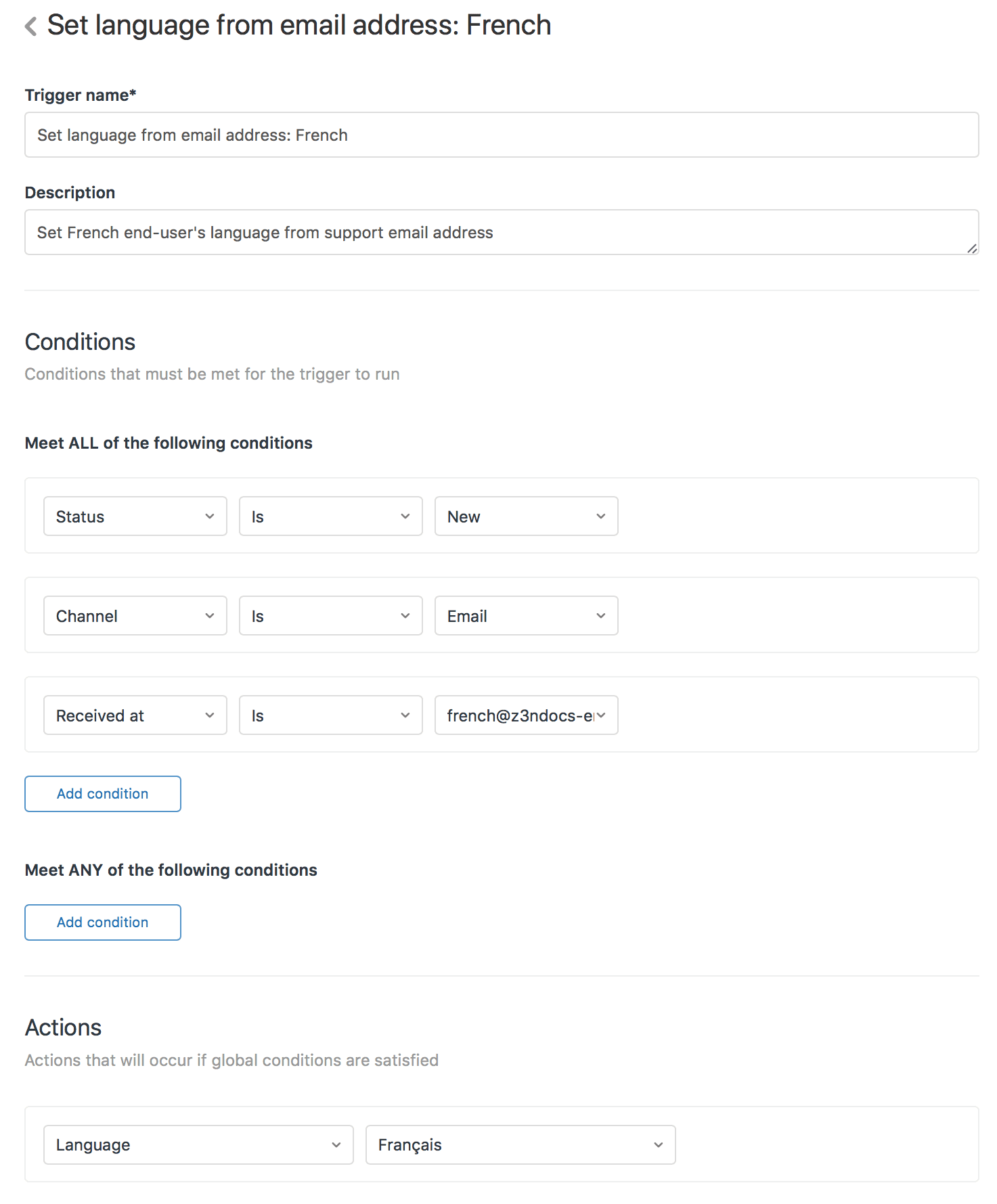
- Checks if the requester's language is French
- Automatically assigns the ticket to your French support group
- Sends an automated response using dynamic content in French
You can also use the Set requester's language to action in automations and triggers to explicitly set a user's language based on specific criteria.
Managing translations at scale
As your knowledge base grows, managing translations becomes increasingly complex. Here are strategies for handling translations efficiently:
Export/import workflow
Zendesk allows you to export dynamic content as CSV files, send them to translation agencies, and import the translated versions back. This is ideal for large-scale translation projects.
Source: https://support.zendesk.com/hc/en-us/articles/4408894053530
Translation apps
The Zendesk Marketplace offers apps like Help Center Translate by Swifteq that use AI to automatically translate articles. These tools can:
- Translate to 50+ languages automatically
- Maintain HTML formatting including links and images
- Provide custom glossary integration for consistent terminology
- Handle partial translations for content updates
Quality assurance
- Establish a review process for translated content
- Use native speakers to verify automated translations
- Maintain a glossary of brand-specific terms
- Regularly audit translations for accuracy and consistency
A modern alternative: AI-powered multilingual support
While Zendesk's dynamic content system is powerful, it requires significant manual effort to maintain. Every new piece of content needs translations. Every update requires changes across all language variants. For teams supporting many languages, this overhead adds up quickly.
This is where AI-powered solutions like eesel AI offer a different approach. Instead of pre-translating every possible response, AI agents can understand and respond to customers in their native language automatically.
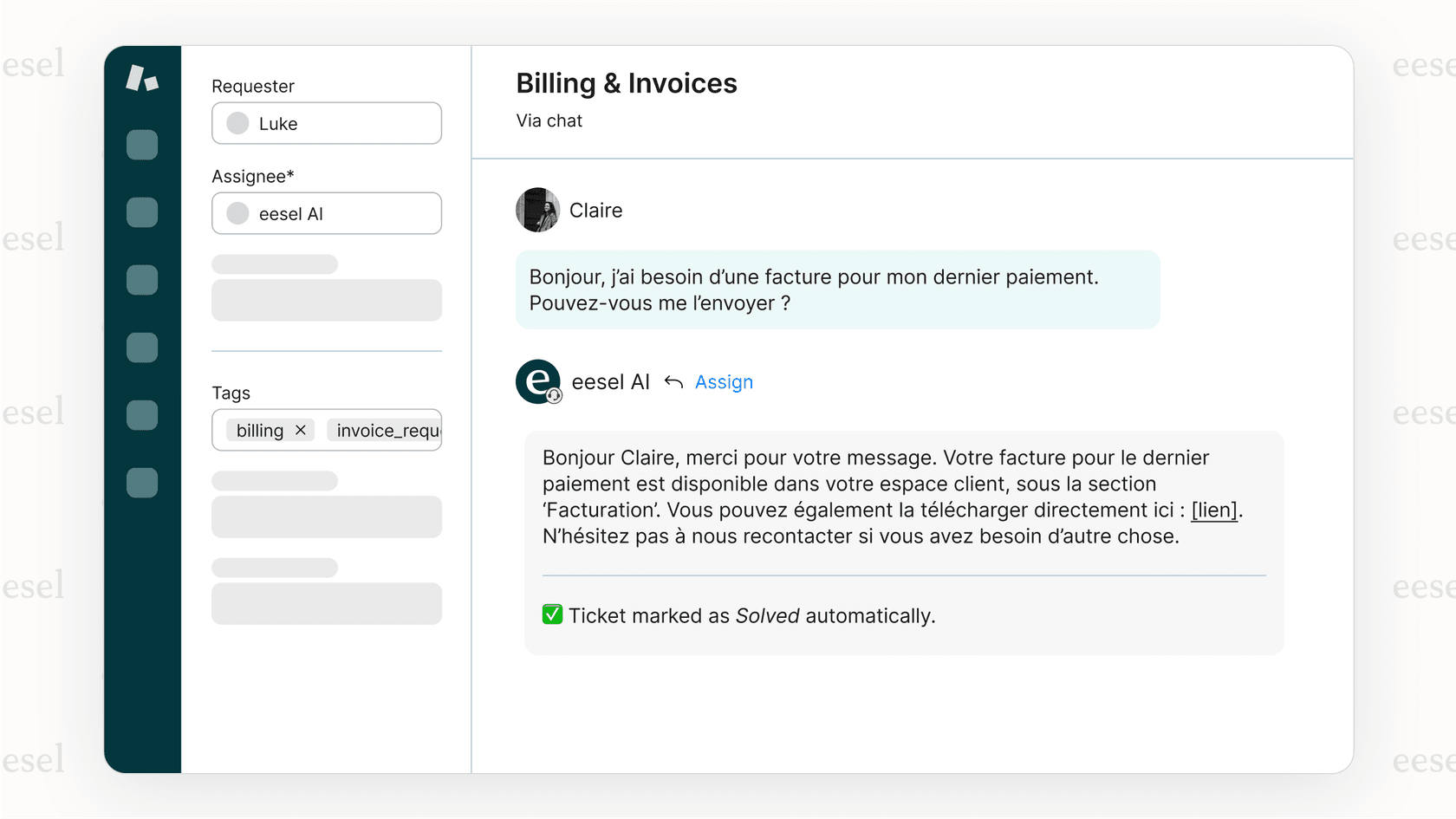
How it works:
- Connect eesel AI to your help desk (including Zendesk)
- It learns from your existing tickets, help center articles, and macros
- When a customer writes in any supported language, the AI responds in that same language
- No manual translation of dynamic content required
The key difference is that traditional dynamic content is push-based (you pre-translate everything), while AI-powered support is pull-based (the AI generates responses on demand in the appropriate language).
For teams already invested in Zendesk, eesel AI integrates directly and can work alongside your existing setup. You might use Zendesk's native multilingual features for system messages and high-volume standardized responses, while AI handles the variable, conversational aspects of support.
Start supporting customers in their language
Setting up a multi-language help center in Zendesk takes effort, but the payoff is significant. Customers who can access support in their native language are typically more satisfied and require fewer follow-up interactions.
To recap the key steps:
- Configure your account language settings in Admin Center
- Enable the same languages in your Help Center
- Create dynamic content placeholders for all customer-facing text
- Set up language detection and routing rules
- Establish a workflow for managing translations at scale
If you are finding the manual translation overhead overwhelming, or if you want to explore how AI can handle multilingual support more dynamically, consider trying eesel AI's AI agent for Zendesk. It works with your existing Zendesk setup and can significantly reduce the maintenance burden of supporting multiple languages.
The bottom line? Your customers want to communicate in their preferred language. Whether you use Zendesk's native tools, third-party translation apps, or AI-powered solutions, the investment in multilingual support pays dividends in customer satisfaction and loyalty.