A well-organized help center can transform how your customers find answers. Instead of waiting for an agent, they get instant solutions. That's exactly what Zendesk Help Center (also called Zendesk Guide) delivers. It's the knowledge base component of Zendesk's customer service platform, designed to help you create, organize, and publish self-service content.
This guide covers everything you need to know to get started with Zendesk help center basics. We'll walk through setup, content organization, customization, and how AI tools can take your knowledge base to the next level.
What is Zendesk Help Center (Guide)?
Zendesk Help Center is the knowledge base and self-service arm of the Zendesk platform. Think of it as a digital library where you store answers to common questions, how-to guides, troubleshooting steps, and product documentation.
It works alongside Zendesk Support, the ticketing system. While Support handles one-on-one customer conversations, Help Center empowers customers to find answers on their own. The two systems are deeply integrated. When an agent views a ticket, they see relevant help center articles suggested automatically. When a customer searches your help center, they can still escalate to a ticket if needed.
The core components include:
- Knowledge base Your collection of help articles, FAQs, and documentation
- Community forums Customer-to-customer discussions (optional feature)
- Customer portal Where customers track their tickets and interact with your team
- AI-powered search Generative search that surfaces relevant answers instantly
Businesses use Zendesk Help Center because it reduces ticket volume, provides 24/7 self-service availability, and creates a single source of truth for both customers and agents. Companies like Squarespace report a 95% self-service success rate using Zendesk Guide, while Tesco handles 5 million annual help center visits.
For teams looking to enhance their Zendesk setup further, eesel AI integrates with Zendesk to add intelligent article suggestions and automated content creation.
Setting up your Zendesk Help Center
Getting started with Zendesk Help Center is straightforward. Here's how to set up your knowledge base from scratch.
Accessing Guide admin settings
To enable and configure your help center, start in the Admin Center. Navigate to Channels > Guide from the main menu. If Guide isn't yet enabled for your account, you'll see an option to activate it.
Once enabled, configure your basic settings:
- Default language Set the primary language for your content (you can add more languages later on higher-tier plans)
- Help center visibility Choose between public (anyone can view), restricted (signed-in users only), or internal (agents only)
- Web portal settings Enable or disable the customer portal where users can track their tickets
Creating your first article
With Guide enabled, it's time to create content. Navigate to the Knowledge Capture app or the Guide admin section and click "Add article."
The article editor uses a WYSIWYG interface that works like familiar word processors. You can format text with headings, bold, italics, and lists; insert images, videos, and code blocks; add tables for structured data; and embed links to other articles or external resources.
Start with a simple article. Pick a frequently asked question from your support queue and write a clear, step-by-step answer. Keep paragraphs short and use bullet points for scannable instructions.
Publishing and visibility options
Before publishing, you'll set visibility permissions. Articles can be:
- Public Visible to anyone, including search engines
- Signed-in users Only visible to registered users
- Agents only Internal documentation for your team
You can also save articles as drafts while you work on them. Drafts aren't visible to anyone until you publish. Once published, articles can be updated anytime, and Zendesk keeps a revision history so you can track changes.
Organizing your knowledge base content
A well-organized help center is easy to navigate. Zendesk Guide uses a three-level hierarchy to structure content.
Understanding the content hierarchy
The structure flows from broad to specific:
- Categories Top-level containers (e.g., "Getting Started," "Account Management")
- Sections Sub-categories within categories (e.g., under "Getting Started": "Installation," "Setup")
- Articles Individual pieces of content
Best practices for structure include keeping categories broad (5-7 main categories is a good target), using clear customer-centric names rather than internal jargon, and limiting nesting to avoid overwhelming users. For example, an e-commerce company might use categories like "Orders & Shipping," "Returns & Refunds," "Account Settings," and "Product Help."
Creating categories and sections
To build your structure, go to Guide admin > Arrangement. Here you can add new categories and sections, drag to reorder them, and move articles between sections.
Start with the categories that cover your most common support topics. You can always add more later as your knowledge base grows. The key is to create a structure that matches how your customers think about your product, not how your internal teams are organized.
Content strategy tips
When creating content, start with your FAQs and most common issues. Look at your support tickets from the last 30 days. Which questions come up repeatedly? Those are your first articles.
Use clear, searchable titles. Instead of "Overview," write "How to reset your password." Instead of "Troubleshooting," write "What to do if your order hasn't arrived." Include relevant keywords naturally so customers can find articles through search.
Customizing your Help Center appearance
Your help center should feel like an extension of your brand, not a generic template.
Theme options overview
Zendesk Guide comes with the Copenhagen theme as the default. It's clean, modern, and mobile-responsive out of the box. For teams wanting more control, custom themes are available on higher-tier plans.
The Copenhagen theme works well for most businesses. It includes responsive design that works on desktop and mobile, built-in search functionality, clean article layouts with table of contents, and integration with the customer portal.
Branding and customization
Even on the Team plan, you can customize basic branding elements:
- Upload your company logo
- Set your brand colors for headers, links, and buttons
- Customize the header and footer text
- Add custom CSS for styling adjustments
On Professional and Enterprise plans, you get deeper customization options including custom themes, HTML template editing, and the ability to create multiple help centers with different branding.
Making content discoverable
A beautiful help center is useless if customers can't find answers. Focus on search optimization within Guide:
- Use descriptive article titles that match the words customers actually use
- Add labels to articles to improve search relevance
- Promote your most popular articles on the homepage
- Monitor search analytics to see what customers are looking for
Zendesk's AI-powered search on higher-tier plans automatically surfaces the most relevant articles based on the customer's query, making discoverability even easier.
Zendesk Help Center pricing and plans
Help Center features vary by plan. Here's what you get at each tier:
| Plan | Annual Price | Help Center Features |
|---|---|---|
| Support Team | $19/agent/mo | Not included (ticketing only) |
| Suite Team | $55/agent/mo | 1 help center, basic themes, 1 language |
| Suite Professional | $115/agent/mo | Up to 5 help centers, custom themes, 40+ languages |
| Suite Enterprise | $169/agent/mo | Up to 300 help centers, advanced customization, multiple templates |
Key differences to note:
- Help Center is only available on Suite plans, not the basic Support plans
- Multiple help centers (for different brands or products) require Professional or higher
- Advanced customization and custom themes start at Professional
- Multilingual support requires Professional or Enterprise
Zendesk offers a 14-day free trial with access to Suite Professional features, giving you full access to test the help center capabilities before committing.
Enhancing your Help Center with AI
AI is transforming how knowledge bases work. Zendesk has built AI features directly into Guide, and third-party tools can add even more capabilities.
Native Zendesk AI features
Zendesk includes several AI-powered features in Guide:
- Knowledge Builder Generates articles from short notes or bullet points using generative AI
- Generative Search Provides direct answers to customer questions rather than just article links
- Content Suggestions Recommends relevant articles to agents while they work on tickets
- Article Translation Automatically translates content for global audiences
These features are included in all Suite plans and can significantly reduce the time needed to build and maintain your knowledge base.
Third-party AI integrations
While Zendesk's native AI is powerful, specialized tools can take your help center further. eesel AI connects with Zendesk to enhance your knowledge base with smarter search, better article suggestions, and automated content creation from your existing support conversations.

Our AI Agent can learn from your help center content and past tickets to provide more accurate responses. Instead of just suggesting articles, it can understand context and guide customers to the right solution. For teams looking at AI options, our guide to the best AI chatbots for Zendesk covers the top solutions available.
AI content creation tips
To get the most from AI in your help center:
- Use AI to draft articles from your best-performing support ticket responses
- Regularly update outdated content with AI assistance
- Generate multilingual versions of your most important articles
- Let AI analyze search patterns to identify content gaps
Measuring Help Center success
You can't improve what you don't measure. Zendesk provides analytics to track your help center performance.
Key metrics to track
Focus on these metrics to understand how your help center is performing:
- Article views Which content gets the most traffic?
- Search activity What are customers searching for? Are they finding answers?
- Ticket deflection rate How many customers find answers without creating a ticket?
- Customer satisfaction scores Are customers happy with the self-service experience?
- Failed searches What terms return no results? This reveals content gaps.
Using analytics to improve
Review your help center analytics weekly to identify trends. Look for:
- Content gaps High search volume with no matching articles means you need new content
- Popular articles Your most-viewed articles should be prominently featured
- Underperforming content Articles with high bounce rates may need clearer writing
- Customer feedback Use ratings and comments to prioritize updates
Companies that actively monitor and optimize their help centers see significant results. Qualia achieved a 30% decrease in daily ticket volume by focusing on help center improvements.
Common mistakes to avoid when building your Help Center
Even experienced teams make these errors when launching a knowledge base:
- Over-organizing with too many categories Start simple. You can always add more structure later.
- Writing for agents instead of customers Use customer language, not internal jargon.
- Neglecting mobile experience Test your help center on phones. Many customers will access it there.
- Forgetting to update outdated content Set a schedule to review and refresh articles quarterly.
- Making search difficult Ensure your search bar is prominent and returns relevant results.
- Not integrating with your support workflow Your help center and ticketing system should work together seamlessly.
Getting started with your Zendesk Help Center today
Ready to launch your help center? Here's a quick-start checklist:
- Enable Guide in your Zendesk Admin Center
- Create 5-10 articles covering your most common support questions
- Set up a simple category structure (3-5 main categories)
- Customize branding with your logo and colors
- Publish and promote your help center to customers
- Monitor analytics and iterate based on what you learn
Building an effective help center is an ongoing process, not a one-time project. Start with the basics, measure what works, and expand over time.
For teams looking to accelerate their help center setup, invite eesel to your team. Our AI can analyze your existing support conversations to suggest content gaps, draft articles from your best responses, and help customers find answers faster.
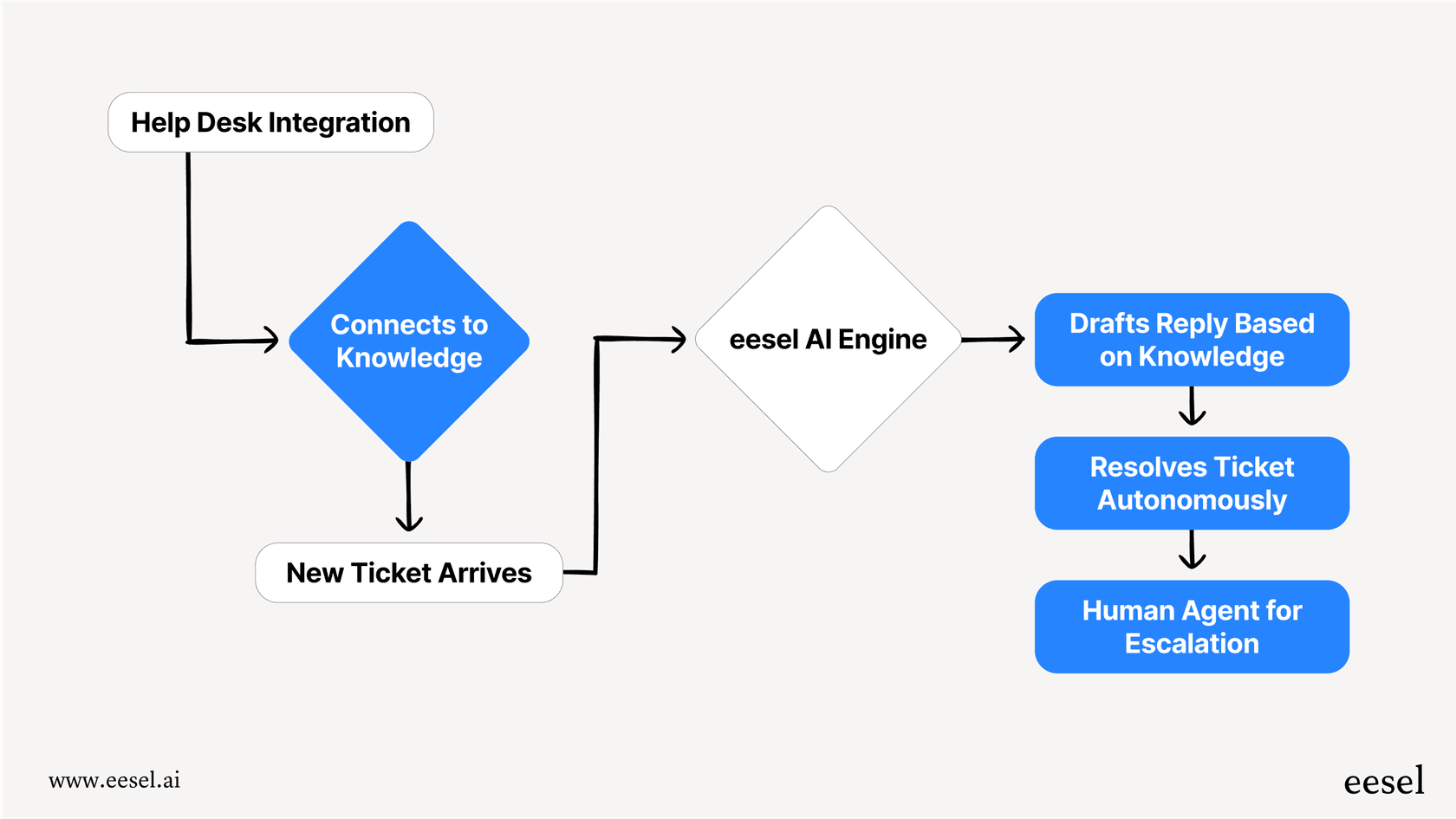
Combined with Zendesk Help Center, you get a powerful self-service solution that keeps improving over time.