A well-organized knowledge base can transform how your customers get help. Instead of waiting in queues or repeating themselves to agents, they find answers on their own, at any hour. Zendesk's knowledge base solution, called Zendesk Guide, sits at the center of this self-service approach. But getting started means understanding the fundamentals first.
This guide walks through the Zendesk knowledge base basics: what it is, how it works, and how to set it up properly. Whether you're new to Zendesk or looking to improve an existing help center, you'll find practical steps and best practices to build a knowledge base that actually helps your customers.
What is a Zendesk Knowledge Base?
A Zendesk knowledge base is a digital library of information about your products, services, and common customer questions. It's part of Zendesk's broader customer service platform and integrates directly with their ticketing system, AI agents, and agent workspace.
Think of it as a self-service hub where customers can find answers without contacting support. When someone has a question about shipping times, account settings, or troubleshooting steps, your knowledge base should have the answer ready.
Zendesk offers two types of knowledge bases:
-
External knowledge bases are customer-facing help centers. They include FAQs, how-to guides, troubleshooting articles, and policy documentation that anyone can access.
-
Internal knowledge bases are for your team only. They contain agent training materials, internal procedures, and technical documentation that helps your staff serve customers better.
The key difference comes down to access. External bases reduce ticket volume by letting customers help themselves. Internal bases improve agent efficiency by putting information at their fingertips. Many businesses run both.

Key Features of Zendesk's Knowledge Base
Zendesk has built several capabilities into their knowledge base to make content creation, organization, and discovery easier. Here's what you get:
AI-Powered Content Tools
Zendesk's Knowledge Builder uses generative AI to help create articles faster. You can turn short notes into full articles, expand on bullet points, or translate content into multiple languages. The AI can also identify gaps in your knowledge base by analyzing what customers search for but don't find.
Flexible Content Organization
Your knowledge base uses a three-level hierarchy: categories, sections, and articles. Categories are broad topics like "Getting Started" or "Billing." Sections sit within categories for more specific groupings. Articles are the actual help content. This structure helps customers navigate naturally while keeping your content organized as it grows.
Advanced Search Capabilities
The search function goes beyond simple keyword matching. Generative search understands context and intent, surfacing relevant answers even when customers don't use your exact terminology. On higher-tier plans, federated search can pull results from multiple help centers or even external sources like Confluence or Google Drive.
Granular Access Controls
User segments let you control who sees what. You might show certain articles only to VIP customers, hide internal documentation from the public, or create separate knowledge bases for different product lines. This flexibility matters when you have diverse customer groups or sensitive information.
Content Management Workflows
Team Publishing provides workflows for reviewing and approving content before it goes live. You can schedule articles to publish at specific times, set reminders to review outdated content, and track changes through version history. For larger teams, this prevents the chaos of multiple people editing simultaneously.
Analytics and Insights
Built-in reporting shows you what customers search for, which articles they view, and where they get stuck. This data helps you identify content gaps, improve popular articles, and measure the impact of your self-service efforts.
Setting Up Your Zendesk Knowledge Base
Getting your knowledge base running involves several steps. Here's how to approach it:
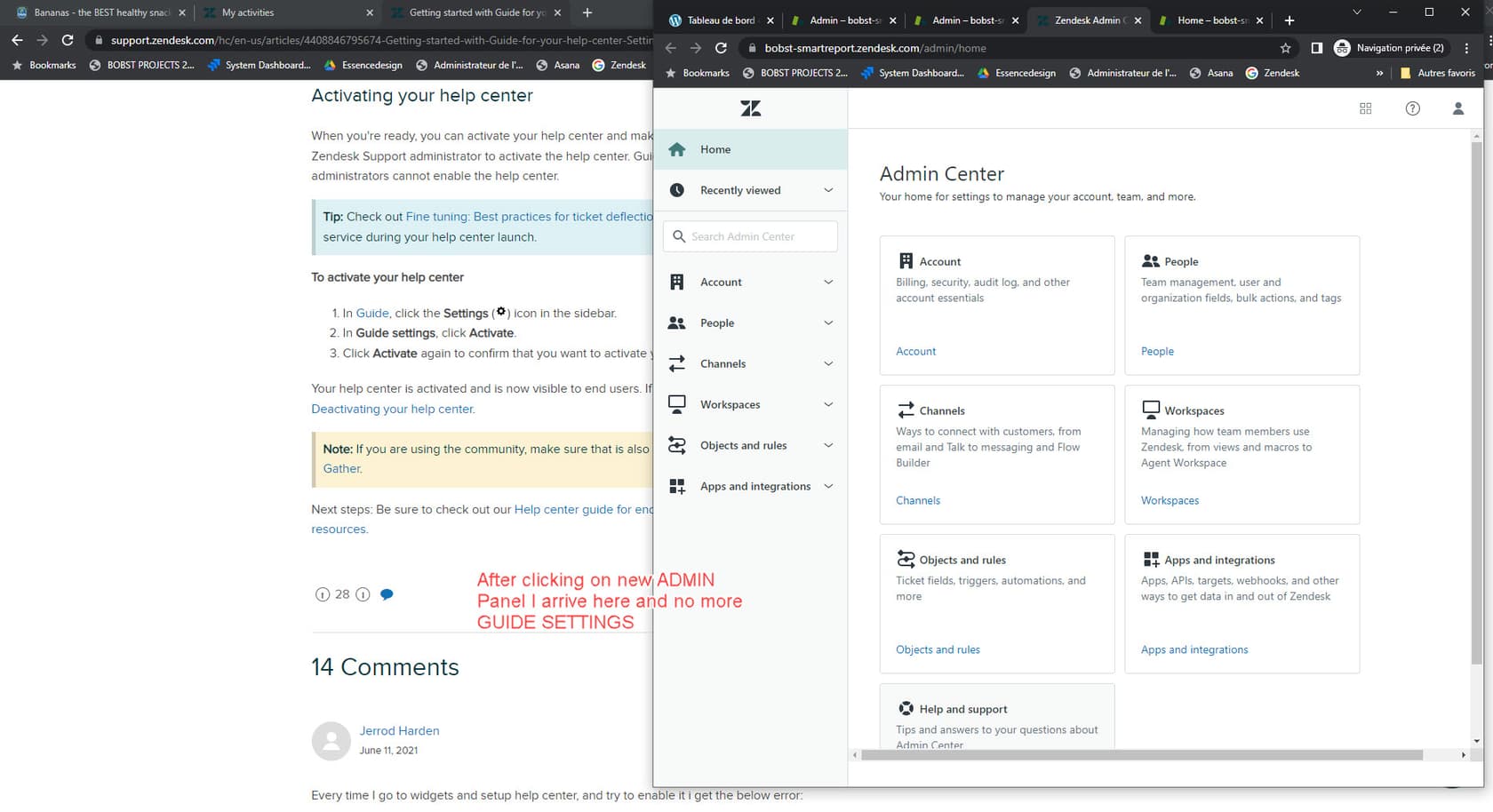
Step 1: Enable Guide and Configure Settings
Start in the Admin Center, navigate to Channels, then Guide. Enable the help center feature and configure basic settings like your help center name, default language, and branding colors. If you have a Suite Team plan or higher, you get one help center included. Professional plans support up to five, and Enterprise handles up to 300.
Step 2: Structure Your Content
Before writing articles, plan your information architecture. Start with broad categories that match how customers think about your product. A software company might use categories like "Account Management," "Features," and "Troubleshooting." An ecommerce store might organize by "Orders," "Shipping," and "Returns."
Within each category, create sections for specific topics. Under "Account Management" you might have sections for "Creating an Account," "Billing," and "Security." Keep the hierarchy shallow. Two levels deep works for most businesses. Only Enterprise plans support up to six levels, and deeper hierarchies often confuse customers more than they help.
Step 3: Create Your First Articles
Begin with your most common customer questions. Check your support tickets, chat transcripts, and customer emails to identify patterns. What do people ask about most? Start there.
When writing, use clear titles that match customer language. "How to reset your password" works better than "Password reset procedures." Keep articles focused on one topic each. Break up text with headings, bullet points, and screenshots where helpful. The WYSIWYG editor makes formatting straightforward.
Content blocks let you create reusable pieces of information. If you have a standard disclaimer or procedure that appears in multiple articles, create it once as a content block and insert it wherever needed. When you update the block, all articles using it update automatically.
Step 4: Set Up User Permissions
Decide who can see your content. By default, help centers are public. But you might want to restrict certain articles to signed-in users, specific customer groups, or internal staff only. User segments let you create these rules based on customer properties like organization, tags, or custom fields.
For agent permissions, you can control who can create, edit, and publish articles. This prevents unauthorized changes while letting subject matter experts contribute content safely.
Step 5: Customize Your Theme
Zendesk provides the Copenhagen theme as a standard option. You can customize colors, logos, and basic layout elements without touching code. For deeper customization, you can edit the theme's HTML, CSS, and JavaScript directly, or choose from themes in the Zendesk Marketplace.
Make sure your help center matches your brand. Customers should feel like they're still on your website, not visiting a different company. Consistent colors, fonts, and logos build trust.
Best Practices for Organizing Content
A knowledge base is only useful if customers can find what they need. Follow these practices to keep yours effective:
Start with customer pain points. Don't guess what articles to write. Look at your support data. Which tickets come up repeatedly? Which questions do agents answer most often? Build content around real customer needs, not what you think they should know.
Use searchable titles. Customers will use your search bar more than your navigation menu. Write article titles using the words customers actually type. "Forgot password" gets more searches than "Password recovery procedures."
Keep articles focused. One article, one topic. If you find yourself covering multiple unrelated issues, split them into separate articles. This makes content easier to find and update.
Update regularly. Outdated information frustrates customers and erodes trust. Set a schedule to review popular articles quarterly. Use article verification reminders to flag content that needs checking. When your product changes, update the knowledge base immediately.
Measure and improve. Check your analytics weekly. Which articles get the most views? What do customers search for that returns no results? Use this data to prioritize new content and improvements.
Measuring Knowledge Base Success
You need to know if your knowledge base is working. Zendesk provides several metrics to track:
Article views show which content attracts attention. High views mean customers are finding and using your articles.
Search terms reveal what customers look for. If many people search for something you don't have an article about, that's your next priority.
Self-service rate measures what percentage of customers find answers without creating tickets. Higher rates mean your knowledge base is doing its job.
Article feedback through voting helps identify content that needs improvement. If an article gets many downvotes, review and update it.
Set benchmarks based on your starting point. If your self-service rate is 20% now, aim for 30% in three months. Track progress monthly and adjust your strategy based on what the data shows.
Common Challenges and How to Overcome Them
Even well-planned knowledge bases face challenges. Here's how to handle the most common ones:
Content becomes outdated. Products change, policies update, and screenshots become obsolete. Combat this with scheduled reviews, article verification rules, and clear ownership. Assign someone responsibility for keeping specific sections current.
Search doesn't return relevant results. If customers can't find articles through search, they won't use your knowledge base. Review your article titles and content to ensure they include the words customers actually use. The AI-powered generative search helps, but clear, keyword-rich content still matters.
Low adoption rates. If customers keep submitting tickets for questions your knowledge base answers, they don't know it exists. Promote your help center in email signatures, ticket responses, and your website footer. Train agents to share article links instead of typing answers repeatedly.
Keeping internal and external knowledge synchronized. When procedures change, update both your customer-facing and internal documentation. Content blocks help here by letting you share standard information across multiple articles.
A Modern Approach to Knowledge Management
While Zendesk Guide provides solid knowledge base functionality, managing content manually takes significant effort. You need to identify gaps, write articles, keep everything updated, and ensure customers can find what they need. This is where AI-powered knowledge management can help.
eesel's AI for Zendesk takes a different approach. Instead of requiring you to build and maintain a traditional knowledge base, eesel learns from your existing content, wherever it lives. Connect it to your help center, Confluence, Google Docs, Notion, or past support tickets, and it immediately understands your business.
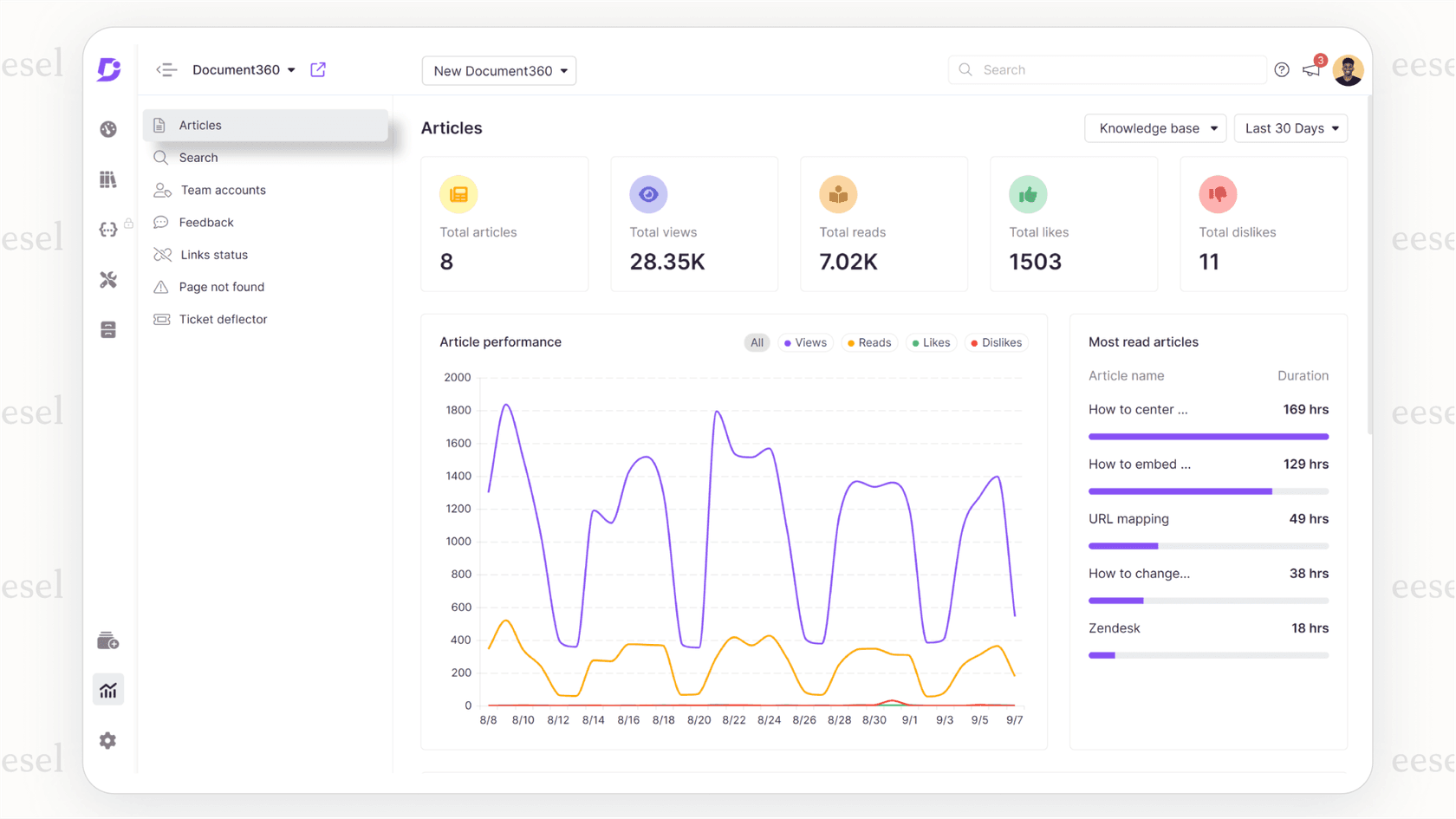
The difference is in how knowledge gets used. Rather than customers browsing articles, eesel AI provides direct answers drawn from all your connected sources. It can respond in your help desk, Slack, Microsoft Teams, or through a chat widget on your website. When information changes, eesel learns automatically. No manual updates needed.
For teams already using Zendesk, eesel integrates directly, augmenting your existing setup rather than replacing it. You get the structured knowledge base of Zendesk Guide plus AI-powered retrieval that surfaces answers from across all your documentation.
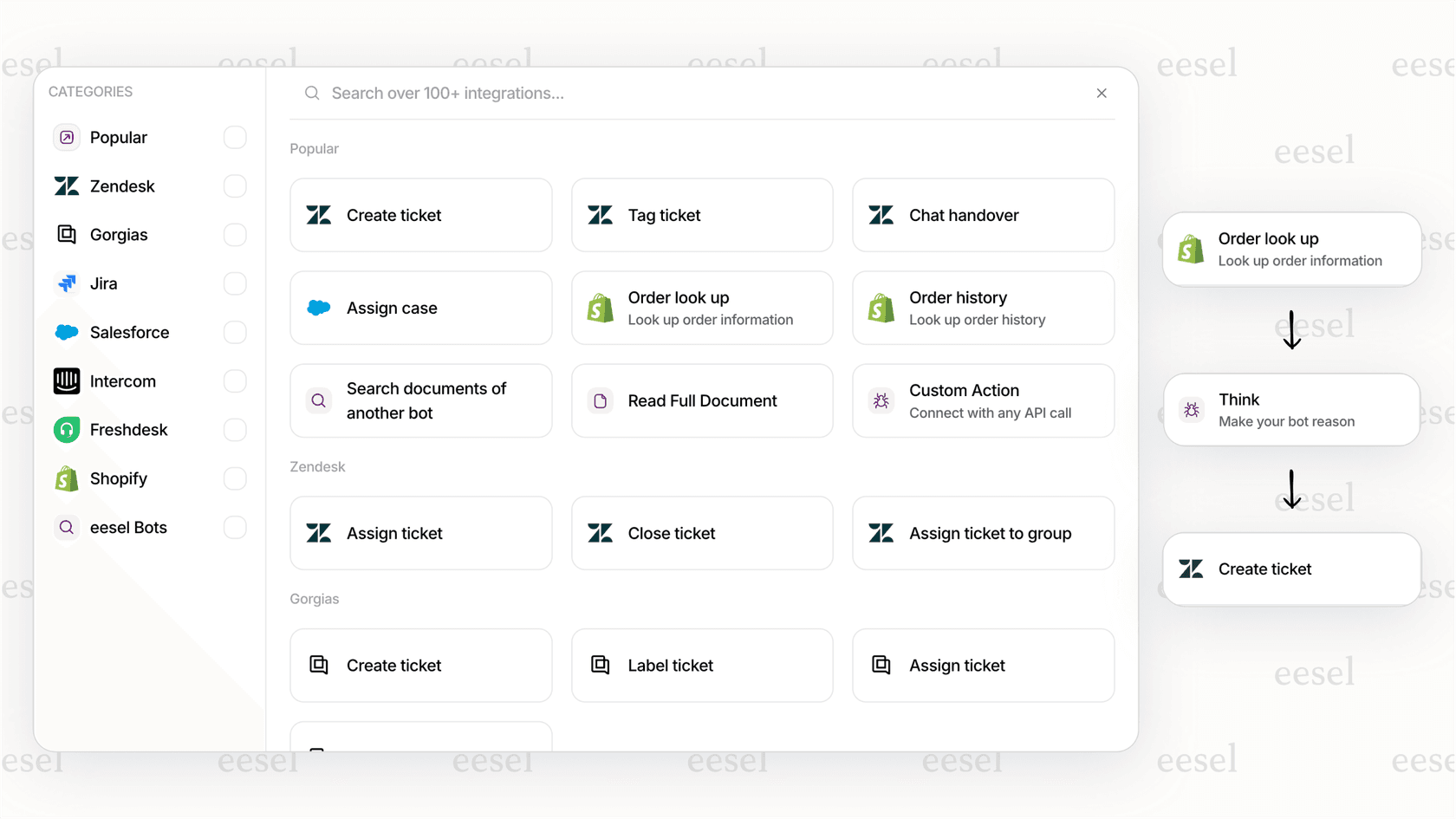
The result is faster resolutions and less time spent maintaining content. Mature deployments with AI-powered knowledge management see up to 81% of issues resolved autonomously. The typical payback period is under two months.