
A broken help center theme is frustrating for everyone. Your customers can't find answers, your support team fields unnecessary tickets, and you're stuck trying to figure out what went wrong.
The good news? Most Zendesk theme issues follow predictable patterns. Once you know how to diagnose them, fixes are usually straightforward. This guide walks you through identifying and resolving common theme problems step by step.
Understanding Zendesk theme types and their limitations
Before diving into troubleshooting, you need to understand what kind of theme you're working with. Zendesk offers three theme categories, and each handles updates and support differently.
Standard themes (Copenhagen) come pre-installed with your help center. They're maintained by Zendesk, receive automatic updates, and are fully supported. The trade-off? You can't edit the underlying code. You can customize colors, fonts, and branding through the settings panel, but you're limited to what Zendesk allows.
Custom themes are where things get more flexible. These are themes you've modified by editing templates, CSS, or JavaScript. You have complete control over the look and functionality. But here's the catch: once you customize, you're on your own. Zendesk won't support custom code, and updates won't apply automatically. Any new features Zendesk releases will need to be manually added to your theme.
Marketplace themes sit somewhere in between. These are third-party themes you purchase or trial from the Zendesk Marketplace. They often come with more design options than the standard theme, but quality varies significantly. Support comes from the theme developer, not Zendesk. Some marketplace themes are excellent; others are poorly coded and abandoned by their creators.
Knowing which type you have determines your troubleshooting approach. Standard theme issues are usually platform bugs. Custom theme issues are typically code-related. Marketplace theme issues could be either, plus potential problems introduced by the third-party developer.
Step 1: Isolate the issue with safe mode testing
The first question to answer: is this a Zendesk platform issue or something in your custom code?
Zendesk provides a simple way to find out. Append ?safe_mode=1 to your help center URL. This disables all custom JavaScript and CSS, loading only the base theme. If the problem disappears in safe mode, your custom code is the culprit. If it persists, you've got a platform issue that needs Zendesk support.
For a more thorough test, try the Copenhagen theme method:
- Go to Knowledge admin and click Customize design
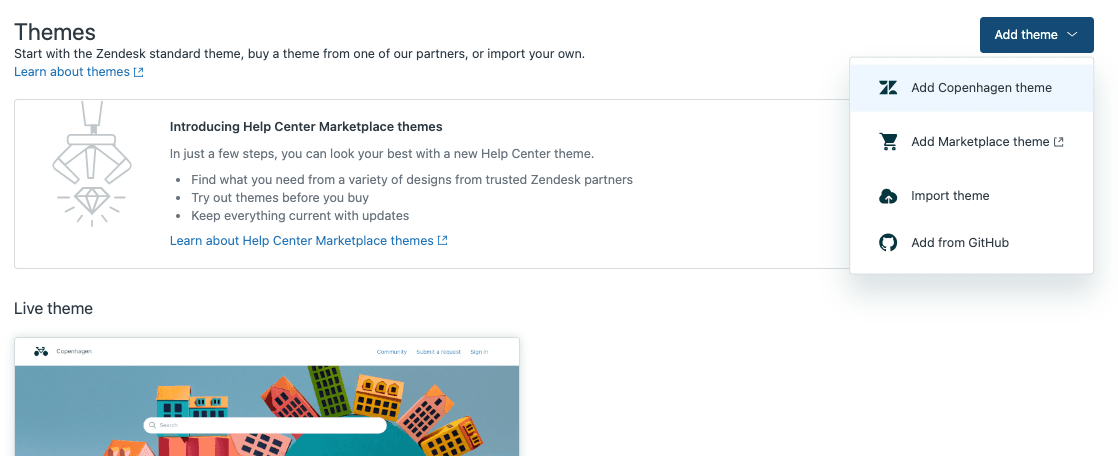
- Click Add theme and select Add Copenhagen theme
- Find the new Copenhagen theme in your library and click Customize
- Click Preview and check if the issue occurs
If the problem exists in the default Copenhagen theme, contact Zendesk Customer Support. If it only appears in your custom theme, the issue is in your code.
Step 2: Fix common display and layout problems
Display issues are the most common theme problems. Buttons that don't align, content that overflows its container, or layouts that break on mobile devices. These usually trace back to CSS conflicts or missing responsive design rules.
Start by opening your browser's developer tools (F12 in most browsers). Inspect the problematic element and look at the computed styles. Are your custom styles being overridden by something else? Check the CSS cascade to see what's winning the specificity battle.
Common CSS fixes include:
- Overflow issues: Add
overflow: hiddenoroverflow: autoto containers that are cutting off content - Alignment problems: Check your flexbox or grid properties. Missing
display: flexor incorrectjustify-contentvalues are frequent culprits - Mobile responsiveness: Ensure you're using media queries. Test at common breakpoints (768px for tablets, 480px for mobile)
- Z-index stacking: Elements appearing behind others often need explicit z-index values with proper positioning (relative, absolute, or fixed)
If you've added custom CSS through the theme editor, verify it's loading correctly. Sometimes CSS files cache aggressively. Try adding a version parameter to your CSS URL or clearing your browser cache.
For JavaScript-related display issues, check the browser console for errors. A single JavaScript error can prevent subsequent scripts from running, breaking interactive elements like dropdown menus or search suggestions.
Step 3: Resolve template and code editing issues
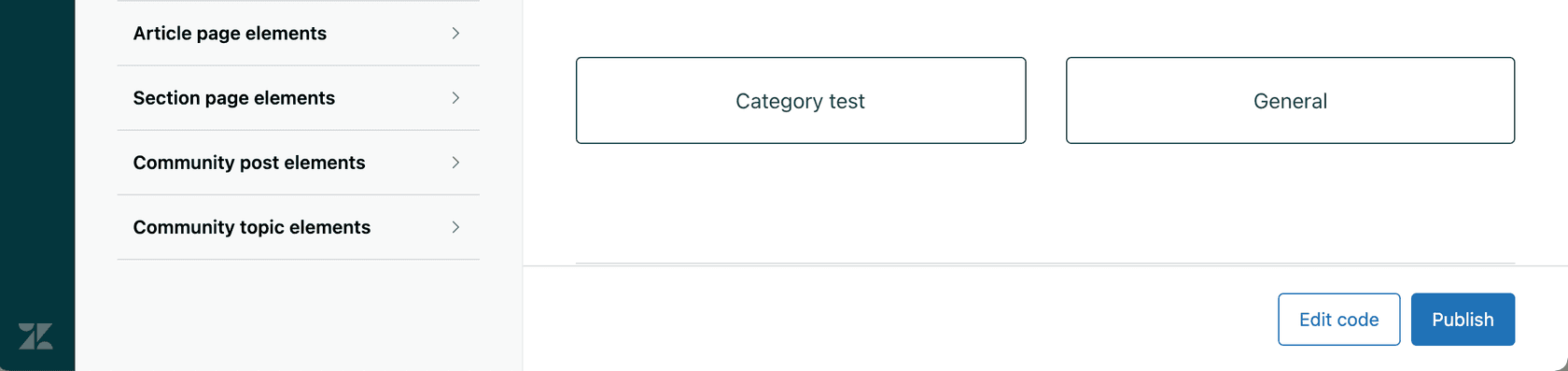
Template problems are trickier because they involve Zendesk's Curlybars templating language. If your code changes aren't reflecting in the preview or live theme, several things could be happening.
First, verify you're editing the correct template file. Zendesk themes use specific file names for different page types:
home_page.hbsfor the help center homepagearticle_page.hbsfor individual articlescategory_page.hbsandsection_page.hbsfor navigation pagesheader.hbsandfooter.hbsfor global elements
A common mistake is editing home_page.hbs when you actually need to modify category_page.hbs for section listings.
Syntax errors in Curlybars can also cause templates to fail silently. Check for:
- Missing closing tags for helpers like
{{#if}}or{{#each}} - Incorrect variable names (they're case-sensitive)
- Unescaped HTML that should use triple braces:
{{{content}}}instead of{{content}}
If your preview isn't showing changes, try a hard refresh (Ctrl+F5 or Cmd+Shift+R). Zendesk's preview can be aggressive with caching. Also verify you're previewing with the correct user role selected. Some content only appears to signed-in users or specific organizations.
For persistent preview issues, check the community post about template edits not working. Sometimes the only solution is to create a fresh copy of the theme and migrate your changes.

Step 4: Handle theme update and version conflicts
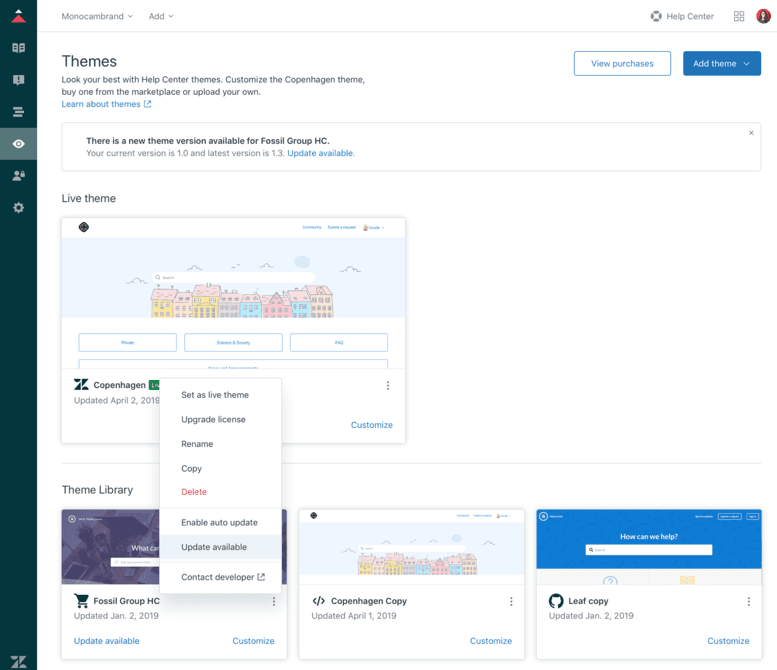
Theme updates can be a source of unexpected issues, especially with marketplace themes. When a developer releases an update, you might see a notification in your Themes page. But updating isn't always straightforward.
If you've customized a marketplace theme, updating will overwrite your changes. This is by design, protecting you from losing work. But it means you need a strategy for handling updates.
The recommended approach:
- Before customizing any marketplace theme, create a copy
- Apply your customizations to the copy, not the original
- Keep the original theme unmodified so it can receive updates
- When an update is available, review the release notes
- Update the original theme, then manually merge changes into your customized copy
For the standard Copenhagen theme, updates happen automatically unless you've customized the code. Once you edit templates, CSS, or JavaScript, you become responsible for maintaining those changes. New Zendesk features that require theme updates won't appear in your custom theme until you manually add them.
Prevention: Best practices for stable themes
The best way to fix theme issues is to prevent them. A few habits can save you hours of troubleshooting.
Test in sandbox first. Zendesk provides a sandbox environment for a reason. Major theme changes should never go straight to production. Build and test in sandbox, then deploy when you're confident.
Use version control. Download your theme regularly and store it in Git or another version control system. When something breaks, you can quickly identify what changed and roll back if needed.
Get stakeholder approval. Before deploying theme changes, get buy-in from the people who matter. Support managers, marketing teams, and customer success leaders all have perspectives on what the help center should do. Getting approval upfront prevents emergency rollbacks later.
Have a rollback plan. Know exactly how you'll revert to the previous theme if something goes wrong. Keep the old theme in your library, ready to activate. Decide in advance what level of issue justifies an immediate rollback versus a fix-forward approach.
Document your customizations. When you modify a theme, leave comments in your code explaining what you changed and why. Future you (or your successor) will thank you when troubleshooting.
When to consider alternatives to custom themes
Sometimes the maintenance burden of custom themes outweighs the benefits. If you find yourself constantly fighting with theme code, or if your help center still isn't delivering the customer experience you want, it might be time to rethink your approach.
Custom themes are powerful, but they're not the only way to improve self-service. Modern AI tools can handle customer questions directly, reducing the pressure on your help center design to do all the heavy lifting.
At eesel AI, we take a different approach. Instead of spending weeks customizing themes and troubleshooting code, you can invite an AI teammate that learns your business in minutes. Our AI Agent integrates directly with Zendesk and handles frontline support tickets autonomously. It learns from your past tickets, help center articles, and macros to provide accurate, on-brand responses.

The difference? You're not configuring a tool, you're hiring a teammate. Start with AI drafting replies for agent review, then level up to full autonomy as the AI proves itself. No theme customization required.
For customer-facing support without the theme headaches, our AI Chatbot embeds on your website and answers questions instantly, trained on your existing content. It works alongside your help center, not dependent on it.
If you're tired of wrestling with Zendesk theme issues and want to explore how AI can reduce your reliance on complex customizations, see eesel in action.


