
If you're trying to export your Zendesk help center content, you've probably already discovered the frustrating truth: Zendesk doesn't offer a native export tool. Their official documentation states it plainly: "There isn't a prebuilt Zendesk tool to export articles."
So what do you do when you need to back up your knowledge base, migrate to a new platform, or create offline documentation? You've got four main options, and each suits a different situation.
This guide walks you through all four methods: using the Help Center API (for technical teams), installing a free third-party app (for quick exports), hiring a migration service (for complex transfers), and generating PDFs (for user manuals). We'll also look at how modern AI knowledge management tools like eesel's AI agent for Zendesk can eliminate the export problem entirely.
Why You Might Need to Export Your Zendesk Help Center
Before diving into the how, let's look at the why. Teams export their help center content for several common reasons:
- Creating backups before major restructuring or platform changes
- Translating content for multilingual support (you'll need clean HTML for translators)
- Migrating platforms when switching from Zendesk to another help desk
- Auditing content to find broken links, outdated articles, or gaps in coverage
- Generating offline documentation like PDF user manuals for customers who need them
Each use case points toward a different export method. Let's break down your options.
Method 1: Using the Zendesk Help Center API
The Help Center API is Zendesk's official recommendation for exporting content. It's powerful and free, but requires technical knowledge to implement.

What You'll Need
- Python installed on your computer
- Basic familiarity with command-line tools
- A Zendesk API token (generated from your Admin Center)
- The
requestsandpandasPython libraries
How It Works
The API approach involves writing a Python script that authenticates with your Zendesk account, pulls article data through the Help Center API endpoints, and saves it to a file format of your choice (usually JSON or CSV).
Key API endpoints include:
GET /api/v2/help_center/articleslists all articlesGET /api/v2/help_center/incremental/articles.jsonfor tracking changes over time
The Process
First, generate your API token. Navigate to Admin Center > Channels > API, enable token access if needed, and create a new token. Copy it immediately (Zendesk only shows it once).
Next, install the required Python libraries:
pip install requests pandas
Then configure your script with your subdomain, email, and API token. The script will paginate through all your articles (Zendesk returns 100 per request) and compile them into your chosen format.
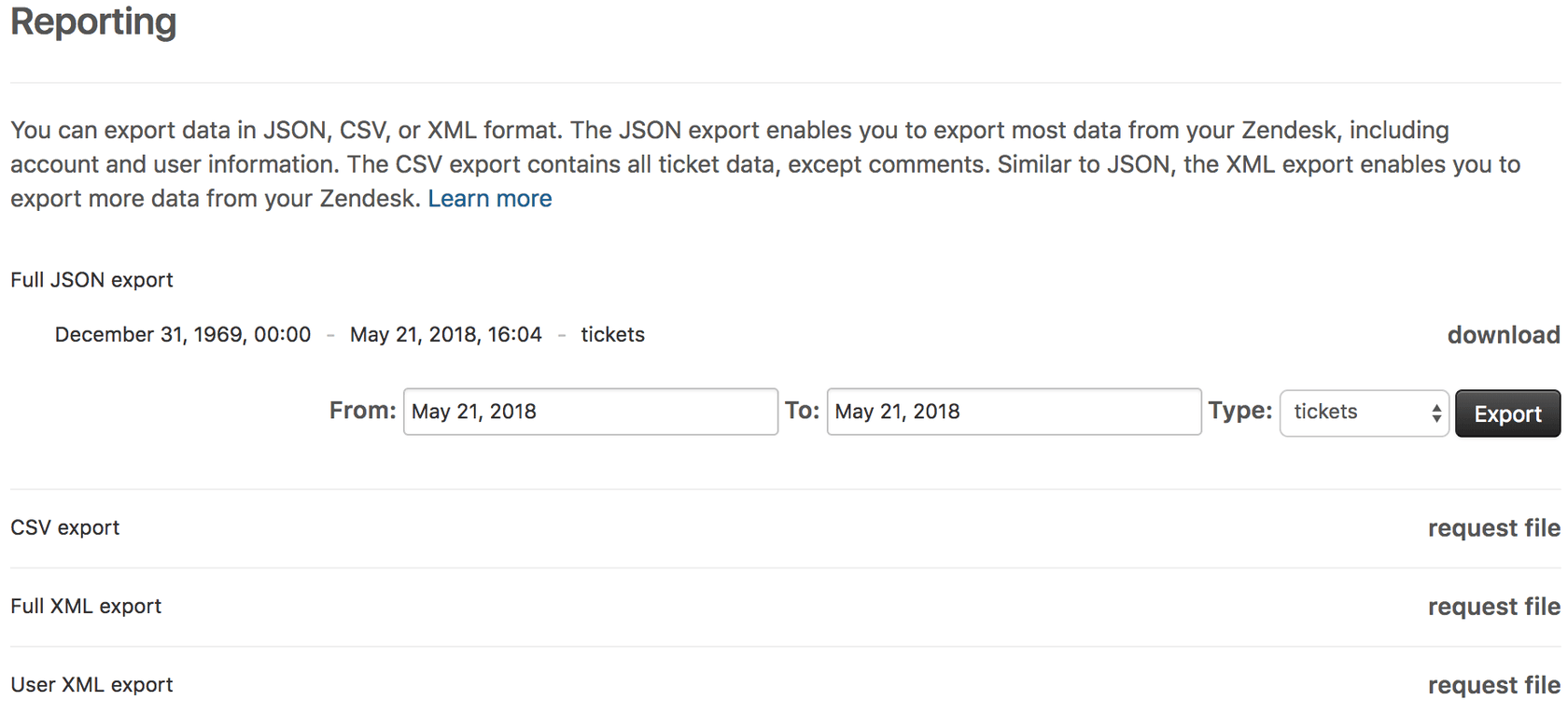
Limitations to Know
The API method has some gotchas. By default, OAuth authentication only exports published content. If you need internal or draft articles, you'll need to use Basic Auth instead. Character encoding can also trip you up save your scripts as UTF-8 to avoid Unicode errors with special characters.
This method is best for teams with developers who need automated, recurring exports or custom data formatting.
Method 2: Swifteq Help Center Export (Free App)
If writing Python scripts isn't your thing, Swifteq Help Center Export offers a no-code alternative. It's a free app in the Zendesk Marketplace that generates CSV exports with a few clicks.
Key Features
- Exports all articles with metadata (titles, sections, links, labels, update times)
- Detects broken internal and external links
- Identifies broken images and videos
- Supports multiple languages
- 100% free with no usage limits
How to Use It
- Install the app from the Zendesk Marketplace
- Sign up for a free Swifteq account
- Authorize the app to read your help center data (read-only access)
- Wait for the export to process (usually a few minutes)
- Receive your CSV file via email
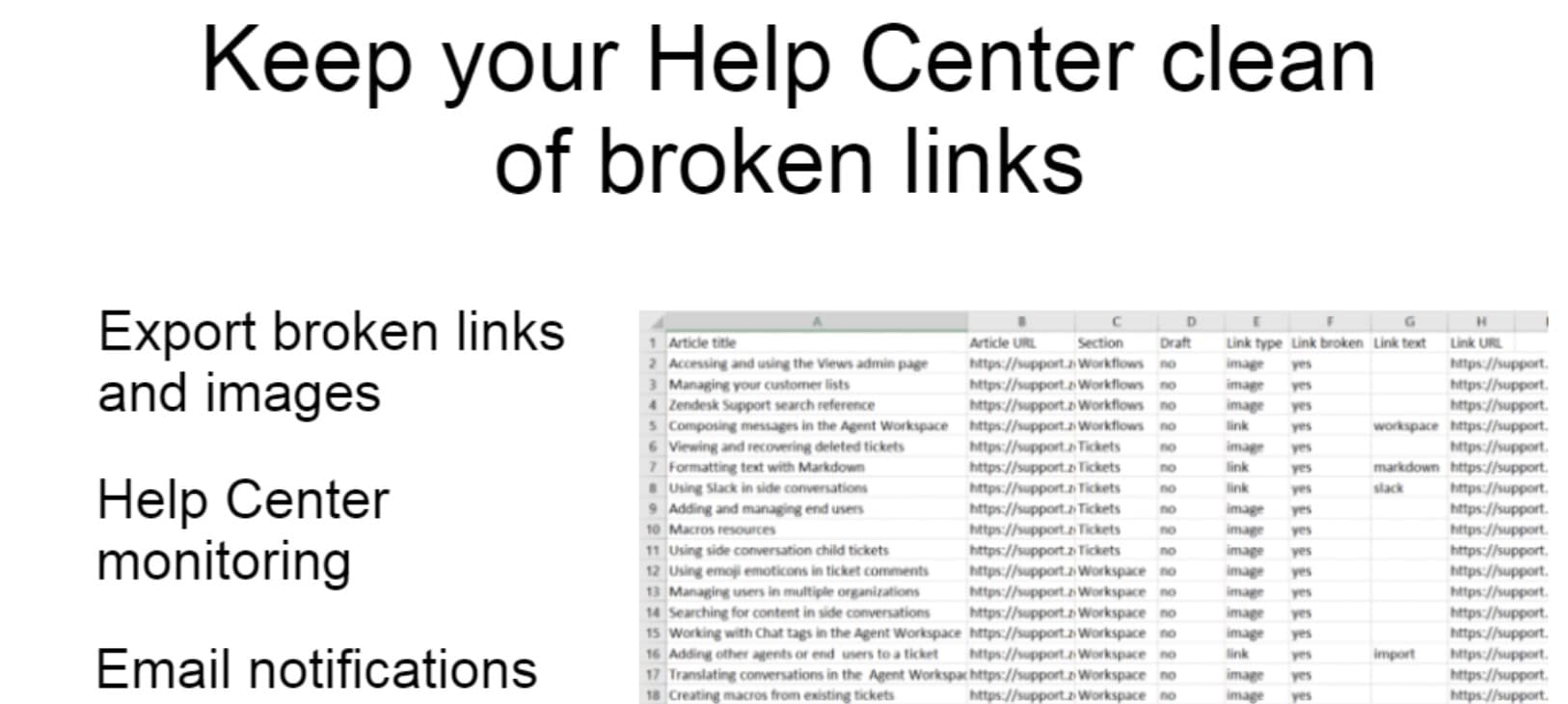
The CSV gives you a bird's-eye view of your entire knowledge base. You can open it in Excel or Google Sheets to audit content, check last-updated dates, and spot broken links across all articles.
What Users Say
The app has a 5-star rating on the Zendesk Marketplace from 17 reviews. One user noted: "Worked like a charm to export Guide articles. Much more convenient than having to mess with API and converting the JSON to CSV and reformatting."
Limitations
The free version only checks public articles for broken links. If you need to audit internal articles, you'll need Swifteq's paid Help Center Manager app (starting at €89/month). The export is also CSV-only no PDF or HTML options in the free tier.
Method 3: Migration Services for Complex Transfers
For large-scale migrations or platform-to-platform transfers, a professional migration service often makes sense. Help Desk Migration specializes in moving help desk data between platforms without requiring technical work from your team.
When to Consider a Migration Service
- Moving from Zendesk to a different help desk platform
- Transferring years of historical content
- Need to preserve complex article hierarchies and metadata
- Don't have technical resources for API scripting
- Want zero downtime during the transition
How It Works
Help Desk Migration uses a no-code Migration Wizard that guides you through the process:
- Assessment Analyze your Zendesk Guide structure
- Preparation Gather API credentials and confirm target platform compatibility
- Configuration Map data fields between platforms
- Demo Migration Test with a small data set (free)
- Full Migration Complete automated transfer
- Verification Review content on the new platform
The service supports 90+ platforms and maintains article hierarchies, attachments, tags, and formatting during transfer.
Pricing
Help Desk Migration offers custom pricing based on data volume. They provide free demo migrations so you can test the process before committing. For large enterprise migrations (200,000+ records), customers report the service pays for itself in time saved and error reduction.
Customer Feedback
The service holds a 5-star rating on G2. One enterprise IT administrator wrote: "Best Migration experience I've had in a decade. Very impressive tool, great team for a more than reasonable price. We were able to quickly migrate 10+ years of data from ServiceNow to FreshService."
Method 4: PDF Export for User Manuals
Sometimes you need your help center content in PDF format for customers who want printable documentation, compliance requirements, or offline user manuals. Kolibri Digital's Knowledge Base to PDF app handles this specific use case.
Use Cases
- Customers who refuse to use online knowledge bases
- Printable product documentation
- Supporting multiple product versions simultaneously
- Compliance documentation requirements
How It Works
- Install the Knowledge Base to PDF app from the Zendesk Marketplace
- Access the app from your left navigation bar
- Set a title for your PDF front page
- Optionally select specific categories to include (or export everything)
- Click "CREATE USER MANUAL" and download your PDF
Processing takes anywhere from a few seconds to a minute depending on your knowledge base size.
Custom Branding
Kolibri offers custom branding services if you want your PDFs to match your company's visual identity. Once you receive a custom brand key, you can apply it to all PDFs you generate.
Limitations
The app cannot export from deactivated or restricted help centers due to Zendesk API limitations. Custom branding also requires an additional service fee.
Comparing the Export Methods
Here's a quick comparison to help you choose the right approach:
| Method | Best For | Technical Level | Cost | Output Format |
|---|---|---|---|---|
| Help Center API | Developers, automation | High | Free | JSON/CSV |
| Swifteq Export | Quick audits, backups | None | Free | CSV |
| Migration Services | Platform transfers | None | Custom quote | Various |
| PDF Apps | User manuals | Low | Paid add-on |
Common Issues and Troubleshooting
OAuth vs Basic Auth
If you're using the API method and can't access internal articles, switch from OAuth to Basic Auth. OAuth defaults to published content only, while Basic Auth can retrieve internal and draft articles.
Character Encoding Errors
Unicode errors usually mean your script isn't saved as UTF-8. Use a code editor like VS Code or Sublime Text and explicitly set the encoding to UTF-8 when saving.
Rate Limiting
Zendesk's API has rate limits. If you hit a 429 error, implement retry logic with a 60-second delay between requests.
Missing Data
If your export is missing articles, check that your API credentials have the correct permissions. Also verify you're handling pagination correctly Zendesk returns 100 articles per page by default.
A Better Way: AI-Powered Knowledge Management with eesel AI
Here's the thing about all these export methods: they're workarounds for a fundamental limitation. You're exporting because you need your knowledge base content somewhere else for analysis, translation, migration, or AI training.
But what if you didn't need to export at all?
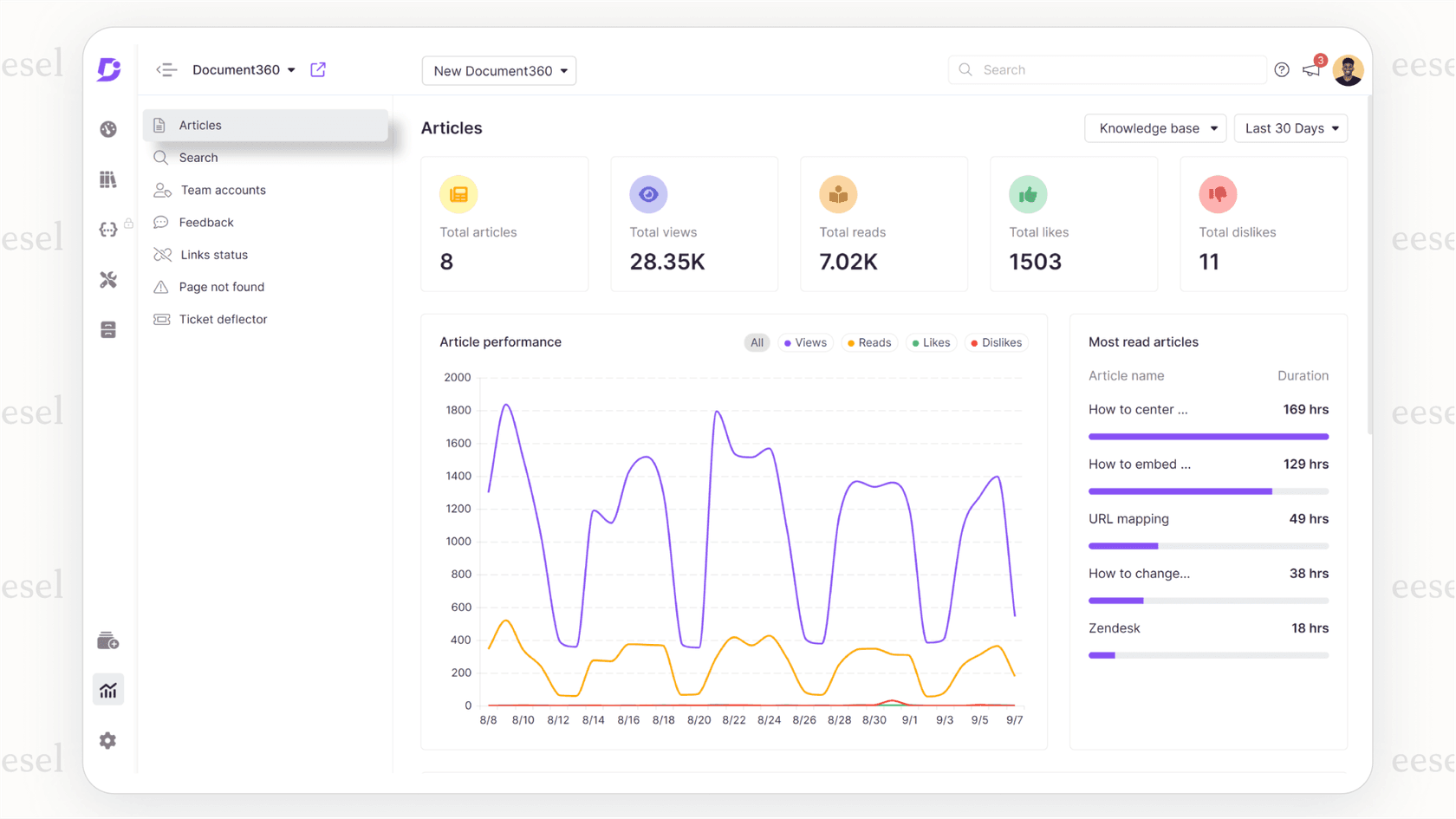
eesel AI takes a different approach. Instead of exporting your Zendesk help center, our AI integrates directly with it. We read and understand your content in place, eliminating the need for manual exports entirely.
How It Works
Connect eesel AI to your Zendesk help center in minutes. Our AI learns from your articles, past tickets, and macros no exports, no file transfers, no manual data preparation. The AI understands your business context, tone, and common issues from day one.
What You Can Do
Once connected, eesel AI can:
- Answer customer questions directly using your help center content
- Draft replies for your support agents
- Identify knowledge gaps where your help center is missing articles
- Generate new help center content based on successful ticket resolutions
- Work across multiple platforms (Zendesk, Slack, your website) from the same knowledge base
The Real Advantage
Traditional exports create static snapshots. Your help center changes, but your exported files don't. eesel AI stays current automatically when you update an article, the AI knows immediately. No re-exports. No version control headaches.
For teams considering exports for AI training or migration, eesel AI's approach eliminates the complexity entirely. You get the benefits of AI-powered support without the data wrangling.
Choosing the Right Export Method for Your Needs
Let's simplify the decision:
- Choose the API method if you have developers and need automated, recurring exports
- Choose Swifteq if you want a free, simple CSV export for auditing or backup
- Choose a migration service if you're moving platforms and need to preserve complex data
- Choose a PDF app if you specifically need offline documentation
- Consider eesel AI if you're exporting to train AI or analyze content we eliminate the export step entirely
The right choice depends on your technical resources, budget, and what you're trying to accomplish. For most teams doing one-off audits or backups, Swifteq's free app is the quickest path. For complex migrations, professional services pay for themselves in time saved and errors avoided.


