
Need to get your ticket data out of Zendesk? You're not alone. Whether you're migrating to a new platform, archiving old conversations for compliance, or just want a backup of your customer history, exporting tickets is a common need. But here's the frustrating part: Zendesk doesn't make it straightforward, especially if you're on a lower-tier plan.
The good news is you have options. This guide walks you through every method available in 2026, from native exports (if your plan supports them) to API workarounds and third-party tools that fill the gaps.
What you'll need before exporting Zendesk tickets
Before diving into the how-to, let's cover the prerequisites. Getting these sorted first will save you headaches later.
Your Zendesk plan matters. Native data exports (the point-and-click kind in your admin panel) are only available on Suite Growth, Professional, and Enterprise plans. If you're on Suite Team or the legacy Support Team plan, you'll need to use the API or a third-party solution.
You'll need admin access. Only administrators can request and perform data exports. If you don't see the export options mentioned below, check your role permissions or talk to your account owner.
Data exports must be enabled. Here's the part that catches many people off guard: data exports aren't turned on by default. Your account owner needs to contact Zendesk Customer Support to request activation. This usually takes 24-48 hours, so plan ahead.
Know what you're exporting. Are you looking for a complete backup with all comments and attachments? Or just a spreadsheet of ticket metadata? Your use case determines which method to use.
Method 1: Native JSON export for complete data backups
If you have a large ticket volume (200,000+) or need the most complete export possible, JSON is your best bet. This format includes tickets, users, organizations, and comments. It's the format Zendesk recommends for comprehensive backups.
Who this is for: Growth, Professional, and Enterprise plans needing complete data exports.
Step 1: Navigate to the export settings
Go to Admin Center > Account > Tools > Reports > Export tab. If you don't see the Export tab, exports haven't been enabled for your account yet. Contact your account owner to reach out to Zendesk support.
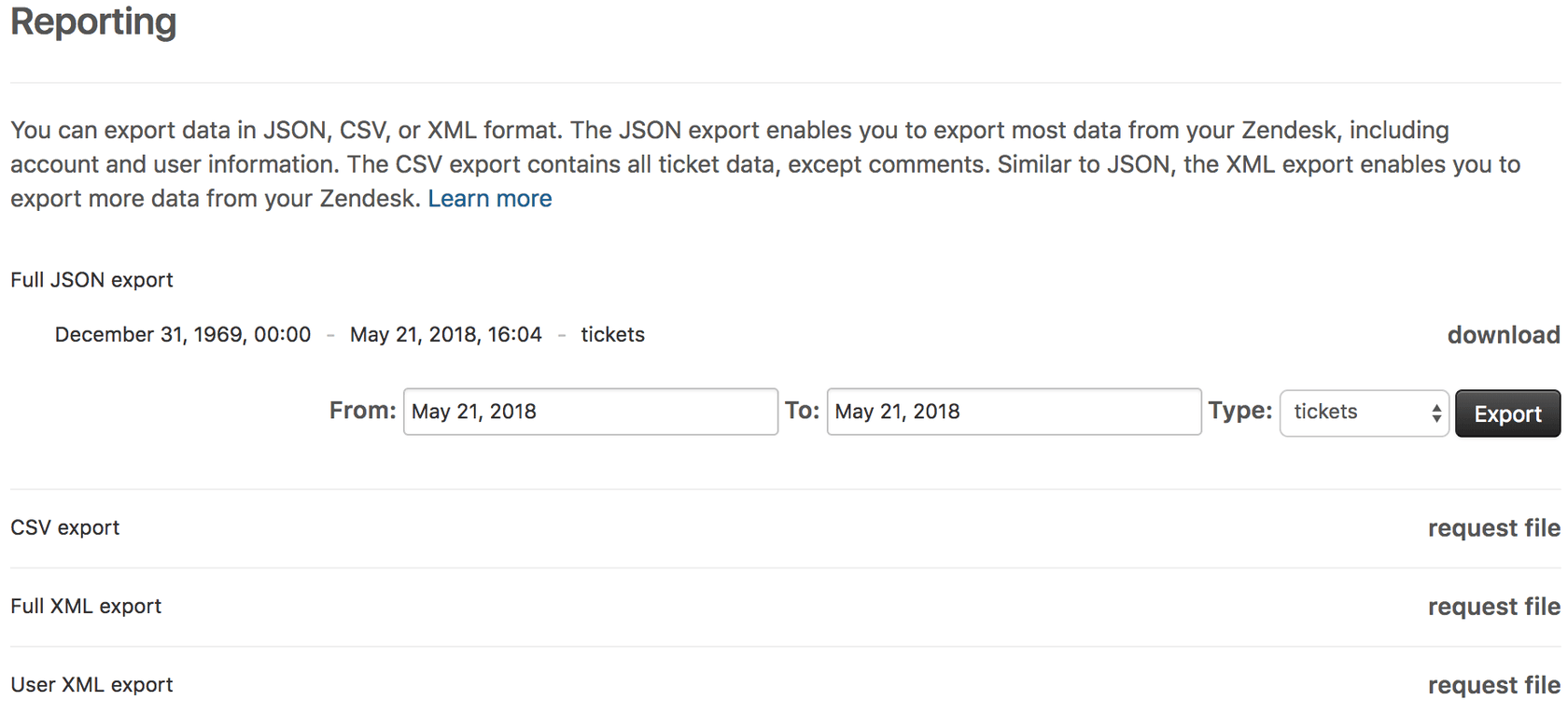
Step 2: Select JSON format and data type
Choose JSON export from the available options. You'll then select what data to include:
- Tickets: The actual support conversations
- Users: Customer and agent profiles
- Organizations: Company/group associations
You can export these separately or run multiple exports.
Step 3: Set your date range
JSON exports let you filter by date, which is helpful if you don't need your entire history. Select a start and end date that covers the period you need.
Step 4: Start the export and wait
Click Export. Zendesk will process your request in the background. You'll receive an email when it's ready, typically within a few hours for smaller datasets or up to 24+ hours for large accounts. The download link in that email is valid for about three days.
Important limitations to know:
- JSON exports aren't available in sandbox environments
- Tickets larger than 1MB have their comments excluded
- Accounts with over one million tickets can only export in 31-day increments
- There's a six-minute data lag, so the most recent activity won't be included
- AI agent tickets can't be exported through this method
Source: Zendesk Export Documentation
Method 2: Native CSV export for spreadsheet analysis
Sometimes you just need your data in Excel. CSV exports work well for quick analysis, reporting, or sharing ticket summaries with stakeholders who don't need the full conversation history.
Who this is for: Growth, Professional, and Enterprise plans needing quick data analysis.
Step 1: Access the export page
Navigate to Admin Center > Account > Tools > Reports > Export tab just like with JSON exports.
Step 2: Choose CSV and set dates
Select CSV export and pick your date range. Unlike JSON, you can't select specific data types. CSV exports include ticket metadata only.
Step 3: Export and download
Click Export and wait for the email with your download link.
What you get (and what you don't):
CSV exports are lightweight but limited. You get ticket fields, status, assignee, requester, and timestamps. What you won't get:
- Ticket comments or descriptions
- Deleted tickets
- Multi-line or multi-select custom fields
- Attachments
If you need the actual conversation content, use JSON or the API instead.
Source: Zendesk Export Options
Method 3: Export from ticket views (all plans)
Here's a method that works on every Zendesk plan, including Team. It doesn't require admin access to enable exports, and you can do it right from your agent workspace.
Who this is for: Anyone needing quick filtered exports without admin setup.
How it works:
- Open any ticket view in your agent interface
- Look for the export button (usually near the top of the ticket list)
- Click it to download a CSV of the visible tickets
The catch: You're limited to 1,000 tickets per export, and you only get the fields visible in that view. If your view shows 20 columns, your export has 20 columns. No comments, no attachments, just what's on screen.
This method is perfect for quick reports or grabbing a subset of tickets for a specific analysis. But it's not a true backup solution.
Method 4: Using the Zendesk API (works on all plans)
If you're on a Team plan or need automated, recurring exports, the API is your friend. Yes, it requires some technical know-how, but it's the most flexible option available.
Who this is for: Team plans, developers, or anyone needing automated exports.
The incremental export API
Zendesk provides an incremental export API designed specifically for this use case. It lets you fetch only tickets that have changed since your last request, which is efficient for regular backups.
Basic approach:
- Make an authenticated request to
/api/v2/incremental/tickets.json?start_time={timestamp} - Store the returned tickets
- Use the
end_timefrom the response as your nextstart_time - Repeat until you've fetched everything
Rate limits: You're limited to 10 requests per minute for incremental exports. For large datasets, plan accordingly.
Including comments: Add include=comment_events to your request to get ticket comments alongside the ticket data.
When to use this:
- You're on Team plan without native export access
- You need to automate exports on a schedule
- You want to filter or transform data during export
- You're building a custom integration
If you don't have developer resources, consider the third-party options below instead.
Third-party alternatives when native exports fall short
Sometimes the native options don't cut it. Maybe you need PDFs with full formatting, or you're on Team plan without API resources, or you need to include attachments. That's where third-party tools come in.
Knots Export Tickets
Knots Export Tickets is a Zendesk Marketplace app that converts tickets to human-readable PDFs. It works on all Zendesk plans, including Team.
What makes it different:
- Exports complete tickets as PDFs with formatting intact
- Includes public and private comments
- Preserves attachments and inline images
- Exports side conversations
- Option to bulk delete tickets after export
- Automated workflows via triggers or scheduled batches
- Delivery to FTP, SFTP, Dropbox, or AWS S3
Pricing: Free to install from the Marketplace, with additional fees based on usage. They offer a 14-day free trial.
This is ideal for compliance archiving, legal discovery, or creating readable records for stakeholders who need context without Zendesk access.
Onna for enterprise data management
Onna takes a different approach. Rather than just exporting tickets, it connects to Zendesk (and 30+ other workplace apps) to create a centralized, searchable data repository.
Best for:
- eDiscovery and legal holds
- Compliance and information governance
- Organizations using multiple platforms that need unified search
- Enterprises needing real-time data access across tools
Onna customers report significant cost savings. Dropbox's senior paralegal noted they "cut costs by $50-60k per collection and got access to our data in real-time" after implementing Onna.
This is overkill if you just need a one-time export, but valuable if data governance is an ongoing concern.
Zendesk-Exporter (open source)
For the technically inclined who want a free option, the Zendesk-Exporter project on GitHub provides a Node.js tool for comprehensive exports.
It exports tickets, comments, users, organizations, views, triggers, macros, and more to JSON files. You'll need Node.js installed and some comfort with command-line tools, but it's completely free and works on any plan.
What to do with your exported ticket data
Once you've got your data out, what next? Here are the most common use cases:
Platform migration: Moving to a new help desk? Your exported tickets can often be imported into the new system, preserving your customer history. Tools like eesel AI can also learn from your exported tickets to train an AI teammate for your new platform.

Compliance and archiving: Many industries require keeping support records for years. Exported tickets stored in cloud storage or document management systems satisfy these requirements while freeing up your active Zendesk account.
Analytics and reporting: Sometimes you need to analyze patterns that Zendesk's built-in reporting doesn't capture. Exporting to a data warehouse or business intelligence tool opens up deeper analysis possibilities.
Training AI teammates: Once you've exported your data, consider using it to train an AI teammate. eesel's AI agent for Zendesk can ingest your exported tickets along with your help center articles and macros to train an AI that understands your business, tone, and common issues from day one. Instead of starting from scratch, your AI learns from your actual support history.
Troubleshooting common Zendesk export issues
"I don't see the export option in my admin panel"
Exports aren't enabled by default. Your account owner needs to contact Zendesk Customer Support to request activation. Include your Zendesk subdomain in the request.
"My export keeps failing or timing out"
Large exports can be problematic. Try:
- Using JSON format instead of XML for large datasets
- Exporting in smaller date ranges (one quarter at a time instead of all history)
- Using the API with pagination for very large accounts
"My exported tickets are missing comments"
In JSON exports, tickets over 1MB have comments excluded to keep file sizes manageable. For complete comment history, use the API with include=comment_events or a third-party tool like Knots.
"I'm in a sandbox and exports don't work"
JSON and CSV exports aren't available in sandbox environments. Use the API or export from your production instance instead.
Choosing the right Zendesk export method for your situation
Still not sure which approach to take? Here's a quick decision framework:
| Your Situation | Recommended Method |
|---|---|
| On Team plan, need one-time export | Ticket views (CSV) or Knots |
| On Team plan, need regular exports | API or Knots |
| On Growth/Pro/Enterprise, need complete backup | Native JSON export |
| Need human-readable PDFs with formatting | Knots Export Tickets |
| Enterprise compliance/eDiscovery needs | Onna |
| Technical team, want free solution | Zendesk-Exporter (GitHub) |
| Need to include attachments | Knots or API with custom code |
The bottom line: you have options regardless of your plan level. Native exports are convenient when available, but the API and third-party tools ensure you're never locked out of your own data.
Once you've exported your tickets, consider how you might put that data to work. At eesel AI, we help teams turn their support history into intelligent AI teammates that handle frontline support, draft replies, and triage tickets automatically. See how it works and learn why teams achieve up to 81% autonomous resolution rates with our AI agent for help desk operations.


