At some point, most support teams need to pull their conversation history out of Zendesk. Maybe you're facing a compliance audit and need records. Perhaps you're migrating to a new platform. Or you might want to analyze conversation patterns to improve your support quality.
Here's the challenge: Zendesk has two different conversation platforms (Chat and Messaging), and they handle history very differently. Plus, there are some significant limitations you'll want to know about before you start.
This guide walks you through accessing and exporting conversation history from both platforms, with workarounds for the limitations you're likely to hit.
What You'll Need
Before you start, make sure you have:
- Admin or agent access to your Zendesk account. The exact permissions depend on your plan and role.
- Understanding of your plan type. Lite plans only keep 30 days of history. Other plans store chats indefinitely until you delete them.
- Matching email addresses for exports. The email you use must exactly match what's on file in the agent's Chat profile. It's case-sensitive.
- Quick turnaround capability. Download links in export emails expire after 24 hours.
If you're using the Zendesk Agent Workspace instead of the standard Chat dashboard, the process differs slightly. We'll cover both approaches.
Understanding Zendesk Chat vs. Messaging History
Zendesk has two separate platforms for customer conversations, and knowing which one you're using determines where your history lives.
Zendesk Chat (Classic) is the legacy live chat platform Zendesk acquired from Zopim in 2014. It has a separate dashboard with a dedicated History page where all your conversations are stored.
Zendesk Messaging is the modern platform launched in 2021. Instead of a separate dashboard, conversations appear directly as tickets in your Agent Workspace.
How to tell which platform you're using:
- If you log into a separate Chat dashboard to view conversations, you're on Chat
- If conversations appear as tickets in your main Zendesk interface, you're on Messaging
- If your web widget shows "Chat" branding, you're likely on Chat
- If you see "Messaging" in your Admin Center channel settings, you're on Messaging
The key difference for history access: Chat has a centralized History page you can browse and search. Messaging scatters conversation history across individual tickets.
Method 1: Accessing Conversation History in Zendesk Chat
If you're using Zendesk Chat, follow these steps to access your conversation history.
Step 1: Navigate to the History page
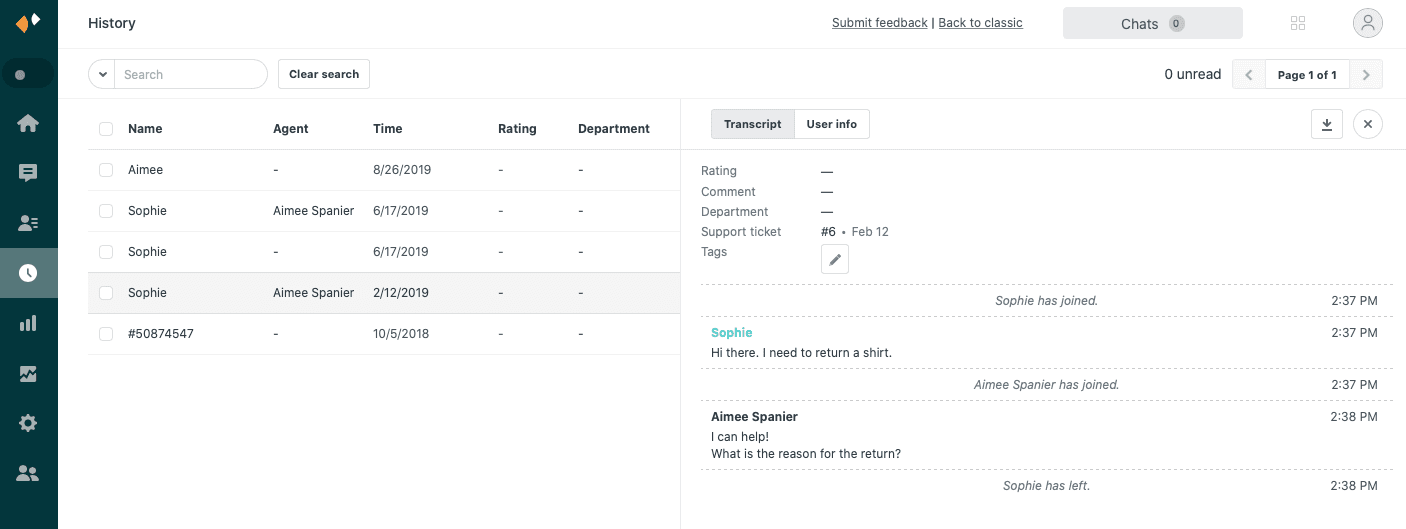
Log into your Zendesk Chat dashboard. In the main navigation, select History. You'll see a list of all past chats, with the most recent at the top.
Step 2: Search and filter your chats
Use the search field to find specific conversations. You can filter by:
- Date range
- Keywords in the conversation
- Tags applied to the chat
- Agent name
- Department
- Visitor information (name, email)
Click the arrow next to the search field to access advanced search criteria.
Step 3: View chat details
Click any chat in the list to open the details panel on the right side. You'll see two tabs:
- Transcript: Shows the full conversation text, timestamps, chat rating, and ticket association
- User info: Displays visitor details including name, email, phone, past visits, browser information, and IP address
Mobile access
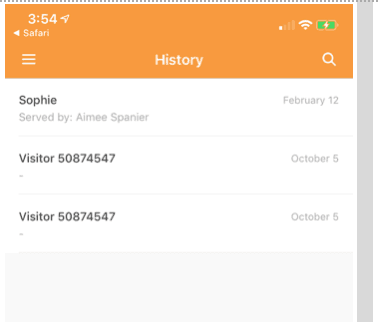
You can also access chat history through the Zendesk Chat mobile app (available for iOS and Android). The app lets you view history, search conversations, share transcripts via email, and mark chats as unread.
Requirements:
- iOS: Version 1.3.1 or later, iOS 11 or later
- Android: Version 1.4.0 or later, Jellybean (4.1-4.3) or higher
Method 2: Accessing Conversation History in Zendesk Messaging
For teams on Zendesk Messaging, the process is different because there's no separate History page.
Step 1: Open Agent Workspace
Log into your Zendesk account and navigate to the Agent Workspace. This is the main interface where you handle tickets.
Step 2: Find the associated ticket
Each messaging conversation creates or attaches to a ticket. Use the search bar to find tickets by:
- Requester name or email
- Ticket subject
- Date range
- Tags
Step 3: View the conversation thread
Open the ticket and scroll through the conversation thread. The full messaging history appears inline with other ticket events.
For authenticated visitors
If your visitors authenticate (log in), they can see their own conversation history in the messaging widget. The widget loads 20 events at a time, and visitors can scroll up to view past sessions separated by date dividers.
Method 3: Exporting Chat Details and Transcripts
When you need to extract conversation data from Zendesk, you have two export options. Both are available from the Chat History page (for Chat users) or through ticket exports (for Messaging).
Export chat details (CSV)
This option gives you metadata about conversations but not the actual conversation text. The CSV includes:
- Visitor information (name, email, phone)
- Chat metadata (timestamp, duration, rating)
- Department and agent assignment
- Tags and associated ticket numbers
What's missing: The actual conversation text.
Export chat transcripts (TXT)
This option provides the full conversation content. Each transcript is a separate .TXT file containing:
- Complete message text from both visitor and agent
- Timestamps for each message
- Participant identifiers
How to export:
-
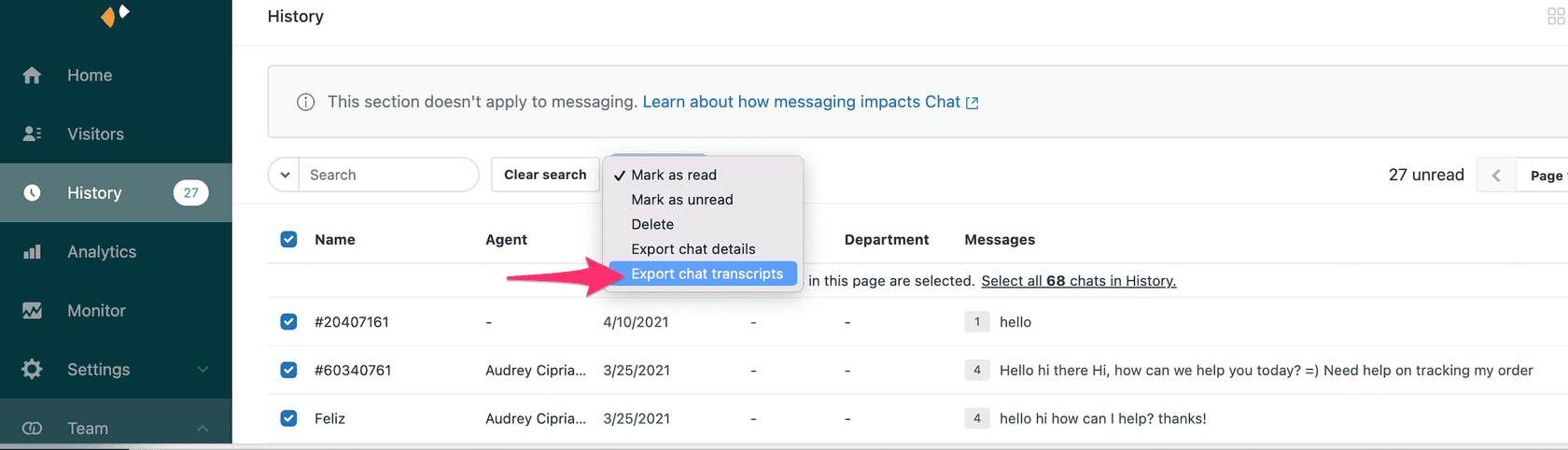
In the History page, select the chats you want:
- Click the checkbox at the top to select all on the current page
- Click "Select all chats in History" to select the last 90 days
- Click individual checkboxes for specific chats
-
Click the Actions dropdown menu
-
Select either Export chat details or Export chat transcripts
-
Enter the email addresses of agents who should receive the export (must be in the same account)
-
Click Send
The recipients receive an email from noreply@zopim.com with download links. Important: These links expire after 24 hours, so download promptly.
Understanding Export Limitations and Workarounds
Here's where things get frustrating. Zendesk has a significant limitation that affects many teams.
The major limitation: No single conversation export
Zendesk does not natively support exporting a single messaging conversation directly. The community has been requesting this feature since at least 2023, but it's still not available.
As one user noted in the Zendesk Community: "Exporting a single messaging conversation is not possible in Zendesk. Print and save as PDF option does not include the actual conversation."
This creates real problems for GDPR subject access requests. Another community member explained: "As a company we are required to respond to customer's subject access requests and provide them with all the conversations we have had with them. Imagine if a customer has had 20 tickets, exporting 20 JSON files with data of all tickets received on 20 different days is clearly not an option."
Workaround options:
Option A: Add transcript to Support ticket
If you have a Chat + Support integrated account, you can attach the transcript to the associated Support ticket:
- Open the conversation in History
- Click the Transcript tab
- Click the Export transcript icon
- Click Add transcript to ticket
This attaches the transcript to the Support ticket, where it becomes accessible through the standard ticket interface.
Option B: Use advanced search
Filter your History to isolate the specific conversation you need:
- Search by visitor email, date, or ticket number
- Select just that conversation
- Export its details and transcript
This is the most practical approach for small-scale needs.
Option C: Manual copy
For one-off situations where you just need a record:
- Open the conversation in the transcript view
- Select and copy the conversation text
- Paste into a document for your records
This is tedious but works when you just need a single conversation for a dispute or compliance request.
Option D: API extraction
For teams with technical resources, the Zendesk Chat API offers more flexibility. We'll cover this in the next section.
Plan Differences and Data Retention
Your Zendesk plan determines how long conversation history is retained.
| Plan | History Retention |
|---|---|
| Lite | 30 days only |
| Team | Indefinite (until manually deleted) |
| Growth | Indefinite (until manually deleted) |
| Professional | Indefinite (until manually deleted) |
| Enterprise | Indefinite (until manually deleted) |
How to check your plan:
- Go to Admin Center
- Click Account in the sidebar
- Select Billing > Subscription
Compliance implications
If you're subject to GDPR, CCPA, or other data retention regulations, the Lite plan's 30-day limit might actually work in your favor for data minimization. However, it creates challenges for audit trails and quality assurance programs that need longer historical data.
For teams on Lite plans needing longer retention, you have two options: upgrade your Zendesk plan, or implement a regular export process to archive conversation data externally.
Using the API for Advanced Exports
For teams with technical resources, the Zendesk Chat API provides more control over conversation data extraction.
When to consider the API approach:
- You need automated exports on a schedule
- You have large-scale data extraction needs (thousands of conversations)
- You want to integrate conversation data with external systems
- You require custom filtering that the History page doesn't provide
Basic API workflow:
-
Enable API access: Contact Zendesk support to enable data export API access on your account. You'll need admin privileges to request this.
-
Authenticate: Use your Zendesk API credentials to authenticate requests.
-
Retrieve chat data: The Chat API provides endpoints like
/api/v2/chatsto retrieve conversation data in JSON format. You can filter by:- Date range
- Agent
- Department
- Other metadata
-
Handle pagination: The API returns paginated results. You'll need to implement pagination handling in your code to retrieve all matching conversations.
-
Respect rate limits: Rate limits typically allow around 200 requests per minute. Plan accordingly for large exports.
API vs. manual exports:
| Factor | Manual Export | API Export |
|---|---|---|
| Format | CSV or TXT | JSON |
| Automation | Manual only | Can be scheduled |
| Volume | Limited by UI | Bulk extraction |
| Technical skill | None required | Developer needed |
| Custom filtering | Basic | Advanced |
Managing Conversation Data More Effectively
Once you've exported your conversation data, what do you do with it? Here are some best practices.
Organizing exported data
Create a consistent naming convention for your exports. Include the date range and export type in the filename. For example: zendesk-chats-2026-01-to-2026-02-transcripts.zip
Store exports in a secure location with appropriate access controls, especially if they contain customer personal data.
Using exports for training and QA
Conversation exports are valuable for:
- Training new support agents on real customer interactions
- Identifying common issues and knowledge gaps
- Measuring agent performance and consistency
- Building training datasets for AI tools
GDPR and compliance considerations
When handling conversation exports containing personal data:
- Limit access to authorized personnel only
- Encrypt files at rest and in transit
- Delete exports when no longer needed
- Document your data retention and deletion policies
When exports become a burden
If your team is spending significant time manually exporting and analyzing conversation data, there may be a better approach. The limitations of Zendesk's export functionality create real friction for teams that need to analyze conversations or fulfill compliance requests regularly.
At eesel AI, we work with teams who have moved beyond manual exports. Instead of extracting data before analyzing it, our AI connects directly to your help desk and learns from your existing conversations. This means you get insights without the export hassle. If your team is considering a move away from Zendesk due to these data limitations, our AI agent solution handles frontline support while giving you full visibility into conversation analytics.

Common Issues and Troubleshooting
Here are solutions to problems users frequently encounter when working with Zendesk conversation history.
"Recipients must be agents in the same account"
This error appears when you try to send exports to external email addresses. The fix: only enter email addresses that belong to agents in your Zendesk account. Also check that the email matches exactly, including capitalization.
"Download link expired"
Export links are only active for 24 hours. If you miss the window, you'll need to re-export the data. Set a reminder to download exports immediately when you receive the email.
"Conversation not appearing in History"
Chats only appear in History after they end or time out. They won't show up while still active. Also check your plan: Lite plans only show 30 days of history. If you're using Agent Workspace with Messaging, look in the associated ticket instead.
Case-sensitive email issues
The Recipients field is case-sensitive. The email entered must exactly match the one listed on the agent's Chat profile. If an agent's profile shows "John.Smith@company.com" but you enter "john.smith@company.com", the export will fail.
Authenticated visitor session persistence
When using authenticated visitors with the Zendesk Messaging Widget, ensure you properly end the messaging session when a user logs out or switches accounts. This prevents session data from persisting between different users on shared devices. See Zendesk's documentation on ending messaging sessions for detailed guidance.
Start Managing Your Zendesk Conversation History Effectively
Accessing and exporting conversation history in Zendesk requires understanding which platform you're using (Chat or Messaging) and working within the limitations of each. For Chat users, the History page provides centralized access with CSV and TXT export options. For Messaging users, conversations live in tickets within the Agent Workspace.
The key limitations to remember: Lite plans only retain 30 days of history, and you cannot export a single messaging conversation directly. Workarounds include adding transcripts to Support tickets, using advanced search to isolate conversations, or leveraging the API for automated extraction.
For teams that find themselves constantly exporting data for analysis or compliance, consider whether your current approach is sustainable. If you're spending more time managing exports than learning from your conversations, it might be time to explore alternatives.
At eesel AI, we help teams move beyond manual data exports. Our AI agents connect directly to your help desk, learn from your conversation history automatically, and provide insights without the need for CSV files and download links. Invite eesel AI to your team and see how much time you can save when conversation analysis happens automatically.