If your team has been using Zendesk for a while, you've probably built up quite a collection of macros. These automated responses and ticket actions save agents countless hours. But what happens when you need to back them up, migrate to a new instance, or clean up duplicates? Knowing how to export and import Zendesk macros becomes essential in these situations.
Zendesk doesn't provide a simple "export" button in the admin interface, so you'll need to know where to look. In this guide, we'll walk through four different methods to get your macro data out (and back in), ranging from free no-code solutions to developer-friendly tools.
Method 1: Using Swifteq Macro Export (Free)
For most teams, the easiest path is Swifteq's Macro Export app. It's free, requires no technical setup, and delivers your data in a clean CSV format.
Swifteq is a Zendesk-qualified technology partner with over 14 support apps. Their Macro Export tool has become popular because it solves a specific pain point without adding complexity.
Step 1: Install the App
Navigate to the Zendesk Marketplace listing and install the app. The process takes about a minute and requires admin permissions in your Zendesk account.
Step 2: Connect Your Account
After installation, register at swifteq.com/zendesk-export-macros and authorize the app to access your Zendesk data. The connection uses Zendesk's secure OAuth flow, so your credentials stay protected.
Step 3: Run the Export
Click the export button in the app interface. Within minutes, you'll receive an email with CSV files containing:
- All macro metadata (titles, descriptions, created/updated dates)
- Every action each macro performs
- Dynamic content for all languages
- Conditions and restrictions
What's Included and What's Not
The export covers everything agents see when using macros, plus backend details like when each macro was last modified. However, Swifteq Macro Export is export-only. If you need to import macros back into Zendesk or merge data between instances, you'll need a different tool.
Best for: Teams doing one-time audits, backups, or workflow reviews that want the simplest possible solution.
Method 2: Using LEAFWORKS Macro Manager ($199)
When you need two-way functionality (both export and import), LEAFWORKS Macro Manager is the professional choice. At $199 for a one-time purchase, it's an investment that pays off for teams managing complex macro libraries.
LEAFWORKS is a Zendesk Premier Partner based in the DACH region. They've served over 300 customers ranging from 3-agent startups to enterprises with 999+ agents across 30 countries.
Key Features
Unlike the free alternatives, Macro Manager handles the full lifecycle:
- Bulk export to Excel Download all macros in a format that's easy to edit
- Bulk import from Excel Upload modified macros back into Zendesk
- Bulk activation and deletion Manage macro status across your entire library
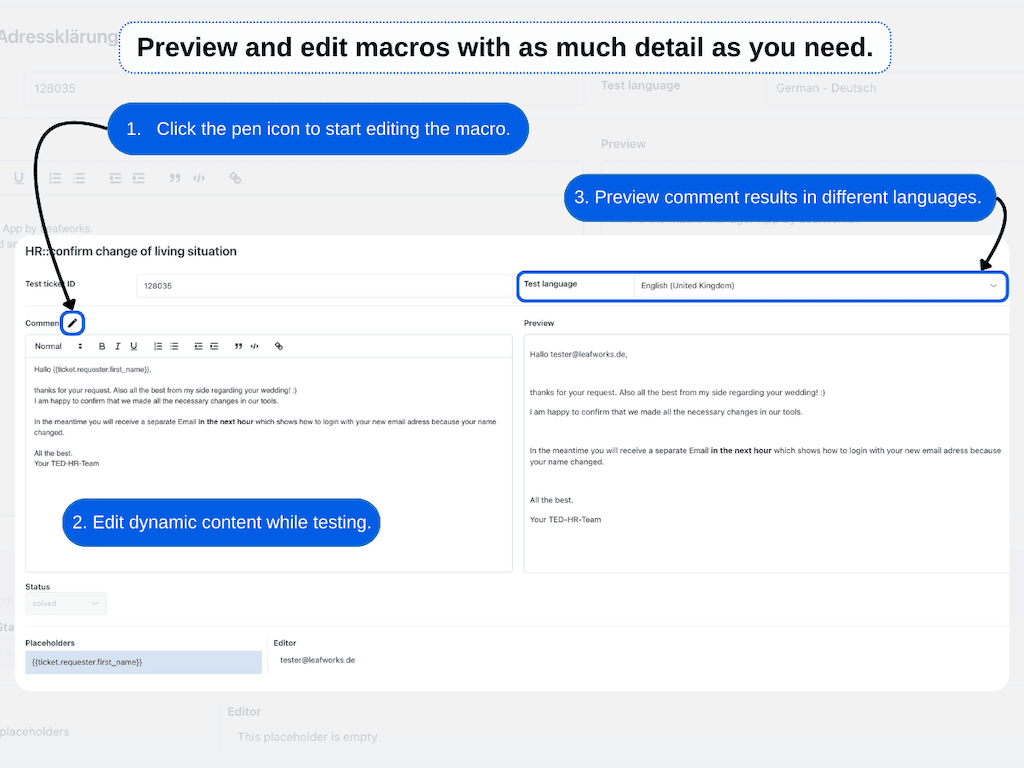
- Dynamic content preview Test how macros render in different languages before deploying
- Enhanced search Find macros by name or dynamic content values
Step 1: Purchase and Install
Step 2: Export Your Macros
Open the Macro Manager app and select bulk export. You'll receive an Excel file with all macro data organized in columns for easy editing.
Step 3: Edit and Import Back
Make your changes in Excel (updating responses, fixing dynamic content, reorganizing categories), then use the import function to push changes back to Zendesk. The app validates your file before importing to prevent errors.
Alternative: Universal Toolkit
If your team uses multiple LEAFWORKS apps, consider the Universal Toolkit at $9 per agent per month. It bundles Macro Manager with six other productivity apps and saves up to 50% compared to buying individually.
Best for: Teams regularly updating macros, managing multi-language content, or migrating between Zendesk instances.
Method 3: Using the Zendesk API
For teams with development resources, the Zendesk API offers the most flexibility. You get complete control over data formats and can automate exports on a schedule.
The API Endpoint
The primary endpoint for macro operations is:
GET /api/v2/macros.json
This returns a JSON object containing all macros accessible to the authenticated user. Admins can retrieve any macro in the account; agents can only see macros shared with them.
Query Parameters
You can refine your export with these parameters:
access=personalPersonal macros onlyaccess=accountAll account macros (admin only)active=trueActive macros onlyper_page=100Control pagination (helpful for large libraries)
Step 1: Generate API Credentials
In Zendesk Admin, navigate to Channels > API and create a token. You'll need the token plus your Zendesk subdomain to authenticate requests.
Step 2: Make the Request
Using curl or your preferred HTTP client:
curl https://yourdomain.zendesk.com/api/v2/macros.json \
  -H "Authorization: Bearer YOUR_API_TOKEN"
Step 3: Convert JSON to CSV
The API returns JSON, which you'll need to convert for spreadsheet analysis. Here's a simple Python script:
import json, csv

with open('macros.json') as f:
    data = json.load(f)

with open('macros.csv', 'w', newline='') as f:
    writer = csv.DictWriter(f, fieldnames=['id', 'title', 'description', 'active'])
    writer.writeheader()
    for macro in data['macros']:
        writer.writerow(macro)
Rate Limits to Know
Your plan determines API usage limits:
| Plan | Requests per Minute |
|---|---|
| Essential | 10 |
| Team | 200 |
| Professional | 400 |
| Enterprise | 700 |
Source: Zendesk Rate Limits Documentation
Import Limitations
While the API supports creating and updating individual macros via POST and PUT requests, there's no true "bulk import" endpoint. Each macro must be processed separately, making large-scale imports slower than using a dedicated app like LEAFWORKS Macro Manager.
Best for: Development teams building custom integrations or automating scheduled exports.
Method 4: Using Salto CLI (Developer Tool)
Salto offers a unique approach: configuration-as-code for Zendesk. Their free CLI tool treats your Zendesk setup (including macros) as version-controlled code.
How It Works
Salto uses a declarative language called NaCl (Not Another Configuration Language) to represent Zendesk configurations. You fetch your entire instance, modify files in your IDE, then deploy changes back.
Key Capabilities
- Complete backups Export your entire Zendesk configuration, not just macros
- Version control Track changes to macros using Git
- Bulk import Deploy modified configurations back to Zendesk
- Multi-environment management Copy configurations between sandbox and production
The Workflow
- Install Salto CLI on your machine
- Run
salto fetchto download your Zendesk configuration - Edit macro files in your preferred code editor
- Run
salto deployto apply changes
Limitations
Salto has a learning curve. It's command-line only, requires understanding of configuration-as-code concepts, and is overkill for simple one-time exports. But for teams already practicing DevOps workflows, it fits naturally into existing processes.
Best for: Development teams managing complex Zendesk configurations that want version control and automated deployments.
Comparing Zendesk Macro Export and Import Methods
Here's a side-by-side comparison to help you choose:
| Method | Price | Export | Import | Format | Ease of Use | Best For |
|---|---|---|---|---|---|---|
| Swifteq Macro Export | Free | ✅ | ❌ | CSV | Easy | Quick audits, backups |
| LEAFWORKS Macro Manager | $199 | ✅ | ✅ | Excel | Easy | Two-way sync, bulk edits |
| Zendesk API | Free* | ✅ | ⚠️ | JSON | Hard | Custom integrations |
| Salto CLI | Free | ✅ | ✅ | NaCl | Hard | Dev teams, version control |
*API access included with your Zendesk plan
How to Choose
Pick Swifteq if: You need a quick, free export for auditing or backup purposes and don't need to import data back.
Pick LEAFWORKS if: You regularly update macros in bulk, manage multi-language dynamic content, or need to migrate between Zendesk instances.
Pick the API if: You have developers who can build custom integrations or you need to automate exports on a schedule.
Pick Salto if: Your team already uses configuration-as-code practices and you want version control for your entire Zendesk setup.
Taking Your Zendesk Workflow Further
Managing macros is just one piece of optimizing your support operation. While macros handle repetitive responses through static shortcuts, modern AI tools can take automation much further.

At eesel AI, we approach support automation differently. Instead of static macros that require manual updates, our AI Agent learns from your past tickets and help center to resolve conversations autonomously. It doesn't just insert pre-written responses. It understands context, asks clarifying questions, and takes actions like looking up orders or processing refunds.
For teams not ready for full automation, our AI Copilot drafts replies that agents review before sending. Every edit teaches the system your voice and preferences, so drafts get better over time without manual configuration.
The key difference? Macros are static. They do exactly what you programmed them to do, nothing more. AI teammates learn and adapt. They handle edge cases you didn't anticipate and improve continuously from feedback.
If you're already investing time in optimizing your macro library, it might be worth exploring what the next level of automation looks like. You can invite eesel AI to your Zendesk team and see how it works alongside your existing macros.