
Nothing derails a support team's productivity quite like opening Zendesk to find hundreds of spam tickets flooding your queue. Whether it's a bot attack on your contact form, phishing attempts, or promotional email blasts, spam doesn't just waste time. It buries real customer issues, skews your metrics, and frustrates agents who have to wade through garbage to find legitimate tickets.
The good news? Zendesk gives you several ways to fight back. This guide walks you through three distinct approaches for bulk marking spam tickets, from quick manual cleanup to automated solutions that handle thousands of tickets without constant oversight.
Understanding your Zendesk bulk mark spam options
Before diving into the how-to, let's map out which method fits your situation. You have three main approaches, and the right choice depends largely on scale.
Manual bulk actions work best for smaller spam attacks (under 100 tickets). You select tickets directly in the Zendesk interface and mark them as spam in batches. The limitation here is the 100-ticket cap per action.
Automations handle medium-scale cleanup (100 to 1,000+ tickets). These run hourly and can process up to 1,000 tickets per cycle. They're ideal for ongoing spam management or cleaning up larger backlogs over time.
API-based deletion is your nuclear option for massive attacks (10,000+ tickets). This requires some technical setup but can delete tickets at scale immediately.
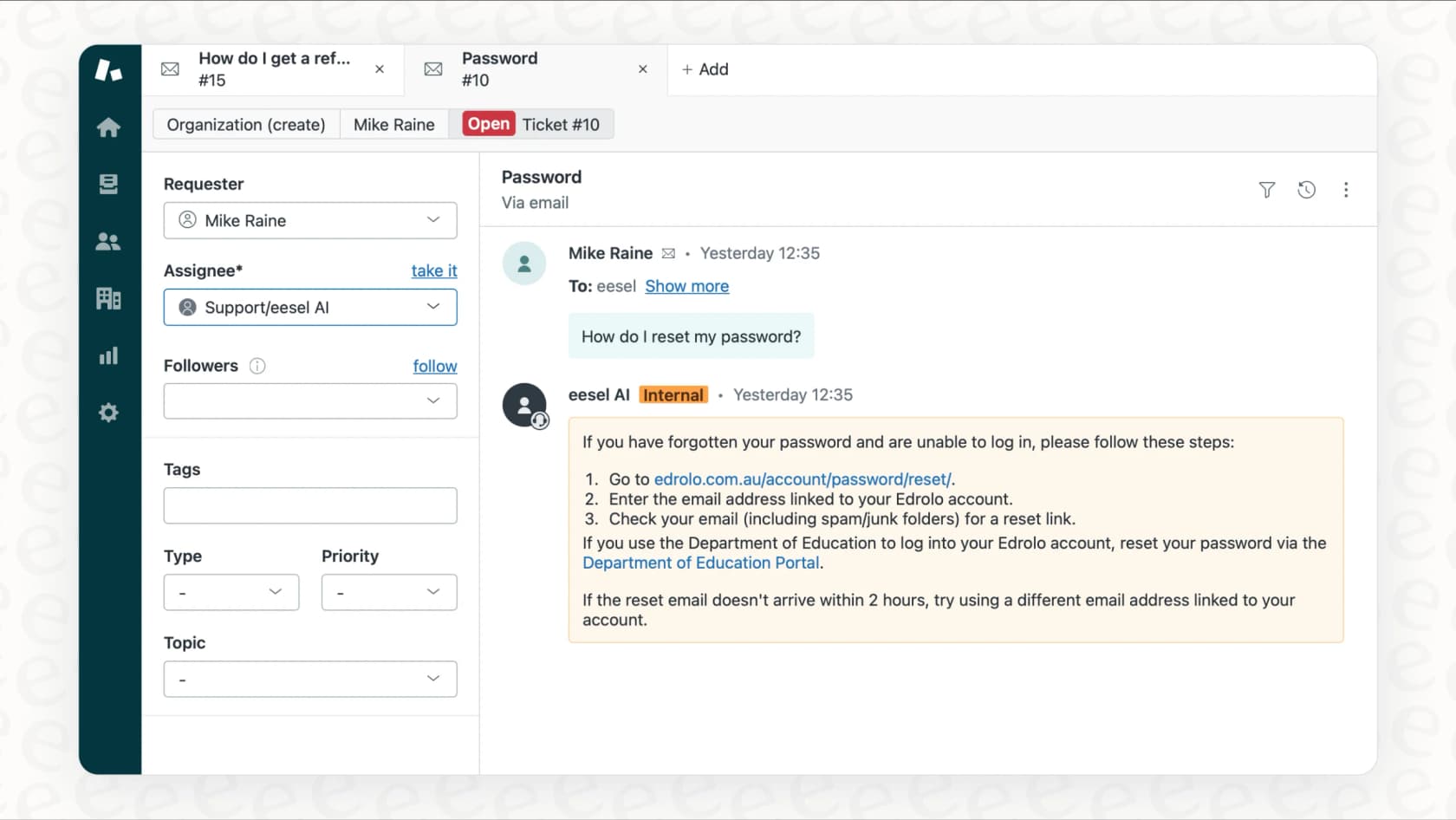
There's also a smarter layer you can add on top. Our AI Agent can detect spam patterns intelligently and handle tickets automatically, going beyond Zendesk's rule-based systems to catch subtle spam that slips through filters.
Method 1: Bulk marking spam via the Zendesk interface
For most spam situations, the native bulk action tools are the fastest path to a clean queue. Here's how to use them. See Zendesk's bulk management guide for additional details.
Prerequisites
Before you start, confirm you have the right permissions. On non-Enterprise plans, agents need access to all tickets plus permission to delete tickets in their profile settings. On Enterprise plans, your custom role must include permissions to delete users and delete tickets. Without these permissions, the "Mark as spam" option simply won't appear. See Zendesk's documentation on spam permissions for details.
Step-by-step process
Step 1: Navigate to the ticket view containing your spam tickets. This could be your default "All unsolved tickets" view or a custom view you've created to isolate suspicious tickets.
Step 2: Select the spam tickets using the checkboxes on the left side of the ticket list. You can select up to 100 tickets at a time. If your spam spans multiple pages, Zendesk allows cross-page selection, so you can grab tickets from several pages and batch them together.
Step 3: Click the bulk actions menu at the bottom of the ticket list and select "Mark as spam."
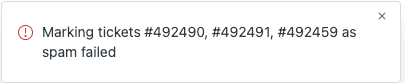
Step 4: Confirm the action when prompted. Once confirmed, the tickets are immediately deleted and the associated requesters are suspended.
What happens when you mark as spam
When you mark tickets as spam, two things happen immediately:
- The tickets are deleted and moved to the Deleted tickets view
- The requesters are suspended, preventing them from submitting future tickets or accessing your Help Center
Suspended users can still email you, but their tickets will land directly in the Suspended tickets queue rather than your main ticket views. This gives you a buffer to review anything that might have been caught by mistake.
Important caveat about external forms
Here's a critical detail that trips up many admins. If your spam tickets were created through submissions to an external contact form (one that forwards to Zendesk via email), don't use the "Mark as spam" option. Doing this flags your form submissions as spam rather than the person who filled them in. This can cause Zendesk to view your external form or even your email domain as spam, potentially blocking legitimate submissions.
For external form spam, use bulk delete instead, which removes the tickets without the spam classification.
Recovery options
Made a mistake? You have 30 days to recover deleted tickets. Navigate to the Deleted tickets view, find the ticket you need, and restore it. You'll also need to unsuspend the user if you want them to be able to submit tickets again.
Method 2: Using automations for large-scale cleanup
When you're staring down hundreds or thousands of spam tickets, manual bulk actions become impractical. Zendesk automations can handle this volume for you.
When to use automations
Automations are time-based rules that run hourly. They're perfect for:
- Cleaning up 1,000+ ticket spam attacks
- Ongoing spam management where new spam arrives regularly
- Situations where you need to close (rather than delete) tickets for reporting purposes
The trade-off is speed. Automations process up to 1,000 tickets per hour, so a 30,000-ticket spam attack will take a minimum of 30 hours to fully clear.
Setting up a spam cleanup automation
Step 1: Identify patterns in your spam. Look for common identifiers like:
- Specific keywords in the subject line or description
- Suspicious sender domains
- Ticket creation timeframe (if the attack happened within a specific window)
- Requester language or location patterns
Step 2: Create the automation. Go to Admin Center, then Objects and rules, then Business rules, then Automations. Click "Add automation." See Zendesk's automation guide for more details.
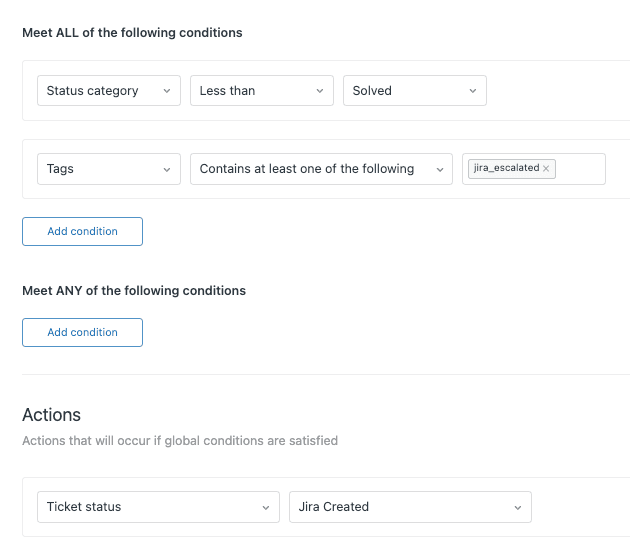
Step 3: Set your conditions. For example:
- Ticket: Status is New
- Ticket: Created is less than 2 days ago
- Ticket: Subject text contains "promotional" or "unsubscribe"
Step 4: Configure the actions. Common spam automation actions include:
- Add tag: "spam"
- Status: Closed
- (Optional) Priority: Low
Limitations to keep in mind
Automations have two important constraints:
- They cannot delete tickets, only close them. If you need tickets permanently removed, you'll need to use the API method or manual deletion.
- They cannot act on closed tickets. If tickets are already closed (not solved), automations won't touch them.
Using tags for reporting
One advantage of automations over bulk spam marking is the ability to tag tickets before closing them. This lets you filter spam out of your Explore reports or identify patterns for future prevention. If you have Explore Professional or higher, you can create custom reports that exclude tagged spam tickets from your metrics.
Method 3: API-based bulk deletion for massive attacks
When you're dealing with a 10,000+ ticket spam flood and need immediate cleanup, the API is your best option.
The mark as spam endpoint
Zendesk provides a specific endpoint for marking tickets as spam:
PUT /api/v2/tickets/{ticket.id}/mark_as_spam
This endpoint deletes the ticket and suspends the requester in a single call, identical to the UI action.
Basic approach
The typical workflow involves:
- Querying tickets that match your spam criteria (via the Search API)
- Iterating through the results
- Calling the mark_as_spam endpoint for each ticket ID
- Handling rate limits (Zendesk API has request limits per minute)
For permanent deletion without suspending users, you can use the bulk delete endpoint instead:
DELETE /api/v2/tickets/destroy_many.json?ids=1,2,3
Rate limiting considerations
Zendesk's API has rate limits that vary by plan. If you're processing thousands of tickets, you'll need to build in delays between requests or use a script that respects the retry-after headers. Otherwise, you'll hit limits and have to wait before continuing.
Third-party alternatives
If writing API scripts isn't your team's strength, several apps in the Zendesk Marketplace offer bulk deletion capabilities with user-friendly interfaces. These can be worth the cost for one-time cleanup of massive spam attacks.
Security notes
API-based deletion requires:
- An API token (created in Admin Center under Apps and integrations > APIs > Zendesk API)
- Proper authentication using your email address combined with the token
- Appropriate user permissions (same as UI bulk actions)
Store API tokens securely and rotate them regularly, especially if you're scripting bulk operations.
Understanding the suspended tickets queue
Zendesk's automatic spam filtering catches many spam attempts before they ever reach your ticket views. Understanding how this works can save you from unnecessary cleanup.
How automatic filtering works
When Zendesk receives an email that looks suspicious, it suspends the ticket rather than creating it normally. Suspicious signals include:
- Emails from known spam domains
- Messages with invalid "From" headers
- Automated replies like vacation notices
- Emails from "noreply" addresses
- Messages that fail SPF or DKIM checks
Accessing the suspended queue
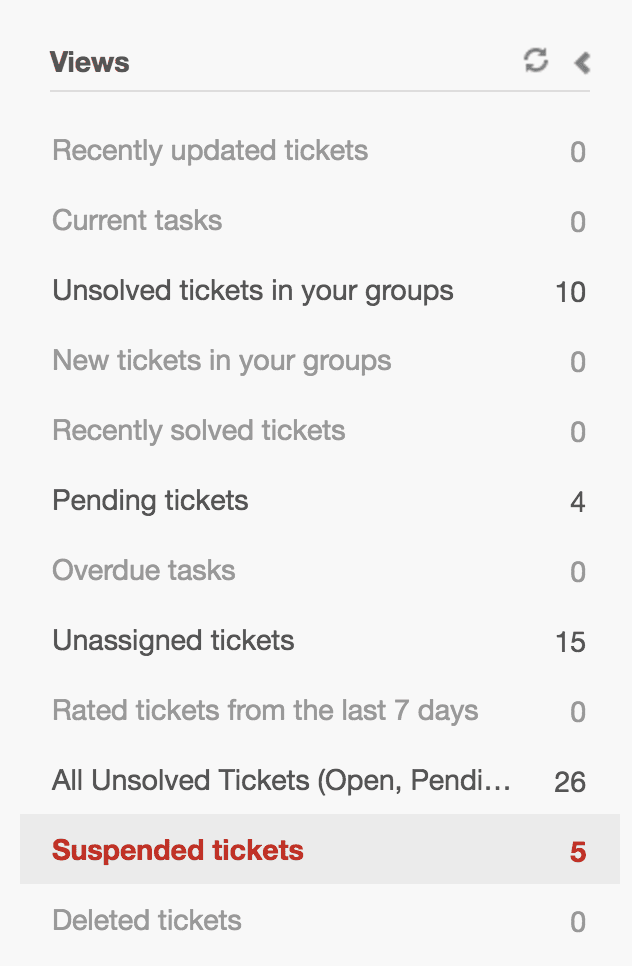
Navigate to the Admin Center, then Tickets, then Suspended tickets. Here you'll see everything Zendesk caught automatically. Learn more in Zendesk's guide to suspended tickets.
Reviewing and recovering false positives
Not everything in the suspended queue is spam. Legitimate emails can end up there due to technical issues (like misconfigured SPF records) or unusual formatting.
Review the suspended queue regularly. For each ticket, you can:
- Delete to permanently remove it
- Not spam to release it into your normal ticket queue
- Suspend user to block the sender and delete all their tickets
Bulk actions in suspended queue
The suspended queue supports bulk actions too. You can select multiple tickets and delete them all at once, or click "Delete all spam now" to clear the entire queue in one action.
30-day auto-deletion
Like deleted tickets, suspended tickets are automatically purged after 30 days. If you don't take action, they'll disappear on their own. This is convenient for obvious spam but means you should check the queue at least weekly to catch any false positives before they're gone.
Preventing spam before it hits your queue
Cleanup is reactive. Prevention is better. Here are strategies to stop spam from reaching your agents in the first place.
Trigger-based auto-marking
For spam that follows predictable patterns, you can create triggers that mark tickets as spam automatically using webhooks. This requires some setup:
- Create a webhook that calls the mark_as_spam API endpoint
- Build a trigger that fires when spam patterns are detected
- The trigger notifies the webhook, which marks the ticket as spam immediately
Unlike automations, triggers fire instantly when tickets are created. This means spam gets handled in seconds rather than waiting for the next automation run.
For a detailed walkthrough of this setup, see our guide on how to auto close spam tickets in Zendesk with triggers.
Help Center spam filter
If you have a Zendesk Help Center with community features, spam can appear in posts and comments too. Zendesk's spam filter is enabled by default and cannot be disabled. It learns from what you manually mark as spam, getting better over time.
You can subscribe to spam queue notifications (checked every two hours) so you're alerted when content needs review.
CAPTCHA on web forms
Most spam comes through web forms. Adding CAPTCHA to your Zendesk contact forms blocks the majority of bot submissions. Zendesk supports reCAPTCHA v2 and v3.
Email authentication
Configure SPF, DKIM, and DMARC records for your email domain. These authentication methods help Zendesk identify spoofed emails and can reduce spam that impersonates legitimate senders. See Zendesk's email authentication guide for setup instructions.
Remove dangerous placeholders
Check your trigger notifications for placeholders like {{ticket.title}} or {{ticket.description}}. Spammers can exploit these to send content to third parties through your Zendesk instance. Remove these placeholders from any trigger that sends notifications outside your organization.
Domain restrictions
If your support is internal or limited to specific customers, consider restricting ticket creation to allowed email domains. This blocks spam from random addresses entirely.
Intelligent spam detection with AI
Rule-based filters catch obvious spam but struggle with sophisticated attacks that mimic legitimate inquiries. This is where AI-powered detection shines.
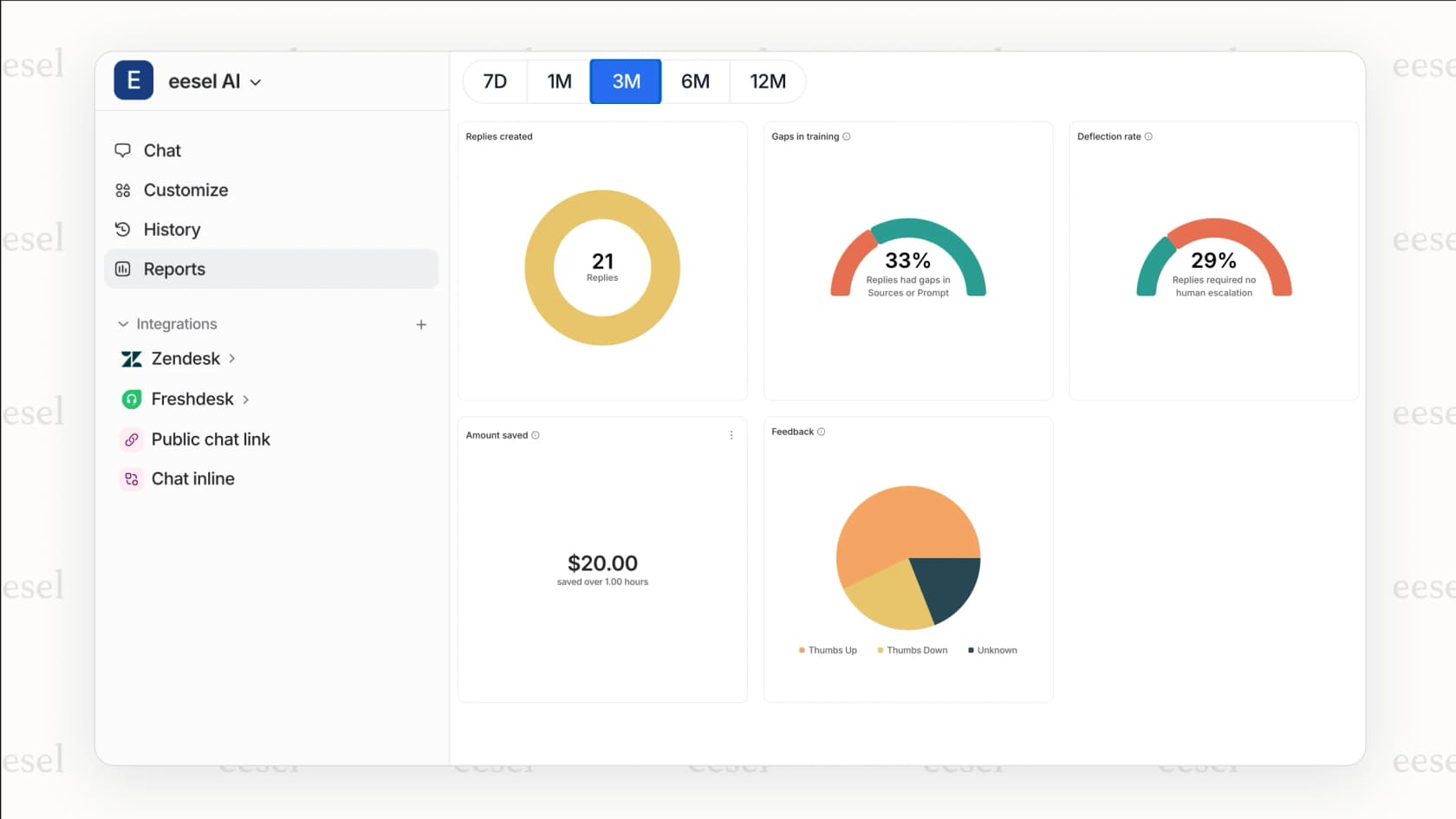
Our AI Agent integrates directly with Zendesk and learns from your past tickets to identify spam patterns that rules miss. It can detect subtle signals like unusual phrasing, suspicious links, or context that doesn't match your typical customer base. Unlike static rules, it adapts as spammers change tactics.
Choosing the right approach for your situation
With multiple methods available, here's a quick decision framework:
| Situation | Recommended Method | Why |
|---|---|---|
| Under 100 spam tickets | Manual bulk marking | Fastest, no setup required |
| 100-1,000 tickets | Automations | Handles volume without constant attention |
| 1,000+ tickets | API or third-party tools | Only way to delete at scale quickly |
| Ongoing spam problem | Triggers + AI | Automated prevention beats repeated cleanup |
Consider your technical resources too. Manual methods require time but no technical skills. API solutions require scripting knowledge or developer resources. Automations sit in the middle, accessible to most admins but limited in speed.
Stop spam from slowing down your support team
Spam is inevitable if you run a public support channel. The question isn't whether you'll face it, but how quickly you can respond when it happens.
Zendesk gives you the tools to handle spam at any scale. For small attacks, bulk marking in the UI gets you back to normal in minutes. For larger floods, automations and API solutions clear the backlog systematically. And with proper prevention (triggers, CAPTCHA, email authentication), you can stop most spam before it ever reaches your agents.
The key is having a plan before you need it. Know which method you'll use based on attack size. Document your spam response process. And consider layering in intelligent detection that goes beyond rules to catch the sophisticated spam that filters miss.
If you're looking for a smarter approach to spam management, our AI Agent works alongside Zendesk to detect, categorize, and handle spam automatically. It learns from your specific ticket patterns, so it gets better at identifying what spam looks like for your business over time. Less manual cleanup. More time for real customers.