
If you're a Zendesk admin, you've probably dealt with the sinking feeling of opening your support queue to find hundreds of spam tickets. Maybe they're flooding in from a web form exploit, or perhaps someone is using your Zendesk instance to send spam to third parties. Either way, your agents are drowning in garbage while real customer issues go unanswered.
The good news? You can automate most of this problem away. This guide walks you through setting up Zendesk triggers and automations to automatically detect, mark, and close spam tickets. You'll learn native spam handling, webhook-based automation, and how AI can help where rules fall short.
Setting up a trigger to automatically mark tickets as spam
Triggers are your first line of defense. Unlike automations (which run hourly), triggers fire immediately when a ticket is created or updated. This means spam gets handled in seconds, not minutes.
To automatically mark tickets as spam, you'll need to combine a trigger with a webhook that calls Zendesk's spam API. Here's how to set it up.
Step 1: Create a webhook for the spam API
First, you need a webhook that can call Zendesk's mark_as_spam endpoint.
Navigate to Admin Center > Apps and integrations > Webhooks. Click Create webhook and select Trigger or Automation as the connection method.
Configure the webhook with these settings:
- Name: Spam Marking Webhook (or something descriptive)
- Endpoint URL:
https://yoursubdomain.zendesk.com/api/v2/tickets/{{ticket.id}}/mark_as_spam - Request method: PUT
- Request format: JSON
- Authentication: Basic authentication
For basic authentication, use your Zendesk email address followed by /token as the username (for example, admin@yourcompany.com/token). Use your Zendesk API token as the password. If you don't have an API token, you can generate one in Admin Center under Apps and integrations > APIs > Zendesk API.
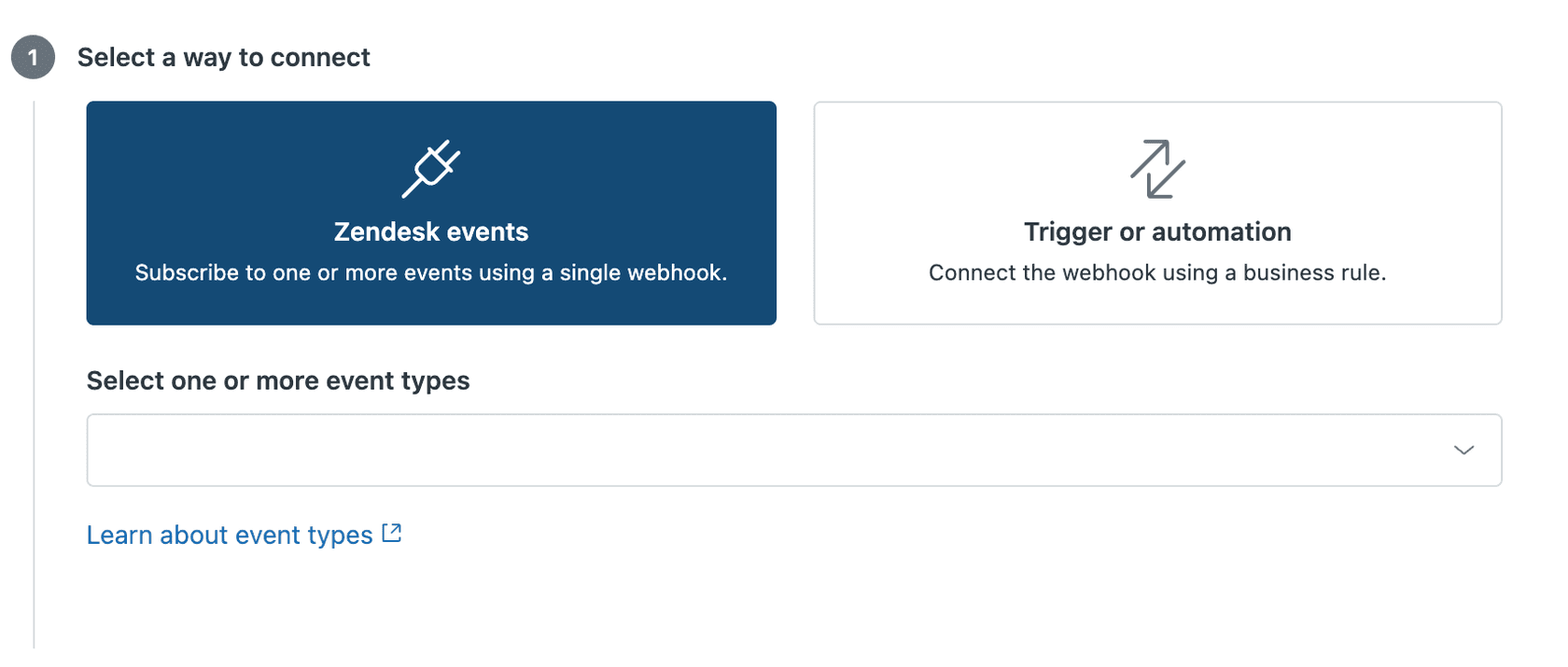
Click Create webhook to save it. You'll connect it to a trigger in the next step.
Step 2: Define spam identification conditions
Now you need a trigger that identifies spam tickets and calls your webhook. The key is finding patterns that reliably identify spam without catching legitimate tickets.
Common identifiers include:
- Organization domains: If spammers use emails from specific domains (like qq.com), you can flag those
- Subject line patterns: Spam often contains distinctive phrases or character patterns
- Description keywords: Certain strings appear frequently in spam content
- Ticket channel: Web form submissions from specific countries or IP ranges
Go to Admin Center > Objects and rules > Business rules > Triggers and click Create trigger.
Set your conditions like this:
Meet ALL of these conditions:
- Ticket > Is > Created
Meet ANY of these conditions:
- Organization > Is > [spam organization you've identified]
- Subject text > Contains the following string > [common spam phrase]
- Description > Contains the following string > [spam keyword]
The "Meet ANY" logic means the trigger fires if any of your spam identifiers match. This lets you catch different types of spam with a single trigger.

Step 3: Configure the trigger actions
Under Perform these actions, add:
- Notifications: Notify webhook > Select your Spam Marking Webhook
- Leave the JSON body empty or use
{}
Here's the important part: trigger order matters. Go to your Triggers list and drag this spam trigger to the top, before any assignment or notification triggers. This prevents spam tickets from briefly appearing in agent views before being marked.
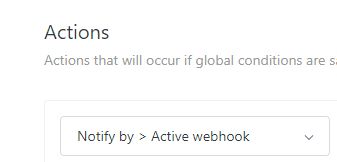
Test your trigger by creating a test ticket that matches your conditions. Check the webhook's Activity tab in Admin Center to see if it ran successfully. You should see a "Success: 200 OK" status for each spam ticket processed.
One limitation to keep in mind: this approach requires you to identify spam patterns manually. When spammers change tactics (and they will), you need to update your trigger conditions. It's a bit of cat and mouse.
Using automations for bulk spam cleanup
Triggers handle new tickets immediately. Automations handle time-based workflows, which makes them useful for cleaning up spam that slipped through or dealing with backlogs.
The key difference: triggers are event-driven (ticket created/updated), while automations are time-based (run every hour). Automations are perfect for closing spam tickets that have been sitting in your queue.
Here's how to set up an automation for bulk spam cleanup:
Go to Admin Center > Objects and rules > Business rules > Automations and click Create automation.
Meet ALL of these conditions:
- Ticket: Hours since created > Greater than > 1
- Ticket: Status category > Less than > Solved
- Ticket: Description > Contains the following string > [spam identifier]
Perform these actions:
- Ticket: Add tags > spam_cleanup
- Ticket: Status category > Closed
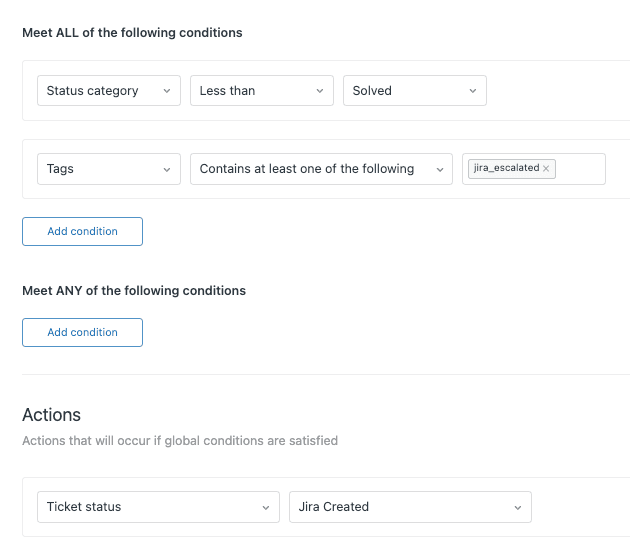
The "Hours since created" condition ensures the automation doesn't interfere with legitimate tickets that are still being processed. The status condition ensures you only act on open tickets.
Important limitations to know:
- Automations run hourly, not immediately
- Each automation can process maximum 1,000 tickets per hour
- If you have 5,000 spam tickets, it will take at least 5 hours to process them all
- Automations cannot act on closed tickets
For large spam backlogs, you might need to run the automation multiple times or use the API for faster bulk deletion.
Prevention strategies to stop spam before it starts
Automation handles spam after it arrives. Prevention stops it from arriving in the first place. Here are the most effective prevention measures.
CAPTCHA on web forms. If you're getting spam through your contact form, add CAPTCHA verification. Zendesk supports reCAPTCHA on web forms, which blocks most automated spam submissions.
Email verification requirements. Require users to verify their email address before they can submit tickets. This adds friction for legitimate users but stops most spam campaigns cold. Go to Admin Center > People > Configuration > End users to enable this.
Domain restrictions. If your support is only for customers from specific organizations, limit ticket submission to allowed email domains. This prevents attackers from using random victim email addresses.
Remove dangerous placeholders from auto-replies. A common spam technique involves submitting tickets with spam content in the subject or description, then relying on your auto-reply trigger to forward that content to victims. Remove {{ticket.title}} and {{ticket.description}} placeholders from your "Notify requester of received request" trigger.
DMARC/SPF/DKIM authentication. Enable these email authentication methods to reduce spoofed emails entering your system. They add a layer of verification that catches many spam attempts.
Rate limiting. Work with your web developer to add rate limiting on ticket submission forms. This prevents attackers from submitting hundreds of tickets per minute.
Going further: AI-powered spam detection with eesel AI
Rule-based triggers work well when spam follows predictable patterns. But spammers adapt. When they change tactics, your carefully crafted triggers stop working until you manually update them.
This is where AI changes the game.
At eesel AI, we approach spam detection differently. Instead of relying on keywords and patterns, our AI agent for Zendesk understands context and intent. It can distinguish between a legitimate customer asking about "free shipping" and a spammer promoting "free money" even when both messages contain the word "free."
Here's how it works. Our AI learns from your past tickets, understanding what normal customer conversations look like for your business. When a new ticket arrives, it analyzes the content, tone, and context. Suspicious tickets get flagged for review or handled automatically based on your confidence thresholds.
The advantage is continuous learning. When you correct the AI's decisions (accepting a false positive or marking a missed spam), it incorporates that feedback immediately. No trigger updates required.
You can start conservatively. Have eesel AI tag suspected spam tickets rather than auto-marking them. Review the tags for a week to build confidence. Once you're satisfied with accuracy, escalate to automatic handling.
For teams drowning in spam, this shifts the work from manual rule maintenance to occasional AI supervision. You spend less time playing defense and more time on actual customer support.
Best practices and monitoring
Automation is powerful but requires oversight. Here are practices that keep your spam handling effective without creating new problems.
Review suspended tickets weekly. Even with automation, check your suspended tickets view regularly. Look for false positives (legitimate emails caught by filters) and adjust your rules accordingly.
Document your spam patterns. Keep a running list of the spam identifiers you're tracking. When new patterns emerge, add them systematically rather than making one-off trigger updates.
Monitor webhook success rates. In Admin Center, check your webhook's Activity tab weekly. Failed webhooks mean spam isn't getting handled. Common causes include expired API tokens or rate limiting.
Create views for spam tracking. Build custom views that show:
- Tickets tagged with spam identifiers
- Suspended tickets by domain
- Tickets created by new users (potential spam accounts)
Set up volume alerts. Sudden spikes in ticket volume often indicate spam attacks. Use Zendesk's reporting or third-party monitoring to alert you when daily ticket counts exceed normal thresholds by 50% or more.
Quarterly rule review. Every three months, audit your spam triggers and automations. Remove rules for spam patterns that no longer appear. Consolidate overlapping conditions. Test that everything still works as expected.
Start automating your Zendesk spam management today
Spam tickets waste agent time, delay real customer responses, and create security risks when your system is used to send unwanted emails. The combination of Zendesk's native spam handling, custom triggers with webhooks, and time-based automations gives you a solid defense.
Start with the basics: understand how suspended tickets work, then build a trigger that marks obvious spam automatically. Add automations for bulk cleanup of backlogs. Layer on prevention measures like CAPTCHA and email verification to reduce incoming spam.
If you're still spending significant time managing spam rules or dealing with sophisticated spam campaigns that bypass keyword detection, consider AI-powered alternatives. We built eesel AI to handle exactly this kind of problem: routine, pattern-based work that doesn't require human judgment but consumes human attention.
The goal isn't perfect spam blocking (that doesn't exist). It's reducing spam handling from a daily chore to an occasional review. Get your automation in place, monitor it regularly, and reclaim those hours for actual customer support.