How to use Zendesk trigger action to notify user groups

Stevia Putri
Last edited February 24, 2026
Support tickets have a way of slipping through the cracks. A customer submits an urgent request, it lands in your Zendesk queue, and then... silence. Nobody on the team knows it's there until someone happens to check their views. By then, your response time metrics have taken a hit and the customer is already frustrated.
This is where Zendesk's trigger action to notify user groups comes in. Triggers are automated business rules that fire when specific conditions are met. Think of them as your safety net, catching new tickets and immediately notifying the right people so nothing gets missed.
In this guide, I'll walk you through setting up a Zendesk trigger to notify groups when new tickets arrive. We'll cover the default "Notify group of assignment" trigger, how to customize it for your workflow, and some common pitfalls to avoid. I'll also share how teams are moving beyond rigid trigger logic to AI-powered routing that learns from their actual ticket patterns.
What you'll need before you start
Before we dive in, make sure you've got the following in place:
- A Zendesk Support account on Team plan or higher (triggers are available on all paid plans)
- Administrator access to create and modify triggers
- Groups already configured in your Zendesk (Admin Center > People > Groups)
- A clear understanding of how tickets should flow through your team
If you haven't set up groups yet, do that first. Groups are the foundation of trigger-based notifications. Without them, there's nobody to notify.
If your trigger setup's getting unwieldy, there's another path. We offer an AI-powered alternative that learns your routing patterns from historical tickets, eliminating the need for complex condition chains. But let's start with the fundamentals.

Understanding the Zendesk trigger action notification user group feature
Let's start with the basics. A trigger in Zendesk is a set of conditions and actions. When a ticket meets all the conditions, the trigger fires and performs the actions. It's simple if-then logic: if the ticket is created and assigned to the Billing group, then email everyone in that group.
Groups are collections of agents organized by function. You might have a Support group for general inquiries, a Billing group for payment issues, and a Technical group for bugs and feature requests. When a ticket arrives, Zendesk routes it to the appropriate group based on your triggers.
Zendesk comes with a set of standard triggers pre-configured in every account. One of these is the "Notify group of assignment" trigger. It fires when a ticket is assigned to a group but not yet assigned to an individual agent. This is the trigger we'll be working with.
The key difference between the default trigger and custom triggers is control. The default trigger is a one-size-fits-all solution. Custom triggers let you add conditions like "only notify if the ticket is urgent" or "do not notify the Billing group on weekends."
Step-by-step: Setting up a basic group notification trigger
Step 1: Access the triggers admin page
To get started, you need to navigate to the triggers section in Zendesk's Admin Center.
- Click the gear icon in the left sidebar to open Admin Center
- Expand Objects and rules in the sidebar menu
- Select Business rules > Triggers
- Click the Tickets tab to see all ticket triggers
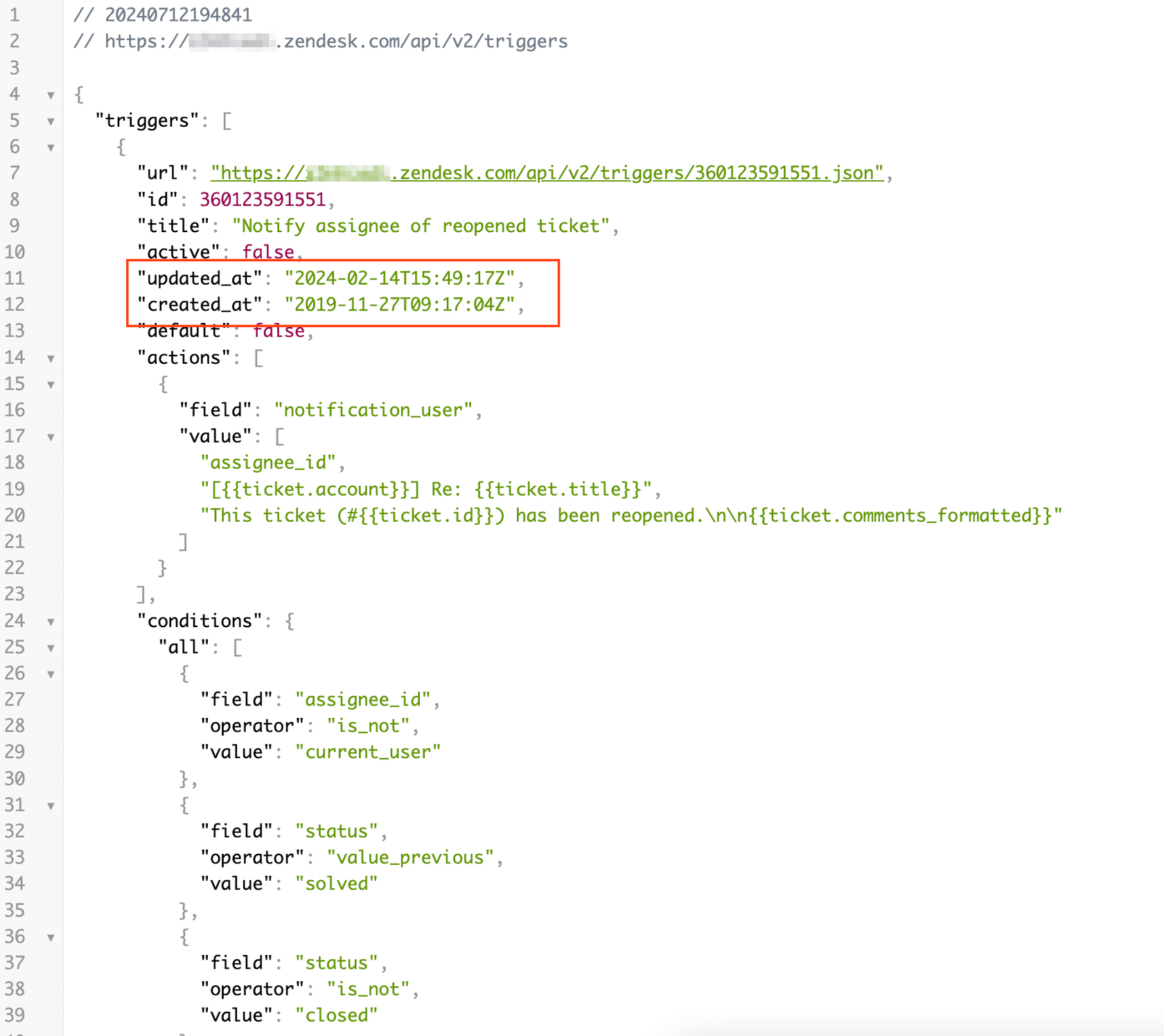
You'll see a list of all triggers in your account, including the standard ones that came pre-configured. Triggers run in the order they appear in this list, from top to bottom. This order matters because one trigger can change a ticket in a way that causes another trigger to fire.

Step 2: Create a new trigger (or clone an existing one)
Scroll through the trigger list until you find "Notify group of assignment." This is one of Zendesk's standard triggers that ships with every account. Click on it to view the current configuration.
You'll see two main sections: conditions and actions. The conditions determine when the trigger fires. The actions determine what happens when it does.
The default conditions are:
- Ticket > Group: Is not "-" (the ticket has a group assigned)
- Ticket > Assignee: Is "-" (no individual agent is assigned yet)
- And either: Ticket > Group: Changed OR Ticket > Assignee: Changed
This means the trigger fires when a ticket gets assigned to a group but hasn't been claimed by a specific agent yet. The "Changed" conditions ensure it fires both when a new ticket's created with a group assignment and when an existing ticket's reassigned.
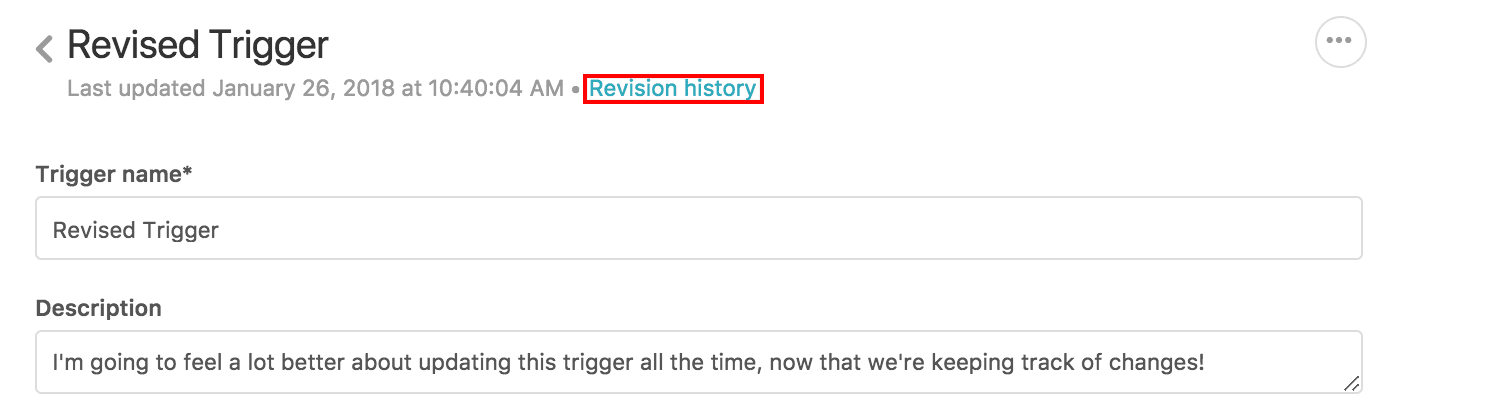
Best practice: Don't edit the default trigger directly. Instead, clone it and modify the copy. This gives you a fallback if something goes wrong. To clone, click the three dots next to the trigger name and select "Clone." Learn more about how Zendesk triggers work.
Step 3: Configure trigger conditions
Now let's look at how to customize the conditions for your specific workflow.
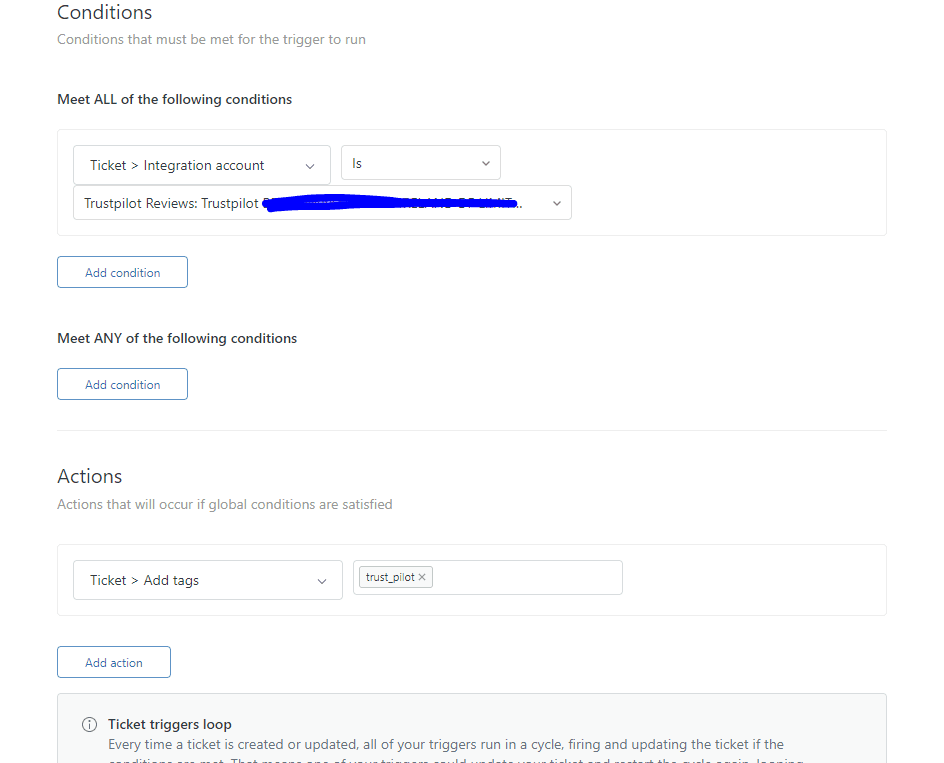
Meet ALL of these conditions
These conditions must all be true for the trigger to fire:
- Ticket > Group: Is not "-" - This ensures the ticket actually has a group assigned. The "-" value means unassigned.
- Ticket > Assignee: Is "-" - This ensures no individual agent has claimed the ticket yet. You don't want to notify the group if someone has already taken ownership.
Meet ANY of these conditions
At least one of these must be true:
- Ticket > Group: Changed - The group assignment changed in this update
- Ticket > Assignee: Changed - The assignee changed (for example, from unassigned to assigned, or vice versa)
These "ANY" conditions matter because they catch both scenarios: a brand new ticket's being created with a group assignment, and an existing ticket's being reassigned to a different group.
Optional conditions to add
Depending on your workflow, you might want to add these conditions:
- Ticket > Status category: Is not Solved - Don't notify groups about solved tickets that get reopened and immediately reassigned
- Ticket > Current user: Is (end user) - Only notify when customers create tickets, not when agents create internal tickets
- Ticket > Tags: Contains none of the following: auto_reply - Skip notifications for tickets that received an automated response
To add a condition, click "Add condition" under the appropriate section (ALL or ANY), then select the field, operator, and value from the dropdown menus.
Step 4: Set up the notification action
Once your conditions are configured, you need to define what happens when the trigger fires.
The default action is:
- Notify by > Group email > (assigned group)
This sends an email to every agent in the group that the ticket was assigned to. The email uses a template that includes key ticket information.
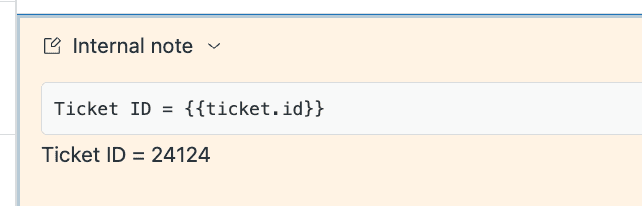
You can customize the email content by editing the subject and body fields. Zendesk uses placeholders (also called Liquid markup) to insert dynamic ticket data.
Common placeholders you'll want to use:
{{ticket.id}}- The ticket number{{ticket.title}}- The subject line{{ticket.description}}- The customer's initial message{{ticket.url}}- A direct link to the ticket{{ticket.group.name}}- The name of the assigned group{{ticket.priority}}- The ticket priority level
A simple but effective email template might look like this:
Subject: New ticket #{{ticket.id}} assigned to {{ticket.group.name}}: {{ticket.title}}
Body: A new ticket has been assigned to your group.
Ticket: #{{ticket.id}} - {{ticket.title}} Priority: {{ticket.priority}} Requester: {{ticket.requester.name}}
{{ticket.description}}
Step 5: Save and test your trigger
The final step is to save your trigger and test it thoroughly before relying on it in production.
Zendesk offers a sandbox environment where you can test triggers without affecting live tickets. Alternatively, you can create test tickets and verify that:
- The right people receive notifications
- The email content looks correct
- You haven't created any notification loops (where triggers keep firing each other indefinitely)
Use the "Preview" feature on a specific ticket to see which conditions match and which don't. This helps you debug if the trigger isn't firing as expected.
Common use cases for Zendesk trigger action notification user groups
The default trigger is a good starting point, but most teams need more nuanced routing. Here are four common scenarios and how to configure them.
Use case 1: New ticket alerts for support teams
The most basic use case: notify a group whenever a new ticket lands in their queue.
Conditions:
- Meet ALL: Ticket > Ticket: Is Created
- Meet ALL: Ticket > Group: Is not "-"
- Meet ALL: Ticket > Assignee: Is "-"
Actions:
- Notify by > Group email: (assigned group)
This ensures every new ticket triggers an immediate email to the assigned group. No more tickets sitting unnoticed in the queue.
Use case 2: VIP customer routing
For your high-value customers, you want tickets to skip the general queue and go directly to your Premium Support group.
First, make sure your VIP customers have an organization tag called "vip." Then create this trigger:
Conditions:
- Meet ALL: Organization > Tags: Contains at least one of the following: vip
- Meet ALL: Ticket > Group: Is not "-"
- Meet ALL: Ticket > Assignee: Is "-"
- Meet ANY: Ticket > Ticket: Is Created
Actions:
- Ticket > Group: Premium Support
- Ticket > Priority: High
- Notify by > Group email: (assigned group)
For more details on this setup, check out our guide to Zendesk trigger notifications.
Use case 3: After-hours urgent ticket escalation
For urgent issues that come in outside business hours, you want to notify your on-call team immediately.
Conditions:
- Meet ALL: Ticket > Within business hours?: Is No
- Meet ALL: Ticket > Priority: Is Urgent
- Meet ALL: Ticket > Ticket: Is Created
Actions:
- Ticket > Group: On-Call Team
- Notify by > Group email: (assigned group)
Note: The "Within business hours" condition requires you to have business hours configured in Zendesk (Admin Center > Account > Business hours).
Use case 4: Category-based routing
Route tickets based on their content or the form the customer used.
Conditions:
- Meet ALL: Ticket > Subject text: Contains at least one of the following: refund billing invoice
- Meet ALL: Ticket > Group: Is not "-"
- Meet ALL: Ticket > Assignee: Is "-"
- Meet ANY: Ticket > Group: Changed OR Ticket > Assignee: Changed
Actions:
- Ticket > Group: Finance Team
- Notify by > Group email: (assigned group)
Best practices for group notification triggers
After setting up dozens of trigger configurations for various teams, I've learned a few lessons about what works and what doesn't.
One trigger does one job. Don't bundle multiple actions into a single trigger. If you need to set the priority, assign the group, and send a notification, use three separate triggers. This makes troubleshooting much easier and prevents unintended side effects.
Order matters. Arrange your triggers in the order they should run: categorization first (set priority, add tags), then routing (assign to groups), then notifications last. This ensures the ticket has all its properties set before anyone gets alerted.
Use tags to prevent loops. Add a tag like "group_notified" in your trigger action, then add a condition "Tags: Contains none of the following: group_notified" to prevent the trigger from firing again on the same ticket.
Document your logic. Keep a shared document that explains what each trigger does and why it exists. Future you (and your teammates) will thank you when you need to troubleshoot six months later.
Test before going live. Use Zendesk's sandbox environment or create test tickets to verify your triggers work as expected. Check that the right people get notified and that you haven't created any notification loops.
Know when to use automations instead. Triggers fire immediately when tickets are created or updated. Automations run on a schedule (usually hourly) based on time-based conditions. For new ticket notifications, use triggers. For reminders about tickets that have been sitting unassigned for hours, use automations.
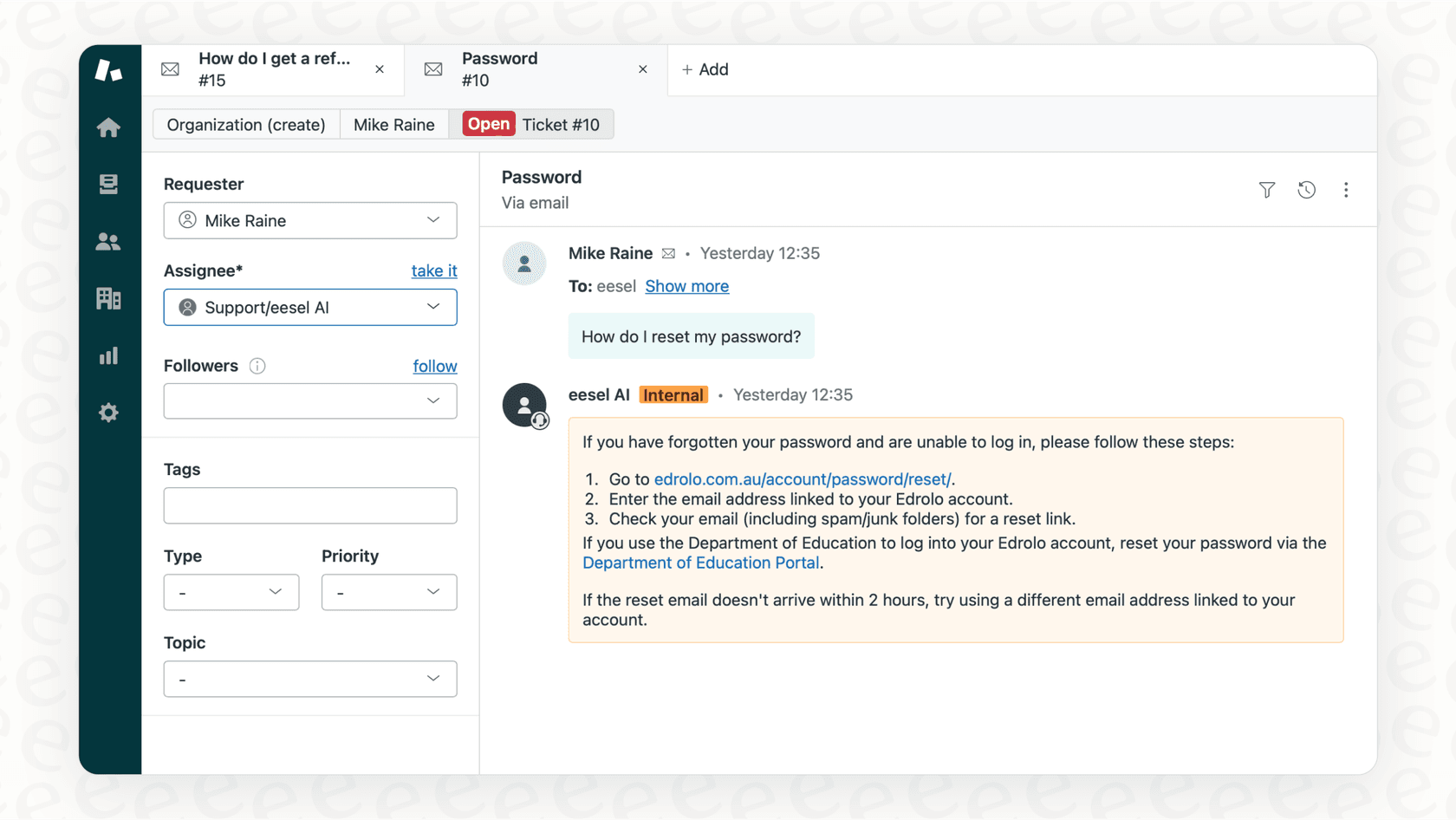
If you're drowning in trigger complexity, our AI Triage product offers an alternative. Instead of maintaining dozens of triggers with complex condition chains, you can use plain English instructions that the AI learns from over time.
Troubleshooting common issues
Even with the right configuration, triggers sometimes don't work as expected. Here's how to diagnose and fix common problems.
Issue 1: Trigger not firing
If your trigger isn't firing when you expect it to:
- Check the trigger order. Triggers run from top to bottom. If another trigger higher in the list changes the ticket in a way that prevents your conditions from being met, your trigger won't fire. Try moving your trigger higher in the list.
- Verify all conditions are met. Use the "Preview" feature on a specific ticket to see which conditions match and which don't.
- Check for deactivated triggers. It's easy to accidentally deactivate a trigger while testing. Look for the "Inactive" label next to the trigger name.
Issue 2: Duplicate notifications
If agents are getting multiple emails for the same ticket:
- Understand suppression rules. Zendesk has built-in logic to prevent duplicate notifications. If an agent is both the assignee and a group member, they won't get the group email if they already got the assignee notification.
- Check for overlapping triggers. If you have multiple triggers with similar conditions, they might all be firing. Review your trigger list and consolidate where possible.
- Use tags to prevent loops. Add a tag like "group_notified" in your trigger action, then add a condition that checks the tag doesn't already exist before firing.
Issue 3: Notifications going to spam
If group members report that notification emails are landing in spam folders:
- Review your email content. Avoid spam trigger words like "urgent," "act now," or excessive exclamation points in your email templates.
- Check your SPF and DKIM records. These DNS records authenticate your emails and improve deliverability. Zendesk provides SPF and DKIM setup instructions in their email configuration documentation.
- Ask agents to whitelist the sender. The notifications come from your Zendesk support email address. Have agents add this address to their contacts or safe sender list.
Issue 4: Wrong group getting notified
If notifications are going to groups you didn't expect:
- Verify group assignment logic in preceding triggers. Remember, triggers run in order. A trigger earlier in the list might be changing the group assignment before your notification trigger runs.
- Check if multiple triggers are modifying group assignment. Review all triggers that set the Group field to ensure they're not conflicting.
When to consider alternatives to Zendesk triggers
Triggers work well for straightforward routing rules, but they've got limitations. Every condition has to be explicitly defined. If you want to route based on the actual content and intent of the ticket, you'll quickly end up with dozens of triggers, each with long lists of keywords and exceptions.
Signs you've outgrown triggers:
- You're managing 20+ triggers with increasingly complex condition logic
- You need to update triggers weekly as new edge cases emerge
- Your routing depends on nuanced ticket content that keyword matching can't capture
- Agents spend significant time reassigning tickets that triggers routed incorrectly
Alternative approaches:
Slack integration - For broader team notifications beyond just Zendesk users. The Slack for Zendesk integration (available in the Zendesk Marketplace) lets you send notices to channels.
Webhooks - For notifying external systems when ticket events occur. Useful when you need to update records in other tools or notify stakeholders who don't have Zendesk access.
AI-powered routing - This is where we come in. With eesel AI, you connect your Zendesk account and our AI immediately analyzes your past tickets, help center articles, and agent responses. It learns which types of tickets go to which groups, what language indicates urgency, and how your team typically handles different scenarios.

Instead of triggers with dozens of conditions, you give eesel AI simple instructions in plain English:
- "Route billing questions to the Finance team, but escalate anything mentioning 'fraud' to the Security group"
- "VIP customer tickets should skip the queue and go to Premium Support"
- "Technical questions about the API go to the Developer Relations team"
We handle the rest. The AI reads each incoming ticket, understands the intent, and routes it to the right group. No complex trigger chains, no maintenance of keyword lists, and no debugging when conditions conflict.
The AI also improves over time. When you correct a routing decision, eesel AI learns from that feedback. With traditional triggers, you'd need to manually add new conditions every time you discover an edge case.
You can integrate eesel AI with your Zendesk account in minutes and start routing tickets more intelligently.
Get started with smarter ticket notifications
Setting up Zendesk triggers to notify groups on new tickets is a fundamental step in building an efficient support workflow. The default "Notify group of assignment" trigger gives you a good starting point, and custom triggers let you handle more complex routing scenarios.
The key is to start simple and add complexity only when you need it. Begin with the default trigger, test it with your team, and then layer on custom triggers for specific use cases like VIP routing or after-hours escalations.
If you find yourself managing dozens of triggers with increasingly complex condition logic, it might be time to consider an AI-powered alternative. Tools like eesel AI can handle the nuanced decision-making that triggers struggle with, learning from your team's patterns rather than requiring explicit rules for every scenario.
Whichever approach you choose, the goal's the same: make sure the right people know about new tickets immediately, so your customers get faster responses and your team stays organized.
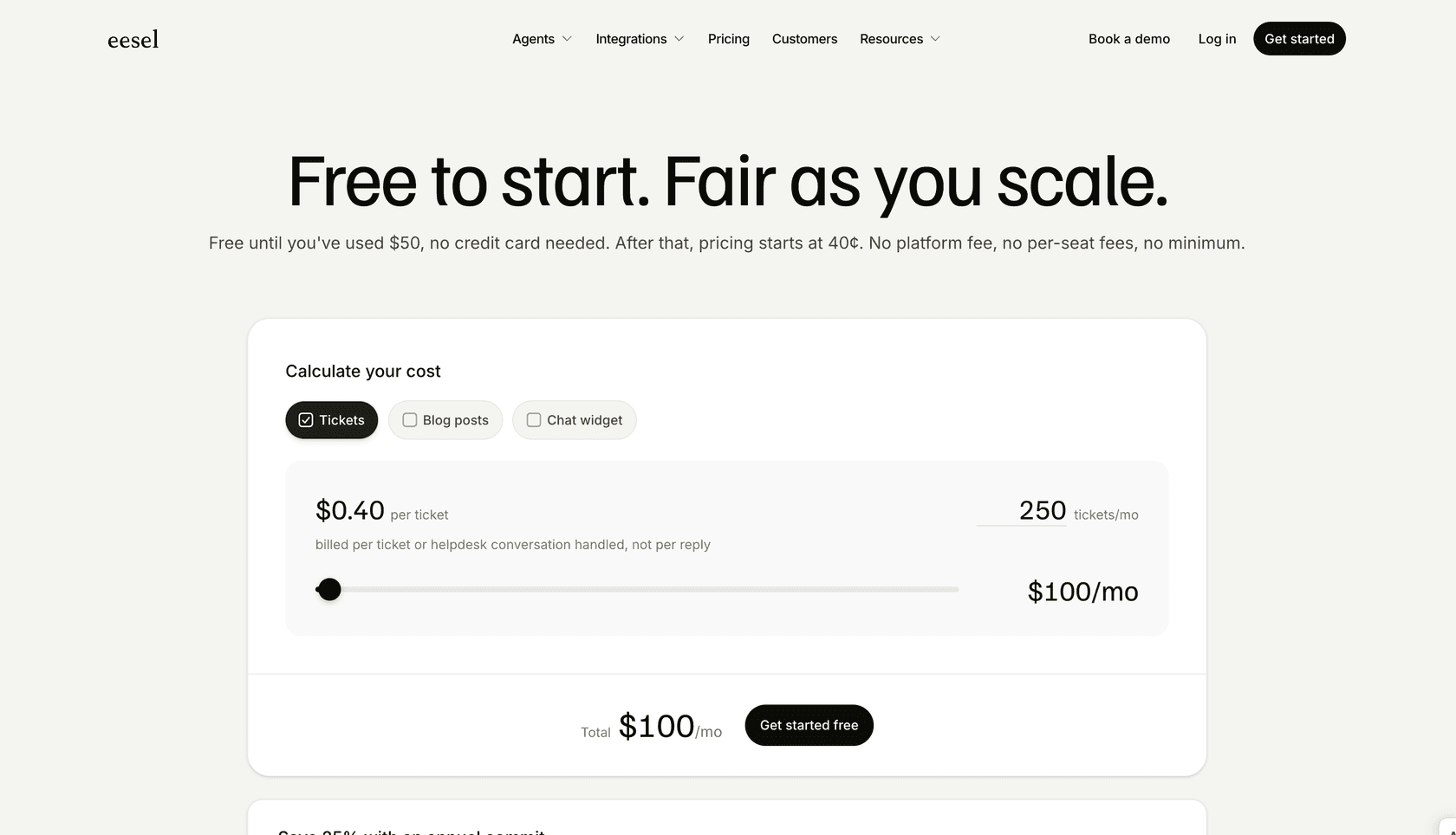
Ready to explore AI-powered ticket routing? Check out our pricing and see how it compares to managing complex trigger chains in Zendesk.

Frequently Asked Questions
Share this article

Article by
Stevia Putri
Stevia Putri is a marketing generalist at eesel AI, where she helps turn powerful AI tools into stories that resonate. She’s driven by curiosity, clarity, and the human side of technology.